
01Who this is for
- Marketing managers who oversee multiple business lines can choose the correct sender to match each campaign.
- Customer support teams with contacts that have several phone numbers can direct replies to the appropriate line.
- Sales reps using shared subaccount can ensure the SMS appears from the individual’s assigned number.
02SMS to and from numbers, explained
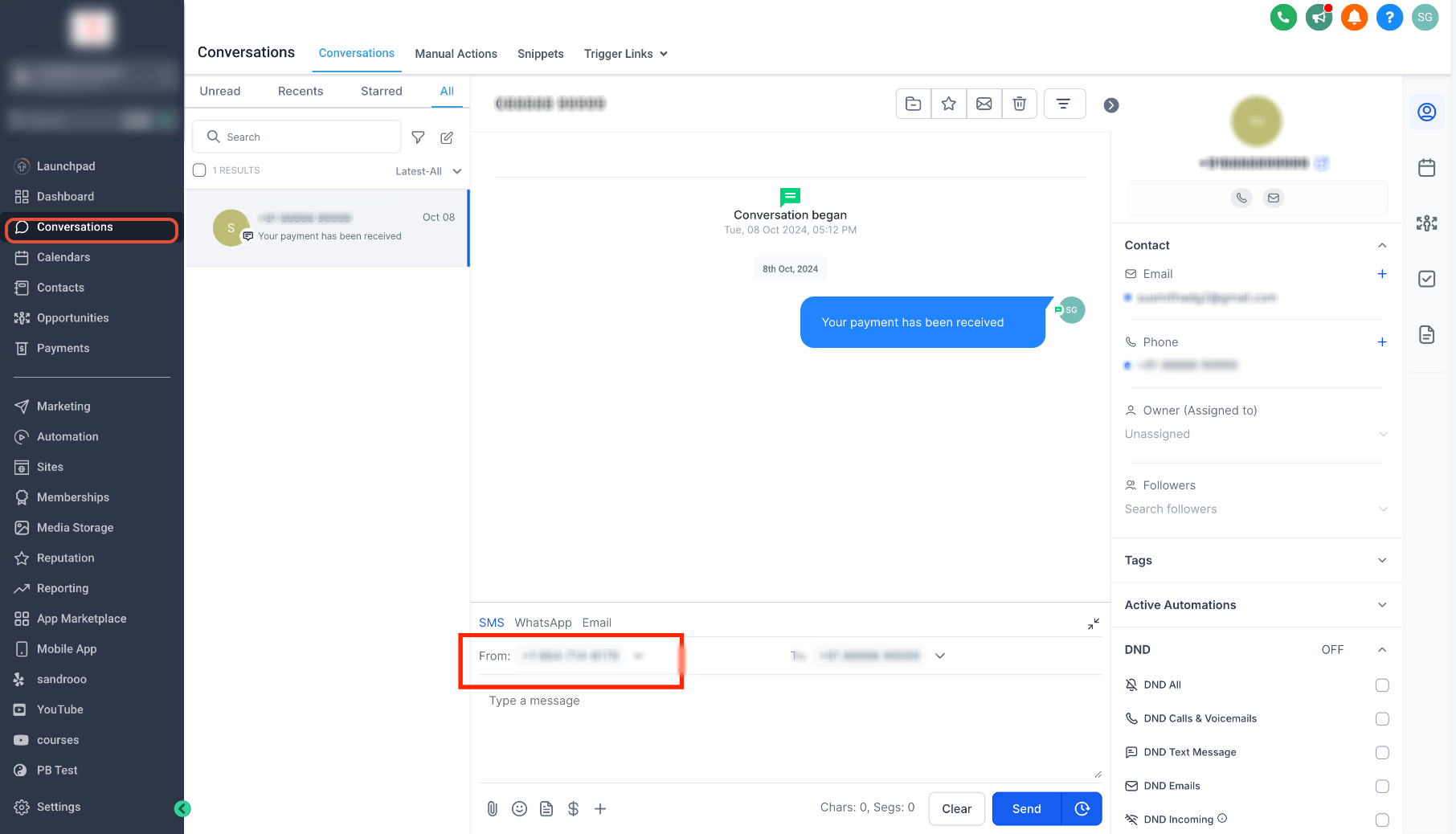
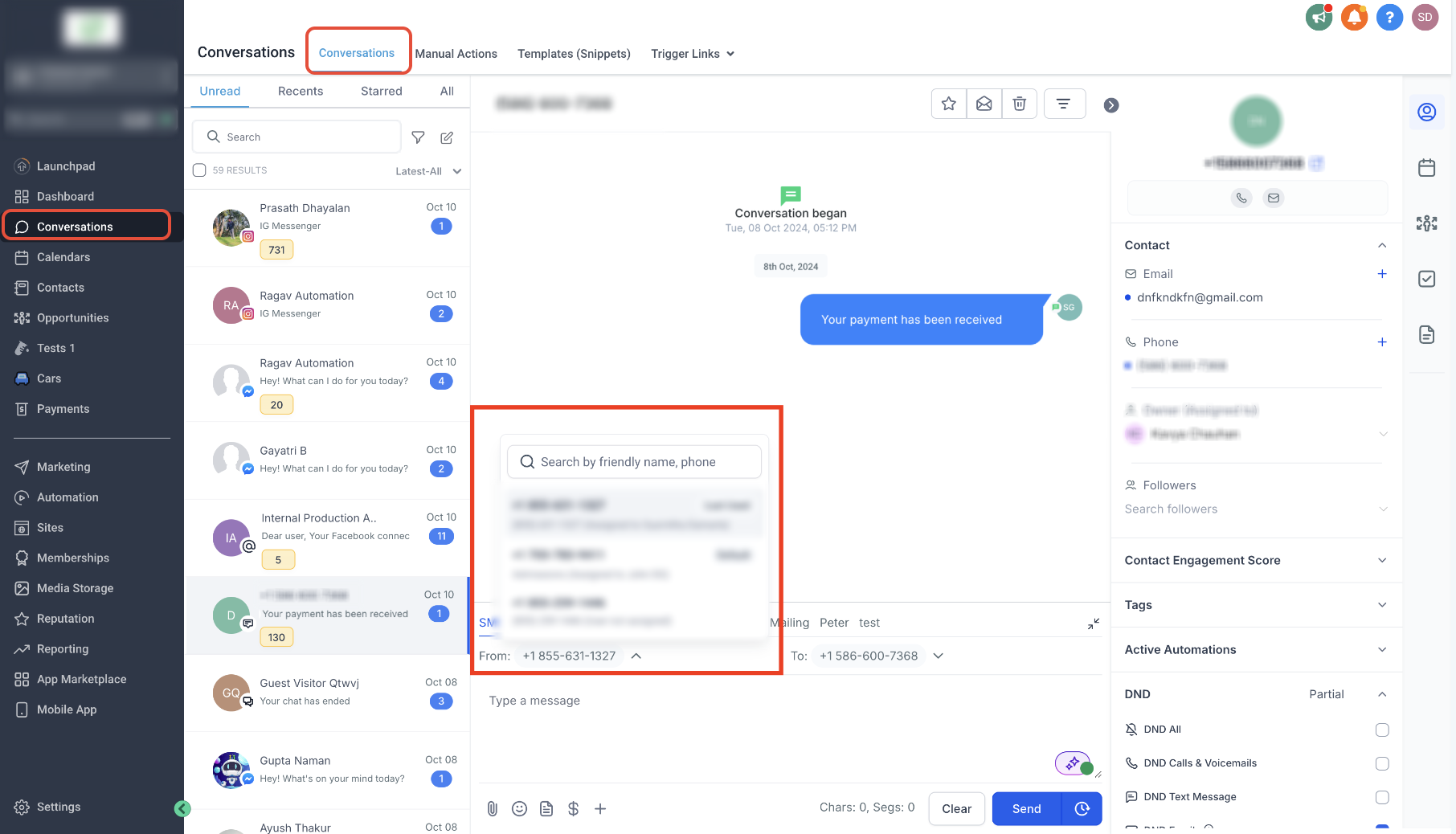
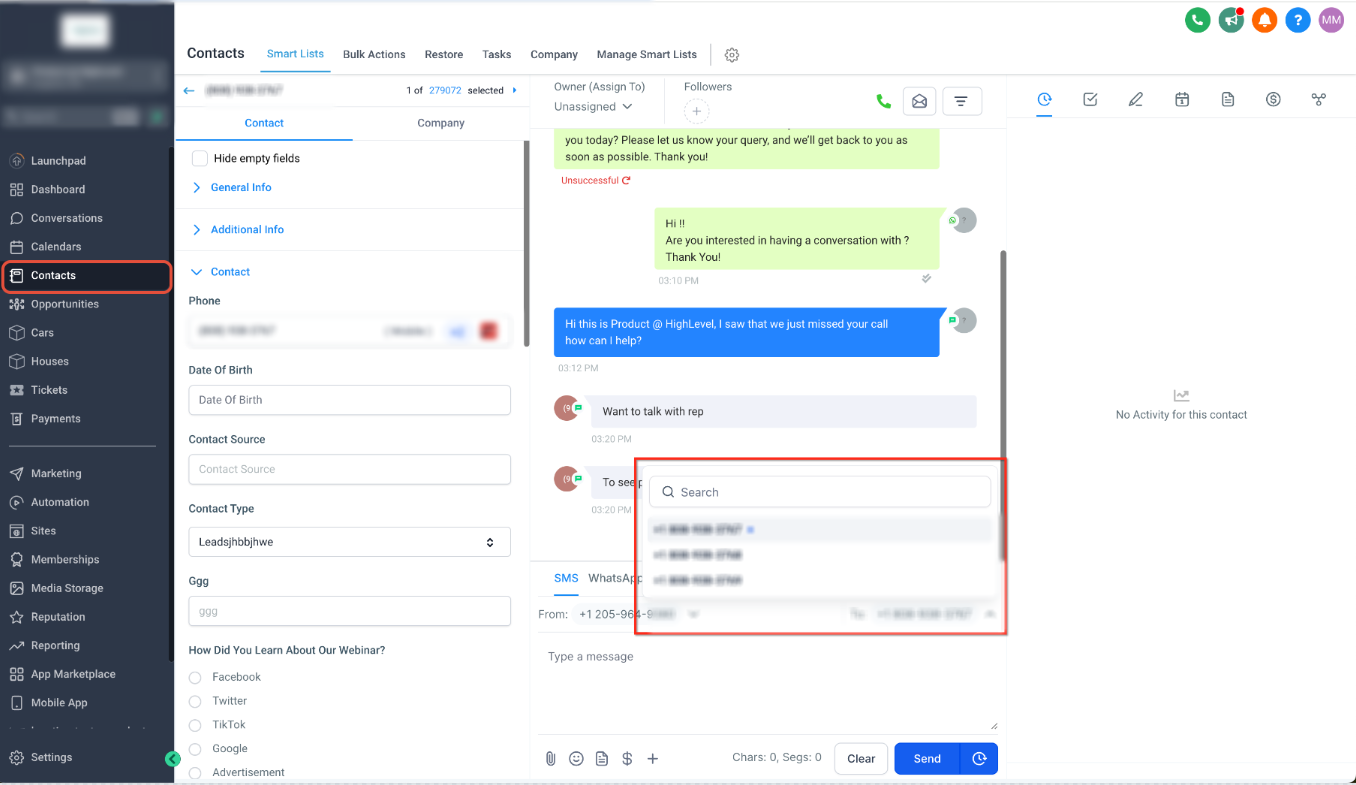
The feature adds two selectors to the SMS composer in the Conversations tab. The From selector lets you pick any business phone number that belongs to the current subaccount and can send SMS. The To selector lets you choose among the contact’s saved numbers, up to eleven, with the primary number used by default.
Both selectors appear above the message field when you switch the composer to SMS. After sending, you can hover over the message, open the three dot menu and view Details to see which number was used as the sender. Manual choices take priority over the platform’s automatic sender priority order.
03How businesses use SMS to and from numbers
- Dental practice. A practice may have a general office line and an emergency line. Using the From selector they can send urgent appointment reminders from the emergency line, and the To selector lets them pick the patient’s preferred mobile when multiple numbers are stored.
- Real estate agency. Agents often have personal and office numbers. In Conversations they can choose the agent’s personal number as the From sender for a personal outreach, and select the client’s secondary phone if the primary number is not reachable.
- Fitness studio. Members may have work and personal numbers on file. Staff can pick the studio’s class info line as the From number and select the member’s chosen contact number for class updates, then check the message details to confirm the correct sender.
04The numbers and rules that matter
- A contact can store up to 11 phone numbers on a contact record.
05Before you start
- The From number must belong to the relevant subaccount.
- The selected From number must support SMS.
- The contact must have at least one valid phone number.
- If a contact has multiple numbers, verify which one is marked Primary.
06How to set up and use SMS to and from numbers in HighLevel
Manually select the From number for an SMS
- In the Subaccount view, open the Conversations tab.
- Open the conversation with the contact you want to message.
- Select SMS in the message composer.
- Locate the From number selector.
- Click the From dropdown.
- Choose the business phone number you want to send from.
- Compose the SMS text.
- Verify that the chosen From number appears in the composer.
- Press Send to deliver the message.
Manually select the To number for an SMS
- In the Subaccount view, go to the Conversations tab.
- Open the conversation for the contact you are messaging.
- Select SMS in the message composer.
- Locate the To field.
- If more than one number is stored, click the To number dropdown.
- Pick the recipient phone number you wish to use.
- Confirm that the selected number is shown in the To field.
- Write the SMS content and click Send.
07What it looks like in HighLevel
08Settings that matter
- From number selector. Controls which business phone number will be used as the SMS sender.
- To number dropdown. Controls which saved contact phone number will receive the SMS.
09Things to know before you rely on it
- A contact can store up to 11 phone numbers, with one marked as Primary.
- The From number must belong to the subaccount and be SMS capable.
- All applicable registration, DND and opt out compliance rules still apply.
- Sender priority rules described apply only to manual messages; workflow and bulk SMS use separate configurations.
10How it connects to the rest of HighLevel
- Explore all Conversations features Conversations overview
- Review HighLevel pricing and plans Pricing
- Start a 30 day trial of HighLevel 30 day trial
- Learn about the Founder Plan for unlimited access Founder Plan
Michael's take

In practice, picking the right number only adds extra clicks when you have multiple lines or a contact with several phones. It can be helpful, but it’s a trade off you decide for your workflow.
If I were setting this up, I’d first verify that each business number is SMS capable and correctly registered. Then I’d send a quick test message from each line to confirm the sender shows up as expected before rolling it out to the whole team.