
01Who this is for
- Subaccount users who need a private space to discuss leads, deals or support cases without customers seeing the conversation.
- Agency admins who can create internal chats across subaccounts and oversee all internal communications.
02Internal chats, explained
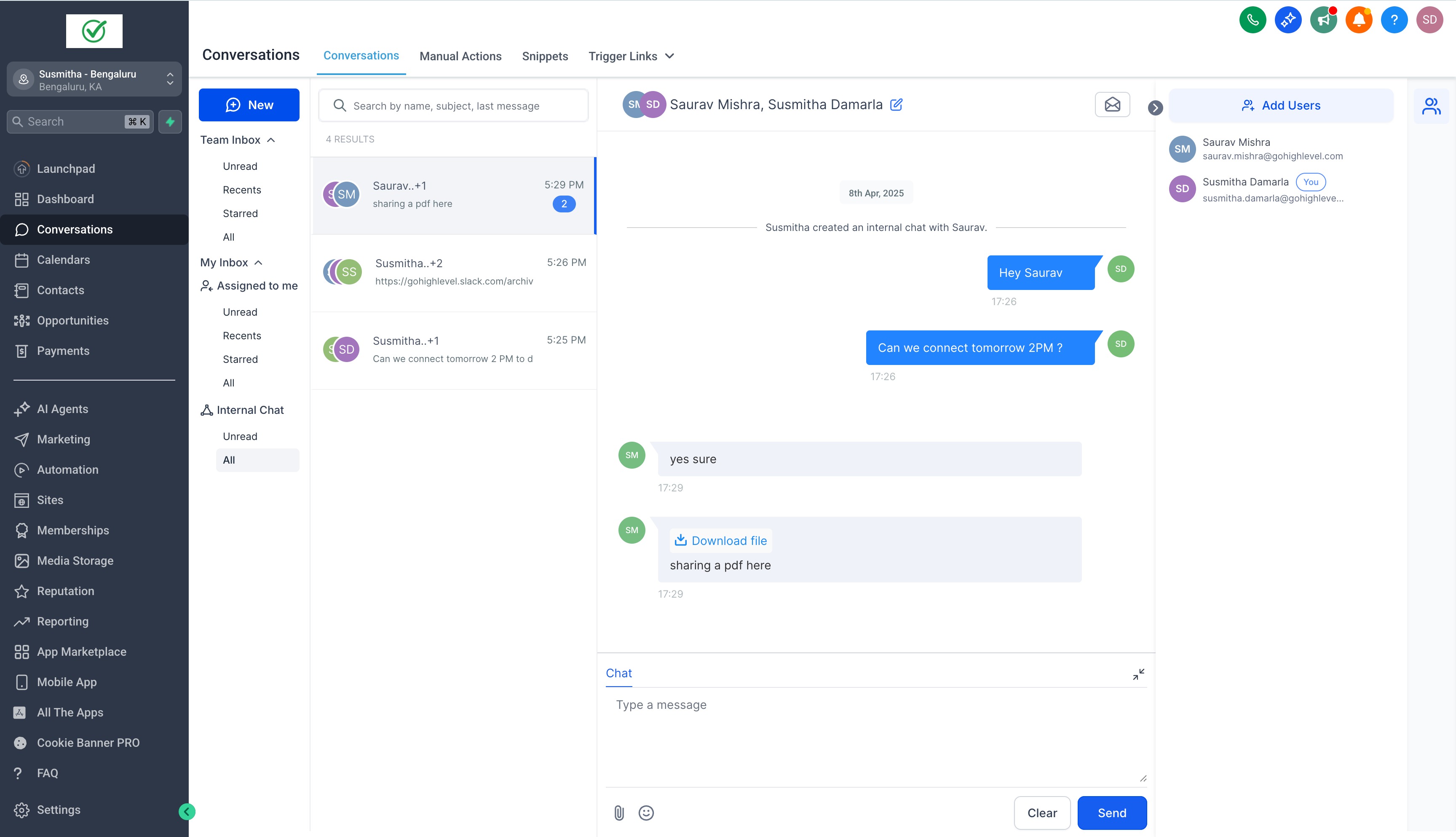
Internal Chat creates a separate thread that only the chosen participants can see. The thread appears in the My Inbox under the Internal Chat folder and can be searched by subject, participant or recent message. It lives inside the Conversations area, alongside contact related chats, and does not appear to external contacts.
The feature is activated from Labs. Once enabled, a new Inbox panel shows the Team Inbox and My Inbox, helping users filter between all subaccount conversations and those that directly involve them. Notifications for new messages or for being added to a chat are managed in the profile settings.
All messages, emojis and file attachments are supported. A subject line can be added to make later retrieval easier. Participants cannot be removed after they are added, and users who are not added will not see the chat.
03How businesses use internal chats
- Digital marketing agency. The agency creates an internal chat to discuss a new client campaign. Team members are added at launch, and the subject line holds the campaign name for easy searching. Messages, mockups and brief documents are shared directly in the chat.
- Coaching business. Coaches start a private chat to coordinate session schedules. They add the relevant coach and admin, set a subject with the client’s name, and attach the calendar file. Notifications ensure everyone sees new timing updates.
- Property management firm. Property staff open an internal chat for a maintenance request, invite the technician and manager, and attach the repair photos. The subject reflects the property address, allowing quick lookup later.
04Before you start
- Enable Internal Chat from the Labs section.
- Have access to the Conversations module.
05How to set up and use internal chats in HighLevel
Start an internal chat
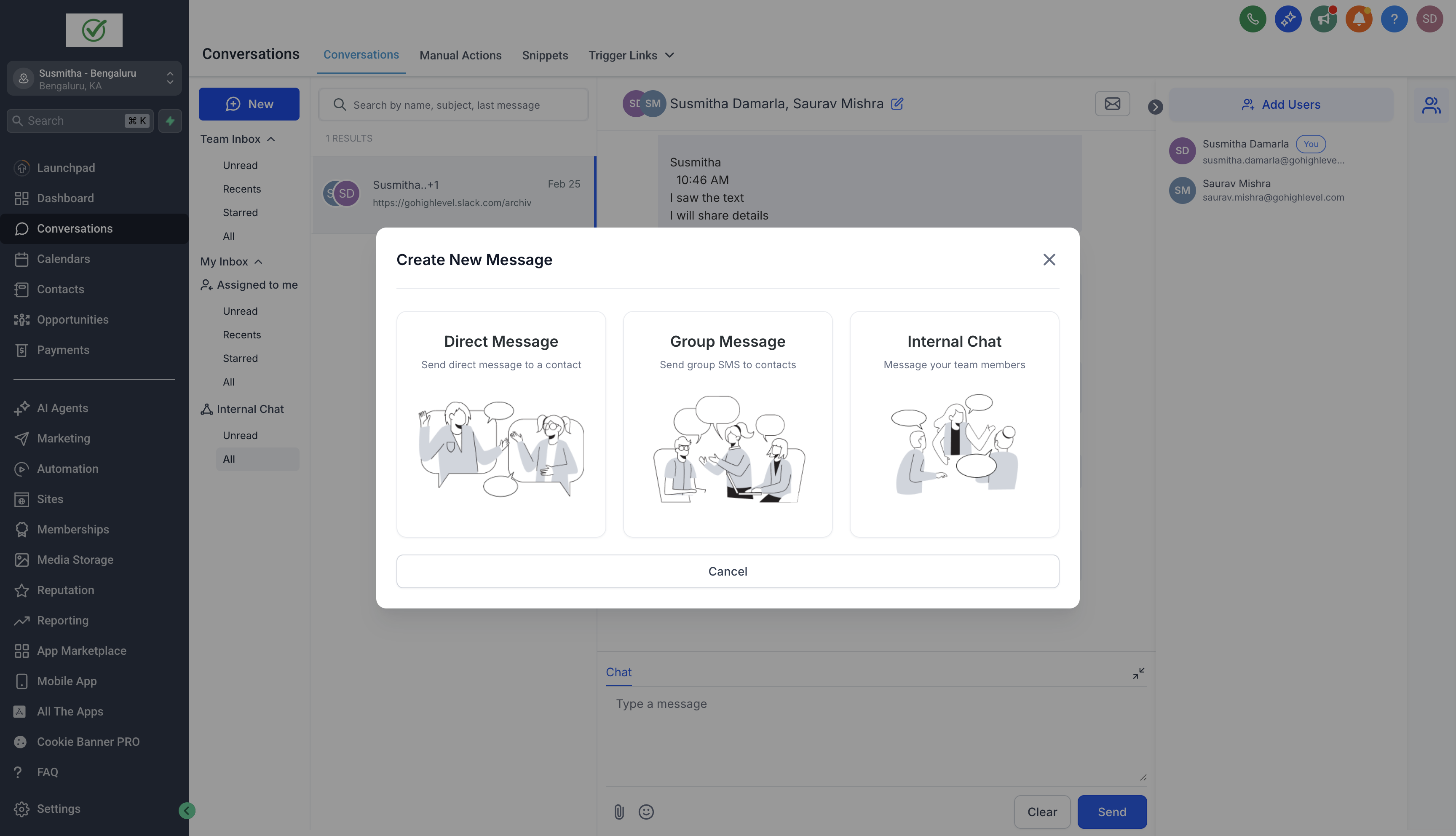
- Open the Conversations area and click the New button.
- Select the Internal Chat option from the list.
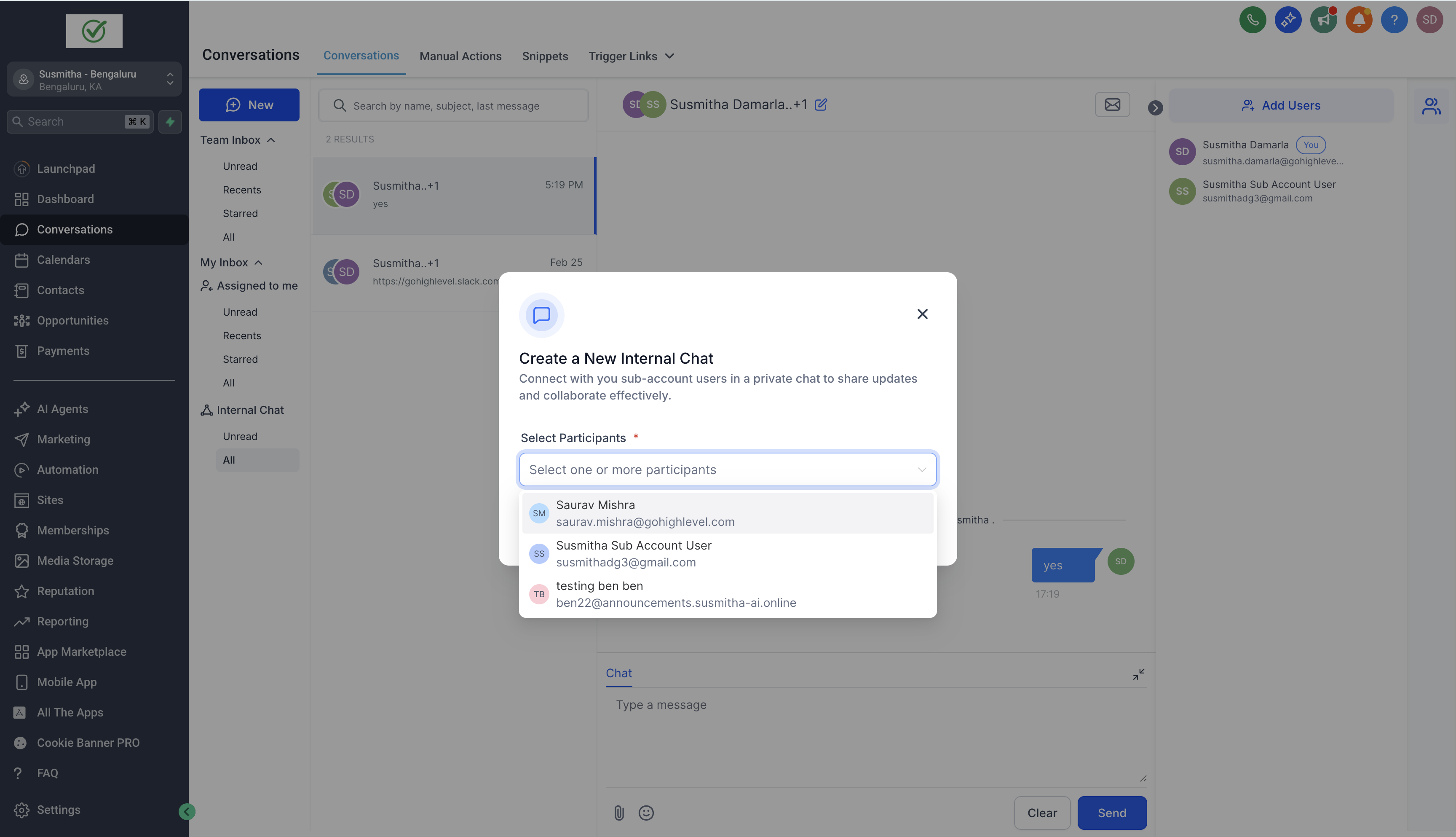
- Choose the team members to include and press Start Chat.
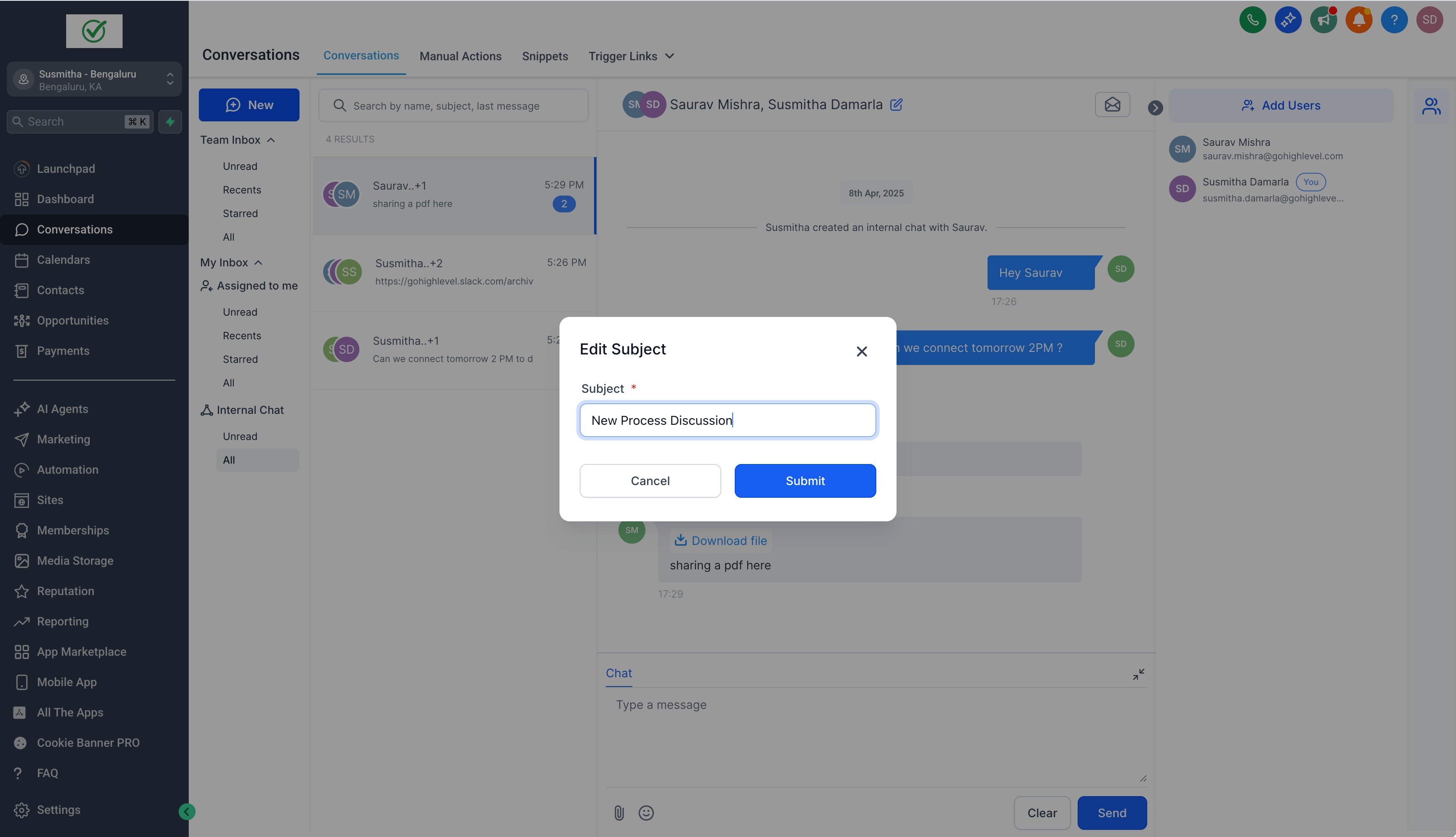
- Optionally, click the edit icon at the top center to add a subject for the chat.
Add users to an existing internal chat
- Open the desired internal chat thread.
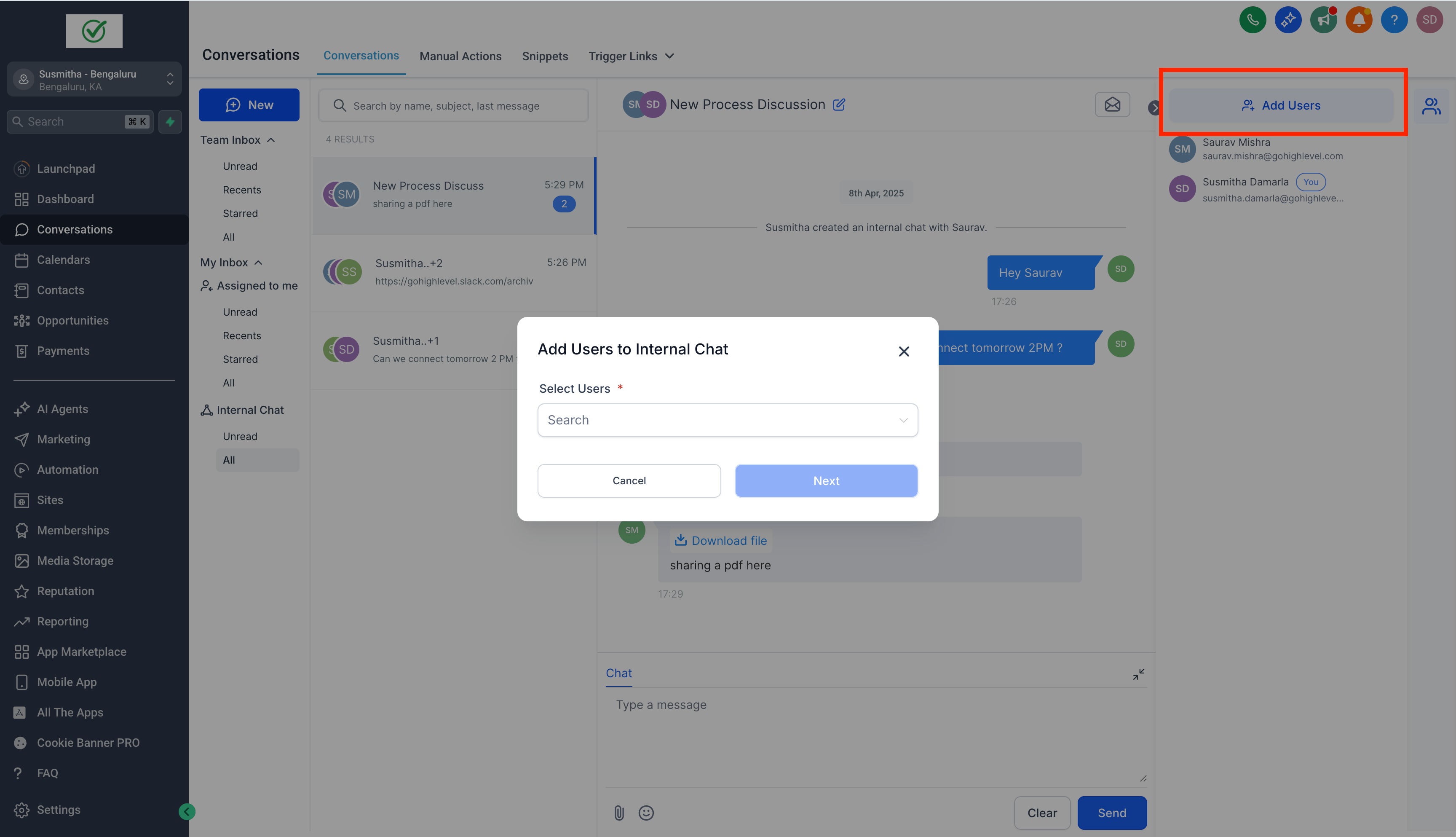
- In the right hand panel, click Add Users.
- Select the additional team members you want to include.
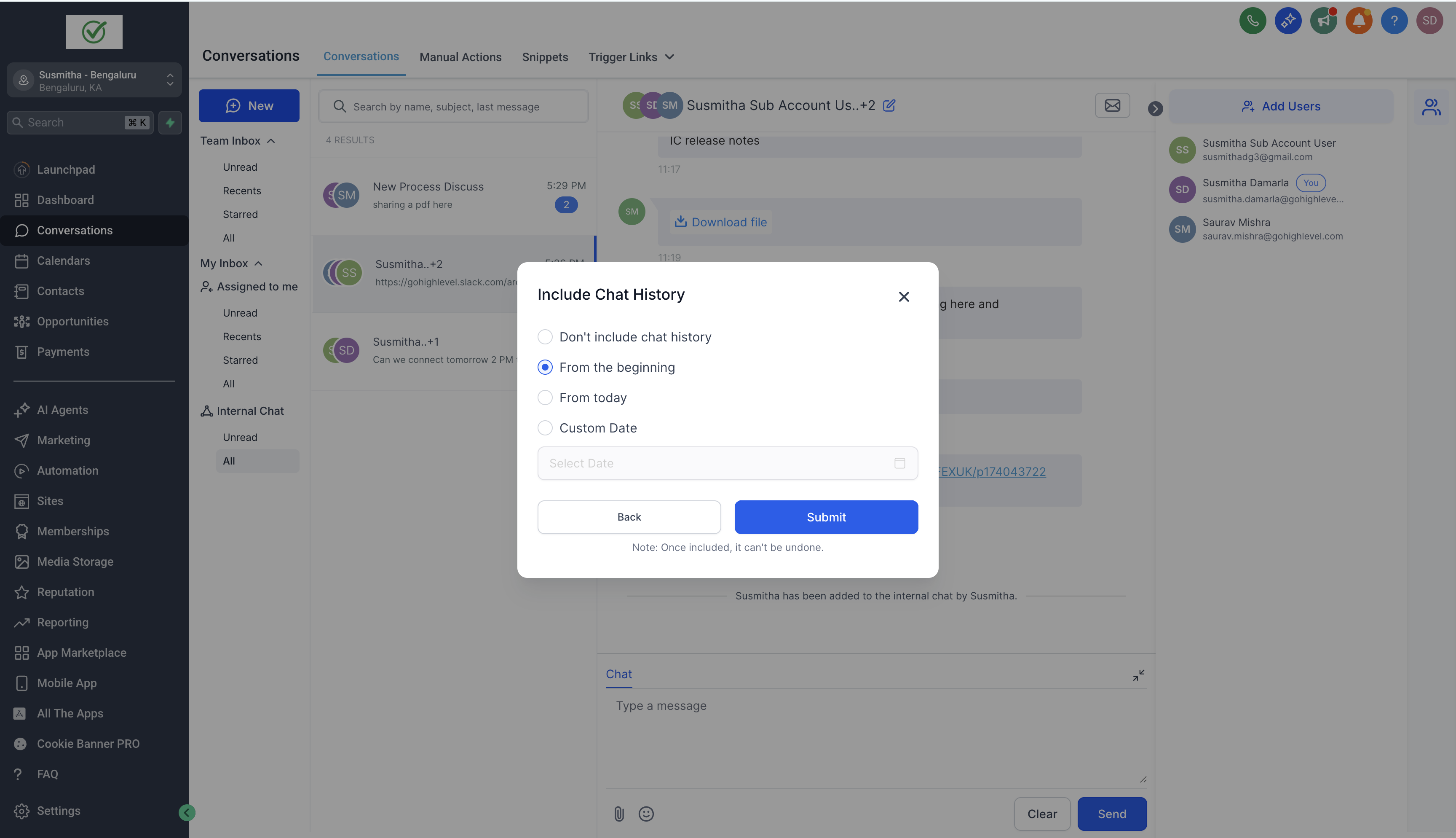
- Click Next and decide whether they receive prior chat history.
- Click Confirm to add the users; they cannot be removed later.
06What it looks like in HighLevel
07Settings that matter
- Notifications. Controls whether you receive alerts for every message in chats you belong to or only when you are added to a new internal chat.
- Internal Chat (Labs toggle). Activates the Internal Chat feature and adds the new inbox panel to the Conversations interface.
08Things to know before you rely on it
- Internal Chat is built in and does not add any cost.
- Once a user is added to a chat, they cannot be removed.
- If you use the "Login As" function, internal chats remain hidden to protect privacy.
09How it connects to the rest of HighLevel
- Add a live chat widget to your site for external lead capture. Live chat widget
- Apply conversation filters to sort both internal and client facing chats. Conversation filters
- Use contact engagement scoring to prioritize discussions about high value leads. Engagement scoring
Michael's take

Internal chat provides a convenient way for the team to stay within the HighLevel interface for quick questions and context sharing.