
01Who this is for
- Founders who want to update contacts or draft emails while away from a computer, because the AI can pull HighLevel data directly from WhatsApp.
- Service teams that need to share client documents for quick summaries, allowing them to attach files to a chat and receive AI generated insights.
- Marketing staff who generate blog drafts or visual assets on the go, using voice or text prompts to receive content without switching tools.
02Ask AI Dispatch on WhatsApp, explained
Ask AI Dispatch adds a WhatsApp interface to the platform’s Ask AI copilot. After a number is linked, any conversation with the AI in WhatsApp can contain text, recorded voice, attached files, or requests for generated audio and video. The AI processes the request and replies with the appropriate content, which may appear as plain text or a rich artifact such as a formatted email draft or a playable media file.
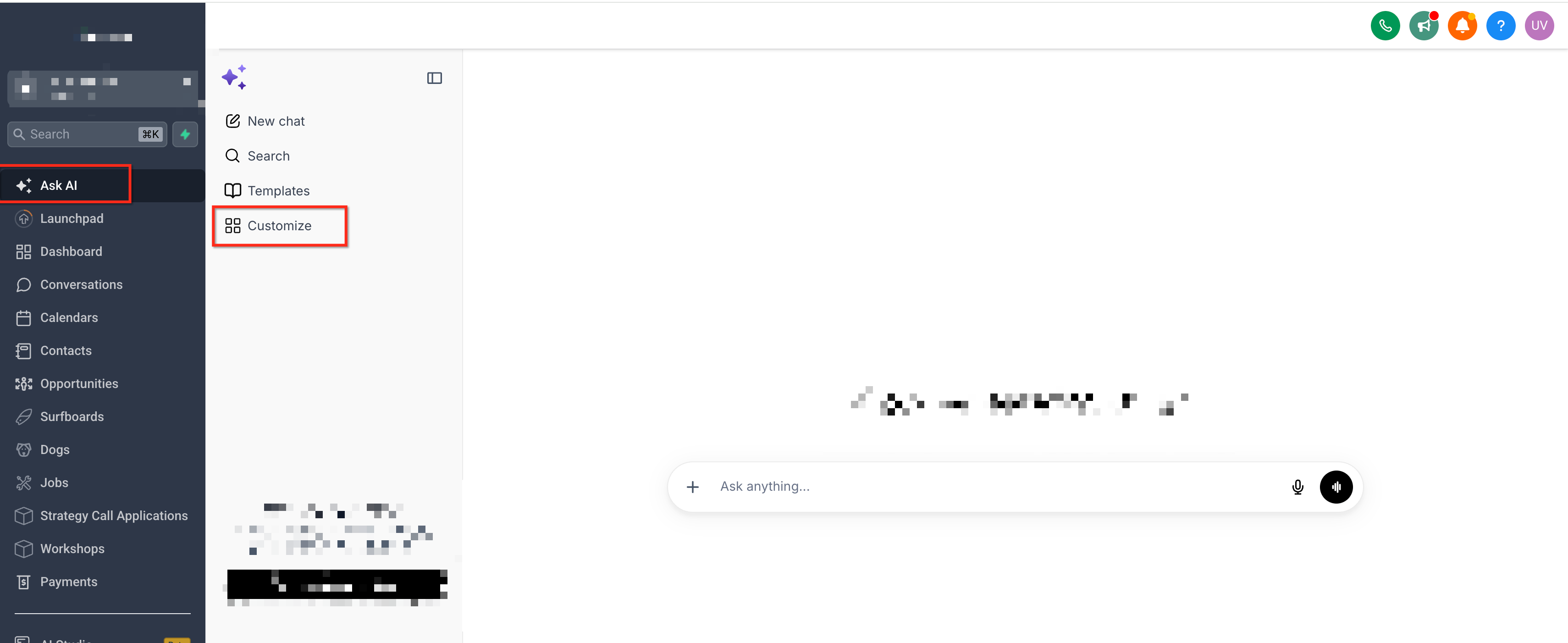
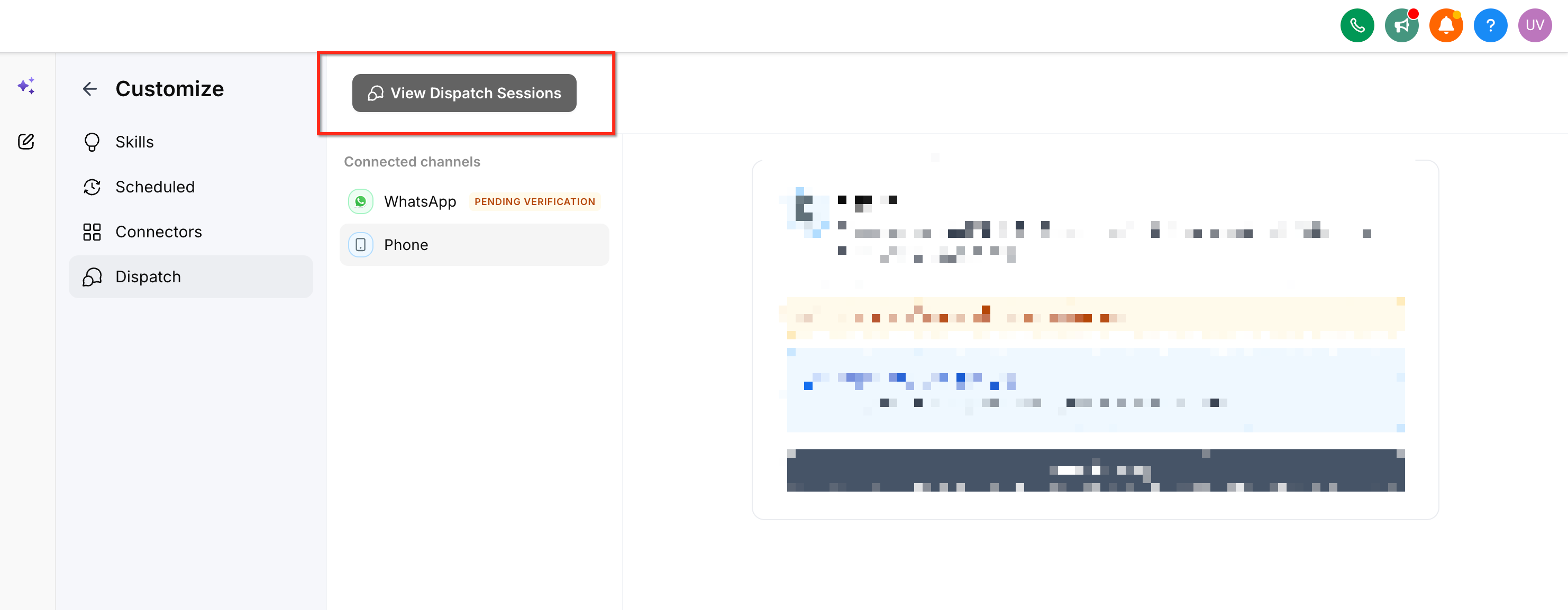
The connection lives under the Ask AI > Customize > Dispatch section of HighLevel. From there you can start the connection wizard, verify the number, view past dispatch sessions, or move the number to another location. The feature respects the same permission model as other Ask AI actions, so the user who links the number owns the connection and can only move it within their own locations.
03How businesses use Ask AI Dispatch on WhatsApp
- Real estate agency. An agent can open the WhatsApp chat with Ask AI, type a request for the latest property listings, and receive a formatted list directly in the conversation. The agent can also attach a client’s PDF brief and ask the AI to summarize key requirements, streamlining follow up preparation.
- Dental practice. The office manager can send a voice note asking for today’s appointment schedule, and the AI replies with the roster. By attaching a patient intake form, they can request a summary of the most urgent concerns, allowing quick triage before the patient arrives.
- Ecommerce store. A marketing coordinator can ask the AI to draft a promotional email and include an image attachment for reference. The AI returns a ready to send email draft and can generate a short video clip for a social post, all within the WhatsApp thread.
04Before you start
- An active WhatsApp account with a usable phone number is required.
- Each HighLevel location may only have one WhatsApp number linked for Ask AI Dispatch.
- The user initiating the connection must own that connection.
05How to set up and use Ask AI Dispatch on WhatsApp in HighLevel
Connect WhatsApp
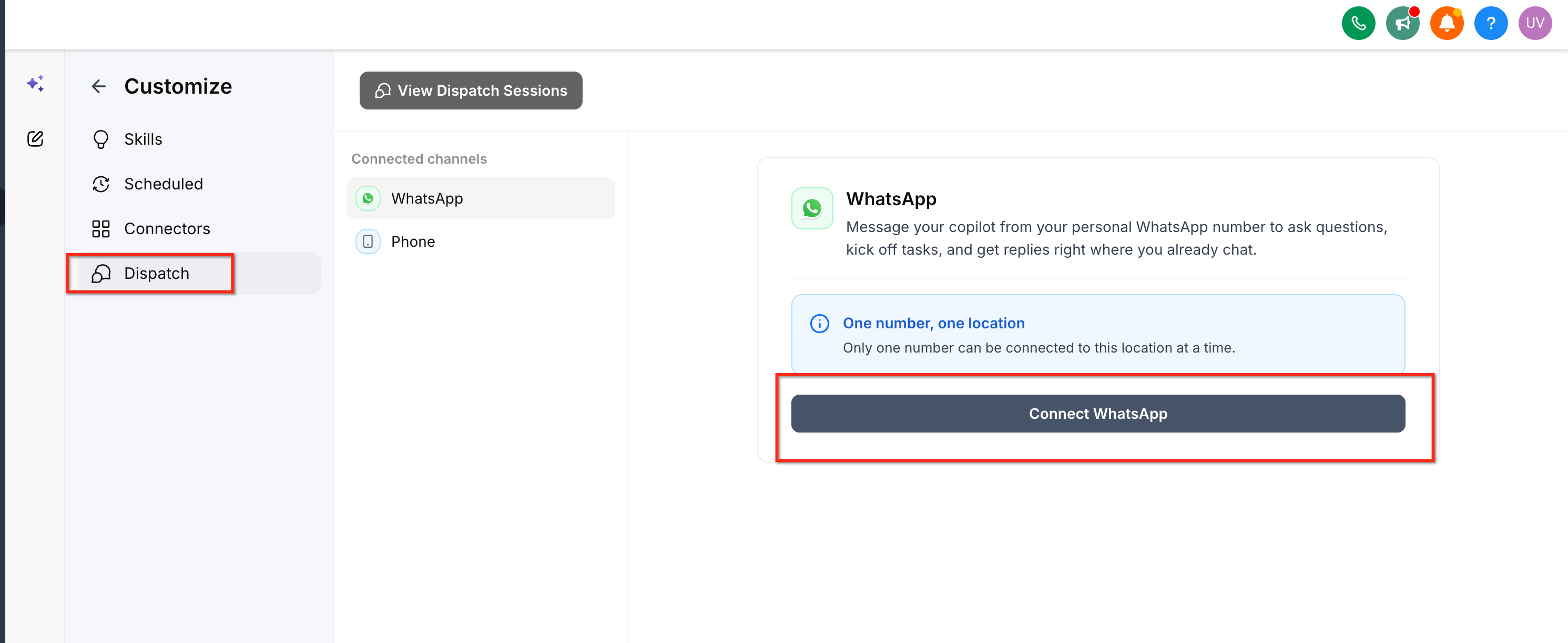
- Open HighLevel and go to Ask AI > Customize > Dispatch.
- Select the Connect WhatsApp option.
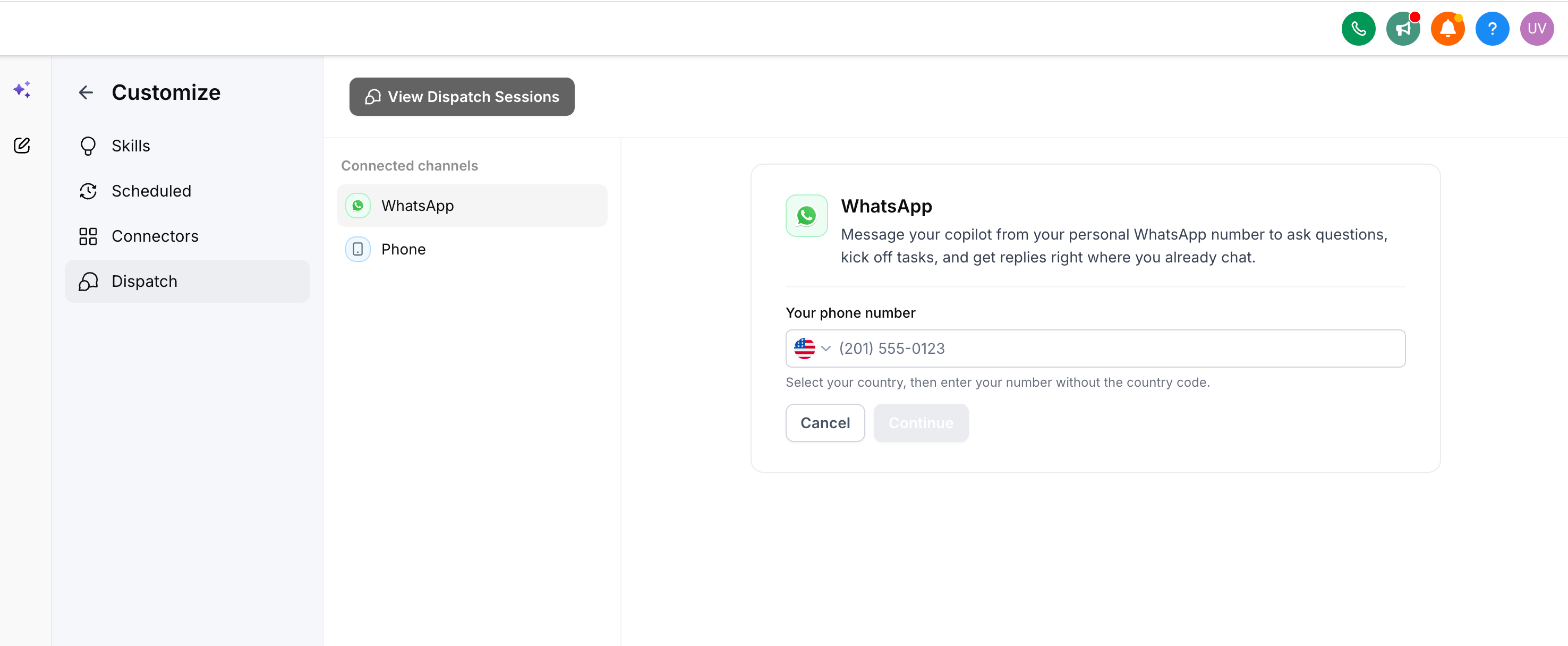
- Choose the country and type the WhatsApp number without the country code.
- Press Continue to start the linking process.
Verify your number
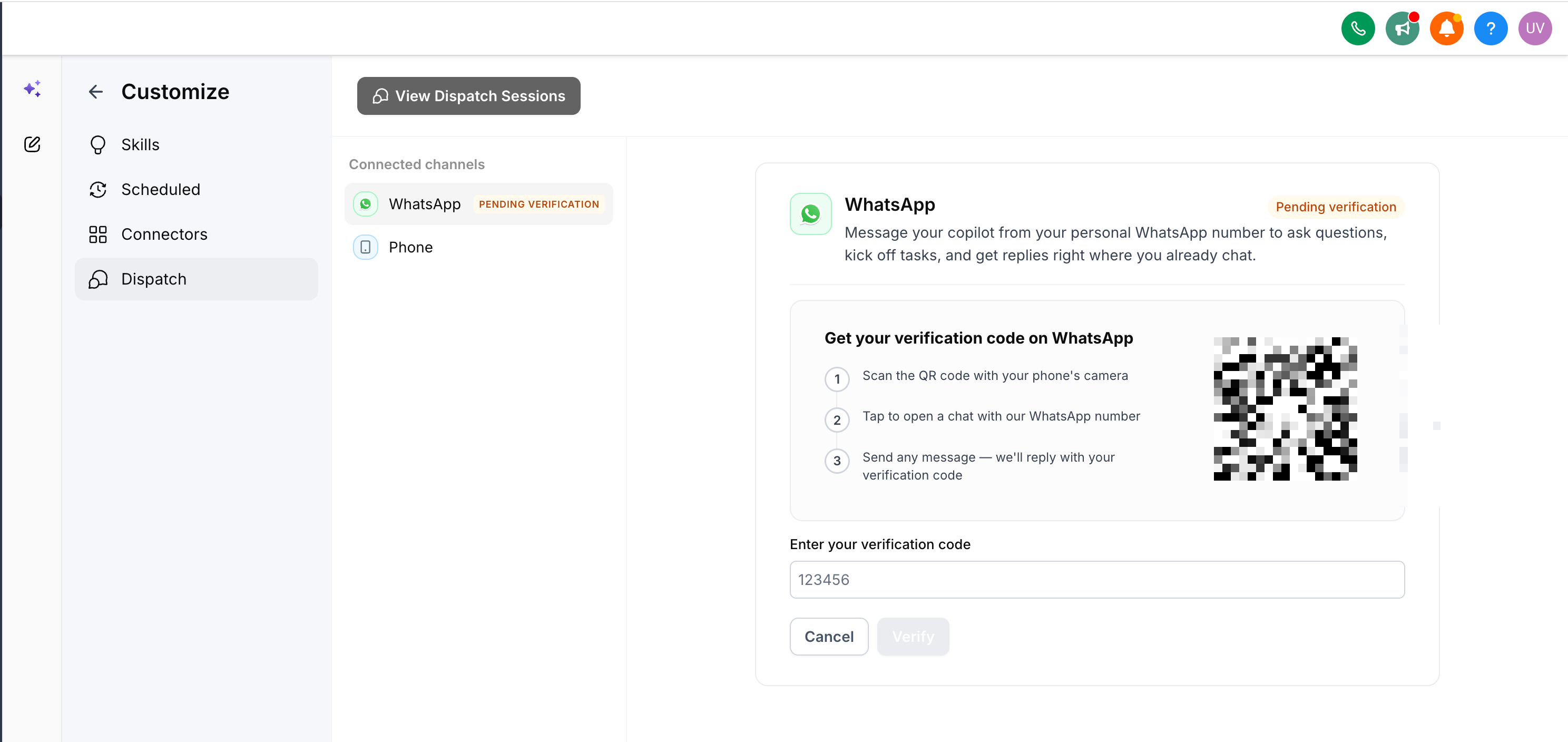
- Scan the QR code displayed on the screen.
- In WhatsApp, open the chat with the AI and request a verification code.
- Enter the received code back in HighLevel within five minutes of receipt.
- Click Verify to complete the validation.
Send text or voice request
- Open the Ask AI conversation in WhatsApp.
- Type a request or record a voice message.
- Send the message to the AI.
- Read the AI’s reply inside the chat.
Share images and files
- Open the Ask AI chat in WhatsApp.
- Attach a supported image or document file.
- Add a short note explaining the needed assistance.
- Send the attachment and await the AI’s response.
Generate audio or video
- Open the Ask AI WhatsApp conversation.
- Describe the audio or video you want to create.
- Send the description to the AI.
- Play the generated media file that appears in the chat.
Review WhatsApp conversations in Dispatch
- Navigate to Ask AI > Customize > Dispatch.
- Click View Dispatch Sessions.
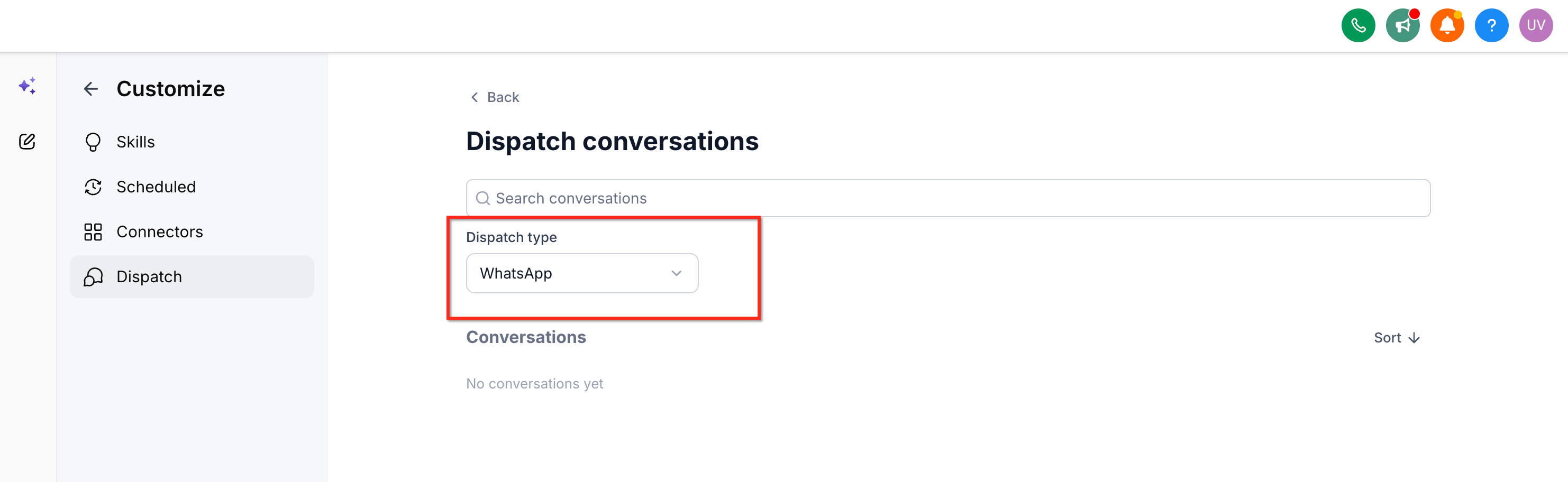
- Use the Search conversations field to locate a specific session.
- Select WhatsApp from the Dispatch type filter.
- Apply Sort to arrange the conversation list as needed.
Move your WhatsApp number
- Go to Ask AI > Customize > Dispatch.
- Start the WhatsApp connection flow again.
- Enter the previously linked WhatsApp number.
- When prompted, choose Yes, move it here.
- Finish any remaining verification steps to complete the move.
06What it looks like in HighLevel
07Settings that matter
- Connect WhatsApp. Starts the wizard that links a WhatsApp number to a specific HighLevel location for Ask AI Dispatch.
- View Dispatch Sessions. Opens the list of past Ask AI conversations that occurred over WhatsApp, allowing search and sorting.
08Things to know before you rely on it
- Only one WhatsApp number can be attached to a given location for Ask AI Dispatch.
- A user cannot take over a WhatsApp number that another user has connected.
- Verification codes are only valid for five minutes after they are sent.
09How it connects to the rest of HighLevel
- Open Ask AI from Global Search to start a conversation from anywhere in the platform. Ask AI global search
- Review all conversation related tools and settings under the Conversations feature set. All Conversations features
- Check plan eligibility and pricing for accessing Ask AI Dispatch. HighLevel pricing and plans
Michael's take

When you’re already spending most of your day in WhatsApp, I find Ask AI Dispatch useful because it lets me pull HighLevel data, draft emails, or generate a quick video without opening the web app, keeping the conversation flow intact.
If your team works mostly from the HighLevel dashboard or rarely uses WhatsApp for client interaction, the feature adds little value. The extra step of connecting and verifying a number may not justify the benefit for those workflows.