
01Who this is for
- Support managers who need a visual cue for urgent tickets and want consistent reply standards.
- Customer success teams handling multiple channels and requiring separate response targets per channel.
- Operations leaders who must track overdue replies for coaching and reporting.
02Conversation slas, explained
Conversation SLAs are response time limits that start when a client message arrives. A countdown is shown beside each thread and shifts from grey to orange to red as the deadline nears or passes. The feature lives on the new Conversations page and is turned on from the Labs upgrade.
Agents can see the timer directly in the inbox list. Managers can filter and sort by SLA status, and they can create workflows that trigger when a timer becomes due soon, overdue, or is dismissed manually. The timers respect calendar hours and apply only to customer originated messages.
03How businesses use conversation slas
- Digital marketing agency. The agency enables a common SLA of one hour for all client messages. When a timer turns orange, the account manager knows to prioritize that conversation. If a client simply says "Thanks," the manager can dismiss the SLA to keep the dashboard clean.
- Real estate brokerage. The brokerage configures channel specific SLAs, requiring a 15 minute reply to SMS leads and a two hour reply to email inquiries. The timer colour indicates which lead needs immediate attention, helping agents respond within the defined windows.
- Health clinic appointment desk. The clinic sets the SLA timer to stop when an automated reminder workflow sends a message, ensuring the countdown only continues until a staff member replies. AI chatbot replies can also be counted or ignored based on the clinic’s preference.
04Before you start
- Enable the "CRM Redesign - Conversations + Contact Detail Page (Upgrade)" option in Labs.
- Access the new Conversations page after the Labs upgrade.
05How to set up and use conversation slas in HighLevel
Set up conversation SLAs
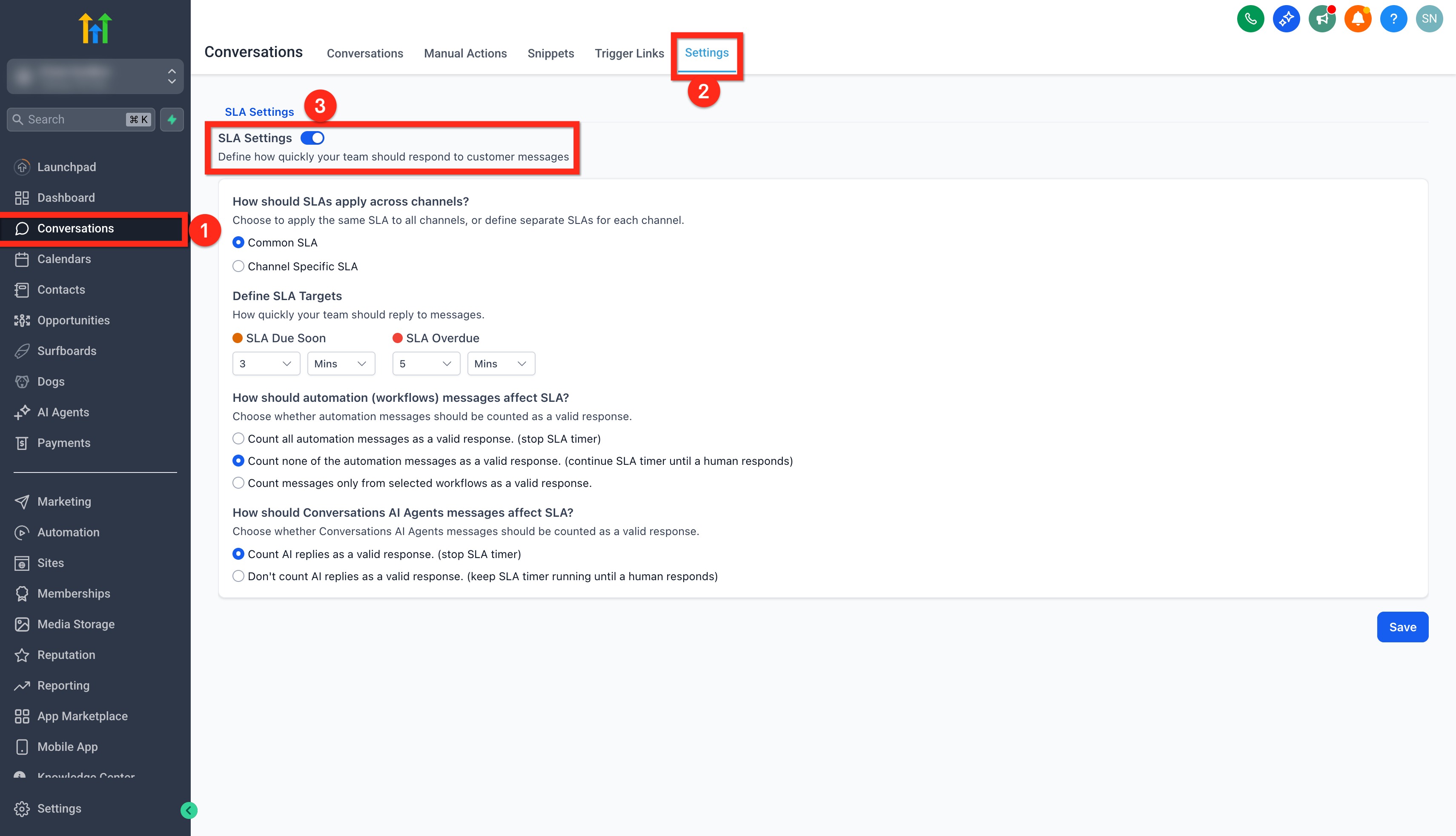
- Open the Conversations module in the subaccount.
- Select the Settings tab on the top panel.
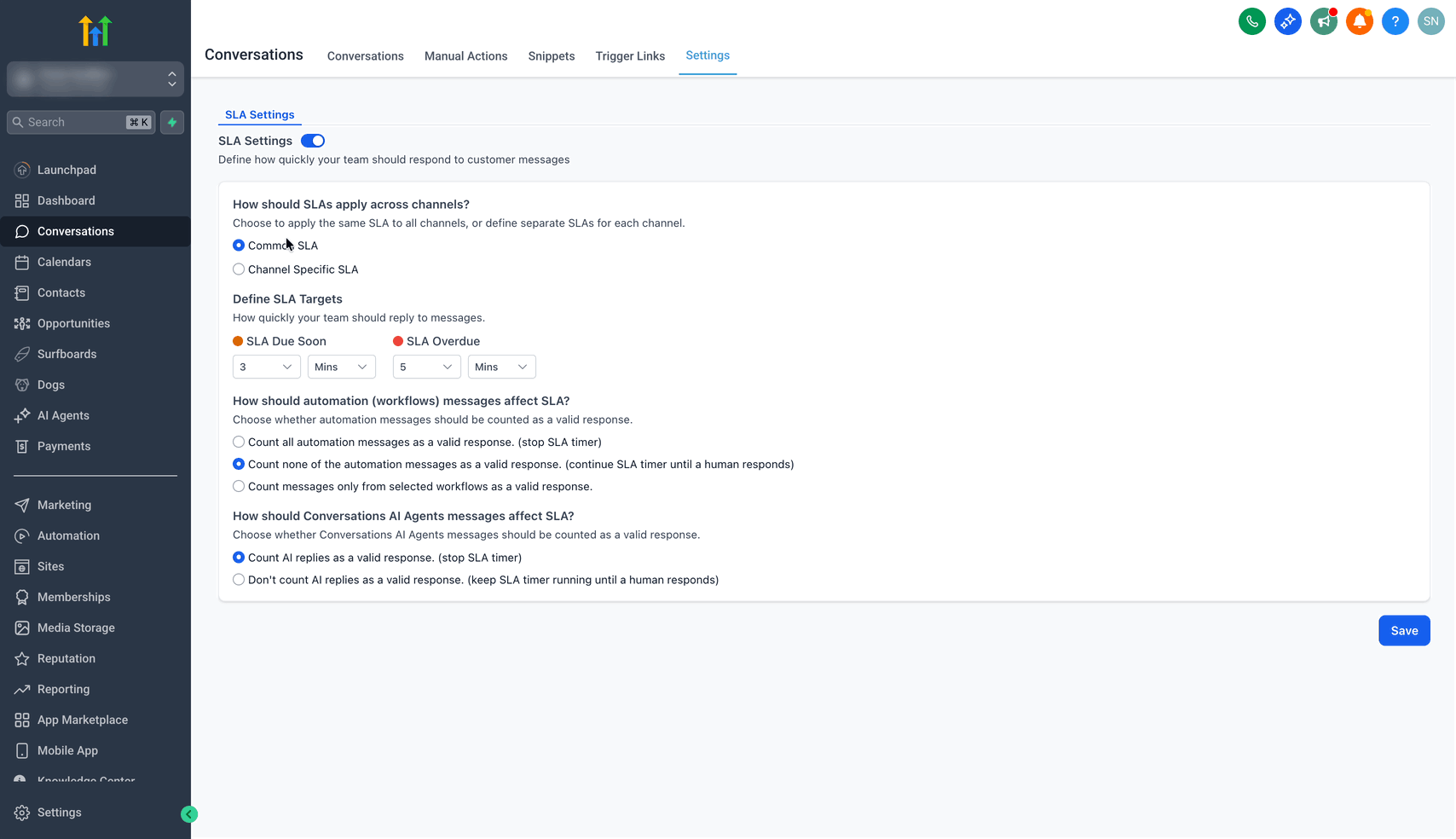
- Turn on the SLA Settings toggle.
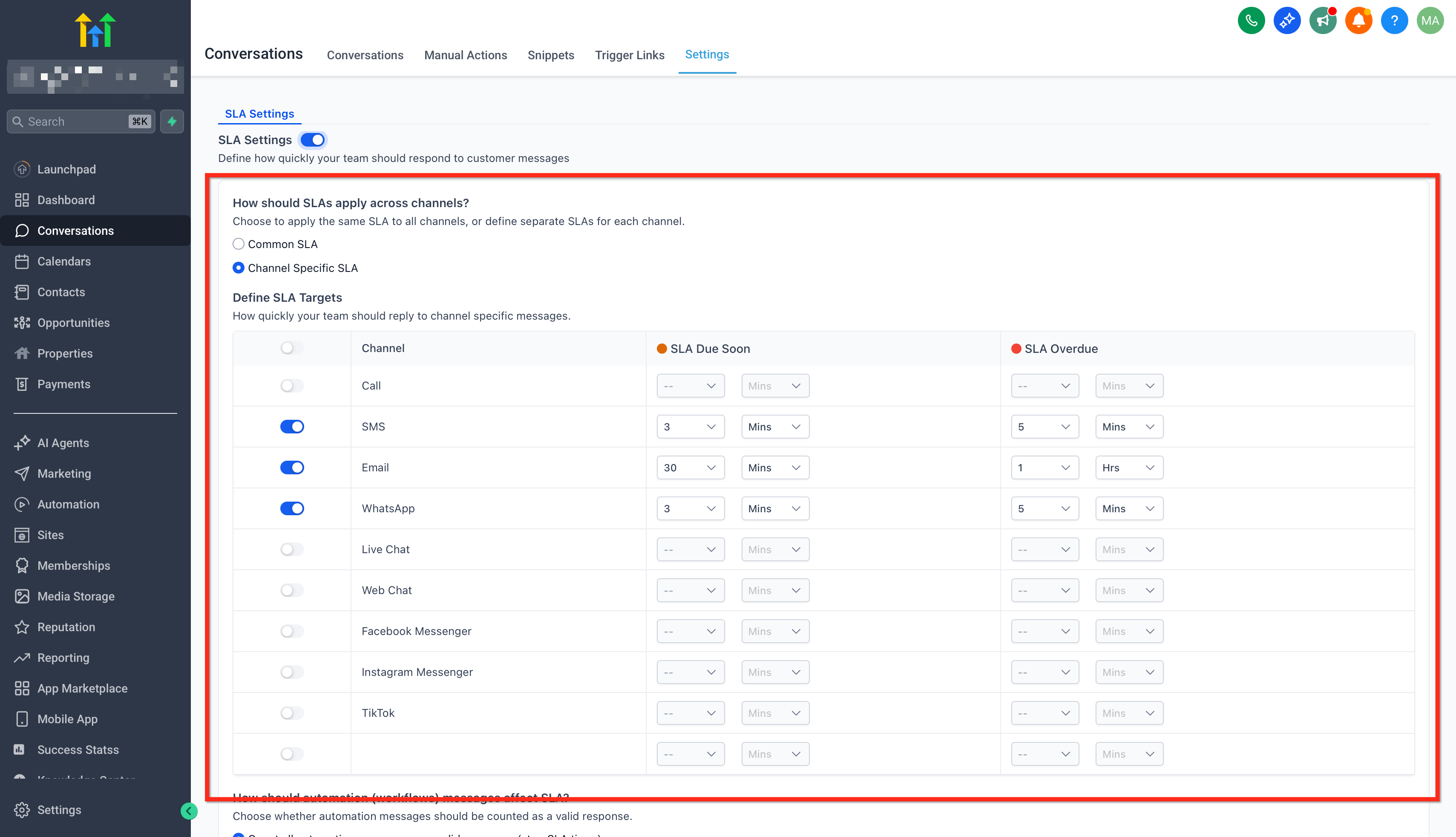
- Pick how SLAs apply across channels, either a common rule for all or separate rules per channel.
- Enter the warning period for the Due Soon state.
- Enter the maximum time for the Overdue state.
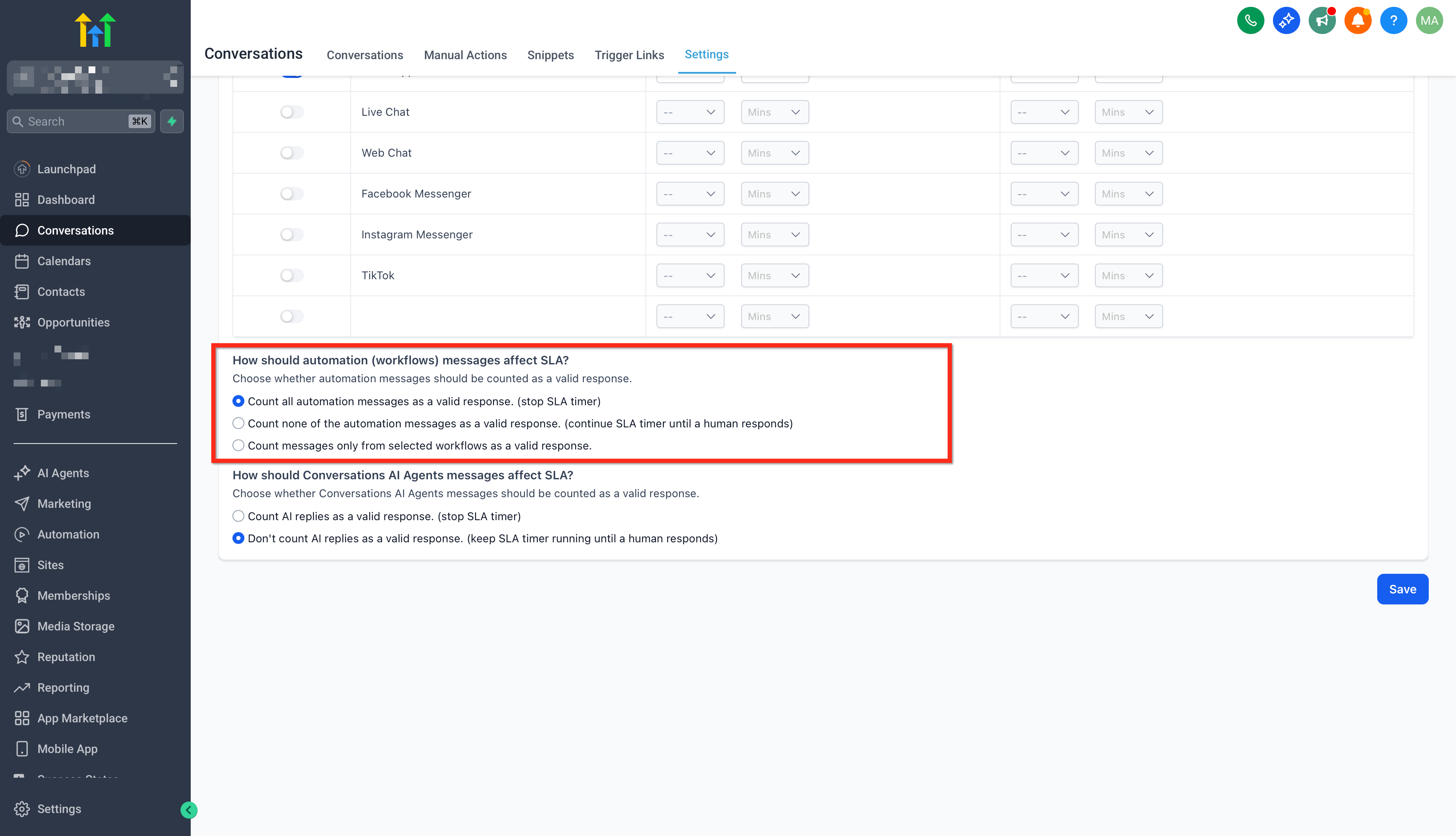
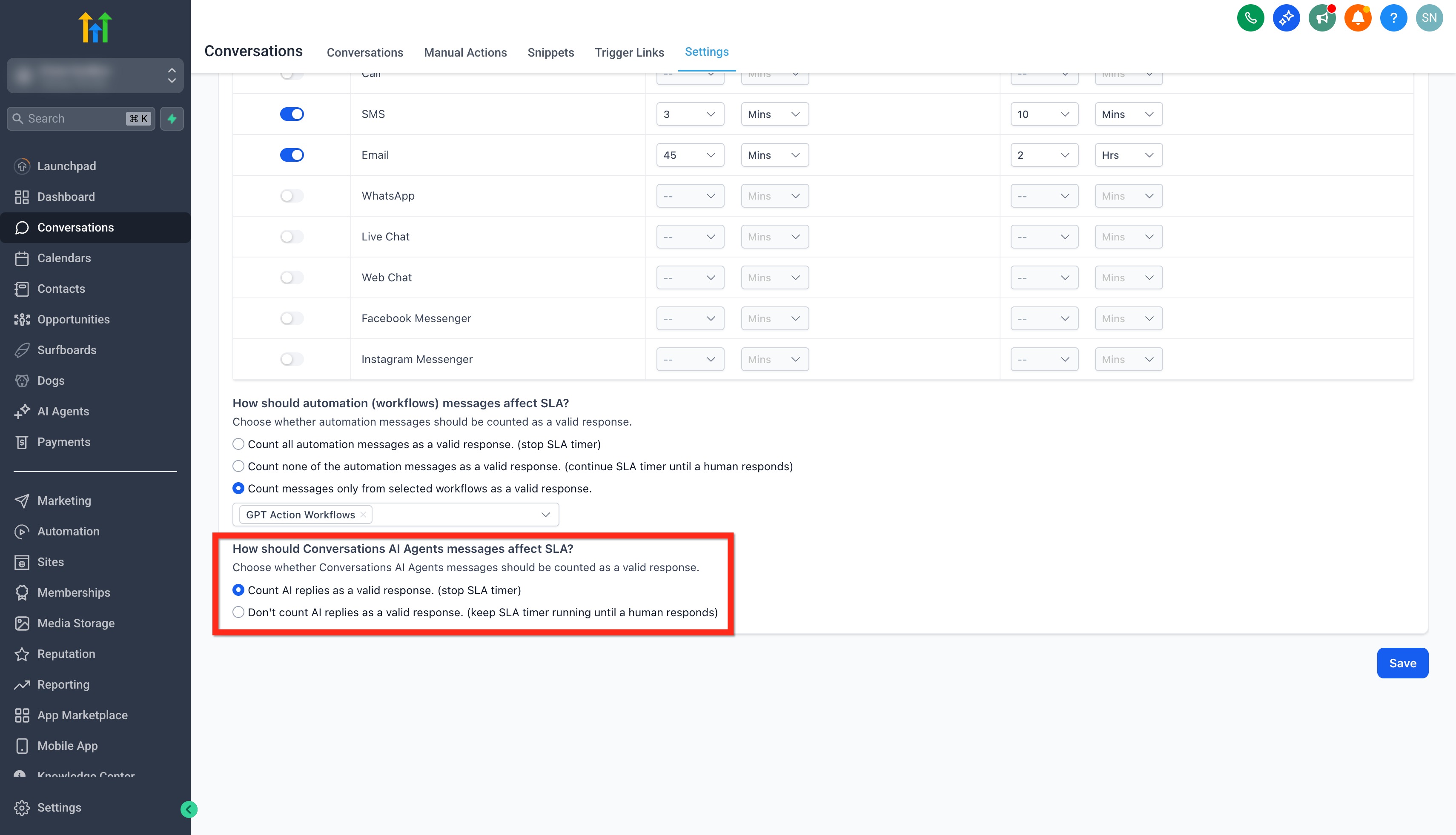
- Choose whether workflow and automation messages count as replies.
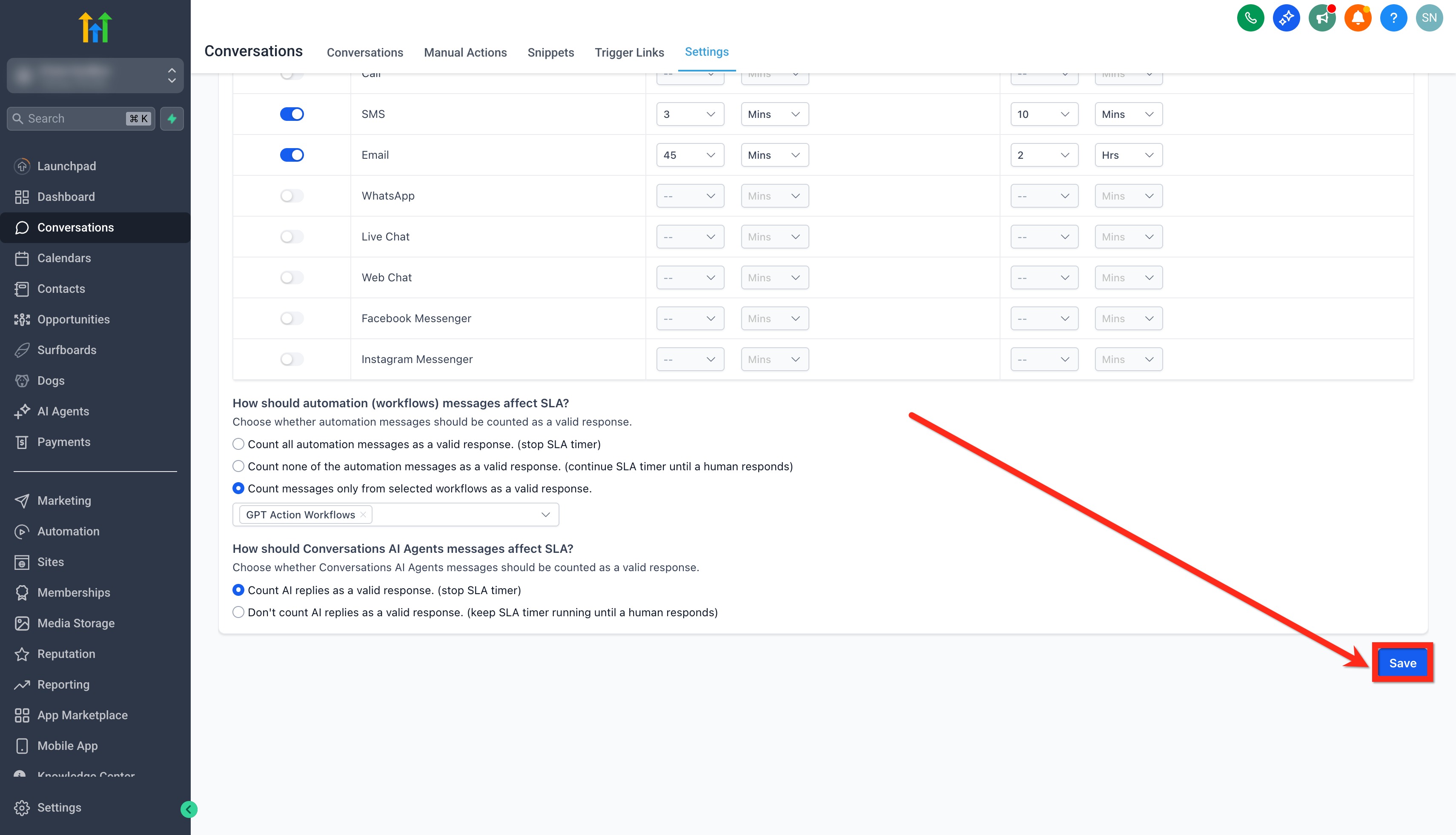
- Select whether AI Agent replies stop the timer and click Save.
Configure manual SLA dismissal permissions
- Navigate to Conversations > Settings.
- Find the "Who can manually dismiss SLA from conversations?" option.
- Select either All users or Admins only.
- Save the changes.
Manually dismiss an SLA
- Open the required conversation in Conversations.
- Click the SLA timer displayed in the center panel.
- Choose the Dismiss SLA action.
06What it looks like in HighLevel
07Settings that matter
- SLA Settings toggle. Activates the SLA feature and makes the timer options available.
- How should SLAs apply across channels?. Determines if a single rule covers every channel or if each channel gets its own response target.
- Due Soon. Sets the warning interval that changes the timer colour to orange before a breach.
- Overdue. Defines the maximum allowable response time; the timer turns red when this limit is passed.
- How Workflow and AI Messages Affect SLAs. Controls whether automated or AI replies stop the SLA countdown.
- Count all automation messages as valid responses. Stops the timer whenever any workflow sends a message.
- Don’t count automation messages as valid responses. Keeps the timer running until a human replies.
- Count messages only from specific workflows. Allows selected workflows to stop the timer while others do not.
- Count AI replies as valid responses. Stops the timer when the AI Agent sends a reply (default).
- Don’t count AI replies as valid responses. Requires a human reply before the timer stops.
- Who can manually dismiss SLA from conversations?. Sets which users are allowed to remove an SLA timer without replying.
08Things to know before you rely on it
- SLA timers are added only to new incoming messages after the feature is enabled.
- Timers are based on calendar hours; business hour awareness will arrive in a future update.
- Only customer originated conversations receive timers; internal chats and comments are excluded.
- Disabling SLAs stops timers for future messages but existing timers continue until they end.
09How it connects to the rest of HighLevel
- Learn how to use conversation filters for SLA views Conversation filters
- See how AI responses appear in conversation logs AI response info
- Review HighLevel pricing and plan options Pricing
Michael's take

Do I really need to waste time setting up SLA timers for my support inbox? Absolutely not. If you want your team to see at a glance how urgent a reply is, these timers give that visual cue without extra reporting tools.
If I were you, I’d double check the automation settings right after enabling SLAs. Make sure workflow messages aren’t unintentionally stopping the clock, or you’ll see a lot of orange and red tickets that never actually needed a human reply.