
01Who this is for
- Support agents, they can quickly see where new client messages start, reducing time spent searching through long chats.
- Sales representatives, the divider lets them pick up conversations exactly where a prospect left off, improving follow up efficiency.
- Founders overseeing communication, the feature provides a clear visual cue of pending messages across multiple mobile apps.
02Unread message dividers, explained
The New divider shows the break between read and unread inbound messages in the mobile Conversations view. When you launch a chat that has unread content, the app automatically scrolls to the divider, placing the cursor at the first unseen message. No configuration is needed; the marker appears in supported mobile versions of HighLevel, LeadConnector, and white label apps.
The divider stays visible until the conversation is marked as read. It disappears after you send a reply, use an AI suggested response, manually set the chat as read, or reply from another device. Scrolling remains smooth, even in very long histories, and on devices with 120 Hz displays the motion can approach 120 frames per second, though actual speed varies by hardware.
03How businesses use unread message divider
- Real estate office. Agents open the mobile chat, see the divider at the first unread client message, read the inquiry, and reply directly or mark the chat as read, keeping their inbox organized.
- Dental practice. Front desk staff launch a patient conversation, locate the New divider to catch any missed appointment requests, then respond or flag the chat as read without scrolling through the entire history.
- Online tutoring service. Tutors access the app, tap an unread student thread, the divider jumps them to the latest question, and they can answer or mark the conversation read, ensuring no lesson request is overlooked.
04The numbers and rules that matter
- Scrolling performance can reach approximately 120 FPS on devices with 120 Hz displays, compared with approximately 90 FPS previously.
- Supported mobile applications: HighLevel, LeadConnector, White label mobile apps.
05Before you start
- Install a supported version of the HighLevel, LeadConnector, or white label mobile app.
- Sign in with your account credentials.
- Have at least one conversation that contains unread messages.
06How to set up and use unread message divider in HighLevel
Find unread messages in mobile conversations
- Open the HighLevel mobile application and log in.
- Navigate to the Conversations tab to view your chat list.
- Tap an entry that shows an unread indicator.
- Observe the New divider positioned just above the first unread inbound message.
- Note that opening the conversation does not mark it as read; the divider remains until you reply or manually mark the chat as read.
- Read the new messages and either reply or mark the conversation as read.
07What it looks like in HighLevel
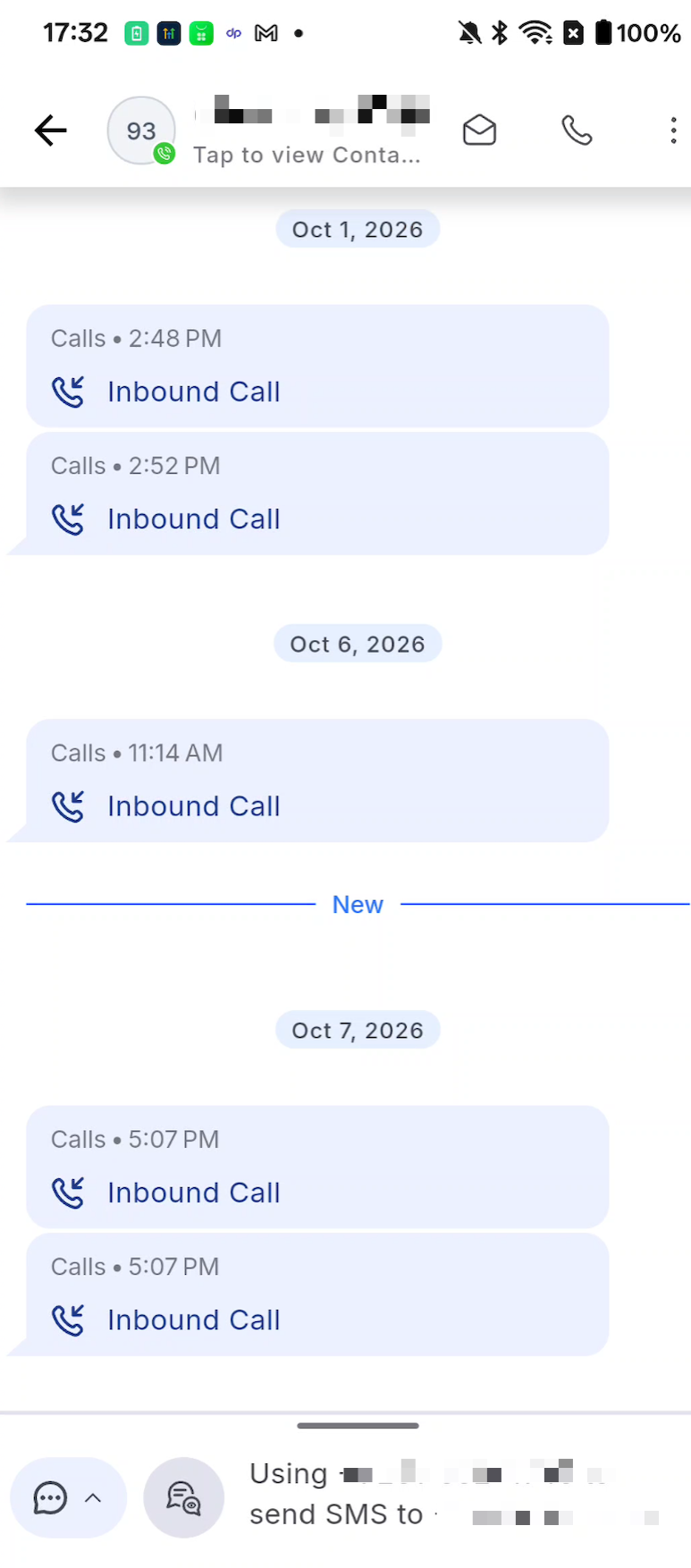
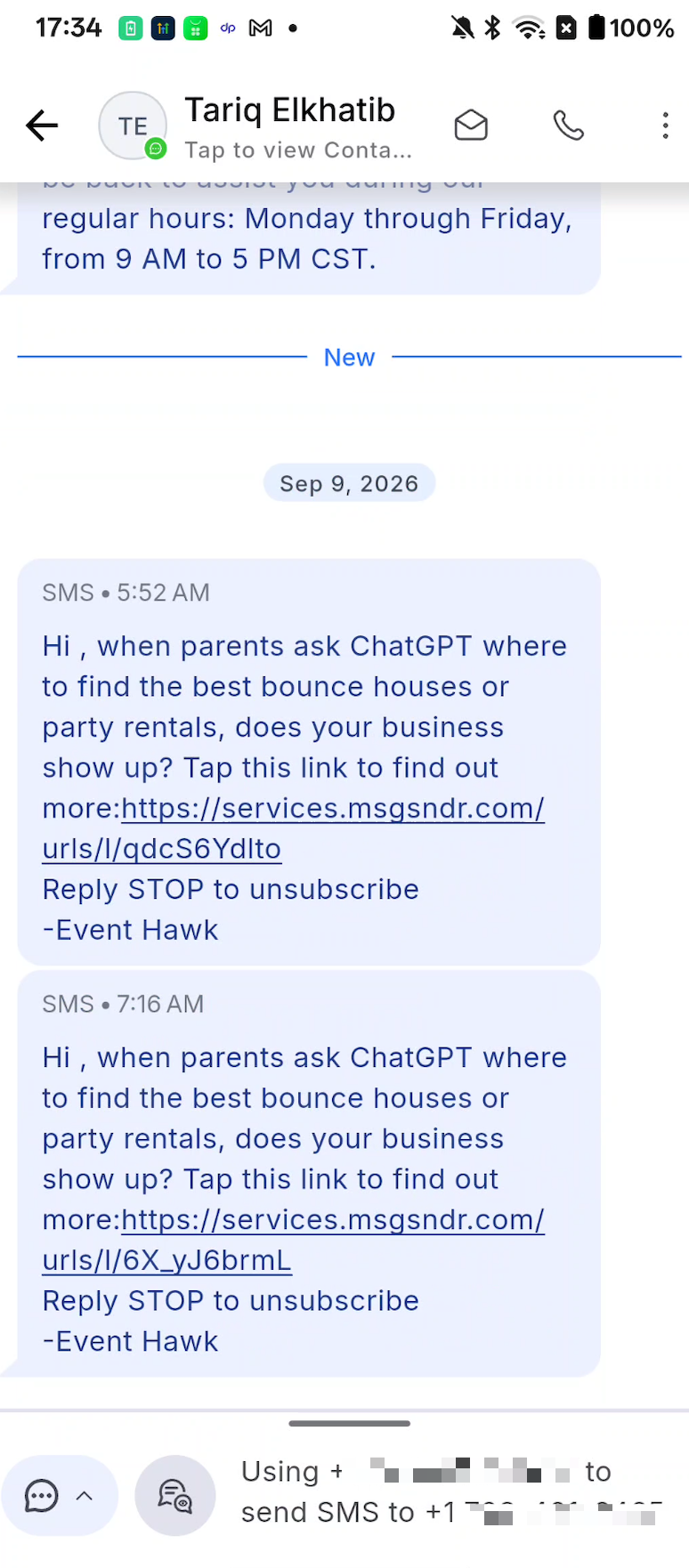
08Things to know before you rely on it
- The feature is listed as In QA; official release date and supported app versions are not yet confirmed.
- Scrolling performance may reach up to 120 FPS only on devices with 120 Hz displays; other phones may see lower frame rates.
- The divider appears only in the supported mobile applications: HighLevel, LeadConnector, and white label apps.
09How it connects to the rest of HighLevel
- How to mark a conversation as read Mark as read guide
- Overview of conversation filters Conversation filters
- HighLevel pricing and plans Pricing page
Michael's take

Wondering if the new divider will actually save you time when you’re juggling dozens of chats on the go? It drops a tiny marker right where your unread messages start, so you never have to hunt through a long thread looking for the latest reply.
I’d jump straight into a conversation that’s been sitting unread and see how the app jumps to that spot. If the marker works as described, I’d keep an eye on whether replies from any device clear it, confirming the read status sync across the team.