
01Who this is for
- Support managers who need to review unassigned chats quickly.
- Sales teams that want consistent filtering for high priority leads.
- Marketing agencies handling multiple client inboxes and requiring shared filter sets.
02Conversation Views, explained
Conversation Views store a set of filters you define in the Conversations inbox. When you open a view, the inbox automatically shows only the conversations that meet those filter conditions. Views update in real time, so new matching conversations appear without manual refresh.
The feature lives under the Conversations section. You access it by selecting Views, where you can create, edit, delete, or share filter collections. Admin users can share a view with other team members, making the same filter set available across accounts while still respecting each user’s existing permissions.
Sharing is optional. By default, a view belongs only to its creator. Admins control who can see a shared view and can remove sharing at any time.
03How businesses use conversation views
- Dental practice. A dental office creates a view that filters for inbound messages tagged "Appointment" and assigned to the receptionist. The receptionist opens the view to see only new appointment requests, saving time rebuilding the filter each day.
- Ecommerce store. The store’s support lead builds a view that shows all chat conversations from the "Webchat" channel marked with a "High Intent" tag. The view is shared with the sales team so they can right away focus on hot leads across the inbox.
- Real estate agency. An agency admin creates a view that includes messages where the agent field is set to "Logged In User" and the channel is "WhatsApp". The view is shared, allowing each agent to see only their own WhatsApp leads without editing the filter.
04The numbers and rules that matter
- Supported filters: Assigned To, Followers, Mentions, Last Message direction, Last Outbound Message Type, Last Message Channel, Tags, SLA.
- No limit to how many views can be created or shared.
05How to set up and use conversation views in HighLevel
Create and share a Conversation View
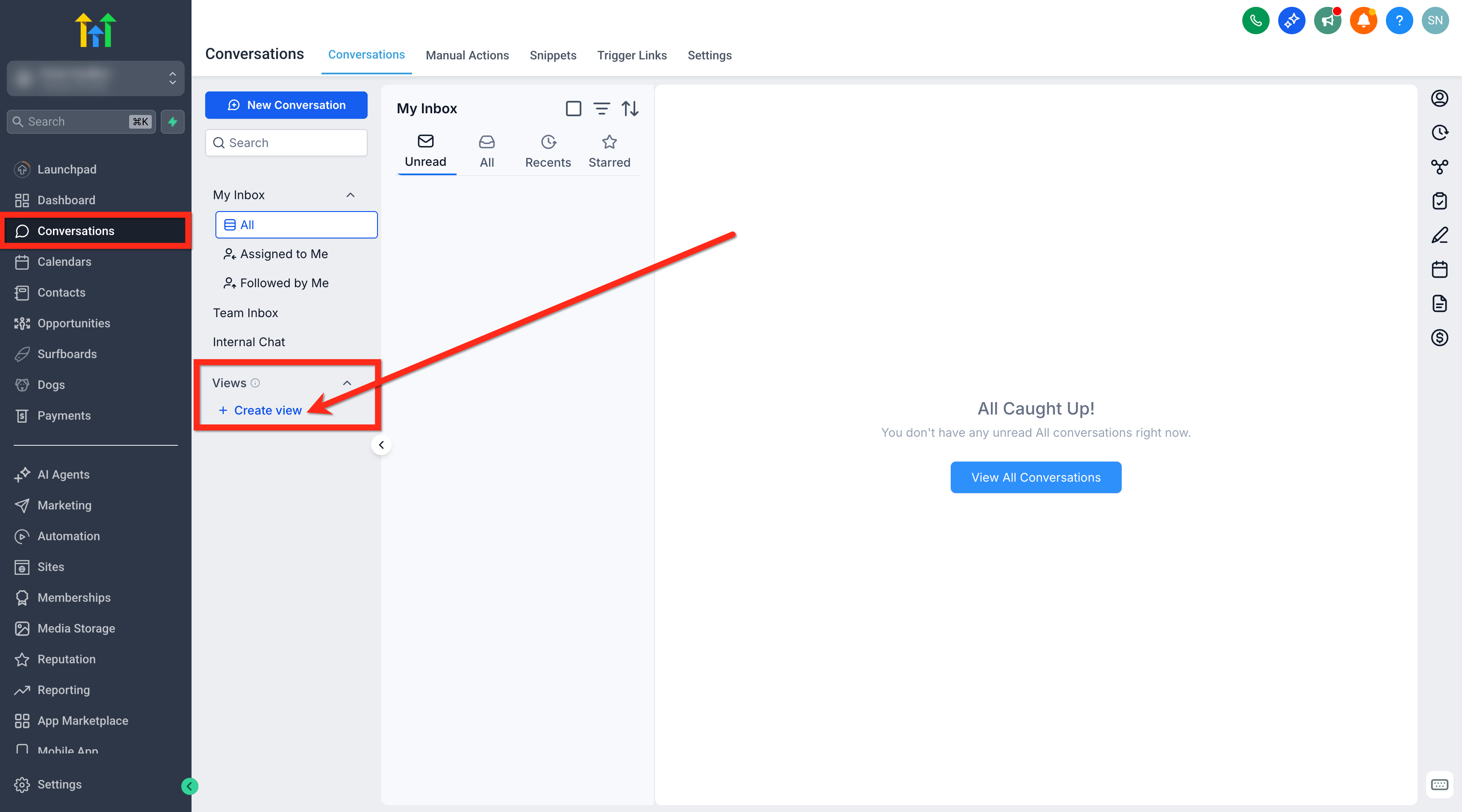
- Navigate to Conversations > Views.
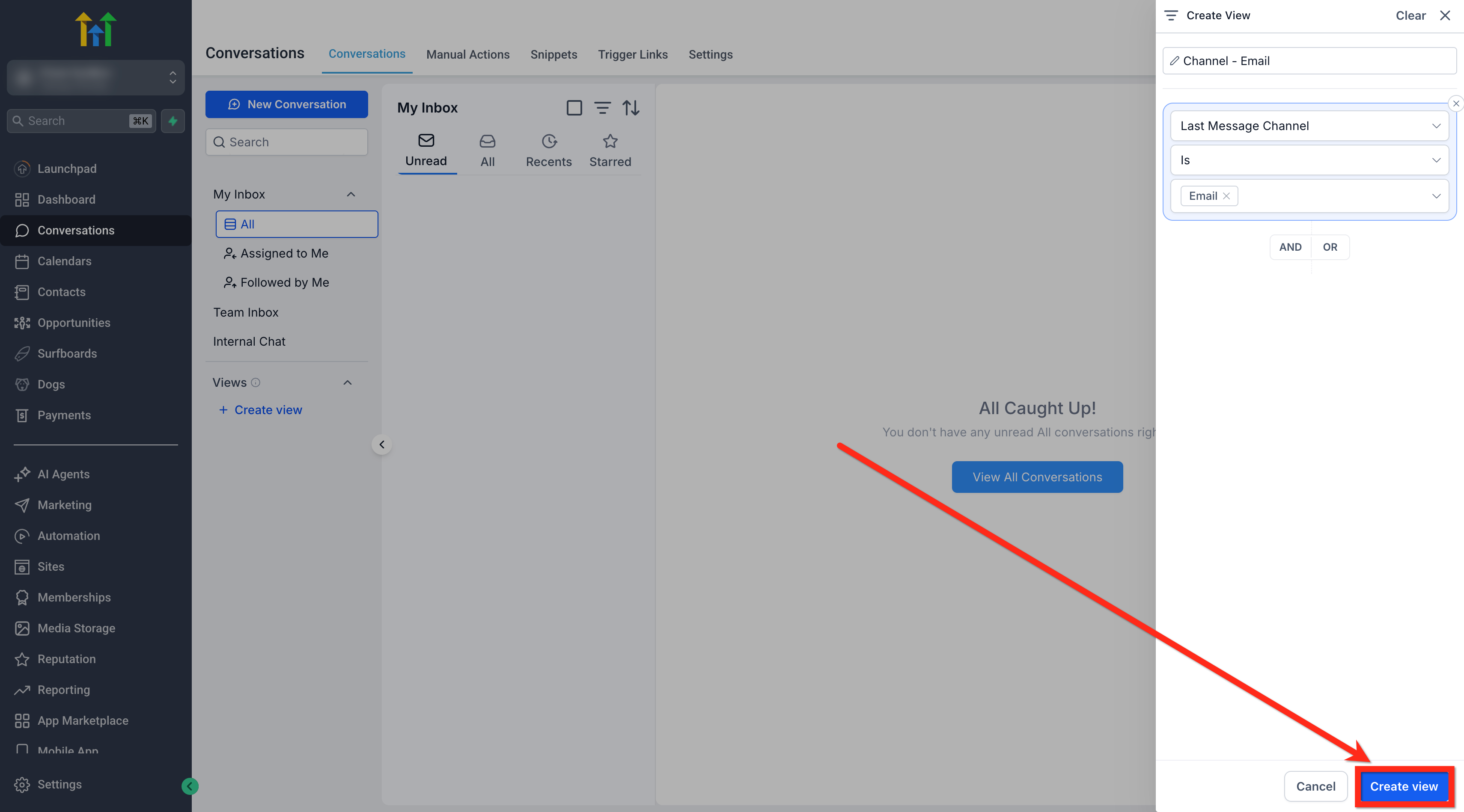
- Click the + Create View button.
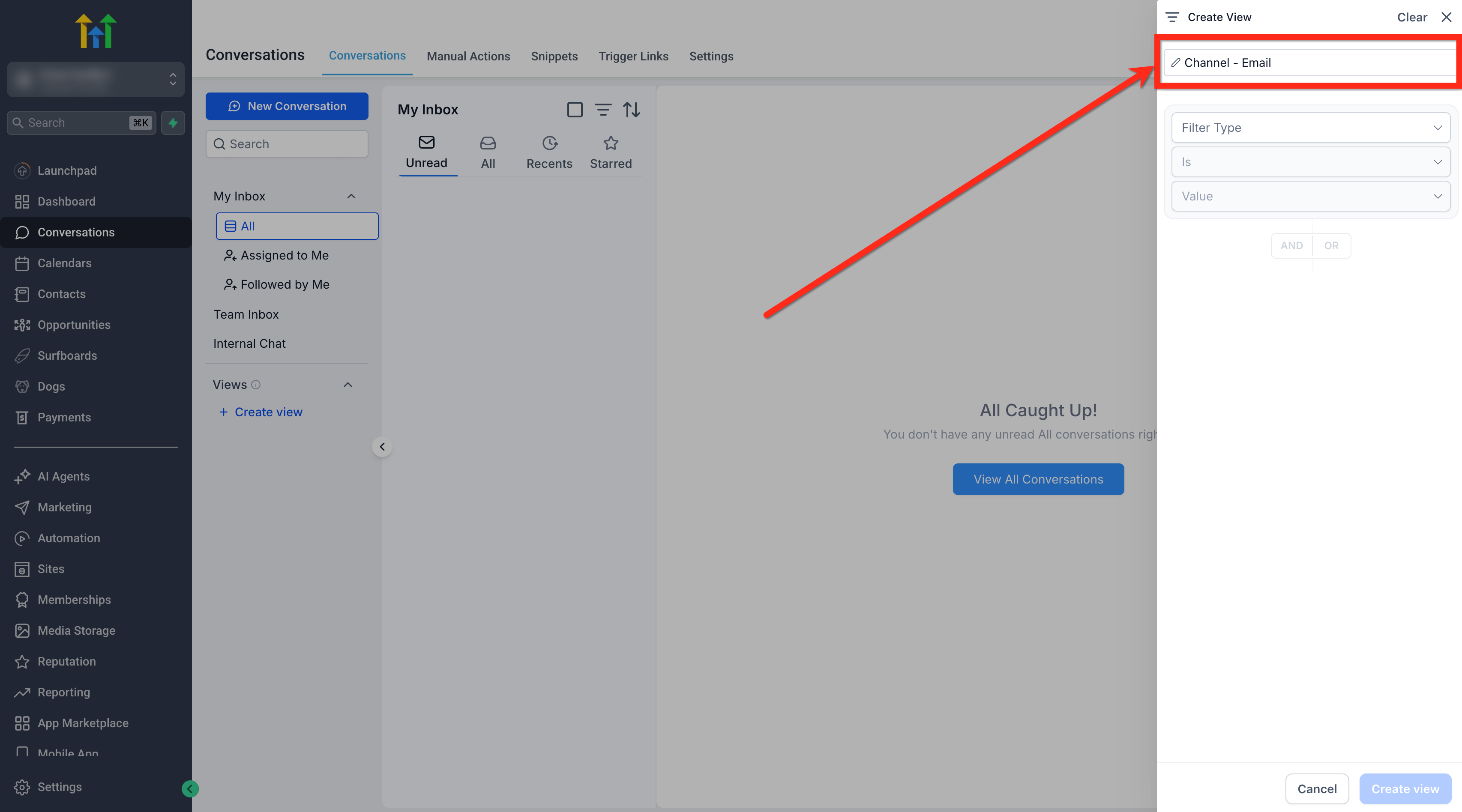
- Enter a clear name for the new view.
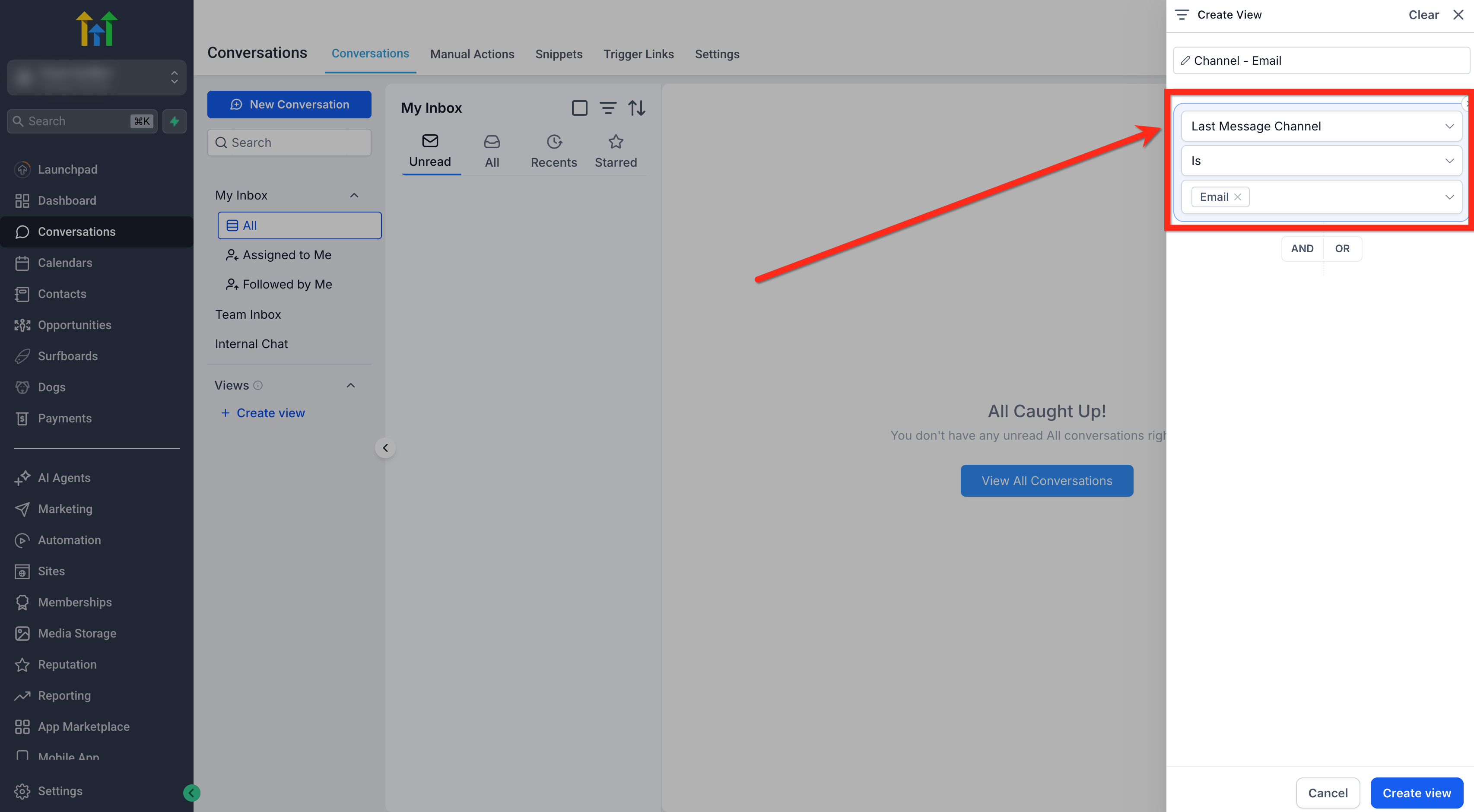
- Select the filters you need for the view.
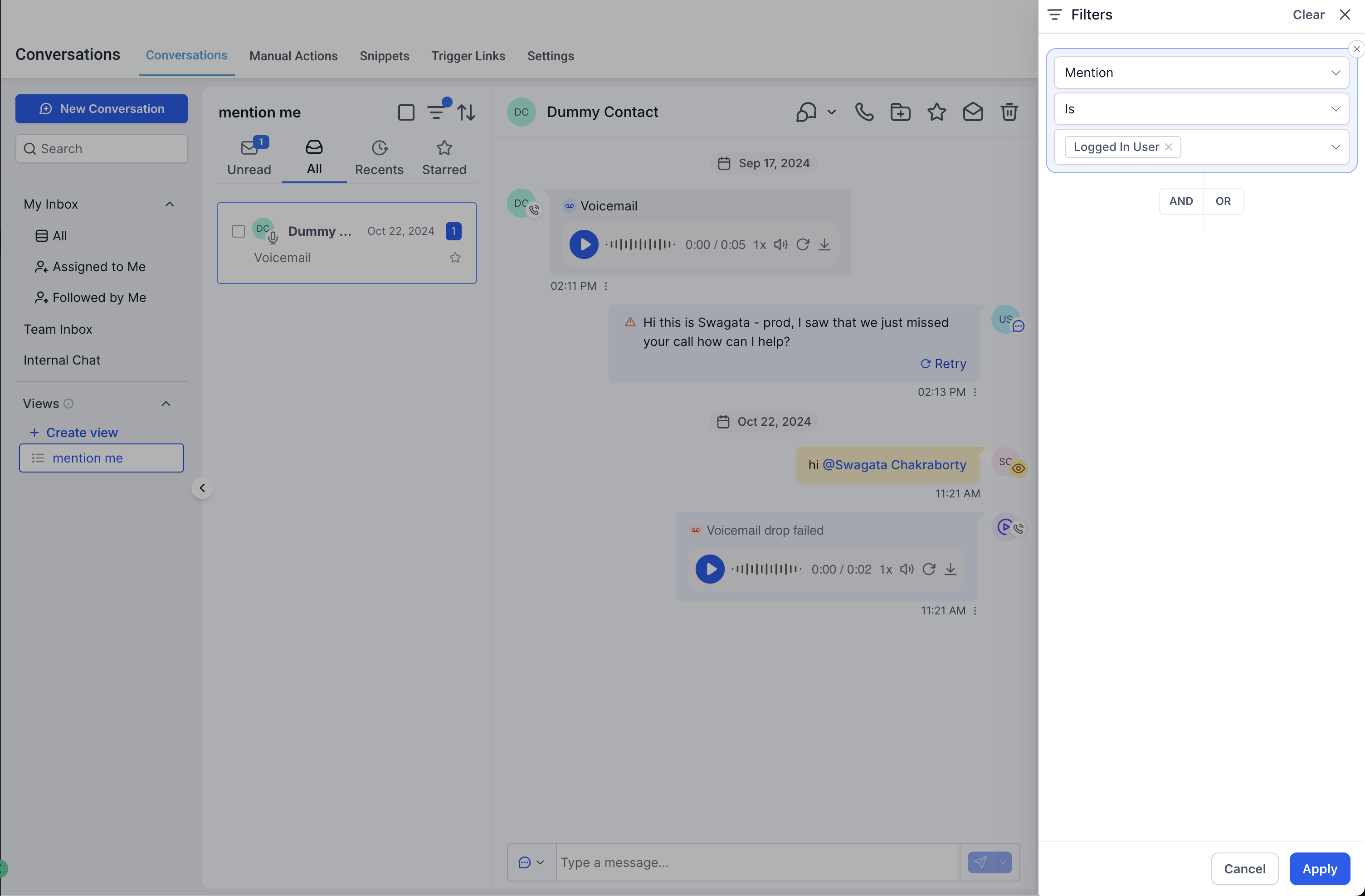
- If the view will be shared, include the “Logged In User” option for any user based filter.
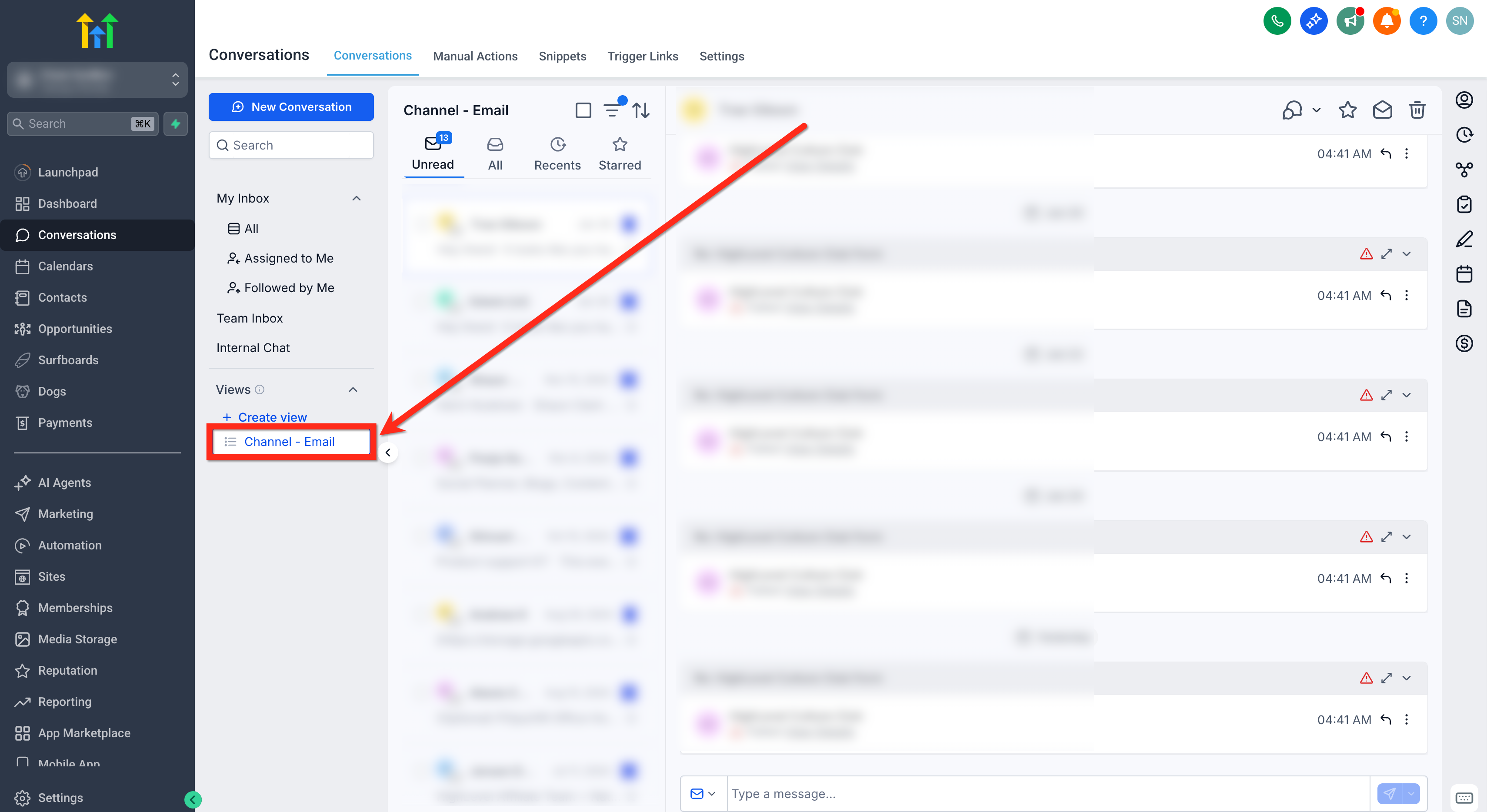
- Press Create View to save the filter set.
- Find the newly created view listed under Views.
- Open the view’s menu and choose Share, or edit or delete it (admin only).
06What it looks like in HighLevel
07Settings that matter
- Assigned To. Filters conversations by the user they are assigned to.
- Followers. Shows only conversations that a specific user follows.
- Mentions. Limits results to chats where a user is mentioned.
- Last Message Channel. Filters based on the channel of the most recent message, such as SMS or Email.
- Tags. Selects conversations that carry particular tags.
- SLA. Applies response time criteria to the filtered set.
08Things to know before you rely on it
- There is no limit on the number of Conversation Views you can create or share.
- Shared views follow each user’s existing permissions, so they do not grant extra access.
- If the view appears outdated, refresh the page or reopen the view.
- Admins can stop sharing a view at any time by using the view’s menu.
09If something goes wrong
- View shows outdated results. Refresh the page or close and reopen the view.
- Teammates see different conversation counts in a shared view. Check each user’s permissions and channel or tag access.
10How it connects to the rest of HighLevel
- Learn more about building conversation filters Conversation filters overview
- Explore how to mark conversations as read automatically Read status automation
- See all features available in the Conversations tab All Conversations features
- Review pricing and plan options for HighLevel HighLevel pricing
- Start a free 30 day trial of HighLevel 30 day trial
Michael's take

Jumping into Conversation Views without proper filters can cause confusion. If the view pulls in too many chats, your team may have to sift through irrelevant messages. Keep the filter set tight and name each view clearly so everyone knows what they’re opening.
When you have a well named view, a single click opens the conversations that match the view, and sharing that view lets the team use the same filter criteria, helping maintain consistency across daily chat reviews.