
01Who this is for
- Social media managers benefit because they can answer frequent questions with a single tap, keeping conversations fast.
- Customer support teams gain efficiency by reducing manual typing for common inquiries on Facebook and Instagram.
- Small business owners who rely on social channels can maintain engagement without hiring additional staff.
02Quick replies, explained
Quick Replies are predefined short text choices that appear in a direct message thread on Facebook or Instagram. They show as tappable buttons beneath the most recent message, letting the customer respond with one tap.
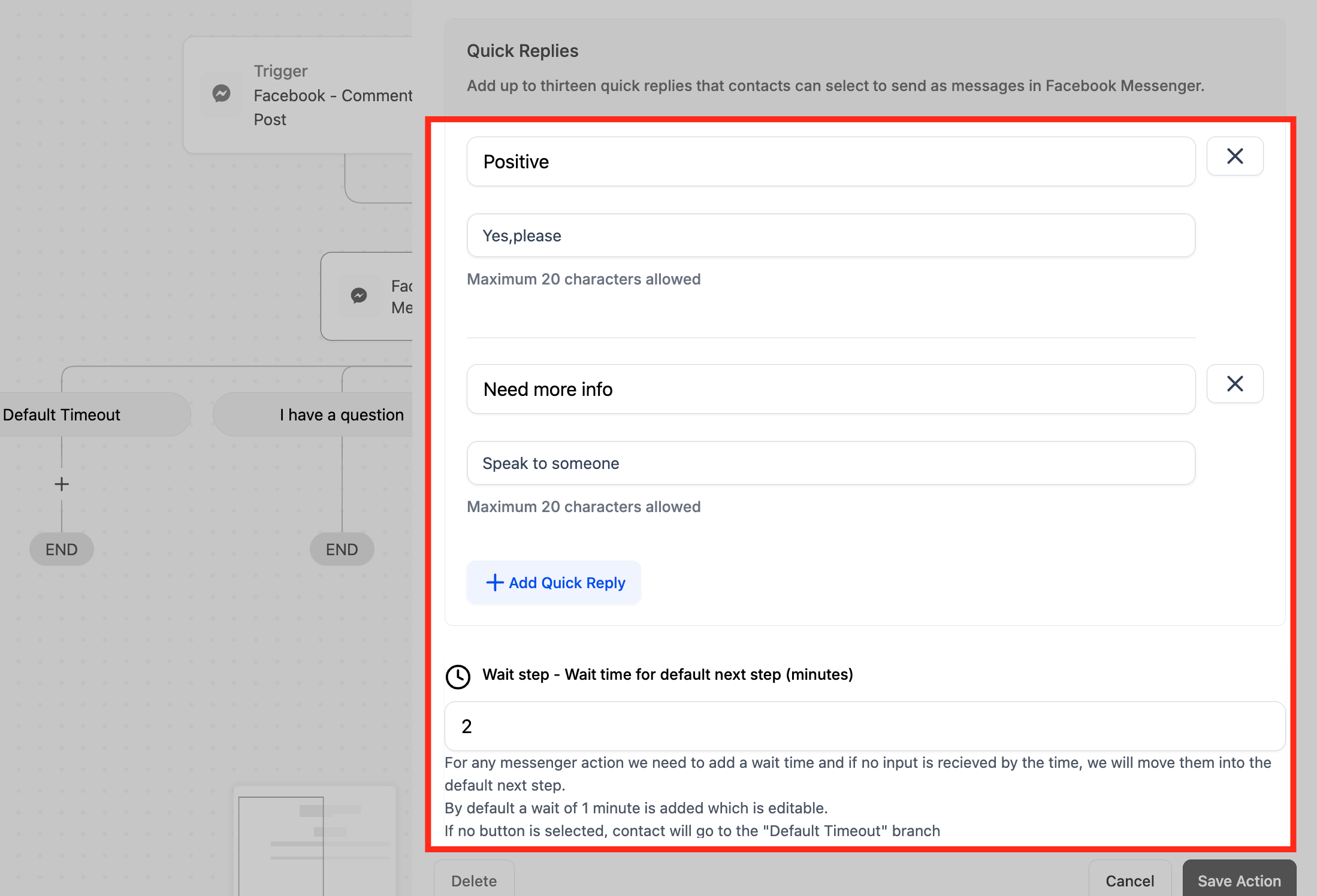
The feature lives inside the Automation > Workflows area. When a workflow includes a Facebook Interactive Messenger or Instagram Interactive Messenger action, you can add up to 13 quick reply options, each limited to 20 characters. Once a customer selects an option, it is sent as an inbound message and displayed in blue on the Conversations page.
Quick Replies work alongside other interactive elements such as buttons or images on Facebook, while on Instagram they can only be used when the message has no attachments.
03How businesses use quick replies
- Real estate agency. The agency creates a workflow that triggers when a prospect comments on a new property post. Quick replies like "Schedule a tour" or "Request details" are added, letting the prospect right away choose their next step without typing.
- Dental practice. When a patient comments on a promotional Instagram story, the practice sends a DM with quick replies such as "Book appointment" or "Ask a question". The patient taps the appropriate option, and the practice receives the choice as a new inbound message.
- Ecommerce retailer. The retailer sets up a workflow that reacts to comments on a Facebook product post. Quick replies like "Size guide" or "Track order" are presented, enabling shoppers to get immediate information with a single tap.
04The numbers and rules that matter
- Configure up to 13 quick replies each with a maximum length of 20 characters.
05Before you start
- A workflow must be created or opened in the Automation > Workflows section.
- If a template or snippet is required for the message, it must exist in the Marketing section before adding the quick reply action.
06How to set up and use quick replies in HighLevel
Set up quick replies in a workflow
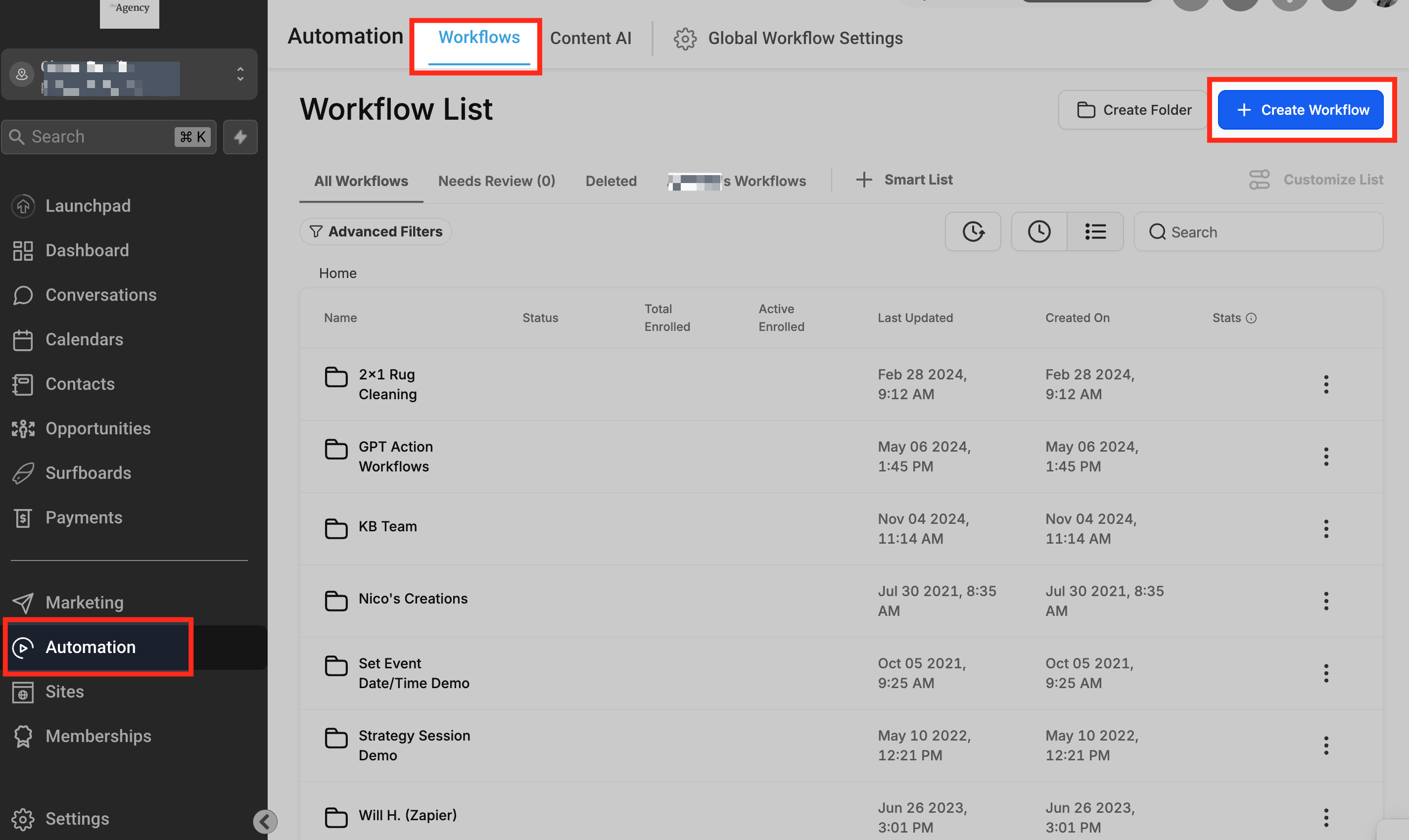
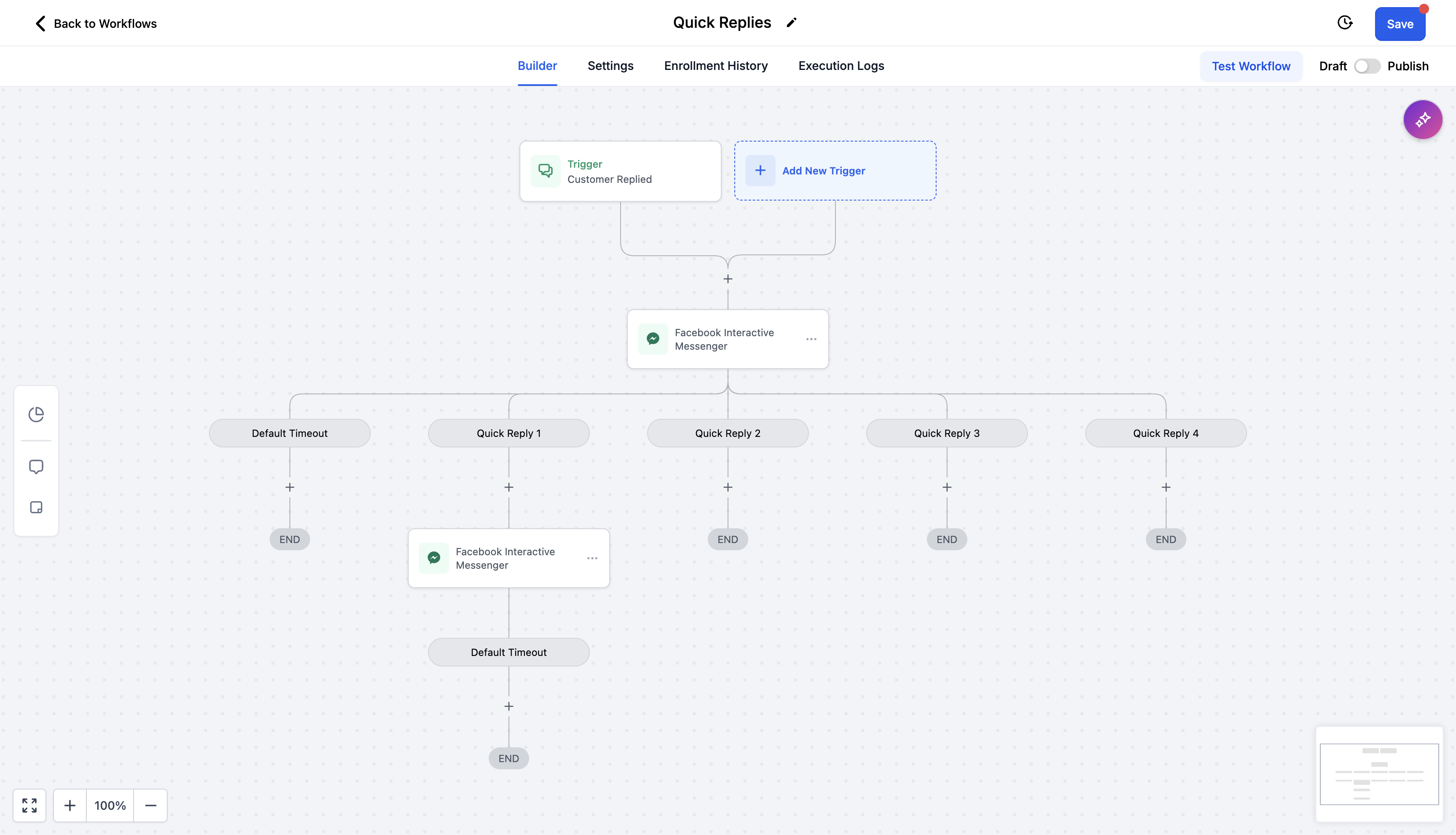
- Open Automation > Workflows and start a new workflow or edit an existing one.
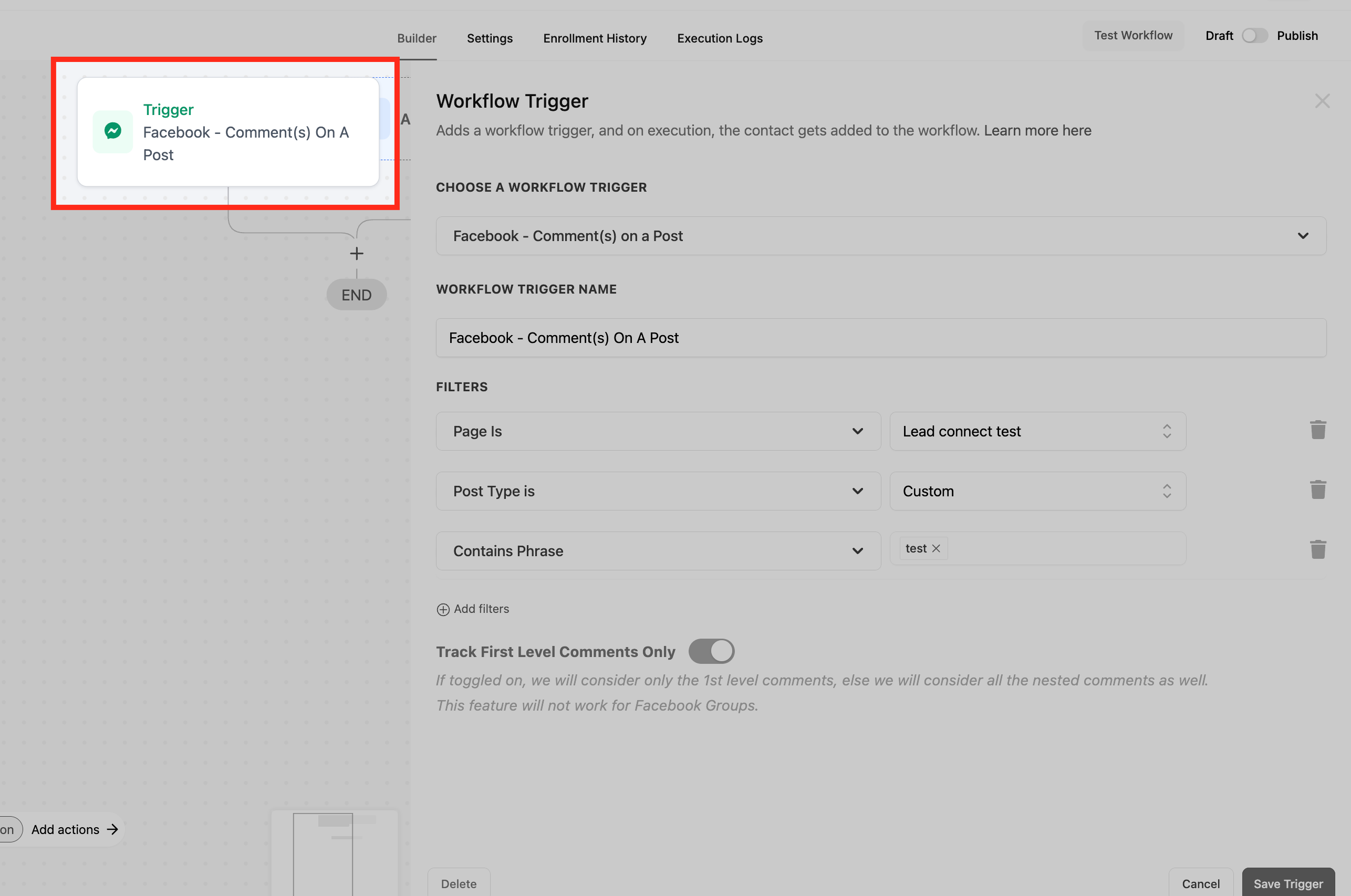
- Add a trigger, such as a comment on a specific Facebook or Instagram post, and select that post.
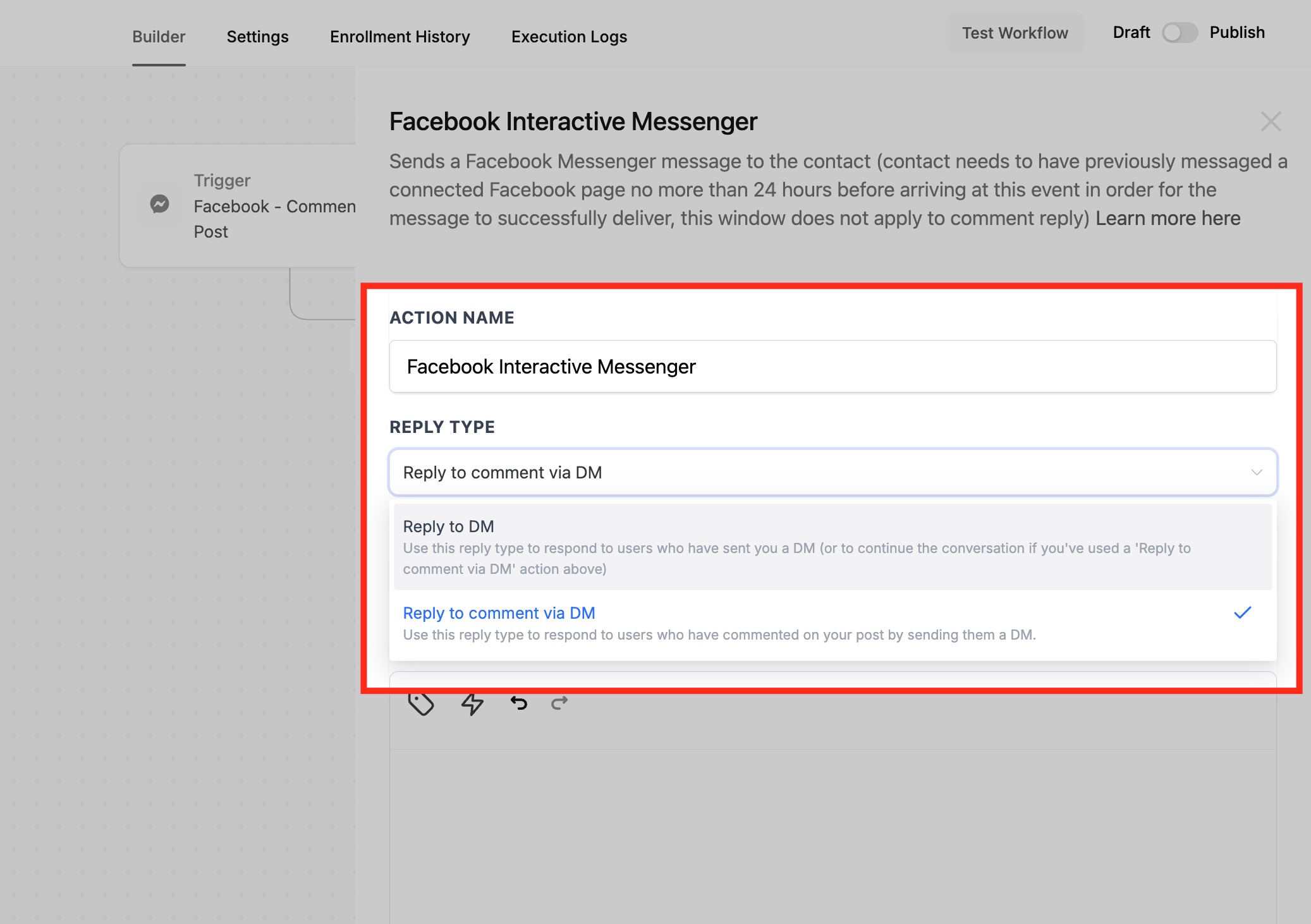
- Choose the “Reply to comment via DM” or “Reply via DM” action under Facebook Interactive Messenger (or Instagram Interactive Messenger) and attach a template or Snippet from Marketing if needed.
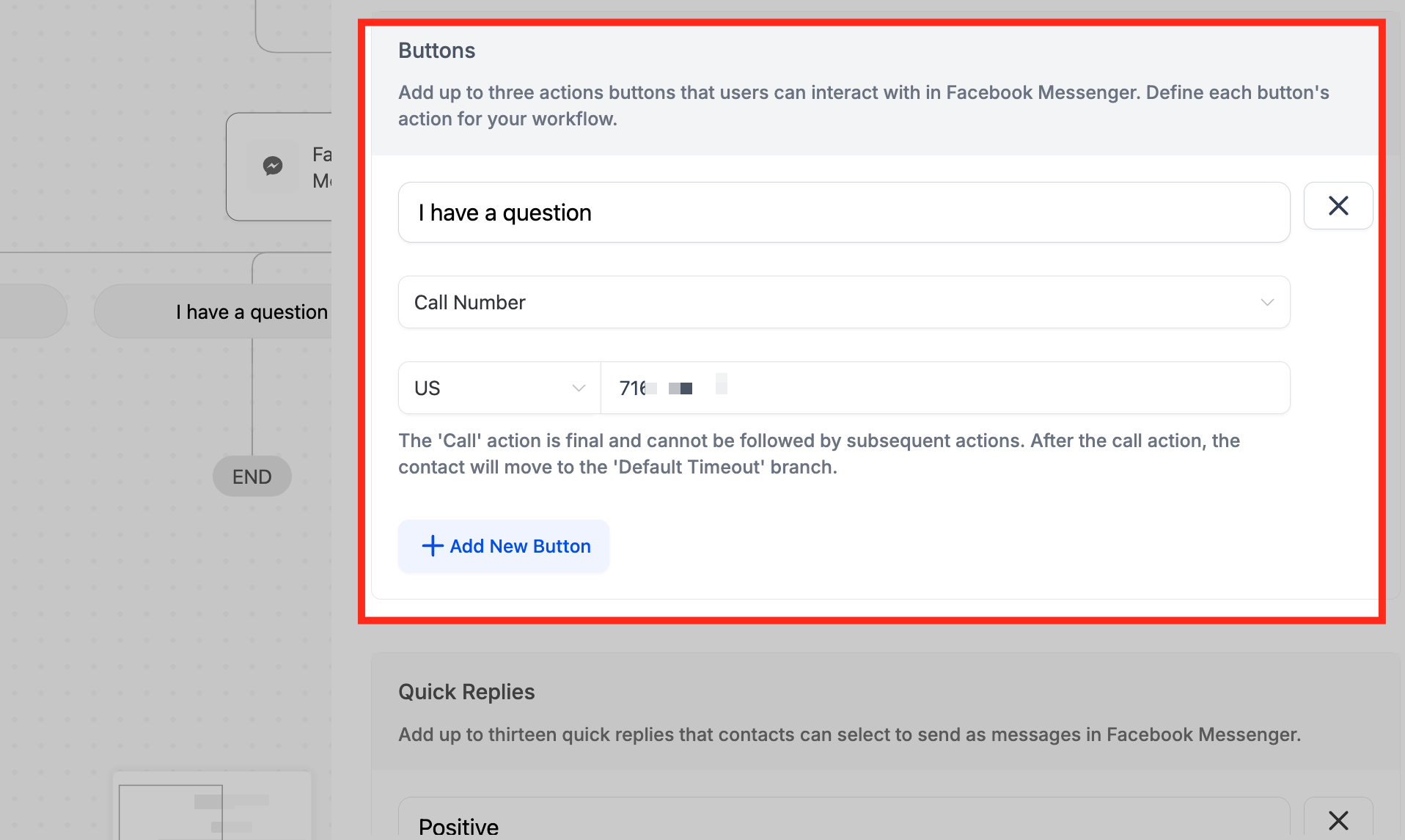
- In the action settings, create a button labeled “I have a question” that directs the user to call the phone number.
- Add quick reply options, up to 13 entries, each no longer than 20 characters, using the same messenger action.
- Save and activate the workflow; the quick replies will appear as tappable options in the customer’s interface and will be shown in blue on the Conversations page when selected.
07What it looks like in HighLevel
08Things to know before you rely on it
- A maximum of 13 quick replies can be added to a single message.
- Each quick reply may contain up to 20 characters.
- Quick replies appear only with the most recent message and function as single tap responses.
- Once a quick reply is chosen, the customer cannot change their selection.
- On Instagram, quick replies cannot be added to a message that also includes attachments.
09How it connects to the rest of HighLevel
- Learn how to add a live chat widget to your website for real time messaging. Live chat widget
- Use conversation filters to segment incoming messages and route them to the right workflow. Conversation filters
- Set up contact engagement scoring to prioritize leads based on interaction frequency. Engagement scoring
Michael's take

Quick replies can feel like a shortcut that narrows the conversation too quickly. If a customer needs to explain something more complex, the single tap options might leave them frustrated.
When you need to field the same handful of questions over and over, the speed gain is worth it. A simple "I’m interested" button that routes to a call can keep leads moving without a back and forth of typing.