
01Who this is for
- Founders of service based businesses can answer social media questions without switching apps.
- Marketing managers at agencies benefit from a single view of client chats across Facebook and Instagram.
- Ecommerce owners can keep all customer inquiries in one place, simplifying follow up.
02Facebook and Instagram messenger, explained
The integration pulls messages sent to a connected Facebook Page or Instagram Business profile into the HighLevel Conversations inbox. When a person contacts you for the first time, HighLevel creates a new contact or updates an existing one based on the Contact Deduplication Preferences. If the messenger user later shares an email or phone number that matches another record, the system may merge the profiles unless the Allow Duplicate Contact option is active.
The feature lives under Settings > Integrations, where you connect the Facebook & Instagram accounts and then sync leads. Once linked, inbound messages appear in the Conversations section of the chosen Subaccount. You can reply from HighLevel, and the reply is delivered back to the original platform.
Testing involves sending a message from a separate personal account on each platform, then confirming the message shows up in the inbox and that replies sent from HighLevel are received on the social channel.
03How businesses use Facebook and Instagram messenger
- Gym franchise. The franchise links its Facebook Page and Instagram Business account to HighLevel, then tests each channel. Staff reply to membership inquiries from the Conversations inbox, keeping all client interactions together.
- Dental practice. The practice connects its social pages, sends a test DM from a personal Instagram, and verifies the message appears in HighLevel. Replies to appointment requests are sent directly from the platform.
- Online boutique. The boutique adds its Facebook Page, syncs leads, and uses the test process to ensure shopper questions show up in the inbox. Customer service reps handle order questions without leaving HighLevel.
04Before you start
- A Facebook Page that is already linked to the Instagram Business or Creator account you plan to integrate.
- Access to Settings > Integrations in your HighLevel account.
05How to set up and use Facebook and Instagram messenger in HighLevel
Integrate Facebook & Instagram
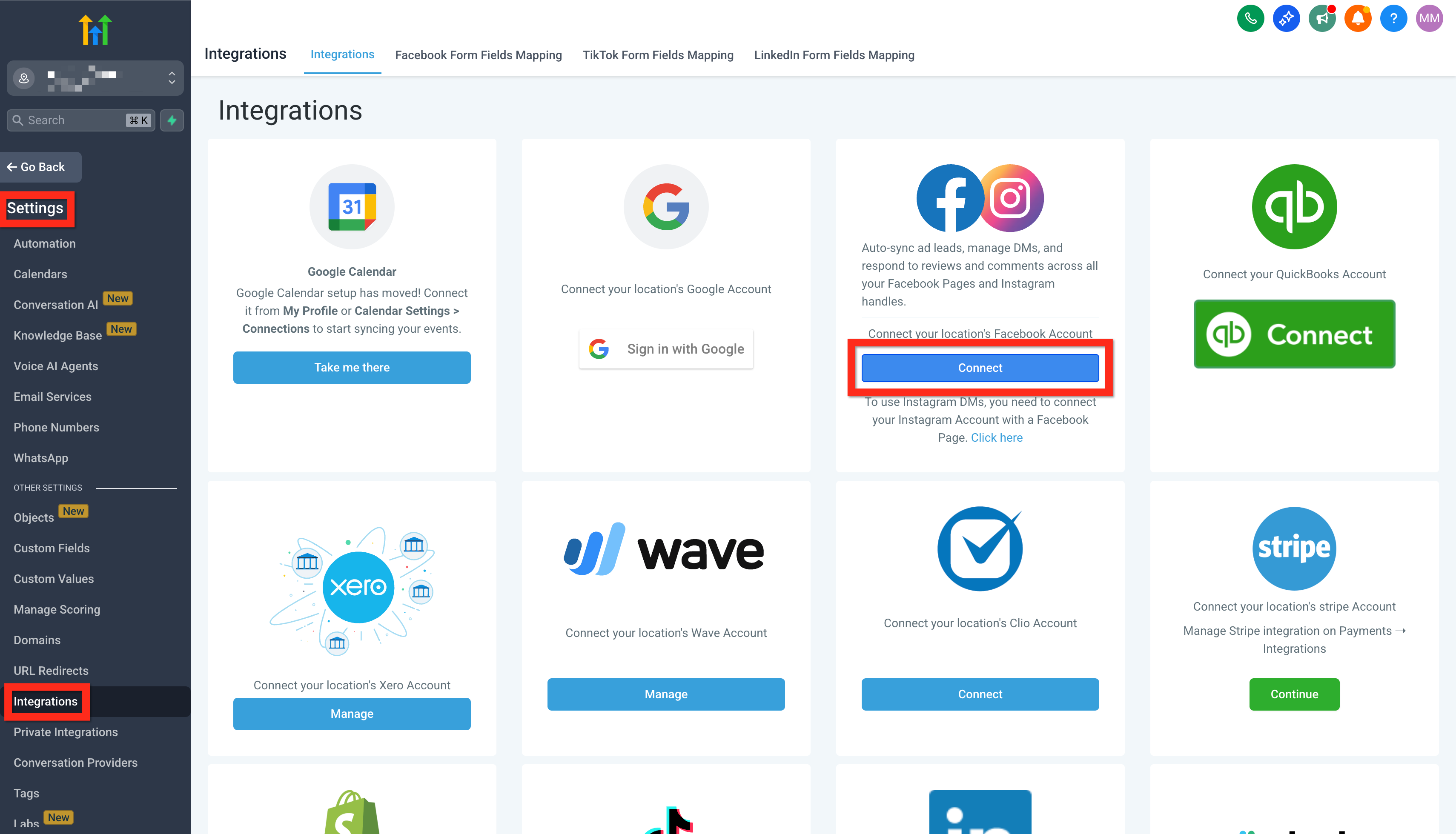
- Open Settings > Integrations.
- Click Connect under Facebook & Instagram.
- Log in to Facebook and pick the page linked to Instagram.
- Select Connect Facebook & Instagram.
- Press Sync Leads.
Link Instagram to Facebook
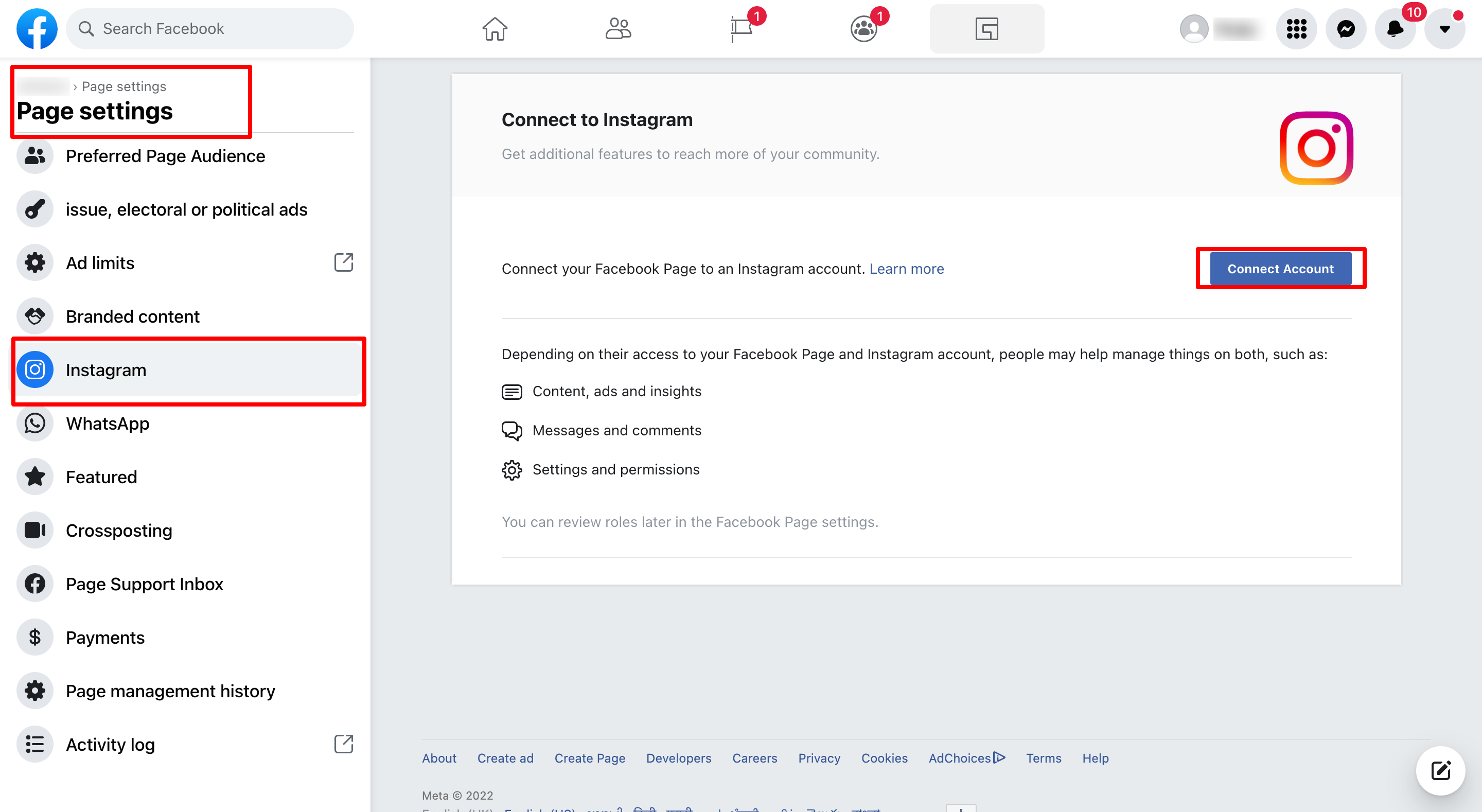
- Log into Facebook and open the business page.
- Navigate to Account > Settings.
- Search for Linked Accounts.
- Choose Instagram and click Connect.
- Leave the toggle on to allow Instagram messages in the inbox.
- Enter Instagram login details to finish linking.
Test Facebook Messenger
- From a different Facebook account, open the connected business Page.
- Click Message and send a test message.
- In HighLevel, open the appropriate Subaccount.
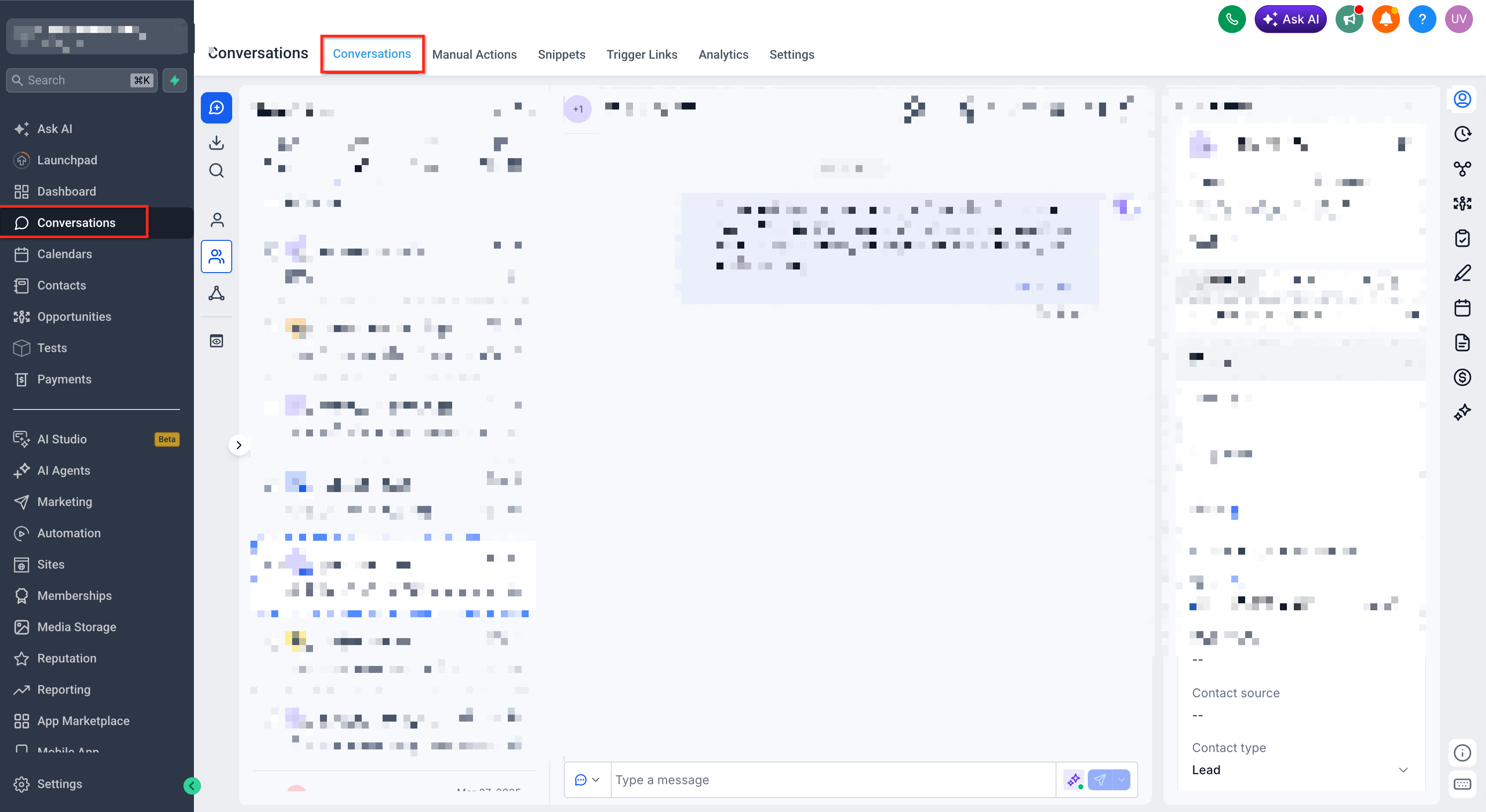
- Go to Conversations.
- Find the new conversation in the inbox.
- Open it and verify the test message appears.
Test Instagram Messaging
- From a different Instagram account, view the business profile.
- Send a direct message to the profile.
- In HighLevel, open the appropriate Subaccount.
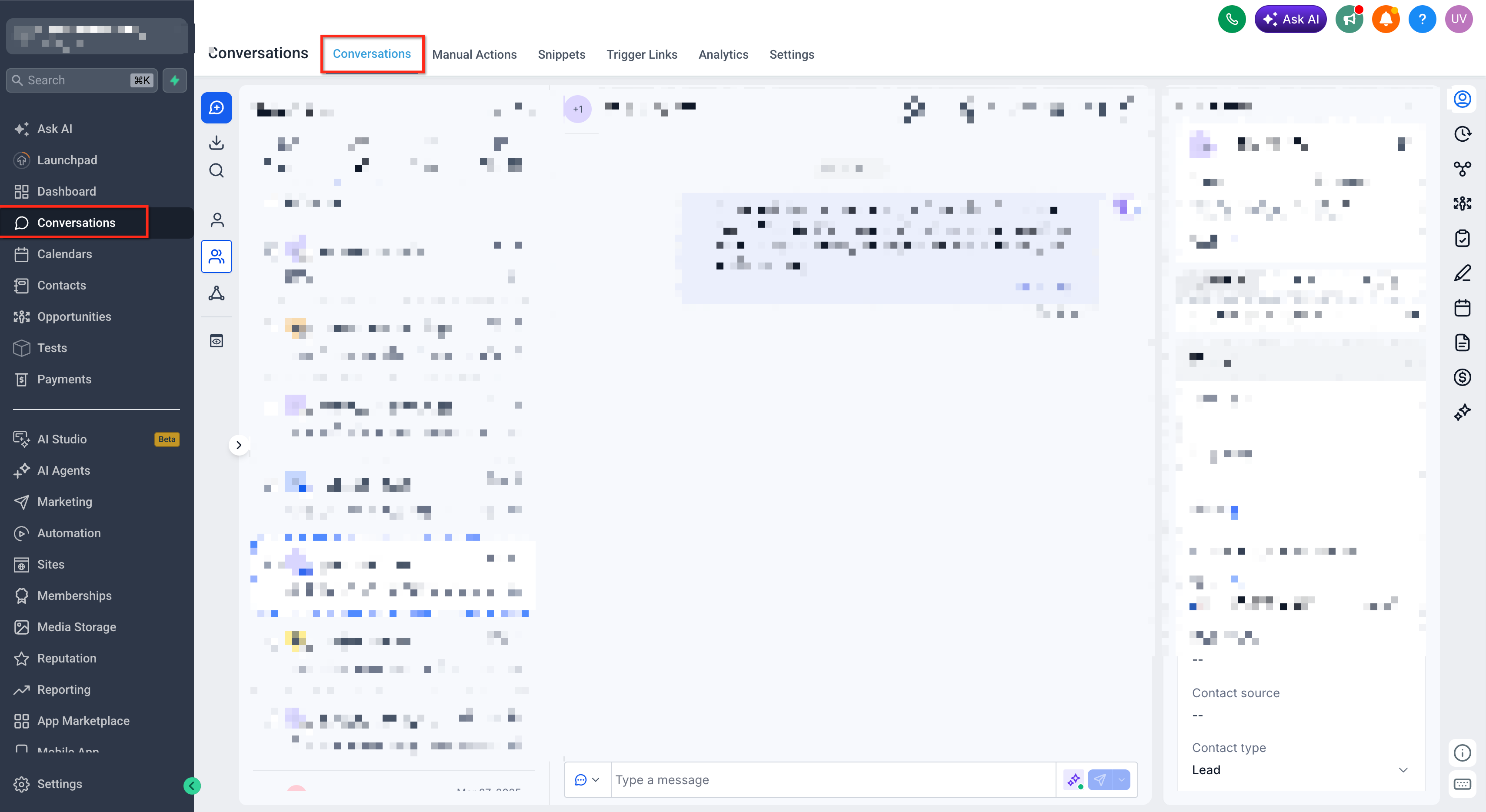
- Navigate to Conversations.
- Locate the new conversation in the inbox.
- Open it and confirm the Instagram test message appears.
Test the Reply
- Reply to the test message inside HighLevel > Conversations.
- Return to the Facebook or Instagram account used for testing.
- Check that the reply was received on the original platform.
06What it looks like in HighLevel
07Settings that matter
- Allow Duplicate Contact. Controls whether incoming messenger contacts are merged into existing records when email or phone matches an existing contact.
- Contact Deduplication Preferences. Defines how HighLevel creates or updates contacts from Facebook and Instagram messages, including merge behavior.
08Things to know before you rely on it
- If Allow Duplicate Contact is off, matching messenger contacts are merged into a single profile.
- If Allow Duplicate Contact is on, separate contact records may be created for the same person.
- A successful connection is confirmed only when the test message shows up under the correct contact in Conversations.
09If something goes wrong
- Test message does not appear in Conversations. Go to Settings > Integrations and verify the correct Facebook Page and Instagram account are linked. Ensure messaging access is enabled and required permissions are granted. For Instagram, confirm it is linked to the Facebook Page, then resend the test.
10How it connects to the rest of HighLevel
- All Conversations features Conversations overview
- HighLevel pricing and plans Pricing
Michael's take

Connecting Facebook and Instagram Messenger to HighLevel consolidates social chats into a single inbox and creates or updates contacts automatically.
Don't skip the step that links Instagram to the Facebook page; without it messages never reach the inbox.