
01Who this is for
- Marketing teams who need a quick way for visitors to contact sales, because the widget creates a direct chat channel on the site.
- Support departments that want to route live chats into HighLevel Conversations for consistent follow up.
02Live chat widgets, explained
The widget adds a chat button to any page built in HighLevel. When a visitor clicks, a conversation opens inside the platform. You choose the chat type, customize colors, and decide whether a human or AI answers.
The widget can be added to a website or funnel. Use the embed code method for sites that allow script insertion, or use the settings method for placement without writing code. Both ways link the widget to the conversations inbox.
03How businesses use live chat widget
- Real estate agency. The agency creates a Live Chat widget, customizes it with its logo and colors, then embeds the code on property listing pages. Prospects can start a chat directly from a listing, and agents receive the conversation inside HighLevel.
- Online fitness coach. The coach picks the widget, sets a brand color, and selects the widget in the funnel settings for a sales page. Visitors can ask questions about programs, and the coach answers in the Conversations inbox.
- Dental practice. The practice builds a Live Chat widget, copies the embed snippet, and pastes it into the website's tracking code area. Patients can request appointments through the chat, and staff manages the requests within HighLevel.
04How to set up and use live chat widget in HighLevel
Create live chat widget
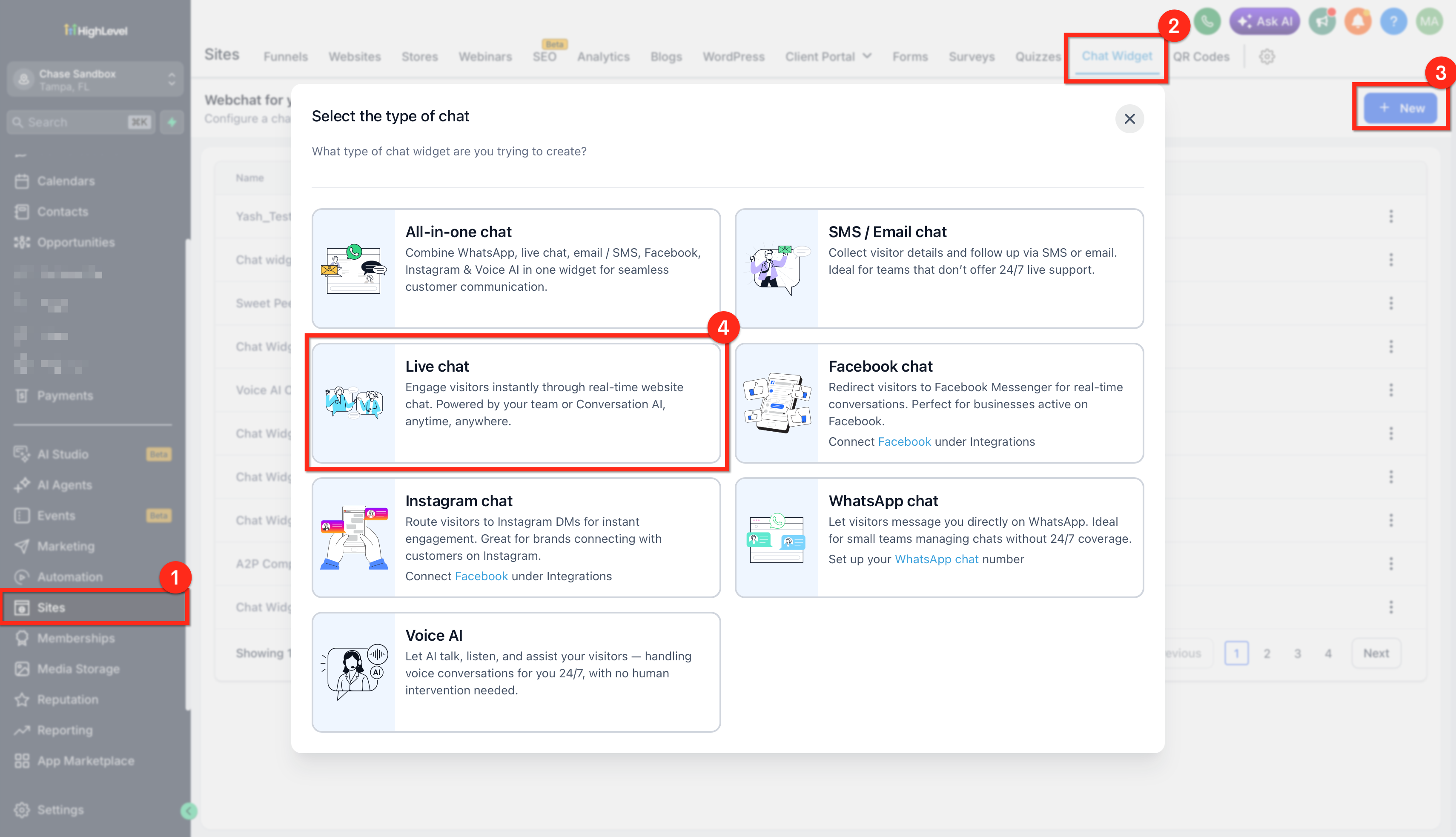
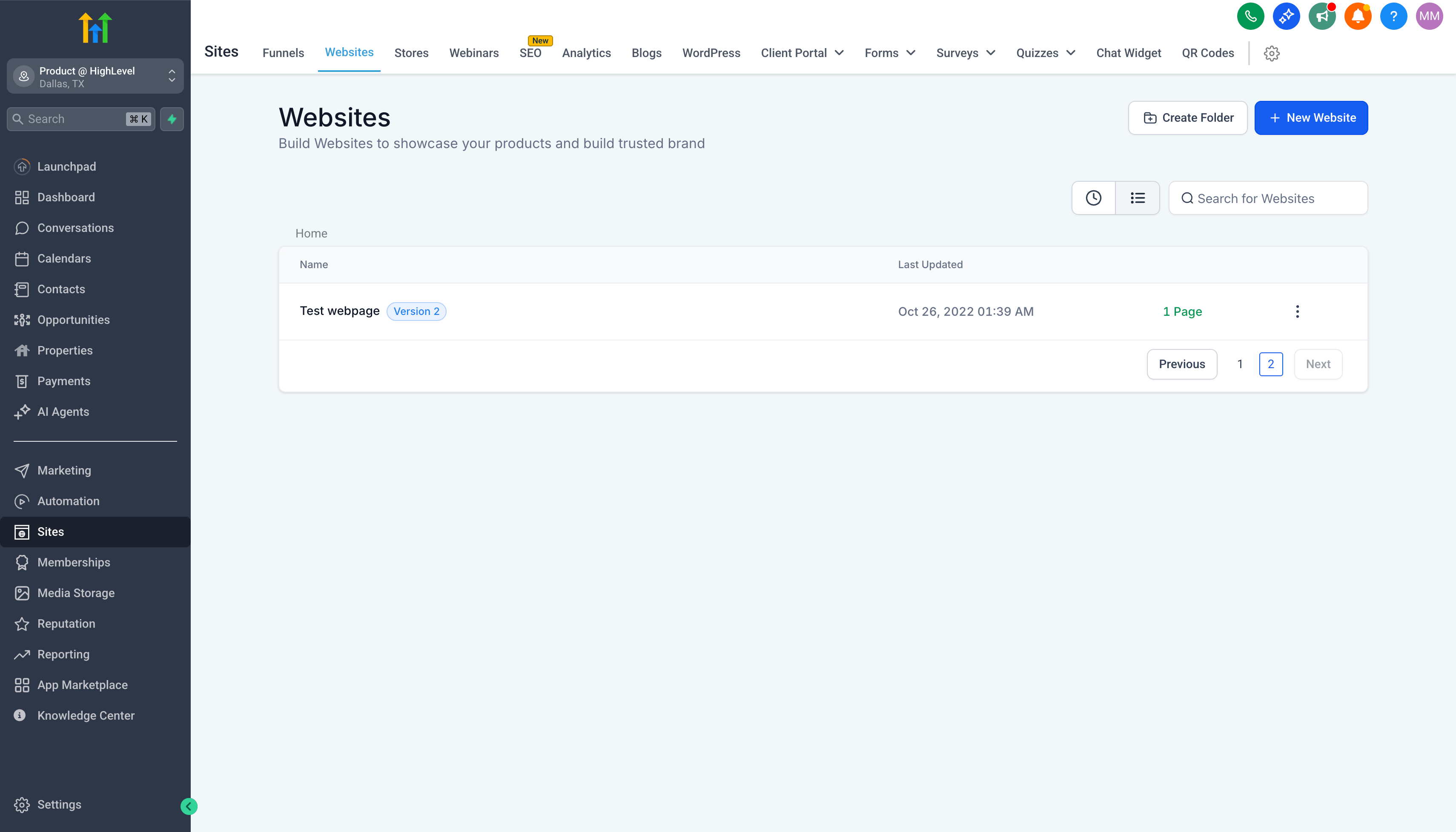
- Navigate to Sites > Chat Widget.
- Click New to view widget type options.
- Select Live Chat as the type.
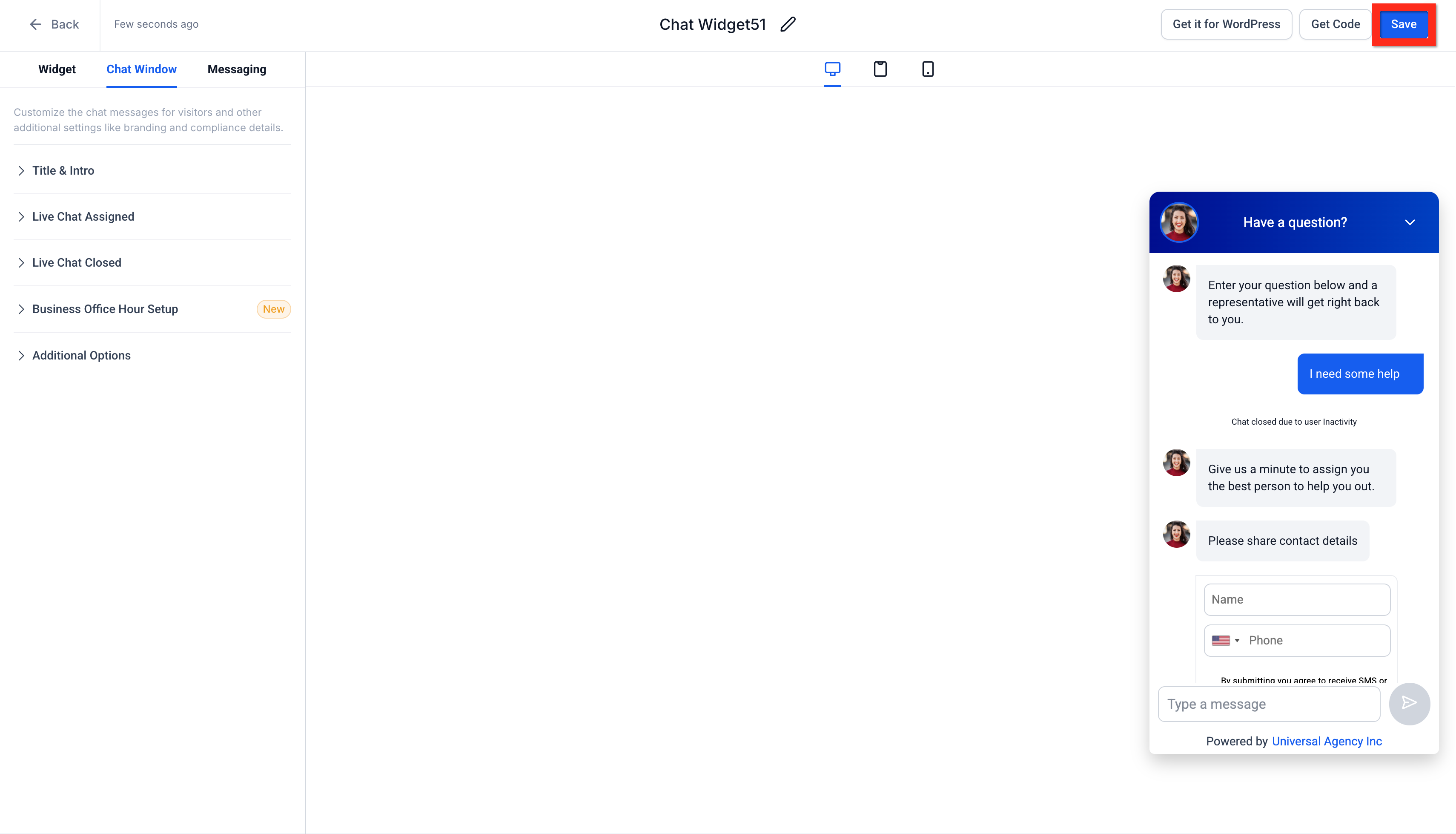
- Adjust the widget design to match the brand.
- Press Save to store the widget.
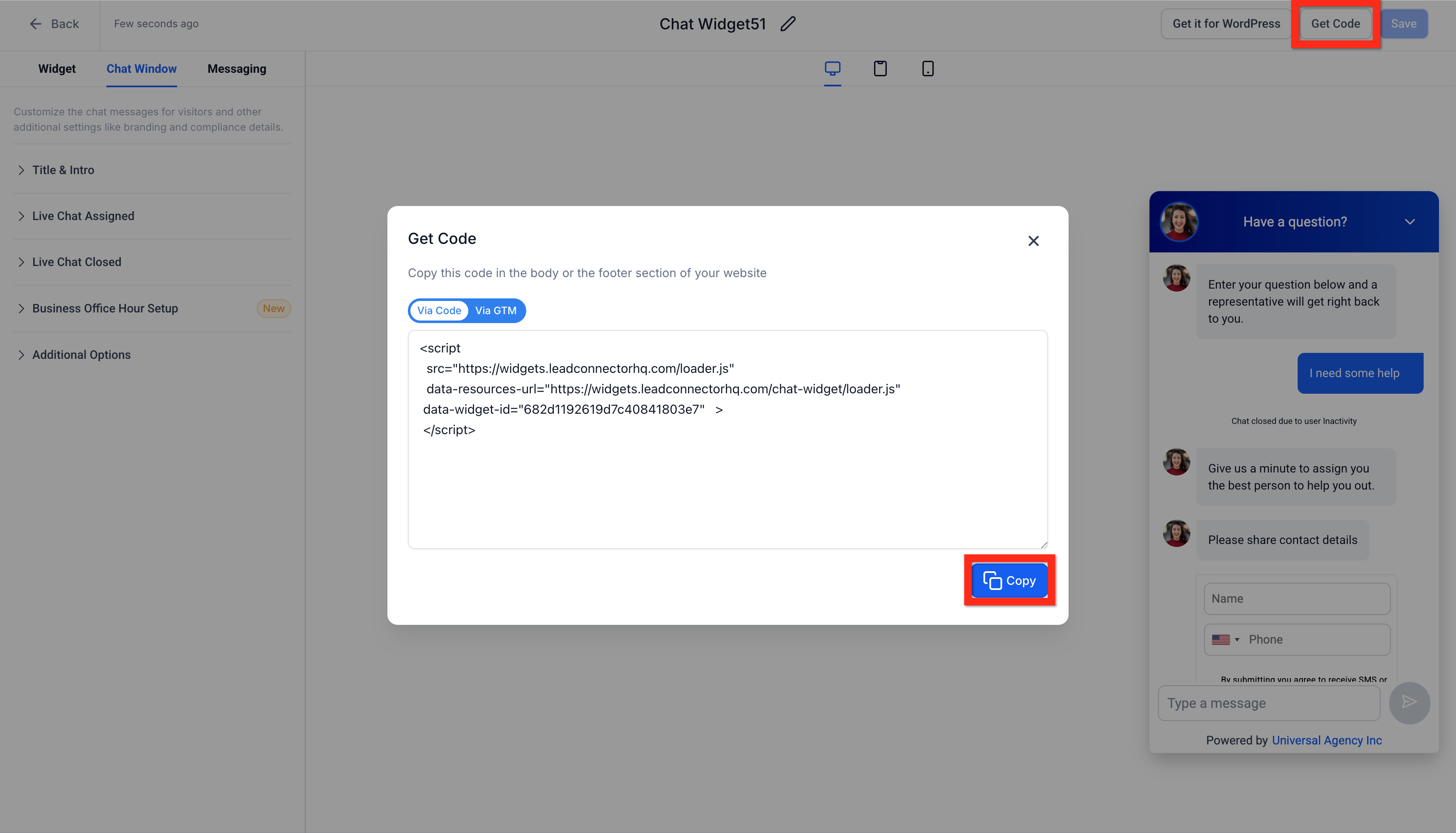
- Open Get Code and copy the embed snippet.
Deploy live chat widget via embed code
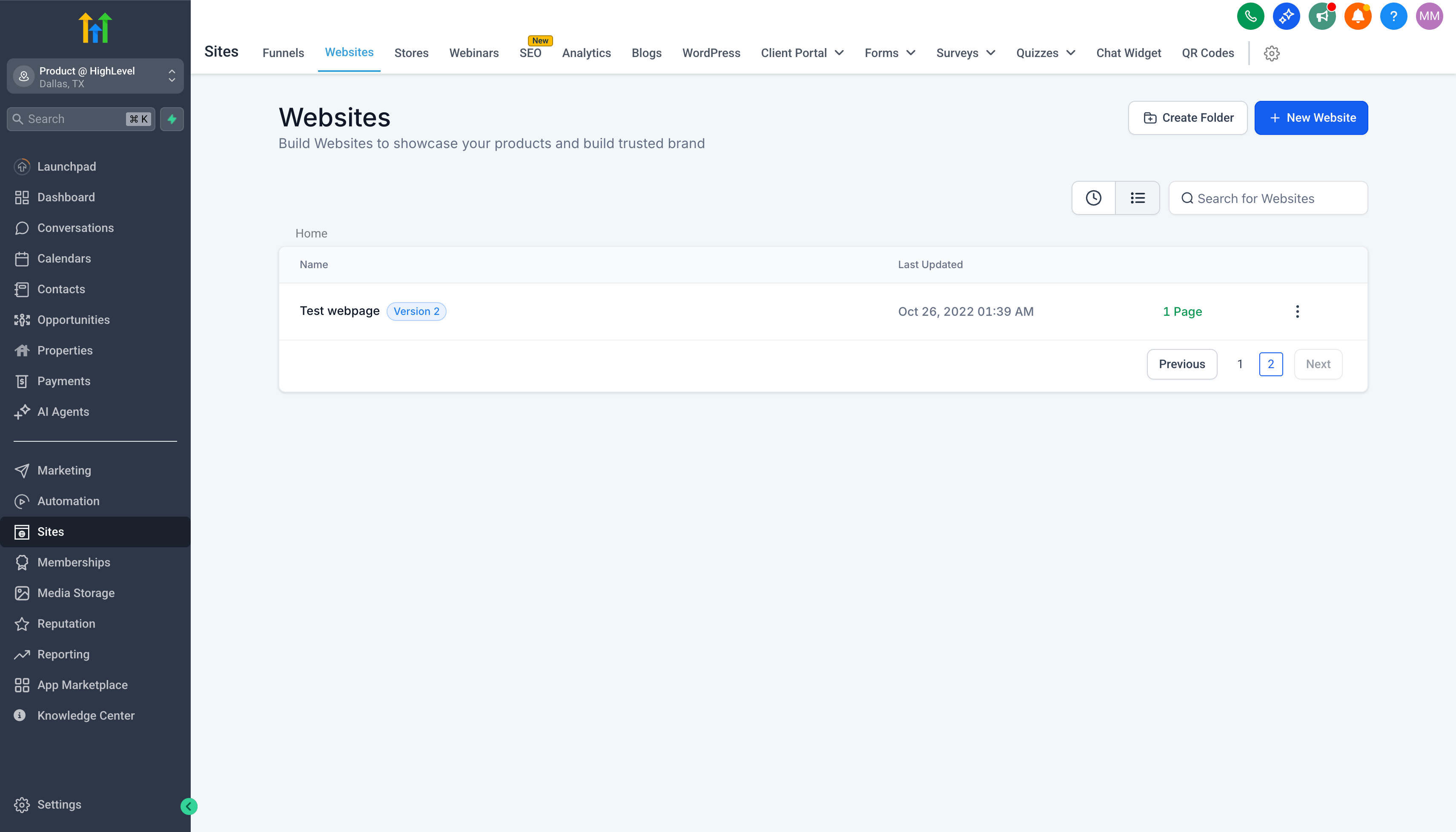
- Go to Sites > Websites or Sites > Funnels.
- Find the target site or funnel and open the editor.
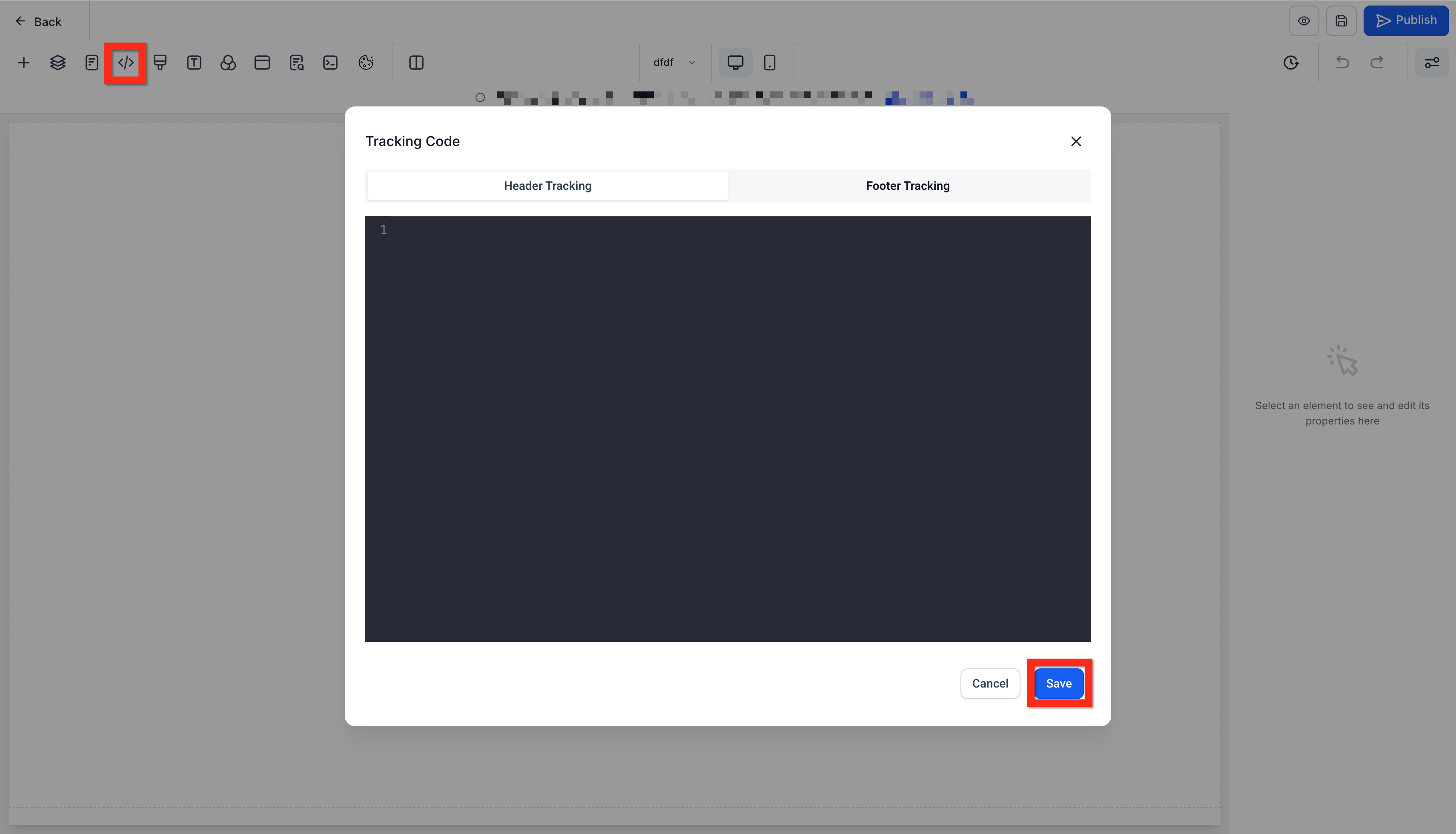
- Click the Tracking Code icon (</>).
- Paste the copied widget snippet into the code box.
- Press Save to apply the changes.
Deploy live chat widget via settings
- Navigate to Sites > Websites or Sites > Funnels.
- Locate the desired site or funnel and open its settings.
- In the Chat Widget section, choose the live chat widget you created.
- Press Save to activate the widget.
05What it looks like in HighLevel
06Settings that matter
- Chat Widget. Controls which widget appears on a website or funnel when you select it in the settings.
- Live Chat. Defines the widget as a real time chat experience rather than SMS, email, or WhatsApp.
07How it connects to the rest of HighLevel
- See the full live chat installation guide. Live chat guide
- Review HighLevel pricing and plan options. Pricing
- Start a 30 day HighLevel trial to test the widget. Start trial
Michael's take

Michael ReimerFounder of CRM Pros, HighLevel Commander and Certified Admin
Adding a chat box can feel risky if you haven’t tested how it looks on different devices. A clunky widget can distract visitors or even break page layout, so check the visual before you go live.
Get More InformationOpens on HighLevelPublished November 2, 2026 · Updated November 16, 2026