
01Who this is for
- Founders who handle client communications personally can view all email threads inside HighLevel, preventing missed follow ups.
- Small business owners running a support team can keep Gmail or Outlook messages synced, so agents see every conversation without switching apps.
02Connect personal inbox, explained
The personal inbox connection feature links a Gmail or Outlook account to HighLevel. After linking, every incoming and outgoing email is mirrored in the platform, giving a single view of all client interactions.
Two way sync means messages you send from HighLevel are delivered from your personal address, and replies flow back into both your email service and HighLevel automatically.
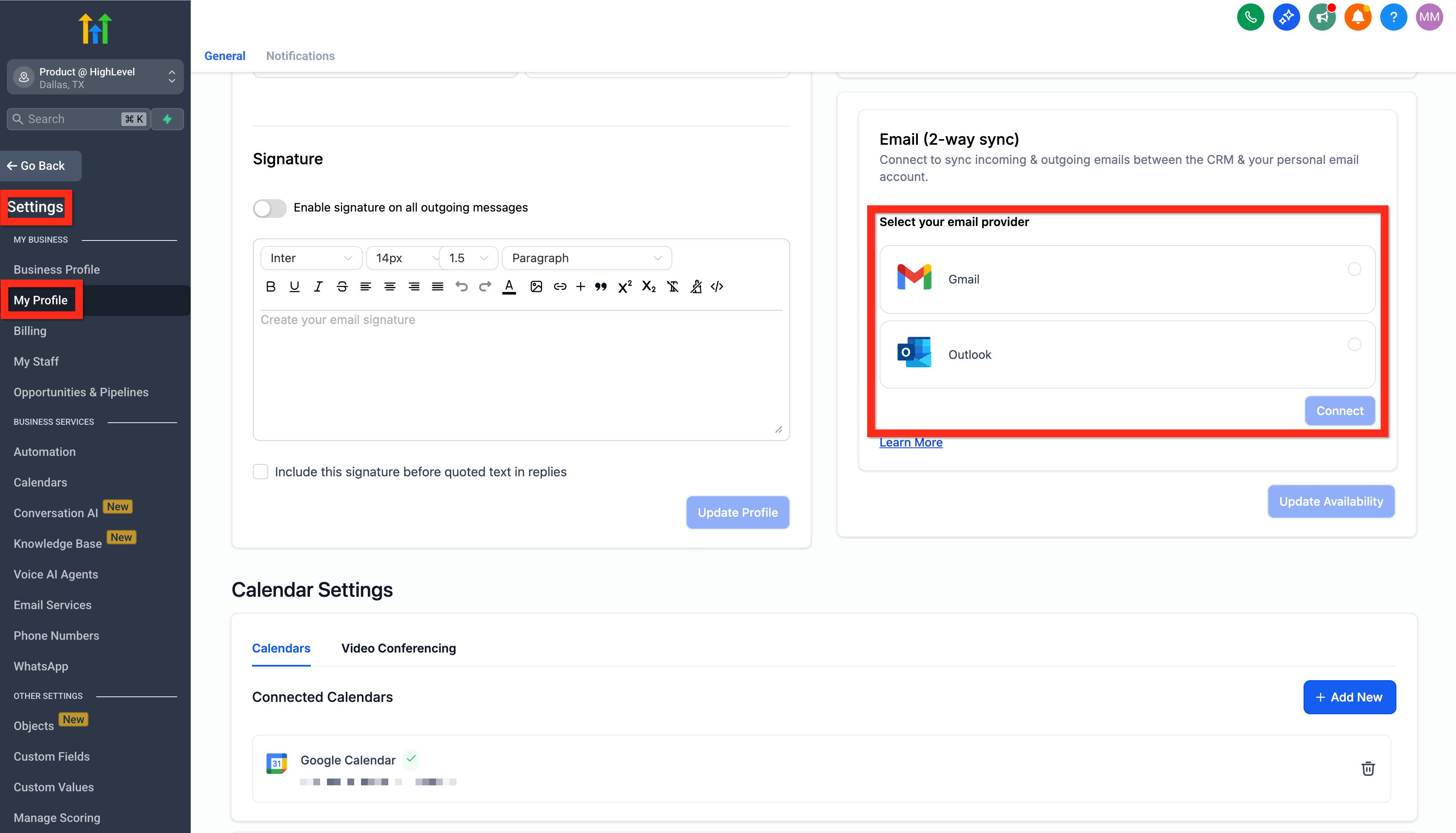
The settings for this integration are found under Settings > My Profile > Email (2-way sync). Once connected, you use the Conversations section to compose and manage emails.
03How businesses use connect personal inbox
- Real estate brokerage. The broker connects their Outlook account, drafts a direct message to a buyer inside the Conversations panel, and sends it. Replies arrive in Outlook and also appear in HighLevel, keeping the record current.
- Dental practice. The practice links its Gmail address, selects a patient contact, and uses the Create New Message button to email appointment reminders. Replies are captured in HighLevel, so the patient file stays updated.
- Coaching consultancy. The consultant enables two way sync, then sends a proposal via the Direct Message option. Replies are recorded in HighLevel, allowing the consultant to track the discussion without leaving the platform.
04How to set up and use connect personal inbox in HighLevel
Connect Gmail or Outlook
- Open Settings, go to My Profile, and select Email (2-way sync).
- Choose Gmail or Outlook and click Connect.
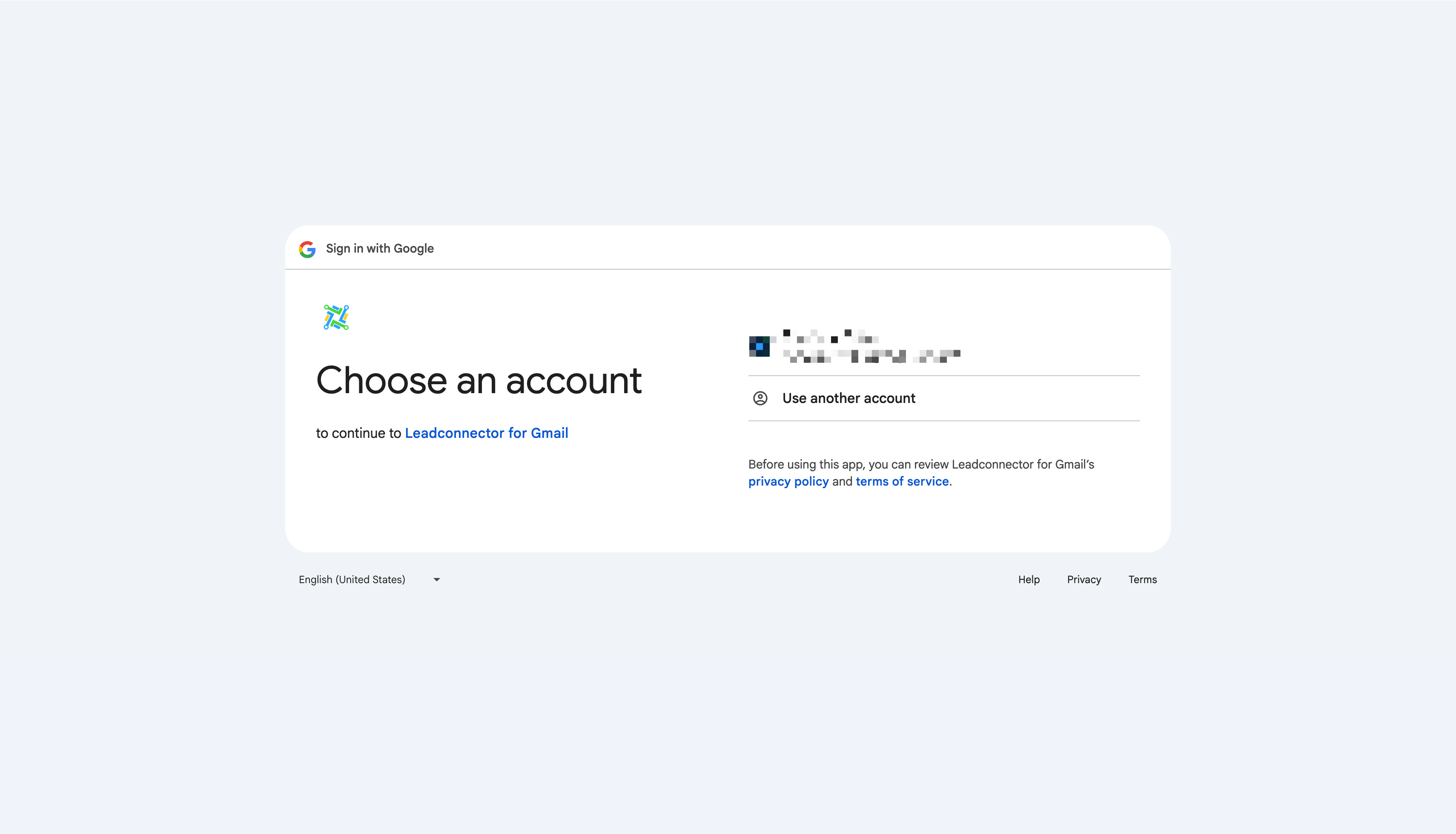
- Follow the permission prompts to grant access.
Use Your Connected Email
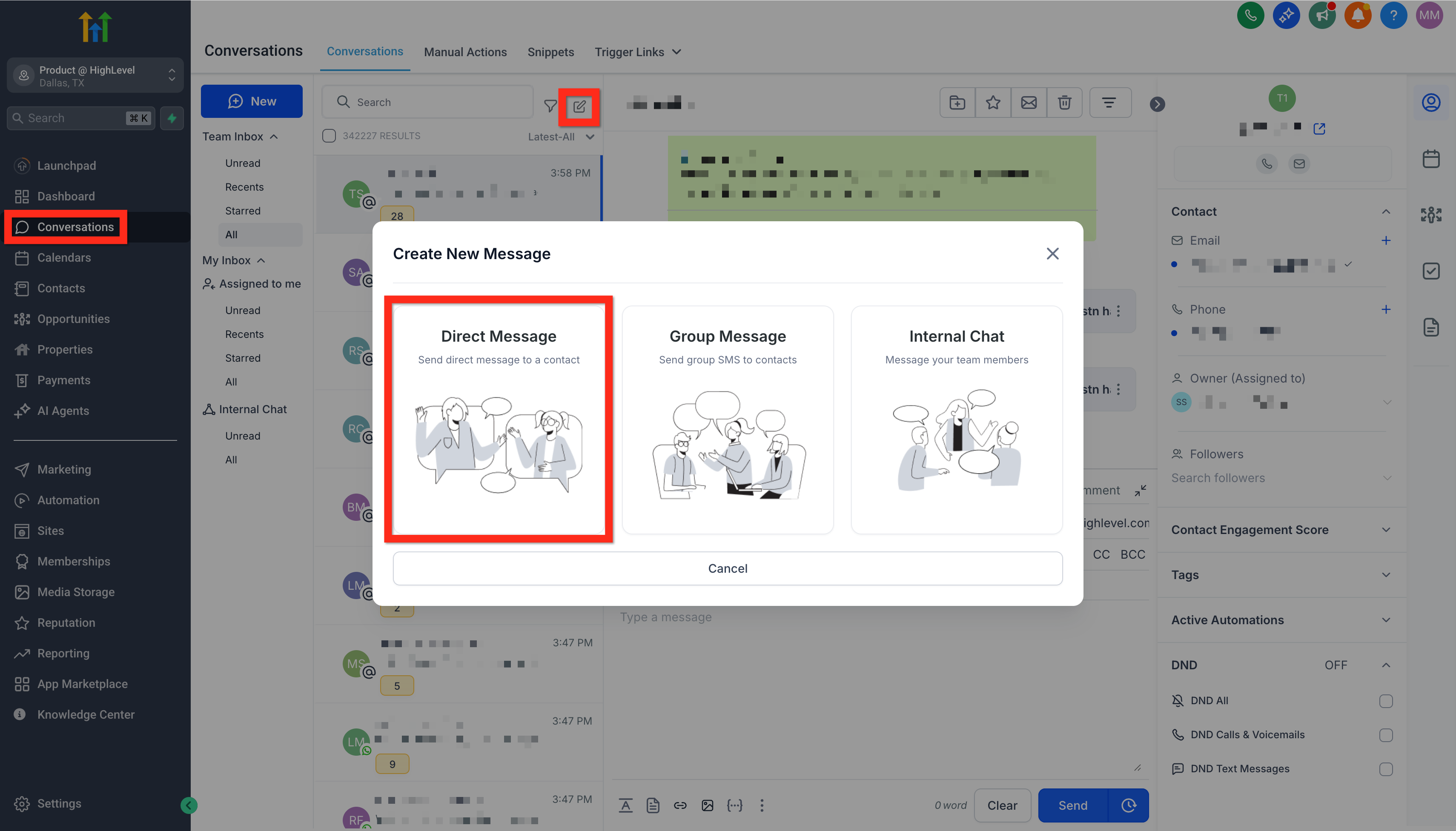
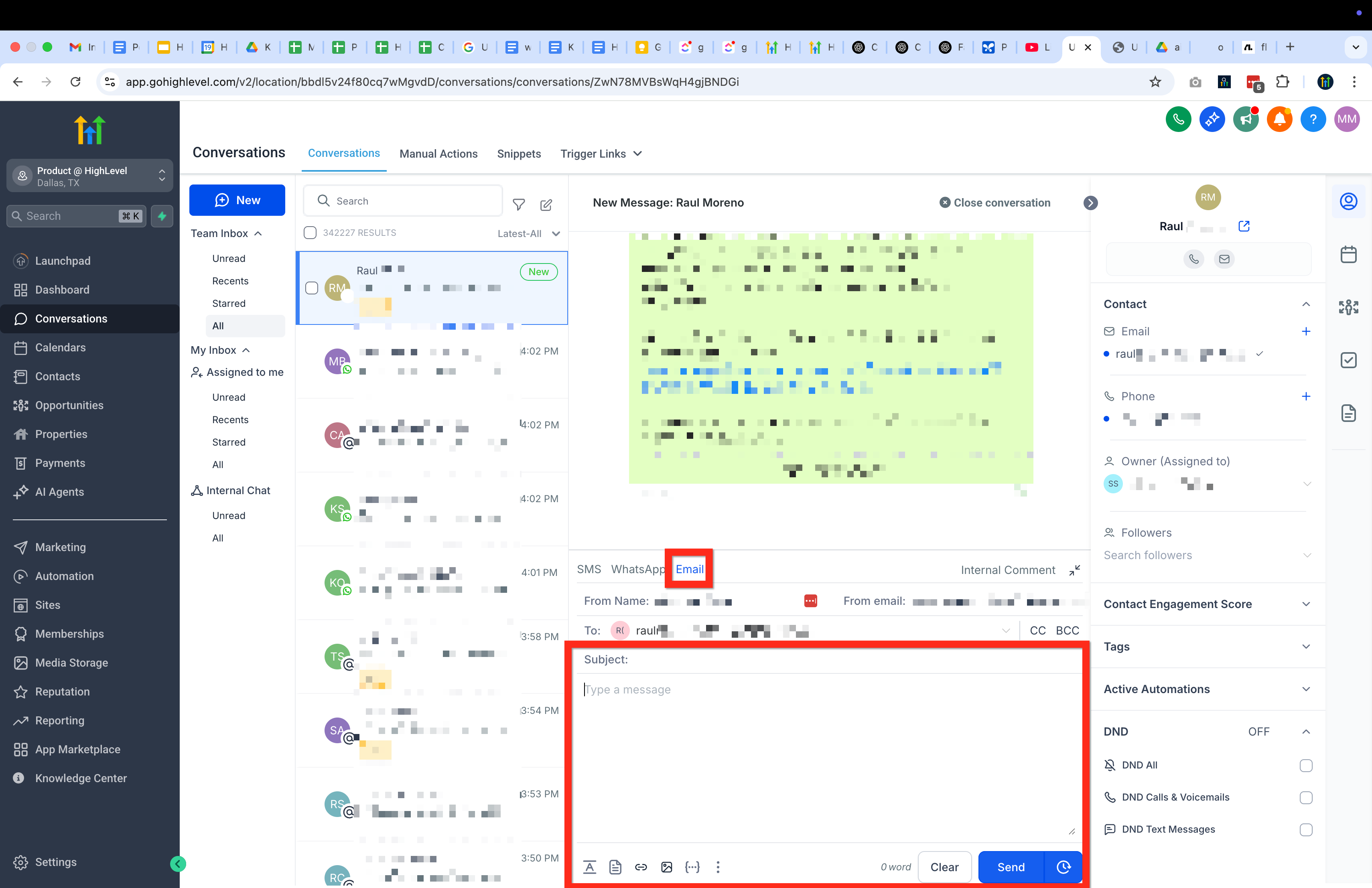
- Open the Conversations area.
- Click the Create New Message icon (pencil on paper).
- Select Direct Message.
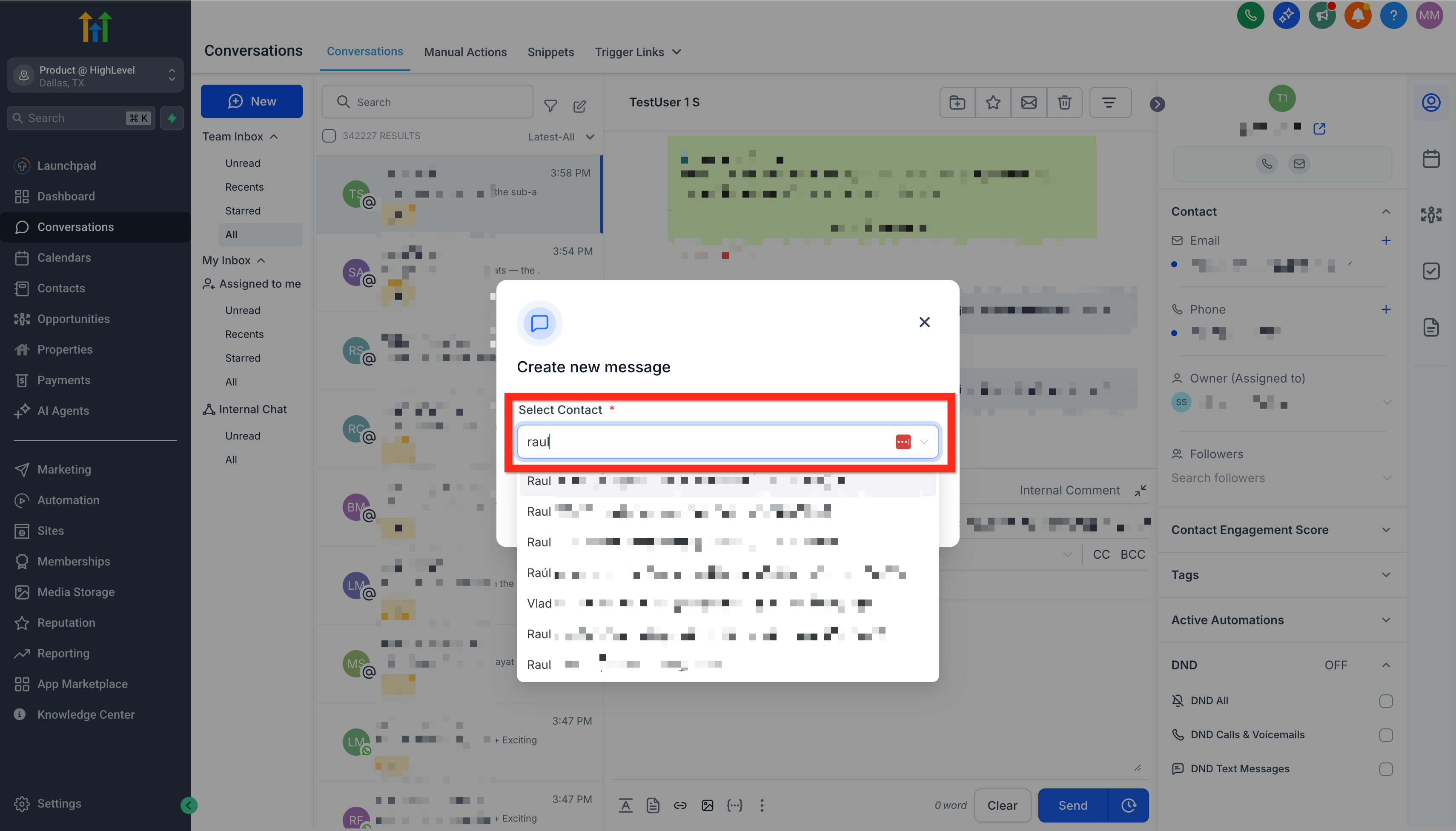
- Pick a contact and press Continue.
- The From field automatically fills with your linked email address.
05What it looks like in HighLevel
06Settings that matter
- Email (2-way sync). Controls whether a Gmail or Outlook inbox synchronizes both inbound and outbound messages with HighLevel.
07How it connects to the rest of HighLevel
- Learn how to sync Facebook and Instagram messages with HighLevel. Facebook & Instagram messenger
- Add a live chat widget to your website and automate assignments. Live chat widget
- View pricing and plan options for HighLevel. Pricing
- Start a free 30 day trial of HighLevel. 30 day trial
Michael's take

Juggling multiple email accounts means you can lose track of client replies, which hurts follow up and trust. The biggest win is getting that inbox synced right away so every conversation lives in HighLevel.
The first setting I’d lock in is the Email (2 way sync) option under My Profile. That’s the bridge that keeps everything in step. Once it’s live, I’d fire off a quick test message to confirm the sync works both ways before relying on it for day to day outreach.