
01Who this is for
- Customer support agents, keep internal notes separate from client messages while collaborating on tickets.
- Sales managers, tag the next sales rep to take over a lead without exposing internal strategy.
- Marketing agencies, record internal approvals or feedback on client discussions without cluttering client view.
02Internal comments, explained
Internal comments are private notes attached to a conversation thread. They never appear to the contact and can include @mentions to notify a teammate. The comments are saved automatically as drafts, so switching channels or expanding the composer does not lose the text.
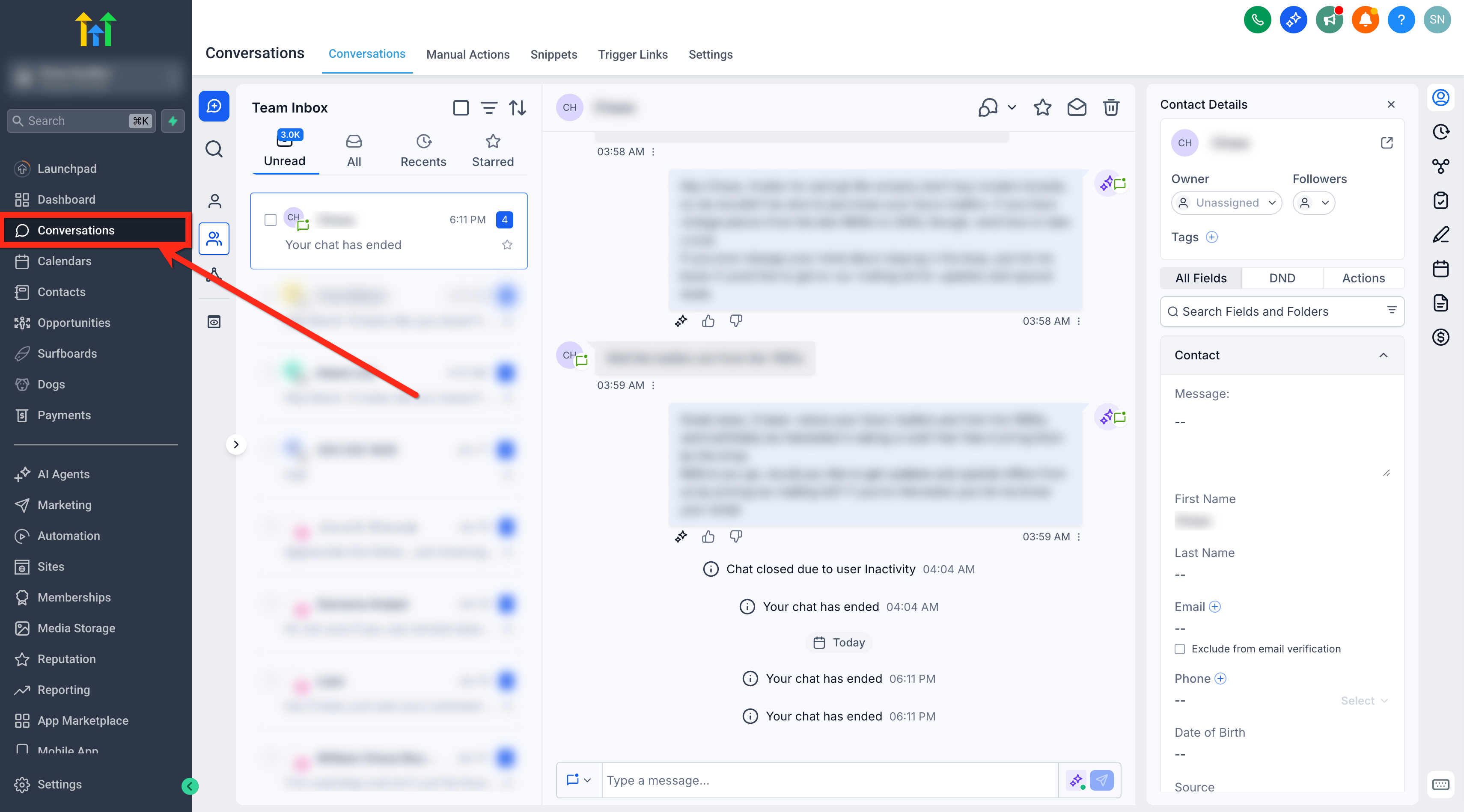
The feature lives inside the Conversations area of HighLevel. A Channel Switcher button lets you change from the regular message view to the Internal Comment view. Once sent, comments appear only for users who have access to the conversation.
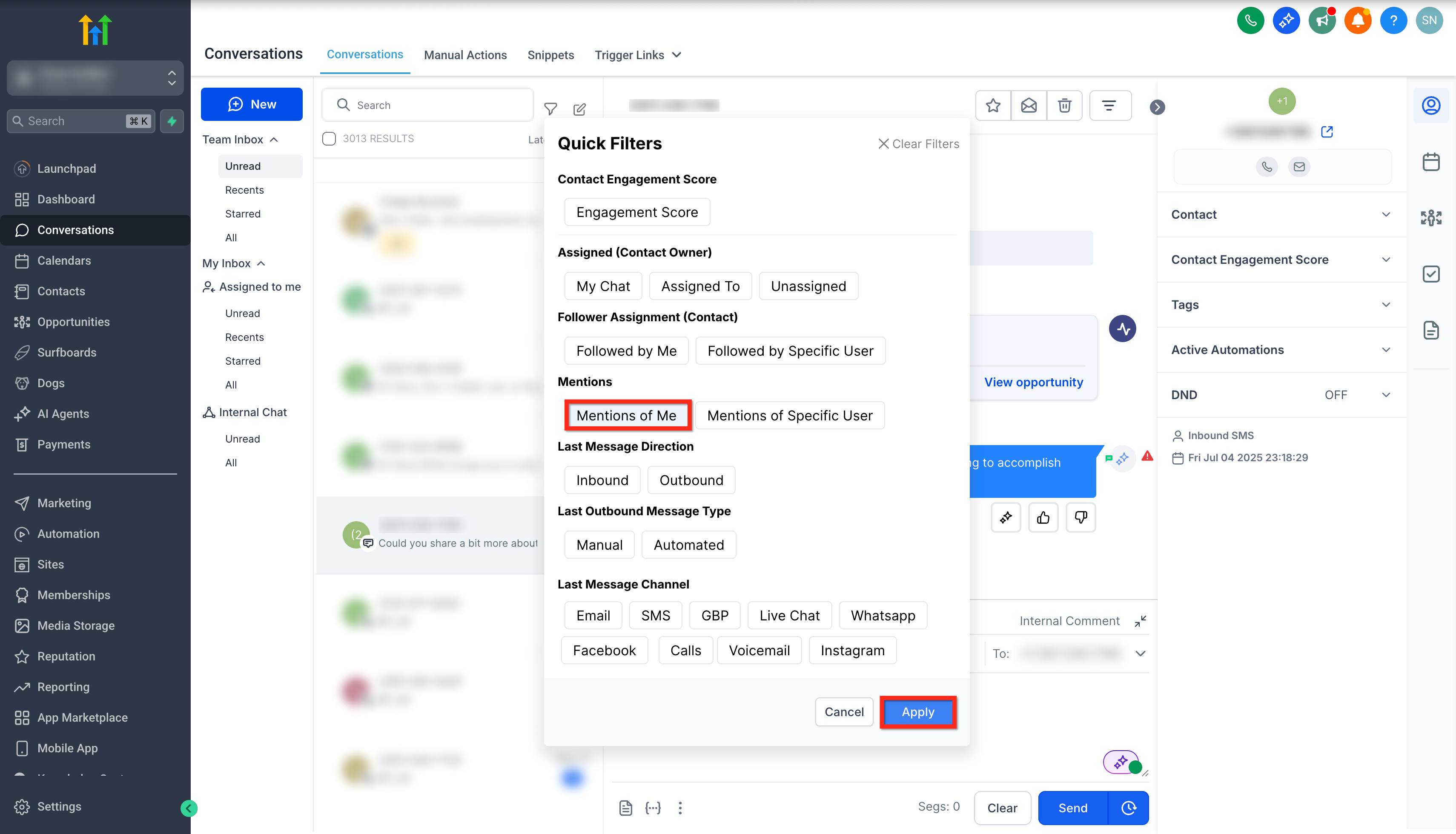
Filters let you locate comments where you or another team member was mentioned, or view all internal comments in a thread. Notification settings control whether you receive in app or email alerts for @mentions.
03How businesses use internal comments
- Customer support team. Agents open a ticket conversation, switch to Internal Comment, type a private note about the issue, and @mention the senior support specialist. The specialist receives an alert and can review the context without the client seeing the note.
- Sales organization. A sales rep adds an internal comment with next step details and @mentions the closing representative. The closing rep gets a notification, reviews the comment, and proceeds with the deal.
- Marketing agency. A copywriter adds an internal comment to a client chat, tagging the designer with @. The designer is notified, sees the design brief within the same conversation, and can reply publicly when ready.
04The numbers and rules that matter
- Internal comment drafts autosave and persist when you switch channels, collapse/expand the composer, or move between conversations.
05Before you start
- You must be logged into a HighLevel subaccount.
06How to set up and use internal comments in HighLevel
Add an internal comment to a conversation
- Log in to your subaccount.
- Select the Conversations tab.
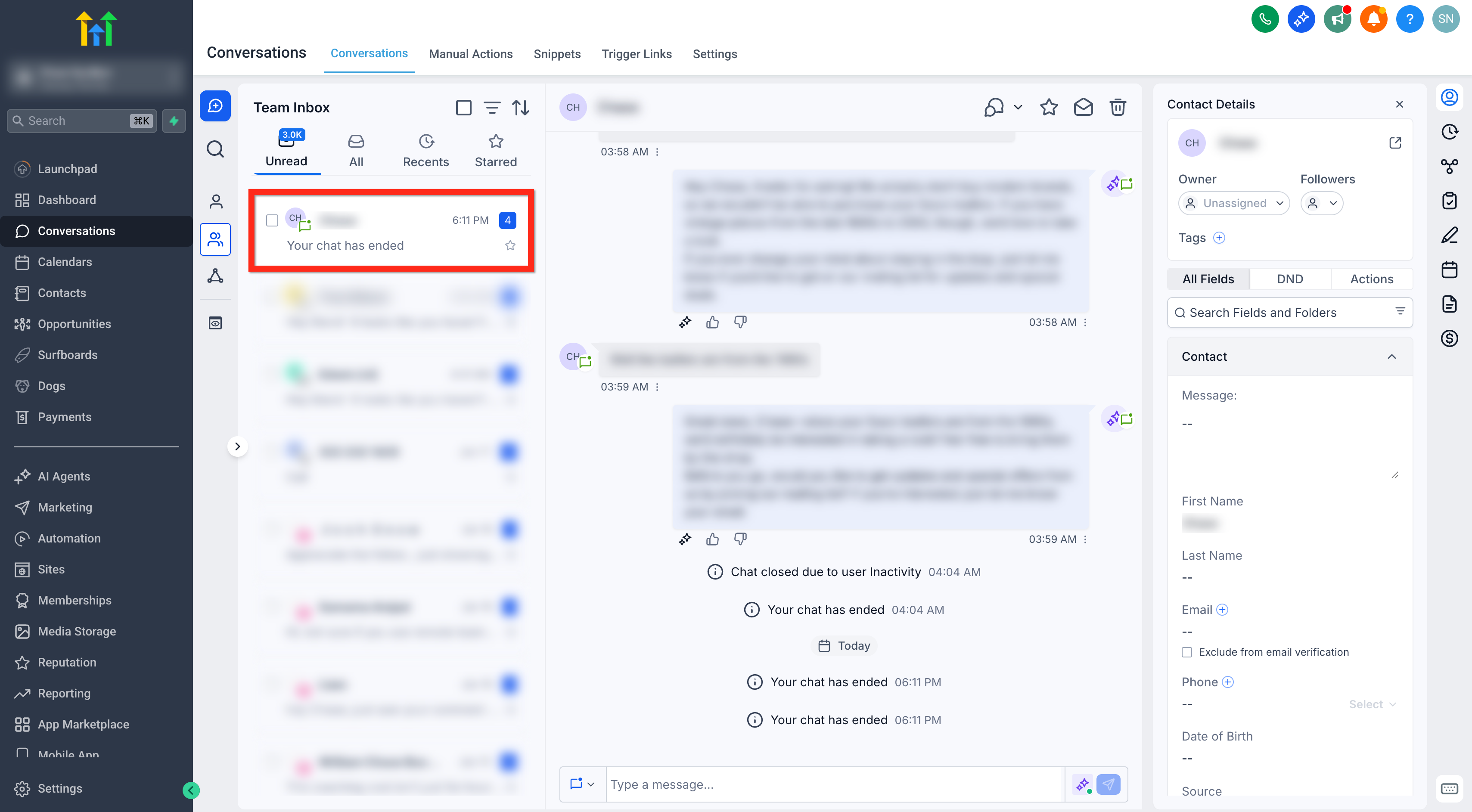
- Click the desired conversation to open it.
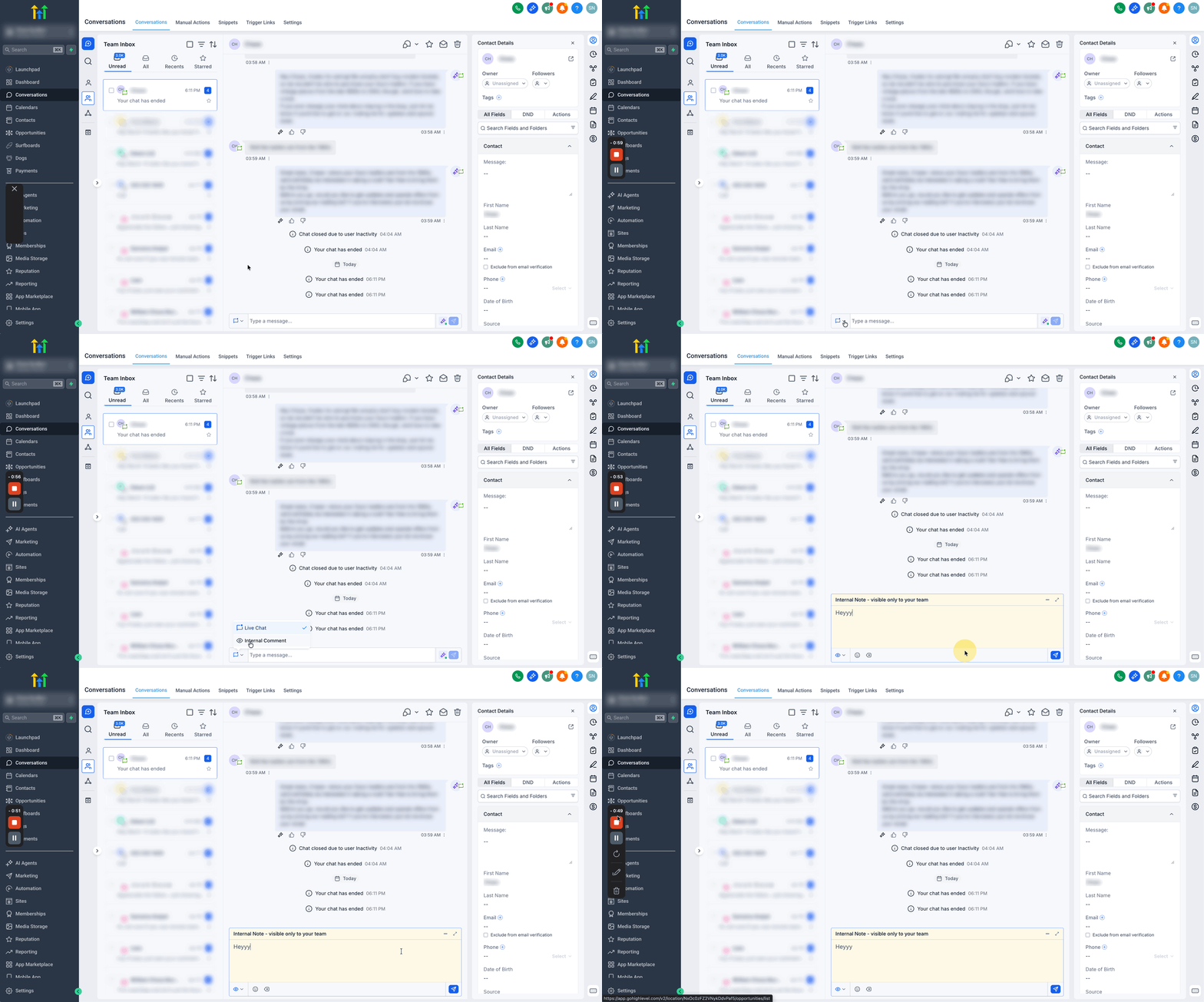
- Press the Channel Switcher button and choose Internal Comment.
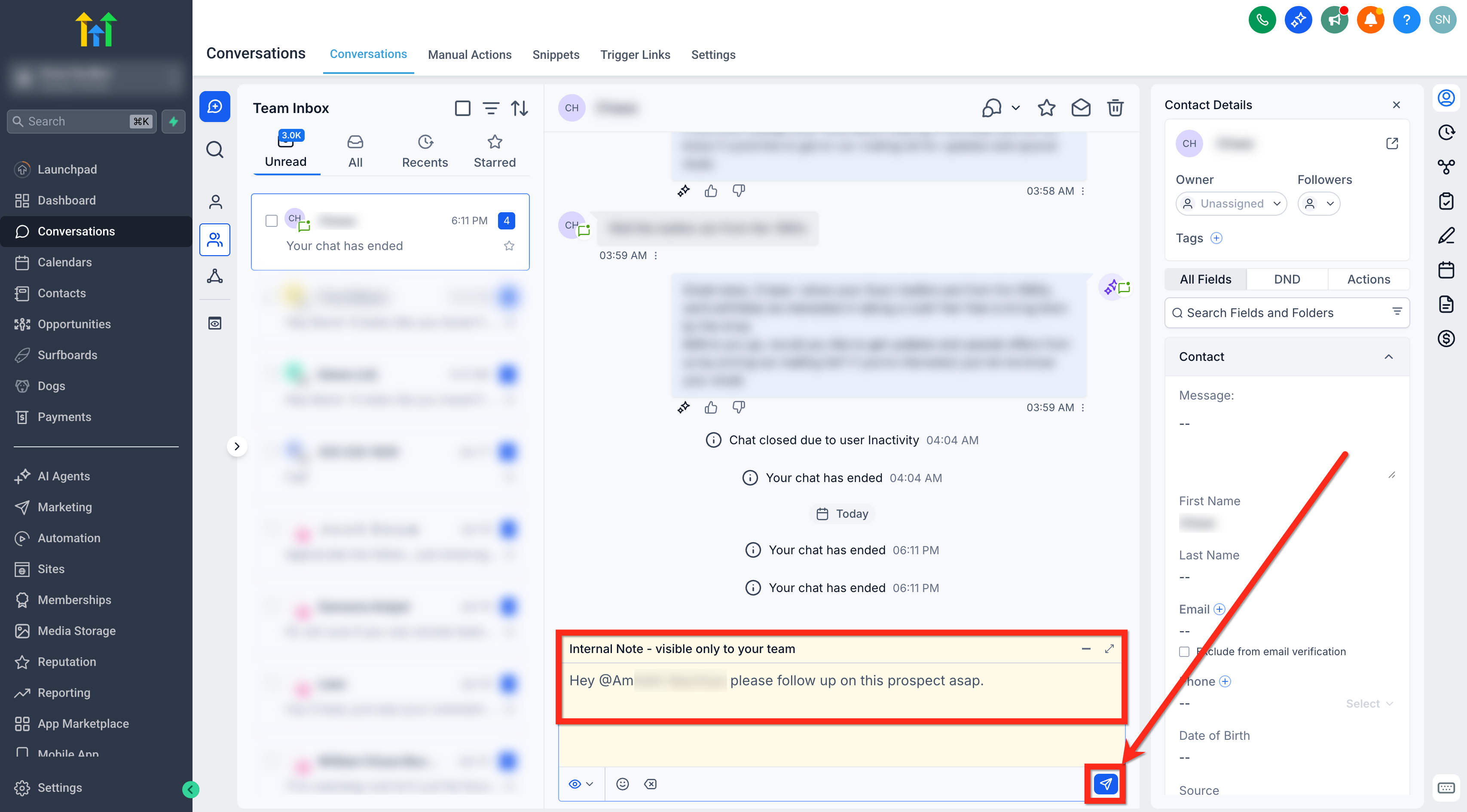
- Enter your note and type @ followed by a teammate’s name to mention them.
- Press Send to post the comment for internal viewers only.
Filter conversations for internal comments and mentions
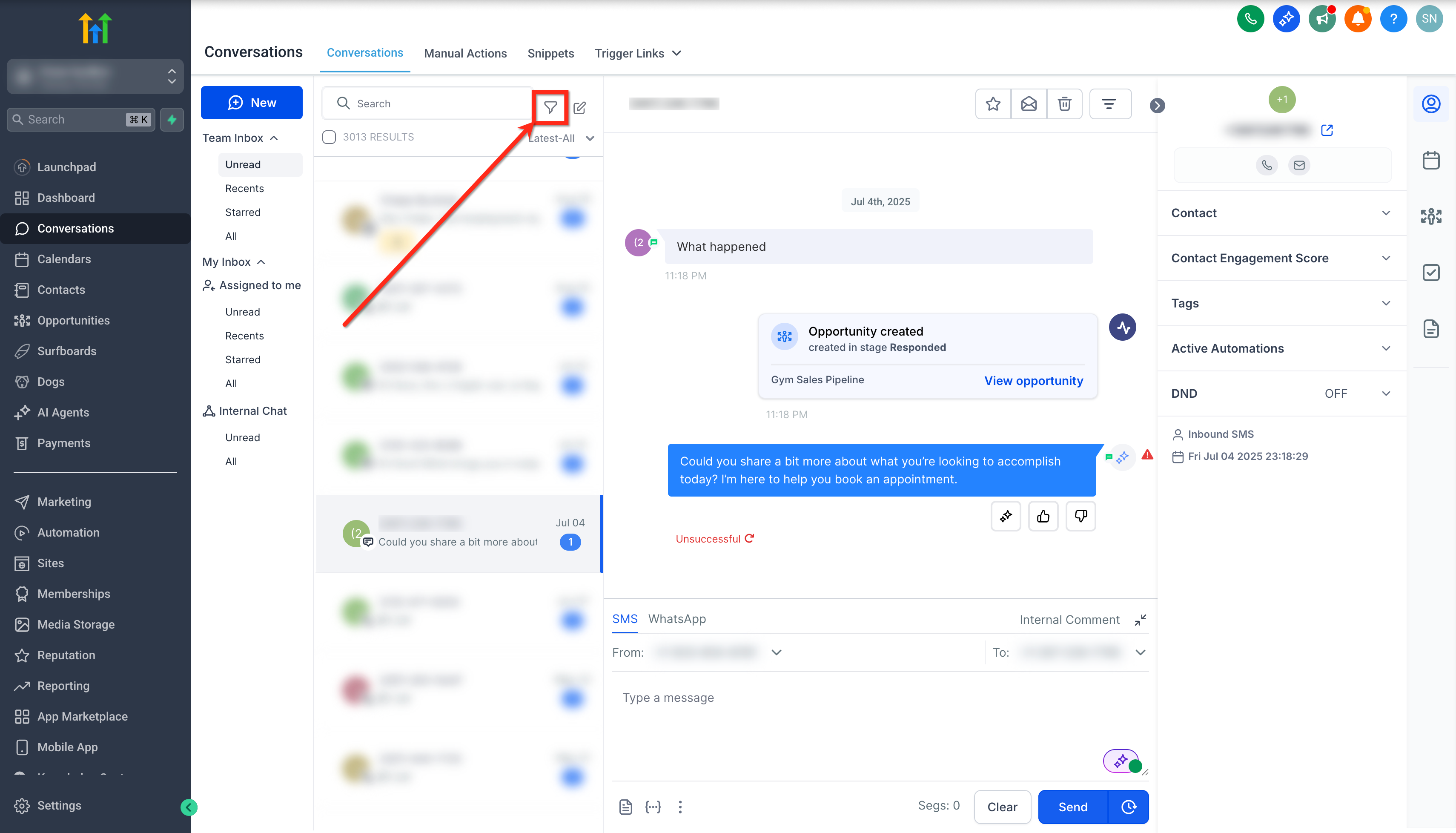
- Click the Quick Filters button.
- Under Mentions, pick Mentions of Me and click Apply to see where you are mentioned.
- Or choose Mentions of a Specific User, select the user, and click Apply.
- To view all internal comments, click the Filters button and apply the Internal Comments filter.
07What it looks like in HighLevel
08Settings that matter
- Notifications. Controls whether you receive alerts when you are mentioned in an internal comment or when new messages arrive in conversations.
09Things to know before you rely on it
- Internal comments cannot be edited or deleted after they are posted.
- Attachments are not supported in internal comments.
- Internal comments are private and never sent to the contact.
10How it connects to the rest of HighLevel
- Explore all conversation related features in HighLevel. All Conversations features
- Learn how to build and use filters for conversations. Conversation filters overview
- Start a trial to try internal comments and other tools. 30 day trial
Michael's take

Ever wonder how to keep a note for your team without the client ever seeing it? Internal comments let you jot down private details right inside the conversation, and a quick @mention brings the right teammate into the loop.
I’d use this first to tag the person who will take over a lead after a discovery call. That way the handoff stays in one place and you avoid accidental copy pastes into client messages.