
01Who this is for
- Users who need instant visibility into new or updated opportunities.
- Team members who manage appointments and must edit schedules without switching screens.
02Activity cards, explained
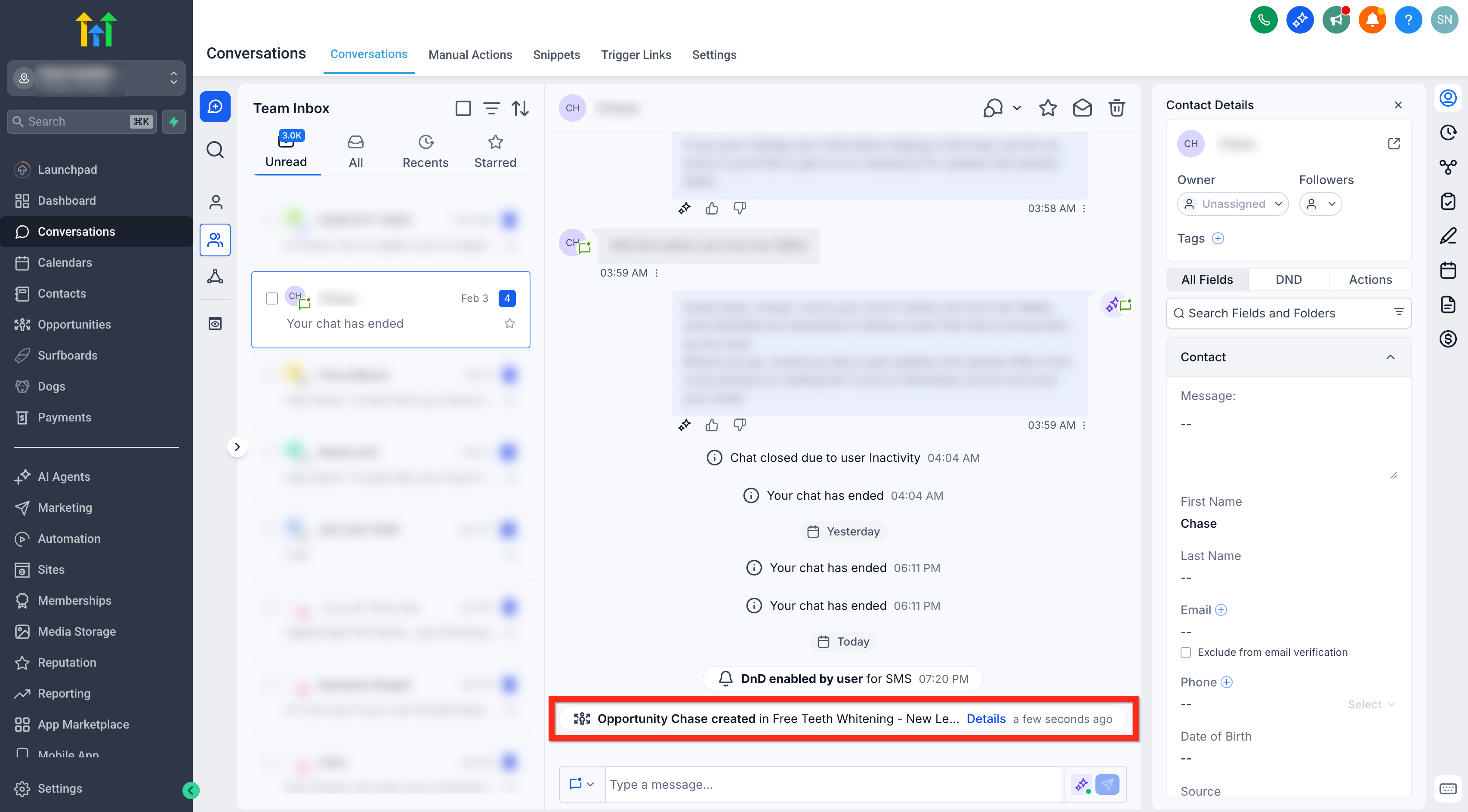
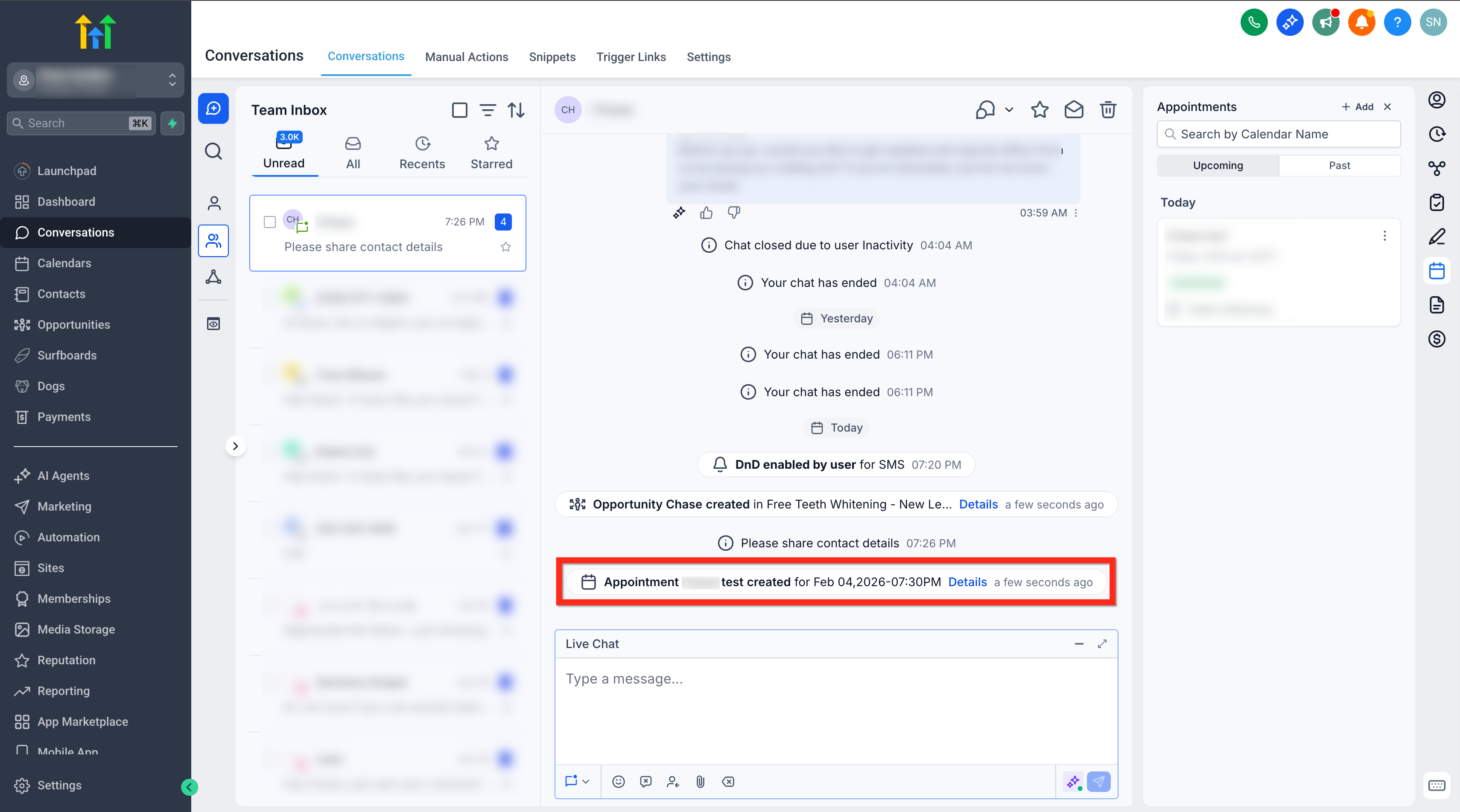
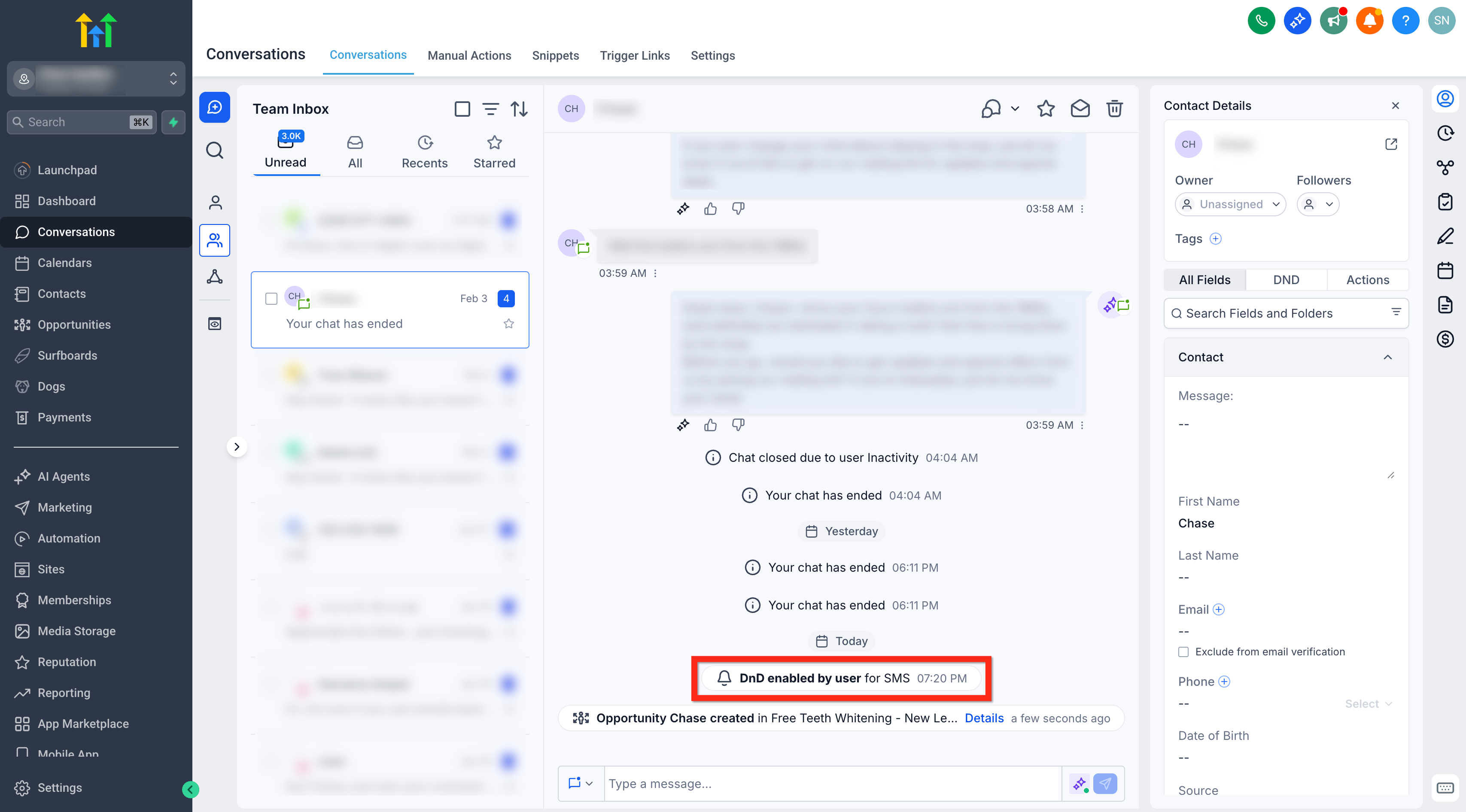
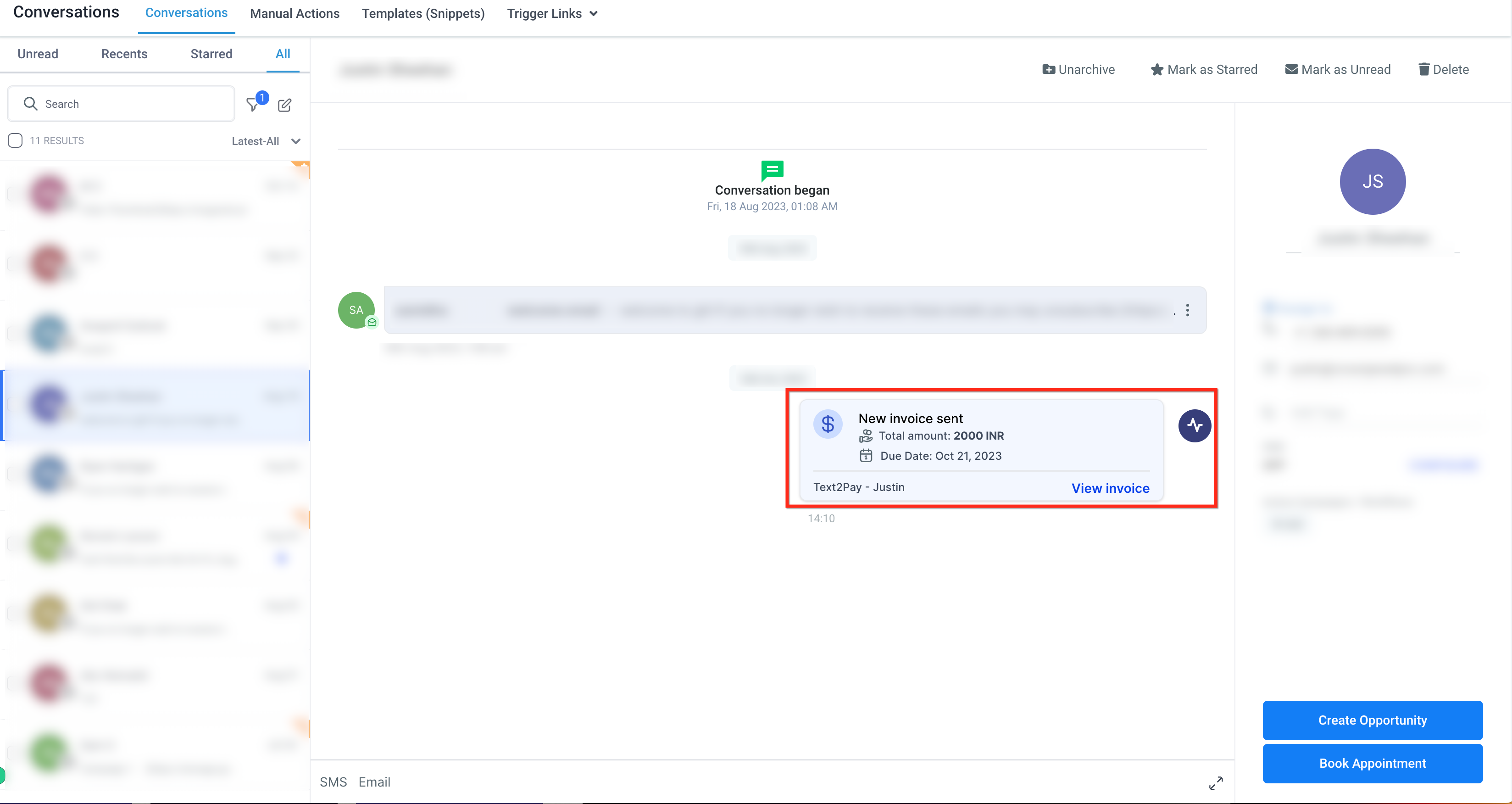
Activity Cards appear in the conversation panel whenever an opportunity, appointment, DND status change, or invoice event occurs. The cards give a snapshot of the change and provide a button to act on it. For opportunities and appointments, the button opens the record for viewing or editing. For invoices, the button opens the full invoice in a new browser tab. DND cards also show a “by” value that indicates whether a workflow, user, or contact triggered the change. No additional configuration is required for these cards to show up. All activity cards update in real time, keeping the information current and allowing users to respond directly from the conversation view.
03How businesses use activity cards
- Real estate agency. When a new property lead is logged as an opportunity, the agent sees an activity card in the conversation panel. By clicking "View Opportunity," they can immediately open the lead record, add notes, or change its status without navigating away.
- Medical clinic. If a patient appointment is created or rescheduled, an activity card appears. The staff clicks "View Appointment" and edits the time, location, or provider details right from the conversation view, keeping the workflow streamlined.
- Accounting firm. When an invoice is sent or a payment is recorded, an activity card pops up. The accountant clicks "View Invoice," which opens the complete invoice in a new tab for review or further action.
04How to set up and use activity cards in HighLevel
View opportunity from activity card
- Locate the activity card that indicates a new or updated opportunity.
- Click the button labeled "View Opportunity" inside the card.
- The opportunity opens, allowing you to review or modify its details.
Edit appointment from activity card
- Find the activity card that signals an appointment creation, reschedule, or cancellation.
- Press the "View Appointment" button shown on the card.
- Update the appointment information in the editor that appears.
Open invoice from activity card
- Spot the activity card that appears when an invoice is sent or a payment is received.
- Select the "View Invoice" button on the card.
- A new browser tab loads displaying the full invoice.
05What it looks like in HighLevel
06Settings that matter
- by. Shows the source that triggered a Do Not Disturb status change, such as a workflow, a user, or the contact themselves.
07Things to know before you rely on it
- Activity cards appear only when an opportunity, appointment, DND status, or invoice event is created, updated, or deleted.
- DND attribution displays automatically and does not require any setup.
08How it connects to the rest of HighLevel
- Organize activity cards using conversation filters Conversation filters
- Explore all features available in the Conversations tab All Conversations features
- Review HighLevel pricing and plan options Pricing and plans
Michael's take

Activity Cards can feel overwhelming at first because they surface every little change in real time, and you might worry about information overload. The constant flow of updates can be a distraction if you’re not used to seeing them all in one place.
When you get the hang of it, the workflow becomes tighter. You can respond to leads, adjust appointments, respect contact preferences, and check invoices without hopping between screens.