
01Who this is for
- Operations managers who need to track internal work separate from client tasks.
- Team leads who assign responsibilities across members and want a clear view of unassigned tasks.
02Internal tasks, explained
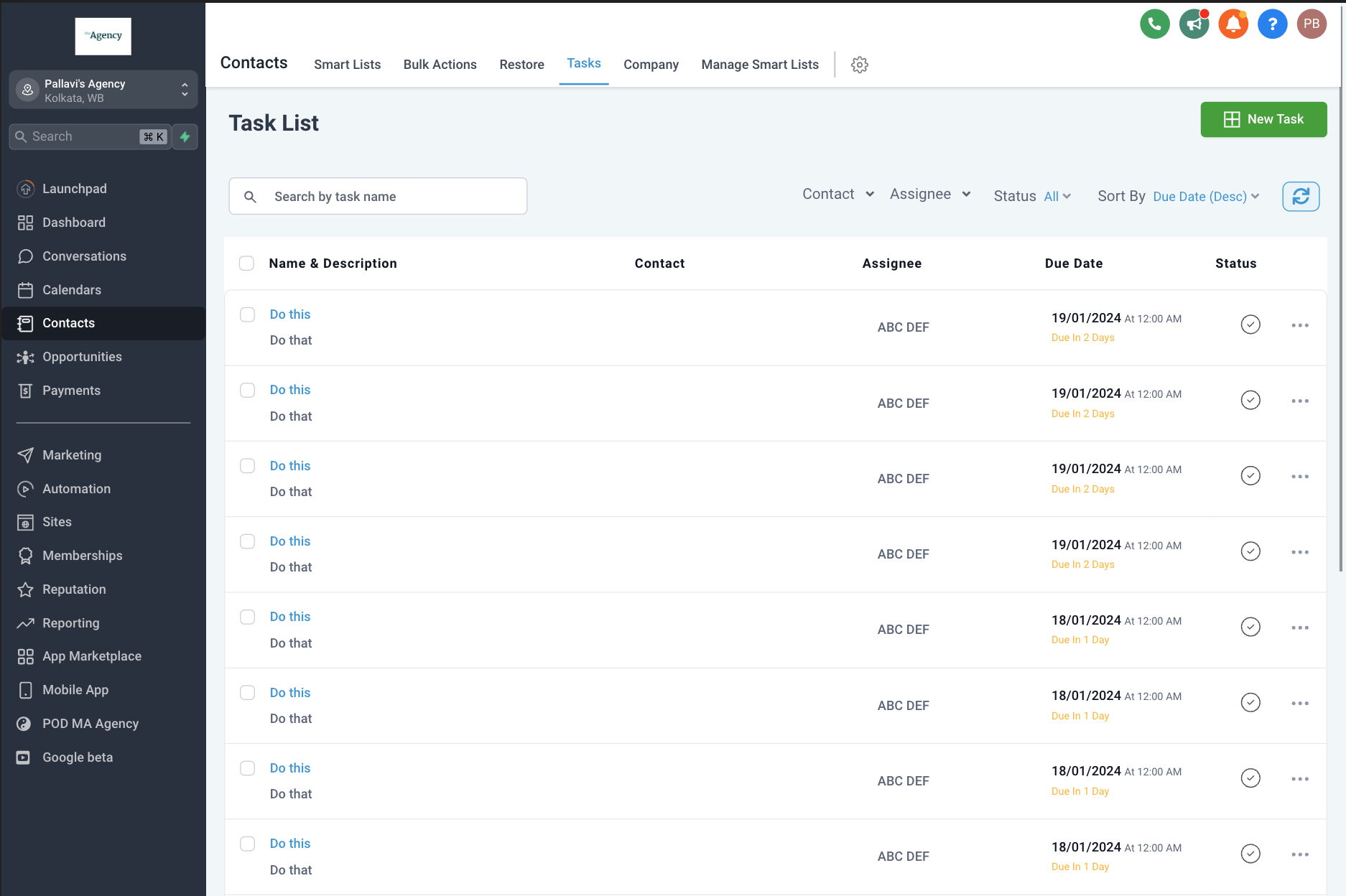
Internal tasks are entries in the Tasks List that do not have an associated contact. They are useful for managing duties that belong to the business rather than a specific client. You create them from the Tasks List page and can later attach a contact if needed.
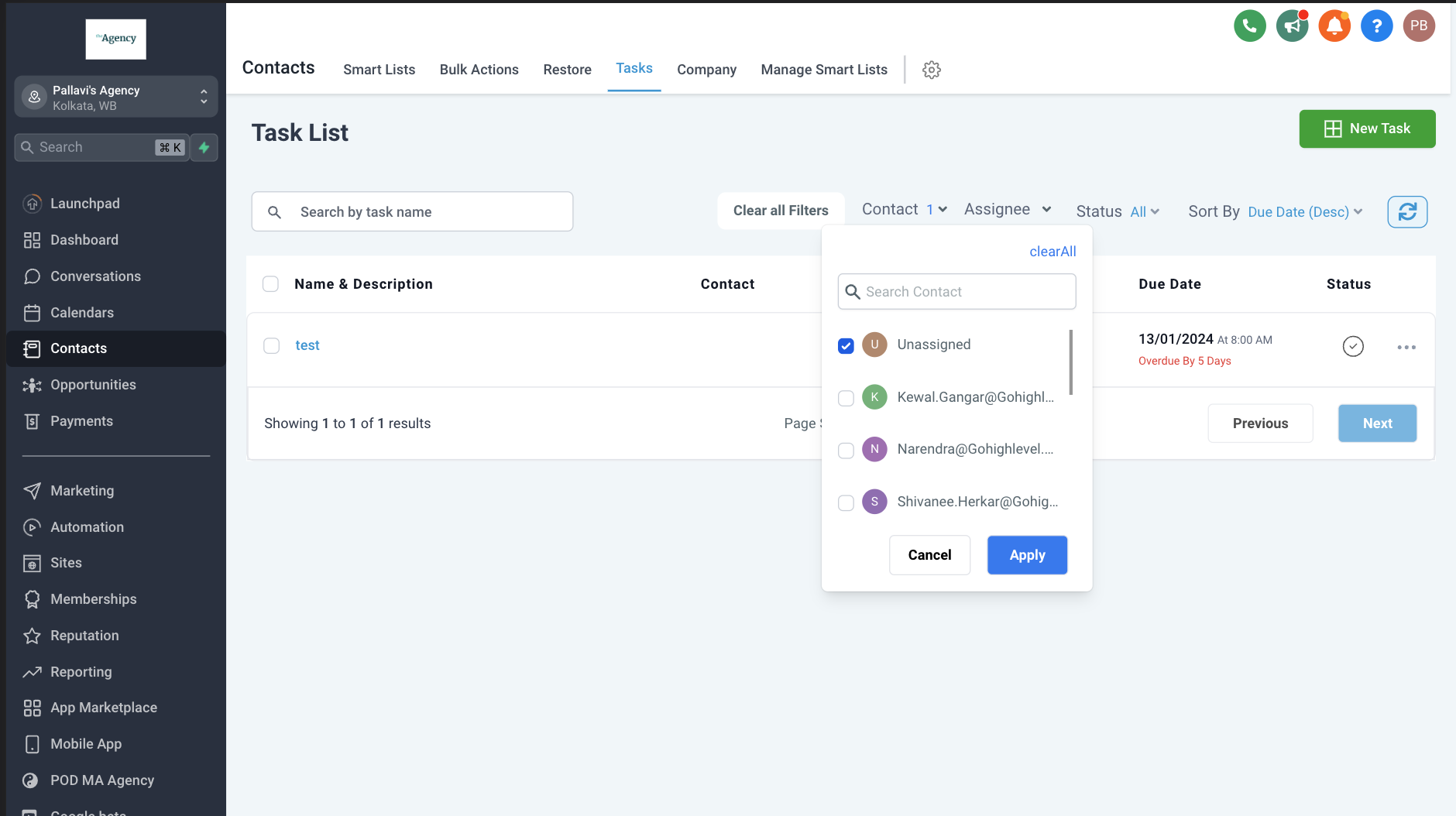
The platform shows internal tasks when you apply the Unassigned filter in the Contact filter dropdown. This filter isolates tasks that are not tied to any contact, making it easy to see work that belongs to the team.
Workflows can generate internal tasks automatically. When a workflow runs without a contact context, the Add Task action creates a task that remains contactless. If a contact is present, the task links to that contact automatically.
03How businesses use internal tasks
- Marketing agency. Create a task for preparing a weekly performance report without linking it to a client. Assign the task to the analyst and set a due date. Use the Unassigned filter to view all report preparation tasks at once.
- SaaS startup. Set up a workflow that triggers when a new lead signs up via a webhook. The workflow adds a task for onboarding the new user, leaving the task contactless because the trigger has no contact record.
- Legal firm. After a case file is opened, later add the client’s contact to the existing internal task if the task scope changes. Remove or reassign the contact if the responsibility shifts to another department.
04How to set up and use internal tasks in HighLevel
Create a contactless task
- Open the Tasks List page.
- Click the button to create a new task.
- Enter the task details such as title, due date, and assignee.
- Leave the contact field empty and save the task.
Filter internal tasks
- Navigate to the Tasks List page.
- Open the Contact filter dropdown menu.
- Select the Unassigned option.
- Apply the filter to display only contactless tasks.
Automate contactless tasks with a workflow
- Go to Automation > Workflows.
- Create or edit a workflow that is triggered by an inbound system event.
- Add the Add Task workflow action to the canvas.
- Configure the task details and keep the contact field blank.
- Publish the workflow to enable automatic creation of contactless tasks.
05What it looks like in HighLevel
06Things to know before you rely on it
- Contactless tasks appear when the Unassigned filter is applied.
- The Add Task action creates a contactless task only if the workflow lacks an associated contact.
07How it connects to the rest of HighLevel
- Explore all contact management features in HighLevel. All Contacts features
- Review HighLevel pricing and plan options. HighLevel pricing
- Start a free trial to test internal task workflows. 30 day trial
Michael's take

Internal tasks let you assign, reassign, or later tie a contact if it becomes relevant, and they can be created automatically with workflows.