
01Contact and opportunity followers, explained
Followers are users added to a contact or opportunity record. They gain the same permissions as the record owner, so they can view and edit the record. They cannot change who owns the record.
The feature works even if a user normally sees only records assigned to them, provided the Only Assigned Data permission is enabled. Followers can also see appointments if they have the appropriate calendar permissions.
02How businesses use contact and opportunity followers
- Team collaboration on a client record. A sales rep can add a manager as a follower to a contact so both can edit details without changing ownership.
- Shared opportunity tracking. An opportunity owner adds a colleague as a follower. Both can edit the opportunity and, if they have calendar rights, manage related appointments.
- Workflow driven follower assignment. When a workflow runs, it can automatically add users as followers to a record. This keeps the right people informed without manual steps.
03The numbers and rules that matter
- Up to 10 users can be added as followers per record.
04Before you start
- "Only Assigned Data" user permission must be turned on.
05How to set up and use contact and opportunity followers in HighLevel
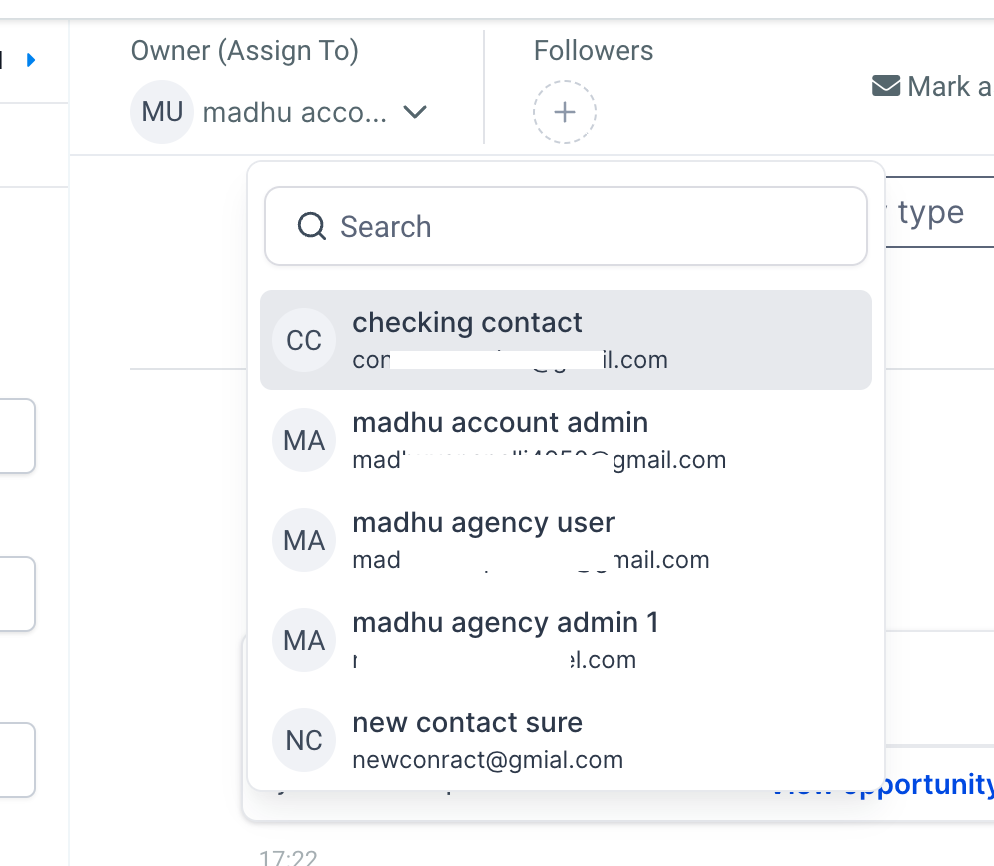
Add followers to a contact
- Open the contact’s detailed page.
- Locate the followers section.
- Add up to ten users as followers.
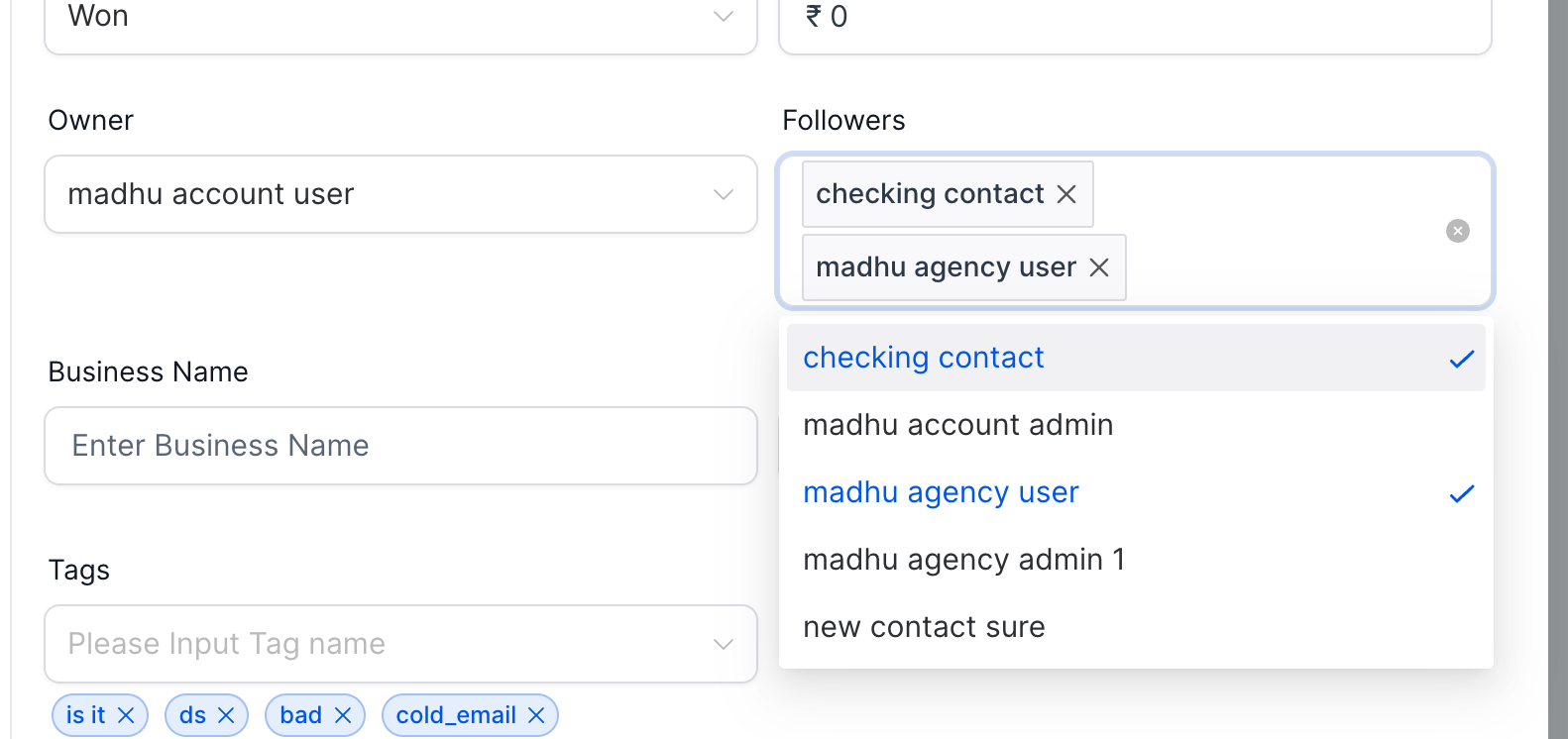
Add followers to an opportunity
- Open the Edit/Add opportunity modal.
- Go to the Opportunity Details section.
- Add up to ten users as followers.
06What it looks like in HighLevel
07Settings that matter
- Only Assigned Data permission. When enabled, users normally see only records assigned to them; followers bypass this restriction for the records they follow.
- View appointments, calendars & groups permission. Allows followers to view appointments linked to the contacts they follow.
- Manage appointments permission. Allows followers who have this permission to edit or delete appointments they can see.
08Things to know before you rely on it
- Followers cannot modify the ownership of the record.
09If something goes wrong
- Follower cannot see appointments. Ensure the follower has the View appointments, calendars & groups permission.
- Follower can see appointments but cannot edit them. Grant the follower the Manage appointments permission if editing is required.
Michael's take

Followers feel like a small convenience that can turn a fragmented hand off into a real shift in how teams stay in sync. Adding a colleague to a contact means they can jump in, make updates, and keep the record accurate without juggling ownership changes.
A boutique marketing agency that runs multiple campaigns for the same client benefits from this. The account manager follows the client’s contact while the copywriter follows the same record, so both can edit notes and see upcoming meetings.