
01Client facing CRM data, explained
Client facing CRM data is a feature of HighLevel’s Client App Builder that pulls information directly from your CRM. It displays opportunities, Custom Objects and selected contact fields inside the client app, so you do not need a separate tracker or manual updates.
The data appears in real time, and you decide which pipelines, stages, records and fields are visible. Public pages are read only, and private pages can be limited to an individual client, a company or signed in members.
02How businesses use client facing CRM data
- Show pipeline progress. A service business can let customers watch their onboarding steps move through the onboarding pipeline. The builder hides internal stages like reviews so only relevant steps appear.
- Display custom contact details. A membership site can add a My Details page that shows a member’s tier, policy number and goals. Only the fields you approve are searchable and visible.
- Control custom object access. A B2B firm can create a custom object for invoices and set visibility to Company Records so every employee at the same company sees the same list, while other clients cannot.
03The numbers and rules that matter
- Opportunities & Pipelines, Custom Objects, and Contact Custom Fields are supported.
04Before you start
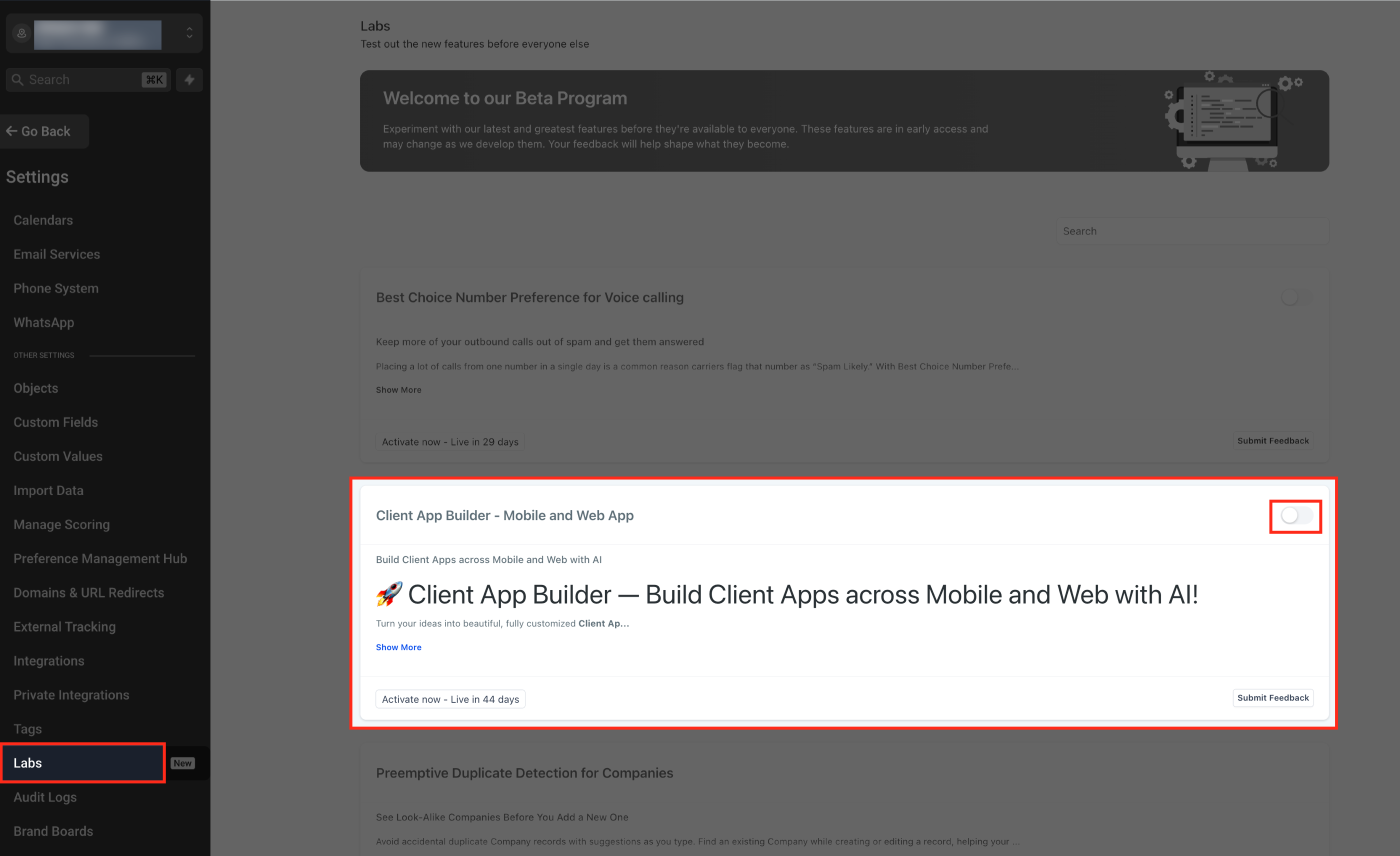
- Client App Builder must be enabled in the subaccount via Settings > Labs.
- You must be working in a HighLevel subaccount.
05How to set up and use client facing CRM data in HighLevel
Enable client app builder
- Log in to HighLevel and switch to SubAccount view.
- Select the subaccount where you want the app.
- If not enabled, go to Settings in the subaccount navigation and select Labs.
- Find Client App Builder and enable the feature.
Create a new client app
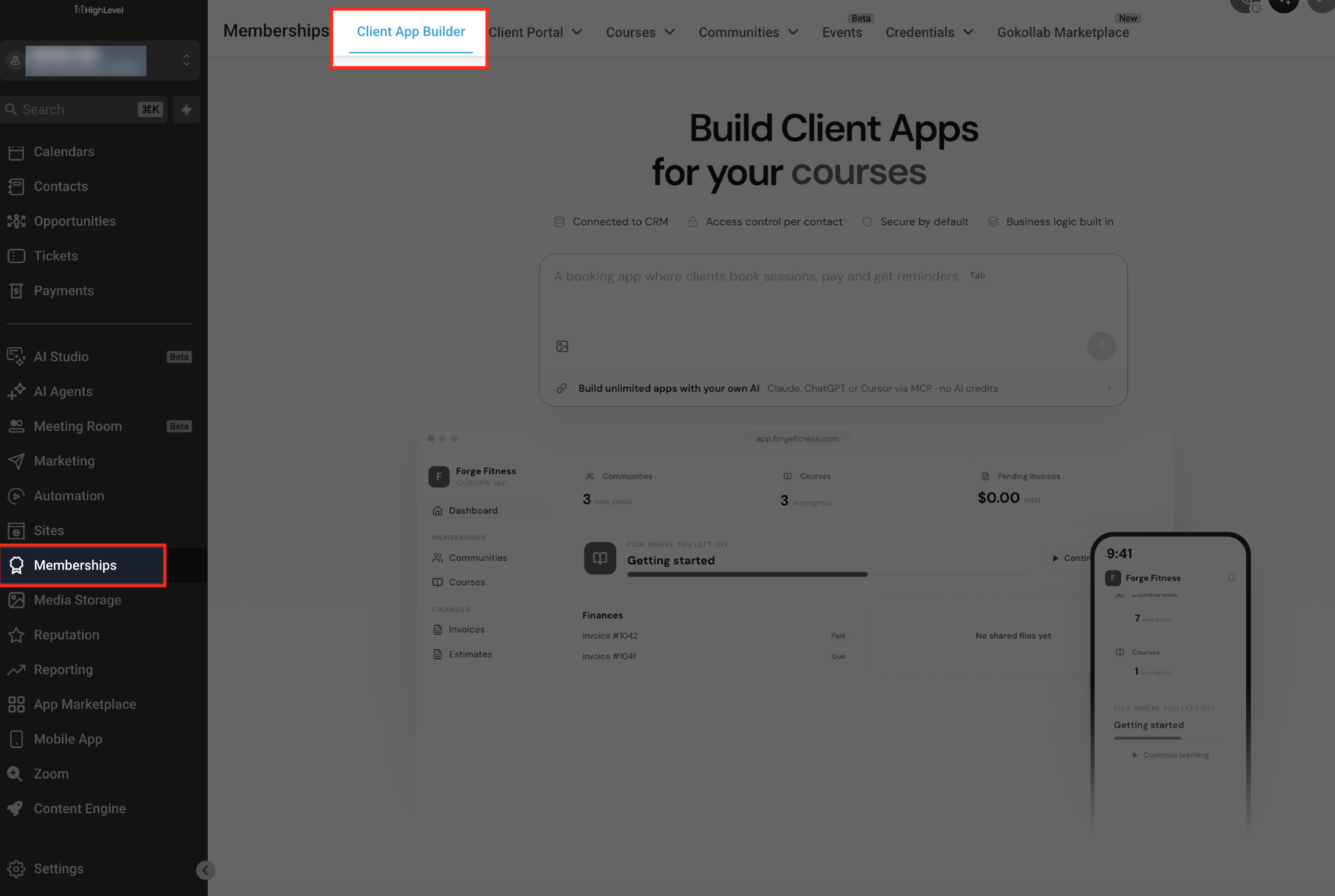
- Select Memberships > Client App Builder.
- Enter a description of the client experience in the prompt box.
- Choose Web or Mobile.
- Under Starting point select Describe it instead and click Continue.
- Answer the setup questions and choose a design system.
- Click Build my app to generate the initial experience.
Add pipeline visibility
- From SubAccount view select Memberships > Client App Builder.
- Open the desired project from All projects.
- Use the app’s AI chat to describe the pipeline experience.
- Specify which pipelines and stages to show or hide.
- Review the proposed experience.
- Confirm the configuration and inspect the preview.
Show contact Custom Fields
- From SubAccount view select Memberships > Client App Builder (or Client Apps > Client App Builder).
- Open the project you want to update.
- Use the AI chat to request a My Details page with the needed Contact Custom Fields.
- Confirm which existing fields are allowed to be shown.
- Review the selected fields and approve the changes.
Set custom object visibility
- From SubAccount view select Memberships > Client App Builder.
- Open the project in Client App Builder.
- Describe the Custom Object page you want in the AI chat.
- If asked, select Yes for using Custom Objects in your CRM.
- Review the proposed record types, fields and visibility options.
- Choose Own Records, Company Records, All Records or Public visibility and approve the plan.
Review and publish
- From SubAccount view select Memberships > Client App Builder (or Client Apps > Client App Builder).
- Open the project you plan to publish.
- Use the app preview to inspect pages and navigation.
- Check pipelines, stages and My Details fields for correct visibility.
- Verify Custom Object record visibility settings.
- For web apps: Open publishing controls and choose an address on app.clientclub.net.
- Review any warnings about linked pages that have not been built and complete the publishing action.
06What it looks like in HighLevel
07Settings that matter
- Visibility options for Custom Objects. You can set records to be visible to Own Records, Company Records, All Records (read only) or Public (read only for visitors).
- Public page safeguards. AI requests confirmation when a public page would expose sensitive contact information or allow editing.
08Things to know before you rely on it
- Public record visibility is read only.
- Contact and Opportunity Custom Fields cannot be converted from one object type to another.
- Mobile builds do not support direct publishing to Google Play or the Apple App Store.
- AI will not create Custom Objects without presenting a review plan first.
- AI requests confirmation when a proposed public page would expose sensitive contact information, such as email addresses or phone numbers.
- AI requests confirmation when a proposed public page would allow visitors to edit information.
- Existing Custom Fields are not automatically exposed to clients without a visibility review.
09If something goes wrong
- AI suggests exposing sensitive data on a public page. Review the visibility settings and confirm that the data should not be public before approving the change.
Michael's take

Michael ReimerFounder of CRM Pros, HighLevel Commander and Certified Admin
Client facing CRM data is worth the effort for any small business that wants to keep clients in the loop without juggling separate trackers.
Don’t forget to double check what data is set to public before you publish.
Get More InformationOpens on HighLevelPublished November 16, 2026 · Updated November 16, 2026