
01Who this is for
- Client Portal Owners who need to customize portal notifications without rebuilding emails from scratch.
- Marketing teams that want to personalize messages using merge fields for dynamic content.
02Default email templates, explained
The Edit Default Email Templates feature creates an editable copy of a system provided email used by portal apps such as Documents & Contracts, Courses, and Certificates. After conversion, the owner can change wording, add merge fields, and save the version. Once saved, the customized email replaces the default for the specific notification.
The feature is accessed through the Email Settings section of the Client Portal, where each supported app lists its notifications. From there, owners preview the current template, switch to an editable copy, and use the built in Email Builder to make changes.
The edited template is applied automatically after saving, so contacts receive the new version on the next trigger. Owners can also revert to the original default at any time or replace a notification with any previously saved email template.
03How businesses use edit default email templates
- Coaching business. A coaching firm opens the Email Settings, selects the default invitation email for its client portal, and edits the copy to include a personalized welcome message and the coach’s name using merge fields. After saving, every new client receives the updated invitation.
- Online course provider. The provider navigates to the Courses notification list, previews the certificate email, clicks the Default Template button, and customizes the subject line and branding colors in the Email Builder. Saving the template ensures all future certificates carry the new design.
- Legal document service. The service accesses the Documents & Contracts notification, converts the default document ready email into an editable template, inserts client specific case numbers via merge fields, and saves. Clients now receive emails that reference their unique case identifiers.
04How to set up and use edit default email templates in HighLevel
Edit default email templates for client portal notifications
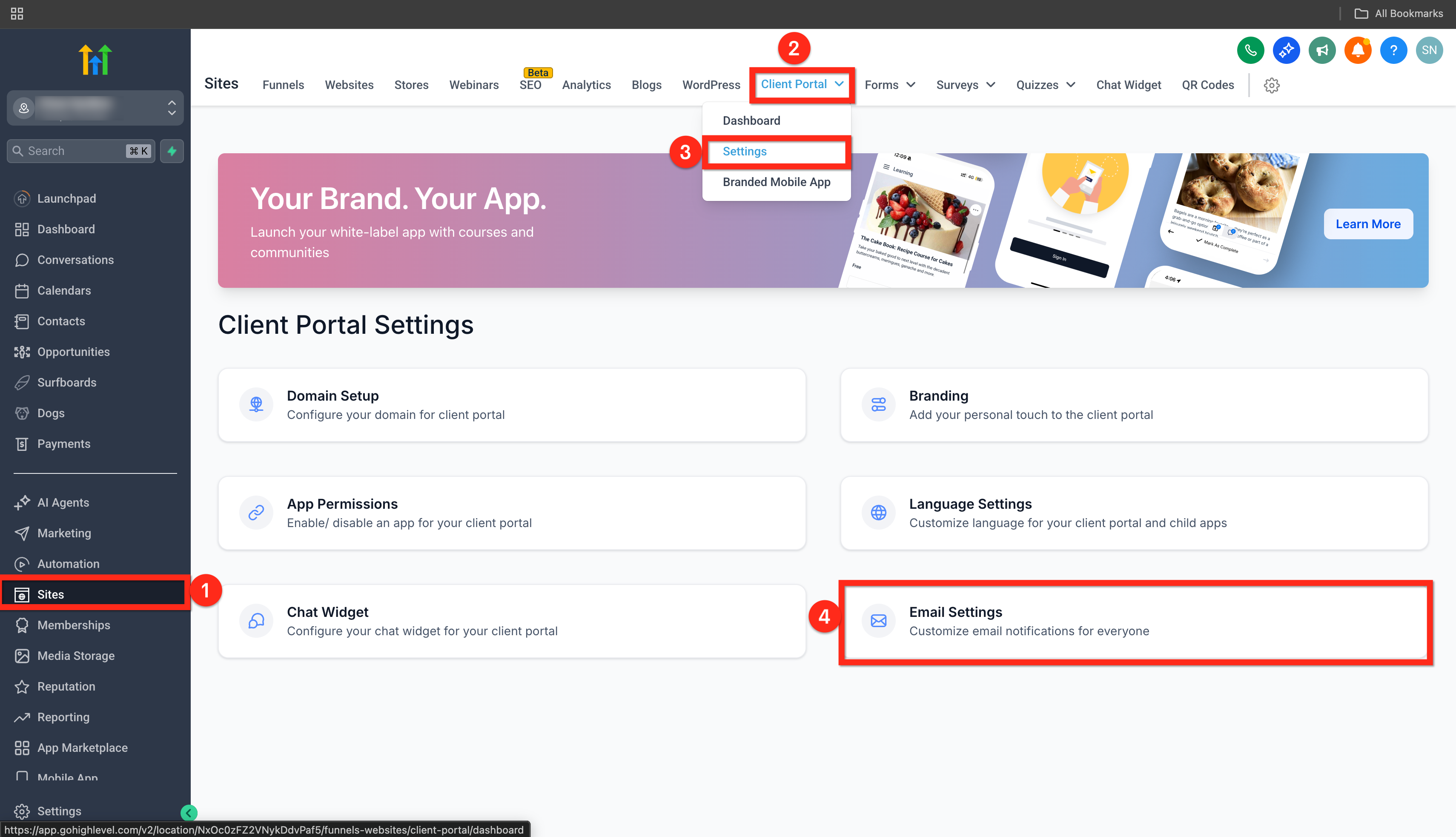
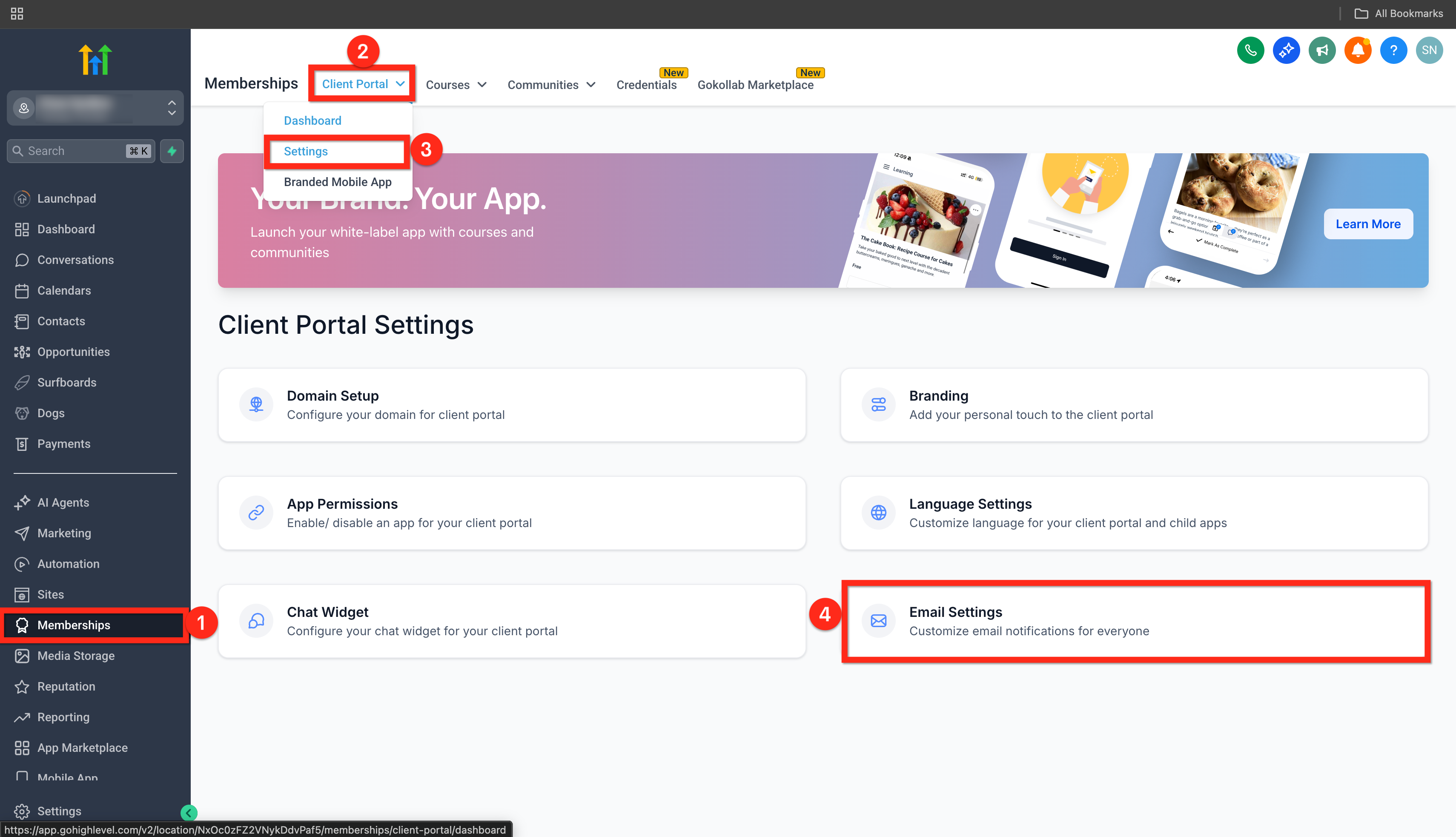
- Open Sites > Client Portal > Settings > Email Settings (or Memberships > Client Portal > Settings > Email Settings).
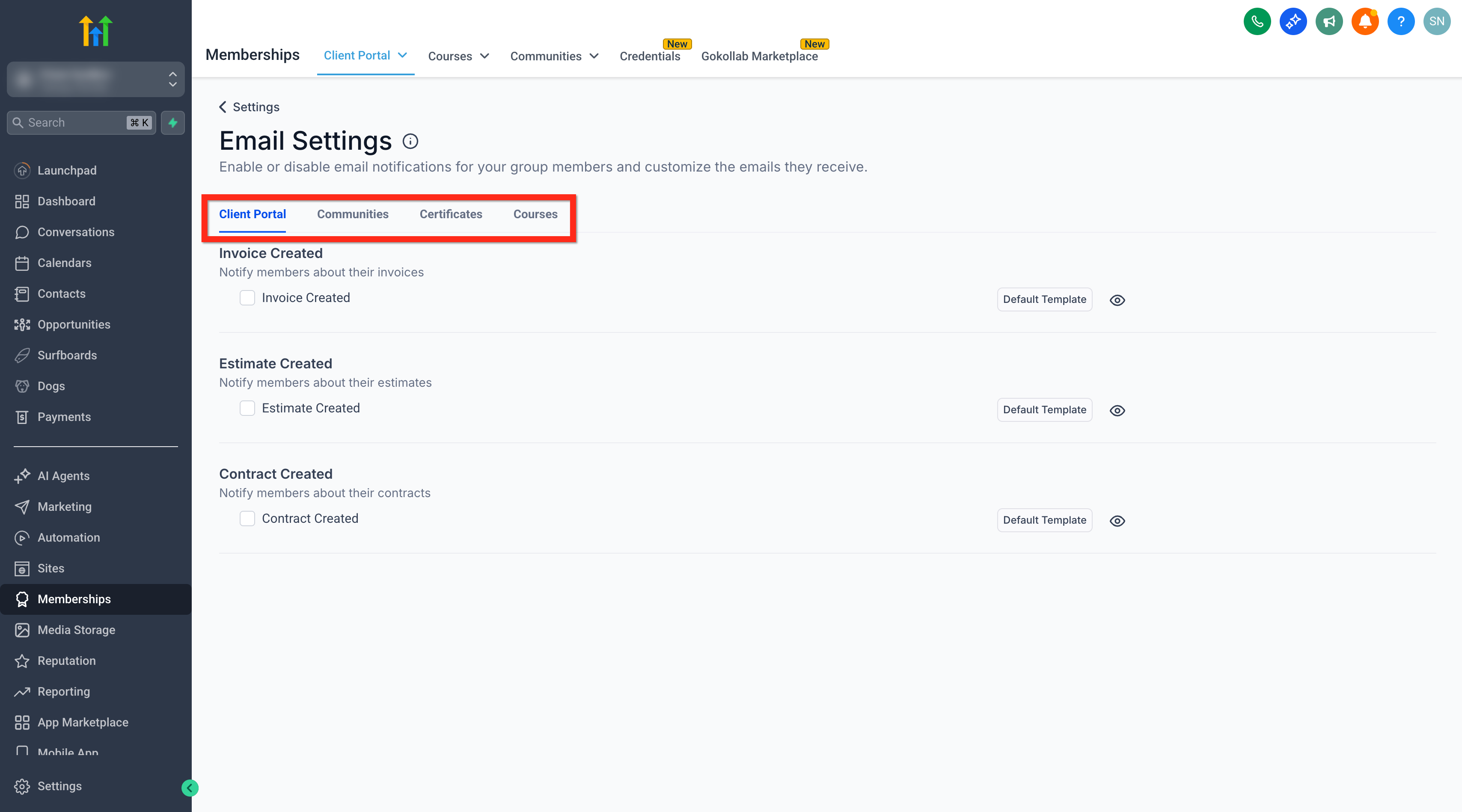
- Find the Main Notification Features section that lists Client Portal, Communities, Certificates, and Courses.
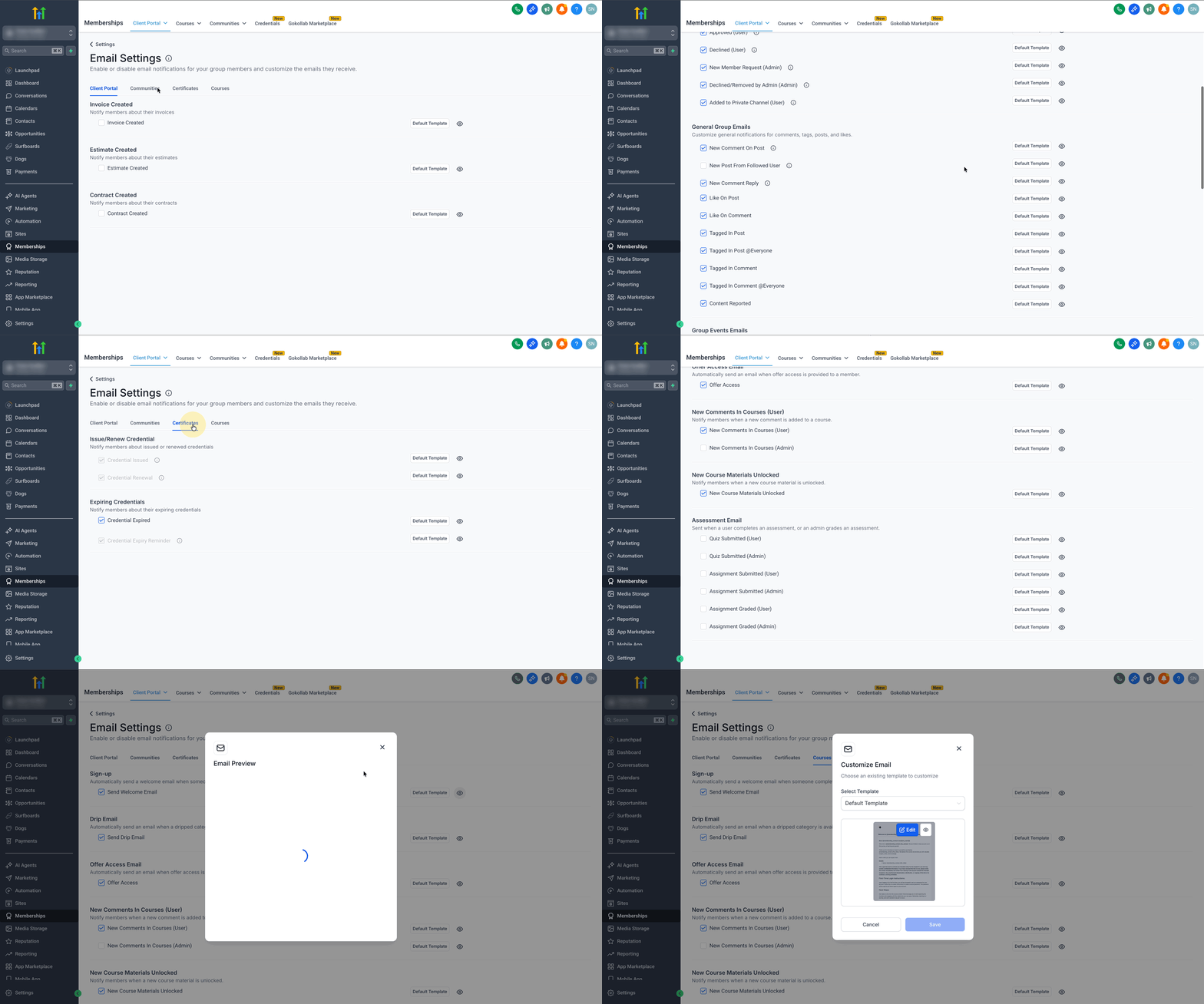
- For the desired notification, click the Eye icon to preview the template and then click the Default Template button to begin editing.
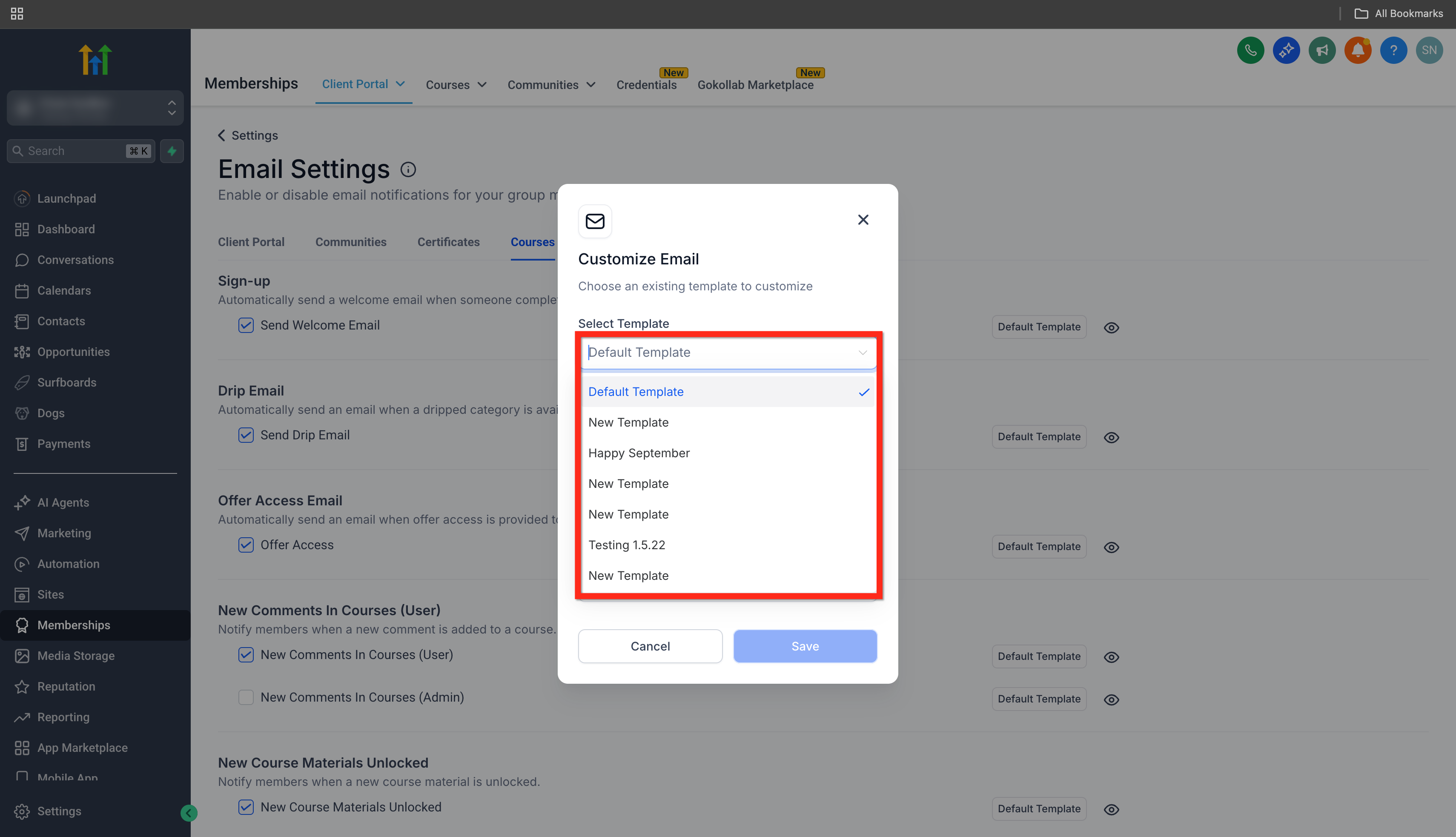
- Open the Select Template dropdown and choose a previously saved email template if desired.
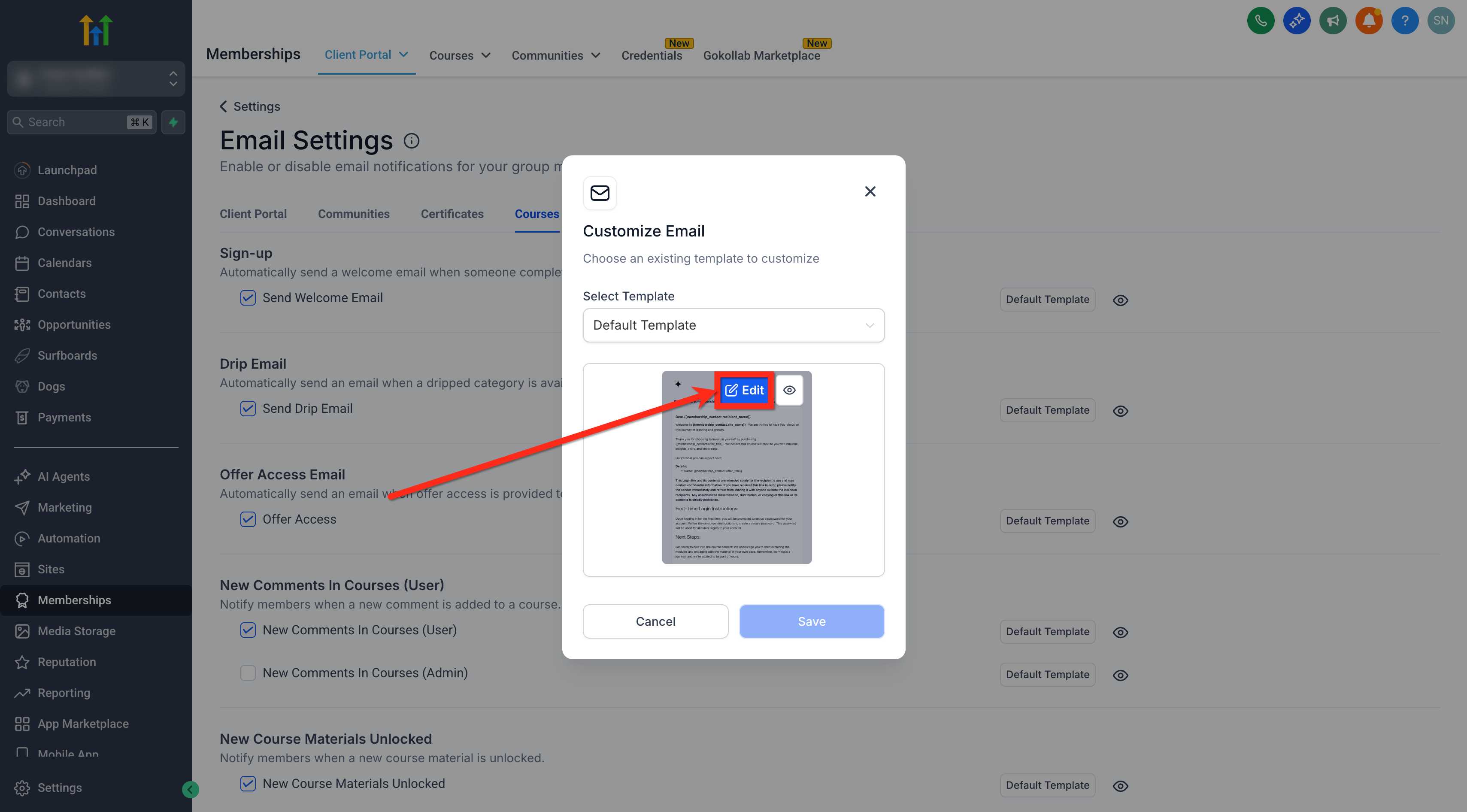
- Press the Edit button to open the email content in the editor.
- Read the caution message and click Proceed to continue.
- Use the Email Builder to modify the email text, layout, and insert merge fields.
- Click Save to store the edited template.
- Click Save again on the Email Settings page to confirm the template is assigned to the notification.
05What it looks like in HighLevel
06Settings that matter
- Email Settings. Controls which email templates are used for each client portal notification.
- Main Notification Features. Groups the notifications for each portal app so owners can locate and edit their templates.
- Select Template. Allows the owner to pick an existing saved email template instead of the system default.
- Edit. Opens the chosen template in the Email Builder for content changes.
- Proceed. Confirms the user’s intent after reading the caution box before editing begins.
07Things to know before you rely on it
- Only supported portal apps such as Documents & Contracts, Courses, and Certificates provide editable default templates.
- A caution box appears before editing; users must click Proceed to continue.
08How it connects to the rest of HighLevel
- Step by step guide to set up the client portal Client portal setup guide
- Manage subscription billing inside the client portal Subscription management
- Review HighLevel pricing and plans for portal features Pricing
Michael's take

Changing default emails can feel risky because a single typo could reach every client. Make sure you preview with real merge fields so you know exactly what will appear in a recipient’s inbox.