
01Who this is for
- Founders who want a dedicated app that reflects their brand identity and provides direct client access.
- Marketing managers needing a consistent visual experience across web and mobile touchpoints.
- Customer support teams that benefit from a single tap entry point for client interactions.
02Branded mobile apps, explained
The Branded Mobile App feature creates native iOS and Android applications that display your business branding. After payment is recorded, you supply logo, color scheme, and profile details, which are locked in once submitted. The platform reviews the submission, schedules two factor authentication, and then sends the app to the app stores for approval.
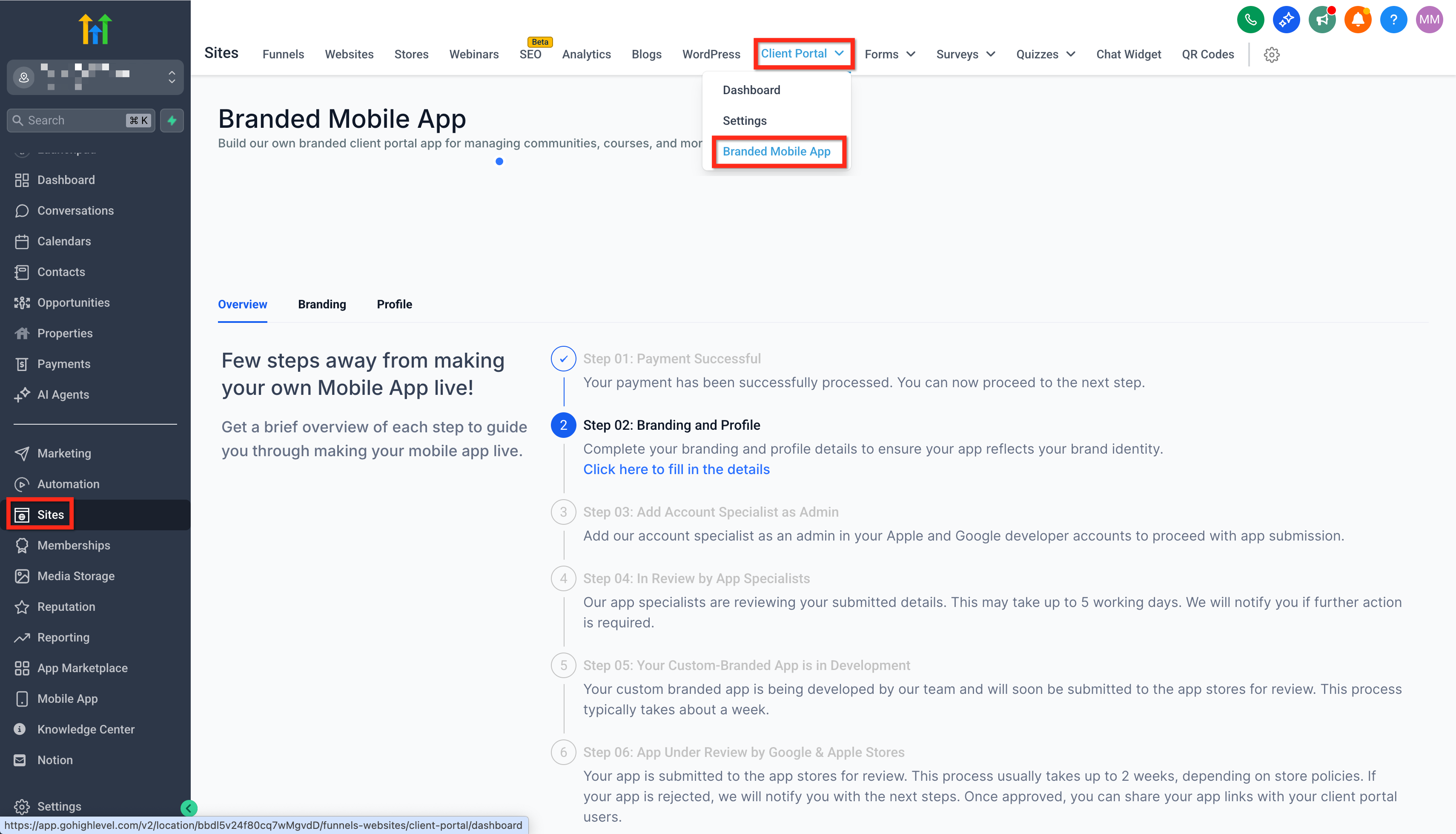
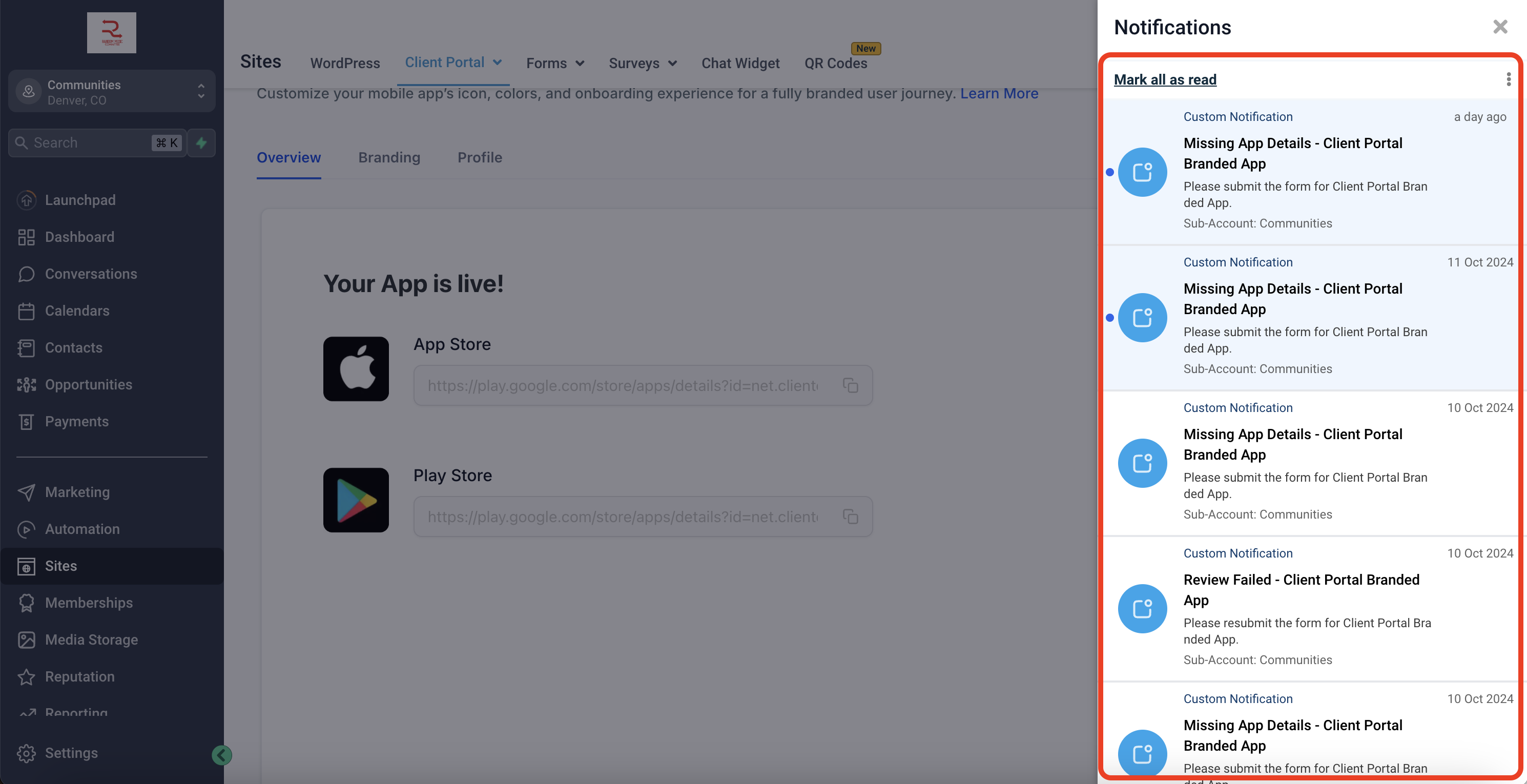
The setup lives under Sites > Client Portal > Branded Mobile App. All branding fields must be completed before submission; no custom code can be added. After submission, you cannot edit the details, and you receive in app notifications for each status change. Email updates are also sent during the review and store submission phases.
03How businesses use the branded mobile app
- Fitness studio. Enter the studio’s logo, brand colors, and class schedule information in the Branding and Profile section. Submit the details, wait for the review, and schedule the 2FA slot. Once approved, members download the app to book classes directly.
- Real estate agency. Provide the agency’s branding assets and contact info in the portal, then submit for review. After the app passes the review and 2FA step, the app appears in the stores, allowing clients to view listings and request showings from their phones.
- Coaching service. Upload the coach’s logo, brand colors, and service descriptions. After submission and review, schedule the 2FA verification. When the app is live, clients can access coaching modules and schedule sessions through the native app.
04The numbers and rules that matter
- Review is completed within 5 working days.
05Before you start
- A successful payment must be recorded before starting the setup.
- All branding assets (logo, colors, business description) should be prepared in advance.
06How to set up and use the branded mobile app in HighLevel
Navigate to the Branded Mobile App settings
- Open Sites > Client Portal > Branded Mobile App in the platform.
Confirm payment is successful
- Verify the payment confirmation appears and proceed to the next step.
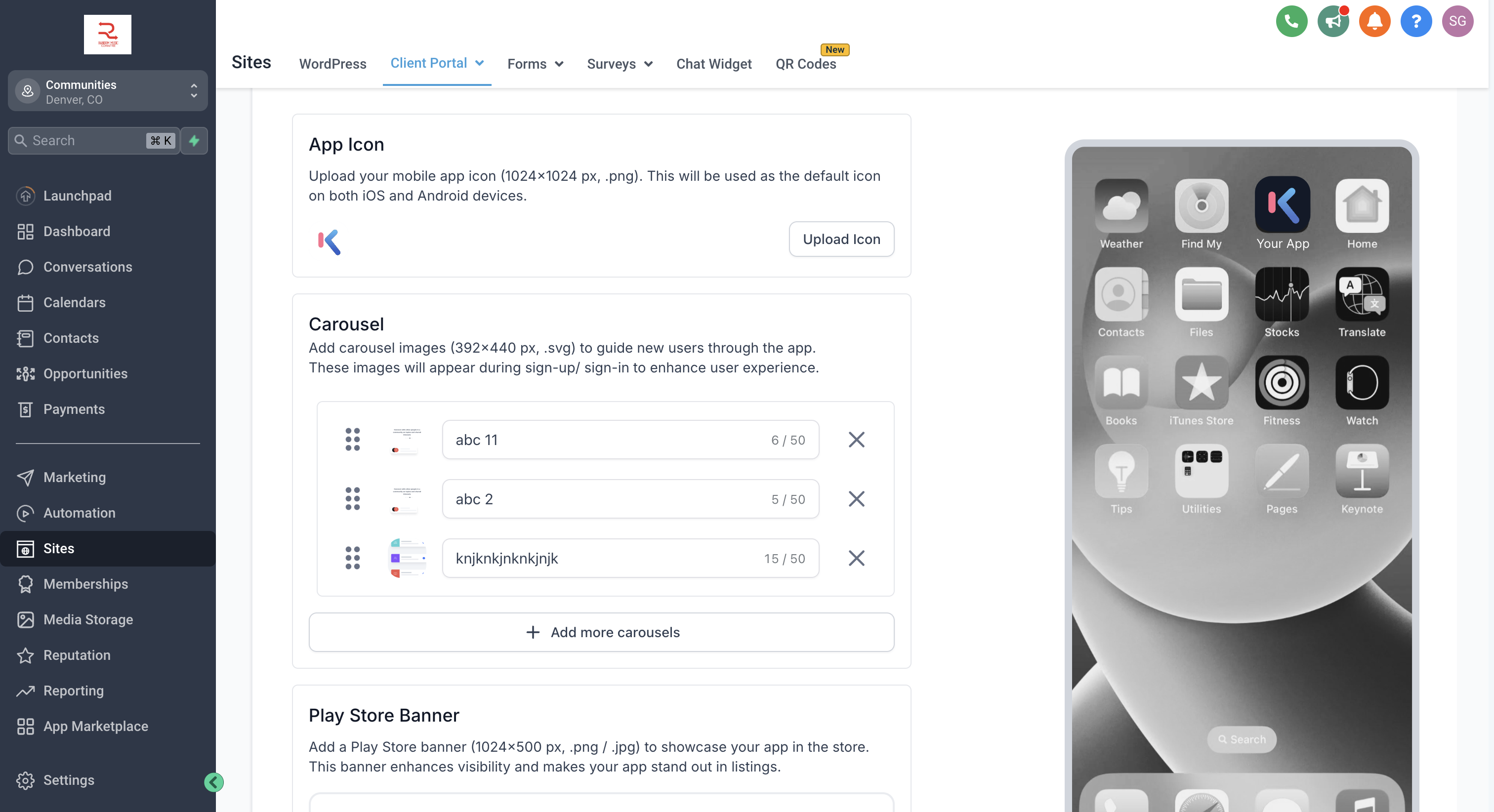
Enter branding and profile details
- Fill all fields in the Branding and Profile sections with your logo, colors, and business information.
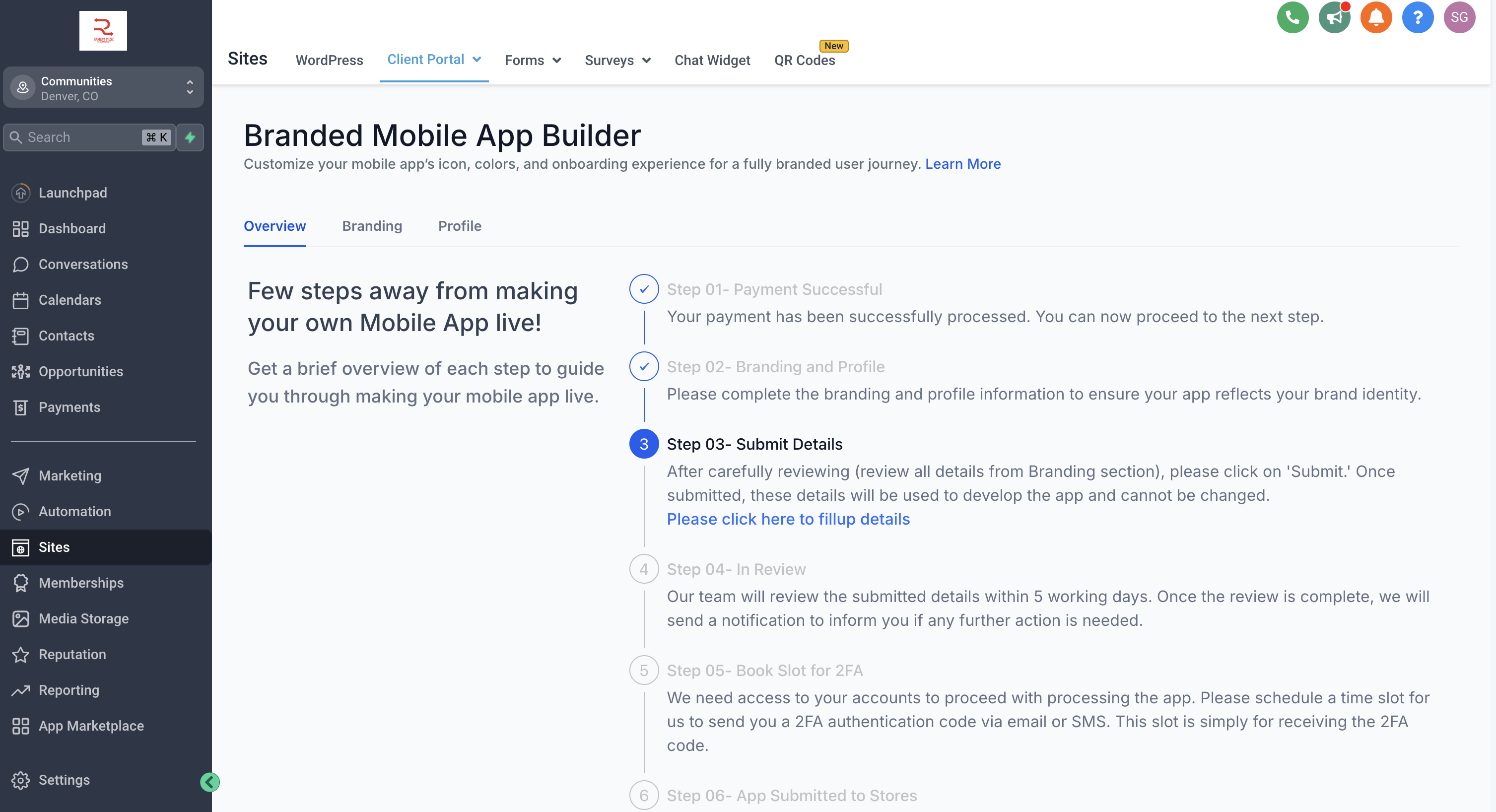
Submit branding information
- Review the entered branding details, then click Submit to lock in the information.
Await review of submitted details
- Monitor in app notifications for the review outcome within five working days.
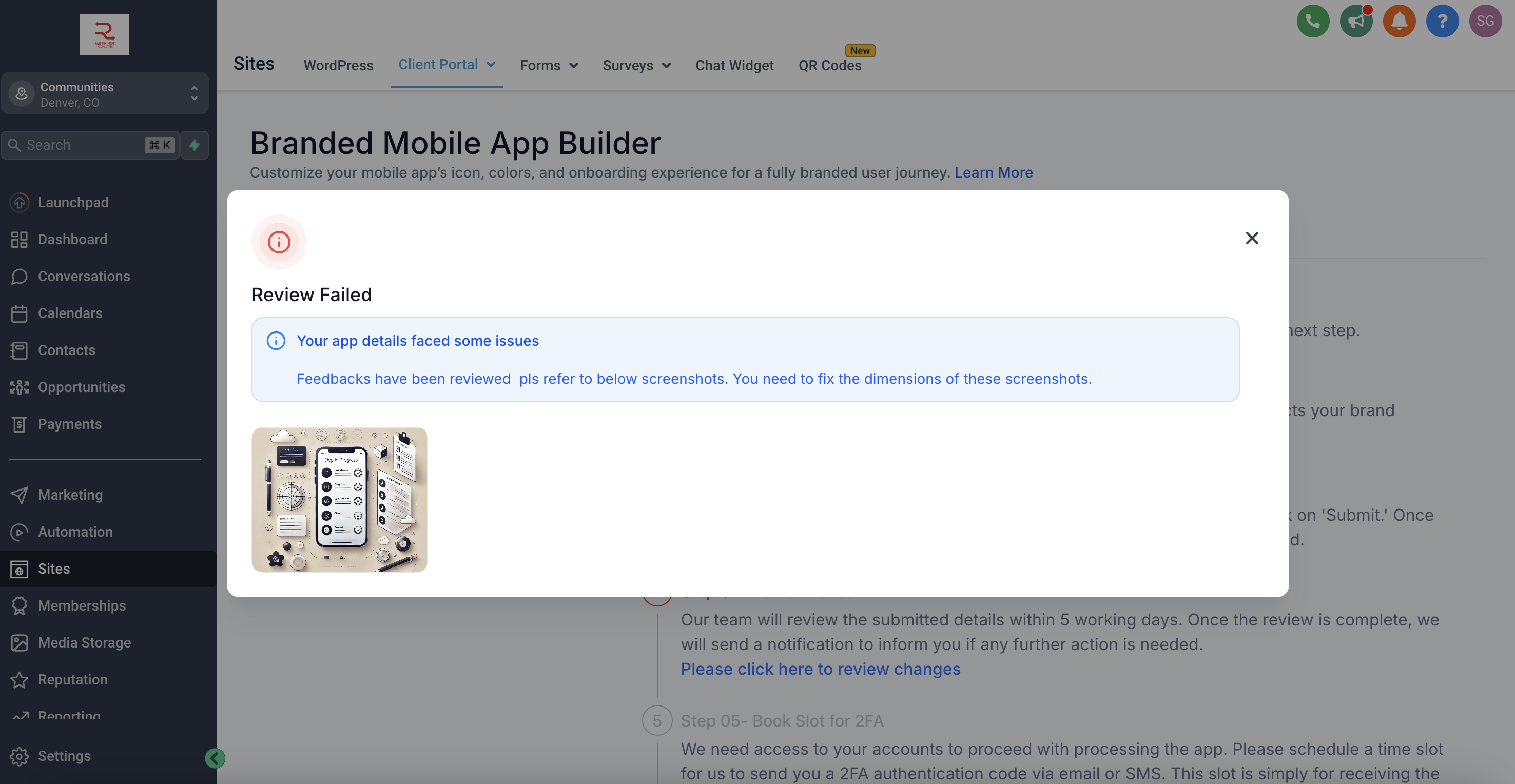
Address a review failure
- Open the status, read the failure reasons, correct the information, and resubmit.
Schedule two factor authentication slot
- Select a convenient time slot to receive the verification code via email or SMS and confirm the appointment.
App submission to app stores
- No action required; the platform will notify you when the store approves the app.
07What it looks like in HighLevel
08Settings that matter
- Branding and Profile. Controls the visual identity of the app, including logo, color scheme, and business description.
- Two factor authentication (2FA) slot. Determines the scheduled time for receiving a verification code needed before the app can be submitted to the stores.
09Things to know before you rely on it
- Custom code cannot be added to the Branded Mobile App.
- Branding details cannot be changed after you click Submit.
- The review process takes up to five working days.
- A 2FA slot must be booked after the review passes.
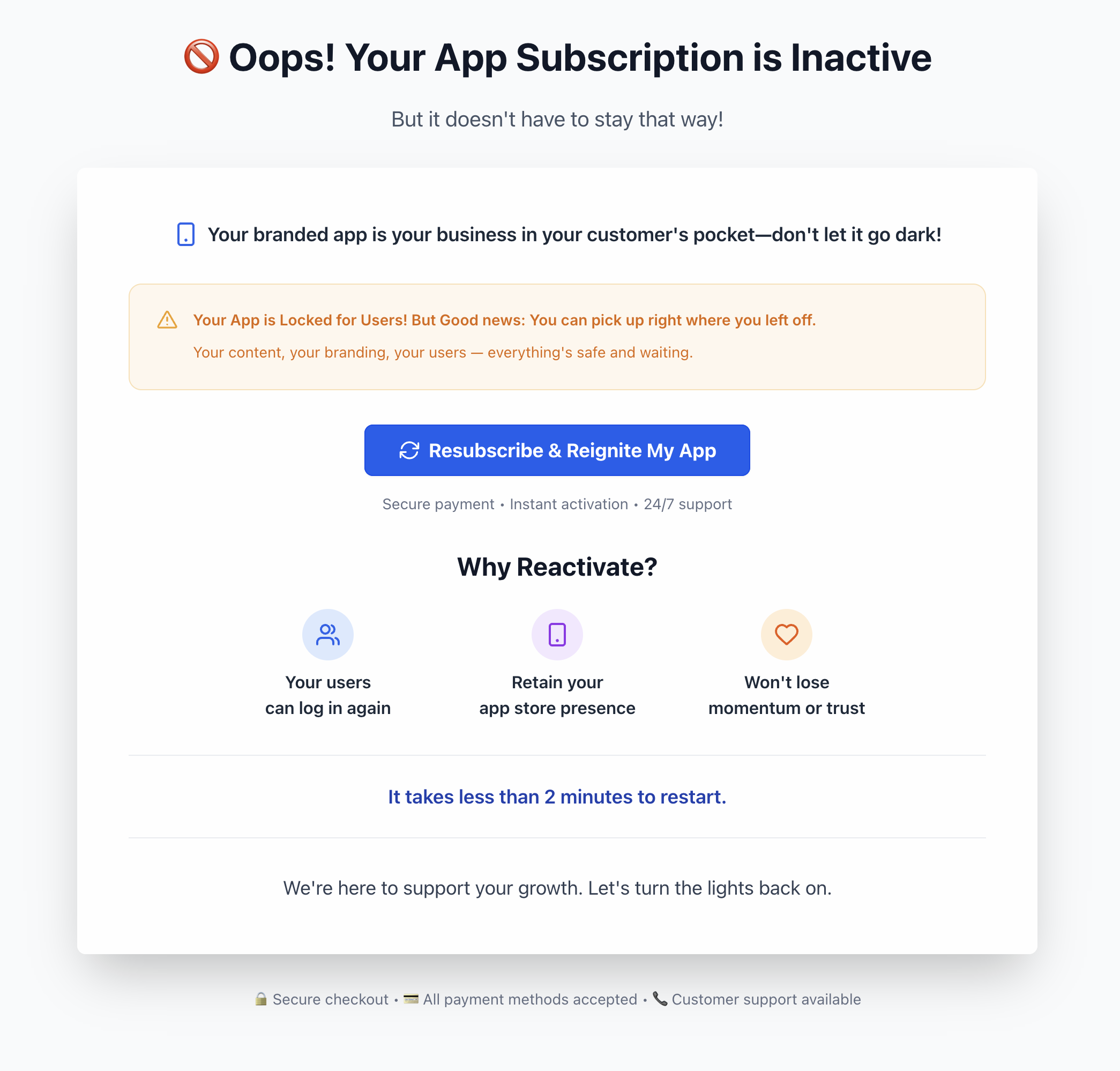
- If the subscription is paused or cancelled, a warning screen appears with a Resubscribe & Reignite My App button.
10If something goes wrong
- Review failed. Open the status, review the listed reasons, correct the required information, and submit again.
- Subscription paused or cancelled. Click the Resubscribe & Reignite My App button on the warning screen to reactivate the app.
11How it connects to the rest of HighLevel
- Step by step guide for setting up the full client portal Client portal setup guide
- Pricing details for the Branded Mobile App subscription Pricing page
- Start a 30 day trial to explore client portal features Free trial
- Founder Plan information for advanced access Founder Plan
Michael's take

In my experience, a branded app provides a consistent mobile presence for a business.