
01Who this is for
- Coaching firms, give clients a single place to schedule sessions without switching tools.
- Health and wellness clinics, limit booking to specific providers by enabling only certain calendars.
- Service based agencies, let customers manage recurring meetings while the business retains control of calendar rules.
02Client Portal appointments, explained
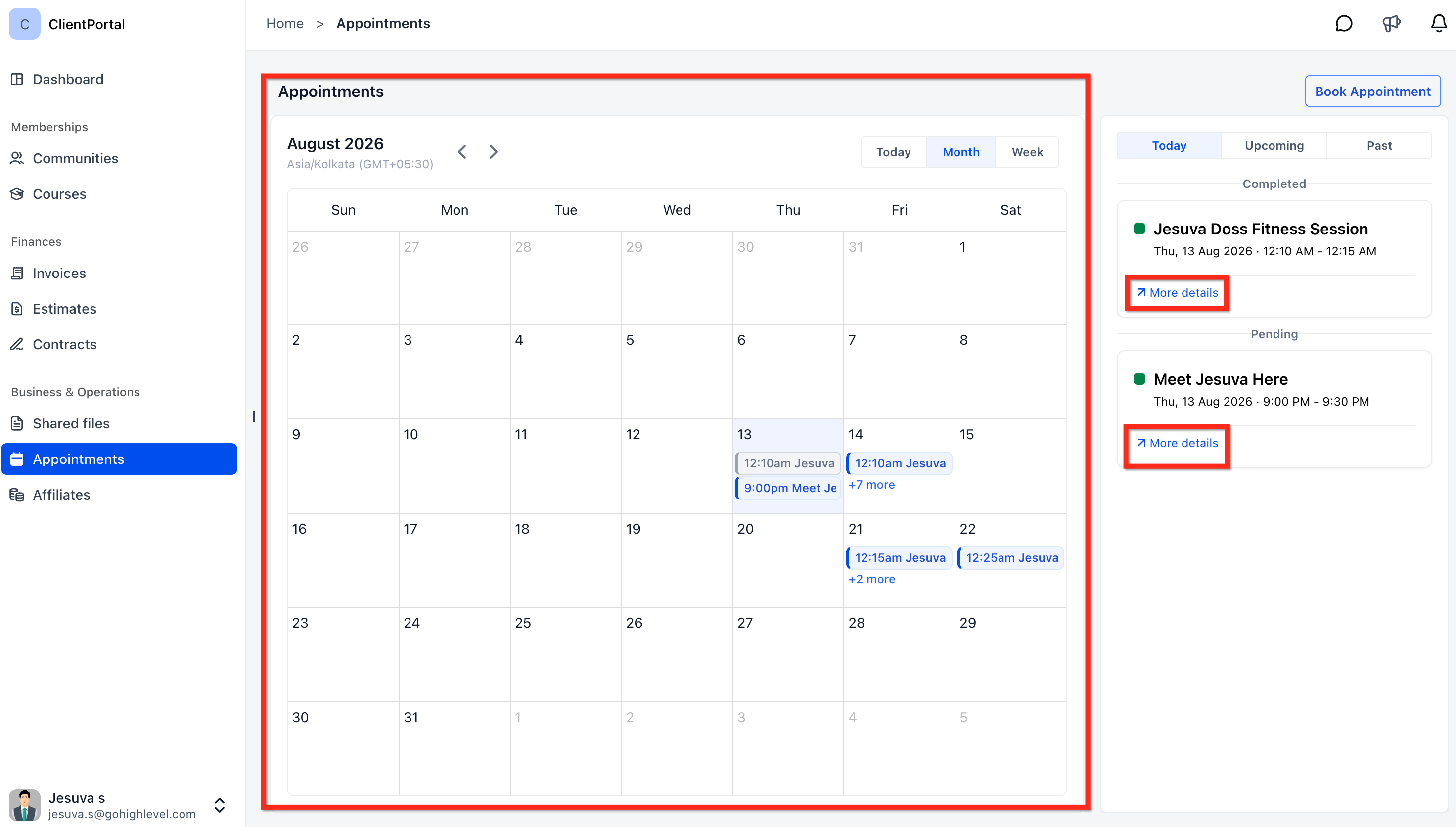
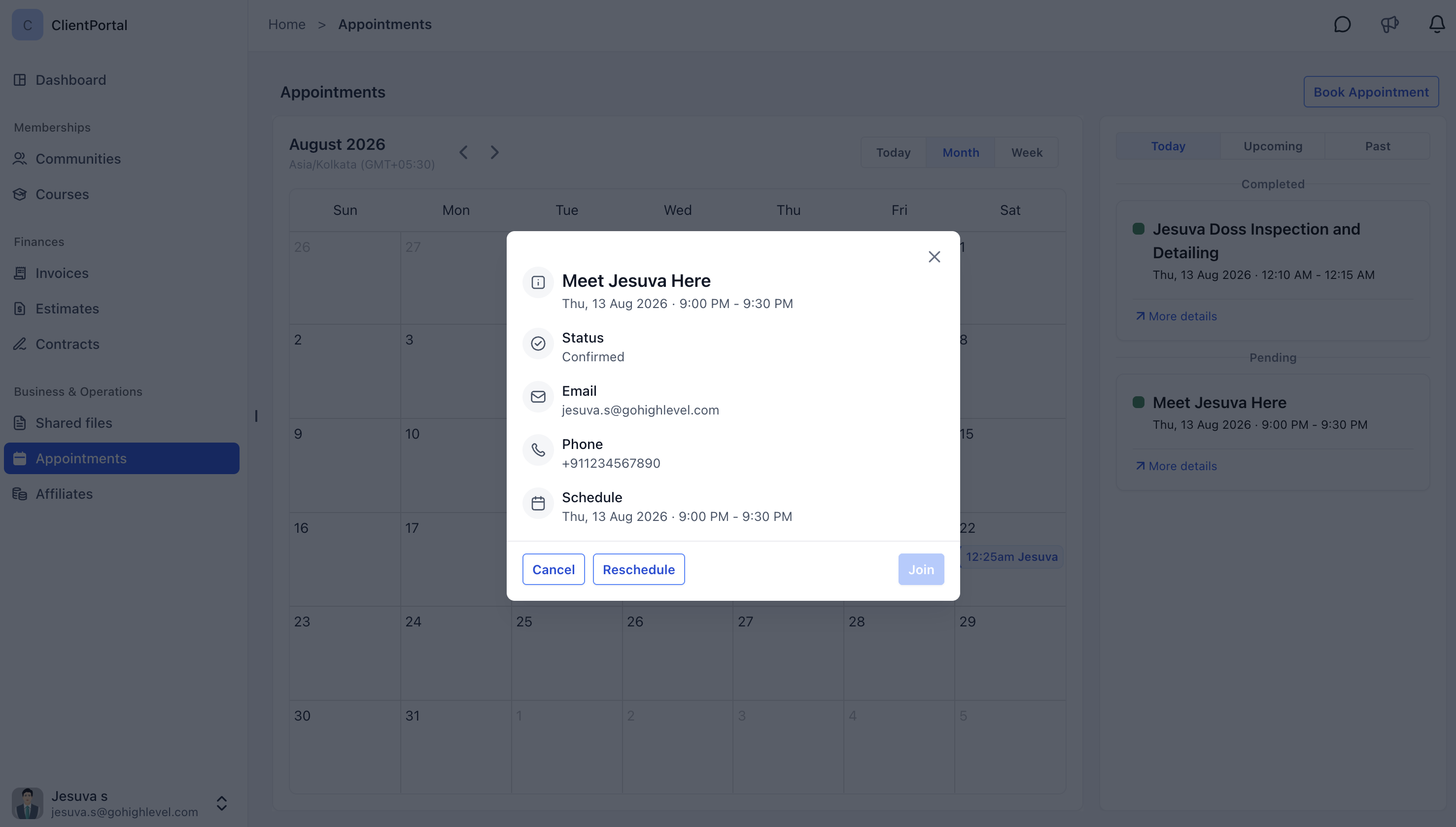
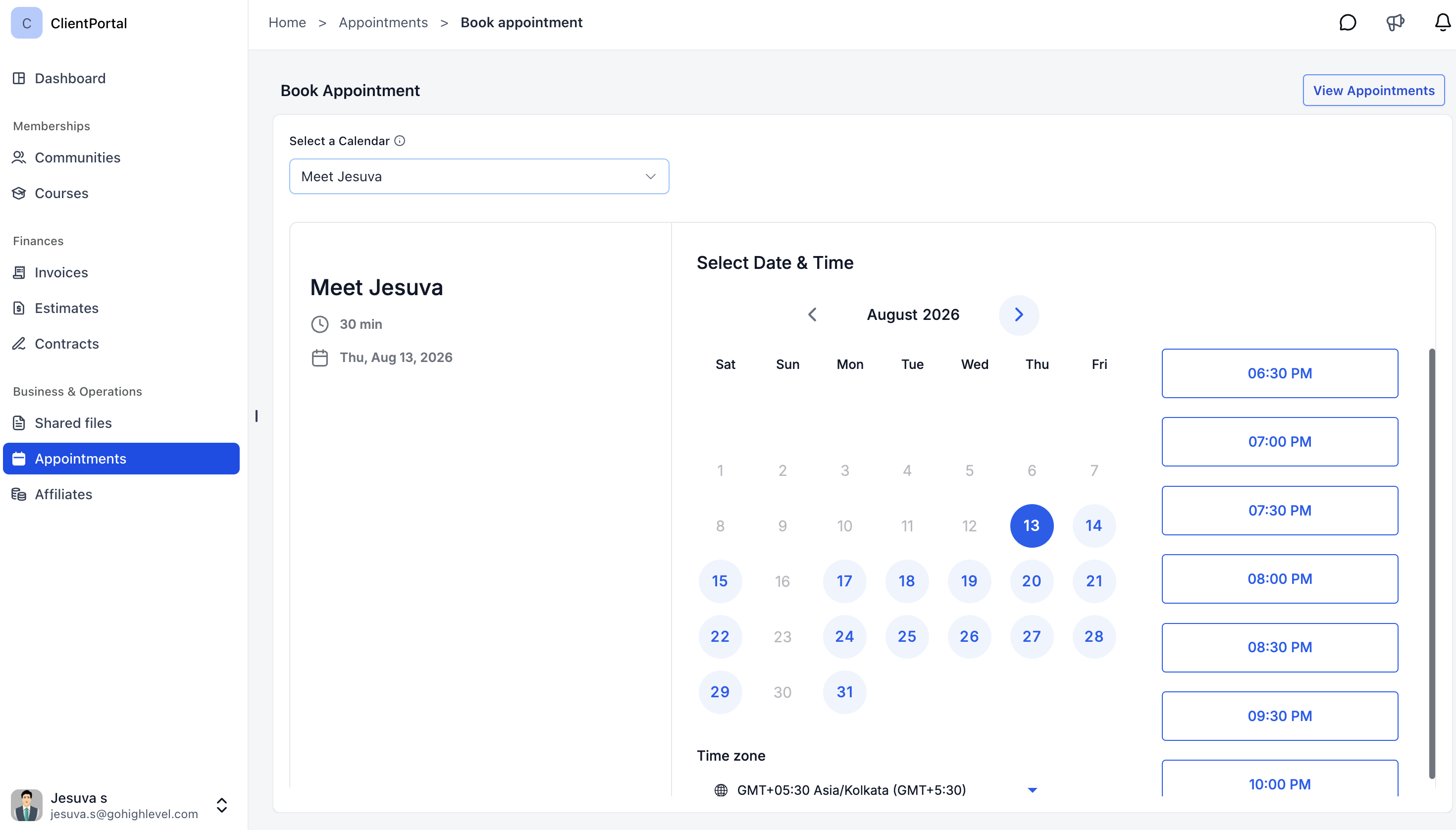
The feature adds a scheduling interface to the new Client Portal UI. Clients can see upcoming, today and past appointments, choose a calendar, pick a date and time, and, when permitted, cancel or reschedule. The portal pulls existing contact data to pre fill booking forms.
Visibility of the Appointments child app is managed in App Permissions at the subaccount level. Each calendar must also have Client Portal booking turned on under its Advanced settings. Without both steps, the app appears but no calendars are selectable.
All appointment availability follows the calendar’s preset rules, office hours, buffers, notice periods, and any existing bookings are respected during the booking flow.
03How businesses use Client Portal appointments
- Fitness studio. The studio enables Client Portal booking on individual trainer calendars. Clients log into the portal, select the Trainer Appointments app, and book a class slot that matches the trainer’s availability.
- Legal practice. The firm turns on the Appointments app for its client portal and activates Client Portal booking on each attorney’s calendar. Clients can then schedule consultations directly from the portal without external links.
- Consulting agency. The agency activates the Appointments child app and marks only its strategic planning calendar for portal booking. Clients access the portal, view the calendar selector, and book a planning session at a suitable time.
04Before you start
- The new Client Portal UI must be in use.
- App Permissions must allow the Appointments child app.
- At least one calendar must have Client Portal booking enabled.
05How to set up and use Client Portal appointments in HighLevel
Enable Client Portal booking for a calendar
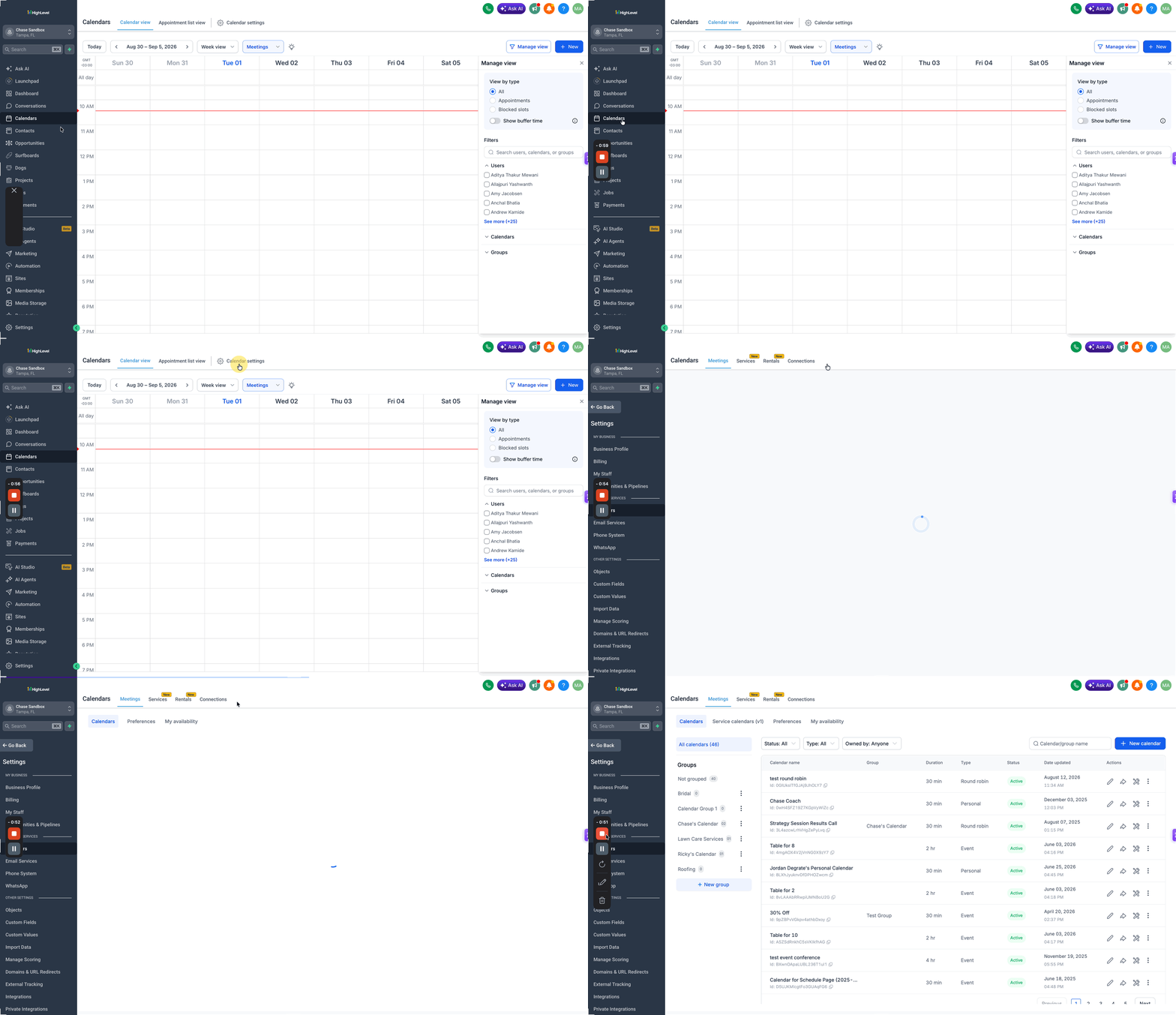
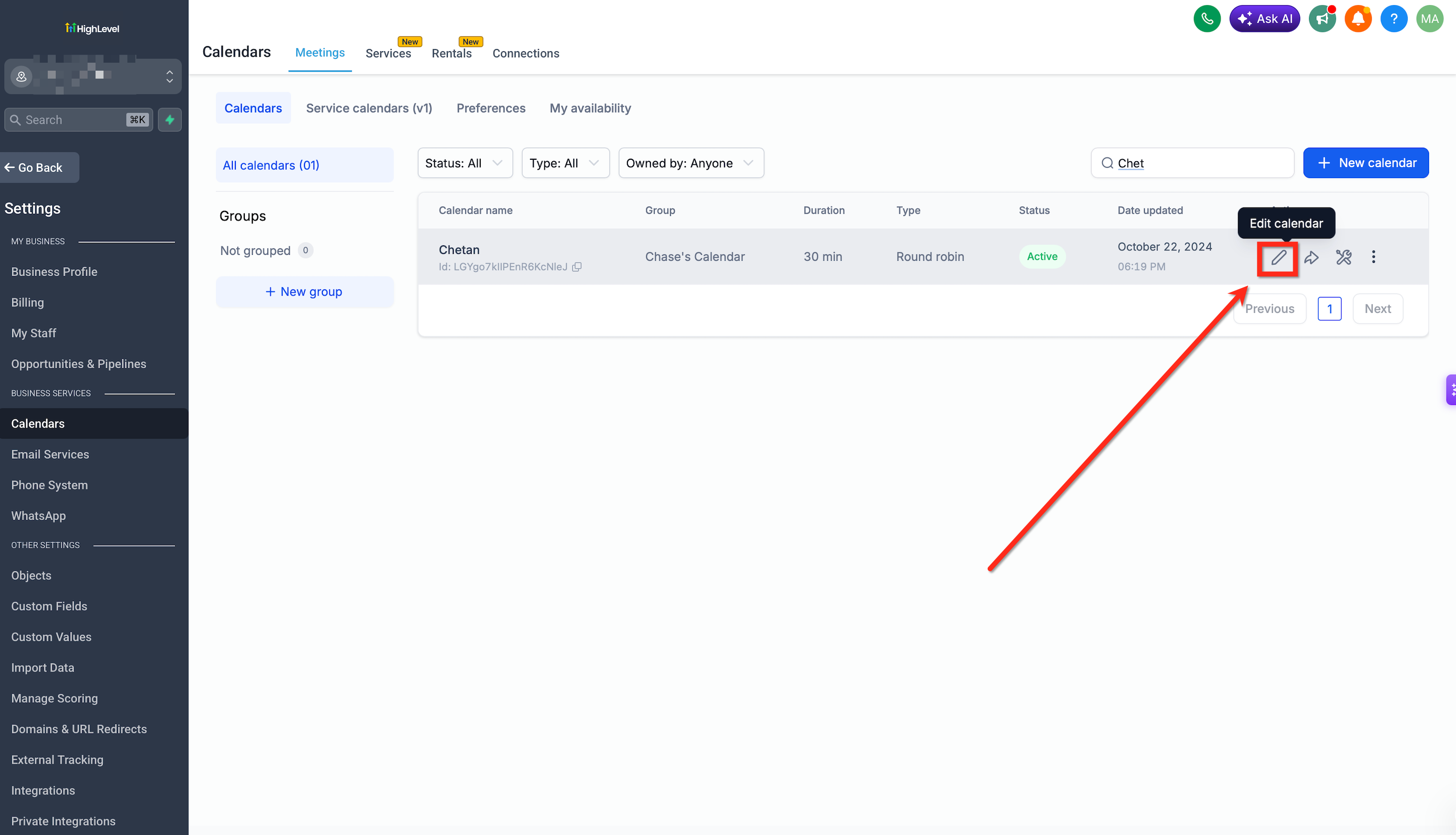
- Open the Calendars area and access the settings for the chosen calendar.
- Click the edit icon for that calendar.
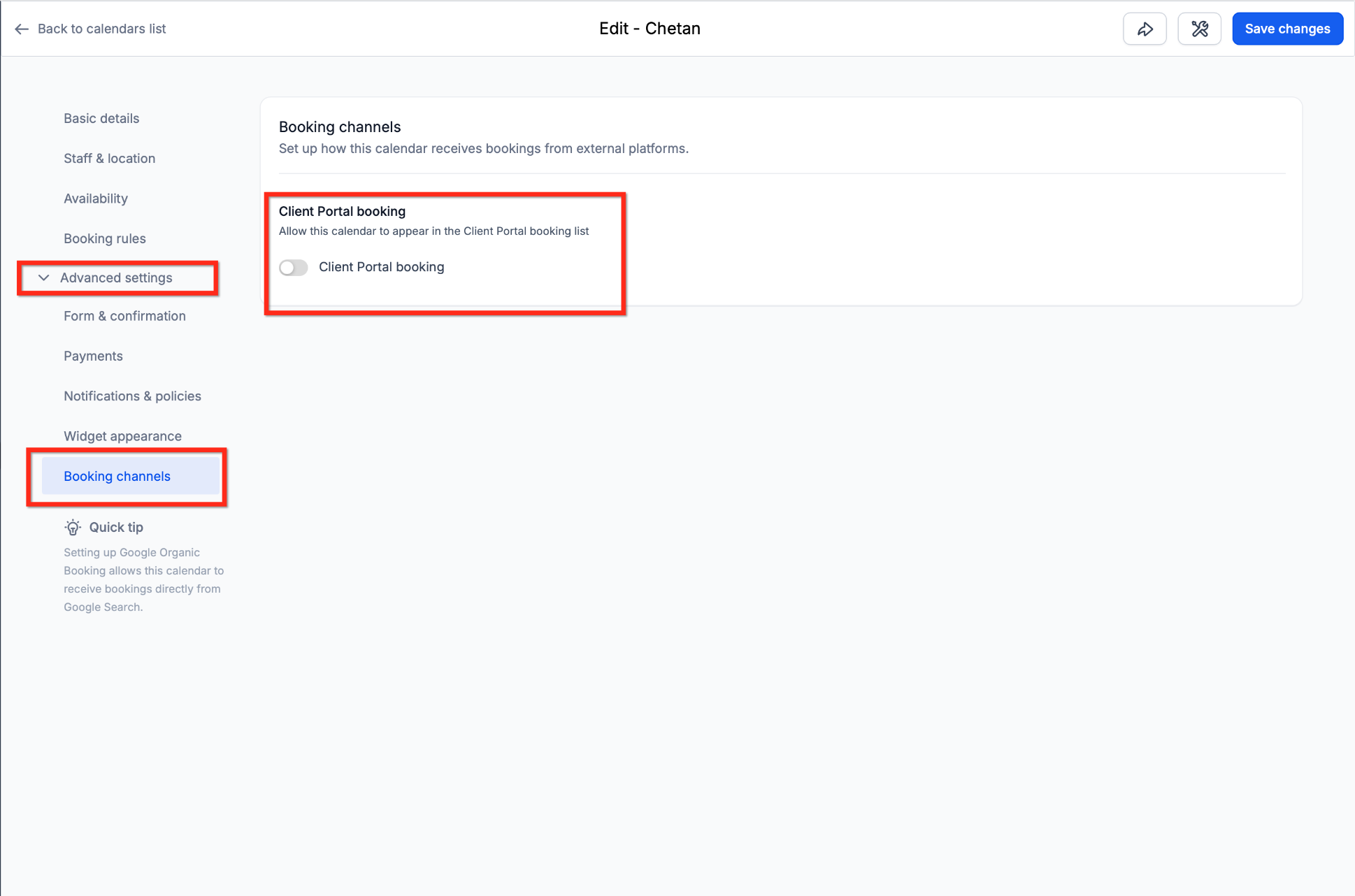
- Expand the Advanced settings section.
- Select the Booking channels option.
- Turn on the Client Portal booking toggle.
- Press Save changes.
- Repeat the process for any other calendars you wish to expose.
Enable Appointments in Client Portal app permissions
- Go to Memberships in the main navigation.
- Open the Client Portal section.
- Select Settings.
- Enter App Permissions.
- Find Appointments among the listed child apps.
- Turn the Appointments toggle on.
- Click Save Settings.
- Important: Enabling Appointments does not automatically make every calendar available; each calendar must also have Client Portal booking enabled.
06What it looks like in HighLevel
07Settings that matter
- Client Portal booking. Determines whether a specific calendar can be chosen by clients when booking through the portal.
- Appointments. Controls the visibility of the Appointments child app inside the Client Portal navigation.
08Things to know before you rely on it
- Only the new Client Portal UI supports this feature; branded mobile apps do not yet include it.
- The current release handles standard calendar based appointments; service menu booking and advanced event management are not included.
- Multiple calendars appear via the calendar selector; a Group Calendar is not required for this display.
09If something goes wrong
- Appointments does not appear in the portal. Verify the client is using the new Client Portal, confirm Appointments is enabled in App Permissions, and ensure the changes were saved.
- Appointments appears, but no calendars are available. Enable Client Portal booking for at least one calendar under Advanced settings > Booking channels.
- A calendar appears, but a time slot is missing. Check the calendar’s availability settings, notice period, buffers, appointment limits, existing bookings, and any connected calendar conflicts.
- Cancel or Reschedule is unavailable. Review the calendar’s cancellation and rescheduling policies and confirm the restriction window has not passed.
- The time zone selector is missing. Ensure the Disable Contact Timezone option is not turned on for the subaccount.
- A recent permission change is not visible. Confirm the change was saved, then have the client refresh the portal or sign out and sign back in.
10How it connects to the rest of HighLevel
- Step by step guide for setting up the Client Portal Client portal setup guide
- View pricing options for HighLevel plans HighLevel pricing
- Start a free 30 day trial of HighLevel 30 day trial
Michael's take

Can I let my clients schedule without sending separate links? Absolutely.
The Client Portal appointments let them book, view, reschedule or cancel meetings right inside the portal they already use.