
01Who this is for
- Founder of an online course business, wants students to receive help without leaving the course environment.
- Community manager for a member portal, needs live assistance for forum participants while they browse discussions.
- Affiliate network owner, seeks quick support for partners inside the affiliate dashboard.
02Chat widget integrations, explained
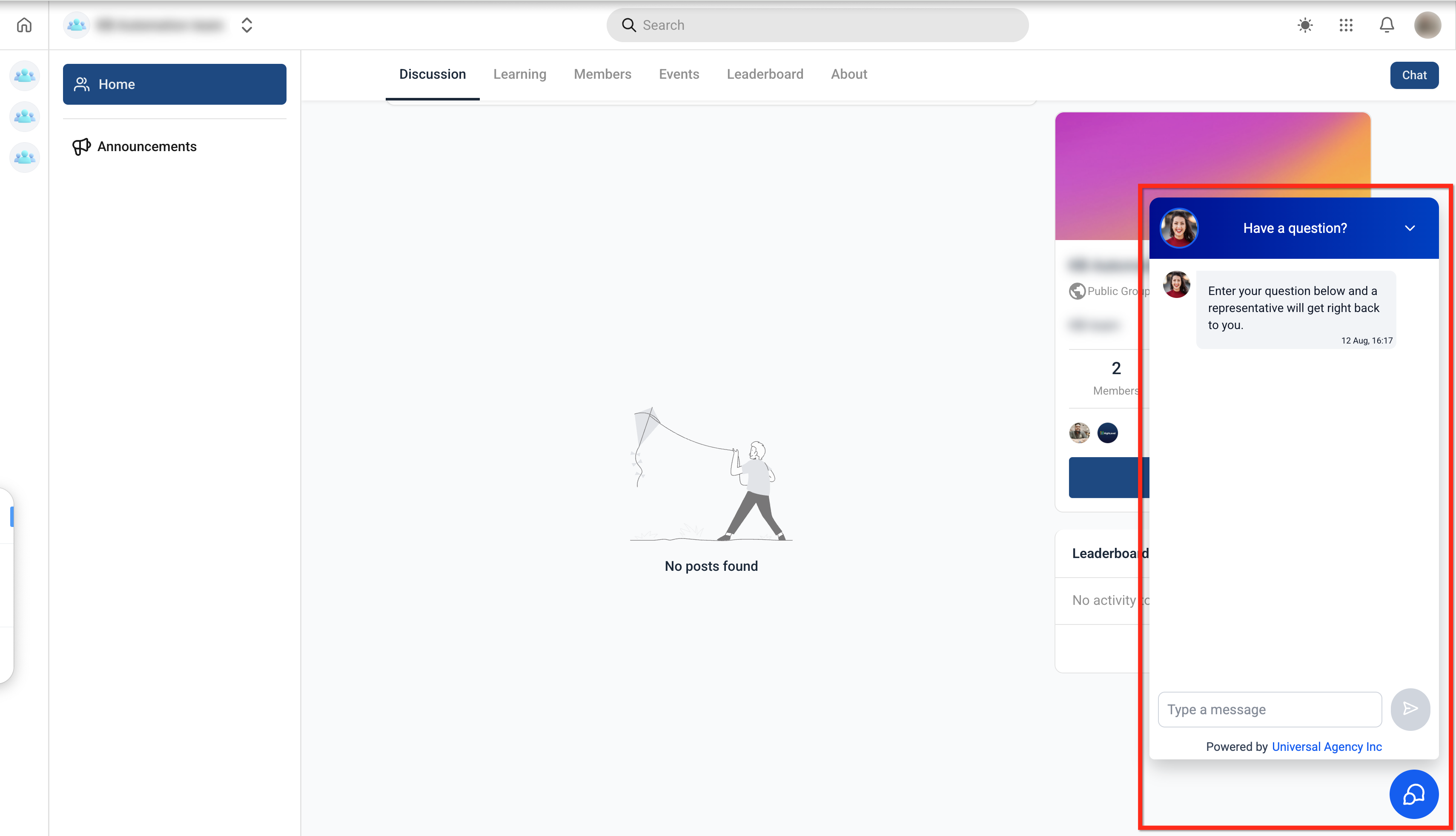
The integration attaches a single HighLevel chat widget to the client portal. After selection, the widget can be shown or hidden for each child app, Communities, Courses, Affiliates, and Home & Account, giving precise control over where real time support appears. All chat messages are delivered to the regular HighLevel inbox, so you handle them alongside other web chat conversations.
Settings for the widget live inside the client portal configuration. No JavaScript snippet or external embed is required; you simply pick a widget from a dropdown and toggle its visibility for the desired apps. Any changes made to the widget itself, branding, greeting, or channel options, are reflected across the portal after you refresh the page.
03How businesses use chat widget integration with the Client Portal
- Online course provider. Select the existing course support widget and enable it for the Courses child app while keeping it off for Communities. Students can start a chat directly from course pages, and every message lands in the HighLevel inbox for follow up.
- Member community host. Activate the widget for the Communities app only, allowing members to request help while browsing forums. The widget’s appearance follows the global settings, so you adjust greeting or channels in Sites > Chat Widget and see the updates in the portal.
- Affiliate program manager. Turn the widget on for the Affiliates child app, giving partners instant access to support within their dashboard. All chats route to the same HighLevel inbox, consolidating communication across the business.
04The numbers and rules that matter
- Per child app visibility only: You can show or hide the widget per child app, but you cannot assign multiple different widgets to different child apps.
- Widget content is global: The selected widget’s configuration (branding, greeting, channels) applies wherever it appears in the portal.
- Visibility toggles are available for Communities, Courses, Affiliates and Home & Account.
05Before you start
- Create at least one chat widget in the subaccount.
- Have permission to edit Client Portal settings in the subaccount.
- If you plan to use WhatsApp, ensure a configured WhatsApp number is available.
06How to set up and use chat widget integration with the Client Portal in HighLevel
Set up chat widget integration
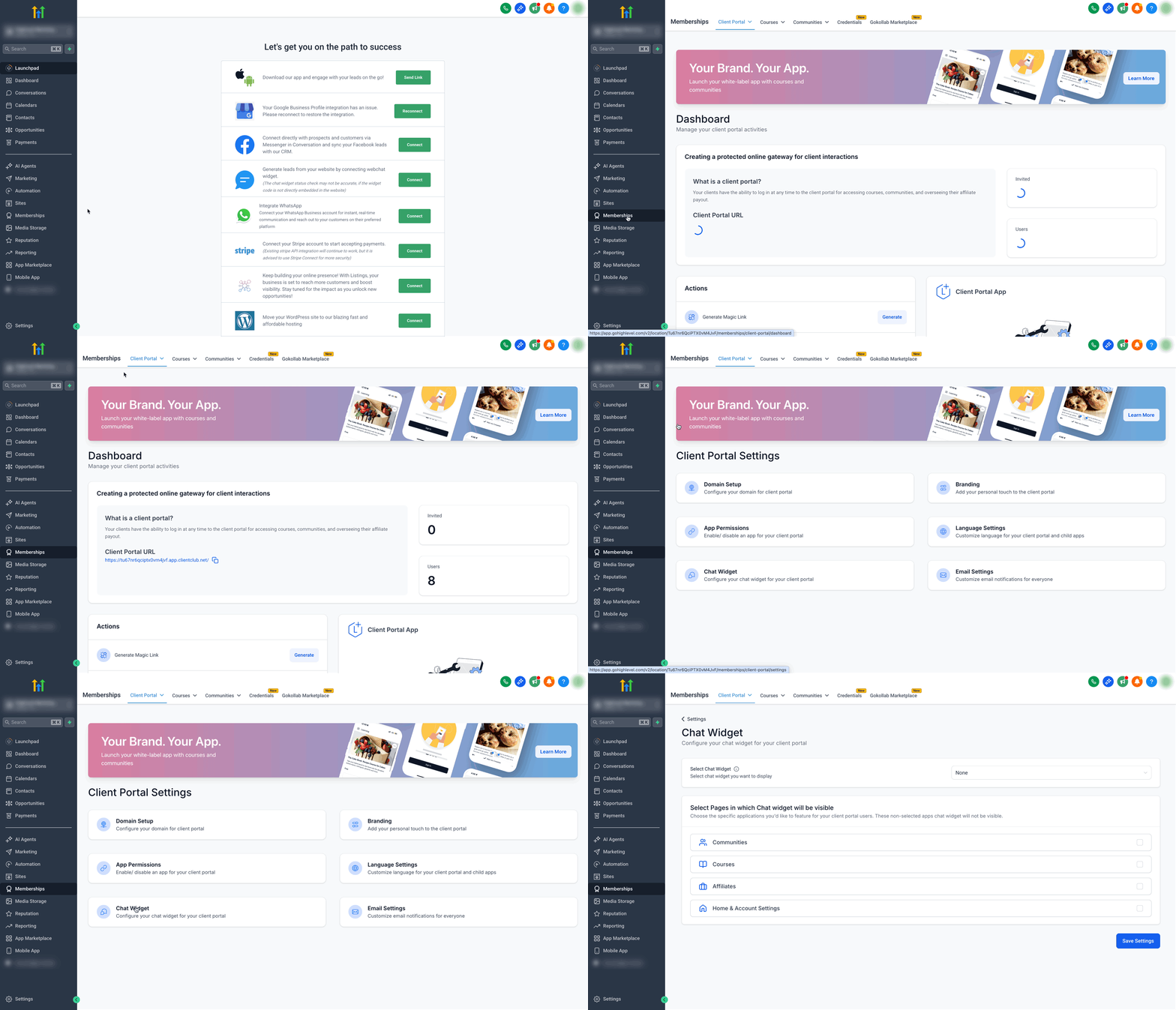
- Navigate in the subaccount to Memberships > Client Portal > Settings > Chat Widget.
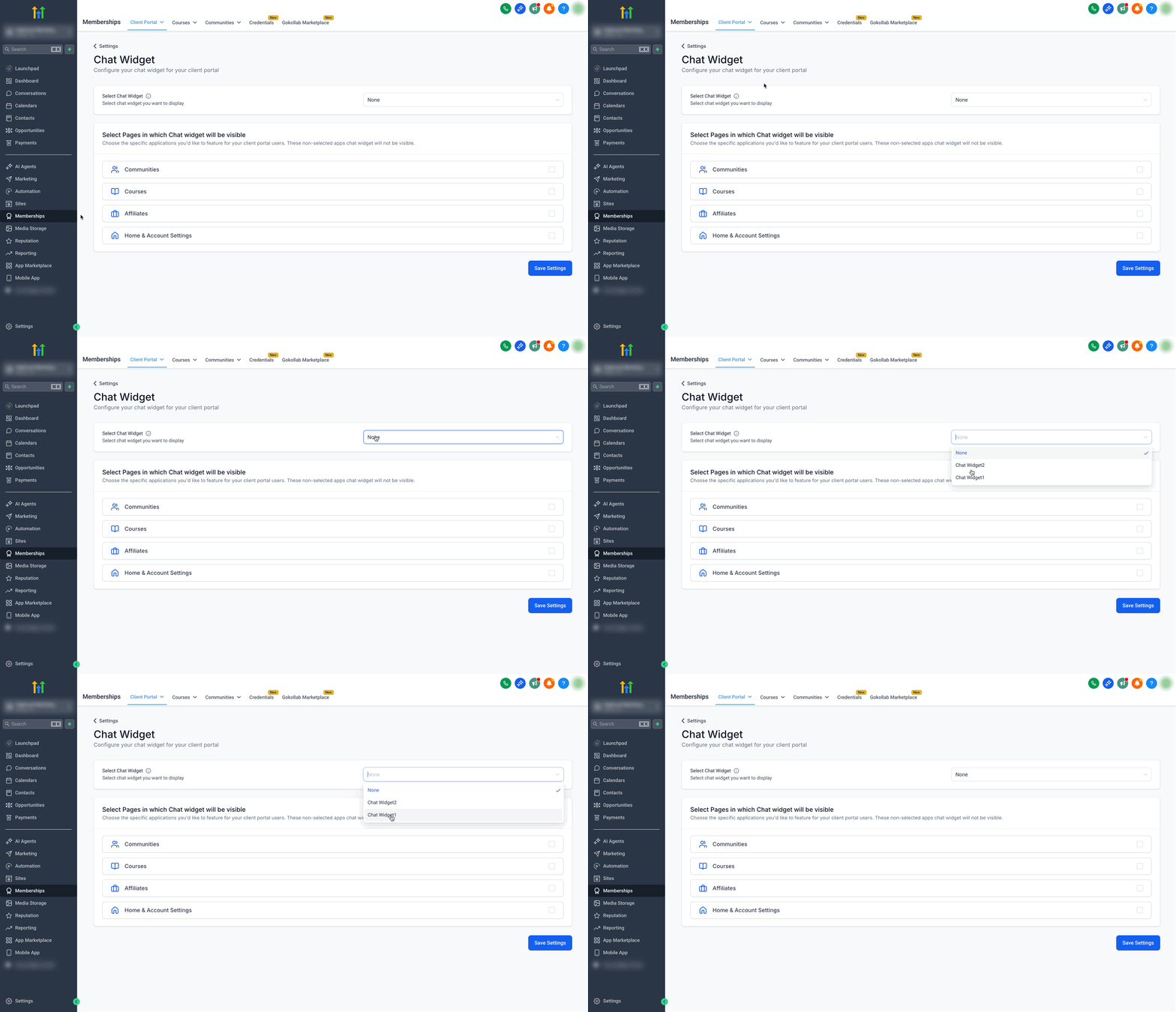
- Open the Select Chat Widget dropdown and choose the widget you wish to use.
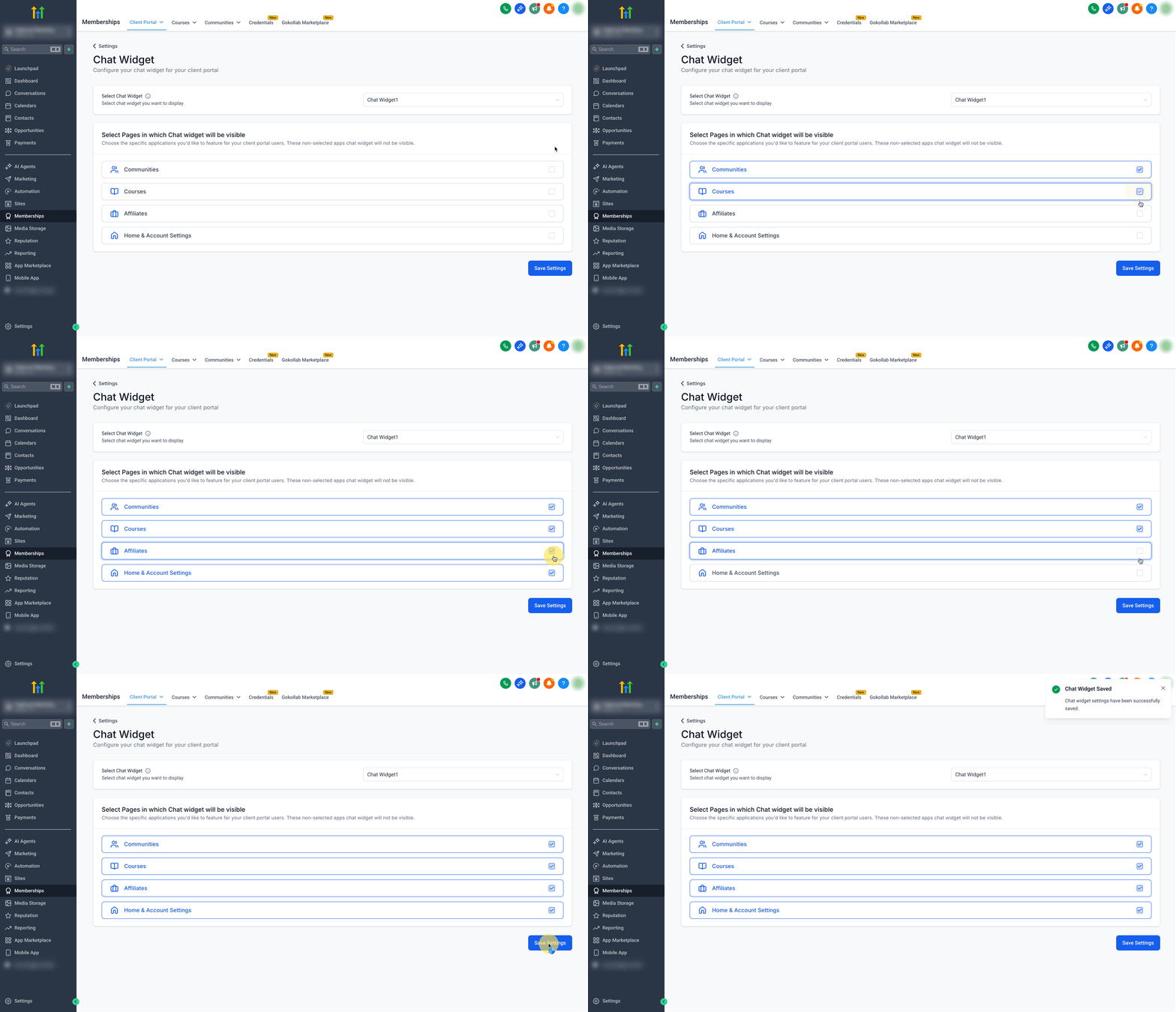
- Under Select Pages, toggle the visibility switches for Communities, Courses, Affiliates, and Home & Account as required, then click Save Settings.
- To modify the widget’s appearance or channels, edit it under Sites > Chat Widget and refresh the client portal page to see the changes.
07What it looks like in HighLevel
08Settings that matter
- Select Chat Widget. Determines which single chat widget will be used throughout the client portal.
- Select Pages. Controls whether the chosen widget is visible in each child app such as Communities, Courses, Affiliates, and Home & Account.
09Things to know before you rely on it
- Only one chat widget can be selected for the entire client portal.
- Visibility can be toggled per child app, but you cannot assign different widgets to different apps.
- The widget’s configuration (branding, greeting, channels) is shared across all places it appears.
- Multi widget setups for websites or funnels do not affect the client portal.
10How it connects to the rest of HighLevel
- Step by step client portal setup guide Client portal setup
- Manage portal invites and magic links Portal dashboard
- HighLevel pricing and plans Pricing
Michael's take

Wondering if adding live chat to your membership site is worth the effort? The chat widget integration gives you a single, centrally managed chat box that you can turn on for Courses, Communities or Affiliates without touching any code.
If I were setting up a new portal, I’d connect my existing widget, enable it for the area that drives the most support tickets, and then watch the inbox for a smoother flow of conversations. Just verify the widget exists and the visibility toggles are set, then give the page a refresh.