
01Who this is for
- Agency owners who need per client control over portal features and authentication methods.
- Compliance officers who must hide third party login options such as Google Sign In to meet data privacy rules.
02App permissions, explained
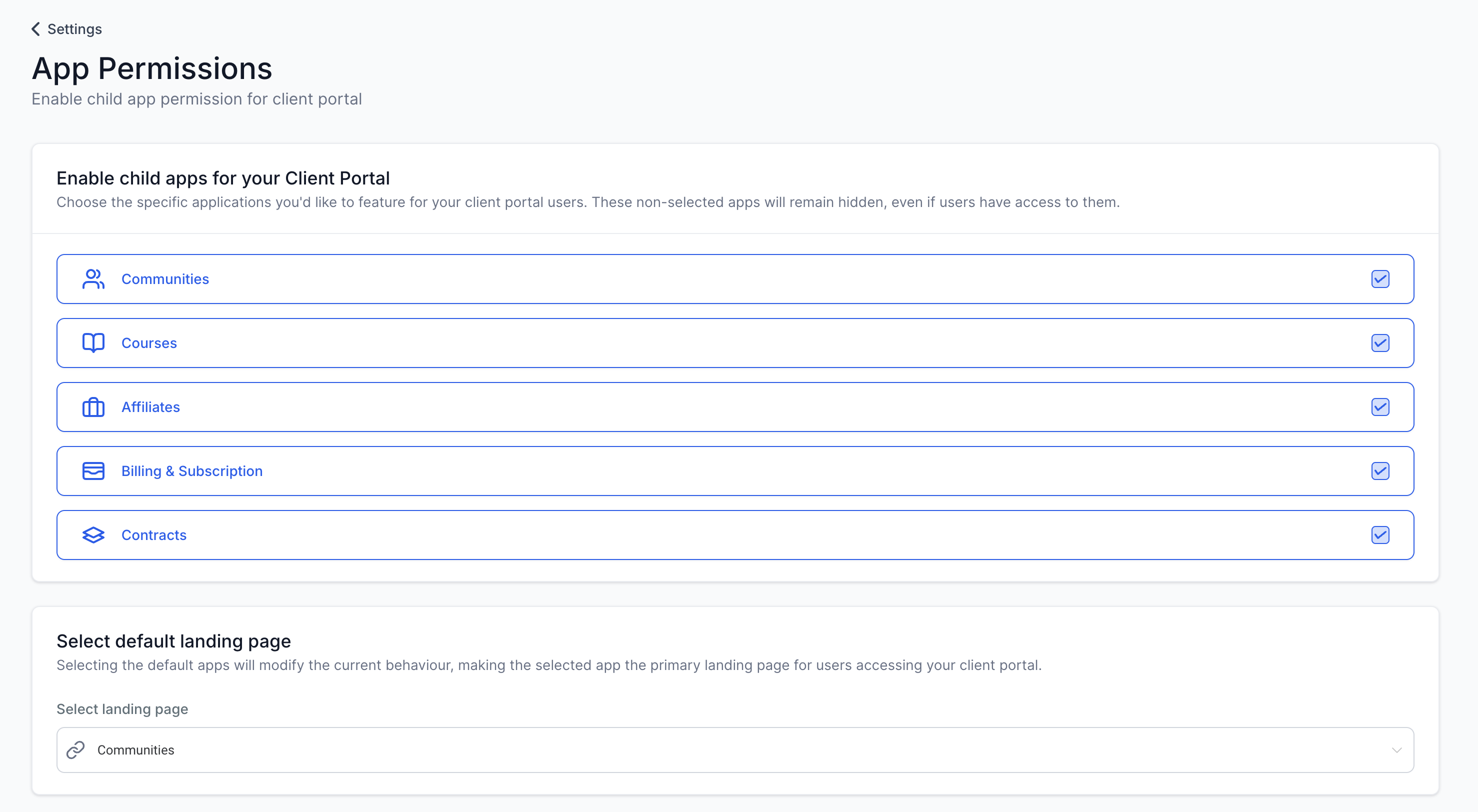
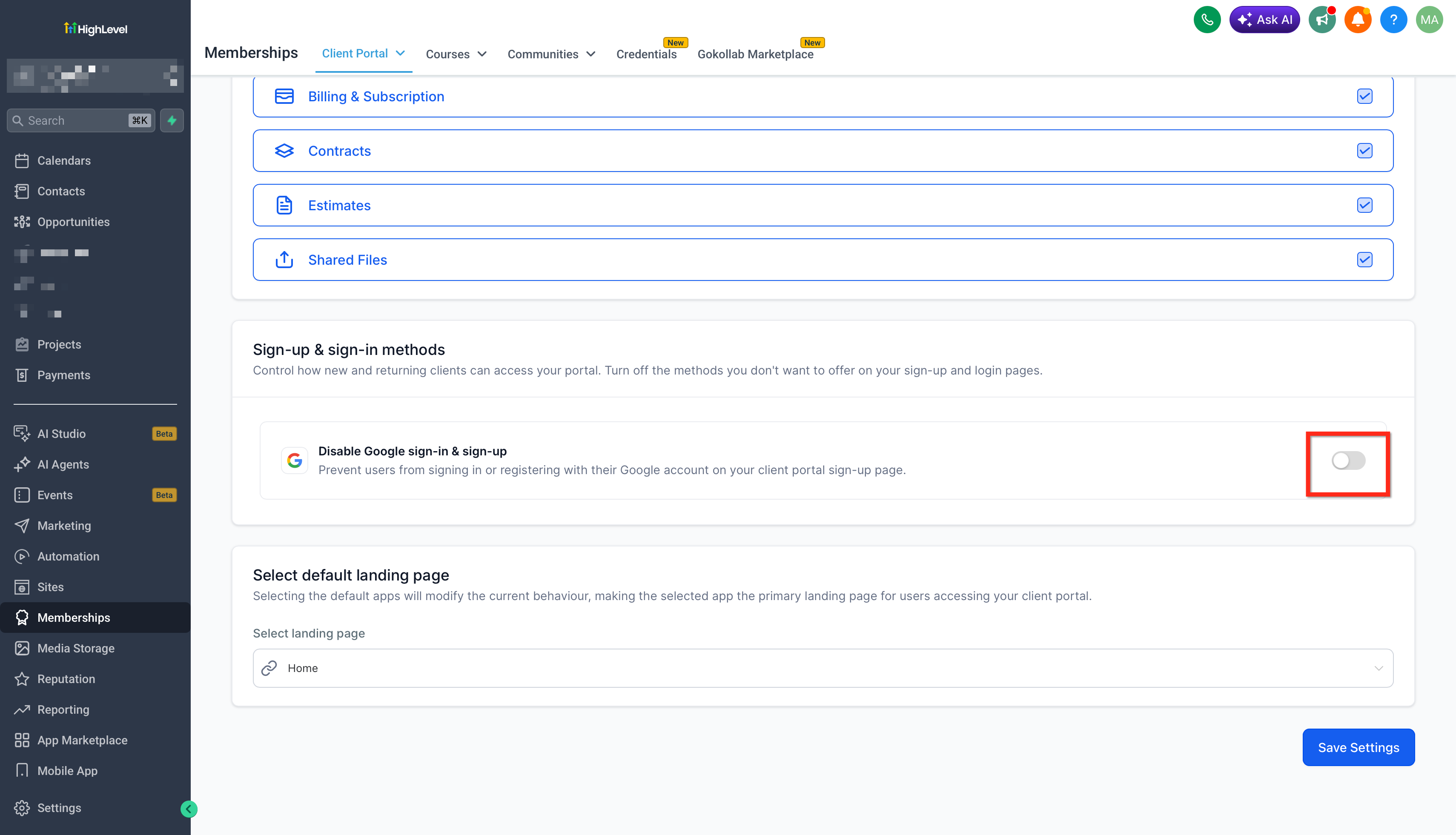
App Permissions lives inside the Client Portal Settings of each subaccount. It presents a list of child apps and authentication options, each with an on/off toggle. By switching a toggle, you either expose the feature in the portal navigation or keep it hidden. The panel also includes the Google Sign In toggle, which adds or removes the Google button on the portal’s login and sign up pages.
All changes are saved with a single Save action and become effective immediately for every contact using that subaccount’s portal. The setting does not delete any data; disabling a child app only removes its navigation link, while disabling Google Sign In only affects the login screen, leaving other sign in methods intact.
03How businesses use app permissions
- Marketing agency. The agency switches on the Communities app for a client that runs a forum, while keeping Courses off. It also disables Google Sign In to satisfy the client’s GDPR policy. These toggles are set in the App Permissions panel and saved.
- Online course provider. The provider enables the Courses app so learners can access training material, leaves Communities disabled, and leaves Google Sign In enabled for convenient login. All adjustments are made via the child app and Google toggles in App Permissions.
- Membership community. The community manager enables the Affiliates app to run a referral program, disables the Courses app because it is not needed, and keeps Google Sign In active. Each change is applied by toggling the respective options and clicking Save.
04The numbers and rules that matter
- Child apps include Courses, Communities, Affiliates, and other portal modules.
- Authentication options include Google Sign In, Email + Password, Secure Code Login, and Magic Links.
05Before you start
- You must be in the correct subaccount from Agency View.
- You need access to Client Portal Settings for that subaccount.
06How to set up and use app permissions in HighLevel
Access app permissions
- Switch to the subaccount whose client portal you wish to edit.
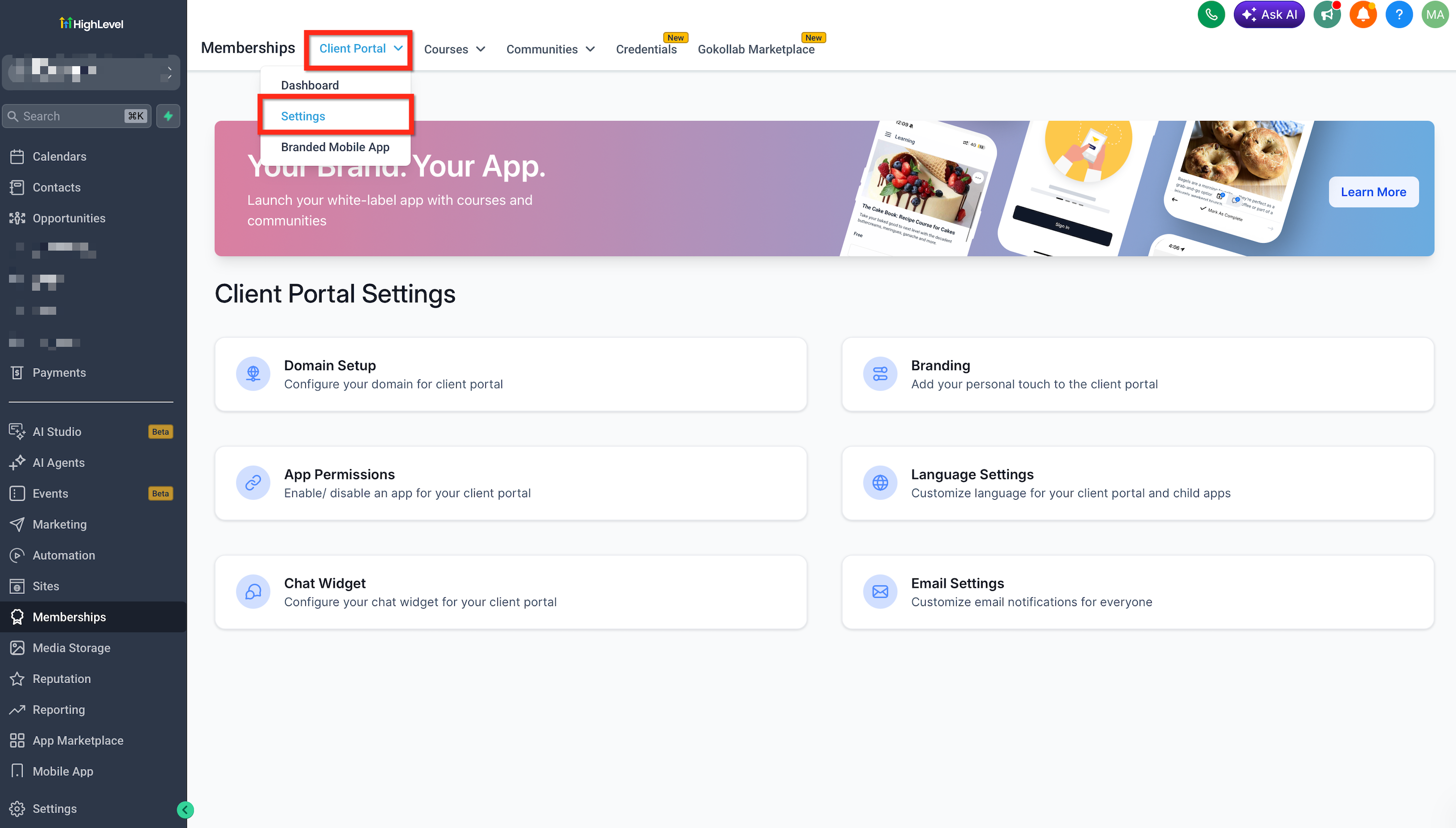
- In the left sidebar, click Memberships (or the section where Client Portal is listed).
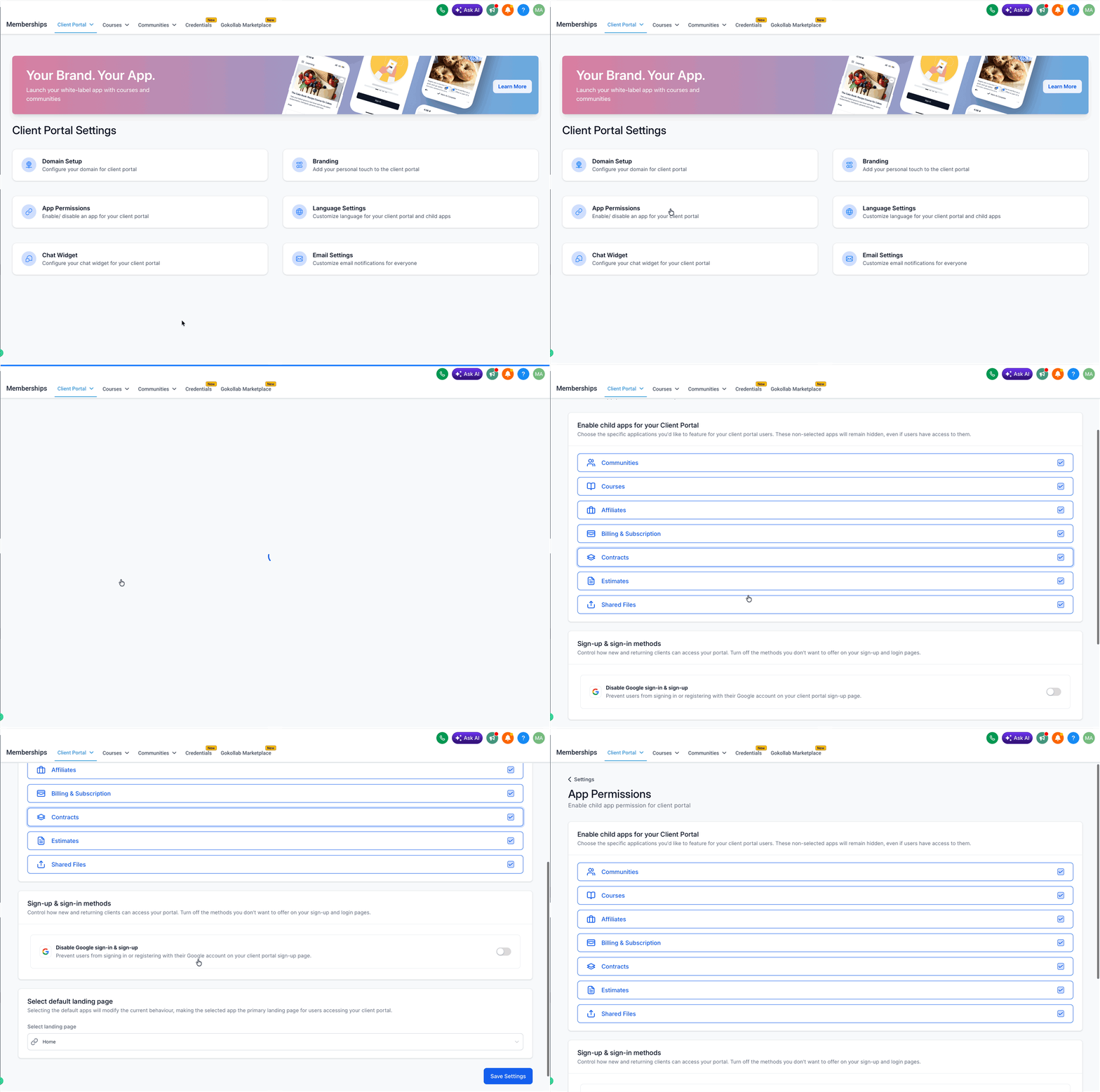
- Select Client Portal and then open Settings.
- Click the App Permissions tab to view the list of toggles.
Enable or disable child apps
- Find the toggle for the child app you want to change, such as Courses, Communities, or Affiliates.
- Turn the toggle on to show the app or off to hide it.
- Press Save; the change takes effect immediately.
- Note: disabling a child app only hides it from the navigation and does not delete any content or data associated with that app.
Enable or disable Google Sign In
- Locate the Google Sign In option in the App Permissions list.
- Toggle it on to display the Google button or off to hide it.
- Click Save and open the portal URL in a private browser window to verify the button’s presence.
- Note: disabling Google Sign In only removes the Google button from login and sign up pages; all other authentication methods remain fully functional.
07What it looks like in HighLevel
08Settings that matter
- Child app toggle. Controls whether a specific child app appears in the portal navigation for all contacts.
- Google Sign, In toggle. Determines if the "Sign in with Google" button is shown on the portal’s login and sign up pages.
09Things to know before you rely on it
- App Permissions are configured per subaccount; they do not apply globally across all accounts.
- Disabling a child app only hides it; the app’s content and data remain unchanged and can be re enabled later.
- The Google Sign In toggle only affects the client facing portal; it does not change how agency users log into the main HighLevel platform.
10If something goes wrong
- Google Sign In button still appears after disabling the toggle.. Confirm you clicked Save, then open the portal URL in an incognito or private window to see the updated login screen.
- A child app remains visible after turning its toggle off.. Refresh the browser or log out and back in to ensure the portal reflects the saved configuration.
11How it connects to the rest of HighLevel
- Step by step guide to set up the Client Portal Client portal setup guide
- Manage invites and view your portal URL in the dashboard Client portal dashboard
- Review pricing options and trial availability for HighLevel Pricing and plans
Michael's take

App permissions are valuable for any small business that wants a clean portal and needs to meet compliance requirements. Turning off modules you don’t use keeps the user experience focused, and disabling Google Sign In can help meet compliance requirements such as GDPR while retaining other login options.
Don’t forget to test the login flow in an incognito window after each change.