
01Who this is for
- Founders who build custom client apps can quickly tweak UI text and size without leaving the builder.
- Design teams can precisely adjust headings or buttons across web and mobile versions in real time.
- Marketing agencies can fine tune call to action elements for each client’s app without coding.
02Visual edits, explained
Visual edits are an AI driven tool inside the Client App Builder. It appears as a button labeled Visual edits beneath the chat window. When activated, you can point at any element shown in the preview and request a change.
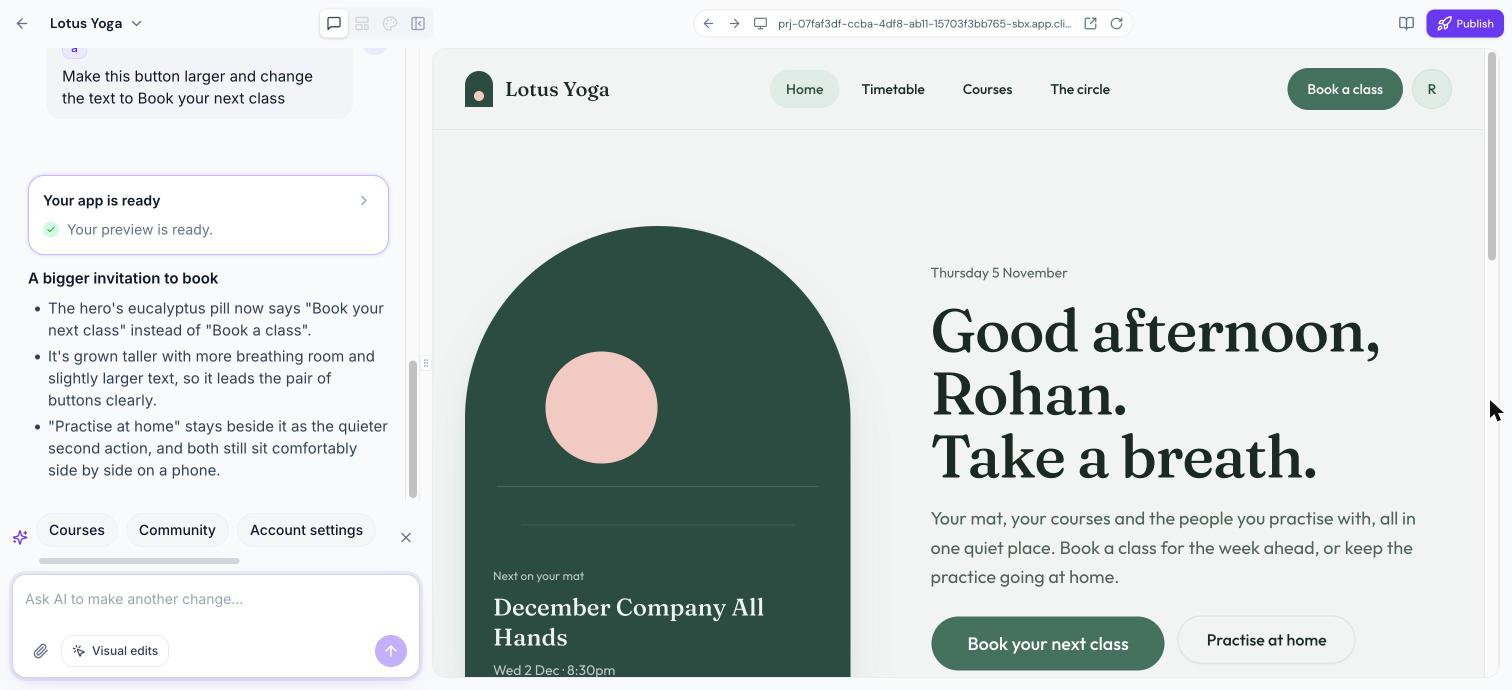
The AI only modifies the element you selected and then describes what was altered. The preview updates right away, letting you verify the result before closing the panel. This feature works for web apps created with the "Describe it instead" option and for mobile apps, but not for web apps built from the standard ClientPortal template.
03How businesses use visual edits
- Fitness studio. The studio opens its booking app in the builder, activates Visual edits, clicks the "Book Now" button and types a request to enlarge the button and change its label to "Reserve Your Spot". The AI updates the button and shows the change.
- Ecommerce retailer. The retailer selects the product page headline in the preview, describes a new wording and a different colour. Visual edits apply the text and colour change only to that headline, leaving the rest of the page untouched.
- Consulting firm. The firm opens its mobile client app in the builder, points to a schedule button, asks the AI to increase its size and change the text to "View Calendar". The AI updates the button accordingly.
04The numbers and rules that matter
- Up to 20 elements can be selected at once.
05How to set up and use visual edits in HighLevel
Make a visual edit
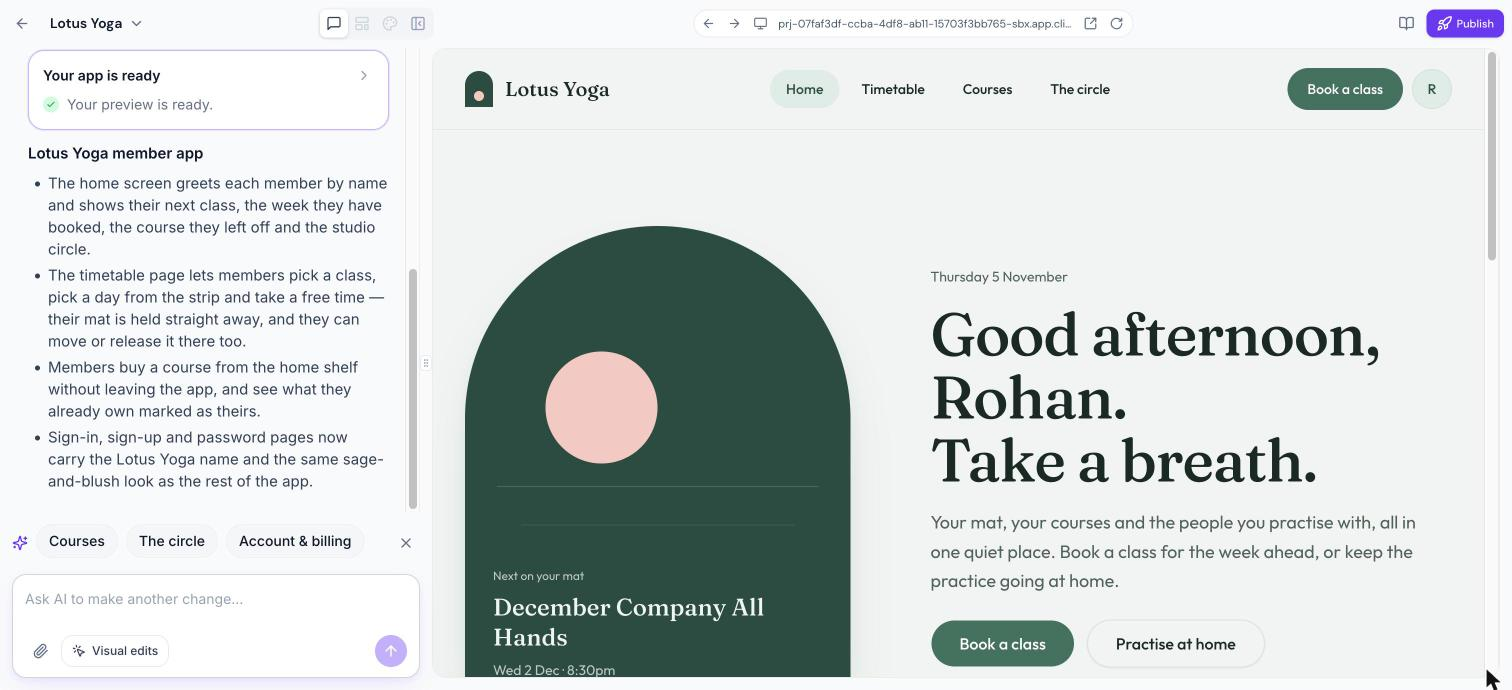
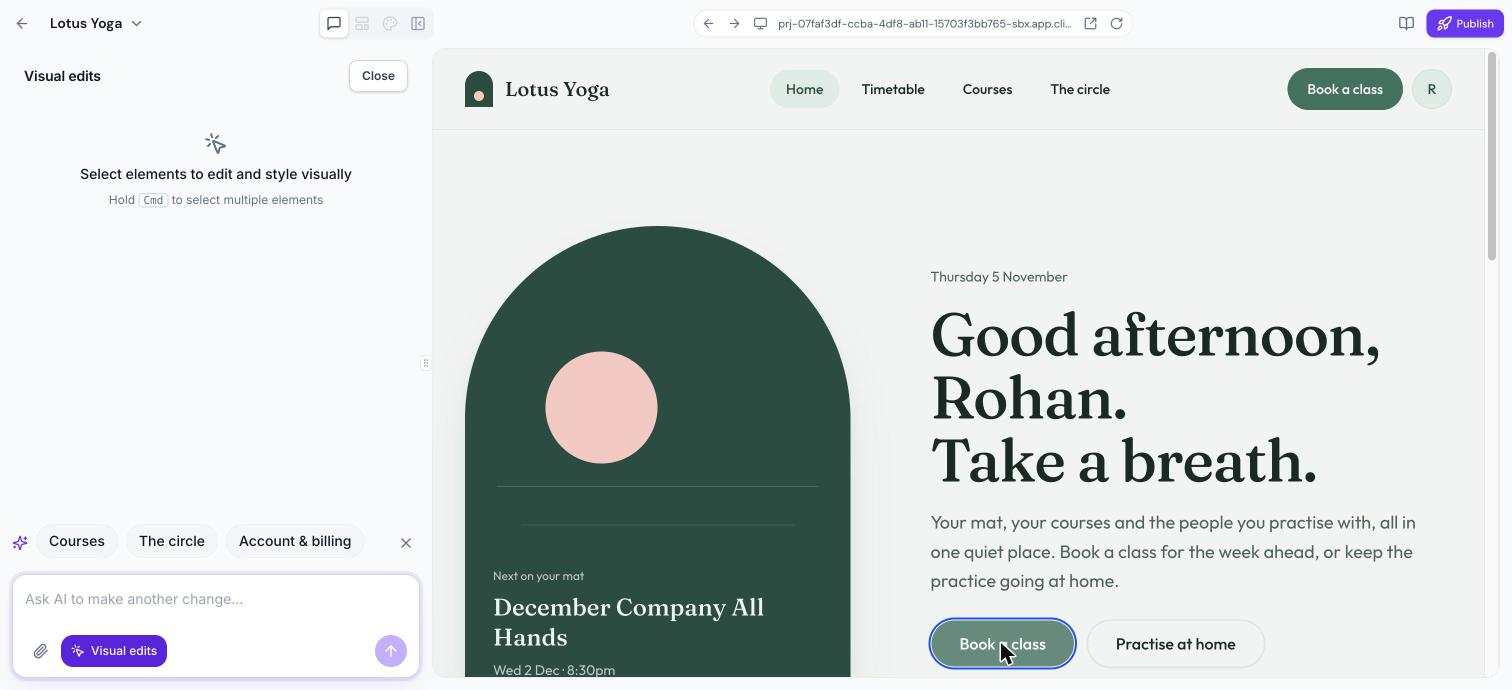
- Open the app inside Client App Builder and click the Visual edits button located below the chat box.
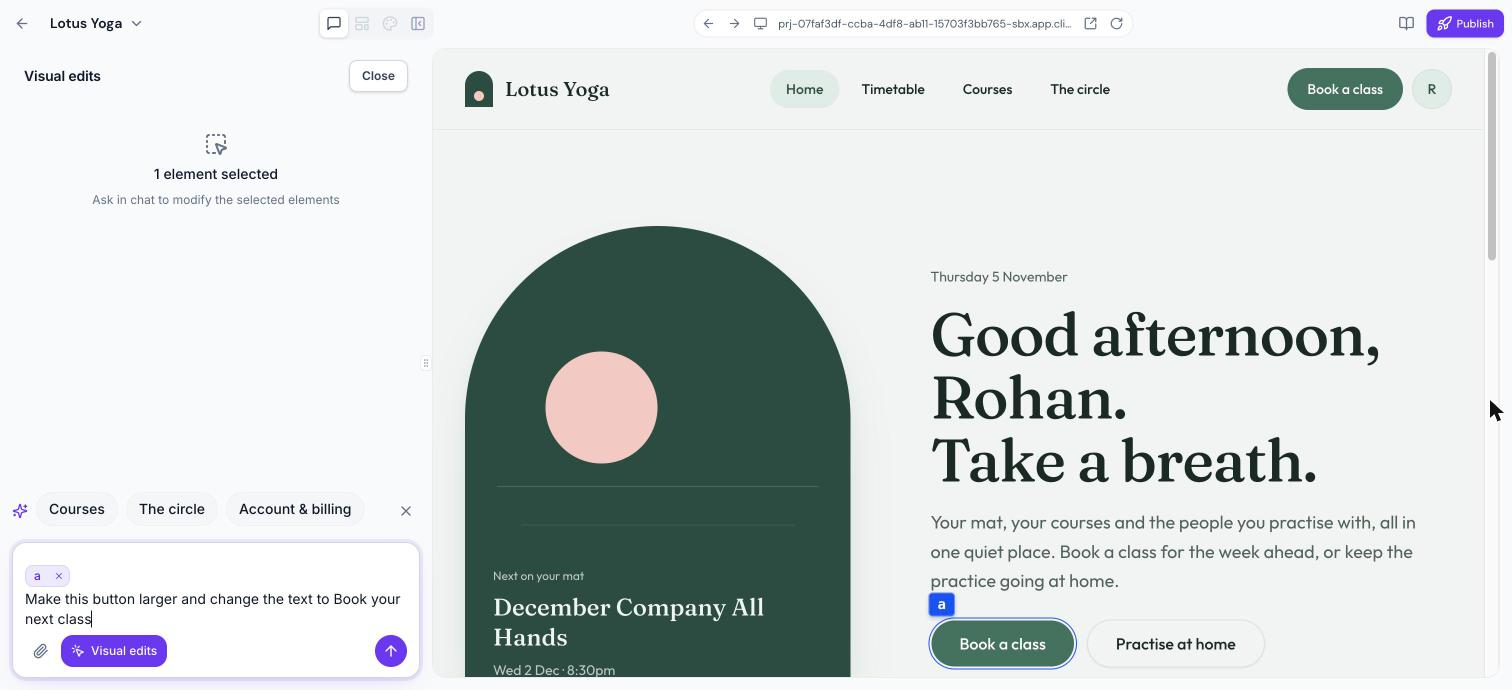
- Hover over the preview; the element under the cursor will be outlined. Click to select it, or hold Cmd while clicking to pick multiple elements, up to twenty at once.
- Type a description of the desired change, for example “Make this button larger and change the text to Book your next class”, and send the message.
- Review the AI generated update in the preview, verify the explanation, and click Close at the top of the Visual edits panel to return to the chat.
06What it looks like in HighLevel
07Things to know before you rely on it
- You can select a maximum of 20 elements in a single visual edit request.
- Visual edits are not available for web apps built from the standard ClientPortal template.
08How it connects to the rest of HighLevel
- Overview of the Client App Builder and its capabilities Client App Builder overview
- How to use layout and navigation tools alongside visual edits Layout and navigation editor
- Applying brand themes and colors to apps before making visual edits Theme and branding
Michael's take

Visual edits let a small business fast fine tune a single button or heading without rebuilding the whole app, saving time and keeping the user experience sharp.
Avoid selecting too many elements at once if you need pinpoint accuracy.