
01Who this is for
- Marketing managers who need consistent branding across client apps without manual style changes.
- Design agencies building multiple white label apps for different clients and want to switch brands quickly.
- Small business owners launching a client portal who want their logo and colours applied to every screen automatically.
02Brand boards, explained
A brand board stores a collection of brand colours, chosen heading and body fonts, and a logo in one place. It lives under the Marketing section of HighLevel and is part of the Client App Builder toolkit.
When you ask the AI in the app builder to use a brand board, the system reads the stored colour values and font names and applies them to headings, buttons, badges and other UI elements across the entire app.
The board can be created from a website import, a preset style, or a blank start. After editing, you can mark it as the default for the account, making it the first choice when new apps are built.
03How businesses use brand boards
- Digital marketing agency. Import a client’s website URL to pull colours, logo and fonts into a new brand board, tidy the palette, then ask the AI to apply that board to the client’s portal app.
- SaaS startup. Start a brand board from blank, add up to ten corporate colours, set the company’s heading and body fonts, upload the logo, save the board and set it as the default for all future apps.
- Fitness studio. Upload a PDF of the studio’s brand guide, share the file in the builder chat, and request the AI to use that board so class schedule and membership apps inherit the studio’s colours and fonts.
04The numbers and rules that matter
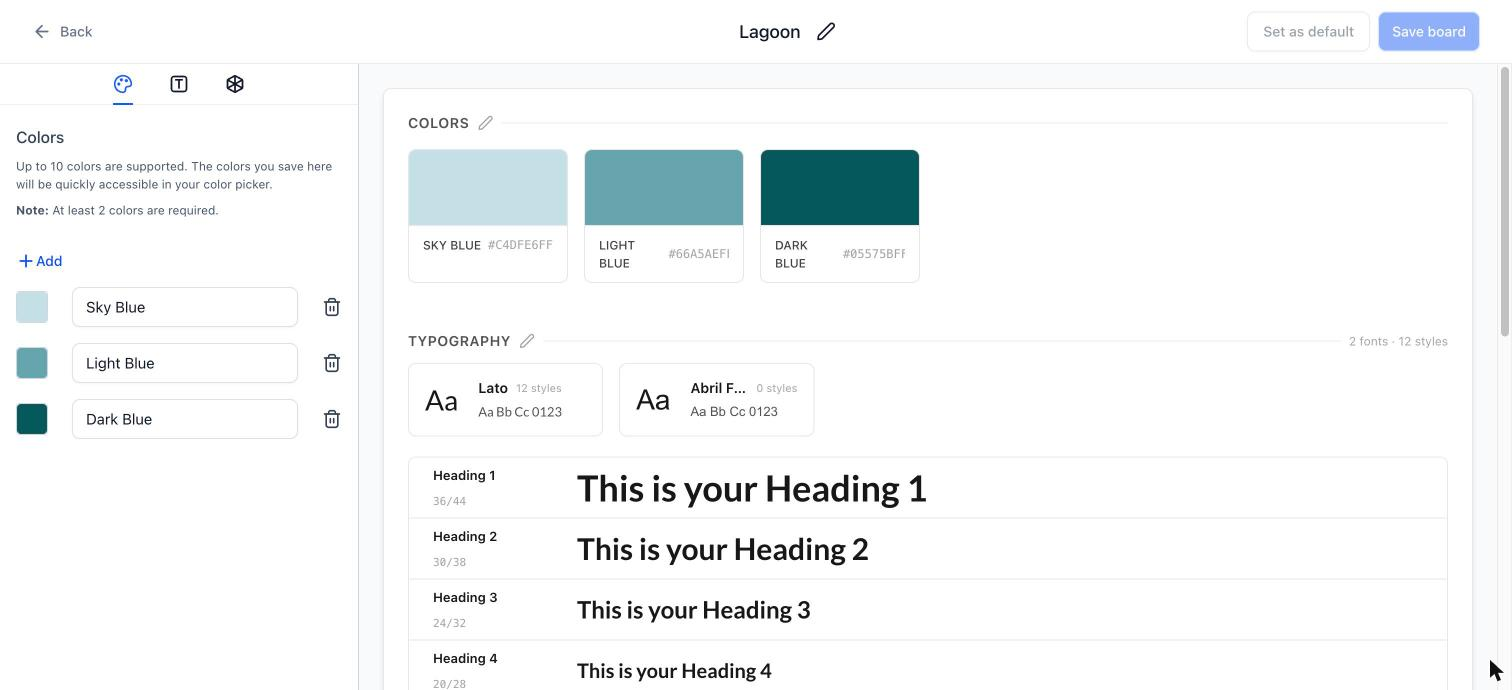
- Add up to 10 colours (at least 2 are required).
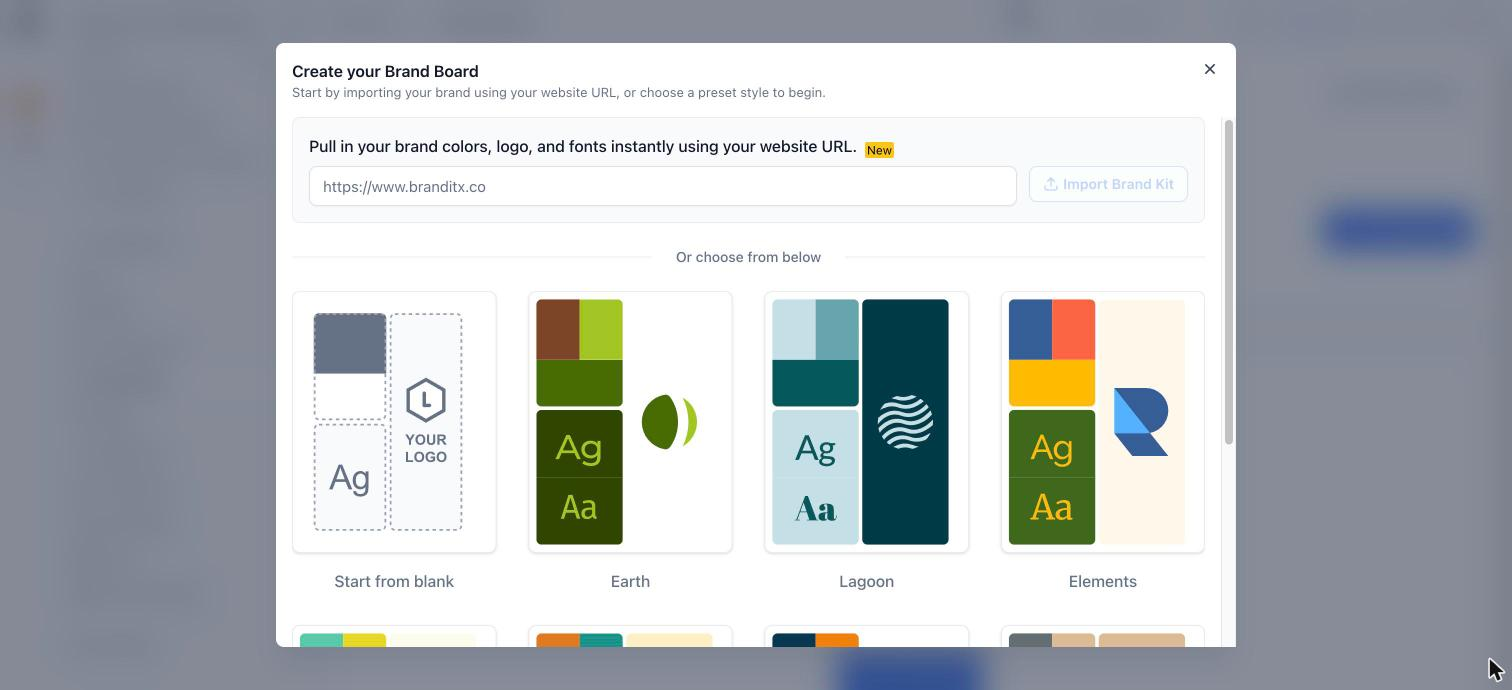
- Presets include Earth, Lagoon, Elements.
05How to set up and use brand boards in HighLevel
Create a brand board
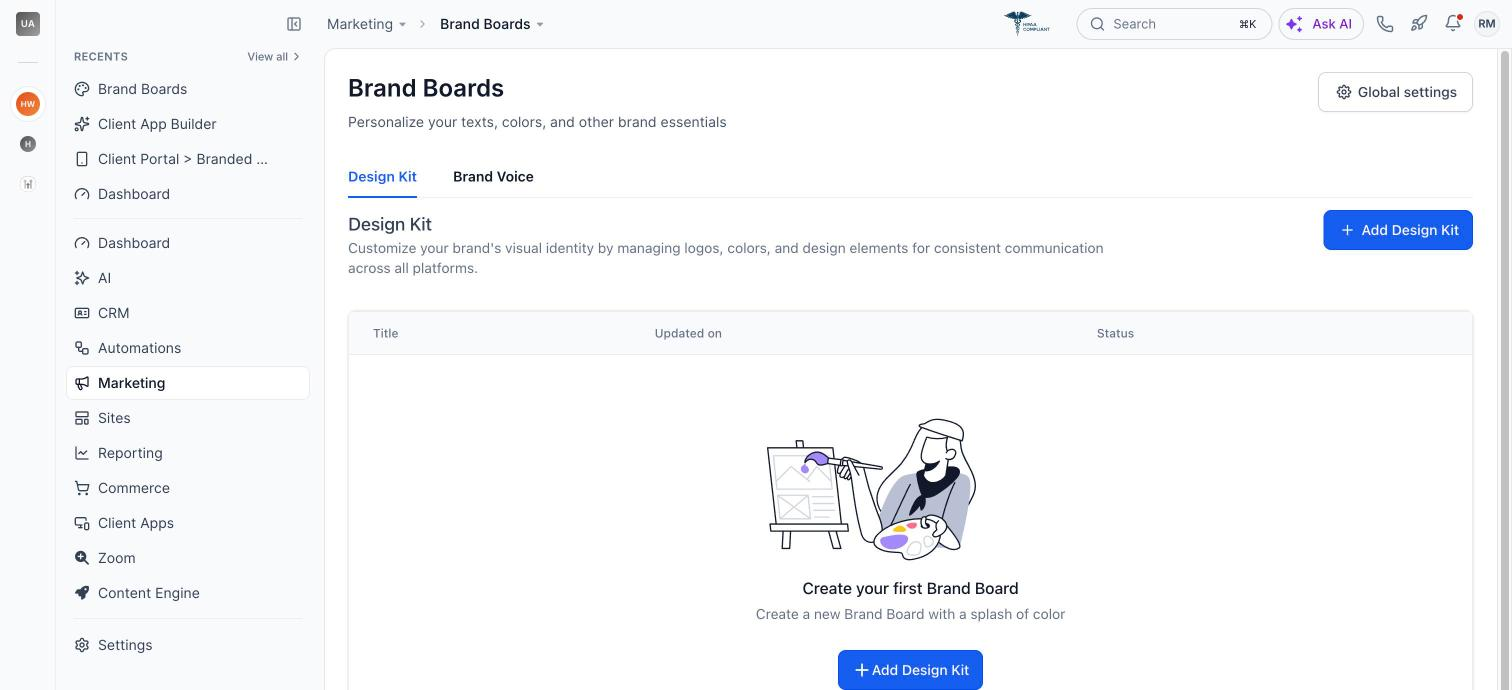
- Navigate to Marketing > Brand Boards.
- Select the Design Kit tab and click Add Design Kit.
- Choose a start method, import from a website, pick a preset style, or start from blank.
Edit your brand board
- Add at least two colours, up to ten, to the board.
- Select a heading font for the brand.
- Select a body font for the brand.
- Upload the brand’s logo image.
- Click Save board and, if desired, set it as the default for the account.
Use a brand board in your app
- Open the desired app inside Client App Builder.
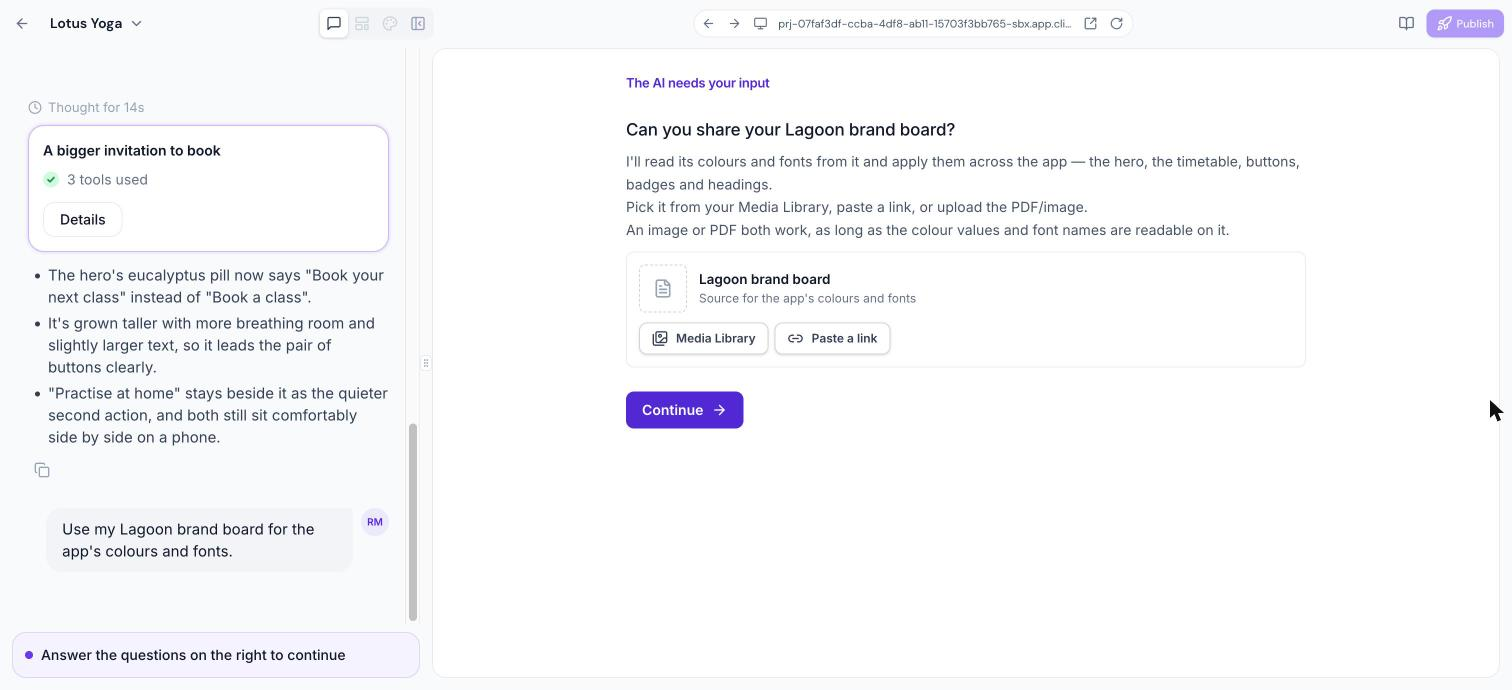
- In the chat window, ask the AI to use a specific brand board.
- When prompted, choose the board from the Media Library, paste a link, or attach a readable PDF or image of the board.
- Ensure the colour values and font names are legible on any attached image or PDF.
- Allow the AI to read the colours and fonts and automatically apply them throughout the app.
- If needed, adjust individual colours and fonts later in the Themes panel.
06What it looks like in HighLevel
07Settings that matter
- Set as default. Makes the selected brand board the default choice for the entire HighLevel account.
08Things to know before you rely on it
- You can store up to ten colours in a board; at least two colours are required.
- Fonts and logo are optional; only colours are mandatory.
- Keep one board per brand to simplify selection.
09If something goes wrong
- Updating a brand board does not automatically change the app.. Share the updated board again in the AI chat and ask the AI to apply it, then review the preview before publishing.
10How it connects to the rest of HighLevel
- Learn how themes and branding work in the client app. Theme and branding guide
- Get started with Client App Builder and its AI features. Client App Builder overview
- Explore all features available in HighLevel’s Client App Builder. All Client App Builder features
Michael's take

Keeping a brand consistent across an app can be a headache when you have to set each colour and font manually. A brand board houses all visual assets in one place and lets the AI spread them throughout the app for you.
At least two colours are required, then you can fill out the rest. That gives the AI the data it needs to style headings, buttons and badges.