
01Who this is for
- Online course creators, need automated proof of completion for their students.
- Membership site owners, want to reward members when they finish a training module.
- Professional development providers, require a way to issue official certificates without manual effort.
02Certificates on course completion, explained
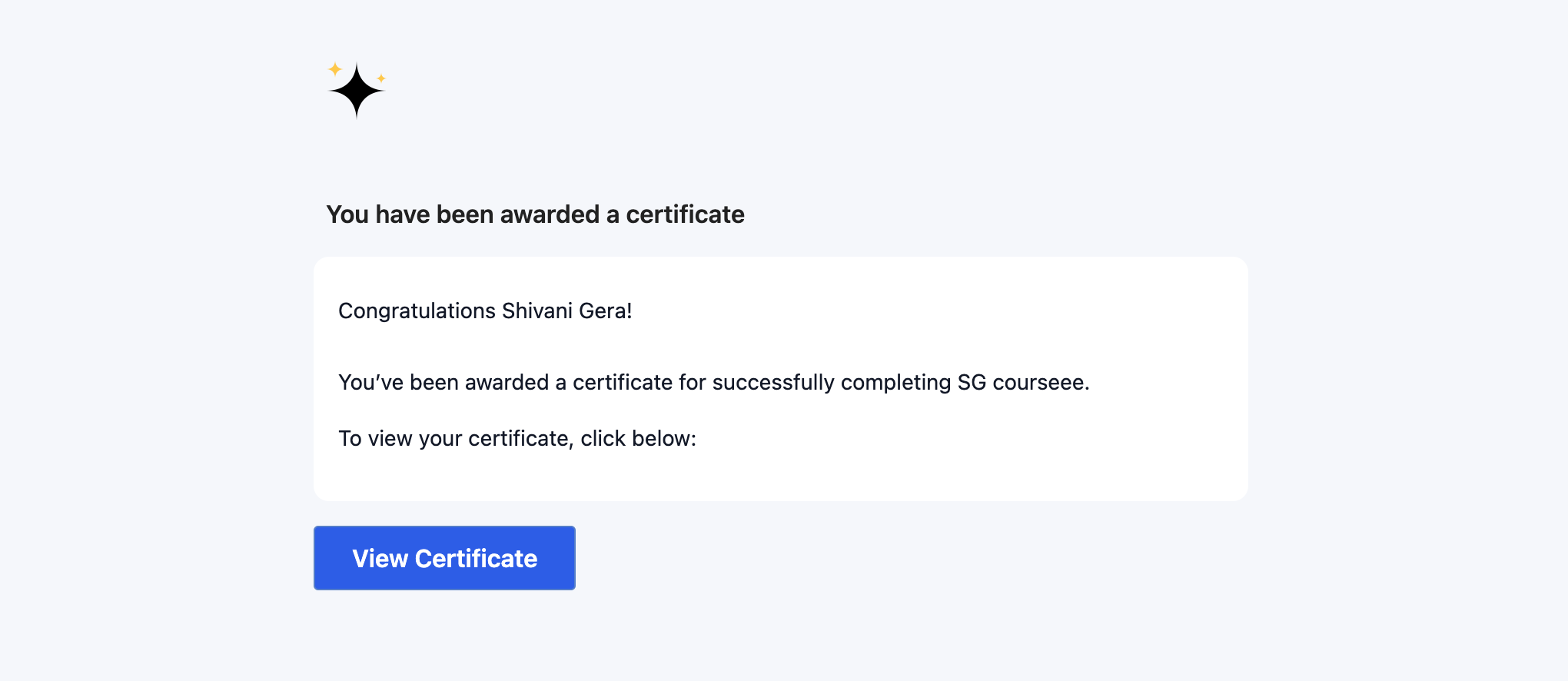
The certificate feature lets you link a pre designed certificate template to a specific course. When a learner finishes that course, HighLevel emails the certificate automatically. All issued certificates are stored in the Certificates section for review.
You find the settings under Memberships. First you pick the product (the course) then you work in the Certificates tab to attach a template. The category is preset to Course Completion, and you must save the attachment for it to become active.
Once active, learners receive the certificate each time they complete the course. You can later revoke a learner’s access or deactivate the certificate, which stops further automatic sends.
03How businesses use certificates on course completion
- Online tutoring platform. The platform adds a certificate template to each tutoring program. When a student finishes a program, HighLevel sends the certificate by email automatically, providing proof of achievement without manual handling.
- Corporate training department. HR attaches a compliance certificate to mandatory training courses. Employees who complete the training receive the certificate right away, and the department can track issuance in the Certificates tab.
- Fitness membership site. The site links a “Course Completion” badge to a nutrition course. Members who finish the course get the badge via email, and the site can later revoke access if a member’s subscription ends.
04How to set up and use certificates on course completion in HighLevel
Issue a certificate on course completion
- Select the course product under Memberships > Courses > Products.
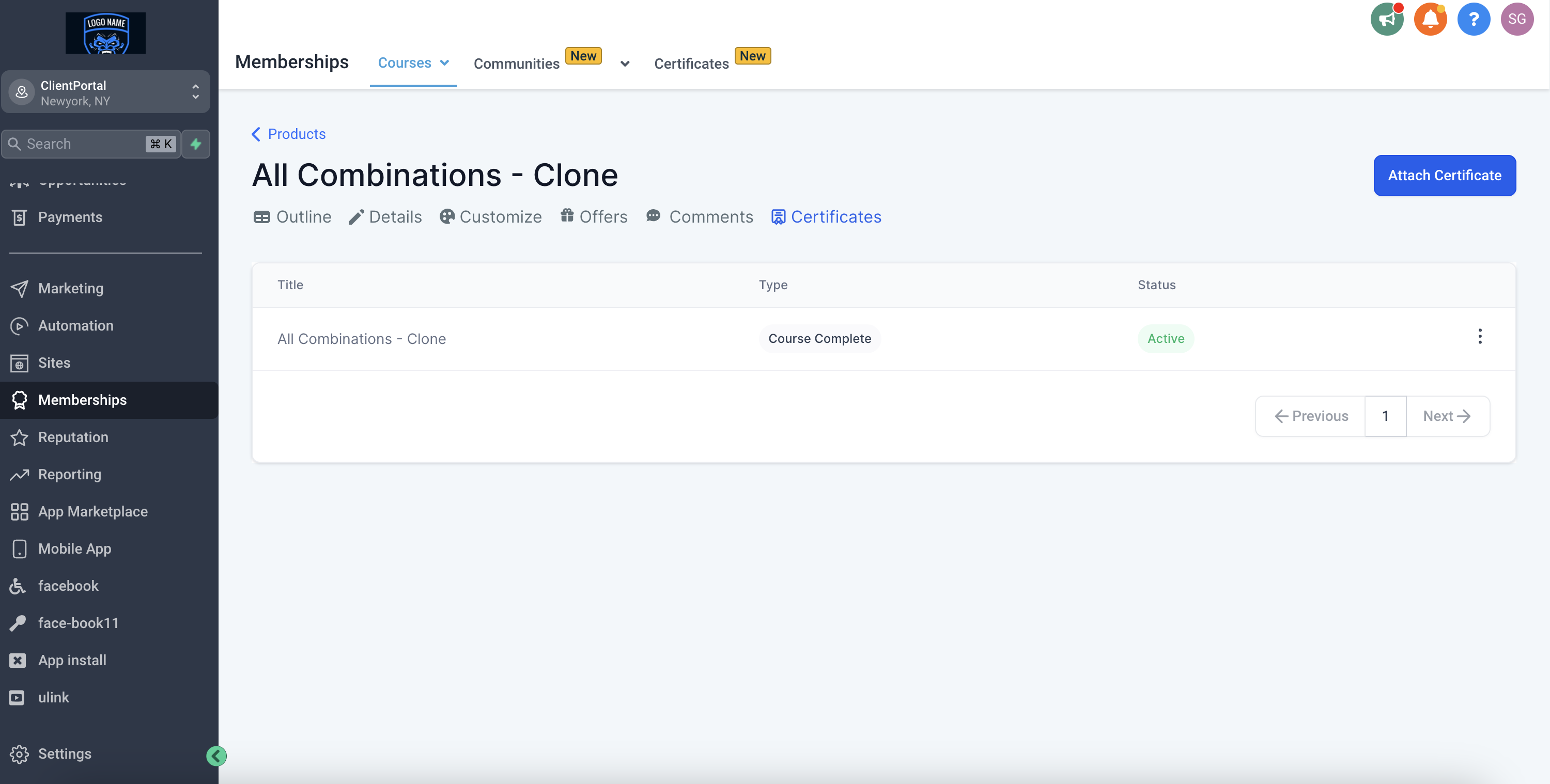
- Open the Certificates tab for that course.
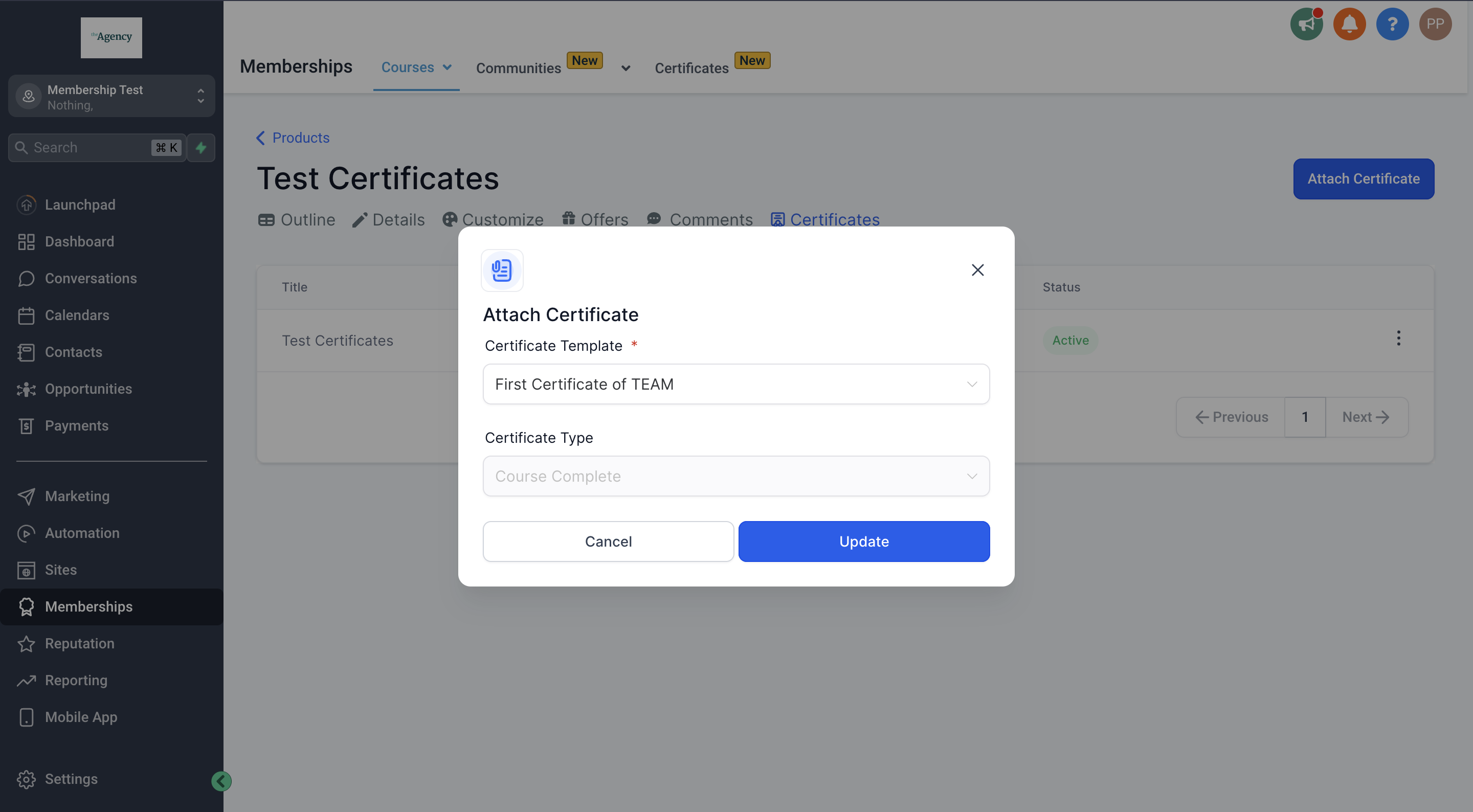
- Press the Attach button.
- Choose the certificate template you want to use.
- Leave the Category set to Course Completion (default).
- Click Save to confirm the attachment.
- Learners will receive the certificate automatically via email each time they complete the course.
05What it looks like in HighLevel
06Settings that matter
- Category. Determines the purpose of the attached certificate; it defaults to Course Completion for this feature.
07Things to know before you rely on it
- Only one certificate can be attached to a course at any given time.
- If a certificate is marked inactive, it will not be sent automatically.
- Revoking a learner’s access prevents them from viewing previously issued certificates.
08If something goes wrong
- Certificates are not being sent after course completion. Ensure the certificate is marked as Active in the Certificates tab.
- Learner continues to receive certificates after you want to stop. Navigate to Sites > Memberships > Certificates > Issued Certificates, click the three dot menu for the learner, and choose Revoke Access.
09How it connects to the rest of HighLevel
- Download and share certificates & badges in HighLevel Download & share
- Set expiry dates and reminder emails for certificates and badges in HighLevel Expiry & reminders
- Using Certificate AI in HighLevel to create certificates Certificate AI
Michael's take

In my experience, issuing certificates on course completion highlights student achievements.
Avoid attaching more than one certificate template to the same course at the same time.