
01Who this is for
- Course creators who need a ready made certificate for each new course.
- Membership site owners who want automatic credentials for both entire courses and specific sections.
- Educators managing multi lesson programs who require built in recognition of section milestones.
02Default certificates in courses & category completion certificate, explained
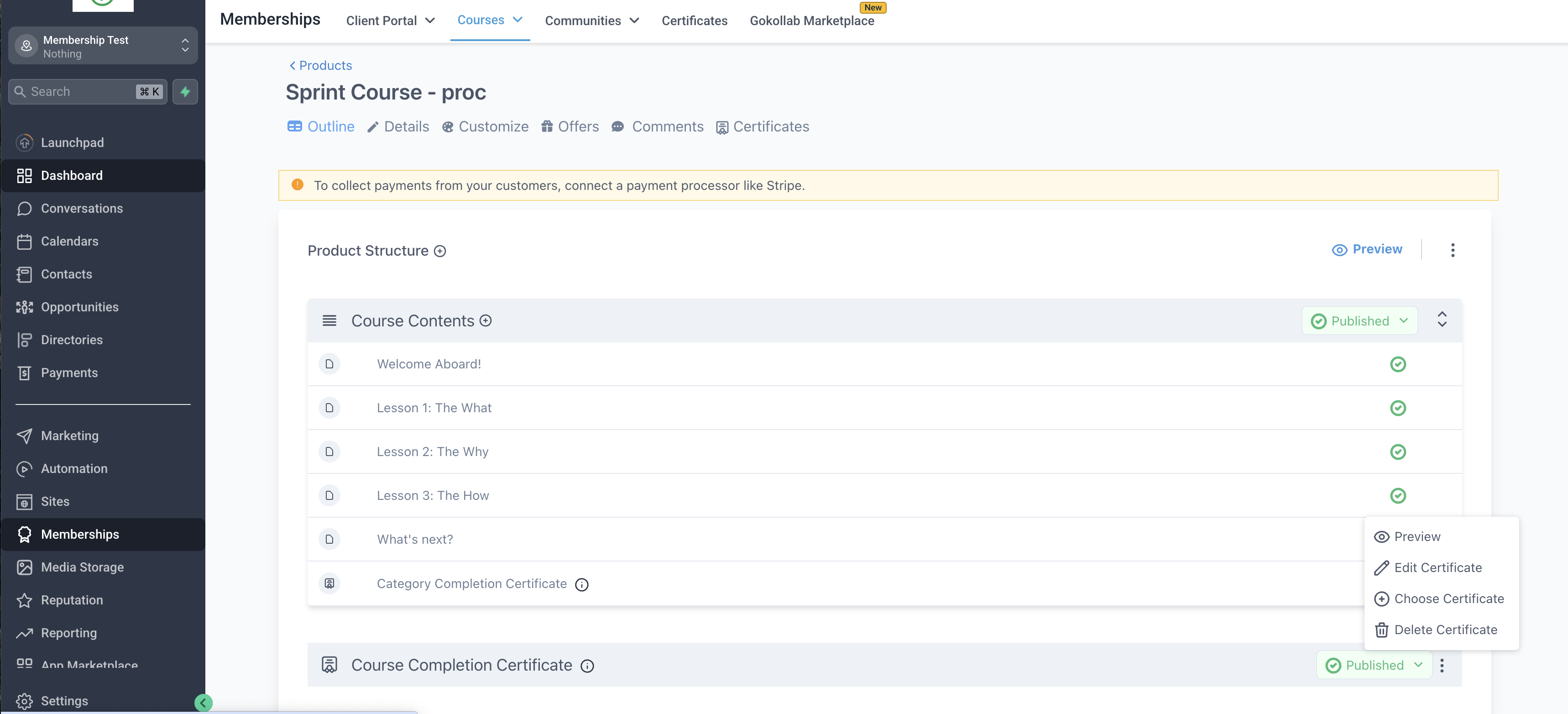
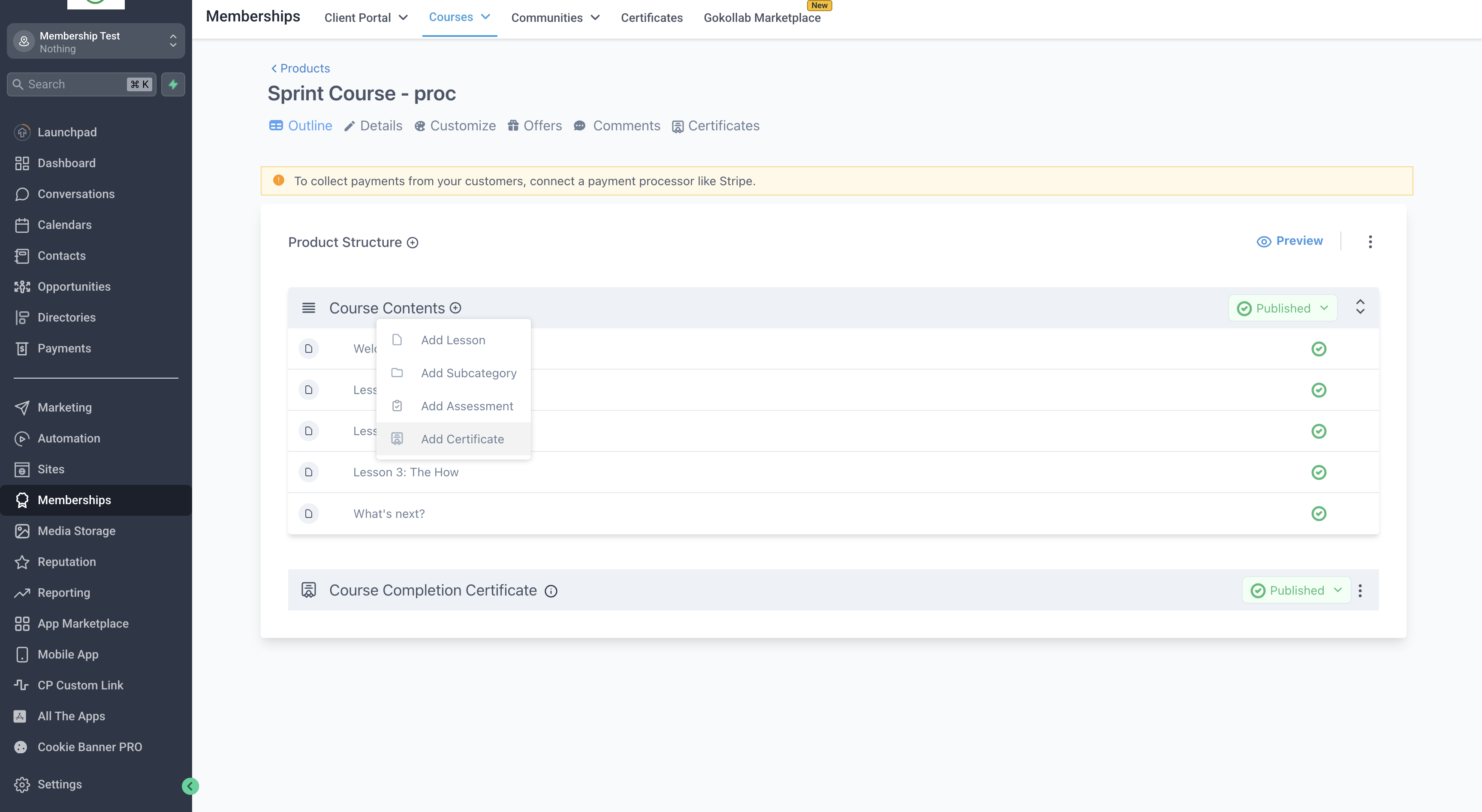
HighLevel adds a default course completion certificate to each new course. The certificate can be edited, replaced with a custom template, or removed. A separate certificate can also be attached to a specific category within a course, appearing as the final lesson of that category.
When a learner finishes all required lessons in a category, the system awards the category certificate automatically. The category certificate stays at the end of the category and cannot be moved. Both default and category certificates are managed from the course builder interface.
03How businesses use default certificates
- Online fitness coaching. The coach creates a new program in HighLevel. A default completion certificate appears, and the coach attaches a branded template. When members complete the program, they receive the certificate automatically.
- Software training platform. The platform adds a certificate to each training module by default. For a specific advanced section, a category certificate is attached. Learners earn that certificate after completing every lesson in the advanced section.
- Language school. The school builds a course with several proficiency levels. It enables a category certificate for the intermediate level. Students receive the intermediate certificate once they finish all intermediate lessons, without the school having to issue it manually.
04The numbers and rules that matter
- Certificates will be triggered only once the course/section is 100% complete.
05How to set up and use default certificates in HighLevel
Set up default course completion certificates
- Sign in to your HighLevel account.
- Open Memberships, go to Courses, and create a new product.
- Observe that a default course completion certificate appears automatically.
- Click the three dot settings icon beneath the Course Completion Certificate area.
- Choose “Edit Certificate” or “Choose Certificate”.
- Select and attach the desired template to the course.
- To remove or unpublish the certificate, click the three dot icon again and pick Delete, or click the Published icon and set it to Draft.
Enable category completion certificates
- Open the desired course in the builder.
- Click the category where the certificate should be linked.
- Press the plus icon to add a certificate to that category.
06What it looks like in HighLevel
07Settings that matter
- Edit Certificate. opens the certificate editor to choose a template
- Choose Certificate. allows selection of a specific certificate template
- Delete. removes the attached default certificate from the course
- Draft. sets the default certificate to an unpublished state
08Things to know before you rely on it
- Category certificates cannot be moved; they always remain at the end of the category.
- Certificates are triggered only after the course or section reaches 100% completion.
09How it connects to the rest of HighLevel
- Set up automatic issuance of certificates when a learner finishes a course Issue certificates
- Allow learners to download or share their certificates from the client portal Client portal download
- Define expiration dates and reminder emails for certificates Expiry settings
Michael's take

Rushing into automated certificates without checking the content can surprise learners with a credential that doesn’t match your brand. Make sure the template you attach reflects the look and feel you want before you publish the course.
When the setup is right, the default certificates provide a way to mark completion without extra manual steps.