
01Who this is for
- Course administrators who need to enforce renewal cycles for online certifications.
- Compliance officers managing professional licenses that require periodic recertification.
- Membership managers who want to automatically alert members when their badge validity ends.
02Credential expiry, explained
The expiry feature resides in the Credentials dashboard. From the template list you can open the Set Expiry dialog and pick an expiry option such as 3 Months, 1 Year, or a custom length. Selecting Never keeps the credential valid forever unless an individual override is added later.
After an expiry period is chosen, the same dialog lets you enable up to two reminder emails. For each reminder you specify how many days before the expiry date the email should be sent. The platform always sends a notification on the exact expiry day, and that timing cannot be altered.
03How businesses use credential expiry
- Online course platform. Navigate to the certificate template, set an expiry of 1 Year, and enable one reminder 30 days before expiration. The platform will automatically email learners when their credential approaches the renewal deadline.
- Professional licensing body. Select the badge template, choose a custom expiry of 2 Years, and turn on two reminders at 60 and 15 days before expiry. Recipients receive the configured alerts, helping them schedule recertification.
- Fitness studio membership system. Open the badge template for class completion, set expiry to Never, and disable both reminder emails. Members keep the badge indefinitely without receiving any expiry notifications.
04The numbers and rules that matter
- Expiry options: Never, 3 Months, 6 Months, 9 Months, 1 Year, 2 Years, 3 Years, 4 Years, 5 Years, Custom.
- Up to two preexpiry reminder emails can be configured.
05How to set up and use credential expiry in HighLevel
Set expiry dates for certificates and badges
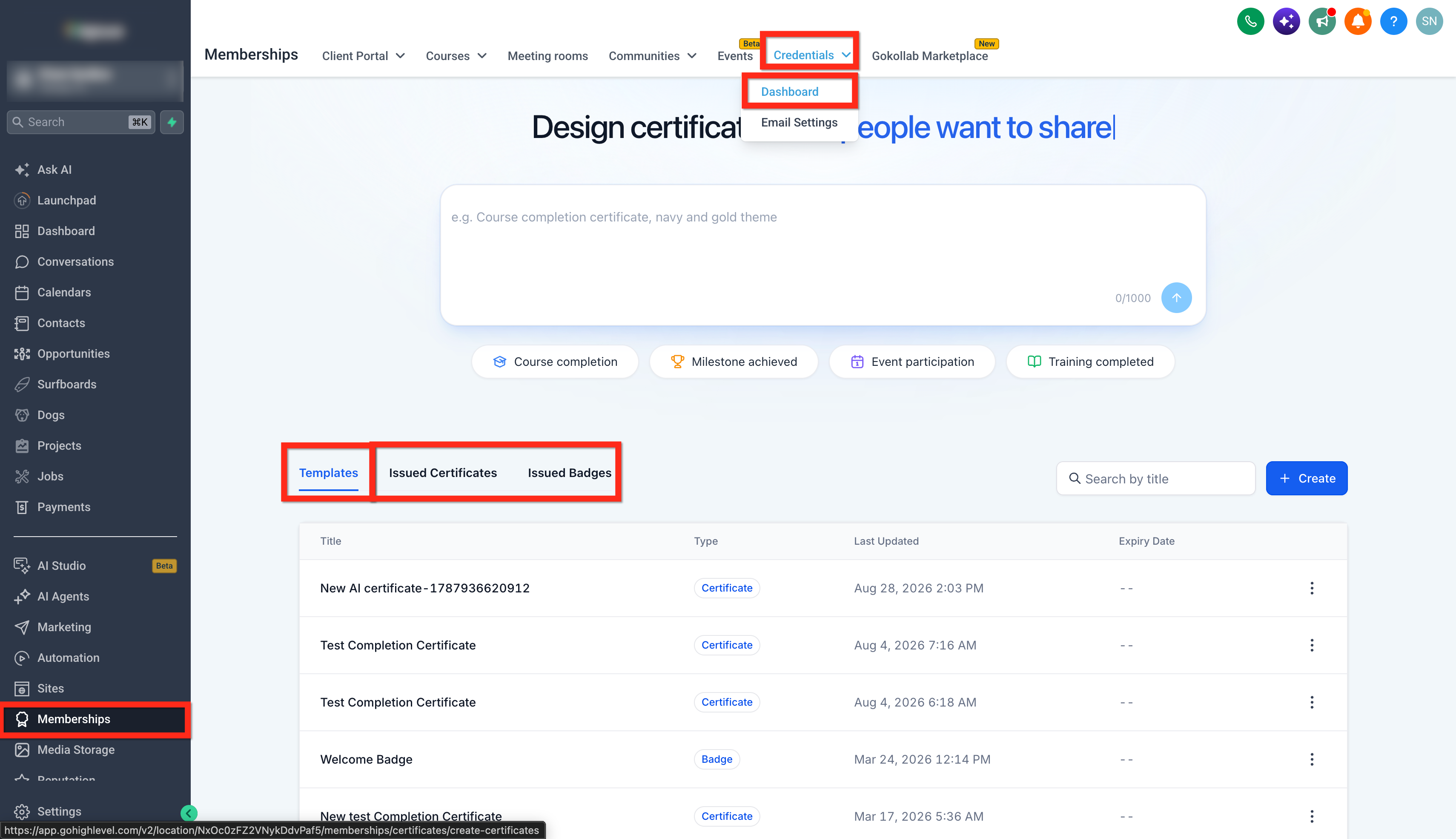
- Go to Memberships > Credentials > Dashboard.
- Locate the Templates/Issued Certificates/Badges section.
- Find the certificate or badge template to configure.
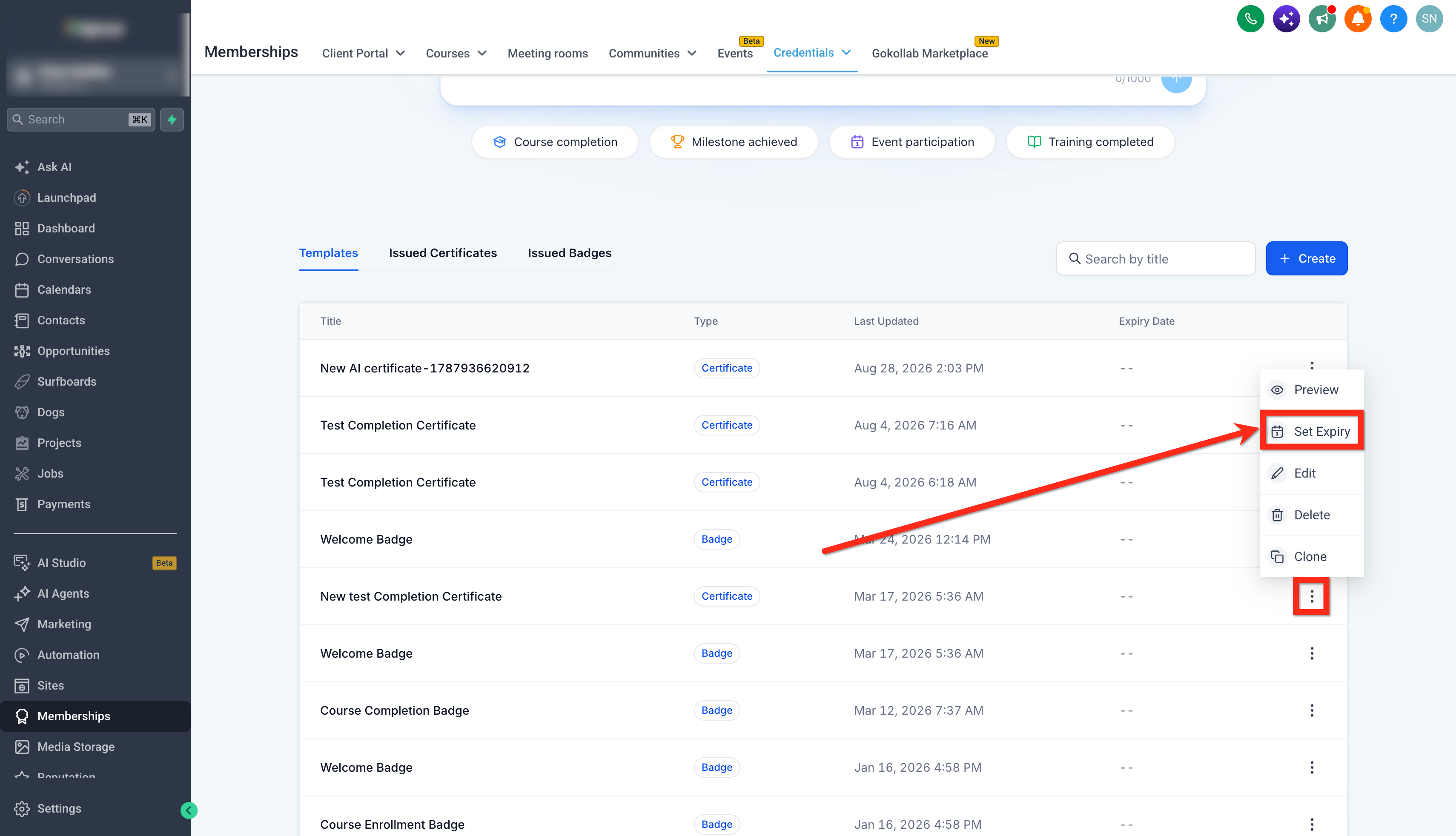
- Click the three dot menu next to the template.
- Select Set Expiry.
- Note: Selecting Never keeps the credential valid indefinitely unless an expiry setting is applied at the individual issued credential level.
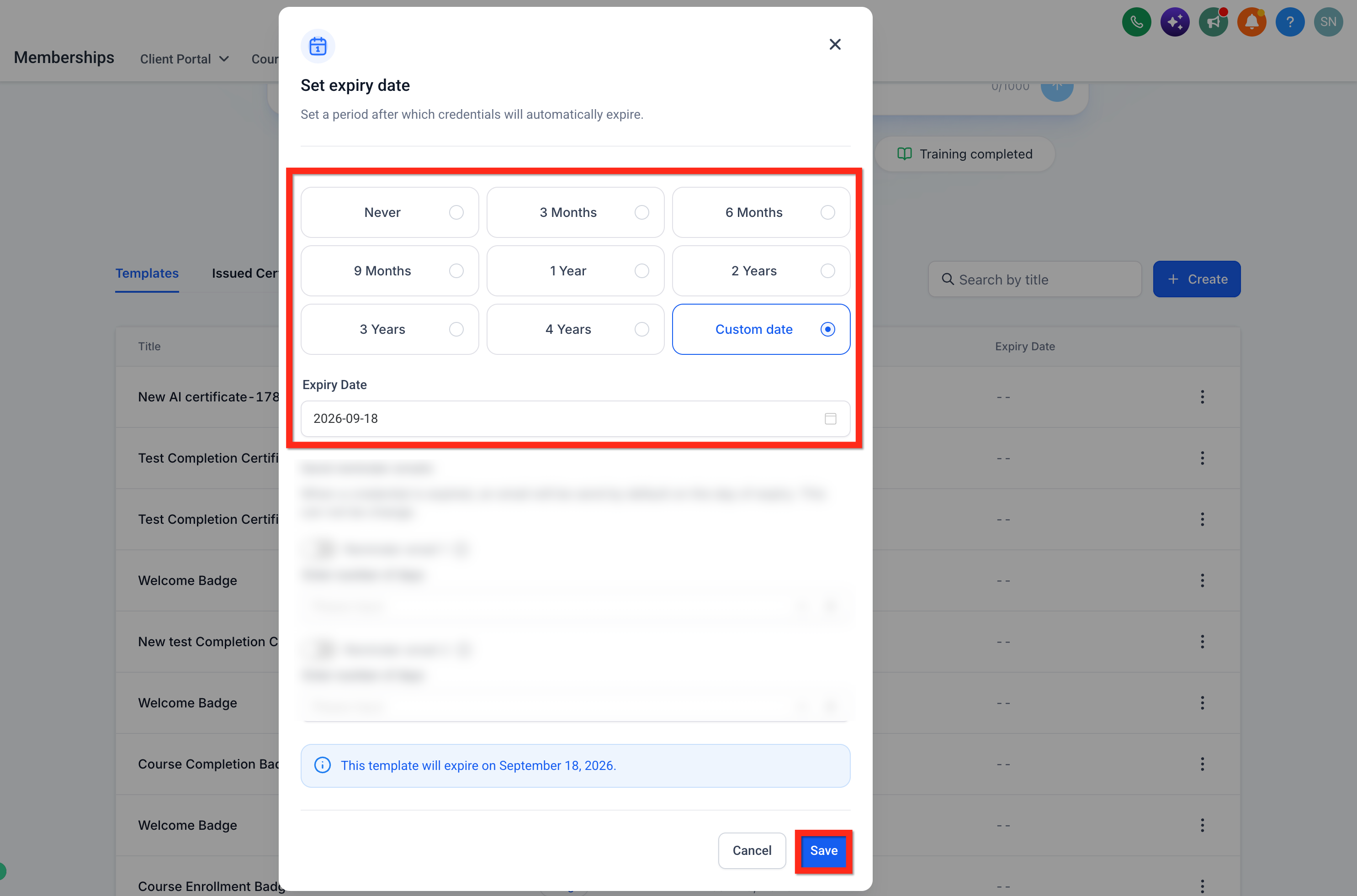
- Choose the required expiry option such as Never, 3 Months, or Custom.
- Click Save.
Set expiry reminder emails
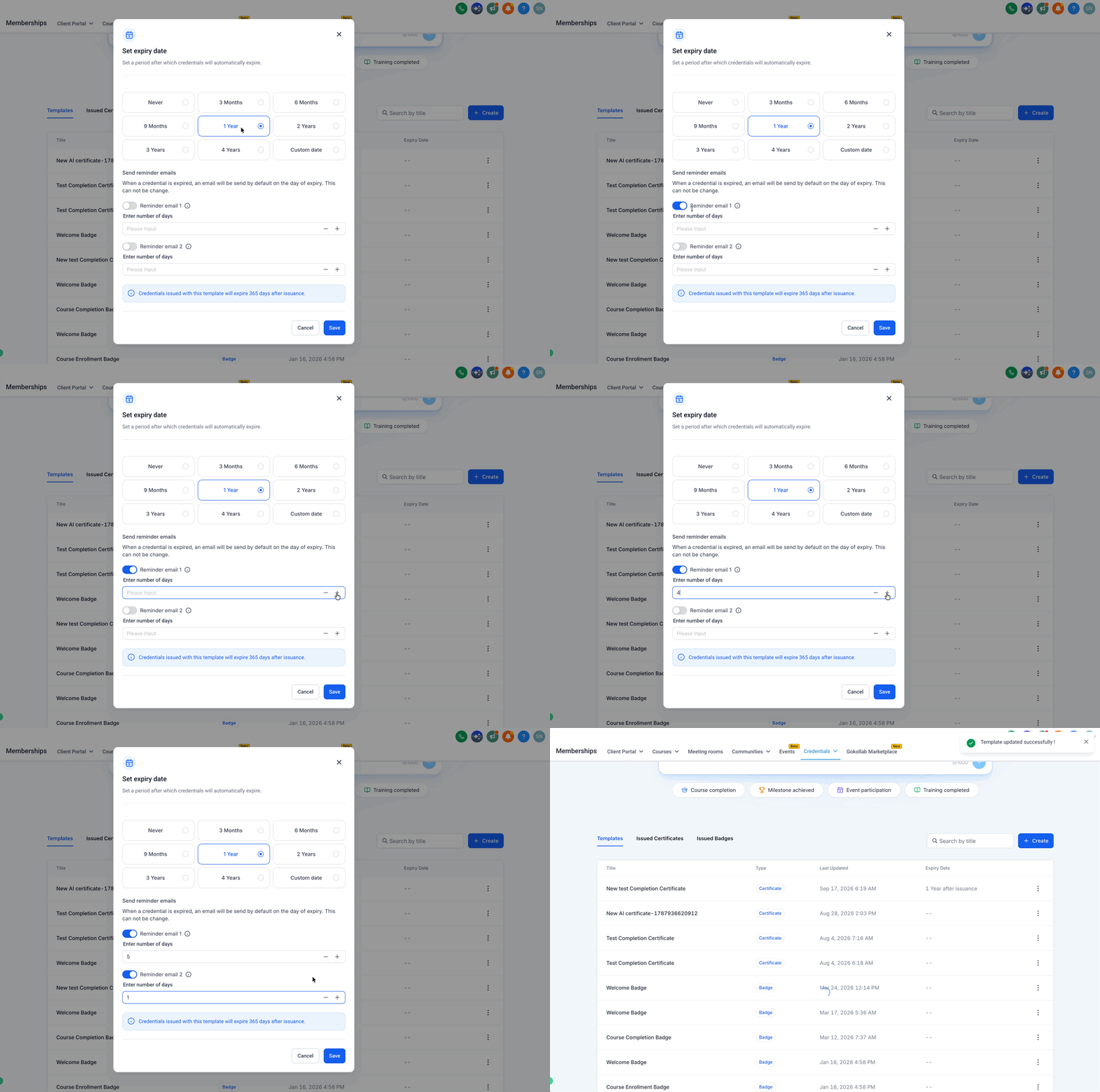
- After selecting an expiry period in the Set Expiry window, locate the expiry reminder email settings.
- Important: An expiry notification email is sent on the day the credential expires and its timing cannot be changed.
- Note: Reminder Email 1 and Reminder Email 2 are optional.
- Enable Reminder Email 1 if a first reminder is needed.
- Enter the number of days before expiry for Reminder Email 1.
- Enable Reminder Email 2 if a second reminder is needed.
- Enter the number of days before expiry for Reminder Email 2.
- Disable any reminder you do not want to send.
- Click Save to apply the expiry and reminder settings.
06What it looks like in HighLevel
07Settings that matter
- Never. Keeps the credential valid indefinitely unless overridden at the issued credential level.
- 3 Months. Sets the credential to expire three months after issuance.
- 6 Months. Sets the credential to expire six months after issuance.
- 9 Months. Sets the credential to expire nine months after issuance.
- 1 Year. Sets the credential to expire one year after issuance.
- 2 Years. Sets the credential to expire two years after issuance.
- 3 Years. Sets the credential to expire three years after issuance.
- 4 Years. Sets the credential to expire four years after issuance.
- 5 Years. Sets the credential to expire five years after issuance.
- Custom. Allows you to define a specific expiry period beyond the preset options.
- Reminder Email 1. Enables the first pre expiry reminder and lets you set how many days before expiry it is sent.
- Reminder Email 2. Enables a second pre expiry reminder and lets you set how many days before expiry it is sent.
08Things to know before you rely on it
- A maximum of two pre expiry reminder emails can be configured.
- The expiry day notification email is always sent on the day the credential expires; its timing cannot be changed.
- Individual issued certificates can have a different expiry setting than their template, with the issued certificate setting taking priority.
09How it connects to the rest of HighLevel
- Issue certificates on course completion Issue certificates
- Download and share certificates & badges Download & share
- HighLevel pricing and plans Pricing
Michael's take

Michael ReimerFounder of CRM Pros, HighLevel Commander and Certified Admin
Credential expiry is a useful feature for anyone who needs to manage time limited credentials.
If you never have to renew certificates or badges, you can skip it.
Get More InformationOpens on HighLevelPublished November 2, 2026 · Updated November 16, 2026