
01Who this is for
- Founders of online course platforms need a simple way to retrieve and distribute completion certificates.
- Membership site owners can quickly share earned badges with members via email or download them for promotional use.
- Training managers in small businesses benefit from having certificates in multiple formats for printing or digital records.
02Certificates & badges, explained
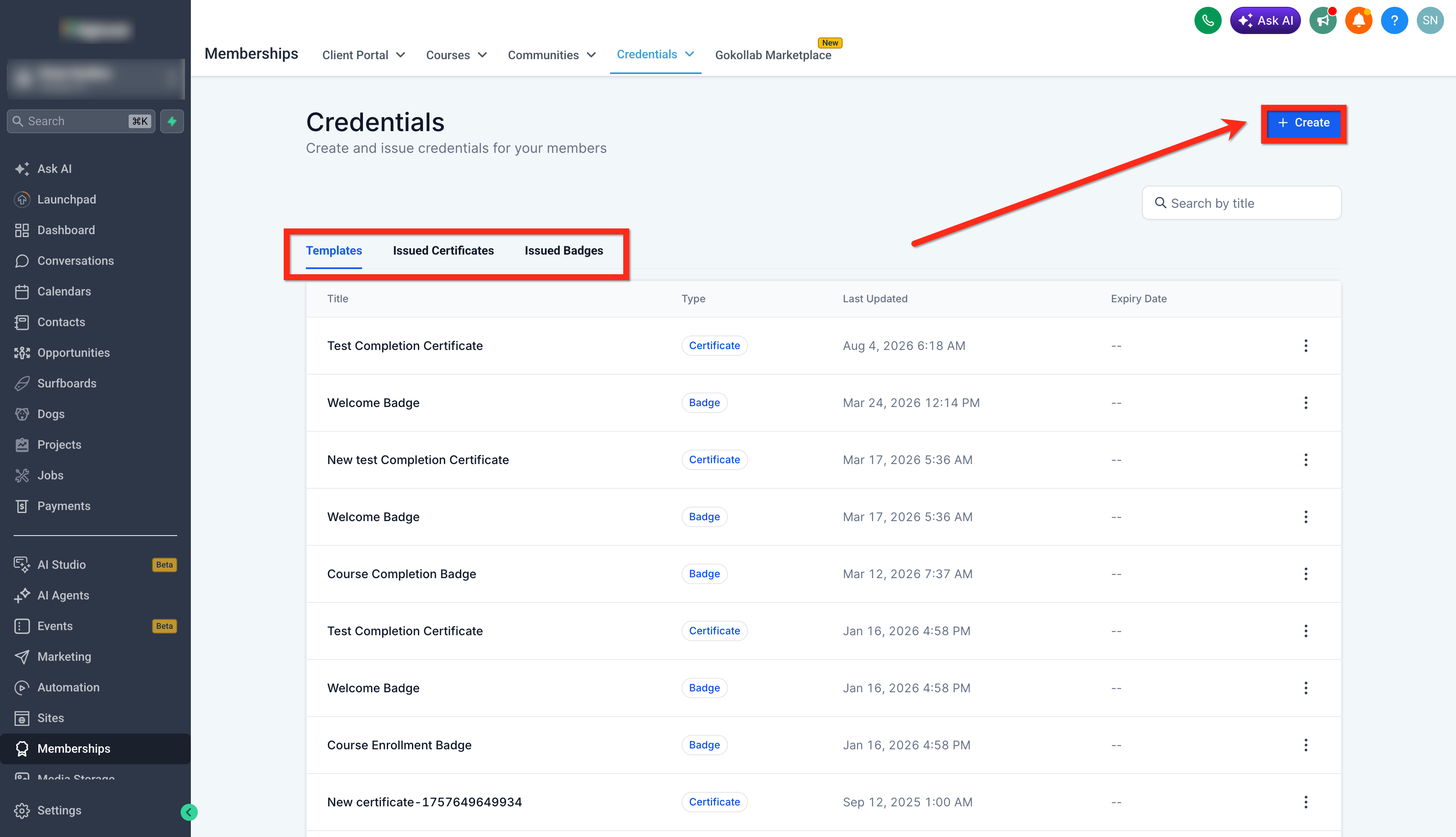
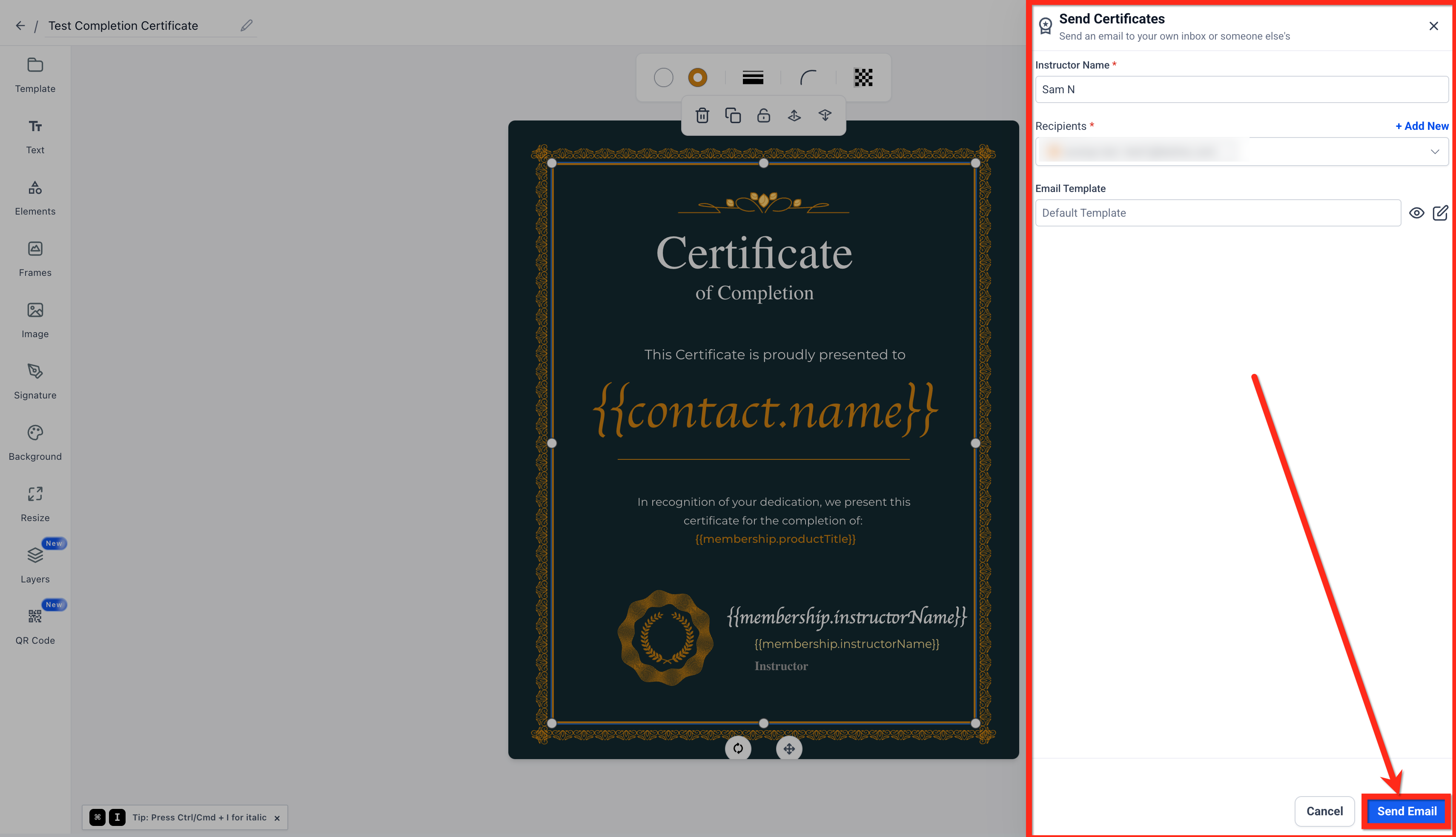
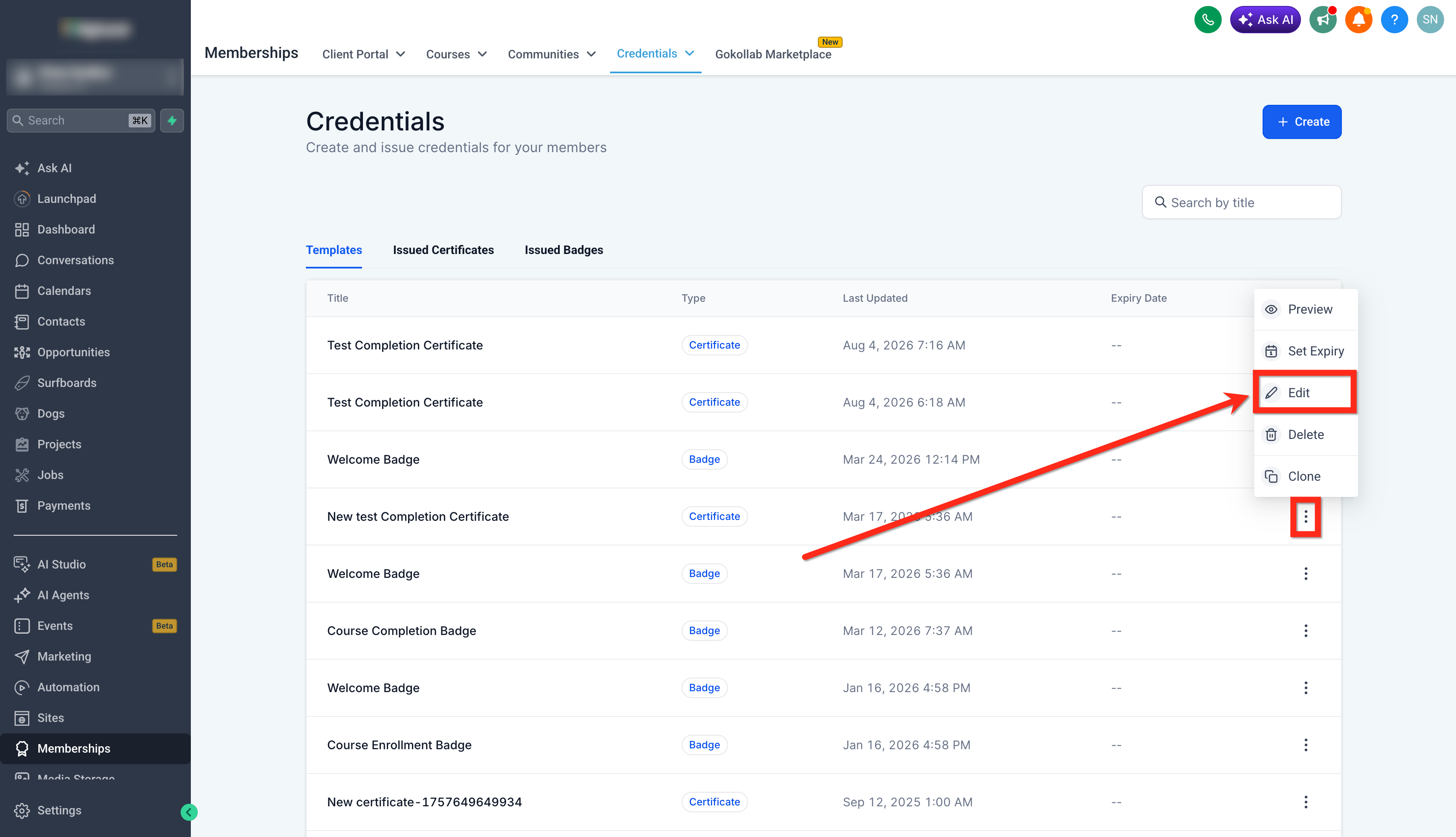
The feature resides in the Credentials dashboard under Memberships. It lists issued certificates, issued badges, and template designs. From this view you can open a credential, preview it, and choose to download or share.
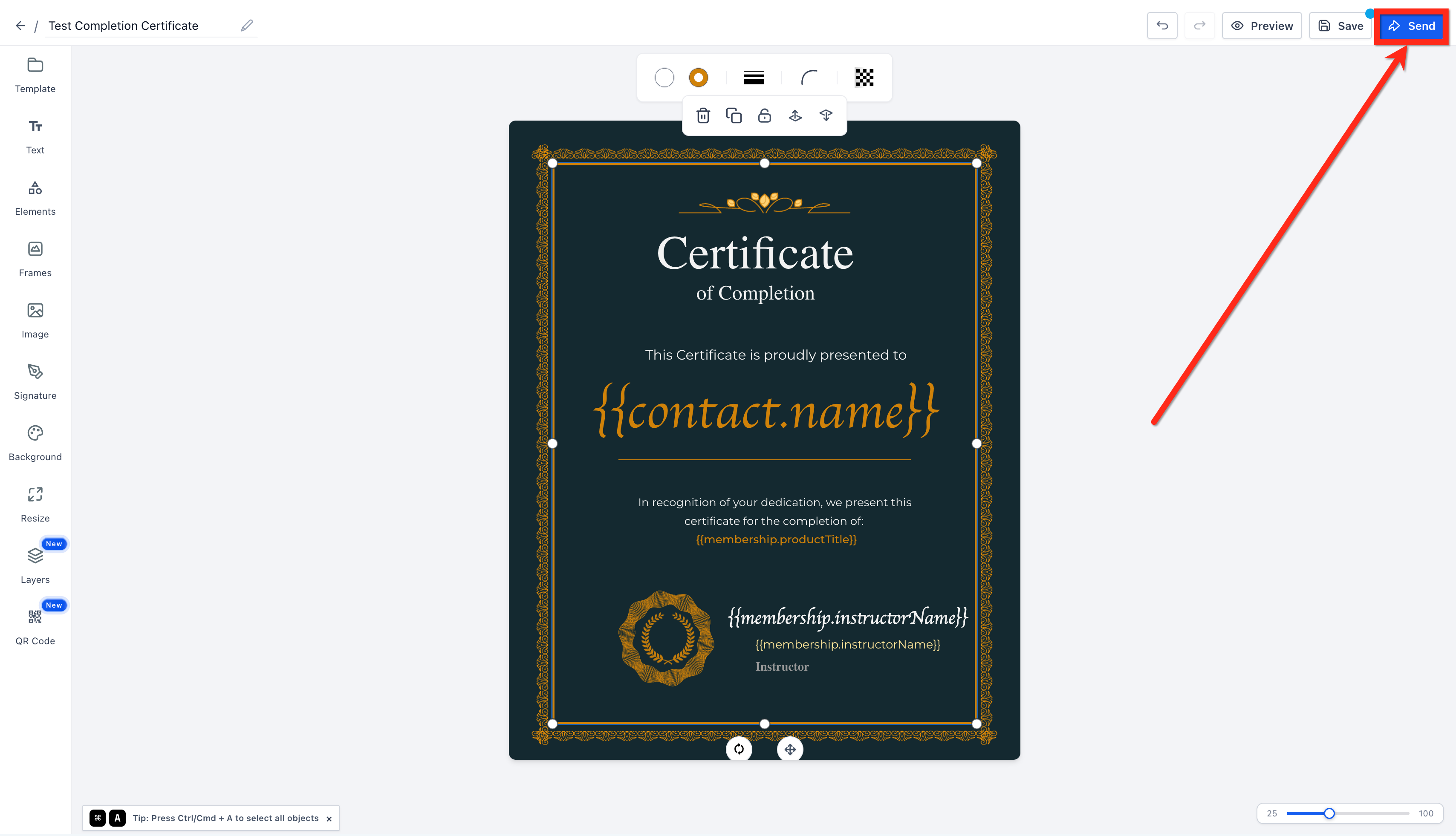
Downloading uses a preview page where a PDF button downloads the default PDF file. A down arrow menu lets you pick PNG or JPG. Sharing uses a Send button in the certificate editor to email the credential directly.
Templates that have not been issued can still be previewed and downloaded, but they cannot be posted to social media until they are issued to a recipient.
03How businesses use certificates & badges
- Online course provider. After a learner finishes a course, the provider opens the credential in the dashboard, clicks the Send button, and emails the PDF certificate to the student. They also download a PNG version for marketing assets.
- Fitness studio with membership badges. The studio issues a badge to a new member, opens the badge preview, selects the JPG format, and downloads it to attach to a welcome email.
- Professional association. The association creates a badge template, issues it to members, then uses the preview page to download a PNG file for members to add to their LinkedIn profiles.
04The numbers and rules that matter
- Supported download formats are PDF, PNG, JPG.
05How to set up and use certificates & badges in HighLevel
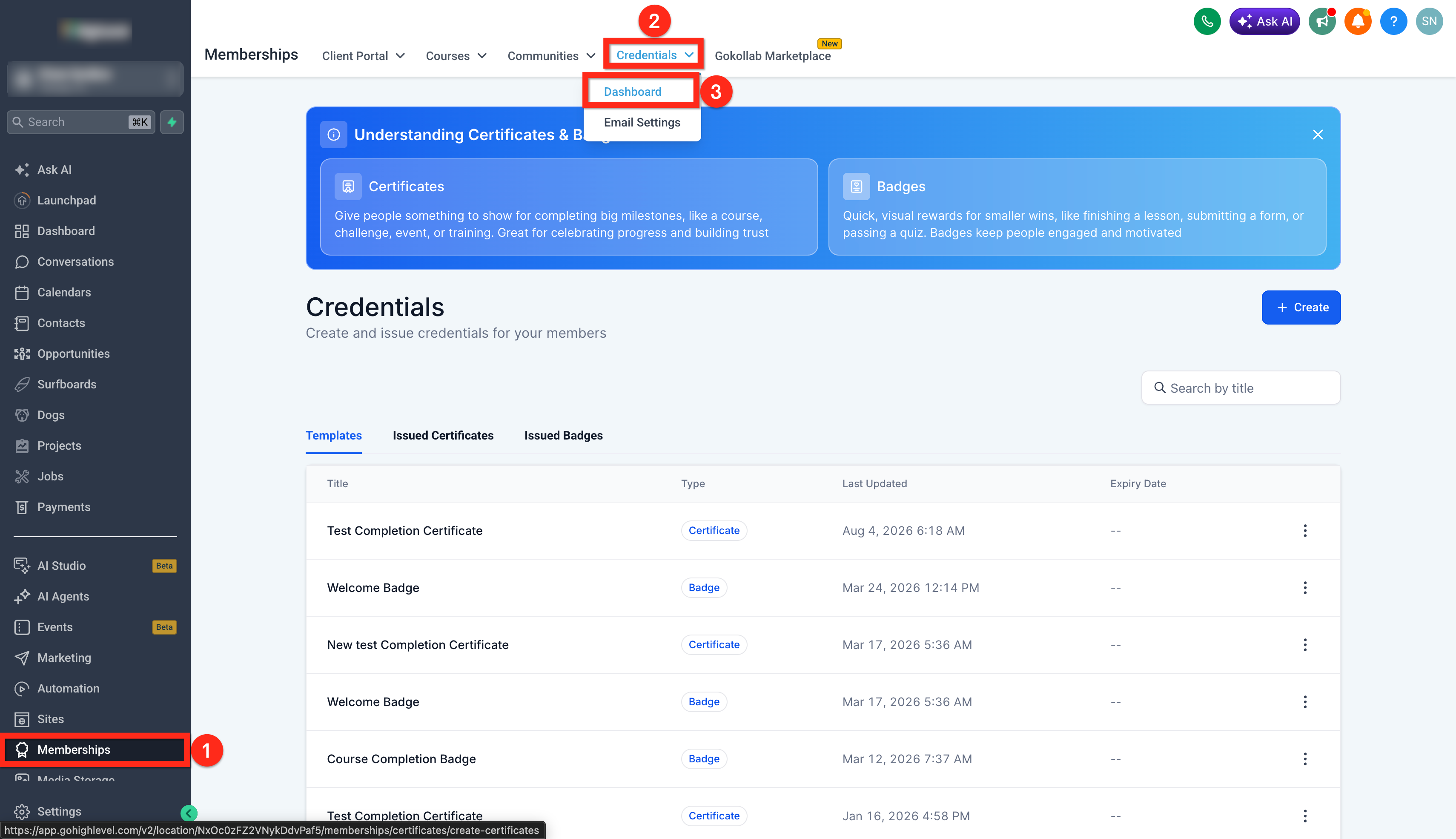
Access credentials dashboard
- Log into your HighLevel account.
- Navigate to Memberships.
- Select Credentials > Dashboard.
Share certificates and badges via email
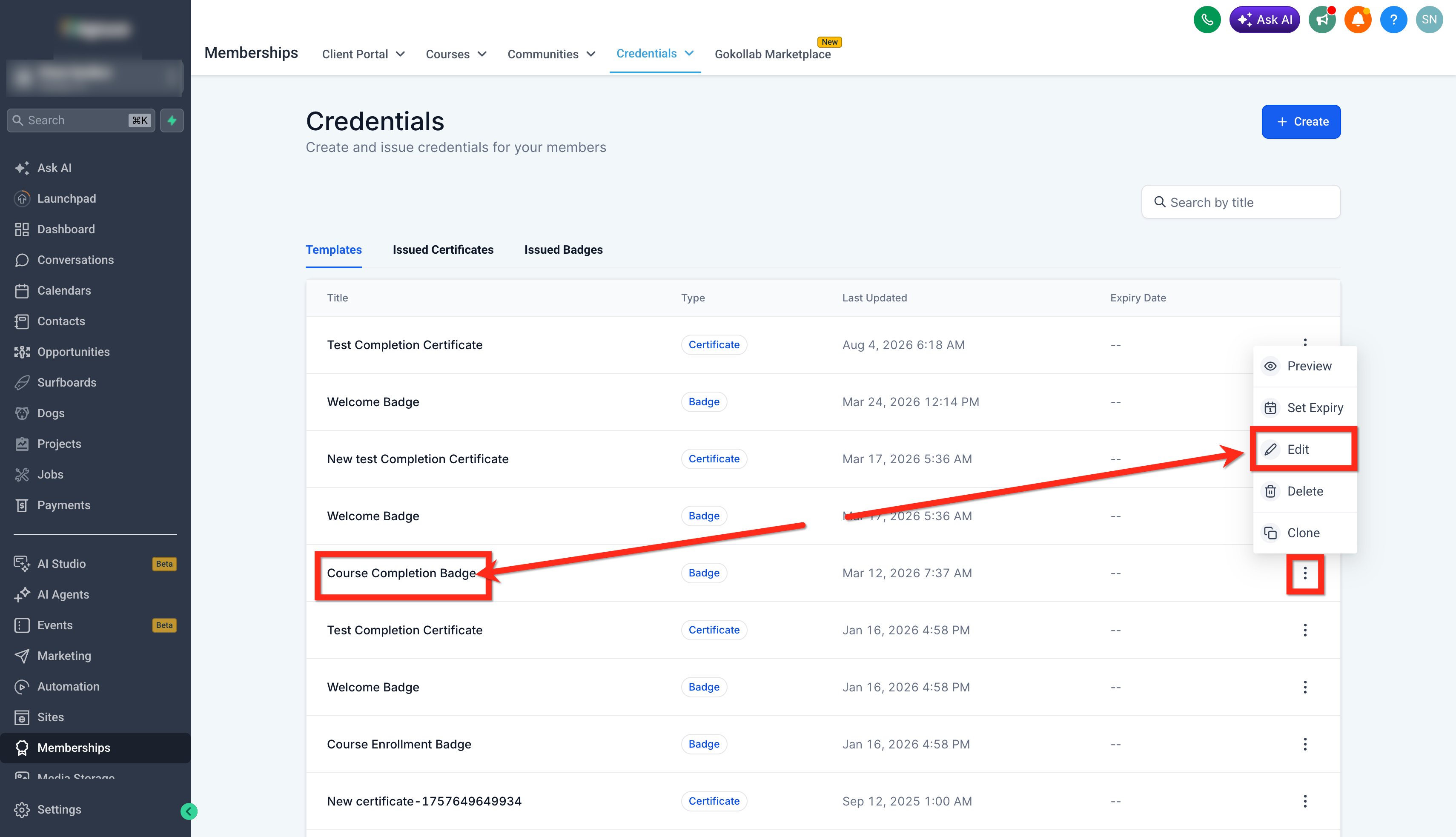
- In the Credentials dashboard, click the certificate or badge name (or the three dot menu and choose Edit) to open the editor.
- Click the Send button located at the top right of the editor.
- Use the sharing interface to enter an email address and send the credential.
Download certificates and badges
- In the Credentials dashboard, click the three dot menu next to the desired credential and choose Preview.
- On the preview page, click the Download PDF button to get the default PDF file.
- Click the down arrow beside the download button.
- Select PDF, PNG, or JPG from the format list.
06What it looks like in HighLevel
07Things to know before you rely on it
- PDF is the default download format.
- Social media sharing works only for credentials that have been issued, not for templates.
- Templates can be previewed and downloaded but cannot be shared to social platforms.
08How it connects to the rest of HighLevel
- Issue certificates automatically when a course is completed Course completion certificates
- Download all issued certificates from the client portal Client portal download
- Set expiry dates and reminder emails for certificates and badges Expiry and reminders
Michael's take

Many people try to post a badge or certificate to social media straight from the template, forgetting that the system only lets you share issued credentials. The recipient specific data is required for a social post, so templates stay offline until you issue them.
I would first issue the credential to a real recipient, then open the preview page and use the built in share button. That way the badge carries the proper name and date, and the social share works without surprises.