
01Who this is for
- Coaching firms that issue completion certificates to their clients and need a quick way to retrieve them.
- Online schools that want participants to preview and download their course certificates for personal records.
- Consultancies that share credential links with partners to verify training milestones.
02Certificates, explained
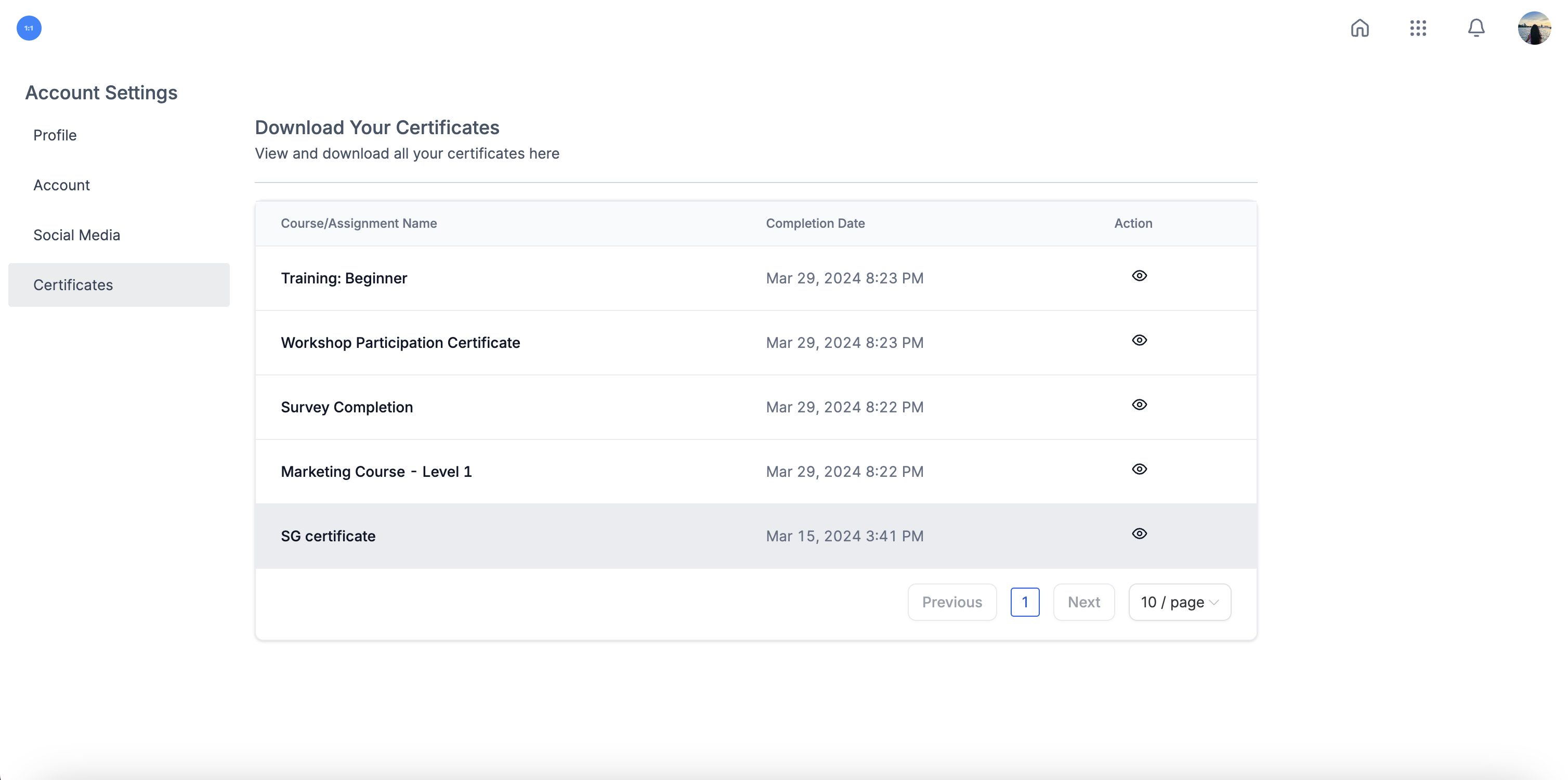
The certificate feature lives inside the client portal of HighLevel. After signing in, users can reach the certificates area through their account menu. All certificates that have been issued appear in a list.
From the list, each certificate offers three actions. A preview button opens the document within the portal so you can examine its layout. A download button saves the file to your device in high quality. A copy link button places a direct URL on the clipboard, ready to be sent via email or chat.
These tools are designed for on demand access, allowing anyone with portal access to manage their own certificates without assistance from an administrator.
03How businesses use certificates
- Coaching practice. A coach logs into the portal, finds the certificate belonging to a client, previews it to confirm the name is correct, downloads a PDF for the client’s records, and copies the link to send via email.
- Online language school. The school’s administrator opens the certificates page, selects a student’s course completion certificate, previews to verify the score display, downloads the file for printing, and copies the shareable URL for the student’s digital portfolio.
- Professional training consultancy. A consultant accesses the portal, locates the badge earned by a partner employee, clicks the copy link button, and shares the link in a project management chat so the partner can view the credential right away.
04How to set up and use certificates in HighLevel
Accessing your certificates
- Open the client portal login page and sign in with your credentials.
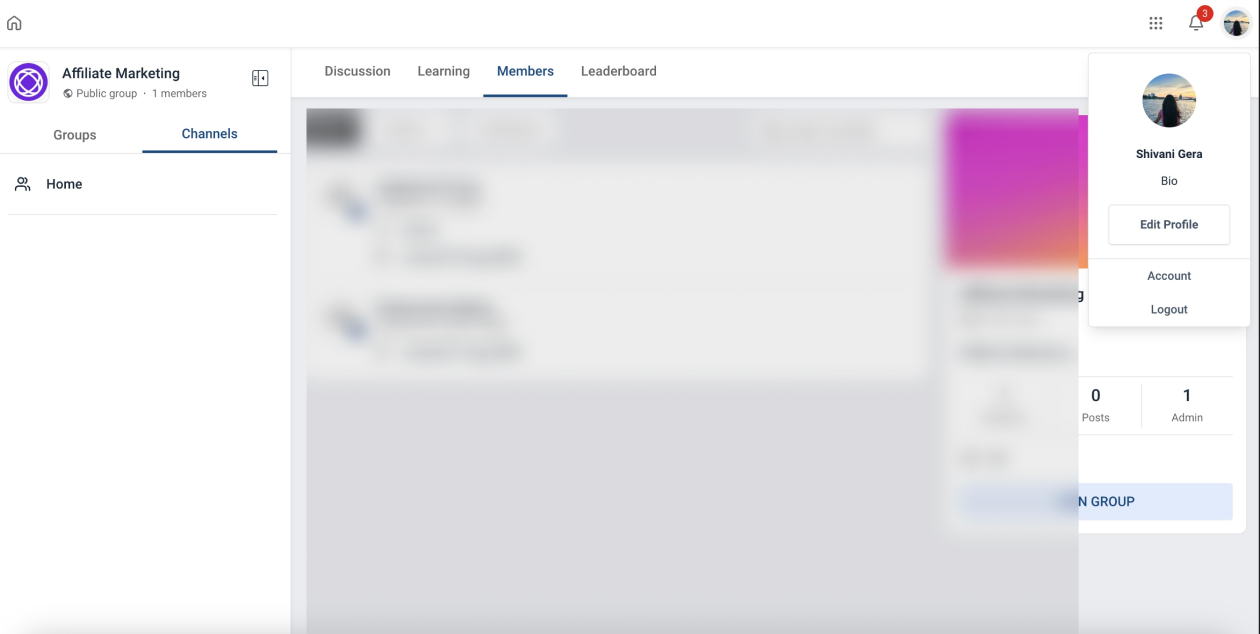
- Click your profile avatar to open the account menu.
- Choose the Certificates option to display the full list of your certificates.
Previewing and downloading a certificate
- Find the desired certificate in the list and select it.
- Press the Preview button to view the certificate inside the portal.
- Click the Download button to save the file to your computer.
Sharing a certificate
- Locate the certificate you want to share in the list.
- Press the Copy Link button next to the certificate.
- The link is now on your clipboard and can be pasted wherever you need to share it.
05What it looks like in HighLevel
06How it connects to the rest of HighLevel
- Download and share certificates & badges Download & share guide
- Export issued certificates as CSV Export CSV
- All certificates features overview Certificates overview
Michael's take

Watch out for the temptation to treat the copied link as a permanent public record; anyone with the URL can view the certificate, so keep it away from unintended eyes.