
01Who this is for
- Course creators who need a quick, professional certificate for each student without designing from scratch.
- Event organizers looking to produce participation certificates that include branding and optional QR verification.
- Training managers who must issue completion records that pull dynamic recipient data from HighLevel.
02Certificate AI, explained
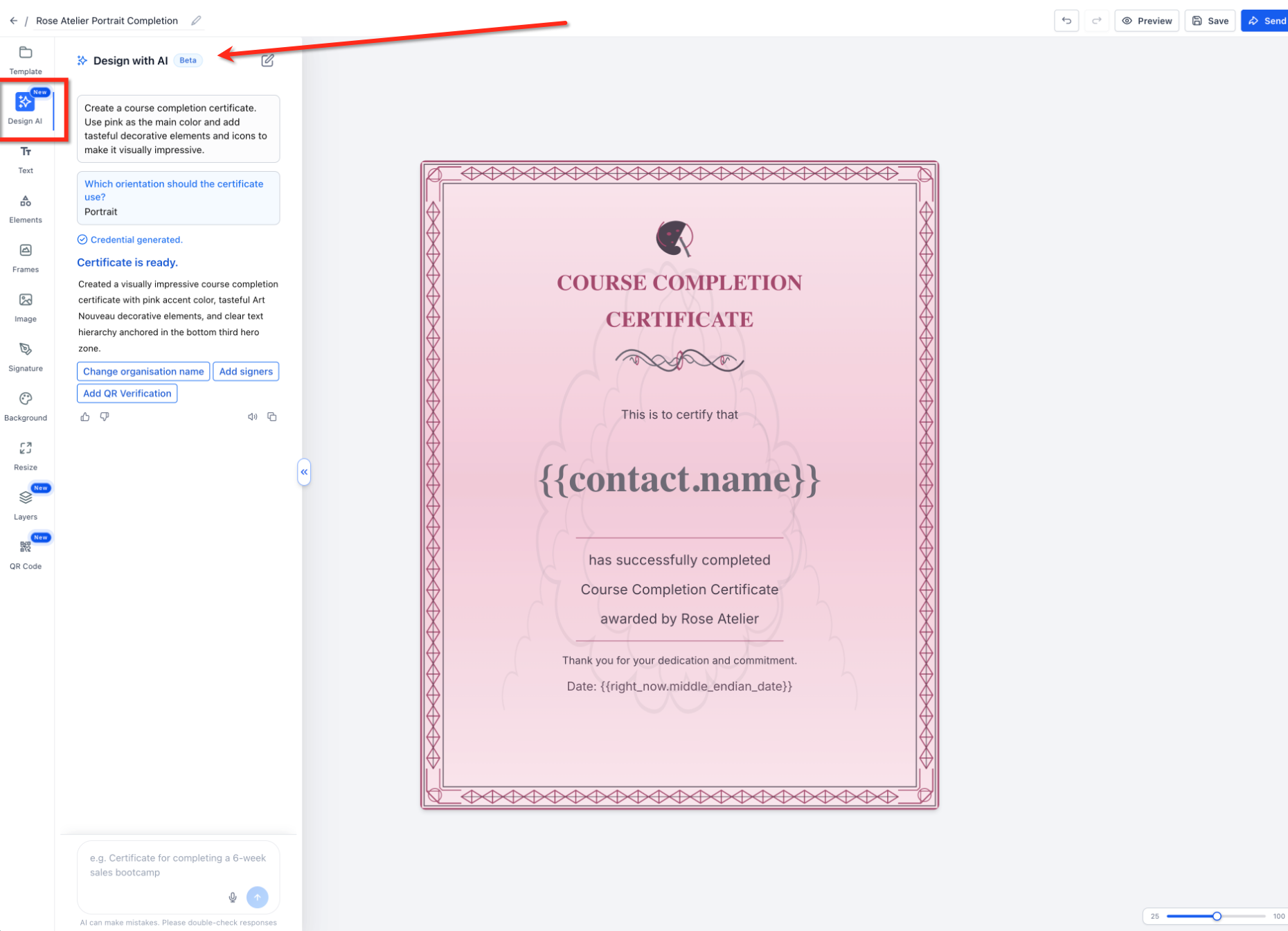
Certificate AI turns a plain language description into a ready made certificate template. After you supply a prompt, the system may ask follow up questions such as orientation before producing a design that appears in the Certificate Builder. The generated layout includes editable elements like text fields, decorative frames, signature placeholders and QR codes.
The feature lives inside the Memberships > Credentials section of a HighLevel subaccount. While the AI creates the initial composition, you retain full control in the Certificate Builder, where you can adjust wording, layout, branding and verification details before saving or sending the certificate.
Because the AI output is editable, you can customize any part of the design, preview the result, and then use the existing certificate workflow to issue the final credential to recipients.
03How businesses use certificate AI
- Online language school. The school types a prompt describing a completion certificate for a Spanish immersion course, selects the course completion quick prompt, and lets Certificate AI generate a template. The team then tweaks the font and adds a QR code before saving and sending it to graduates.
- Conference organizer. The organizer picks the event participation quick prompt, provides the conference name and speaker signatures in the prompt, and reviews the AI generated design. After adjusting the layout, the organizer previews and issues the certificates to participants.
- Corporate training department. The department enters a detailed prompt for a safety training completion certificate, including dynamic fields for employee name and date. After Certificate AI creates the draft, the trainer updates the background color and saves the template for future training cohorts.
04The numbers and rules that matter
- AI can incorporate text, frames, signatures, QR codes and other supported Certificate Builder elements.
05Before you start
- You must have access to a HighLevel subaccount and be able to navigate to Memberships > Credentials.
06How to set up and use certificate AI in HighLevel
Set up Certificate AI
- Open your HighLevel subaccount and select Memberships > Credentials.
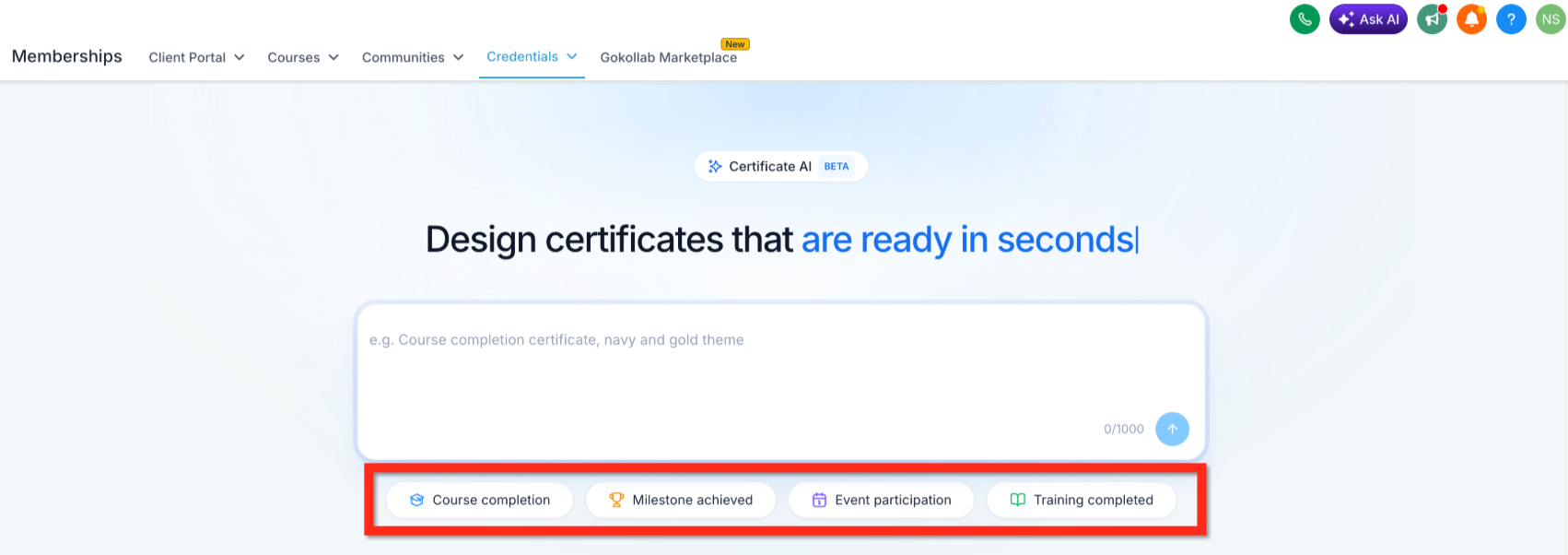
- Find the Certificate AI Beta prompt area within the Credentials page.
- Enter a description of the certificate you need, covering purpose, style, organization name, recipient details, signer requirements, orientation and any verification needs.
- Or choose one of the quick prompts such as course completion, milestone achieved, event participation or training completed.
- Click the button to submit your prompt.
- If a follow up question appears, answer it, for example, stating whether you prefer portrait or landscape orientation.
- Allow the system to create the certificate based on your input.
- When the design appears, open it in the Certificate Builder for review.
- Review the generated certificate carefully, paying particular attention to wording, recipient fields, dates, organization name, signer information, QR verification, orientation and layout.
- Modify any elements that need change, checking fields like recipient name, dates, organization name, signer info, wording, QR verification and overall layout.
- Use the Preview function to see the final appearance of the certificate.
- Press Save to store the completed template.
- Choose Send when you are ready to issue the certificate through the appropriate workflow.
07What it looks like in HighLevel
08Things to know before you rely on it
- Certificate AI is currently in Beta, so generation quality and capabilities may change over time.
09How it connects to the rest of HighLevel
- Learn how to create a certificate template manually in HighLevel. Create a Template
- See how to attach a certificate to a course for automatic issuance on completion. Course Completion Certificates
- Start a 30 day trial to explore Certificate AI and other HighLevel features. 30 day Trial
Michael's take

Do I really need an AI to design certificates for my online course? Absolutely not, but it can be a useful tool. You tell Certificate AI what the certificate is for, the look you want and any special elements, and it spits out a full template you can tweak.
I’d jump straight into the quick prompt for a course completion certificate, then fine tune the wording and add a QR code for verification. I make a quick sanity check of the dynamic fields before sending.