
01Who this is for
- Founders who manage multiple agency accounts and need consistent certificates across them.
- Course creators who want to move certificate designs between training sites without rebuilding.
- IT administrators tasked with securing certificate assets while migrating client data.
02Certificates in snapshot, explained
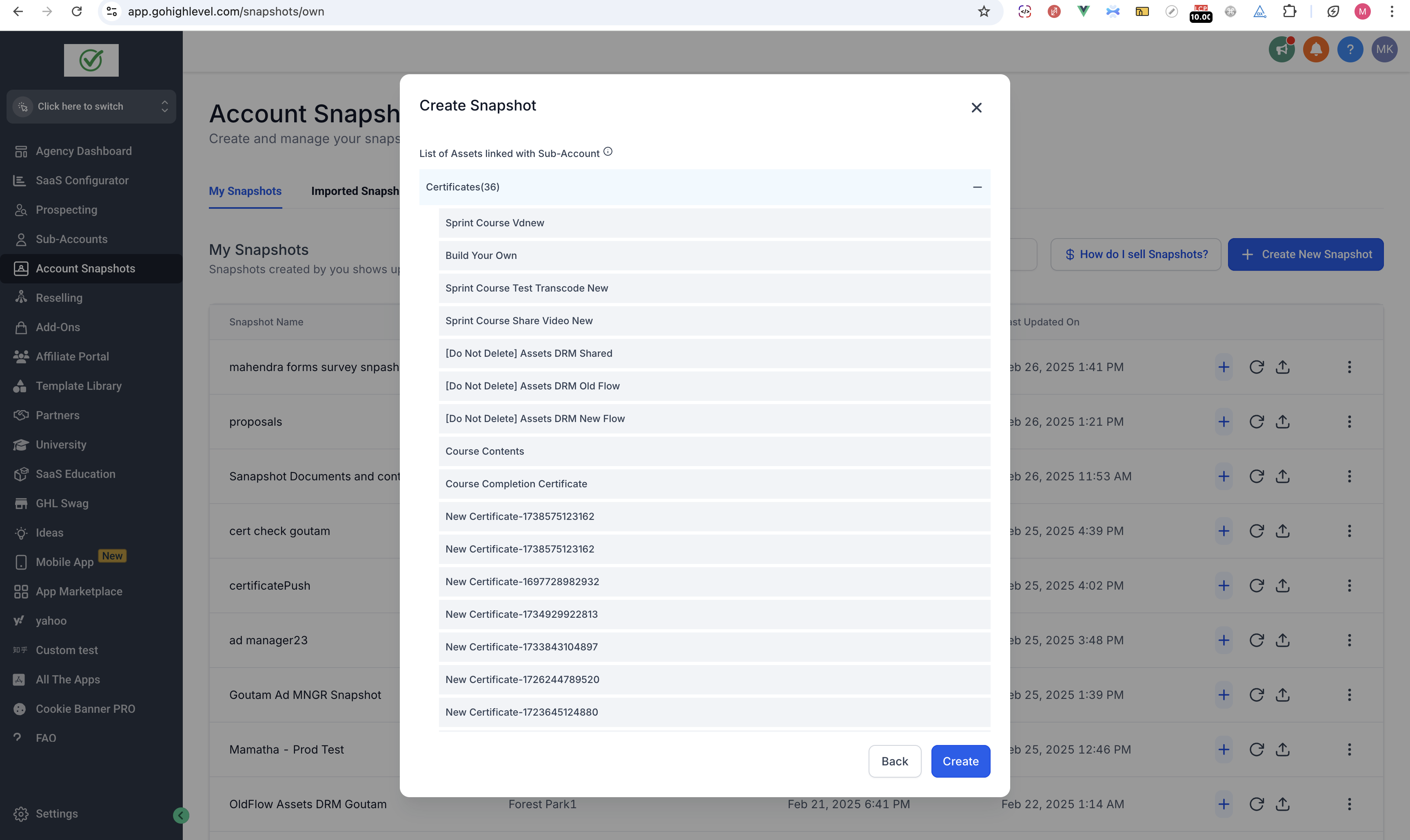
Certificates in Snapshot is a feature that packages certificate templates together with every linked media file inside a snapshot. When the snapshot is loaded in another account, the templates appear exactly as they were, including any IP protection settings.
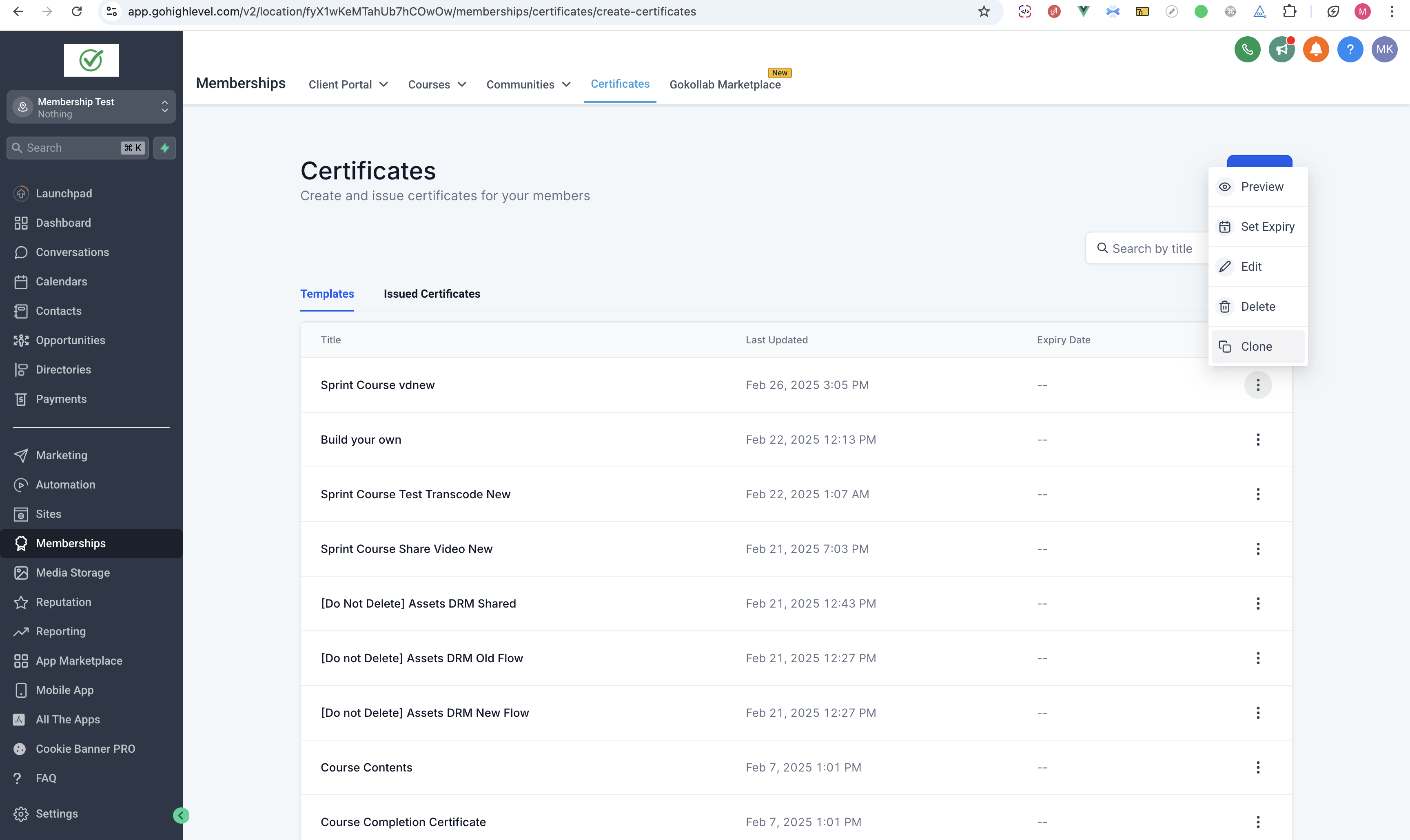
Cloning certificate templates copies a chosen template to up to three other locations in a single action. The copy retains all media, configuration details, and version history, so each location receives an identical certificate ready for use.
Both actions are found in the Settings > Snapshots area for attachment and in the Certificates section of the dashboard for cloning.
03How businesses use certificates in snapshot
- Online education platform. The platform selects its course completion certificate designs, attaches them to a snapshot, and exports the snapshot to a new client account. This moves the templates and all images without manual rebuilding.
- Digital marketing agency. The agency clones a brand specific certificate template to three client accounts at once, preserving the logo and styling so each client can issue the same style of certificate.
- Franchise business. A franchise owner creates a snapshot that includes employee training certificates, then loads the snapshot into each new franchise location, ensuring every site has the same certificates and media.
04The numbers and rules that matter
- Cloning supports up to three locations simultaneously.
05How to set up and use certificates in snapshot in HighLevel
Attach certificate templates to a snapshot
- Open Settings and select Snapshots.
- Click Create Snapshot.
- Enter a name and description for the snapshot.
- Choose the certificate templates you want to include.
- Allow the system to automatically add all related media files.
- Save the snapshot.
- Export the snapshot to the desired location.
- Import the snapshot into another account and verify the certificates and media transferred.
Clone certificate templates
- Navigate to the Certificates area in the dashboard.
- Select the template you want to copy.
- Click the Clone Template button.
- Select up to three target locations for the clone.
- Review the media files and settings that will be cloned.
- Press Clone to complete the operation.
- Open each target location to confirm the template appears correctly.
06What it looks like in HighLevel
07Settings that matter
- IP protection. Controls whether the certificate template is covered by intellectual property protection during migration or cloning.
08Things to know before you rely on it
- Cloning can target a maximum of three locations in one operation.
- All media files attached to a template are always included; they cannot be excluded during snapshot migration.
- IP protection settings remain applied to certificates that are migrated or cloned.
09How it connects to the rest of HighLevel
- Explore all certificate capabilities in HighLevel. All certificates features
- Set up default and category certificates for courses. Default certificates setup
- Learn how to toggle permissions and use undo/redo in the certificates module. Module access shortcuts
Michael's take

Certificates in snapshot feels like a small convenience that removes a lot of manual recreation work when you shift accounts or expand locations.
A coaching business that issues completion certificates for each course can attach its template to a snapshot before opening a new office location. Then they clone the same template to the three regional sites they launch, keeping every logo, design element and version history in place.