
01Who this is for
- Founders who manage remote teams can pick a timezone that matches their own workday, avoiding manual conversions.
- Service based businesses with clients across regions can keep the mobile view aligned to the team's local time.
- Sales managers traveling out of the office can view their schedule in the local zone without altering the business calendar.
02Appointment timezone preferences, explained
The setting is a user level preference that determines which timezone is used when the mobile app shows appointment times. Options include the user’s own account timezone, the subaccount’s business timezone, or any custom timezone you select from a dropdown. The choice only affects how times are displayed; it does not change availability, booking links, or any scheduling logic.
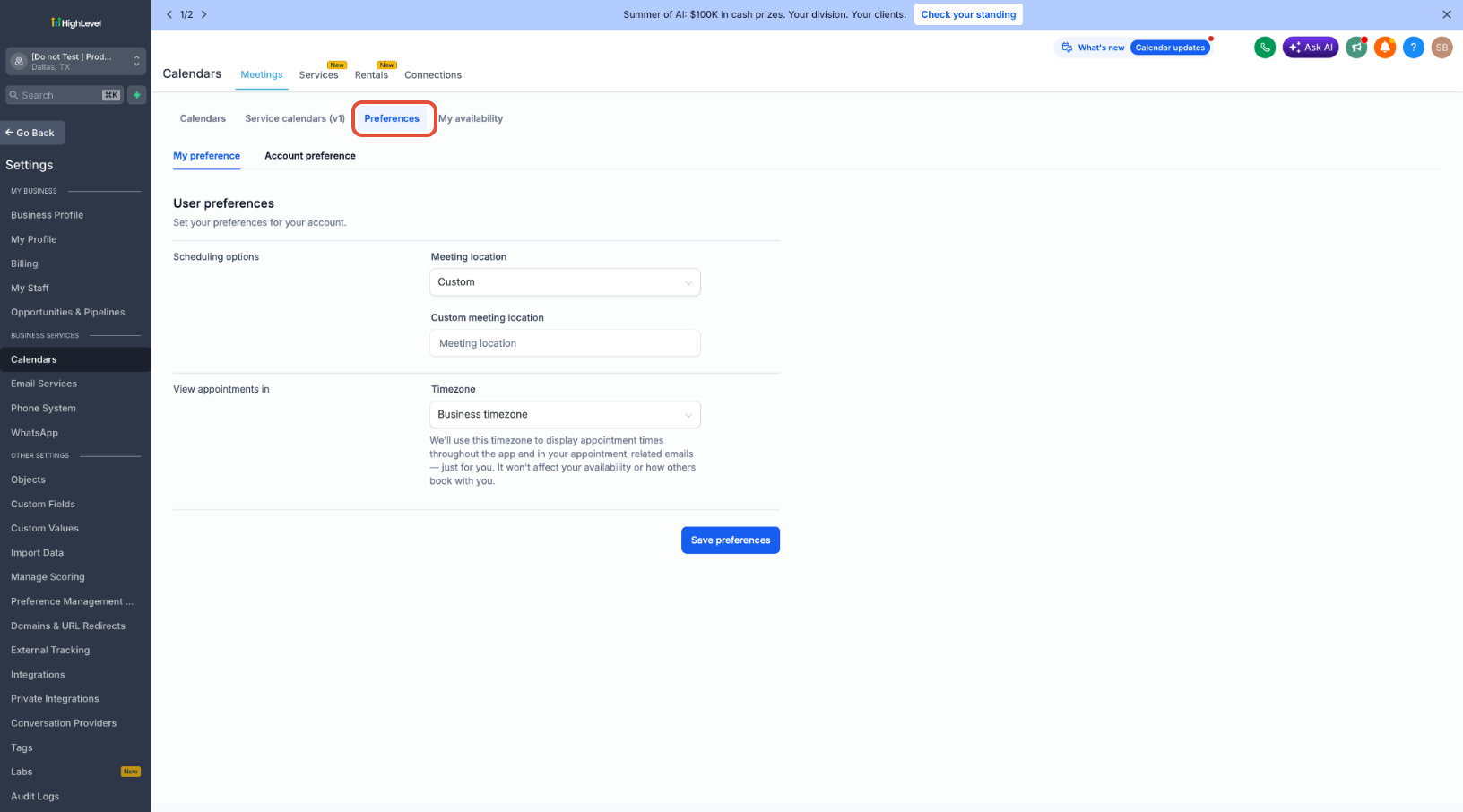
The preference lives in the Calendar settings area of the web platform under the Preferences tab, specifically on the My preference sub tab. Once saved, the selection syncs to the mobile app and appears next to each appointment as a timezone abbreviation. The same display applies across calendar grid views, list views, appointment details, editors, and contact records within the app.
Mobile support starts with version 4.10.0 (810) of the HighLevel app and the LeadConnector app. White labeled apps also work once they are updated to that version. The setting is isolated to the logged in user, so each team member can set a different view without affecting others.
03How businesses use appointment timezone preferences
- Digital marketing agency. Agents set the preference to their personal timezone so they can see client meetings on the go without converting times. They open the mobile Calendar and verify each appointment shows the correct abbreviation.
- Consulting firm. Consultants traveling for on site work choose a custom timezone that matches their travel location. The mobile app then displays all scheduled calls in that zone, letting them plan their day accurately.
- Online tutoring service. Tutors select the business timezone to keep a consistent view across all sessions, regardless of where they are physically located. They view appointments in the mobile app’s calendar grid to confirm session times.
04The numbers and rules that matter
- Supported mobile apps: HighLevel mobile app, LeadConnector mobile app, white labeled mobile apps (when the app is updated to the compatible version).
- Supported version: Mobile app version 4.10.0 (810) or later.
05Before you start
- Mobile app version 4.10.0 (810) or later must be installed.
- The subaccount must be running the newer calendar experience for the My preference tab to appear.
06How to set up and use appointment timezone preferences in HighLevel
Set your appointment viewing timezone
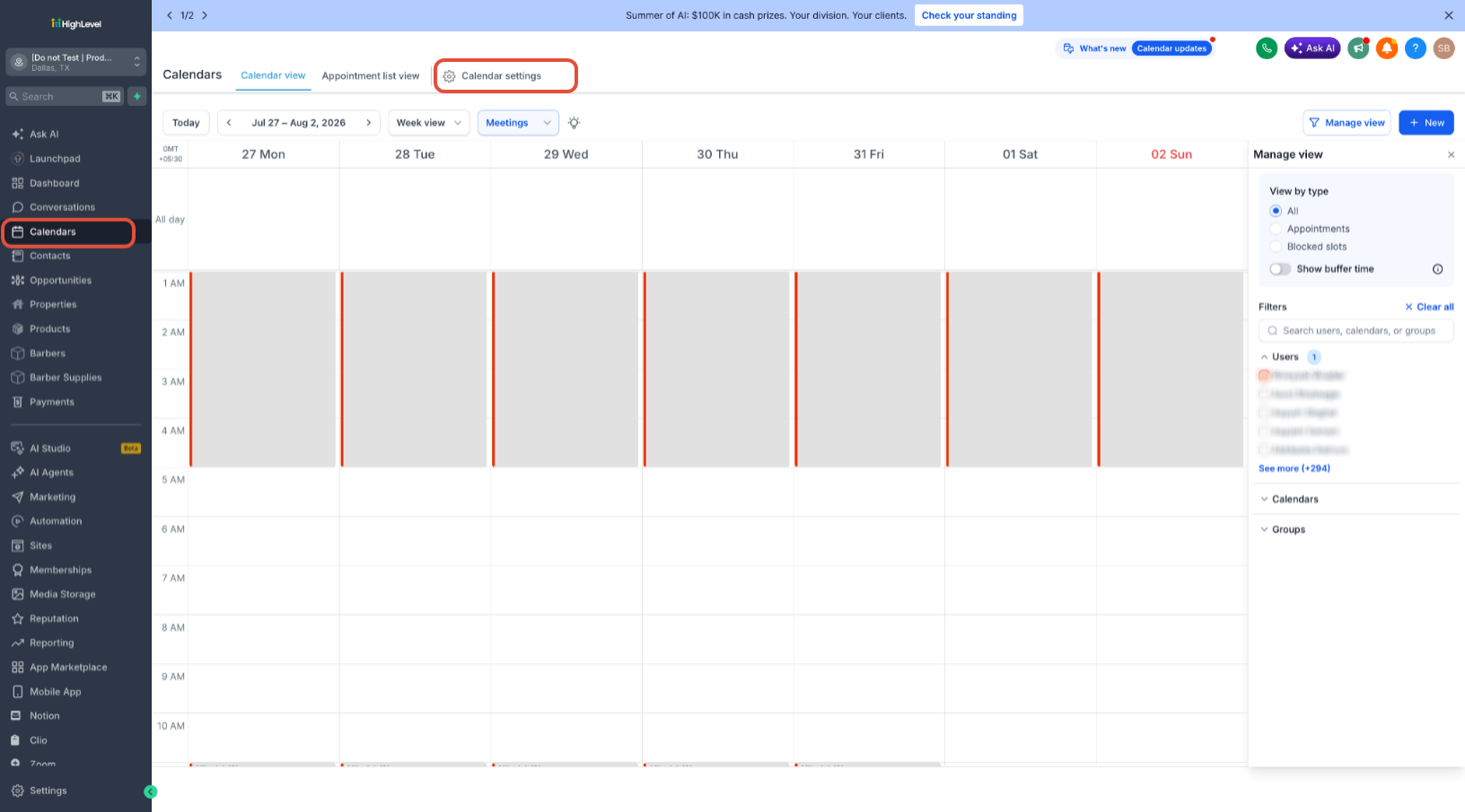
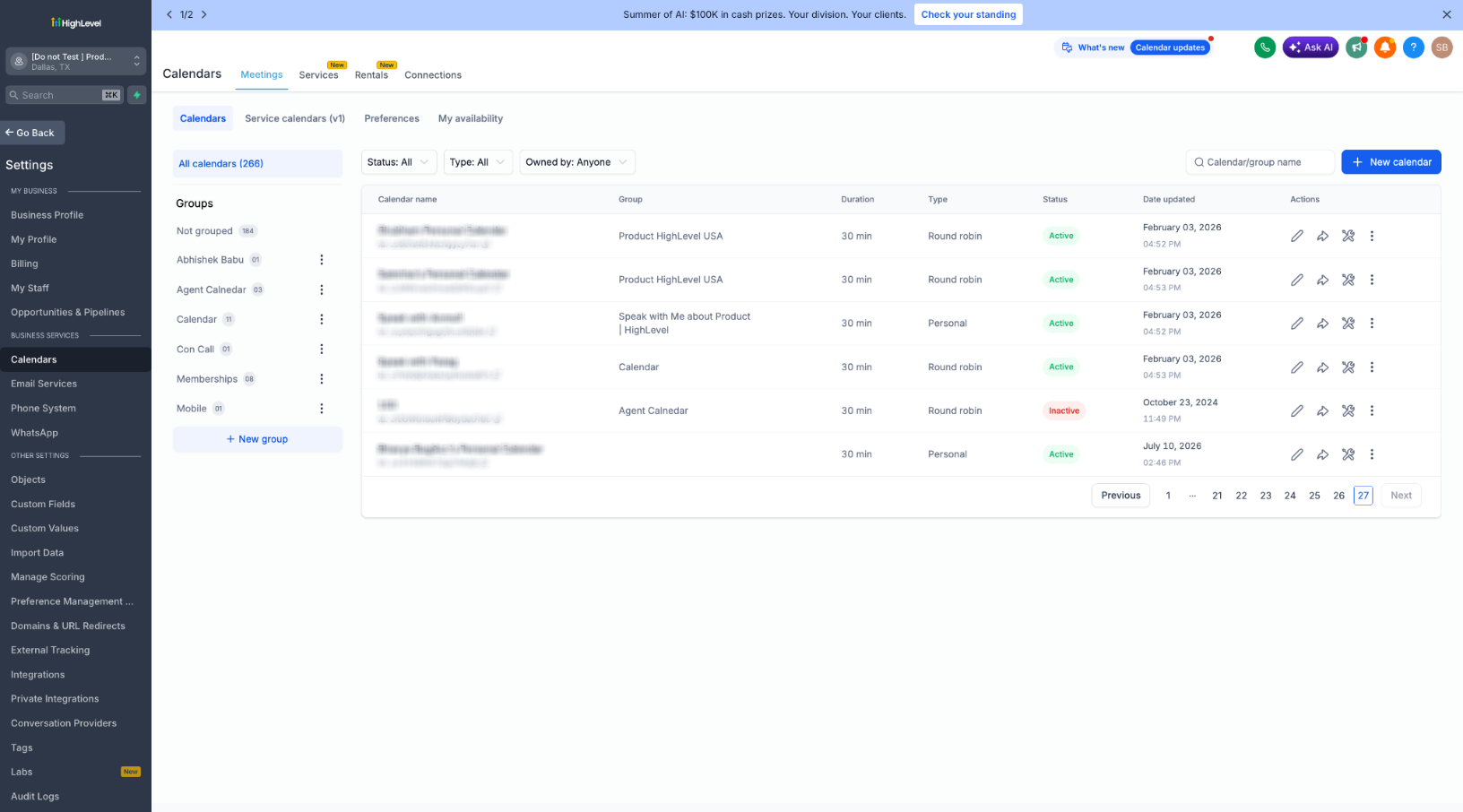
- Open the left sidebar on the web platform and click Calendars.
- Click the gear icon at the top of the Calendars page to open Calendar settings.
- Select the Preferences tab within the settings screen.
- Choose the My preference sub tab and scroll to the View appointments in field.
- Open the Timezone dropdown, select User, Business, or Custom, then pick a timezone if Custom is chosen.
- Click Save preferences to store the selection.
View appointments on the mobile app
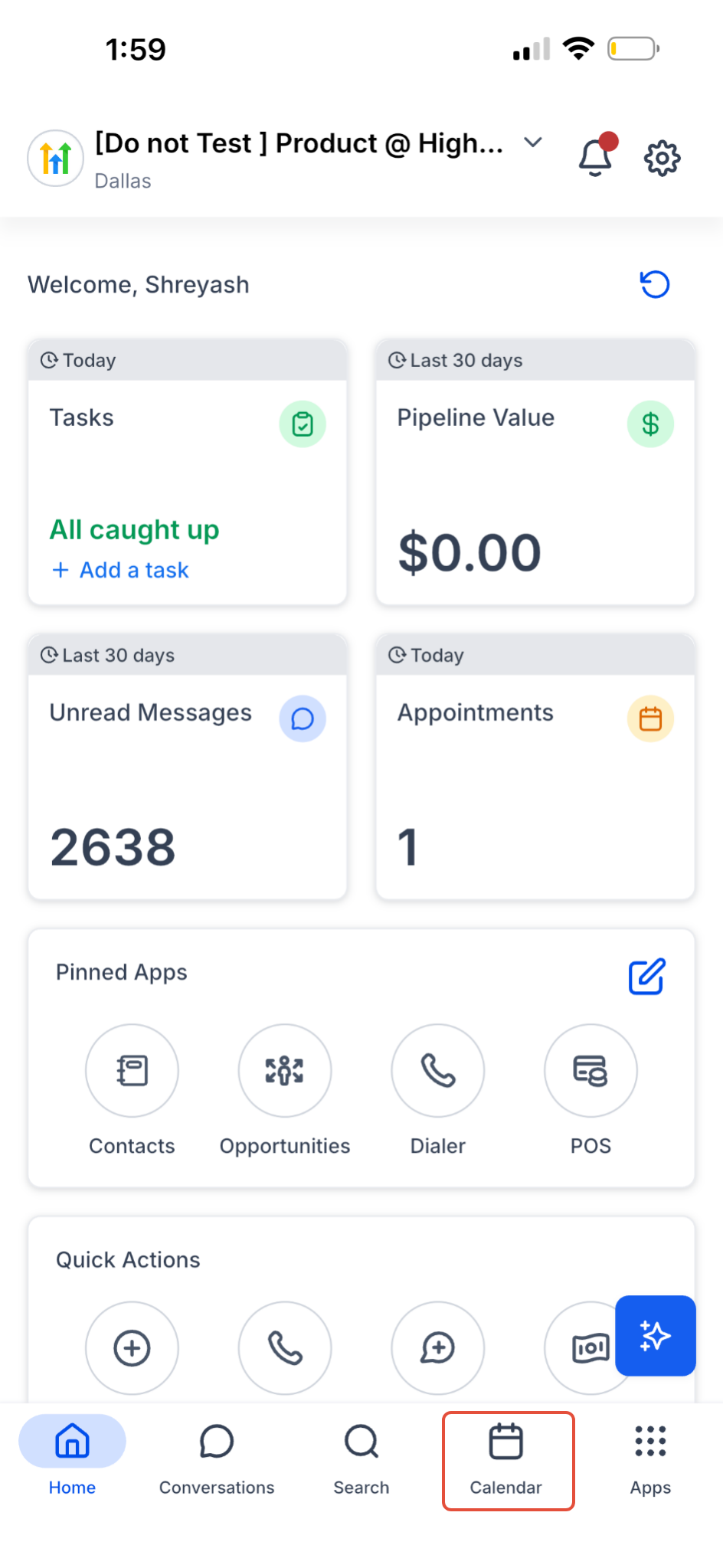
- Launch the HighLevel mobile app and tap Calendar in the bottom navigation bar.
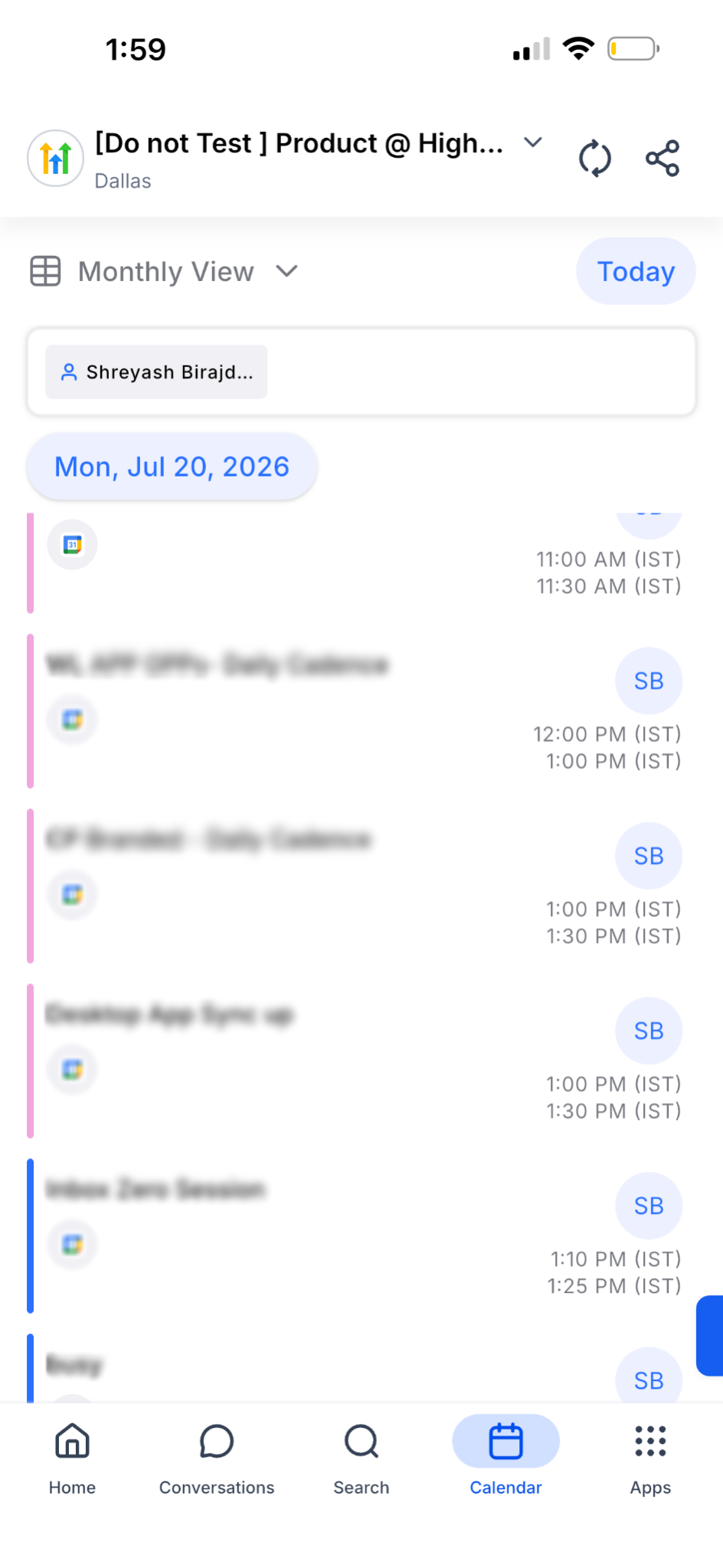
- Observe that each appointment now shows a timezone abbreviation matching the selected view.
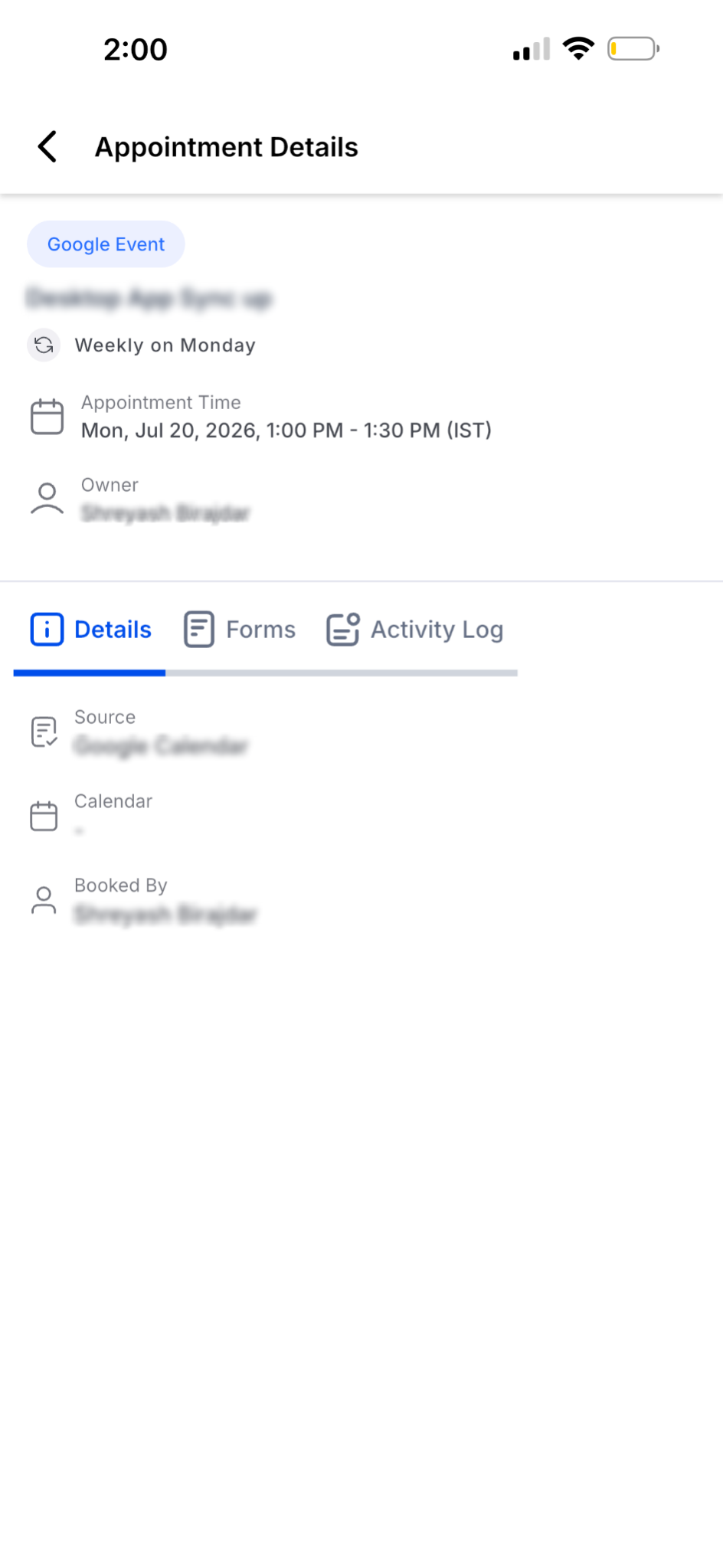
- Tap an appointment to open its details and confirm the displayed time aligns with the chosen timezone.
07What it looks like in HighLevel
08Settings that matter
- View appointments in. Controls which timezone the logged in user sees for all appointment times in supported mobile app screens.
09Things to know before you rely on it
- The preference works only in mobile app versions 4.10.0 (810) or newer.
- The field appears only on subaccounts using the newer calendar experience; older setups will not display it.
- White labeled mobile apps must be updated to the supported version to show the preference.
- If an invalid timezone is stored, HighLevel falls back to the location or business timezone.
10If something goes wrong
- Appointment times still show the wrong zone. Verify the View appointments in setting is chosen correctly, save the preference again, and ensure the mobile app is updated to version 4.10.0 (810) or later.
- The View appointments in field is missing. Confirm the subaccount runs the newer calendar experience; otherwise the field will not be present.
- Times look incorrect after a recent change. Refresh or reopen the mobile app, and double check you are logged into the correct subaccount.
- White labeled app does not display the selected timezone. Update the white labeled app to the supported version that includes the timezone preference feature.
11How it connects to the rest of HighLevel
- Set your personal timezone for viewing appointments Personal timezone guide
- In app calendar view in HighLevel: quick navigation guide Calendar view guide
- HighLevel calendar widget customization guide Widget customization
- HighLevel pricing and plans Pricing information
- Start a 30 day HighLevel trial Start trial
Michael's take

When teams are spread across time zones, a simple mistake in reading an appointment can throw off an entire day’s schedule. The first thing I would get right is the View Appointments In setting, picking the timezone that matches how I plan my day so the mobile view always shows the correct local time.
Once that’s set, I would jump into the calendar on my phone and confirm the times line up with my plan. If the display still seems off, I’d double check the app version and make sure I’m logged into the right subaccount before relying on the view for any client calls.