
01Who this is for
- Founders who need consistent branding across appointment communications, because custom values reduce manual edits.
- Small business owners managing multiple staff, as assigned user values automatically show the correct contact person.
- Marketers using automated funnels, because custom values can personalize follow up steps after a booking.
02Custom Values in calendars, explained
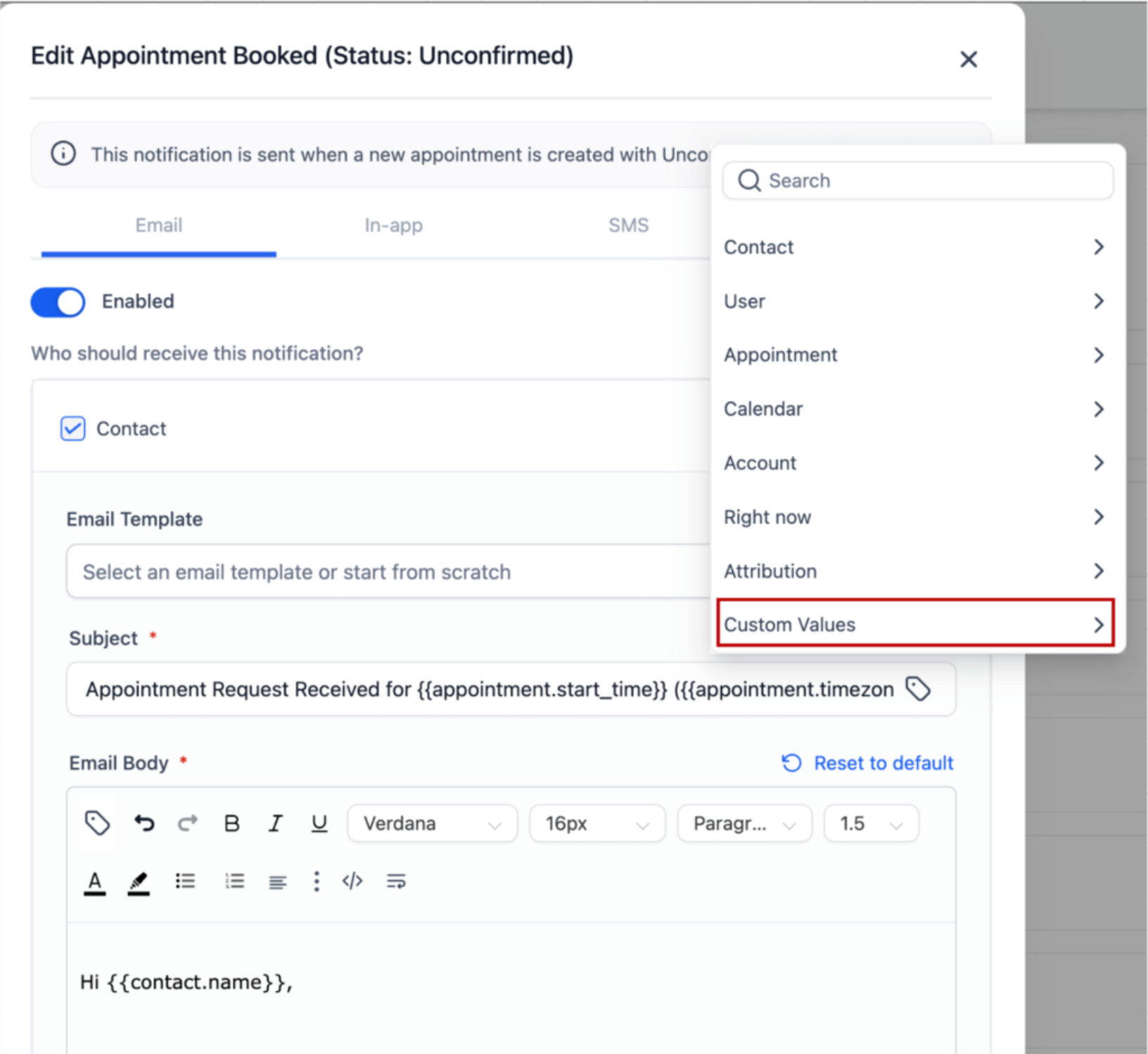
The feature adds a Custom Values section to the merge field selector used in calendar configurations. Any text field that supports merge tags, such as the appointment title, custom meeting location, or notification messages, can include a Custom Value token. The token appears as {{custom_values.your_key}} and resolves to the stored value at send time.
Custom Values are defined once in Settings > Custom Values and then become available platform wide. When a calendar element redirects to the next funnel step, you can also place assigned user merge fields on that step, allowing the booked user’s name, email, or phone to appear automatically. The feature works in email, SMS, and workflow messages linked to appointment triggers.
All of this lives inside the calendar editor and the funnel builder. No extra activation is required; the merge field picker shows Custom Values alongside standard tags.
03How businesses use Custom Values in calendars
- Coaching practice. Create a Custom Value for the video conference link. Insert the token into the Appointment Title field so every booked session shows the correct link without manual copy pasting.
- Real estate agency. Define a Custom Value containing the agent’s phone number. Add the assigned user merge field to the confirmation page so prospects see the specific agent handling their showing.
- Online course provider. Place a Custom Value with the webinar access code into the SMS reminder field. When a learner books, the reminder automatically includes the unique code.
04The numbers and rules that matter
- Custom Values are now available in the merge field selector across Calendars, Services, Rentals.
05Before you start
- Create the needed Custom Values under Settings > Custom Values before editing calendar fields.
06How to set up and use Custom Values in calendars in HighLevel
Create a custom value
- Open Settings > Custom Values.
- Click New Custom Value.
- Enter a name and its corresponding value.
- Press Save to store the entry.
Use Custom Values in calendars
- Open the Calendars section.
- Select an existing calendar or start a new one.
- Go to Calendar Settings.
- Click inside a text field such as Appointment Title.
- Activate the { } merge field icon.
- In the selector scroll to the Custom Values area.
- Or type the value name in the search bar.
- Choose the desired Custom Value.
- The token {{custom_values.your_key}} appears in the field.
- Click Save and optionally book a test appointment.
Use Assigned User Values After a Calendar Booking in a Funnel
- Insert a Calendar element onto a funnel step.
- Set its redirect action to Go to next step.
- Add assigned user merge fields to the following funnel step.
- Schedule a test appointment through the calendar.
- Verify that the assigned user information shows on the next step.
07What it looks like in HighLevel
08Settings that matter
- Custom Values. Defines reusable pieces of data that can be inserted as merge tokens in any calendar field that supports merge fields.
- Assigned user values. Pulls the name, email, phone, or other supported details from the user linked to a contact or appointment for use after a booking.
09Things to know before you rely on it
- The feature is available by default; no extra enablement is required.
- Custom Values appear in mobile calendar fields as they do on desktop.
10How it connects to the rest of HighLevel
- Learn how to embed a HighLevel calendar on a website using HTML. Embed calendar with HTML
- Add guests to a HighLevel calendar booking for group meetings. Add guests feature
- Set user permissions to control who can edit or view calendar settings. Calendar user permissions
Michael's take

When the booking experience needs a personal touch. Like inserting a unique meeting link or showing the assigned rep’s name. Custom Values help reduce the copy paste work and keep reminders consistent, which can scale as appointments grow.
If you rarely personalize messages, the extra step of creating and inserting Custom Values may not add noticeable value.