
01Who this is for
- Admins who need a consistent visual layout for internal planning, because each user can save personal display preferences.
- Team members who need to identify staff schedules quickly, as they can assign colors to staff and hide empty rows to focus on active appointments.
02Calendar view settings, explained
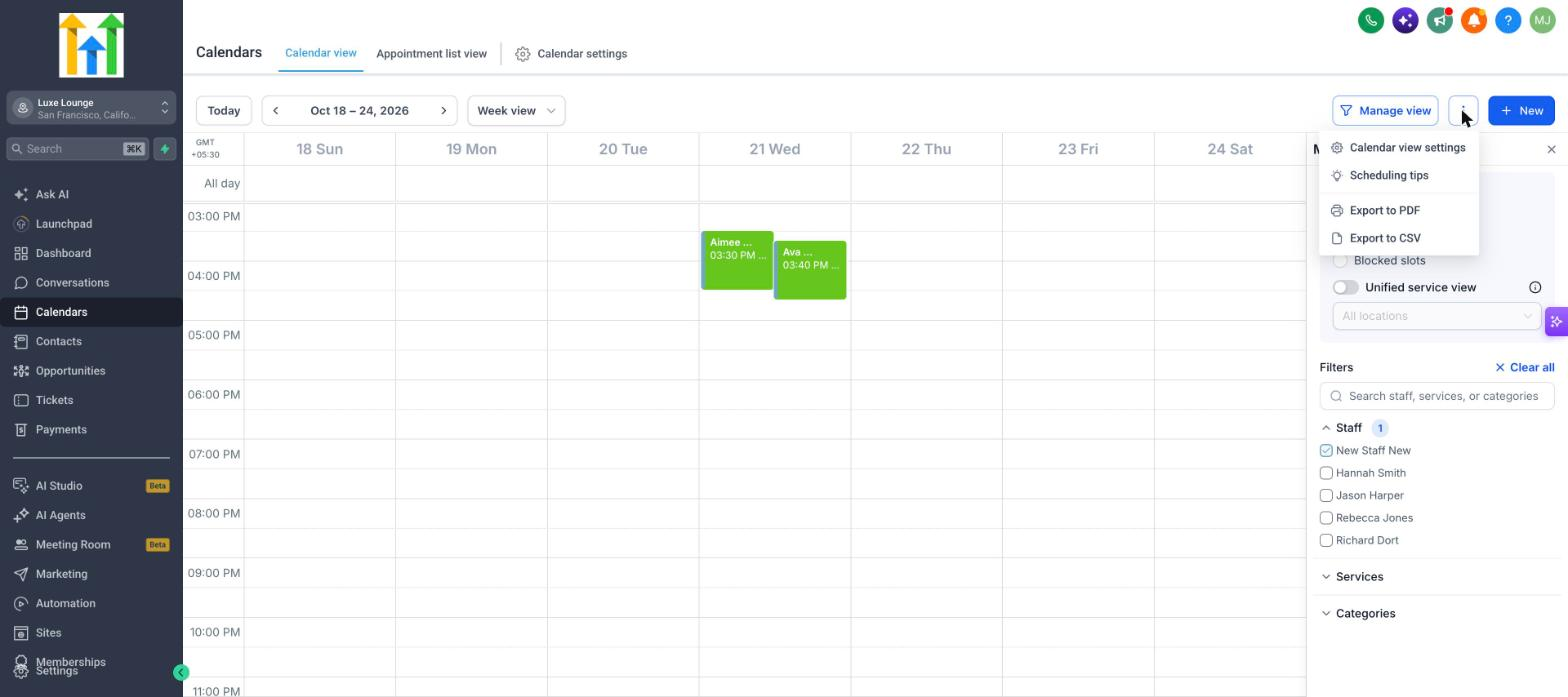
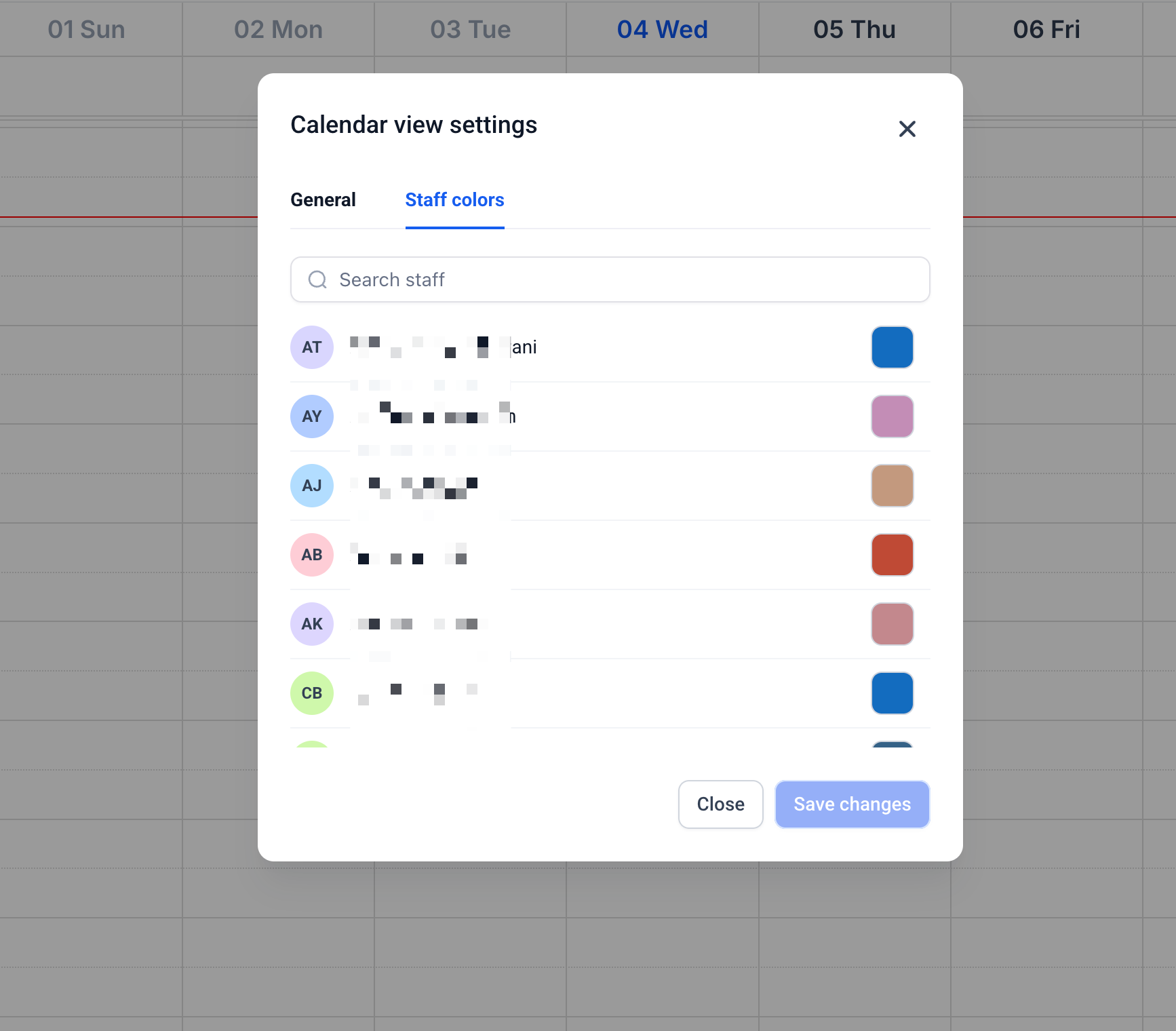
The feature lives in the Calendars section under Calendar view. A More options (⋮) menu provides access to Calendar view settings, where the General tab holds display controls and the Staff colors tab lets admins set colors for each staff member. Changes affect only how information is shown; they do not modify booking rules, availability, or customer facing pages.
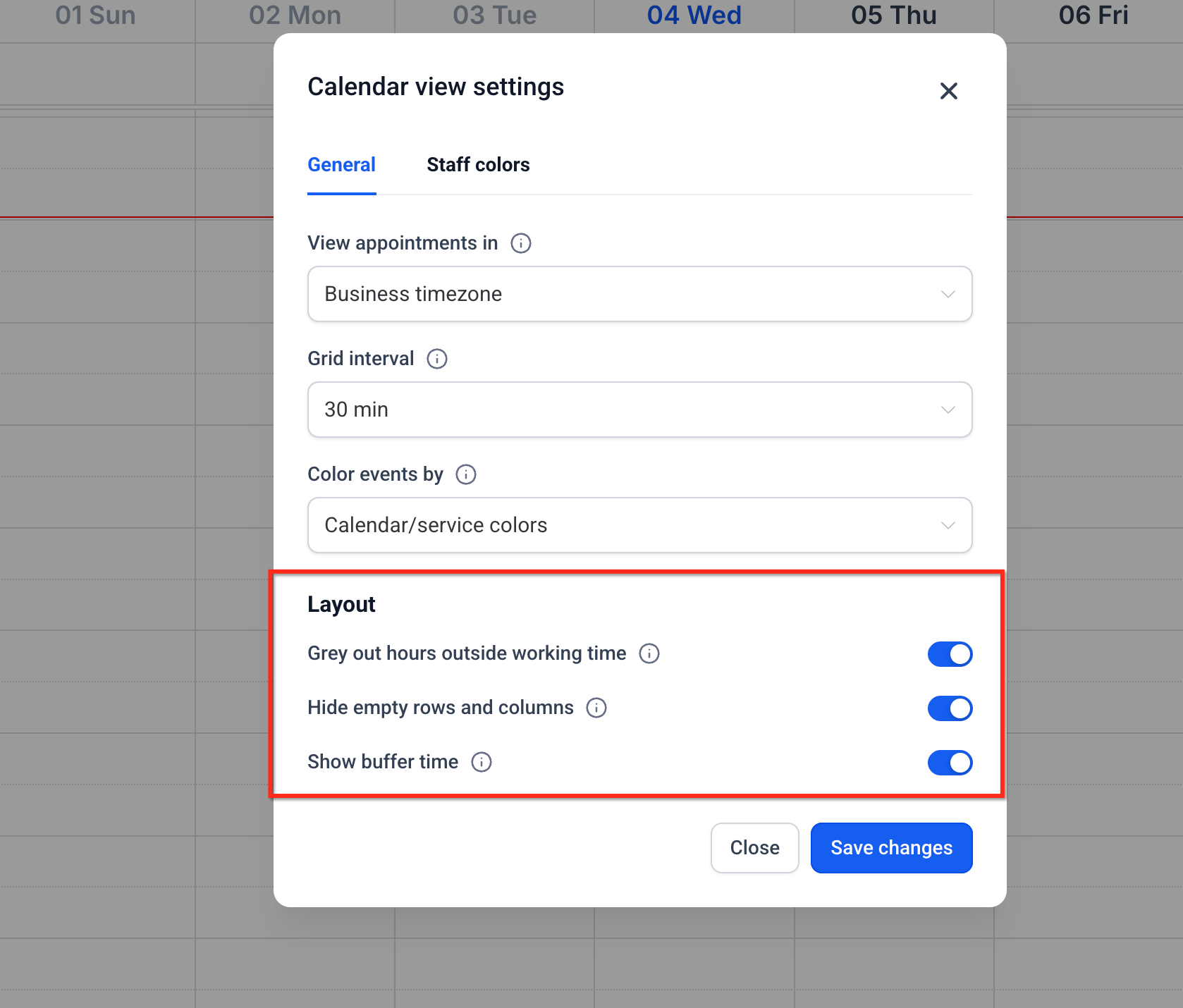
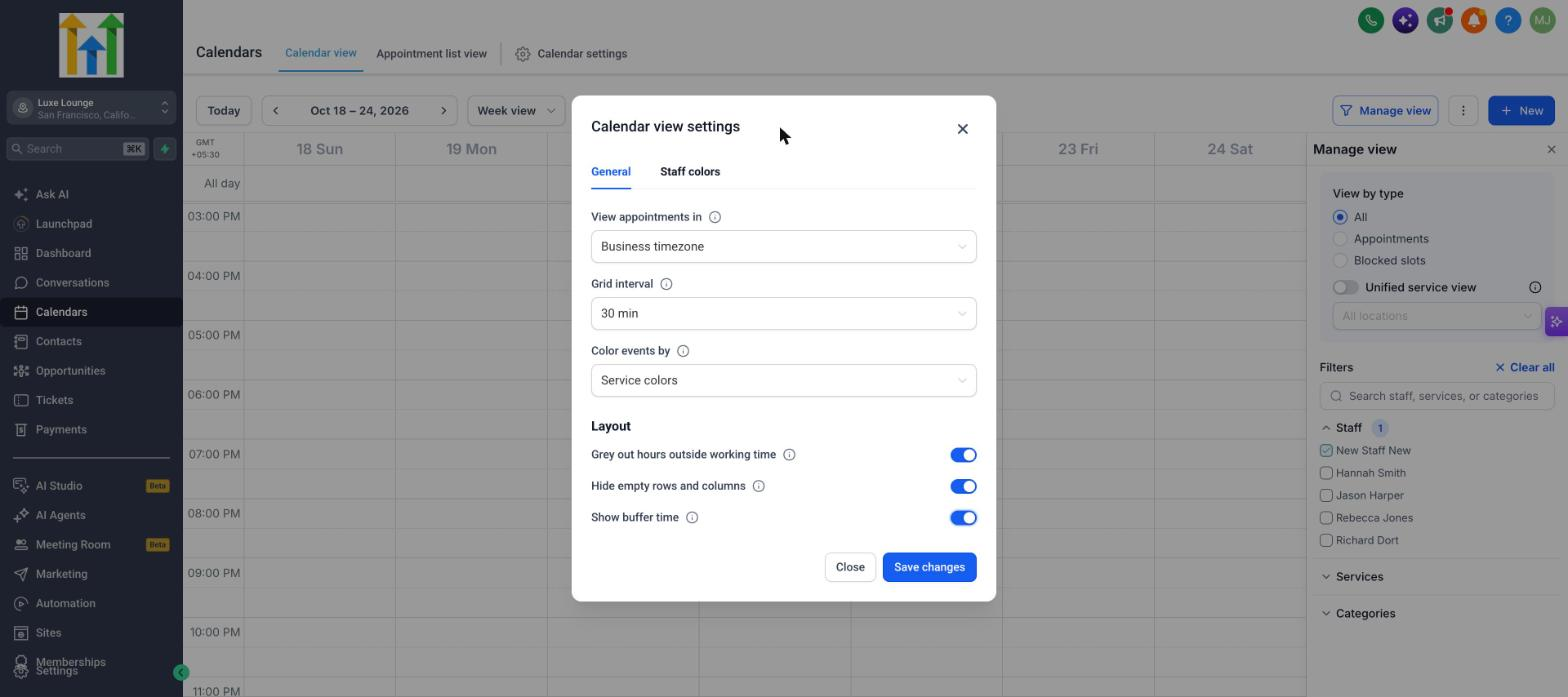
The General tab includes timezone selection, grid interval choices of 15, 30, or 60 minutes, event color preferences, shading of non working hours, hiding of empty rows and columns, and the option to show or hide buffer blocks. Each user’s selections are saved independently. Admins can use the Staff colors tab to define a unique color for any staff member, and those colors are applied for all users.
03How businesses use calendar view settings
- Dental practice. Set the calendar to display appointments in the practice timezone and choose a 15 minute grid for detailed scheduling. Hide empty rows so only active dentists appear, making the daily view easier to read.
- Sales consulting firm. Select staff colors as the main event color to right away identify which consultant owns each meeting. Enable shading of hours outside working time to spot available slots at a glance.
- Event venue manager. Apply a date range and filters, then export the view to CSV for import into a spreadsheet. Use the PDF export to create a visual weekly schedule that can be printed and shared with staff.
04The numbers and rules that matter
- Default grid interval options: 15-, 30-, 60 minute intervals.
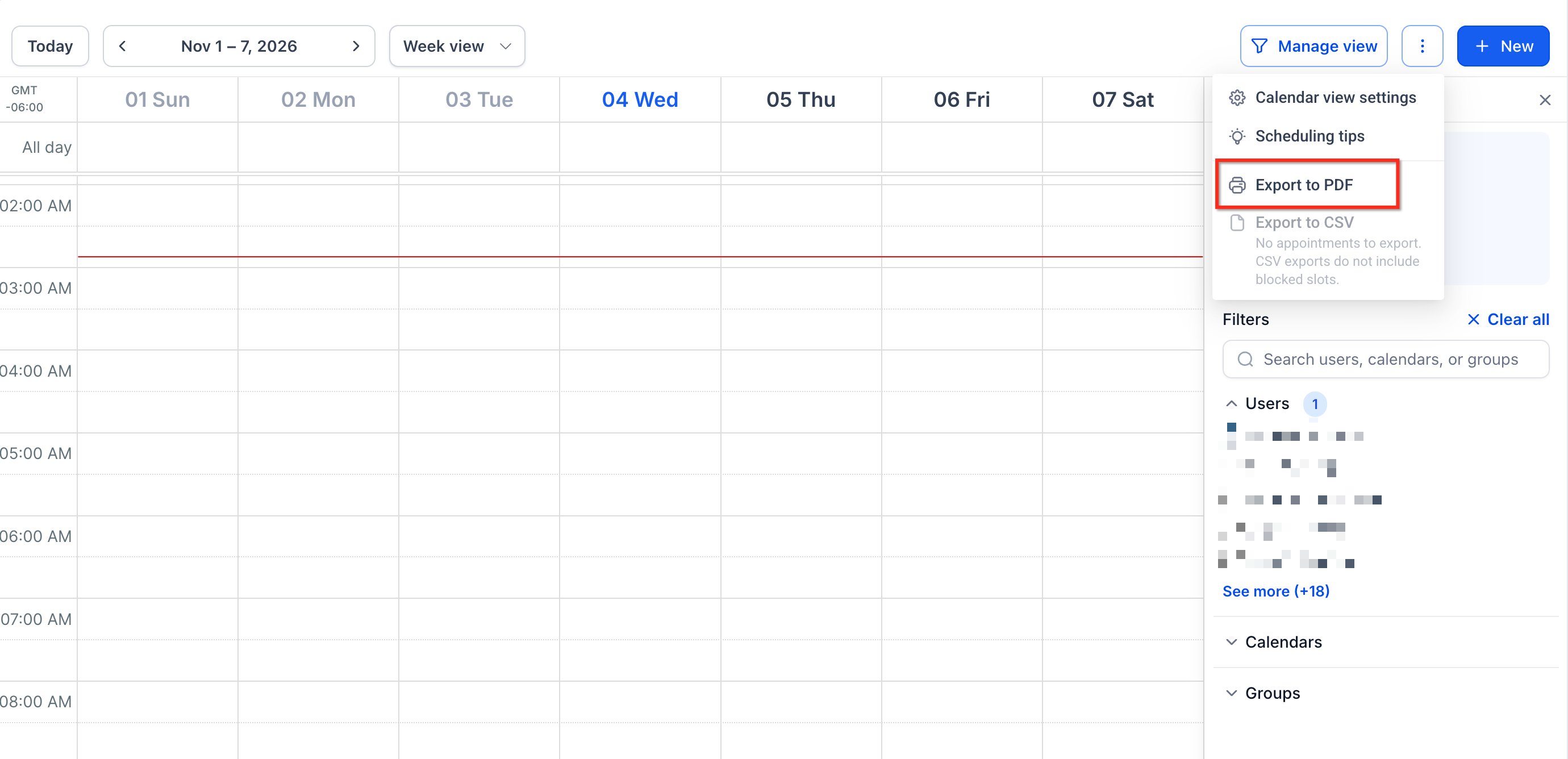
- PDF export supports up to seven selected resources in Day view.
05Before you start
- User must be logged into the HighLevel platform and have access to the Calendars > Calendar view screen.
- Only administrators can assign staff colors; non admin users must have admin rights to see the Staff colors tab.
06How to set up and use calendar view settings in HighLevel
Set up calendar view settings
- Navigate to Calendars > Calendar view.
- Click More options (⋮) next to Manage view.
- Select Calendar view settings.
- Under the General tab, choose your preferred timezone.
- Choose the default grid interval you want.
- Select the event color preference for the calendar.
- Enable or disable working hours shading, empty rows and columns, and buffer visibility, then click Save changes.
Export to PDF
- Navigate to Calendars > Calendar view.
- Select the desired date range and any filters.
- Click More options (⋮) next to Manage view.
- Select Export to PDF.
Export to CSV
- Open Calendars > Calendar view.
- Apply the desired date range and filters.
- Click More options (⋮).
- Select Export to CSV.
Assign staff colors (admins only)
- Open Calendar view settings.
- Select the Staff colors tab.
- Search for a staff member or scroll through the list.
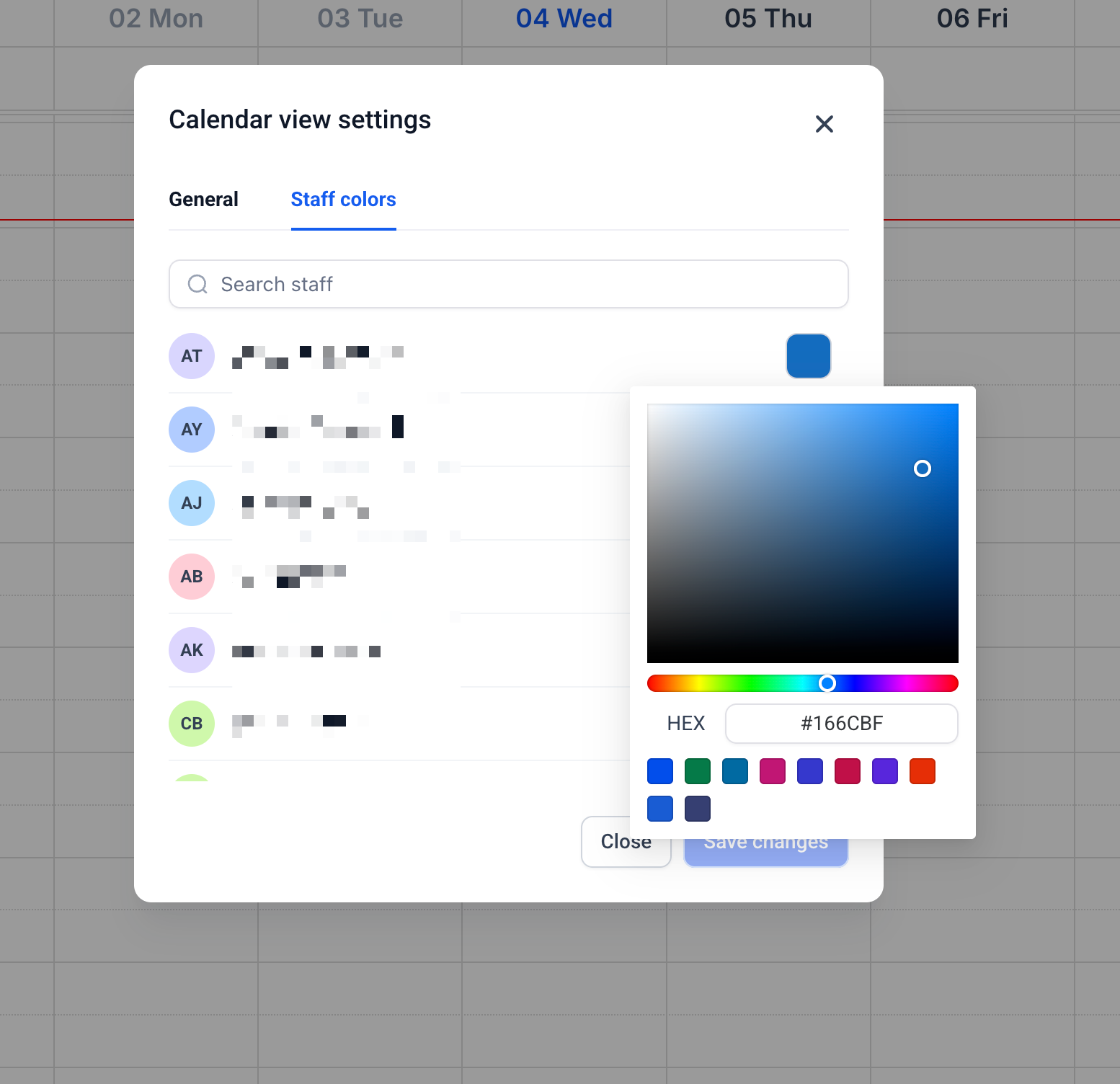
- Click the color swatch and choose a color using the picker, presets, or HEX value.
- Click Save changes.
07What it looks like in HighLevel
08Settings that matter
- View appointments in. Controls which timezone is used to display appointment times for the user.
- Default grid interval. Sets the minute spacing for each row in Day and Week views, with options of 15, 30, or 60 minutes.
- Color events by. Determines whether the main tile color reflects the calendar/service color or the staff member’s color.
- Grey out hours outside working time. Shades periods when staff are not scheduled to work, helping identify active working hours.
- Hide empty rows and columns. Removes staff or resource lanes that have no scheduled events in Day view.
- Show buffer time. Shows or hides the visual blocks that represent pre and post appointment buffers.
- Staff colors. Allows admins to assign a specific color to each staff member, which then appears on appointment tiles for all users.
09Things to know before you rely on it
- PDF export in Day view supports up to seven selected resources to keep the layout readable.
- CSV export is unavailable when the current view contains no appointments.
- The Grey out hours setting works only when the Users filter is applied and in supported views (Day view for multiple staff, Week view for a single staff).
- Hide empty rows and columns functions only in Day view.
- Show buffer time affects only the visual display; it does not modify the underlying buffer settings.
- Staff colors can be edited only by users with admin permissions.
10If something goes wrong
- Cannot see the Staff colors tab. Verify that the logged in user has admin privileges.
- Non working hours are not shaded. Make sure shading is enabled and that the Users filter is applied; use Day view for multiple staff or Week view for a single staff member.
- Staff columns are missing in Day view. Check whether Hide empty rows and columns is turned on; disabling it will show all staff lanes.
- Export to CSV option is disabled. Ensure the current calendar view contains at least one appointment.
- Blocked slots do not appear in CSV export. Blocked slots are excluded by design; only appointments are exported.
11How it connects to the rest of HighLevel
- Learn how to embed a HighLevel calendar on your website using HTML code. Embed calendar
- Find out how to add guests to calendar bookings. Add guests
- Review user permissions for accessing and editing calendars. User permissions
- Start a 30 day trial of HighLevel to test calendar customizations. 30 day trial
- See the pricing and plan options for HighLevel. Pricing
Michael's take

When you need to juggle multiple staff schedules or shift between timezones, the visual tweaks may make it easier to view information. A clear layout can help you see conflicts, and the one click exports let you share a snapshot with a client or accountant.
If your team runs on a simple schedule and you rarely need to filter or export, the extra steps to set colors and grid intervals may feel like overhead. The feature doesn’t affect booking rules, so it won’t help if you’re looking to change availability or automate buffer handling.