
01Who this is for
- Agency owners, need to restrict staff access so only required calendar functions are available.
- Customer service managers, benefit from allowing agents to view bookings without the ability to alter schedules.
- Service providers, require control over who can create, edit, or delete appointments and resources.
02User permissions in calendars, explained
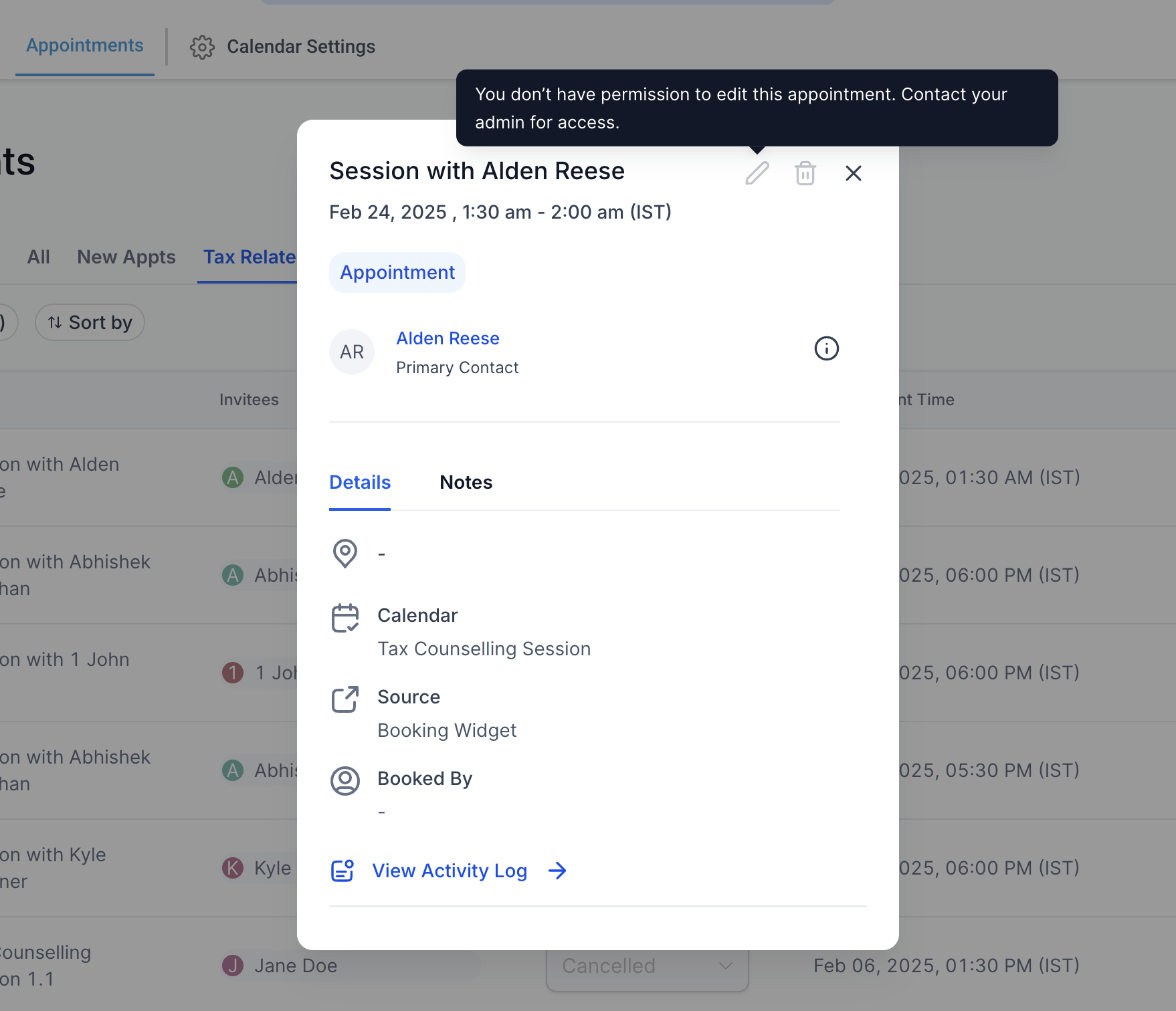
HighLevel distinguishes between view rights, which let a user see specific calendar components, and manage rights, which allow creating, editing, or removing those components. An optional Assigned Data toggle further narrows visibility to items a user is directly assigned to or follows.
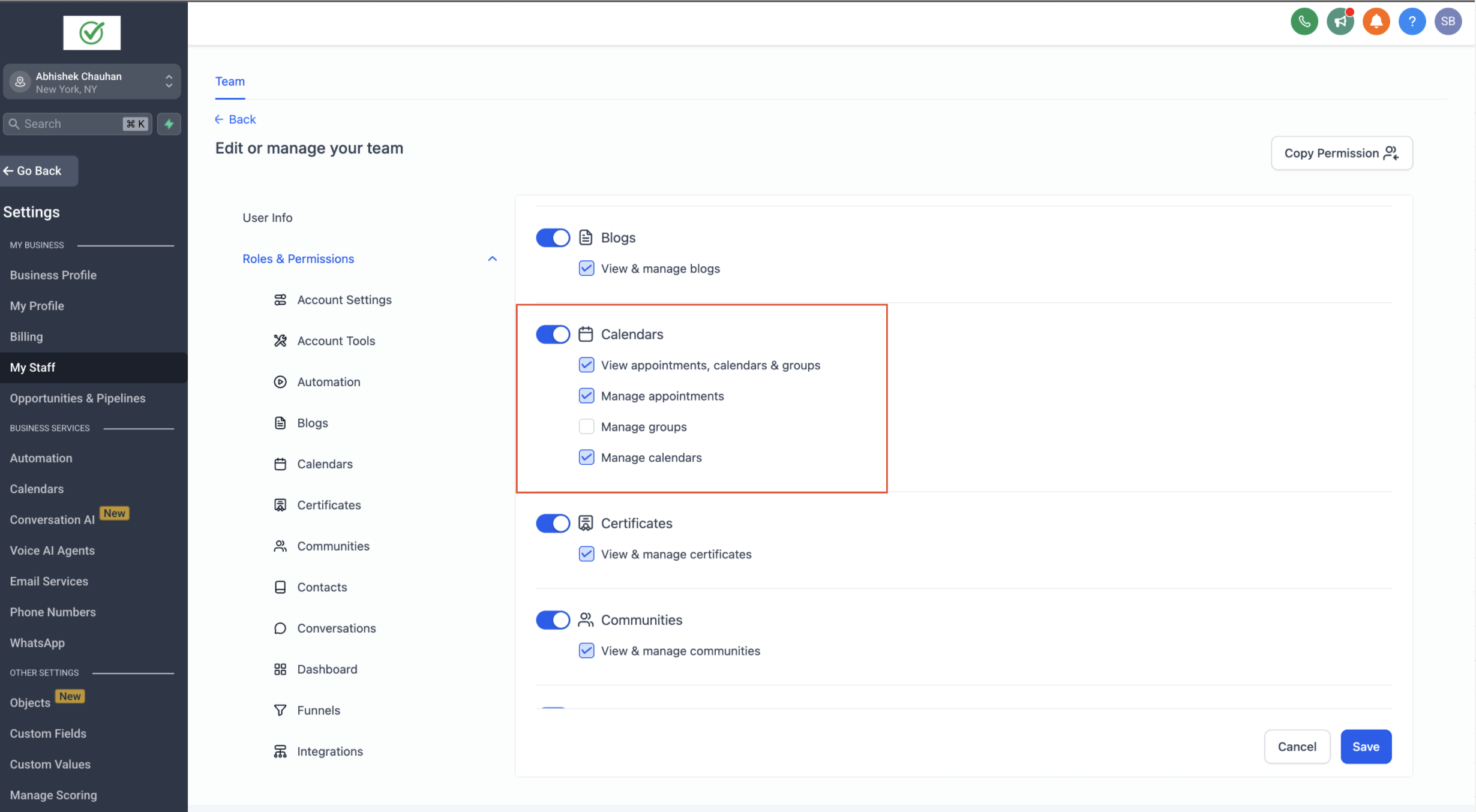
Permissions are set within the Roles & Permissions area. Administrators select a team member, open the Calendars section, and toggle the needed view and manage options for meetings, services, rentals, groups, resources, and global settings. Changes are saved with a single button press.
03How businesses use user permissions in calendars
- Medical clinic. The clinic can grant front desk staff view only access to patient appointment calendars while preventing them from changing service listings. In HighLevel the admin selects the staff member, opens Roles & Permissions, chooses Calendars, enables View Calendars and disables all Manage options.
- Real estate agency. Agents can be allowed to manage property showing bookings without altering calendar groups or resource settings. The admin assigns Manage appointments while leaving Manage groups/categories and Manage associated resources unchecked.
- Fitness studio. Trainers receive Assigned Data enabled and view permission for calendars, so they only see classes they are assigned to. The admin turns on Assigned Data for the trainer, then enables View Calendars.
04How to set up and use user permissions in calendars in HighLevel
Configure permissions in Agency View
- Open Agency View.
- Go to Settings then Team.
- Pick the team member whose rights need adjustment.
- Open the Roles & Permissions screen.
- Select the Calendars tab.
- Adjust the required view and manage checkboxes.
- Press Save to apply the changes.
Configure permissions in Subaccount View
- Enter the targeted subaccount.
- Navigate to Settings followed by My Staff.
- Choose the staff member to edit.
- Open Roles & Permissions.
- Click on Calendars.
- Set the appropriate view and manage options.
- Click Save to confirm.
05What it looks like in HighLevel
06Settings that matter
- View Calendars. Allows the user to see the Meetings, Services and Rentals sections of the scheduling module.
- Manage Calendars setup. Lets the user create, edit or delete calendar configurations, service definitions and rental listings.
- Manage appointments. Grants rights to add, modify or remove appointments across all scheduling types.
- Manage groups/categories. Enables editing of meeting groups, service categories and rental categories.
- Manage associated resources. Provides control over linked items such as locations, staff members, equipment and add ons.
- Manage preferences & global settings. Allows adjustment of module level preferences and overall calendar settings.
- Assigned Data. When turned on, the user sees only appointments and calendars they are assigned to, plus any followed contacts they have permission to view.
07How it connects to the rest of HighLevel
- All Calendars & Appointments features Calendars overview
- How to embed a HighLevel calendar with HTML code Embed calendar
- HighLevel pricing and plans Pricing details
Michael's take

When a team starts to grow, the chaos of who can change what in the scheduler becomes a real problem. Getting the right people to see the right bookings without letting them tamper with the whole calendar is what this feature solves.
The first thing I would set straight is the Assigned Data toggle for anyone who only needs to work on their own bookings. It keeps the view focused and stops accidental changes elsewhere.