
01Who this is for
- Founders of service based businesses who need reliable appointment booking for their clients.
- Office managers who oversee multiple staff calendars and must ensure each user has proper availability.
- Tech savvy marketers who integrate Google or Outlook calendars and want to keep sync errors visible.
02Troubleshooting tool for calendar, explained
The tool is built into the platform and appears under each calendar’s settings. It scans the calendar’s availability, integration status and user assignments, then marks time slots that cannot be booked.
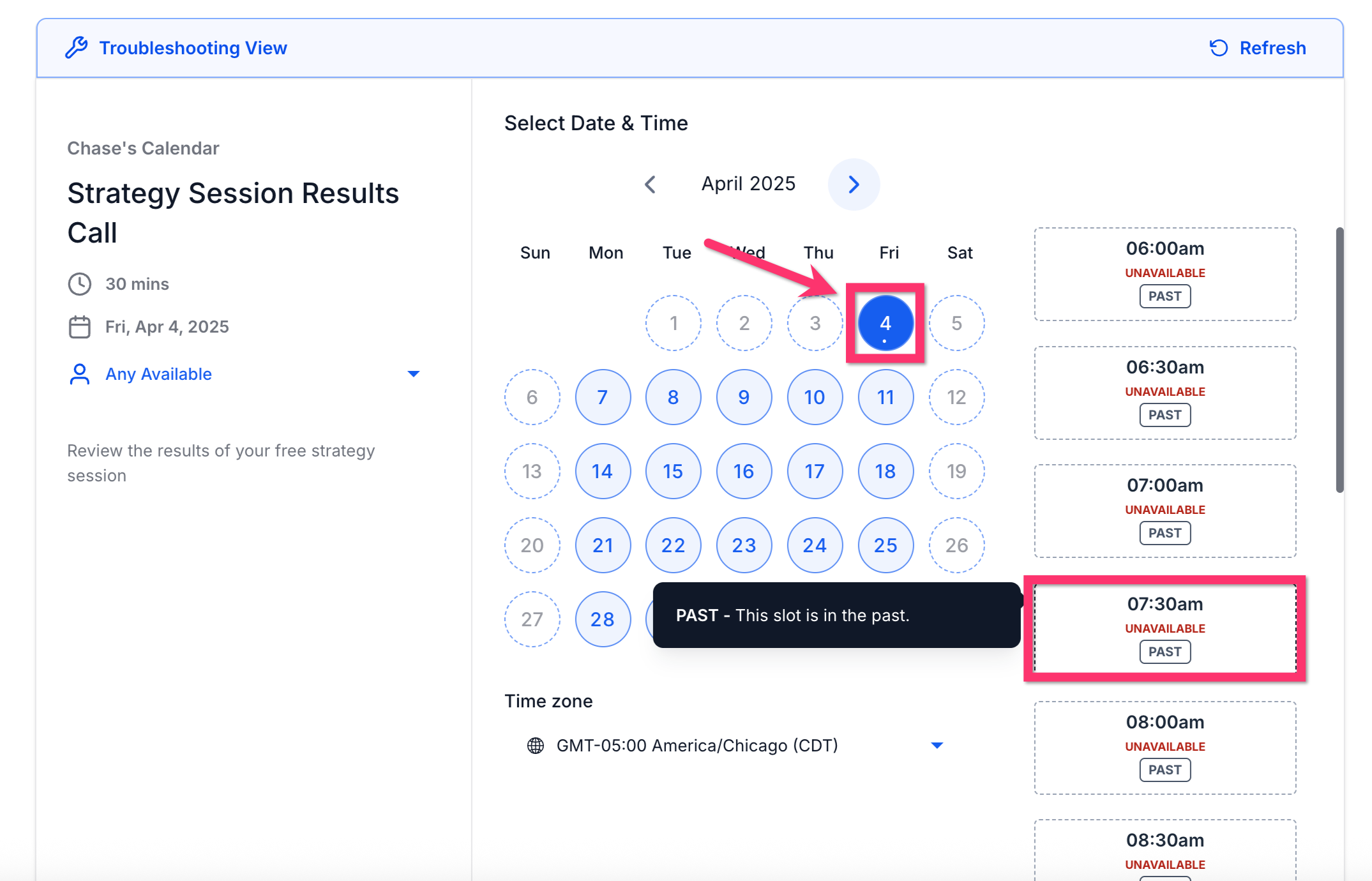
When you hover over a blocked slot, a tooltip shows a status code such as USER, CONFLICT or BLOCKED, explaining why the time is unavailable. The view respects the logged in user’s timezone.
The diagnostic feature works for individual, team and round robin calendars, highlighting issues like missing working hours, disconnected accounts or revoked permission scopes.
03How businesses use troubleshooting tool for calendar
- Dental practice. The practice opens the calendar settings for each dentist, runs the troubleshooting tool and sees if any time blocks are marked as unavailable because a dentist has no defined working hours. They then edit the Availability tab to add the correct time ranges.
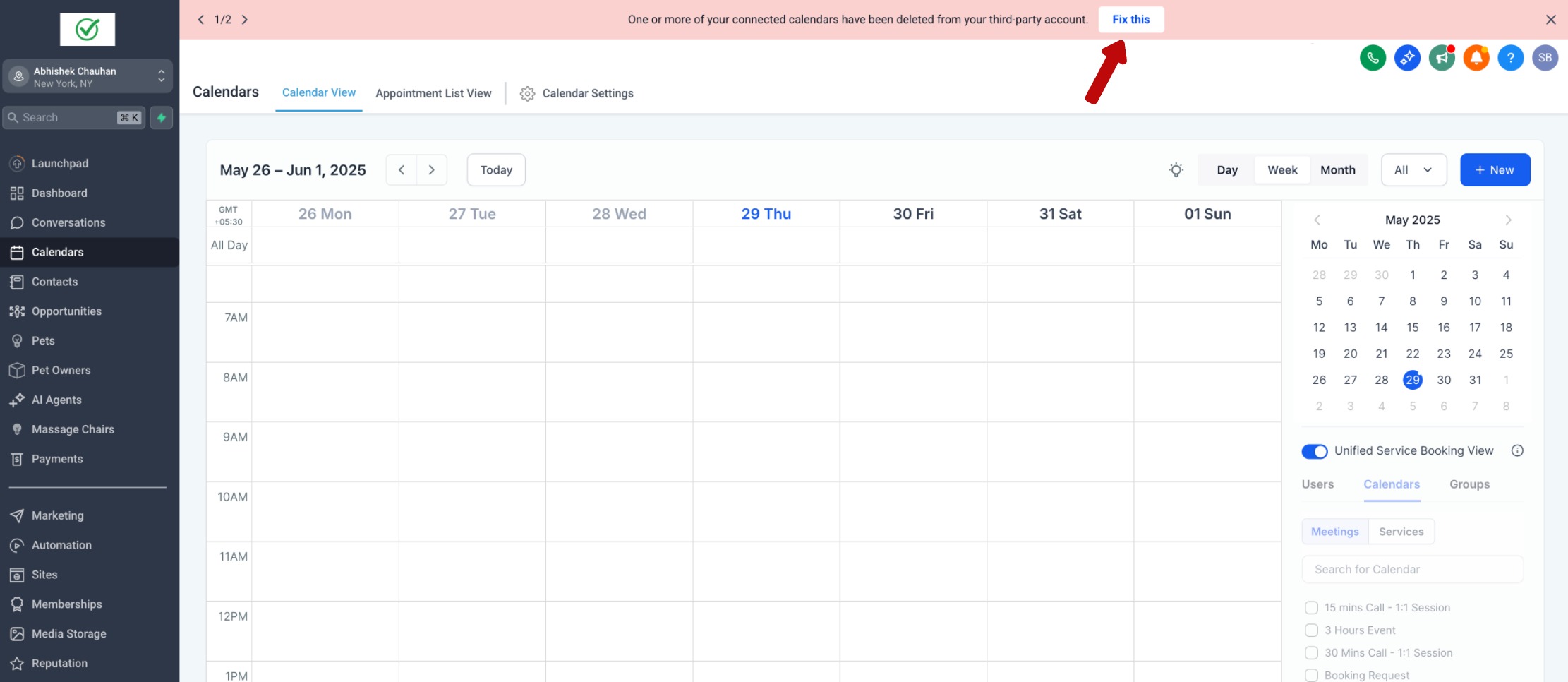
- Real estate agency. Agents check the integration status of their Outlook calendars through the Connections view. If an account shows disconnected, they use the tool to locate the broken link, click Fix This and remove the deleted calendar before reconnecting a valid one.
- Online coaching business. Coaches verify that all required permission scopes are granted for their Google calendars. They navigate to My Staff, edit each coach’s Calendar Configuration and confirm the scopes, ensuring bookings can sync without permission errors.
04How to set up and use troubleshooting tool for calendar in HighLevel
Open the calendar troubleshooting interface
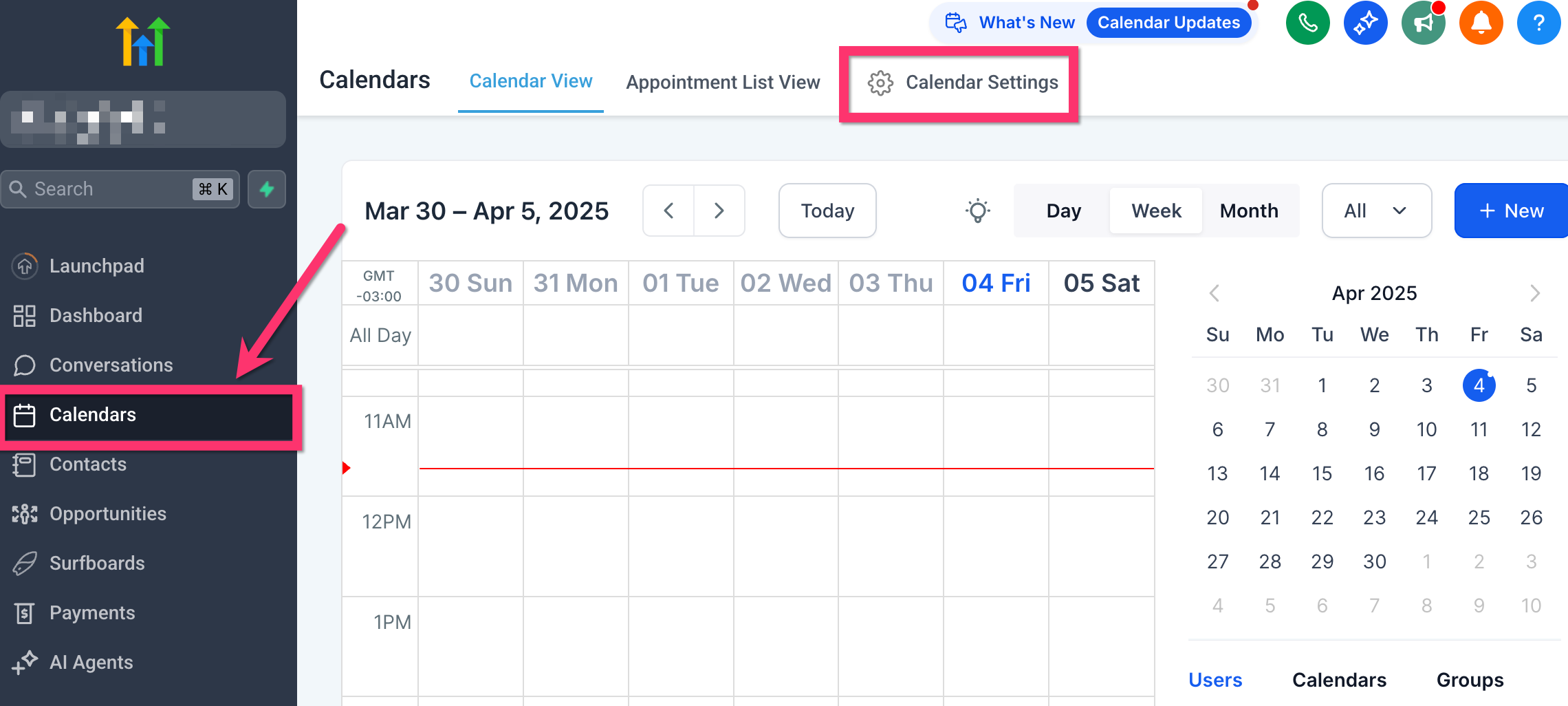
- Navigate to Settings > Calendars.
- Click Calendar Settings at the top of the page.
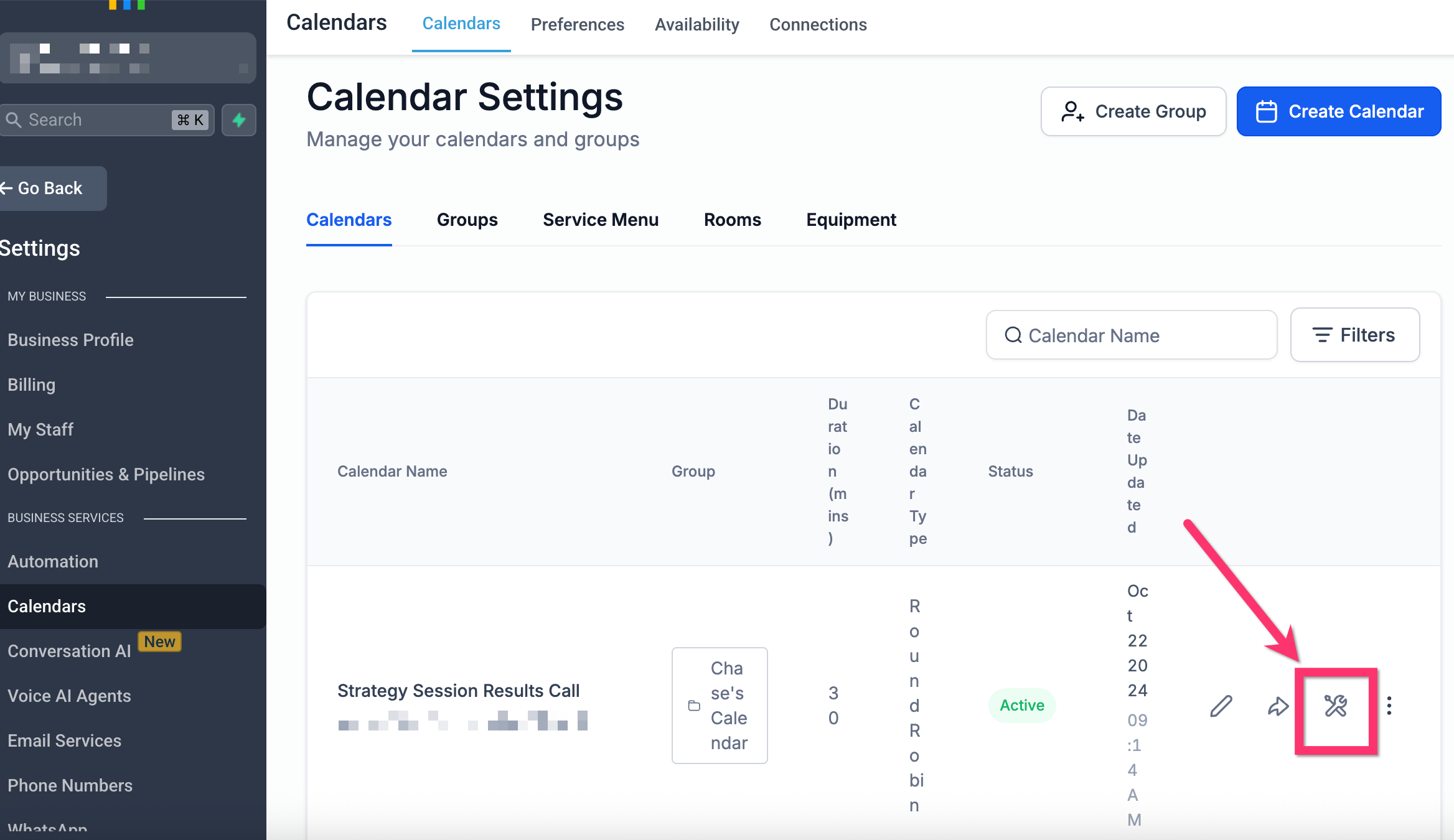
- Find the calendar you want to troubleshoot and click the wrench icon next to it.
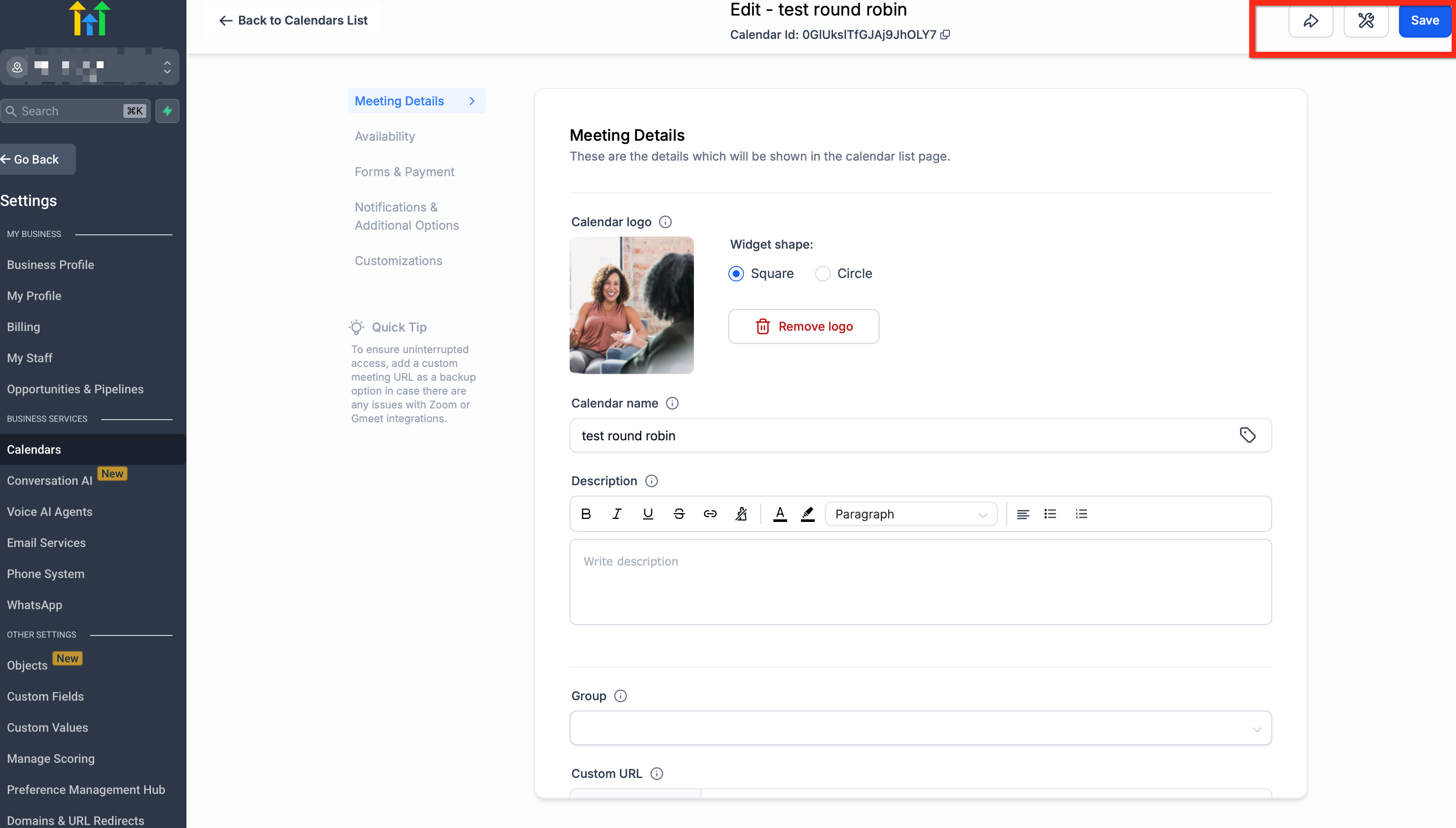
- In the calendar editor, click the Troubleshoot Calendar button in the top right header.
Verify that the external calendar is properly linked
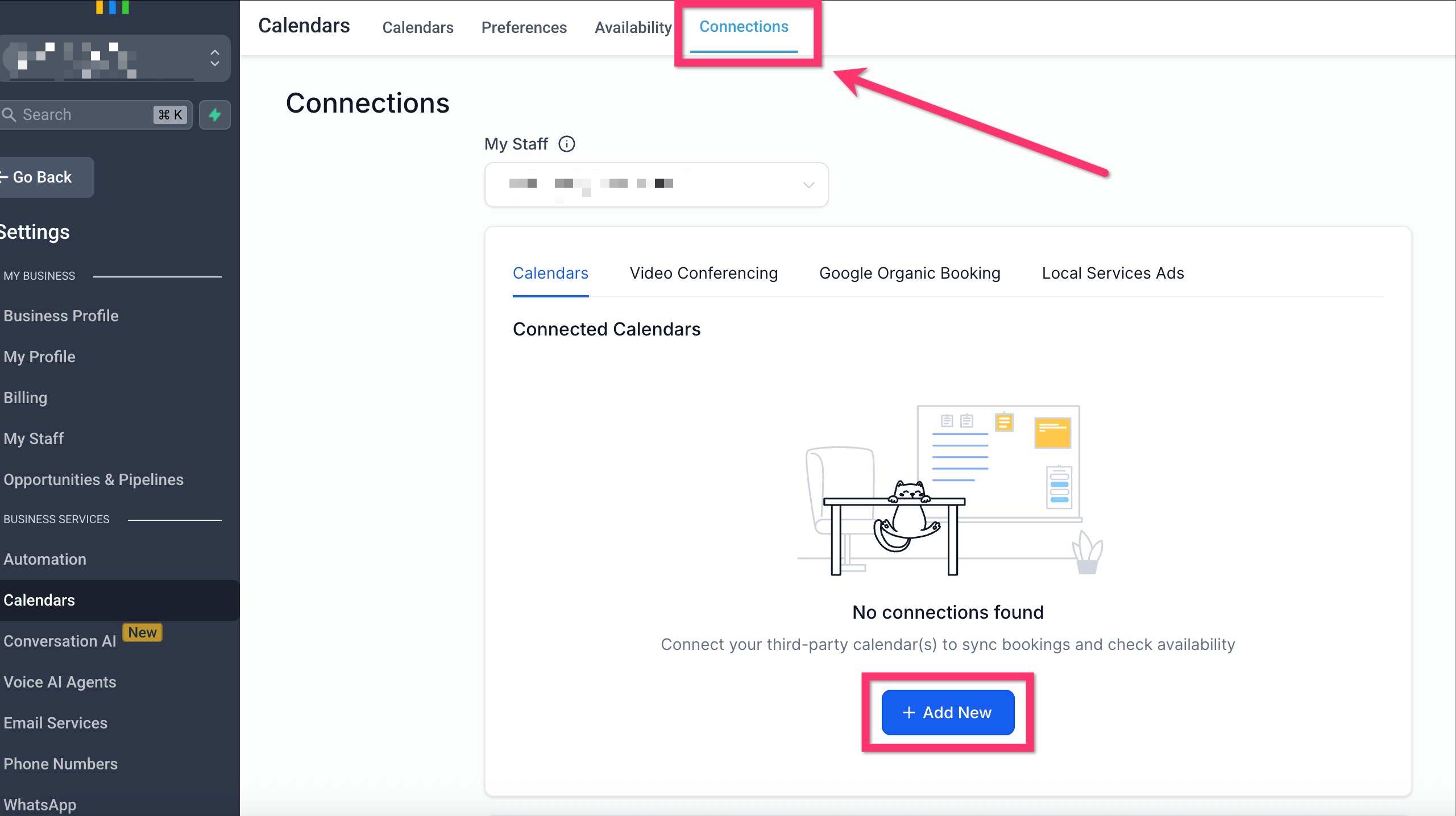
- Open Settings > Calendars > Connections.
- Confirm the Google or Outlook entry shows "Connected".
- If it is not connected, reconnect and select the appropriate calendar.
Clear broken links caused by deleted provider calendars
- In Settings, go to Calendars and open the Connections tab.
- Click the Fix This button.
- Review the modal list that shows each deleted calendar and its HighLevel connections.
- Click Remove Deleted Calendars to delete all broken links at once.
- Reconnect a valid calendar or reselect one if needed.
Adjust staff member availability so slots become bookable
- Navigate to Calendars > Calendar Settings.
- Locate the calendar assigned to the staff member and click Edit.
- Open the Availability tab inside that calendar.
- Add or modify time blocks for the relevant days.
Confirm required permission scopes for external calendars
- Go to Settings > My Staff.
- Select the staff member, then choose Edit > Calendar Configuration.
- In the left ribbon, click Calendar and verify that all required permission scopes are granted.
Identify why a specific time slot is unavailable
- Select a date on the calendar grid in the troubleshooting tool.
- Hover over an unavailable time slot to view the reason in a tooltip.
05What it looks like in HighLevel
06Settings that matter
- Calendar Settings. Controls overall calendar configuration, including which calendar is being edited and access to the troubleshooting tool.
- Connections. Shows which external calendars (Google or Outlook) are linked and whether they are currently connected.
- Availability tab. Defines the time blocks during which a user is allowed to accept appointments.
- Permission scopes. Specifies the access rights required by Google or Outlook for calendar syncing and booking.
07Things to know before you rely on it
- The tool only reports calendar specific issues; automation or workflow errors are not displayed.
- Status codes are shown in the logged in user’s timezone, not the client’s timezone.
08How it connects to the rest of HighLevel
- Learn how to integrate Google Calendar with HighLevel. Google Calendar integration
- Set up Outlook calendar sync for HighLevel. Outlook sync guide
- Explore all calendars and appointments features. Calendars overview
Michael's take

I’d start by reviewing the calendar’s availability settings, then use the tool to hover over blocked slots and follow the tooltip information to address any sync or permission issues.