
01Who this is for
- Users who have connected a Google Calendar in HighLevel and need to restore syncing.
- Account owners who must perform the reconnection because the login as feature cannot be used.
02Google calendar reintegrations, explained
Re integration lets a user break the current Google calendar link and set it up again. The process removes the old connection, runs a new OAuth flow, and restores two way syncing. Once reconnected, any upcoming appointments created while the link was down are synced automatically, so no extra editing is required.
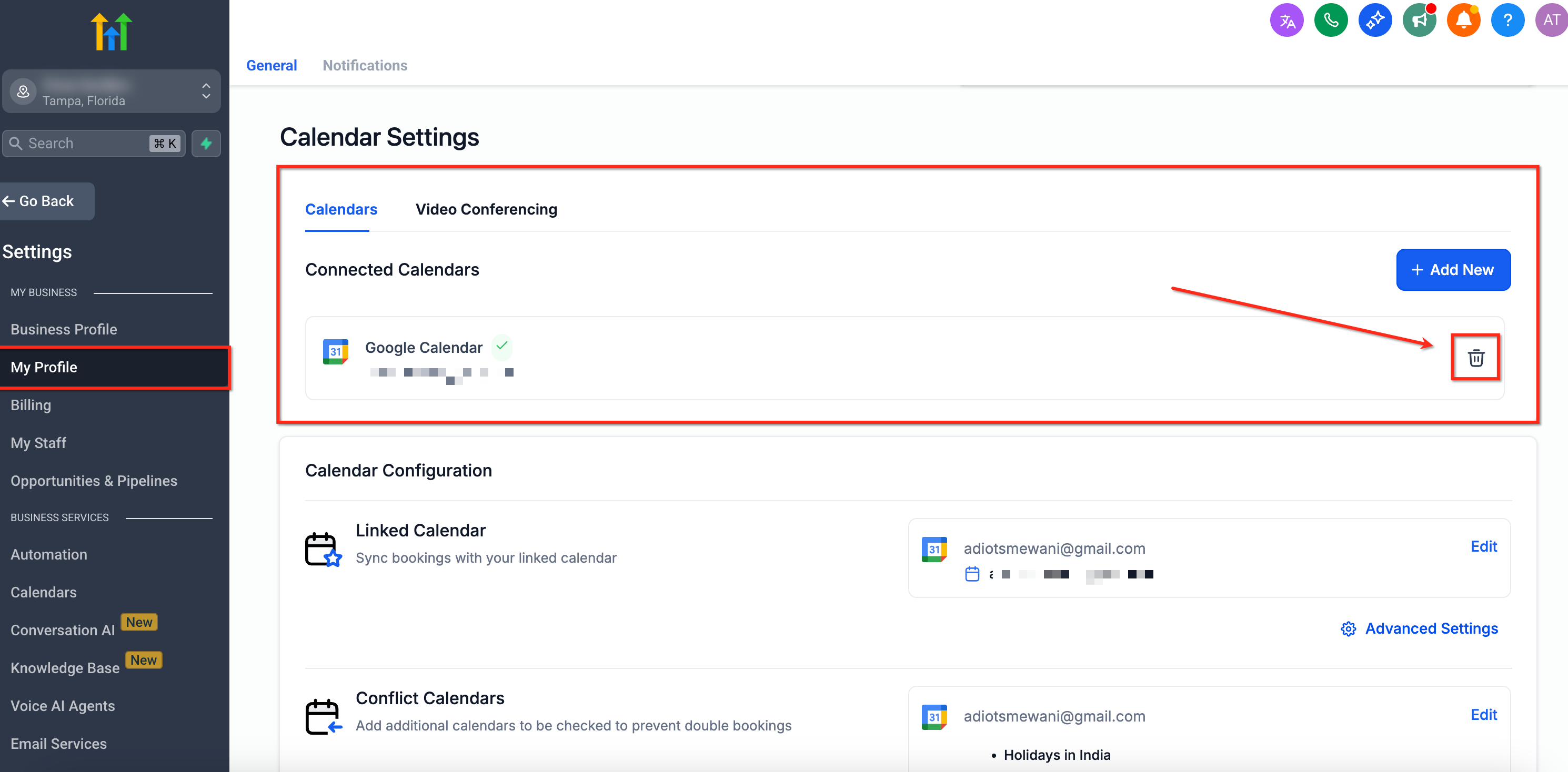
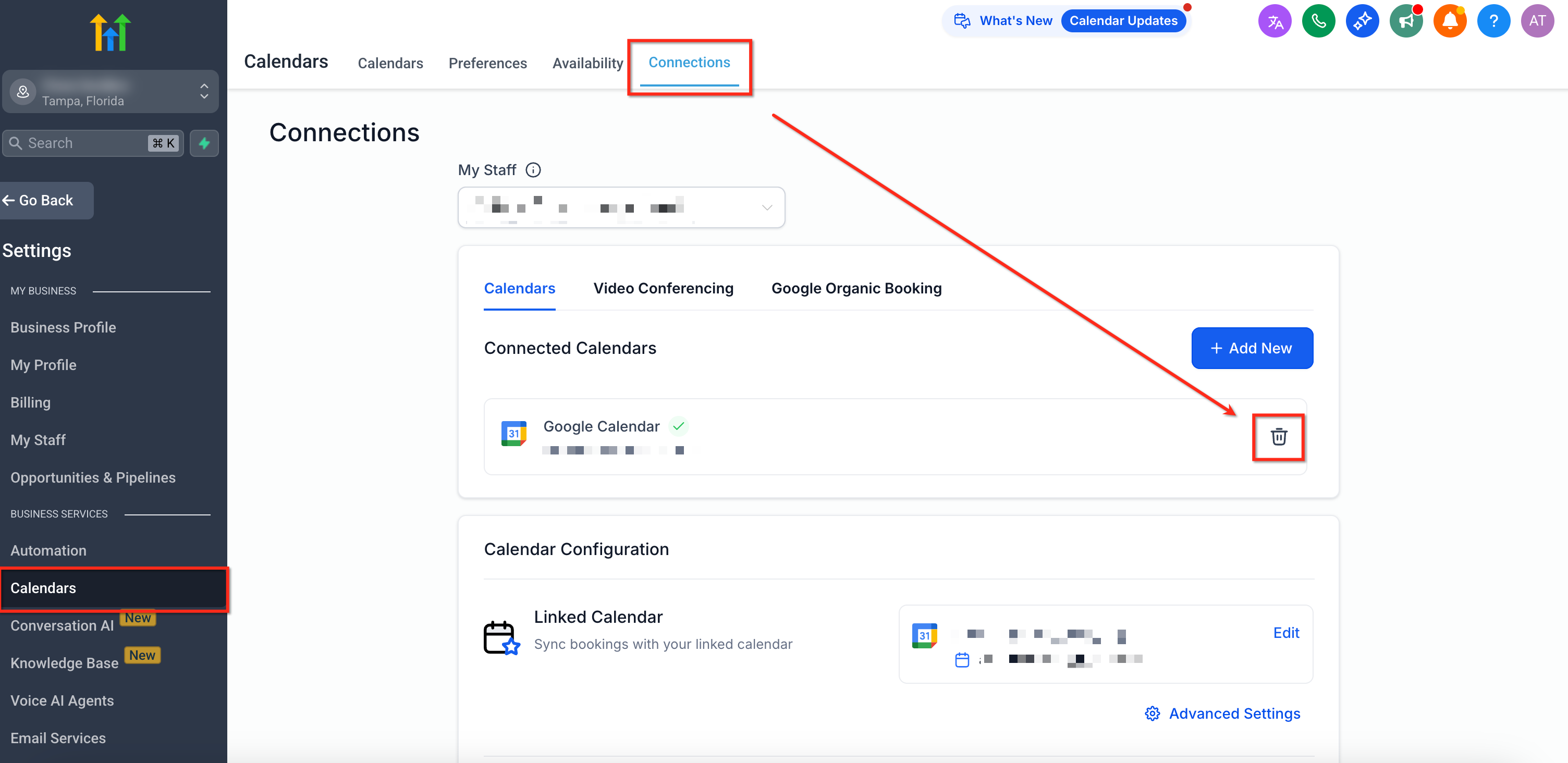
The feature lives inside the Settings area. A missing permissions warning can appear under Settings > Integrations > Google. Deleting or adding a calendar can be done from either the My Profile page under Calendar Settings or from Settings > Calendars > Connections.
After the new link is saved, HighLevel shows the calendar with an active sync status. Users can verify the connection by creating a test appointment and checking that it appears in both calendars.
03How businesses use Google calendar reintegration
- Service provider. The provider removes a stale Google calendar from the My Profile section, then uses the + Add New button to connect a fresh account. After reconnecting, they create a test appointment to confirm that the event shows up in Google and HighLevel.
- Team manager. The manager deletes the old calendar from the Connections tab, reconnects using the same steps in My Profile, and then schedules a meeting to verify that the event synchronizes across both platforms.
- Educator. The educator disconnects a calendar that lost permission, adds a new Google account via the Add New option, and checks syncing by booking a mock session.
04The numbers and rules that matter
- Only one primary calendar can be set per user.
05Before you start
- The user must log in with the Google account that owns the calendar; the platform does not support using the login as feature for this action.
06How to set up and use Google calendar reintegration in HighLevel
Delete the Google calendar
- Open Settings for the subaccount, select My Profile, go to Calendar Settings and click the bin icon next to the connected Google account.
- Open Settings, choose Calendars, go to the Connections tab, locate the connected calendar and click its bin icon.
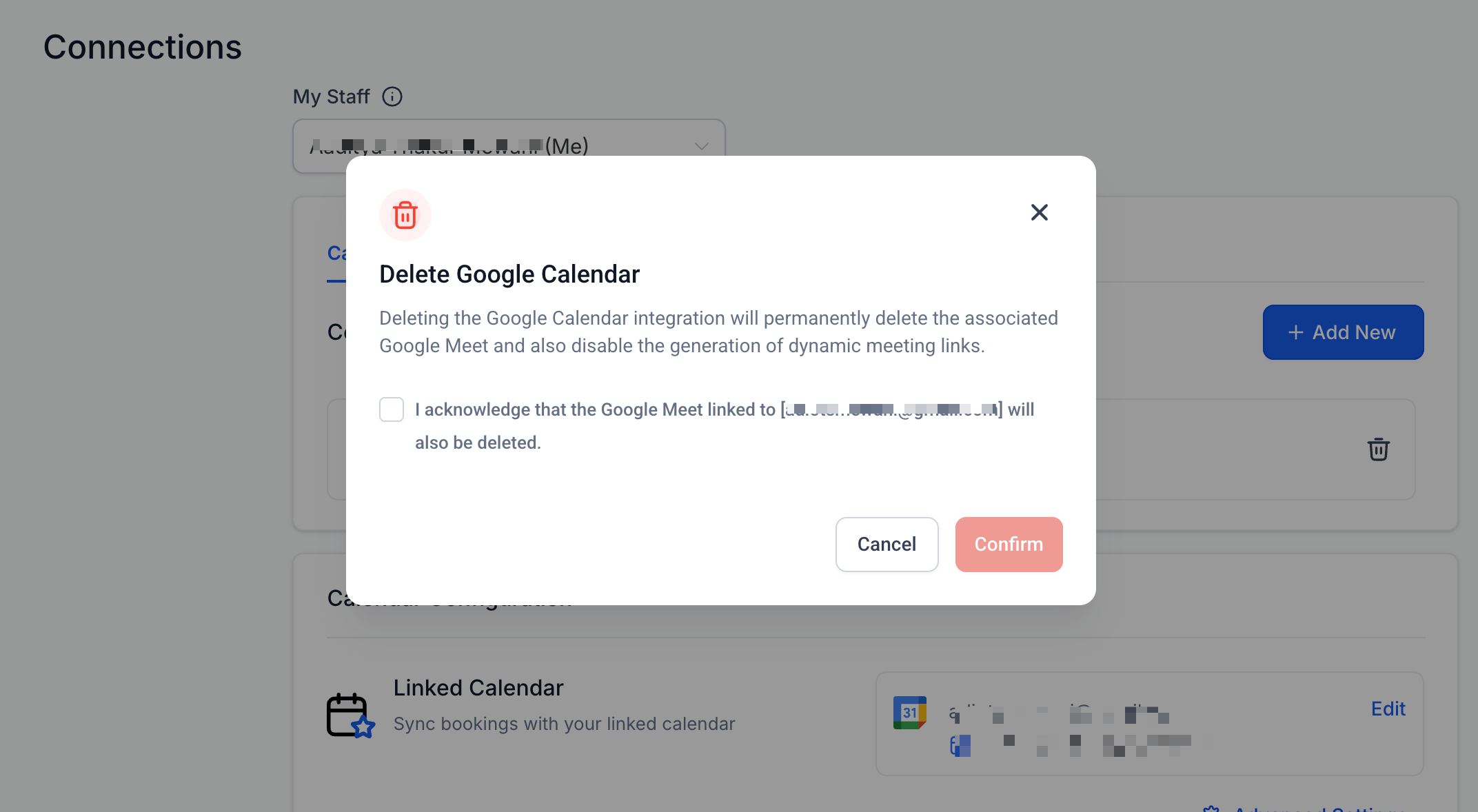
- Check the acknowledgement box in the pop up window and click Confirm.
Reintegrate Google calendar
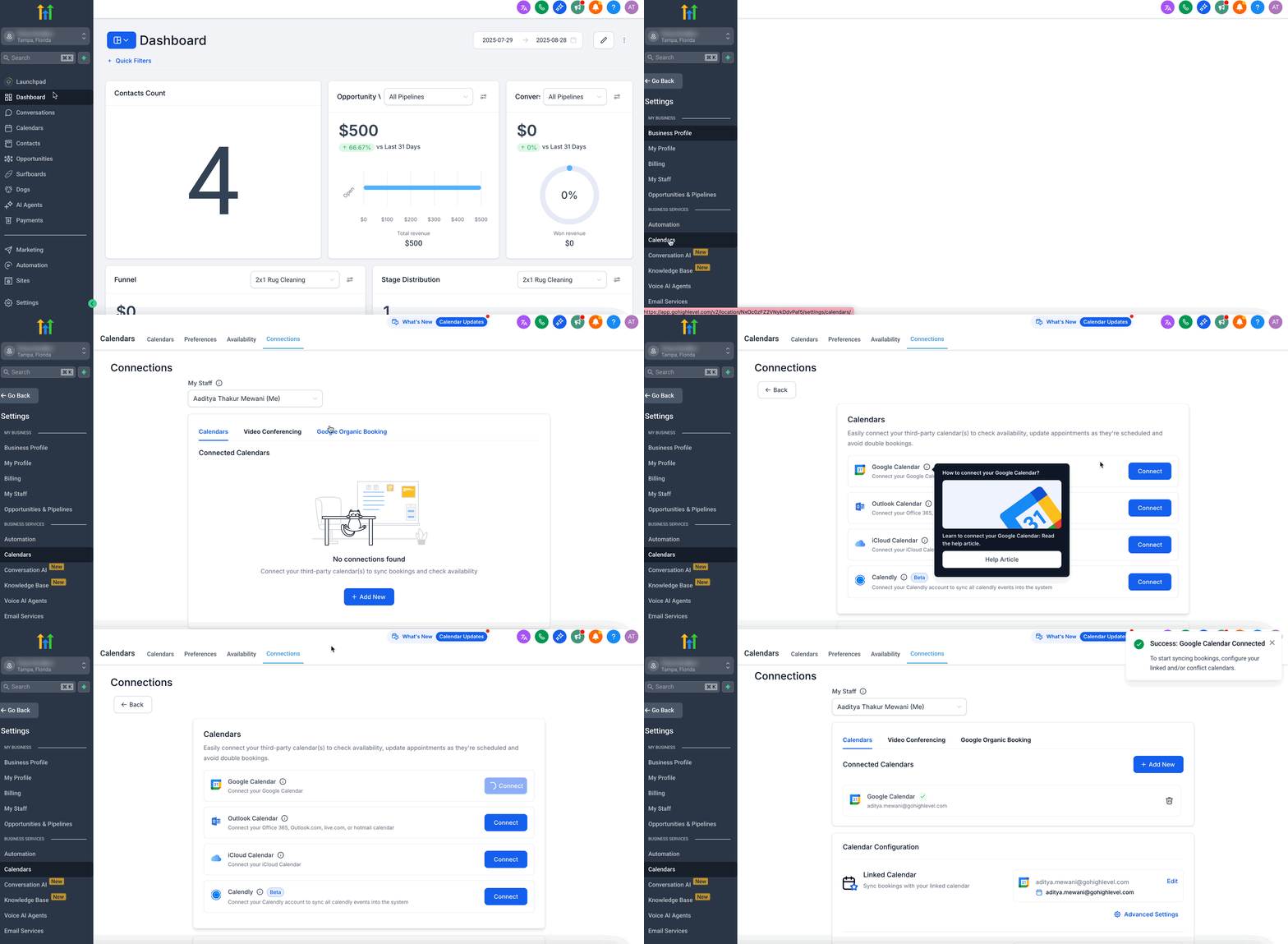
- Open Settings for the subaccount.
- Select My Profile from the Settings menu.
- In Calendar Settings click the + Add New button.
- Follow the OAuth prompts to authorize the desired Google account and complete the connection.
07What it looks like in HighLevel
08Things to know before you rely on it
- Only one primary calendar can be set per user; additional calendars are allowed but one will be primary.
- It is recommended to disconnect the existing integration before reconnecting to avoid sync conflicts.
- The login as feature cannot be used; the owner of the Google account must perform the reconnection.
09How it connects to the rest of HighLevel
- How to integrate Google Calendar with HighLevel Google integration guide
- Fixing Google calendar integration issues in HighLevel Integration issues
- How to use the troubleshooting tool for calendar in HighLevel Calendar troubleshooting tool
Michael's take

Sync problems can bring your booking workflow to a halt, especially when appointments disappear from the calendar view. Getting the Google connection back to a healthy state means sales, reminders and follow ups all line up again. The first setting I would lock in is the permissions check in Settings > Integrations > Google. Make sure the warning is cleared before you hit Reconnect so the OAuth flow can grant full access. That step lets the automatic sync pull in any missed appointments.