
01Who this is for
- Coaches who schedule multiple clients benefit because correct team assignments keep their availability visible.
- Event organizers need accurate capacity handling so each slot only blocks when it truly reaches its attendee limit.
- Service firms rely on proper working hour and buffer settings to ensure staff are bookable at the right times.
02Appointment time slots, explained
The calendar feature determines which appointment times are presented to clients on a public booking page. It evaluates weekly hours, date overrides, assigned users, slot duration, interval, post buffer periods, capacity limits, external calendar events and timezone settings.
The logic runs whenever the public calendar renders. If any element blocks a period, that time slot disappears. Updated capacity logic reduces a slot’s capacity by one for each overlapping confirmed appointment and only blocks the slot when its defined limit is reached. External events marked busy also remove availability.
All controls live inside the Calendar Settings area of HighLevel. From there you can edit the calendar’s name, type, group, availability, service details and launch the built in troubleshooting tool for a detailed breakdown of why a specific slot is hidden.
03How businesses use appointment time slots
- Event organizer. Set a maximum appointment limit for each slot to allow several attendees. The platform reduces the slot’s capacity as bookings are confirmed and only hides the slot when the limit is reached.
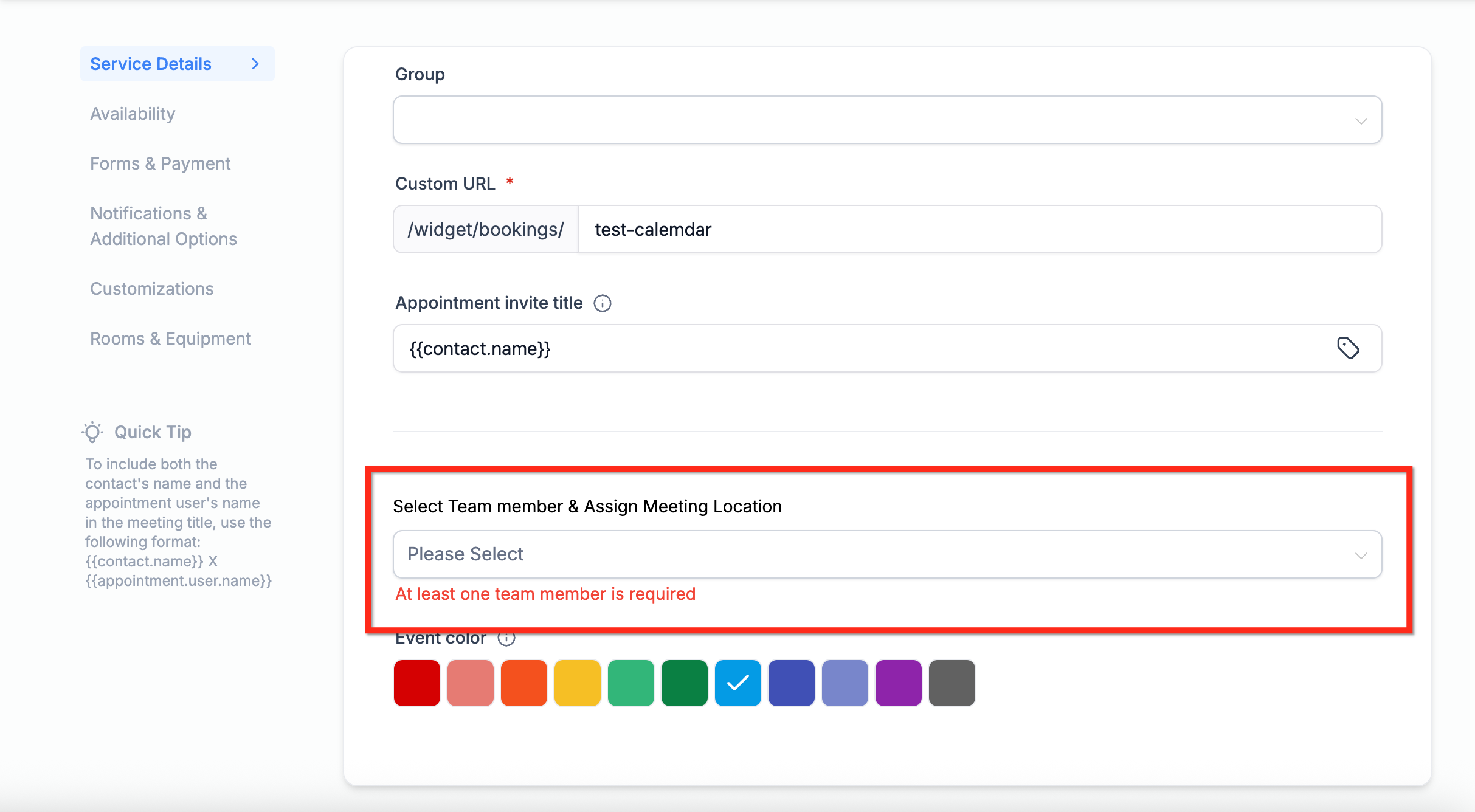
- Consulting service provider. Assign team members in Service Details and define weekly working hours. The calendar then shows only the times when at least one assigned consultant is available.
- Class instructor. Configure service duration, interval and post buffer times to space classes appropriately. The calendar prevents overlapping class times by applying the buffer before showing the next slot.
04The numbers and rules that matter
- Each confirmed appointment reduces slot capacity by 1.
- If an appointment overlaps multiple time slots, each affected slot’s capacity is reduced by 1.
- A slot is blocked only when its defined capacity limit is fully reached.
05How to set up and use appointment time slots in HighLevel
Confirm you are editing the correct calendar
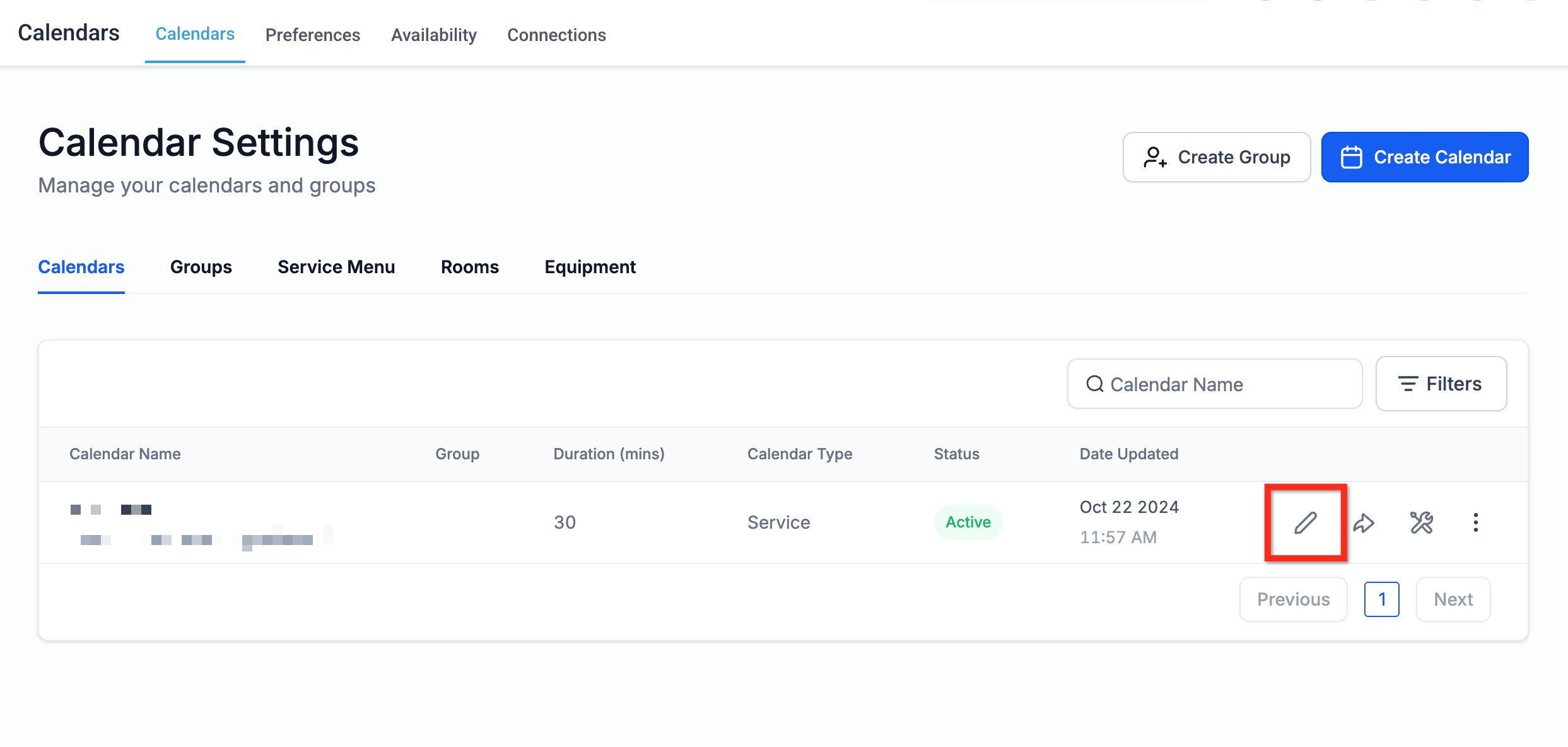
- Open Calendars and select Calendar Settings.
- Find the intended calendar in the list and click the Edit (pencil) icon.
- Verify that the Calendar Name, Calendar Type and Calendar Group match the calendar you want to modify.
Verify working hours and date overrides
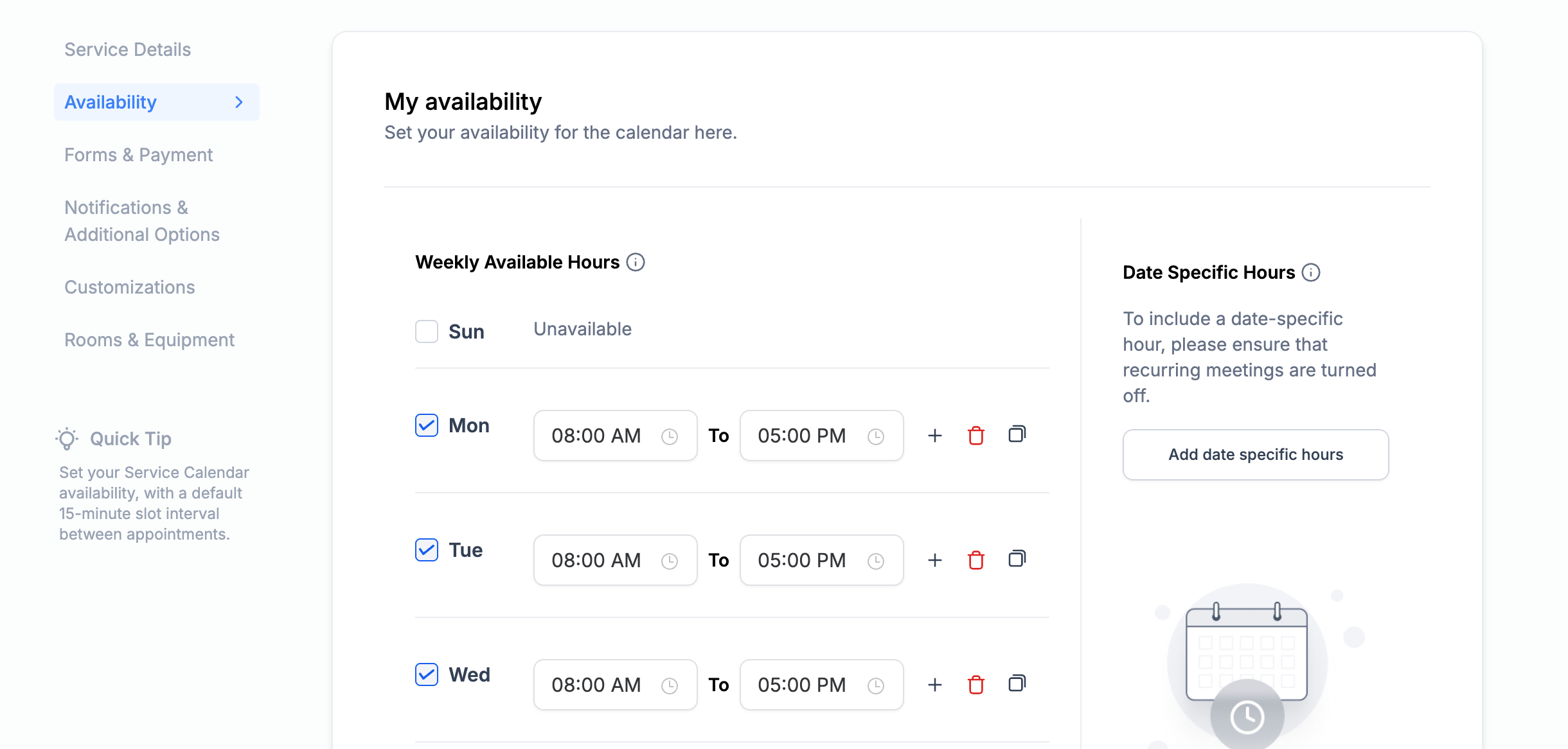
- In the calendar editor, open the Availability tab.
- Check the weekly hours to ensure they reflect the desired schedule.
- Look for any date specific overrides and confirm they are not blocking availability.
Review slot duration, interval, and buffer settings
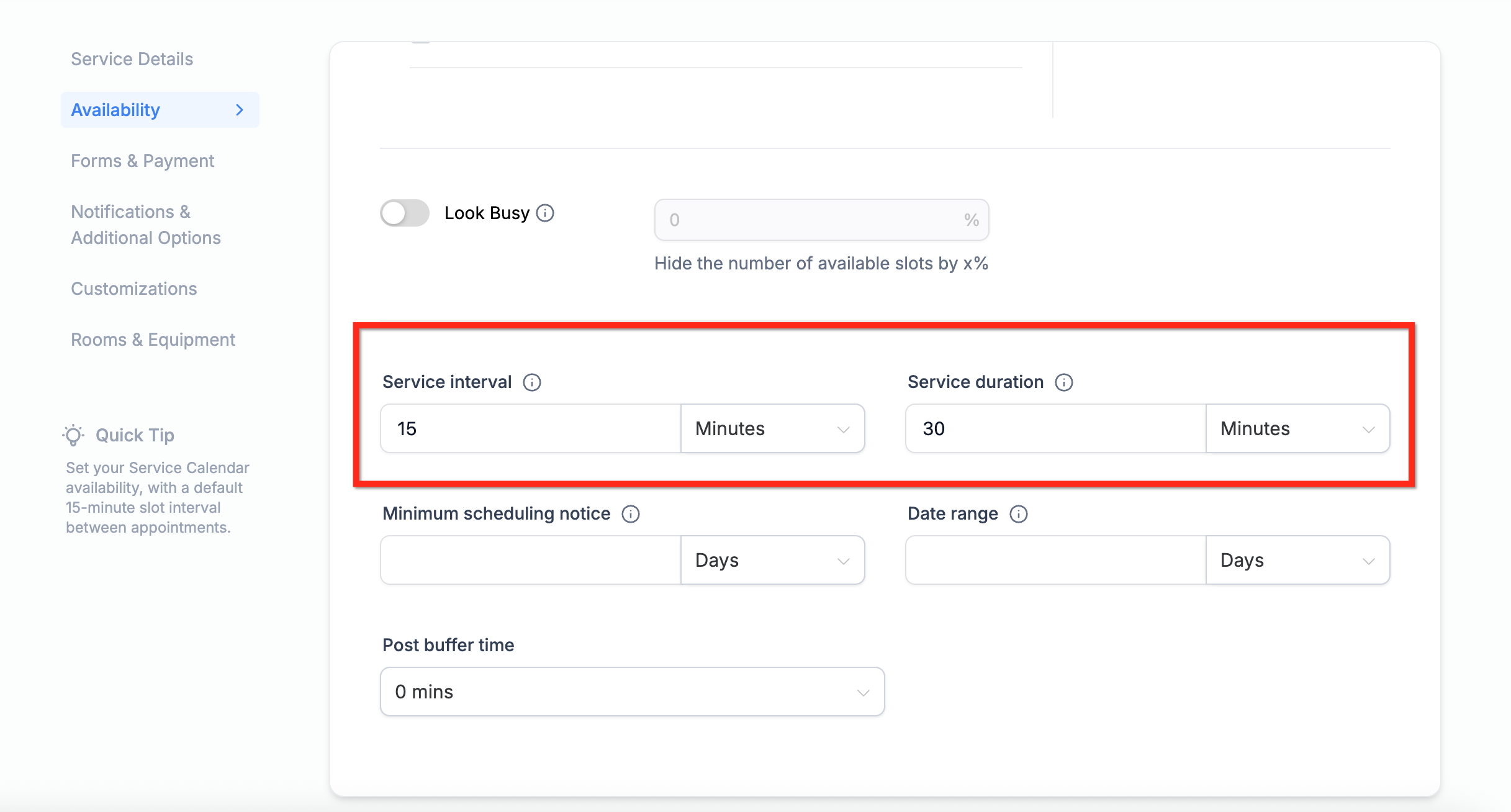
- Within the Availability tab, locate the Service interval field.
- Confirm the Service duration matches the length of each appointment.
- Inspect the Post buffer time and adjust if it creates unintended gaps.
Use the calendar troubleshooting tool
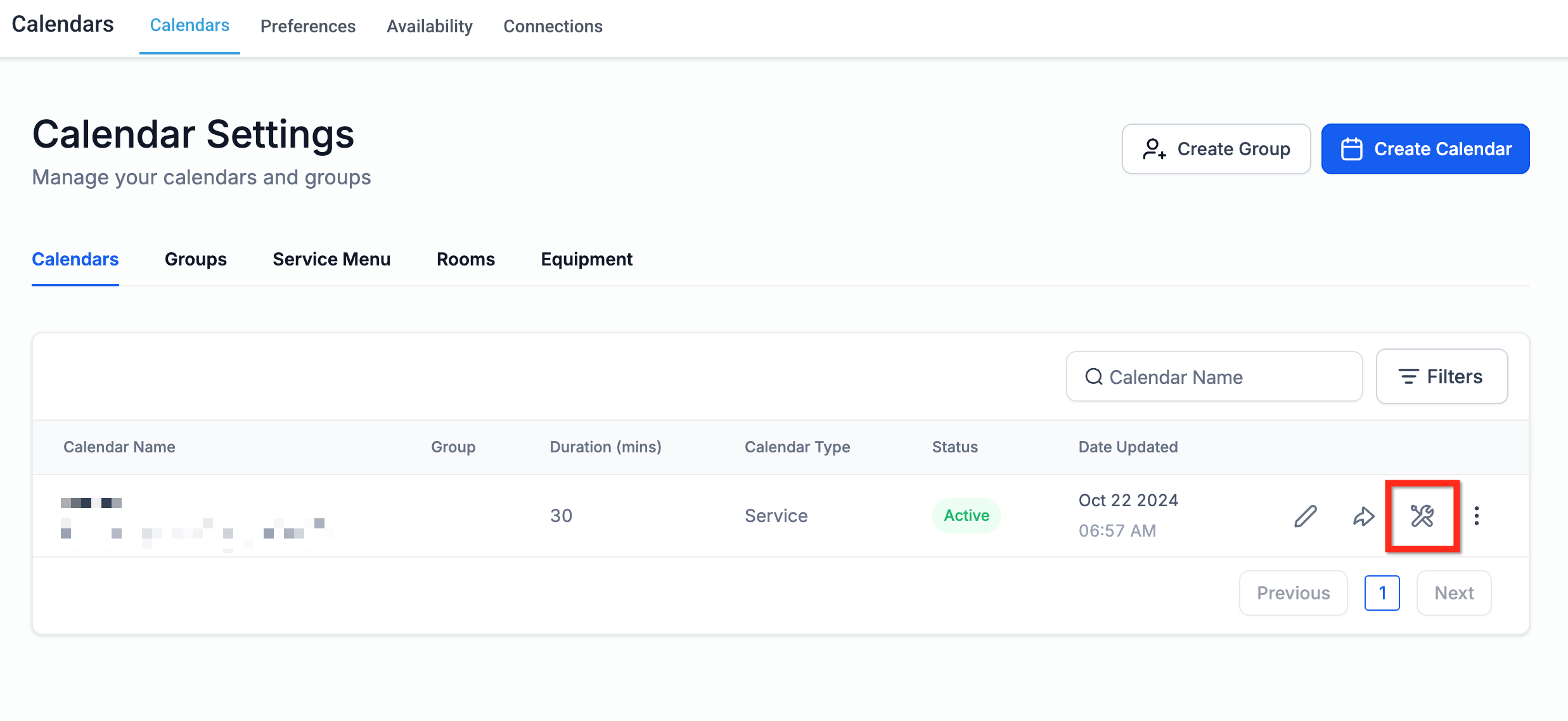
- Return to Calendar Settings and locate the calendar row.
- Click the Troubleshoot (wrench) icon.
- Read the analysis showing capacity rules, buffer logic, timezone checks, user assignment rules and external conflicts.
06What it looks like in HighLevel
07Settings that matter
- Calendar Name. Identifies the specific calendar you are configuring.
- Calendar Type. Specifies the purpose of the calendar, such as appointment or event.
- Calendar Group. Groups related calendars for easier management.
- Weekly hours. Defines the regular working hours that generate available slots.
- Date, specific overrides. Overrides weekly hours for particular dates and can block slots.
- Service interval. Sets the time increment between consecutive slots.
- Service duration. Determines how long each appointment lasts.
- Post buffer time. Adds a pause after an appointment before the next slot can start.
- Maximum appointment limit per slot. Controls how many appointments can share a single time slot.
08Things to know before you rely on it
- Each confirmed appointment lowers a slot’s capacity by one, even if the appointment spans multiple slots.
- A slot becomes unavailable only when its defined capacity limit is fully reached.
- External calendar events marked Busy override internal availability and block those times.
- Timezone mismatches can cause slots to appear at unexpected times or not appear at all.
09How it connects to the rest of HighLevel
- Learn how to integrate Google Calendar to avoid external conflicts. Google Calendar integration
- Use the built in troubleshooting tool for a detailed slot analysis. Calendar troubleshooting tool
- Find out how to fix writer access errors that can block slots. Google writer access error
Michael's take

Missing slots can be caused by subtle factors. Sometimes a tiny buffer or a busy event in a synced calendar can hide an entire morning of availability. Watching the capacity logic and external conflicts is where most people get caught off guard.
Once you’ve confirmed the basics, I’d jump straight to the Troubleshooting Tool to see exactly which rule is blocking the slot.