
01Who this is for
- Coaches who send reminder emails need accurate start times to inform clients of session details.
- Dental practices that rely on calendar links in communications require the variables to generate correct appointment links.
- Real estate agents scheduling property tours must include the exact start time in follow up texts.
02Appointment Custom Values, explained
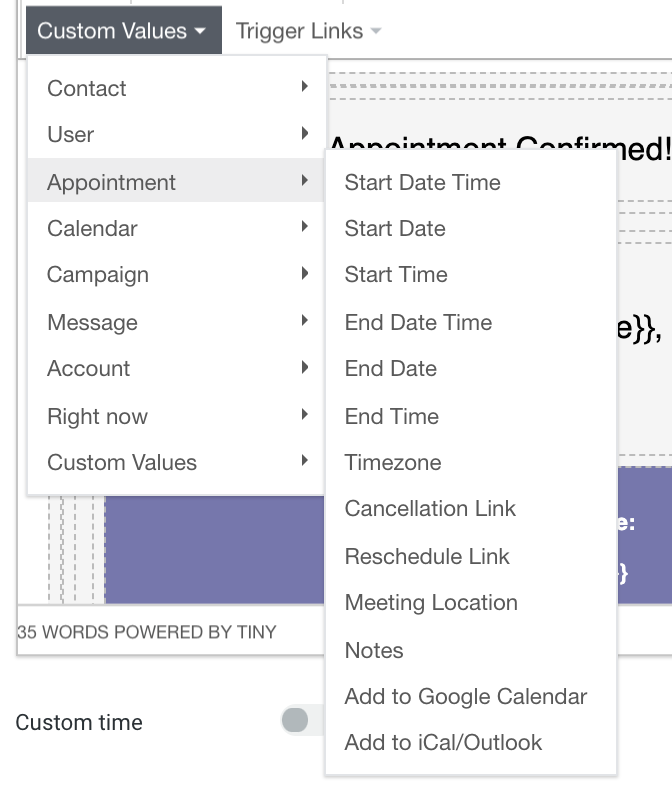
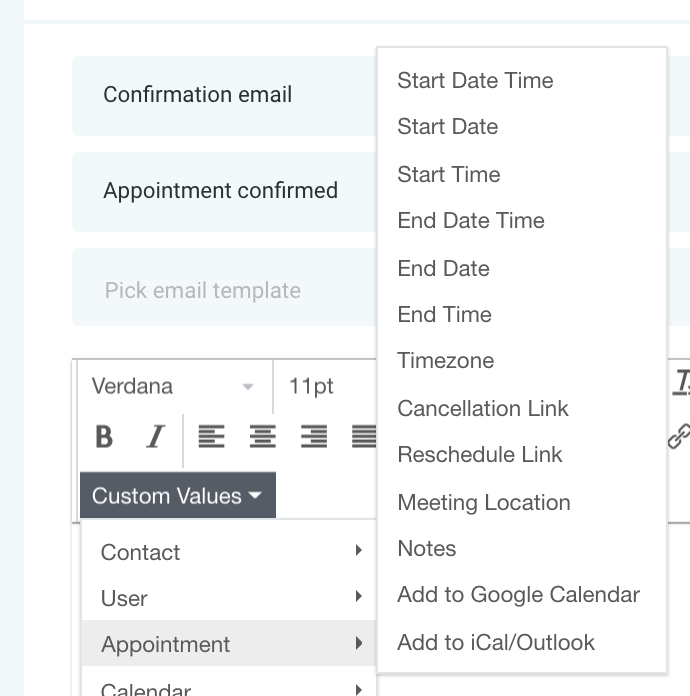
The feature concerns the use of appointment custom values in reminder campaigns. Variables like {{appointment.start_time}} pull data from a booked appointment and insert it into emails or messages. They only work when the automation knows which appointment to reference.
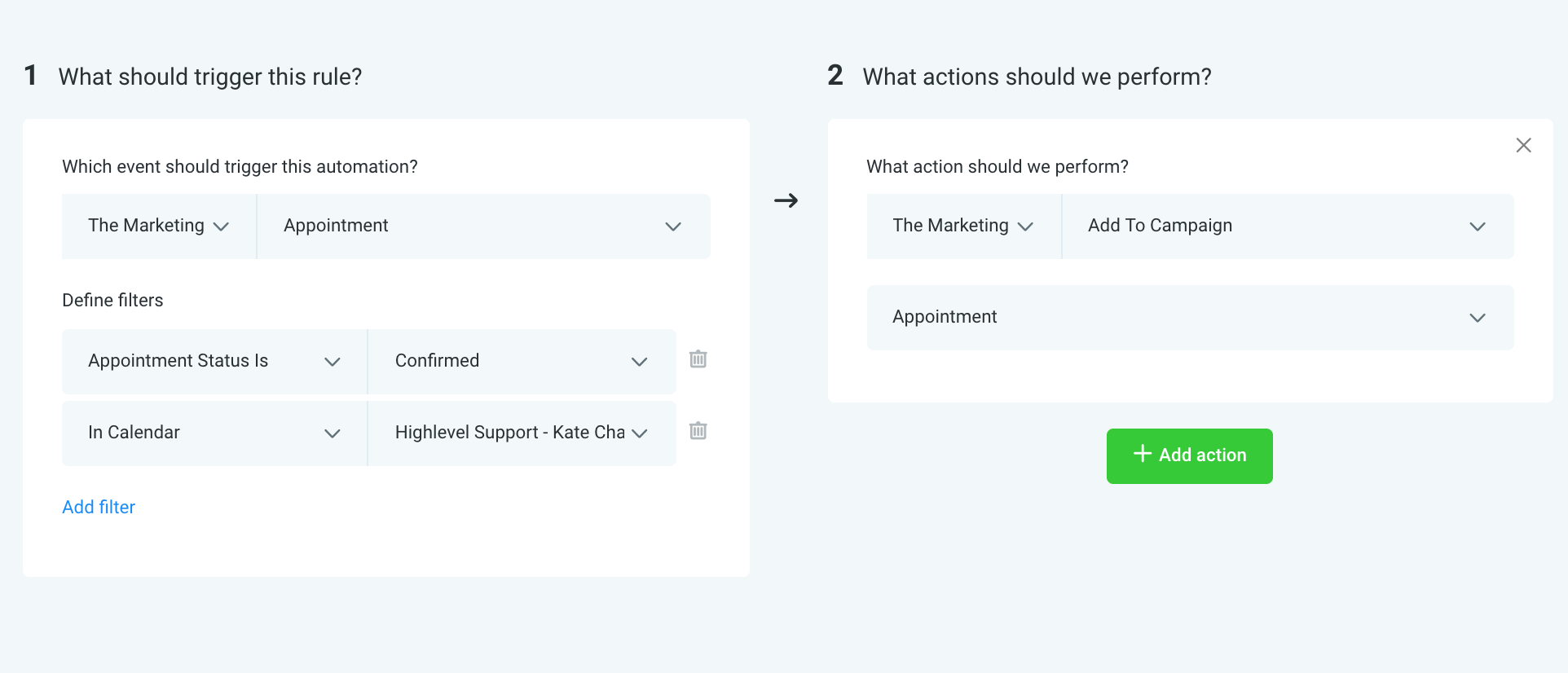
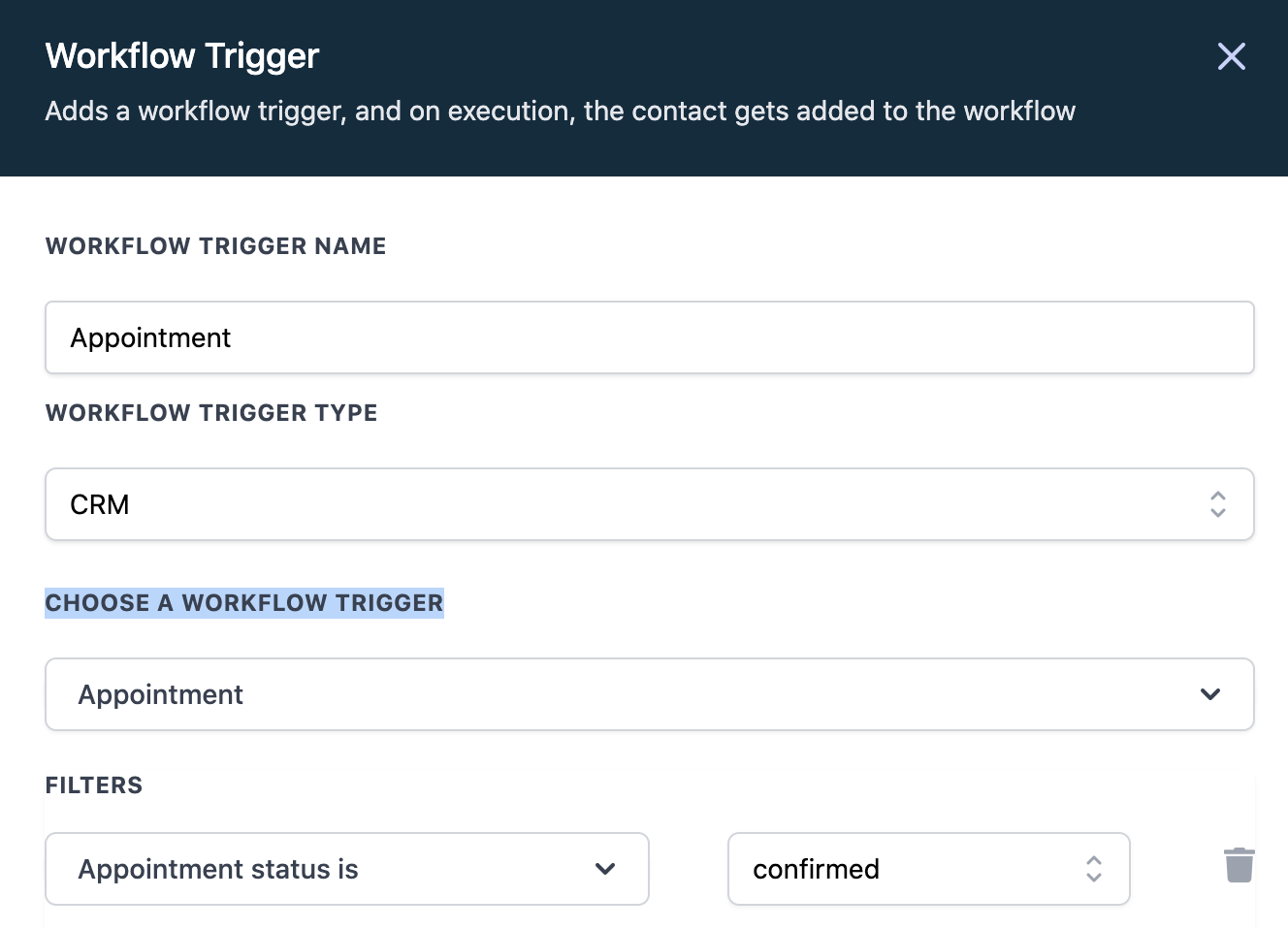
The platform looks for an Appointment or Customer booked appointment trigger. If a different trigger, such as a pipeline stage change, is used, the system cannot match a specific appointment, so the custom values remain empty. The setting lives inside workflow triggers and the appointment reminder campaign configuration.
03How businesses use Appointment Custom Values
- Coaching practice. Create a reminder email that includes {{appointment.start_time}}. Set the workflow trigger to Appointment. Book a test session to verify the time appears in the email before sending to clients.
- Dental practice. Add the {{appointment.start_time}} variable to the calendar link in patient reminders. Use the Customer booked appointment trigger, then schedule a real appointment to confirm the link contains the correct time.
- Real estate agency. Include {{appointment.start_time}} in a text reminder for home tours. Choose the Appointment trigger in the workflow and book a dummy tour slot to test that the time is populated correctly.
04Before you start
- A real appointment must be booked in the system.
- The automation must use the Appointment or Customer booked appointment trigger.
05How to set up and use Appointment Custom Values in HighLevel
Test custom values
- Book an actual appointment in the calendar.
- Select Appointment or Customer booked appointment as the workflow trigger.
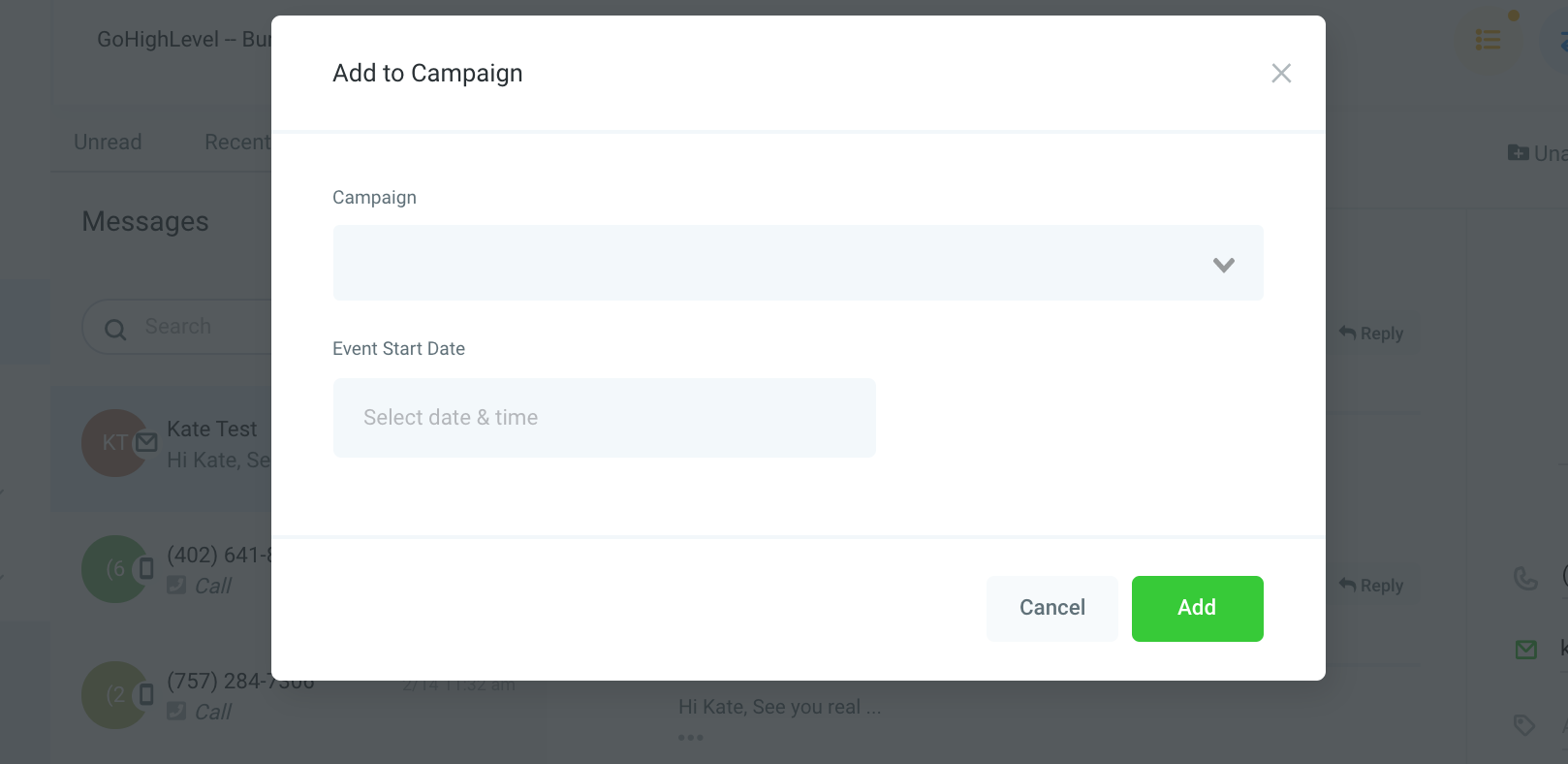
- If adding a lead manually to the reminder campaign, set the event start date to the appointment start time.
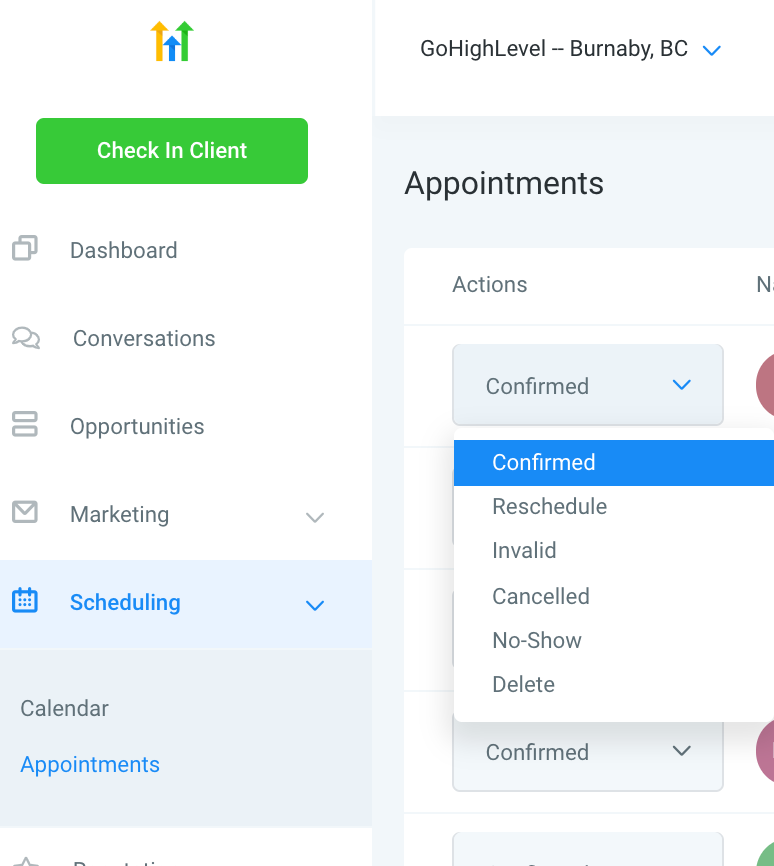
06What it looks like in HighLevel
07Settings that matter
- Appointment or Customer booked appointment trigger. Determines which appointment the custom values reference; required for variables like {{appointment.start_time}} to populate.
08Things to know before you rely on it
- Using the Pipeline stage changed trigger will not provide appointment data for custom values.
- Workflows that rely on triggers other than Appointment or Customer booked appointment cannot access appointment custom values.
09If something goes wrong
- Custom values are blank in reminder emails. Ensure the workflow trigger is set to Appointment or Customer booked appointment and that a real appointment has been booked.
- Add to Google calendar link fails in test email. When manually adding a lead to the reminder campaign, select the appointment start time as the event start date.
10How it connects to the rest of HighLevel
- Why appointment time slots are missing on your calendar Missing time slots
- How to integrate Google Calendar with HighLevel Google Calendar integration
Michael's take

Michael ReimerFounder of CRM Pros, HighLevel Commander and Certified Admin
Works when you need real appointment data in messages; skip it if you never send appointment reminders or reschedule links.
Get More InformationOpens on HighLevelPublished November 2, 2026 · Updated November 16, 2026