
01Who this is for
- Founders who run multiple service calendars can quickly pinpoint blocked slots without opening each calendar individually.
- Small business owners managing a team can see why a particular employee is unavailable, even when they serve several calendars.
- Service based companies can review whole day availability summaries to understand patterns without checking each appointment slot.
02Calendar AI availability troubleshooting, explained
Calendar AI provides a conversational interface for investigating appointment availability. Instead of navigating the traditional Troubleshooting grid, you type a natural language question about a slot, day, calendar or team member. The AI analyses the request, applies existing permission rules, and returns the specific condition, such as working hours, buffer time, or an external calendar conflict, that makes the time unavailable.
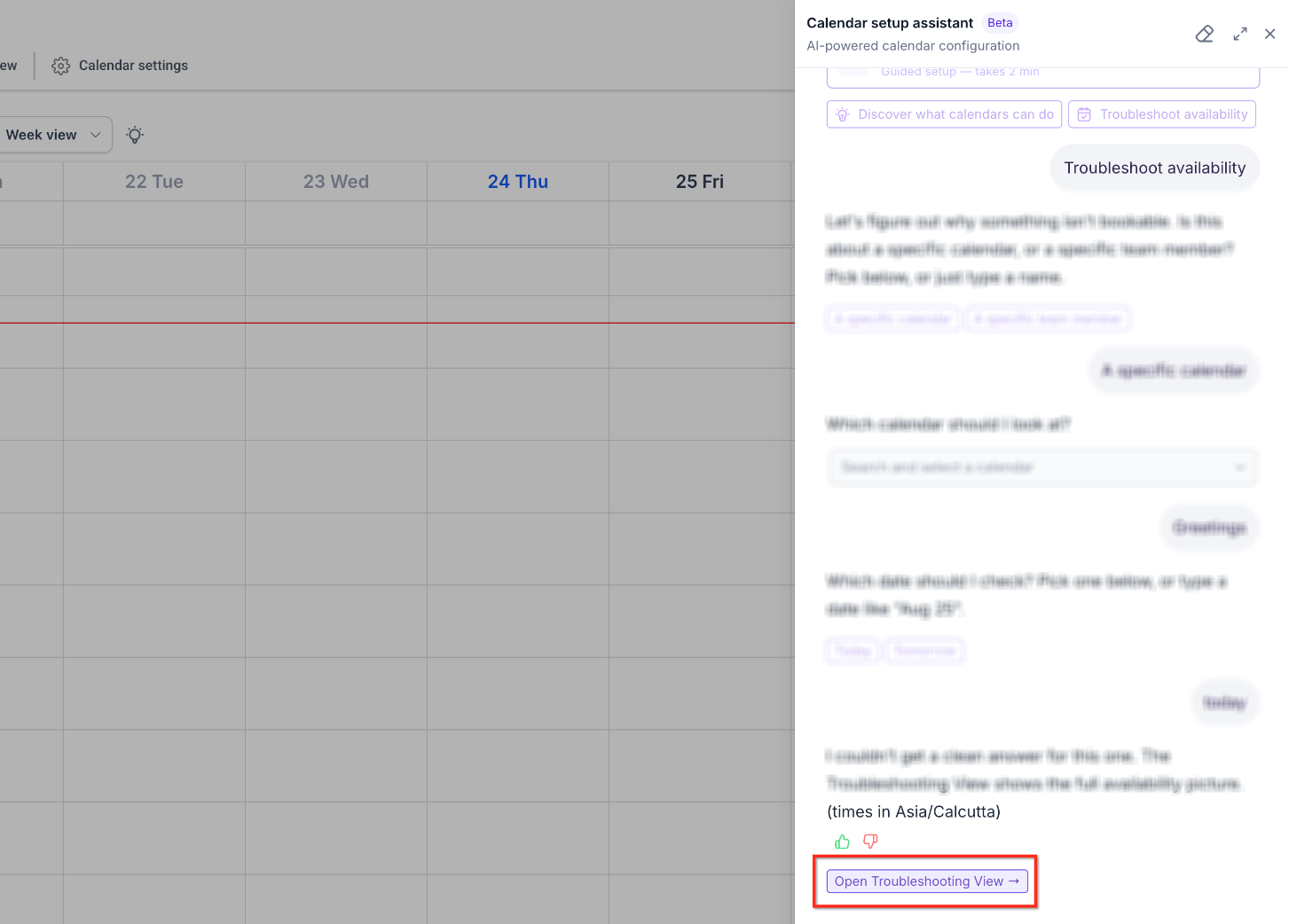
If the request is ambiguous, the AI asks a clarifying question before proceeding. When it cannot generate a supported explanation, it informs you and offers a link to the full Troubleshooting View for deeper manual analysis. The feature lives within the Calendars section of HighLevel and is accessed through the Calendar AI launcher.
03How businesses use calendar AI availability troubleshooting
- Fitness studio. The studio manager asks, "Why isn’t 6 PM on Thursday unavailable on the Group Class calendar?" Calendar AI returns the rule preventing that slot, letting the manager adjust the setting if needed.
- Consulting firm. A partner queries, "Why isn’t Alex available on Monday?" Calendar AI evaluates Alex’s multiple calendars and replies with the specific conflict or schedule restriction.
- Dental practice. The front desk staff types, "Why aren’t any appointments available Friday afternoon?" Calendar AI summarizes the day's availability, grouping identical reasons so the staff can see if a holiday or block is causing the issue.
04How to set up and use calendar AI availability troubleshooting in HighLevel
Use Calendar AI to troubleshoot availability
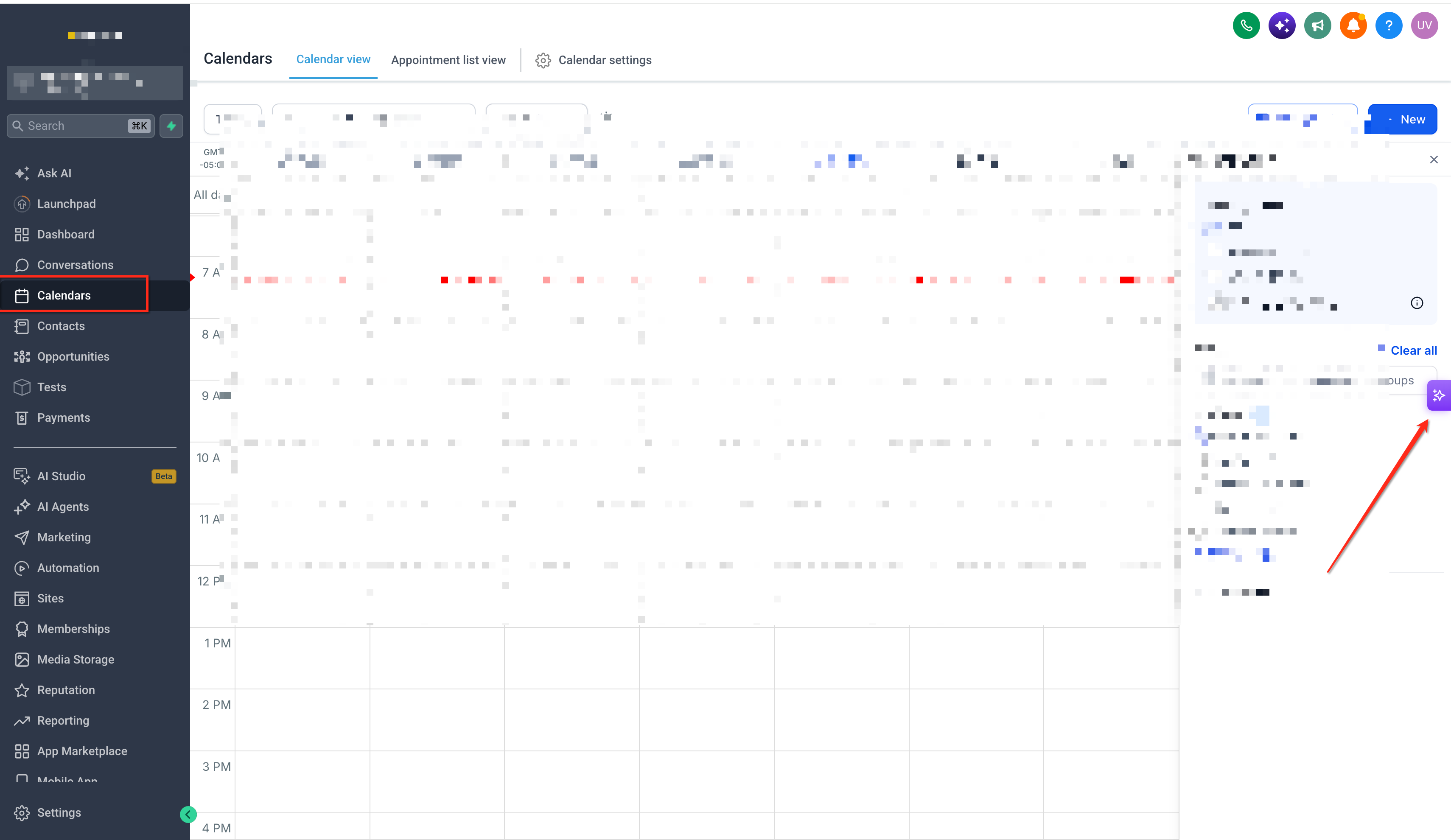
- Open the Calendars section in HighLevel.
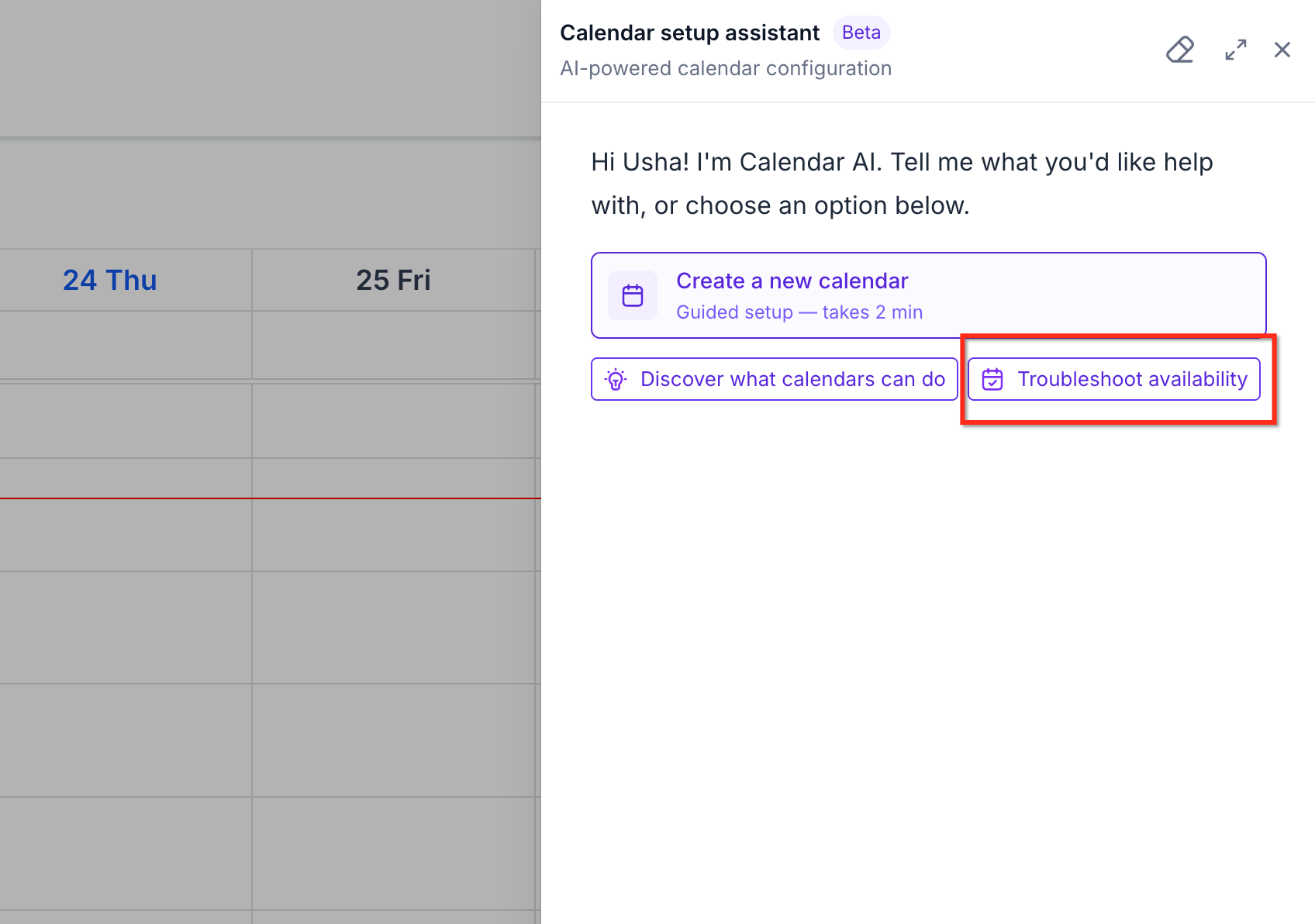
- Launch Calendar AI from the interface.
- Select the Troubleshoot availability option or type your question directly.
- Enter a question about a slot, day, calendar or team member, including date and time for precise queries.
- If Calendar AI asks a clarifying question, select or provide the intended calendar, team member, or schedule context.
- Read the availability explanation supplied by Calendar AI.
- Ask a follow up question for more detail about a specific time or segment if needed.
- When no supported reason is given, click the provided link to open the full Troubleshooting View.
05What it looks like in HighLevel
06Things to know before you rely on it
- Calendar AI only returns explanations that the platform can support; unsupported reasons trigger a fallback to the full Troubleshooting View.
07If something goes wrong
- Calendar AI cannot provide a supported explanation for unavailable time.. Open the Troubleshooting View link supplied by Calendar AI to investigate the issue manually.
08How it connects to the rest of HighLevel
- Set weekly and date specific working hours for calendars. Working hours guide
- Explore all calendar features and tools. Calendars overview
- Start a 30 day trial to test Calendar AI and other features. 30 day trial
Michael's take

Be aware that Calendar AI is a conversational shortcut, not a replacement for the full troubleshooting grid. It can miss edge cases or return a vague answer when the underlying data is complex.