
01Who this is for
- Founders of subscription businesses who need to collect sales tax or VAT on each service and want the charge displayed to customers.
- Service based small businesses that incur card processing costs and wish to pass those costs through a labeled fee.
- Operations managers who require consistent totals across booking pages, appointment records and exported transaction reports.
02Taxes and processing fees for services (v2), explained
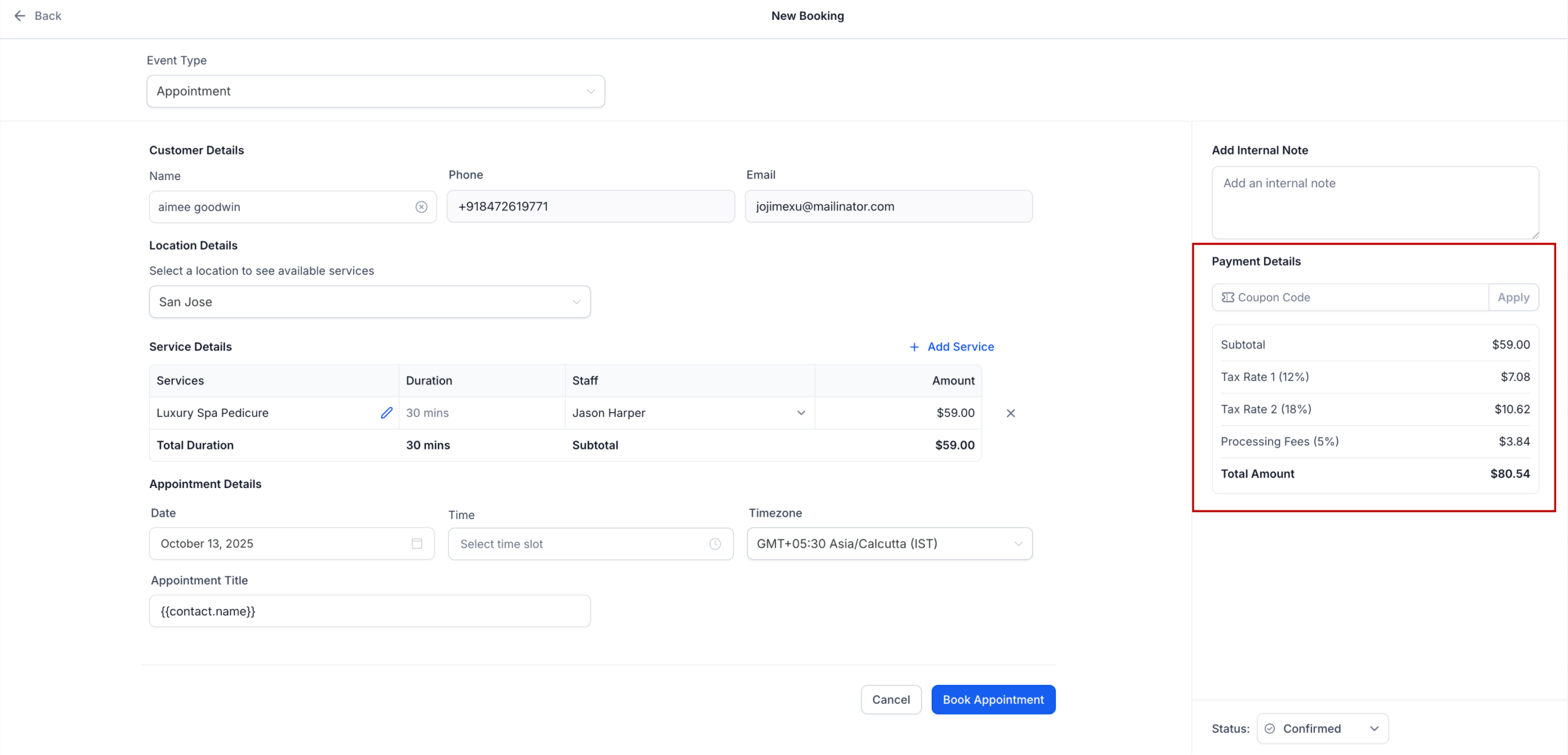
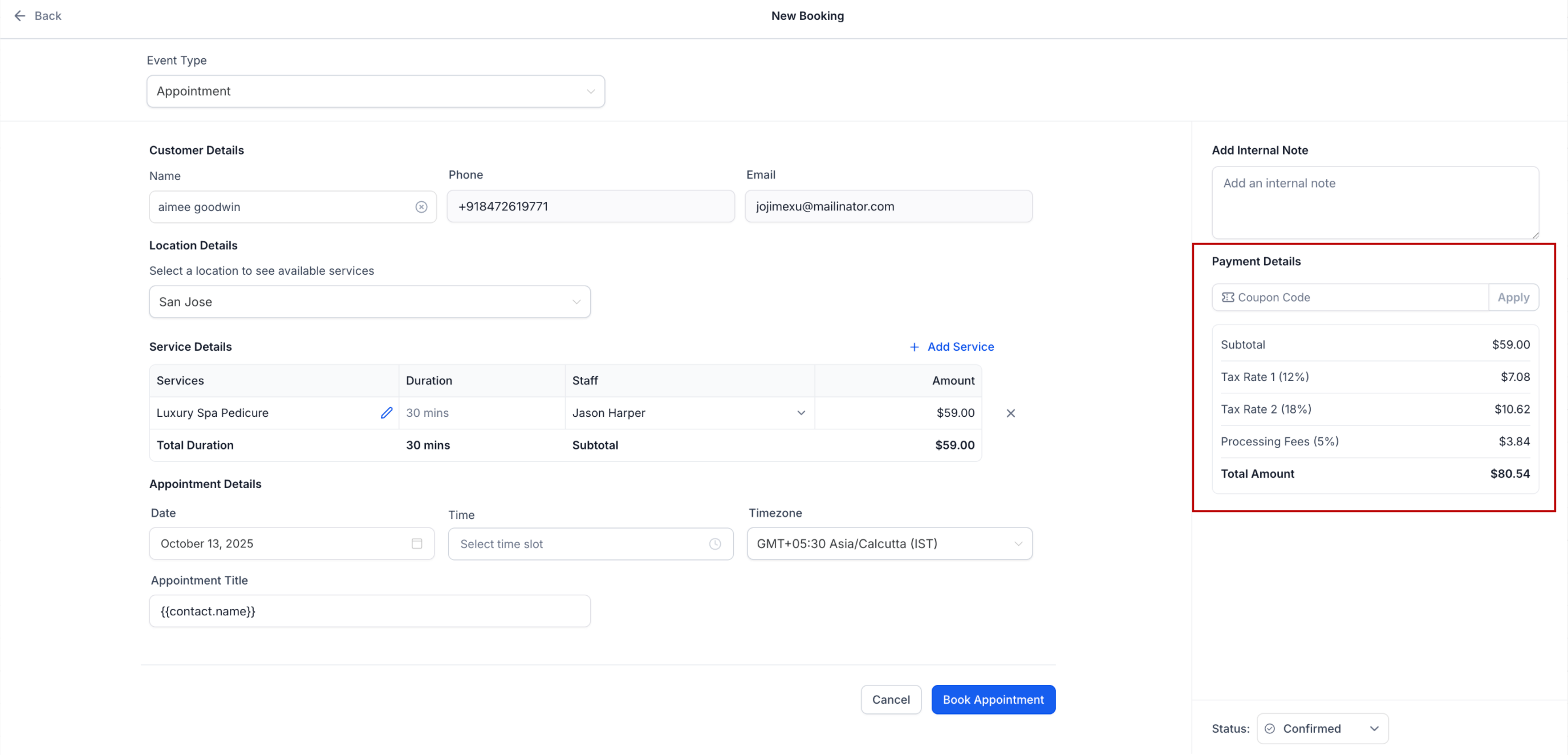
The feature attaches one or more manual tax rates to the product that each Service (v2) automatically creates. When a client books the service, the tax rates are applied to the service price. You can also define a percentage based processing or miscellaneous fee directly on the Service. The fee has a custom label and is calculated from the service price. Both tax and fee appear as separate line items on the public booking form, in the staff appointment modal, on email receipts and in the transaction export files.
03How businesses use taxes and processing fees for services (v2)
- Dental practice. The practice adds the local VAT rate to the product linked to each dental service and creates a labeled processing fee. When a patient books online, the checkout shows the service price, the VAT amount and the processing fee before the total is paid.
- Online coaching platform. Each coaching package has its own tax rate based on the coach’s location and includes a labeled processing fee. The itemized checkout informs clients of the exact fee and tax applied to their selected package.
- Fitness studio. The studio sets a sales tax on the product linked to each class type and configures a labeled card processing fee. Clients see both amounts listed separately when reserving a class through the studio’s booking page.
04The numbers and rules that matter
- Each Service (v2) autocreates a linked Product.
05Before you start
- A subaccount where Services are enabled must be available.
06How to set up and use taxes and processing fees for services (v2) in HighLevel
Set up taxes and processing fees
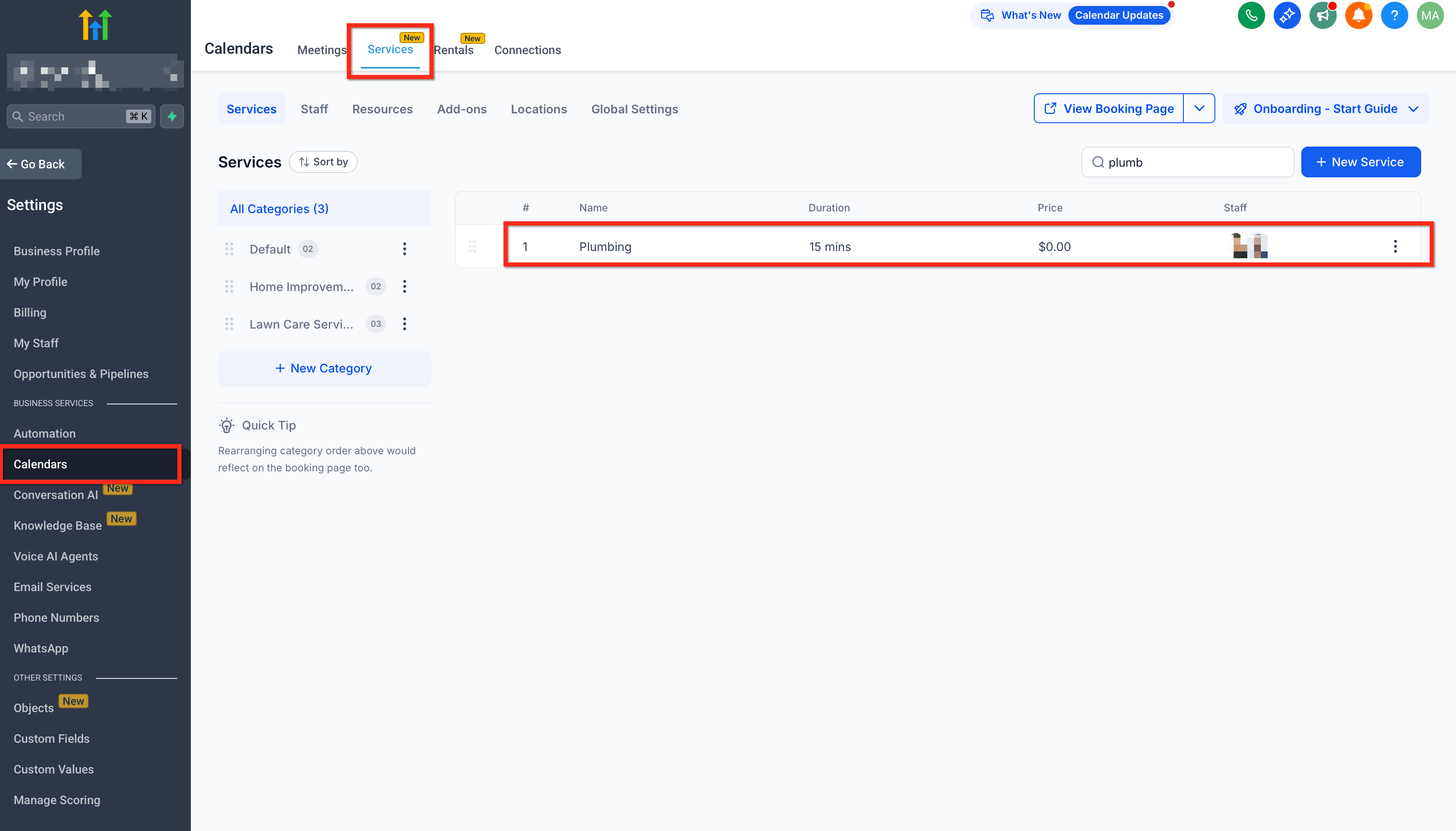
- In your Subaccount, go to Settings > Calendars > Services and select the Service to edit.
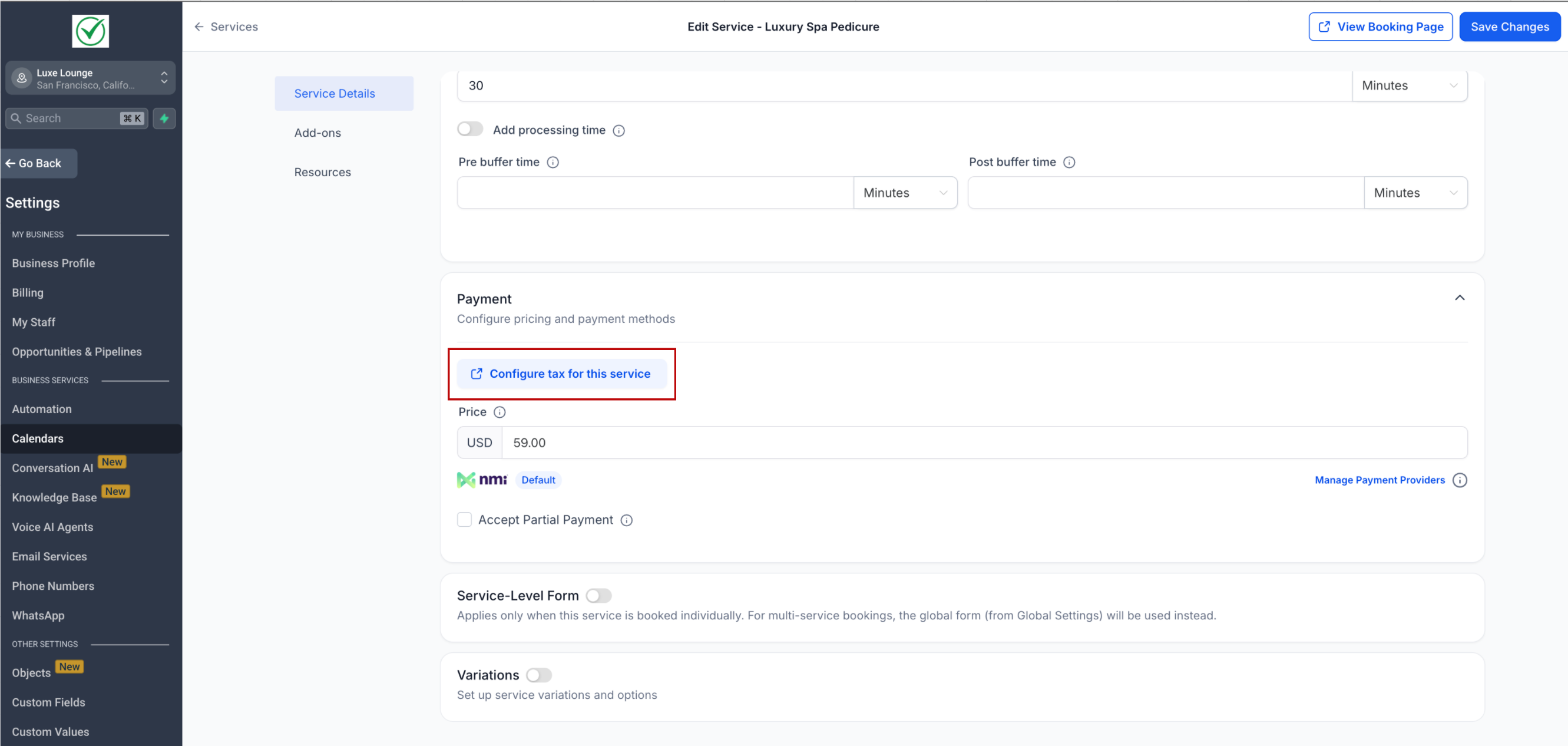
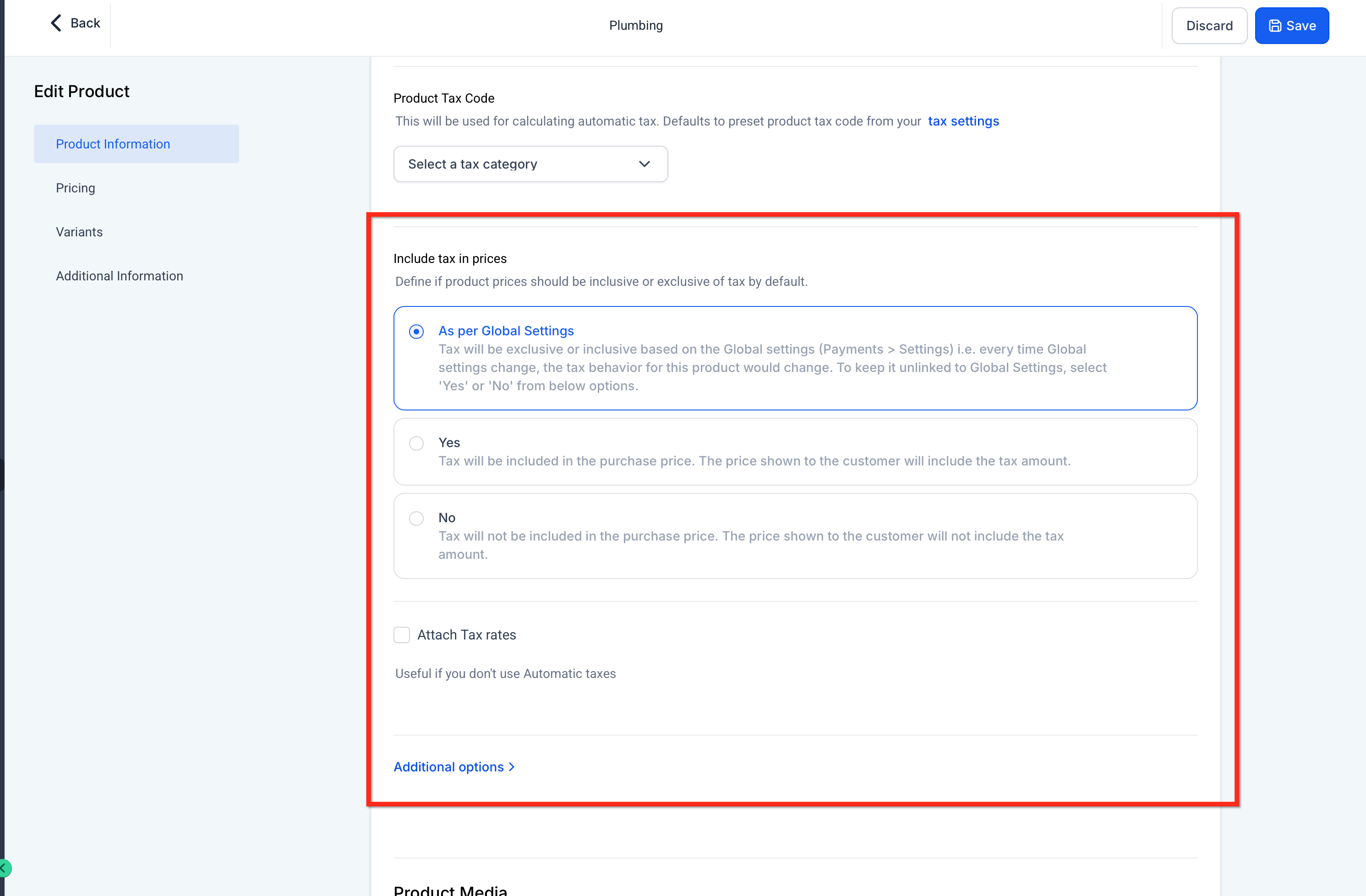
- In the Payments section, click Configure Taxes for This Service.
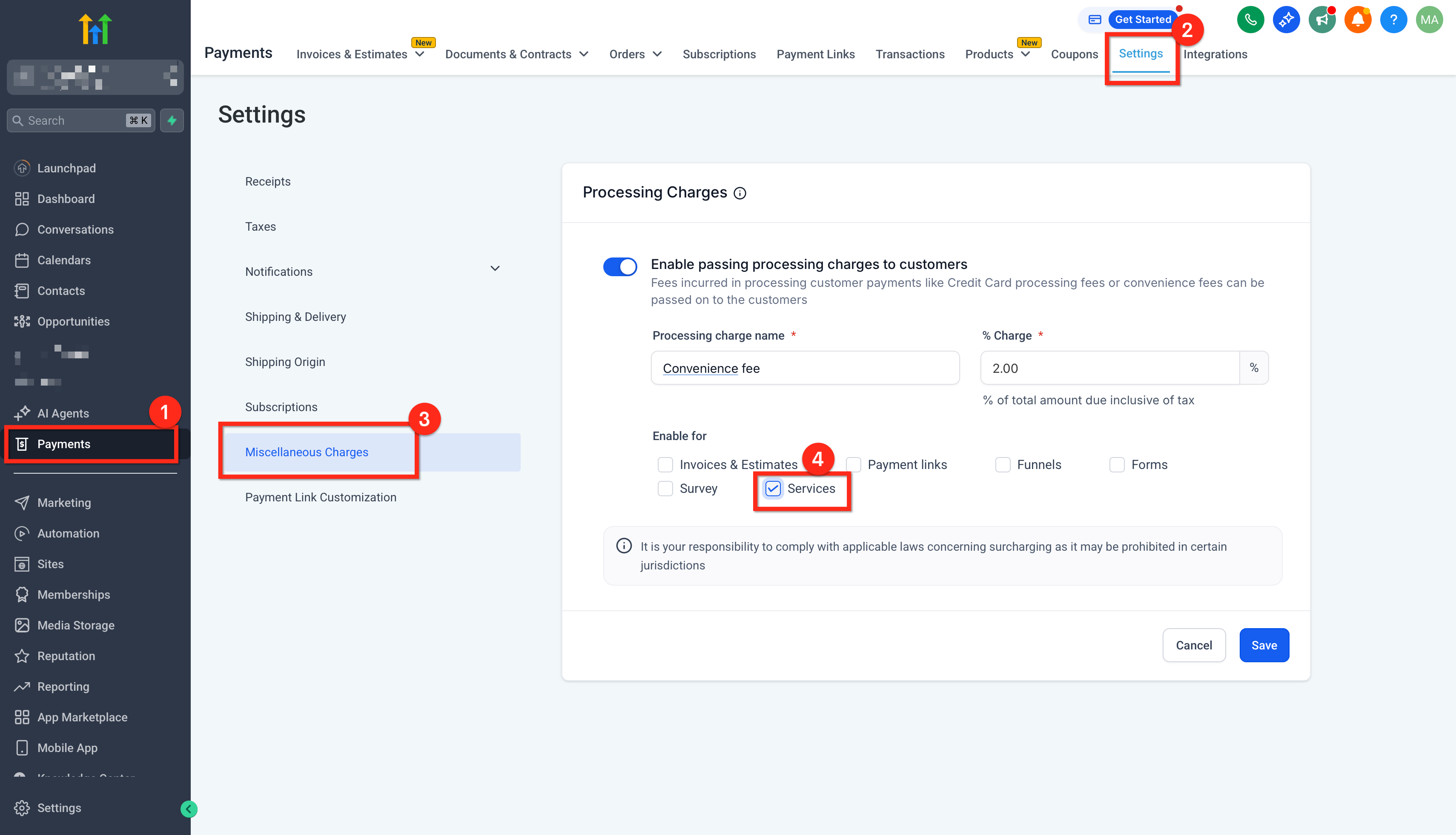
- In the linked Product window, add a tax rate or select an existing one, and optionally add a processing/miscellaneous fee by entering a percentage and a custom label.
- Save the Service.
- Future bookings will display tax and fee lines on the public form, staff modal and receipts.
07What it looks like in HighLevel
08Settings that matter
- Configure Taxes for This Service. Opens the product dialog where you attach manual tax rates and optionally add a percentage based processing fee with a custom label.
09Things to know before you rely on it
- Tax rates are attached to the product that a Service creates, not to the Service itself.
- Edits to taxes or fees affect only new bookings; past bookings and receipts stay unchanged.
10How it connects to the rest of HighLevel
- Enable Services in a subaccount before configuring taxes and fees. Enable Services
- Learn how to create and edit services that will use taxes and processing fees. Create services
Michael's take

Wondering if adding taxes and fees to your service bookings is worth the extra effort? It lets you show exactly what a client is paying. The price, any tax, and a separate line for a processing charge. So there’s less mystery at checkout and fewer disputes later.
If I were setting this up, I’d start by attaching the correct tax rate to the product each service creates, then add a clear label for any convenience fee you need to recover. Test a booking to see the itemized total on the form and the receipt before you go live.