
01Who this is for
- Rental property managers, need instant alerts for booking changes to keep operations running smoothly.
- Small business owners offering equipment rentals, want automated reminders and confirmations to reduce missed appointments.
02SMS notifications for rentals, explained
The SMS feature sends text messages at key points in a rental’s lifecycle: when a request is unconfirmed, when it becomes confirmed, if it is cancelled or rescheduled, as a reminder before the rental starts, and as a follow up after it ends. Each event can have its own message and recipient list.
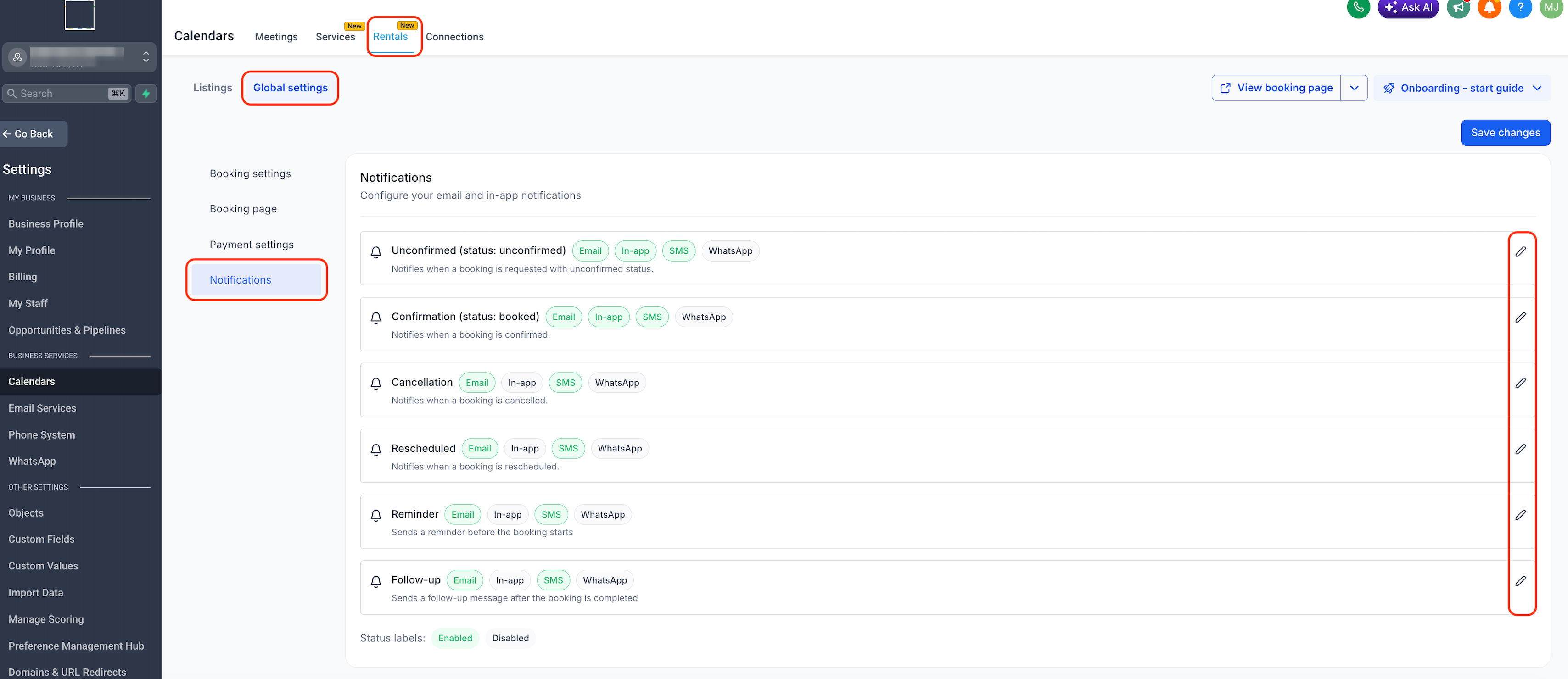
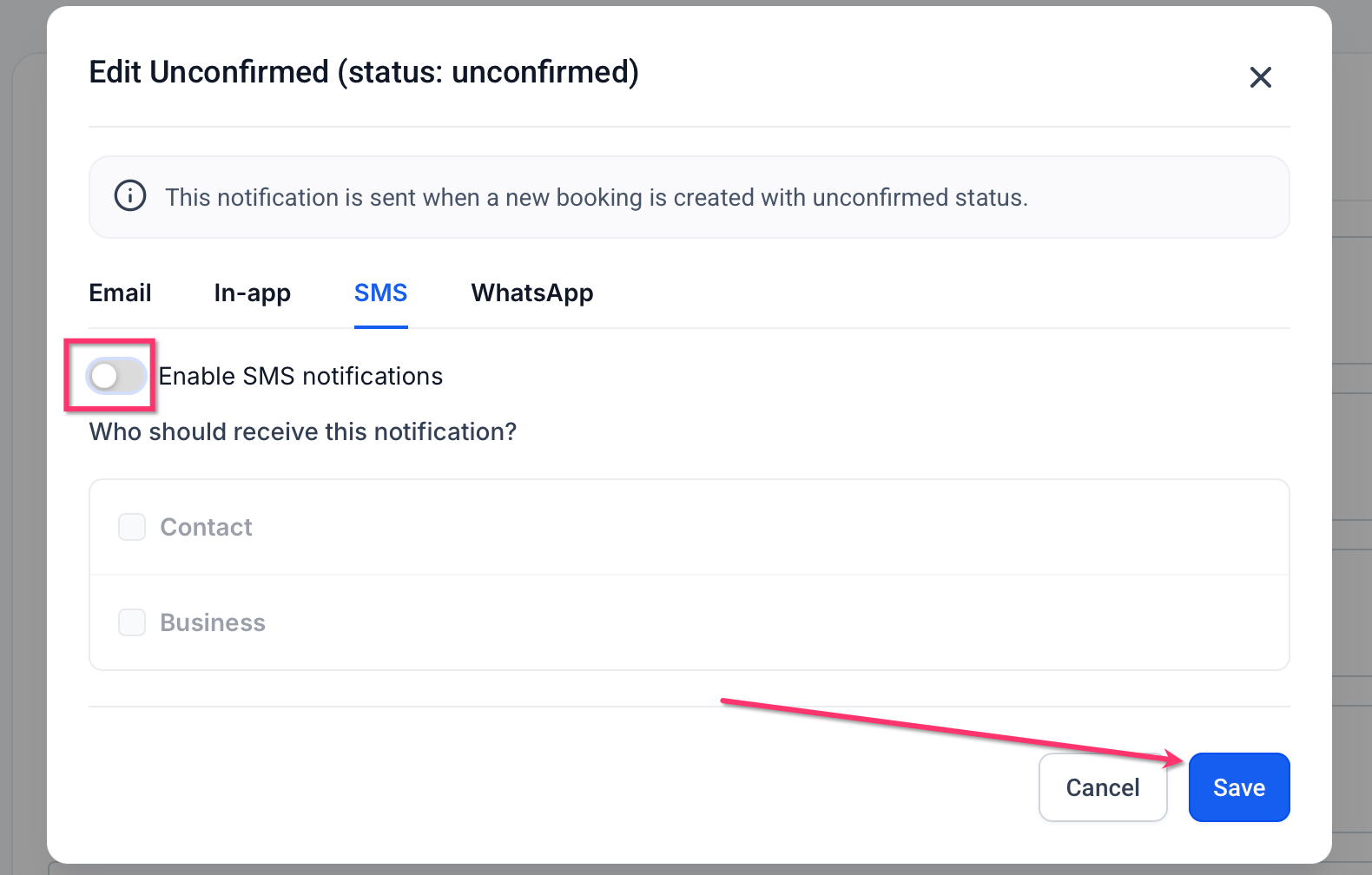
All SMS rules are defined in Rentals ► Global Settings ► Notifications. Inside each event’s editor you switch SMS on, choose whether the Contact, the Business, or both receive the text, pick or edit a template, and (for reminders or follow ups) set the timing relative to the rental period. The configuration is global, so every rental listing uses the same rules.
A test SMS can be sent from the same editor to verify merge fields, formatting, and length before the notification goes live.
03How businesses use SMS notifications for rentals
- Equipment rental shop. The owner edits the Confirmation SMS template to include the equipment name and the pickup time, selects both Contact and Business recipients, and schedules a Reminder 24 hours before the rental. This ensures the customer knows when to collect the gear and the staff prepares the item.
- Vacation property manager. The manager enables an Unconfirmed SMS to alert the internal team when a guest requests a stay, then sets a Follow Up SMS to fire two hours after checkout asking for a review. Only the Business receives the Unconfirmed text, while the Contact gets the Follow Up.
- Event venue owner. The owner configures a Cancellation SMS that goes to the Contact with a brief apology and to the Business with the reservation ID. A test message is sent to a staff phone to verify the correct merge fields before activating the rule.
04The numbers and rules that matter
- Supported events: Unconfirmed, Confirmation, Cancellation, Rescheduled, Reminder, Follow Up.
- Test phone number must include country code (e.g., +1234567890).
- Provider may block messages without A2P registration in the US.
05Before you start
- The location must have SMS sending set up in Settings ► Phone & SMS.
- A sending number must be assigned and active.
- Recipient phone numbers need to include a valid country code.
- Contacts must be opted in to receive SMS according to compliance rules.
06How to set up and use SMS notifications for rentals in HighLevel
Set up SMS notifications for rental bookings
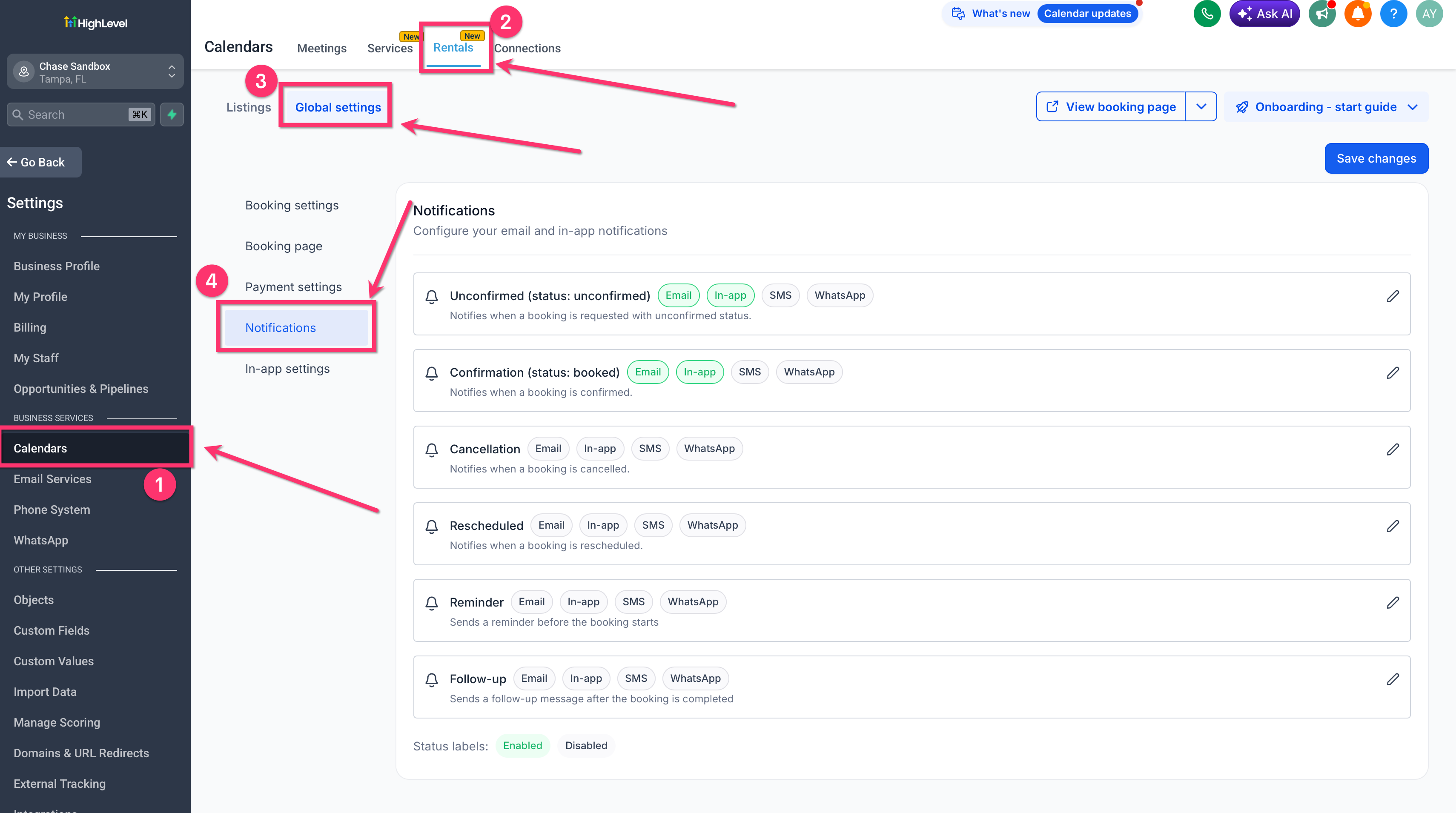
- Open Calendars in HighLevel.
- Open Calendar Settings.
- Select Rentals.
- Click Global settings.
- Open Notifications to view all rental notification types.
- In the Notifications list, click the Edit (pencil) icon for the desired event.
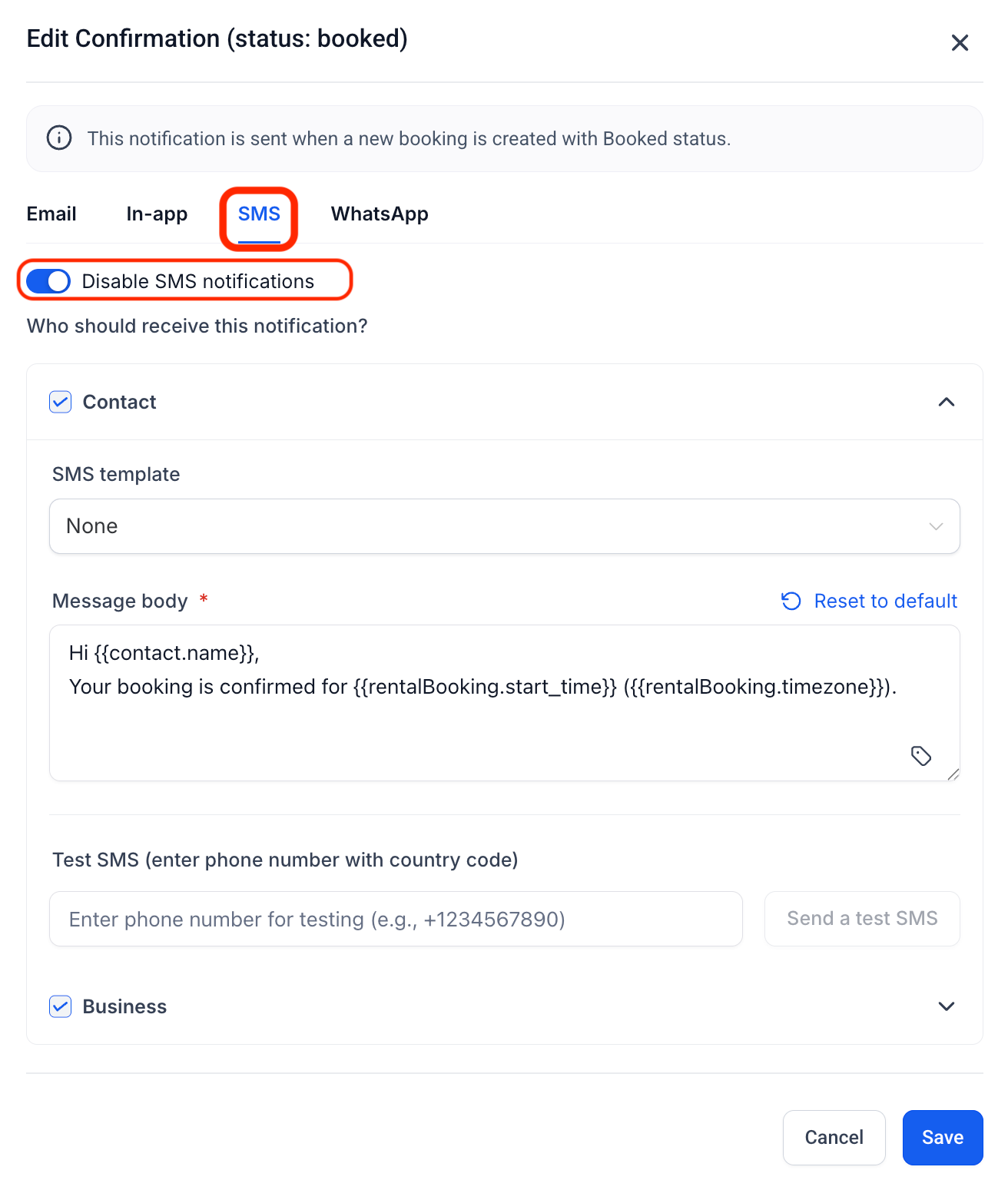
- Select the SMS tab inside the notification editor.
- Toggle the Disable SMS notifications switch to Off (enabled).
- Expand the recipient sections under Who should receive this notification?.
- Check the Contact option to send the SMS to the customer.
- Check the Business option to send the SMS to the internal number.
- Pick an existing SMS template from the dropdown or use the default.
- Edit the Message body and insert custom values via the merge field picker.
- If configuring a Reminder, set how many hours before the rental start the SMS should send.
- If configuring a Follow Up, set how many hours after the rental end the SMS should send.
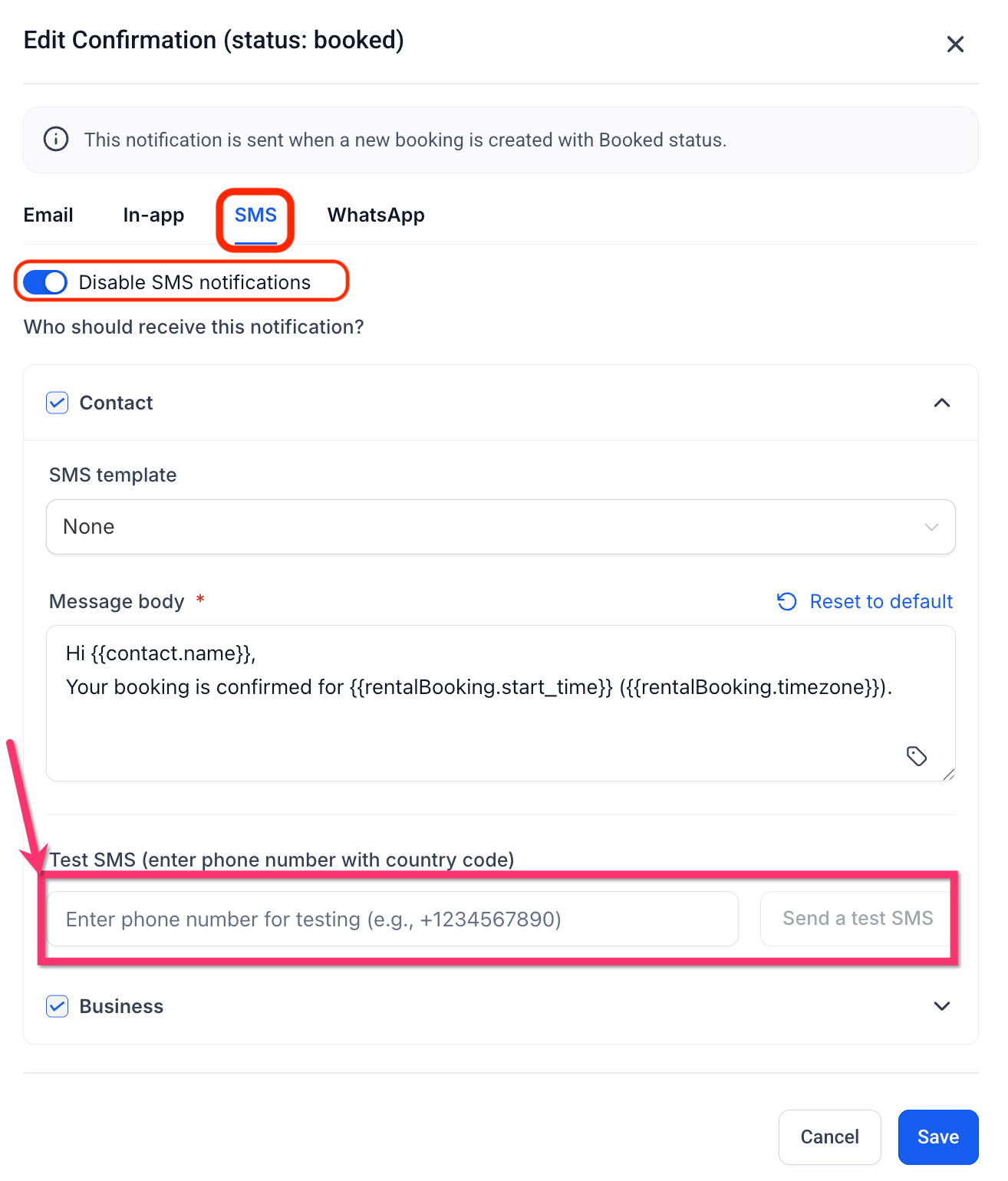
- Enter a test phone number with country code in the Test SMS field.
- Click Send a test SMS.
- Confirm the message looks correct, including merge fields and length.
- Click Save to apply the changes.
- Click Save changes on the main Notifications page if required.
- Repeat the steps for any additional event types.
07What it looks like in HighLevel
08Settings that matter
- Disable SMS notifications. Controls whether SMS messages are sent for the selected event; turning it Off enables SMS.
- SMS template. Dropdown that lets you choose a predefined text template for the message.
- Message body. Editable field where you write or modify the SMS content, using merge fields for personalization.
- Test SMS. Field to input a phone number with country code for sending a preview text.
- Who should receive this notification?. Checkboxes for Contact and Business that decide which parties get the SMS.
- Reminder timing. Specifies how long before the rental start the reminder SMS is sent.
- Follow, up timing. Specifies how long after the rental end the follow up SMS is sent.
09Things to know before you rely on it
- SMS usage may incur messaging costs based on your account and phone configuration.
- Messages must comply with opt in and regulatory requirements; sending to contacts without consent can be blocked.
- Your provider can block messages if A2P registration or other compliance steps are missing.
10If something goes wrong
- SMS is not sending for a notification event.. Confirm the Disable SMS notifications switch is set to Off (enabled) for that event.
- Recipient does not receive the test SMS.. Make sure a valid phone number with country code is entered and that SMS services are configured for the location in Settings ► Phone & SMS.
- Message body appears blank.. Enter text in the Message body field or select a template; a blank body will prevent sending.
- Provider blocks messages.. Check that your messaging provider has completed any required A2P registration and is not restricting outbound texts.
11How it connects to the rest of HighLevel
- Configure the location’s SMS sending capabilities. Phone & SMS setup
- Manage overall calendar settings for rentals. Rental calendar settings
- Review pricing and plan options for SMS usage. HighLevel pricing
Michael's take

SMS notifications for rentals are a good fit if you need real time text alerts for booking changes. If you already rely on email or in app notifications and don’t need a phone based channel, you can skip this feature.