
01Who this is for
- Fitness studio owners gain clear insight into class capacity, helping members choose available times.
- Education providers offering workshops can show remaining spots, reducing overbooking confusion.
- Event organizers managing high capacity sessions can display real time seat counts for better attendee planning.
02Show seats per slot, explained
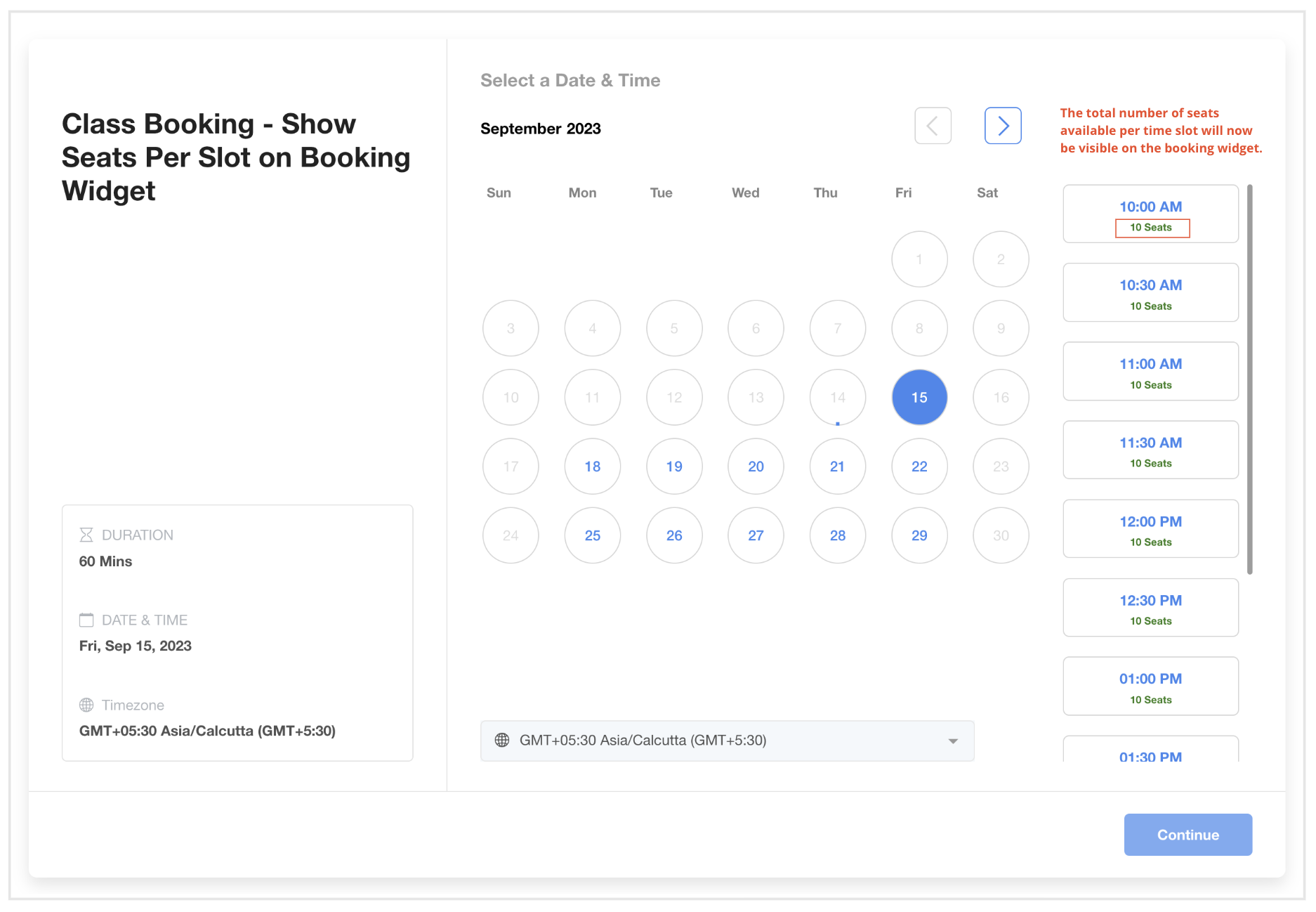
The Show seats per slot toggle adds a visual indicator of how many seats are left for each slot on a Class Booking calendar's booking widget. It works with the Neo widget style and appears on public widgets, in app appointment modals, personal calendars, round robin calendars, and event calendars.
Seat counts are derived from the Seats per class setting. Every confirmed appointment deducts one seat from each slot it occupies. A slot only blocks when its total seat capacity is reached, preventing premature blocking when appointments overlap multiple slots.
03How businesses use show seats per slot
- Yoga studio. The studio sets Seats per class above one and enables the toggle. Clients see how many mats remain for each class time, selecting a slot only if seats are available.
- Cooking school. The school configures class capacity, turns on Show seats per slot, and publishes the booking widget. Prospective students can view remaining places before booking a session.
- Conference workshop organizer. The organizer creates a Class Booking calendar for each workshop, enables seat visibility, and embeds the widget. Attendees immediately know how many seats are left for each session.
04The numbers and rules that matter
- Requires Seats per class setting to be greater than 1.
- Each confirmed appointment reduces seat availability by 1.
- If an appointment overlaps multiple slots, only 1 seat is deducted from each affected slot.
05Before you start
- Create a Class Booking calendar.
- Set the Seats per class value to a number greater than 1.
06How to set up and use show seats per slot in HighLevel
Enable seat visibility on the booking widget
- Open the Class Booking calendar you want to edit.
- Click Edit.
- Navigate to Customizations.
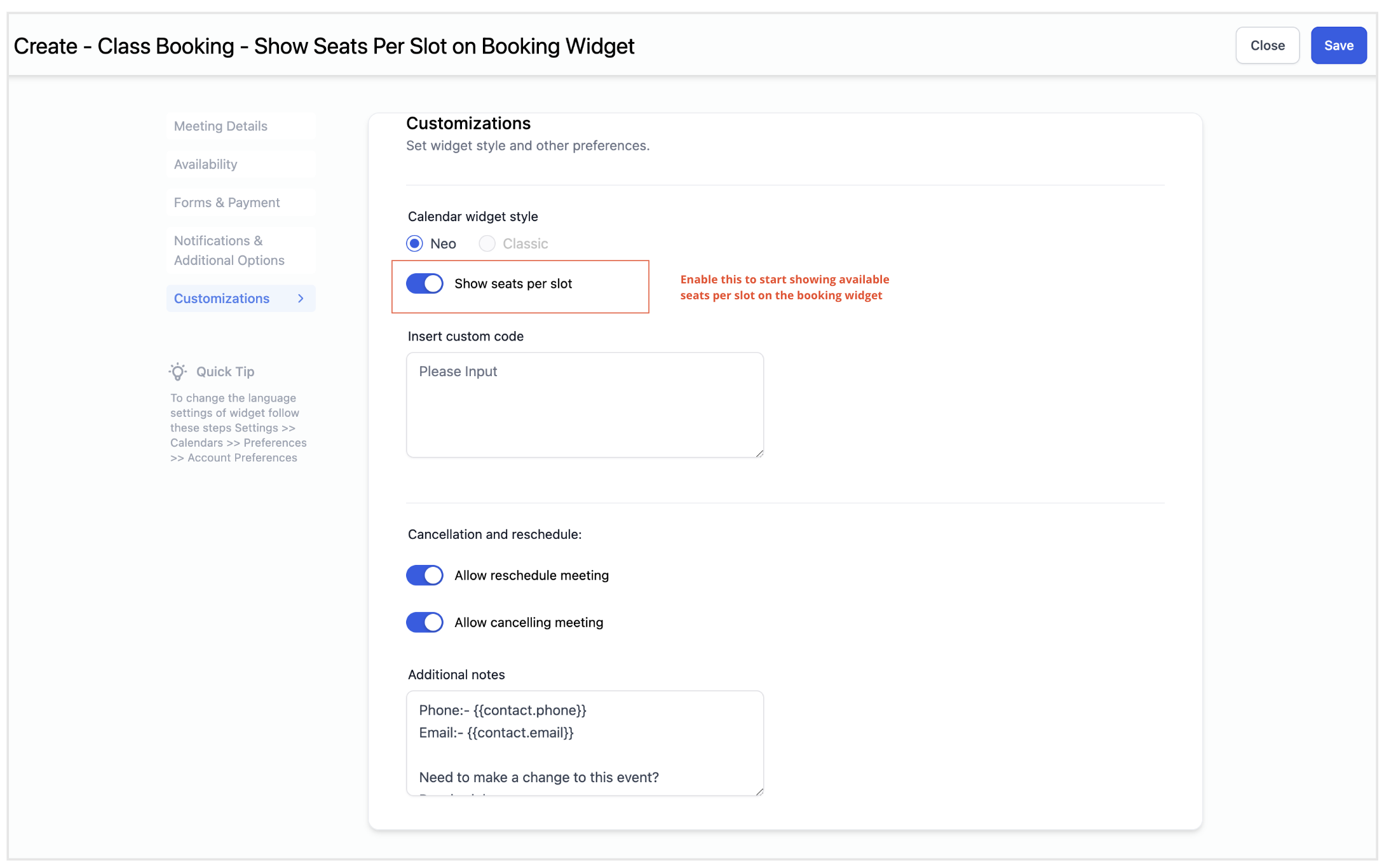
- Toggle Show seats per slot under Calendar Widget Style.
- Click Save.
07What it looks like in HighLevel
08Settings that matter
- Show seats per slot. Controls whether the remaining seat count for each time slot is displayed on the public booking widget.
09Things to know before you rely on it
- The feature works only with Class Booking calendars.
- Seats per class must be set to a value greater than 1.
- It is compatible with Neo widgets.
- Updated capacity logic applies to public widgets, in app appointment modals, personal calendars, round robin calendars, and event calendars.
10How it connects to the rest of HighLevel
- Customize the appearance of your calendar widget Widget customization guide
- Set weekly and date specific availability for your calendars Calendar availability guide
- View appointments in your personal timezone settings Timezone guide
Michael's take

Show seats per slot is a straightforward way to give customers a clear view of class capacity.
If you don’t run classes that accept multiple attendees per slot, you can skip this feature.