
01Who this is for
- Sales teams can present product demos with full screen and zoom, helping prospects see details easily.
- Support engineers can walk clients through troubleshooting while sharing system audio, ensuring videos play correctly.
- Trainers conducting online workshops can display slides and video at high resolution, allowing participants to zoom into complex diagrams.
02Screen sharing enhancements, explained
The feature set adds four tools to the screen share experience inside HighLevel Meeting Rooms. Participants can click a button to expand a shared screen to fill their monitor, use on screen controls to enlarge or shrink the view, and turn on system audio so video playback includes sound. The stream quality is upgraded to a maximum of 1080p resolution with a frame rate of 30 frames per second, delivering sharper images and smoother motion.
These capabilities are built into the Meeting Rooms interface and are available automatically. No extra account configuration is required; anyone who joins a meeting can activate full screen, zoom, or system audio during a screen share session.
03How businesses use screen sharing enhancements
- Digital marketing agency. During client presentations, the agency can share a dashboard in full screen, zoom into performance charts, and play video ads with system audio, ensuring the client sees high quality visuals and hears the audio clearly.
- Software training company. In a live training session, the instructor shares an application window, enables system audio to demonstrate video tutorials, and lets each trainee adjust zoom to read code snippets without affecting the presenter.
- Financial advisory firm. Advisors reviewing detailed financial reports can expand the spreadsheet to full screen, zoom into specific rows for clarity, and listen to embedded video explanations, all while maintaining a smooth 1080p view.
04The numbers and rules that matter
- Resolution up to 1080p.
- Frame Rate 30 FPS.
05How to set up and use screen sharing enhancements in HighLevel
use screen sharing enhancements
- Start screen sharing by joining the meeting and selecting the screen, window, or tab you want to share.
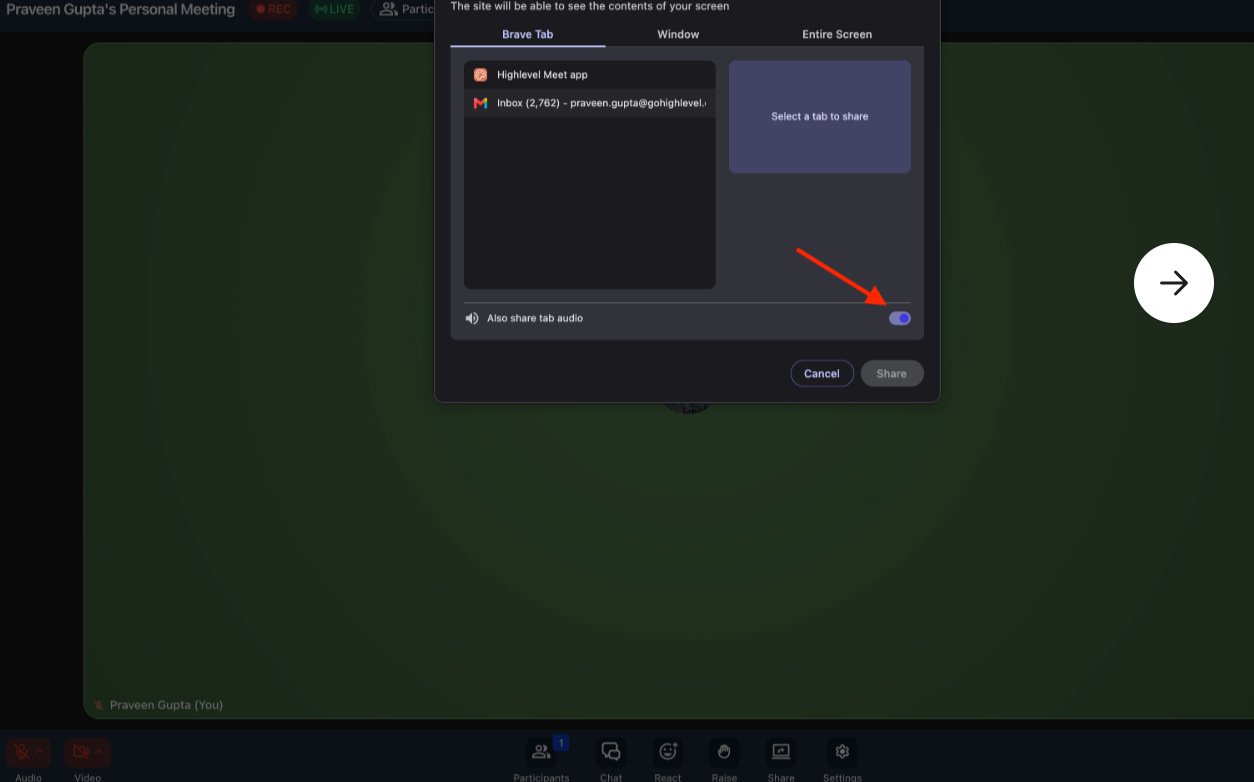
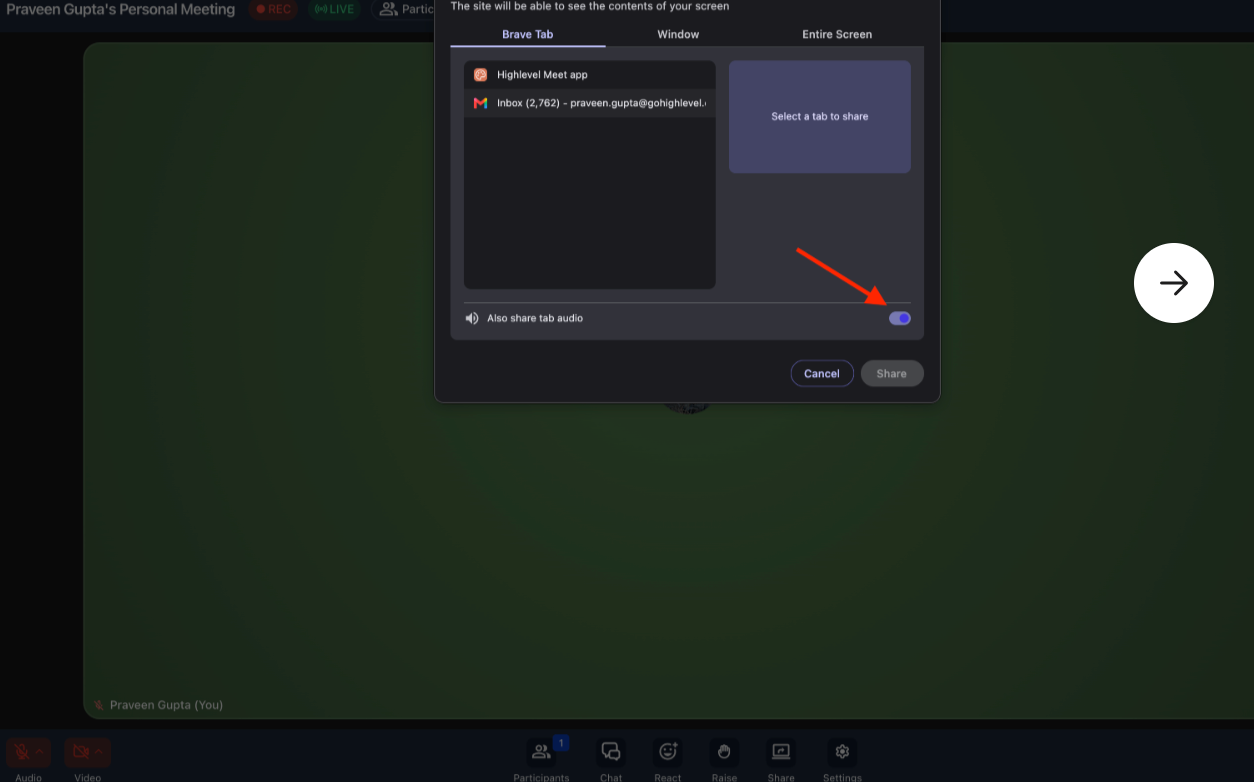
- If needed, enable system audio by checking the audio option during the screen share setup.
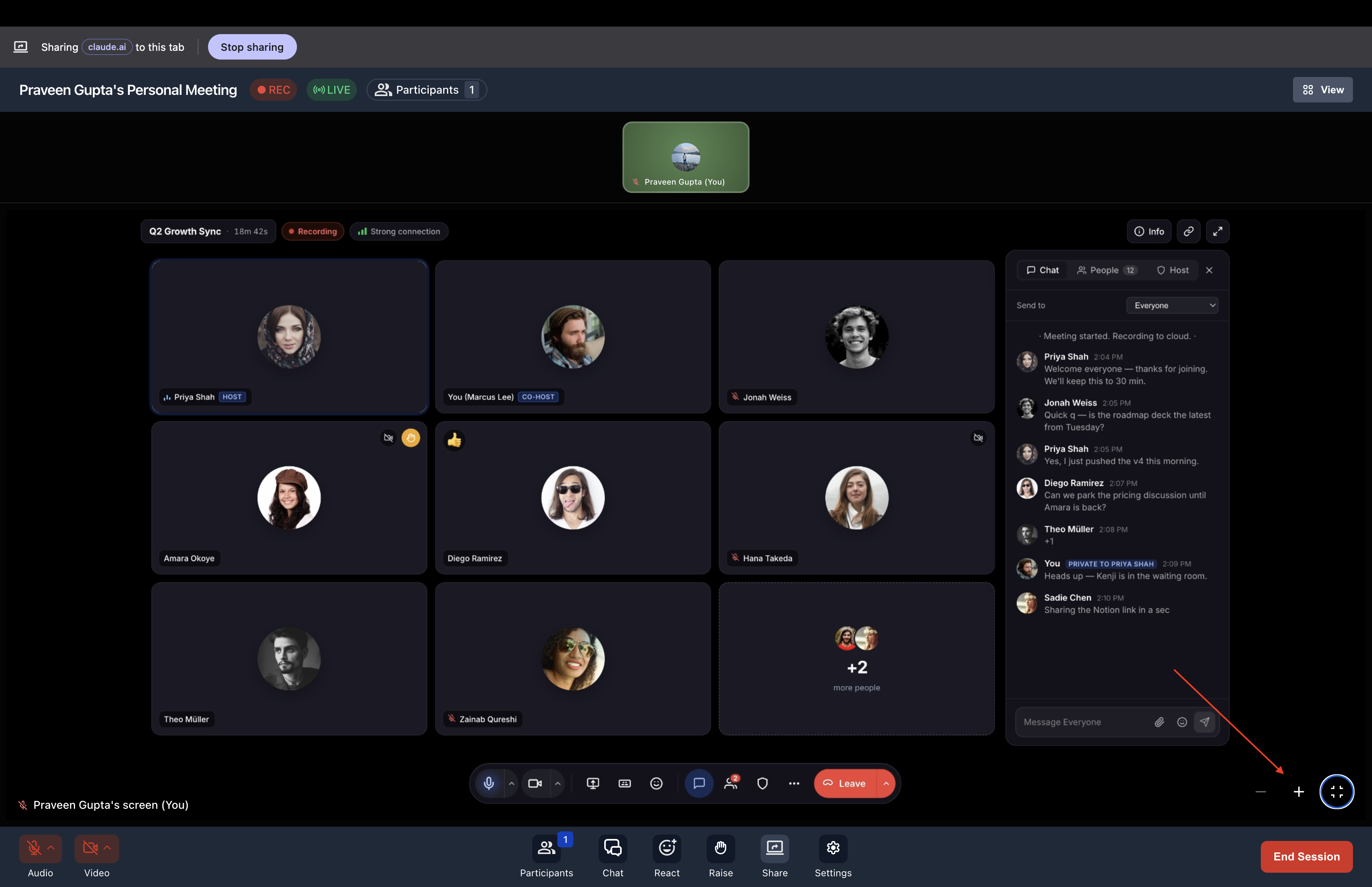
- While viewing a shared screen, click the full screen button to expand it; exit by pressing Escape or the exit icon.
- Adjust the zoom level using the on screen zoom in and zoom out controls.
06What it looks like in HighLevel
07Things to know before you rely on it
- Resolution is limited to a maximum of 1080p.
- Frame rate is capped at 30 FPS.
- Features are enabled by default; no additional account settings are required.
08How it connects to the rest of HighLevel
- Customize the look of your calendar widget Calendar widget guide
- Quickly navigate upcoming meetings with the in app calendar view In app calendar view
- View pricing and plan options for HighLevel Pricing page
Michael's take

When a team needs to walk a client through a dashboard or demo a video, unclear screen sharing can stall the conversation. The first setting I would get right is enabling system audio so the client hears the video exactly as intended.
From there I’d test the full screen view and zoom controls on my own device to confirm the quality before inviting others. That way I know the shared content stays sharp and readable for everyone.