
01Who this is for
- Service based businesses benefit because they can let customers choose a preferred provider while still balancing workload.
- Clinics and medical practices improve patient experience by offering a choice of doctor or therapist during scheduling.
- Consulting firms can personalize appointments, allowing clients to select a consultant they prefer while maintaining fair distribution.
02Round robin staff selection, explained
The Staff Member Selection option adds a dropdown to the booking page, giving clients the ability to choose a particular staff member. When a client does not make a choice, the Round Robin algorithm automatically assigns an available team member.
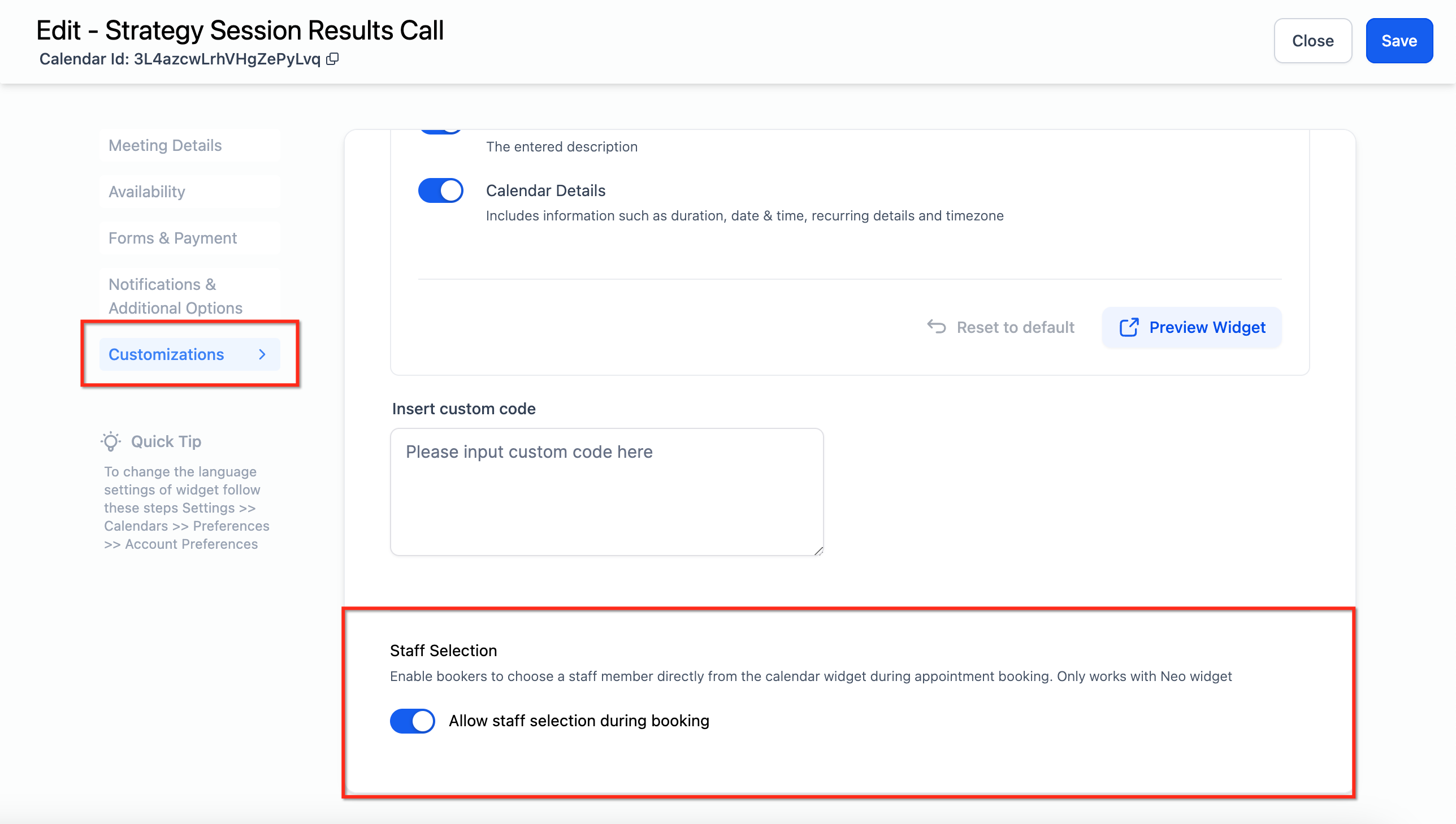
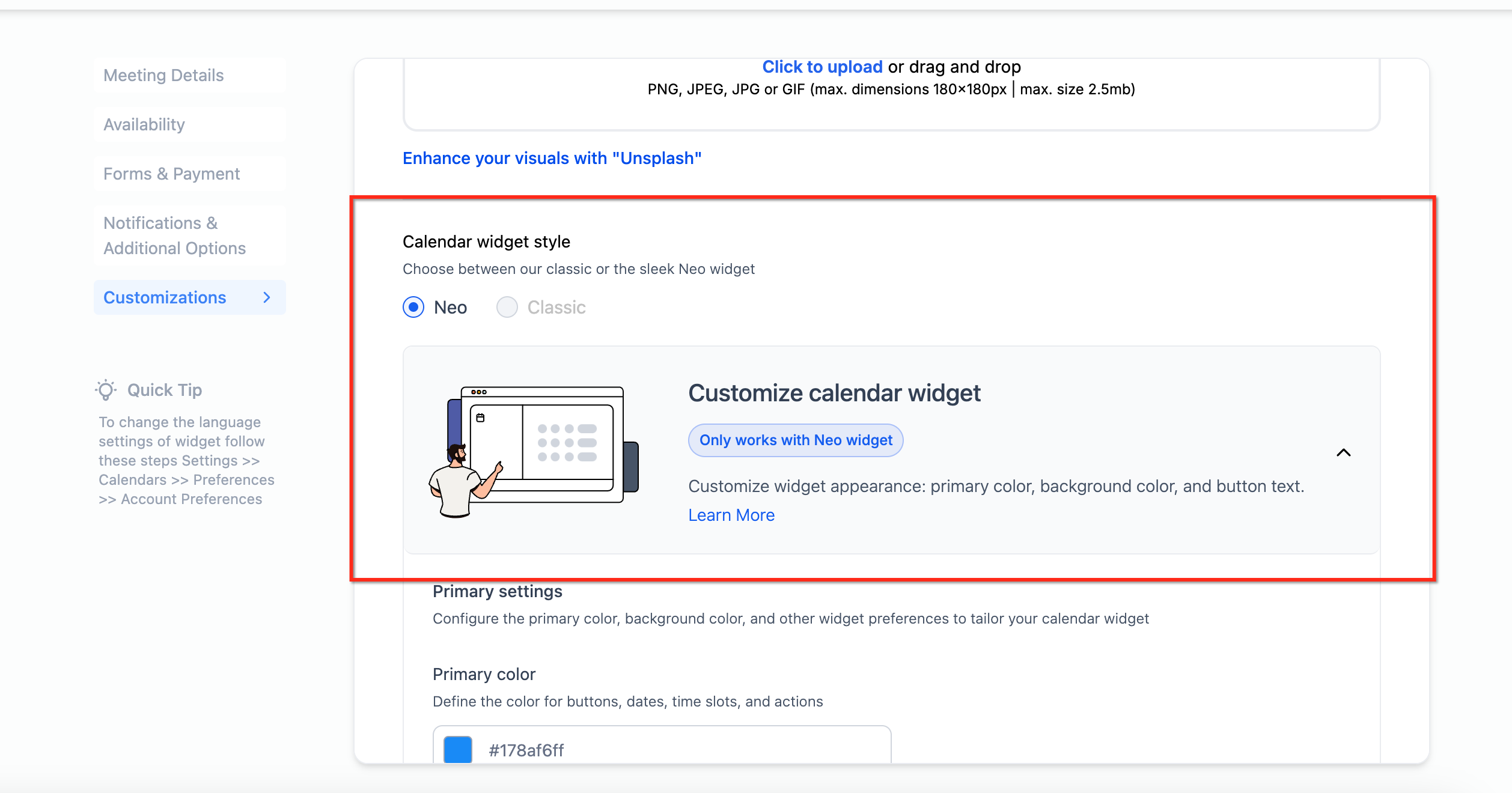
To activate the option, open Settings > Calendars, edit the desired calendar, and turn on the Allow staff selection during booking toggle. This toggle works only when the calendar widget style is set to Neo; the Classic widget does not support the feature.
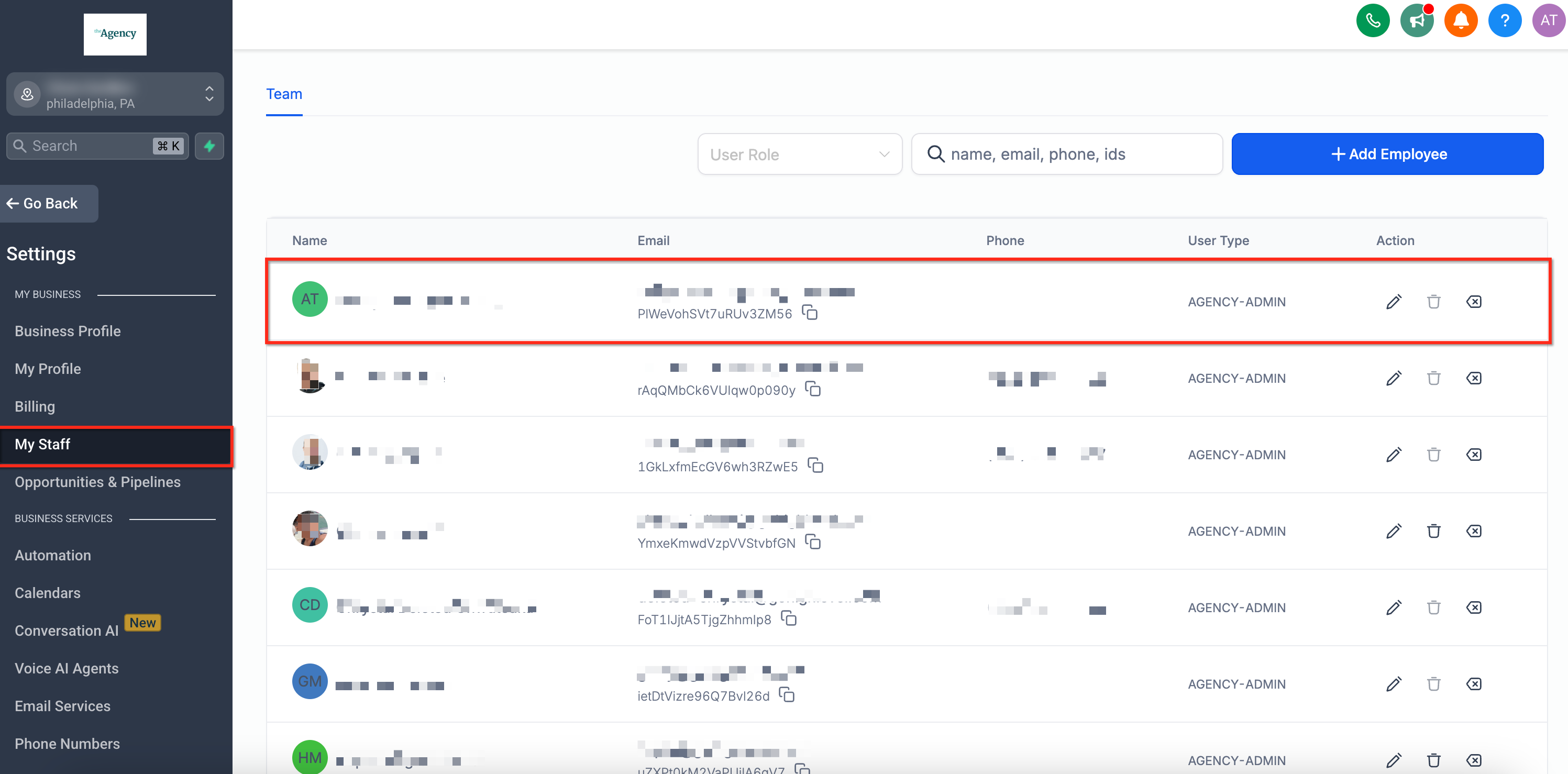
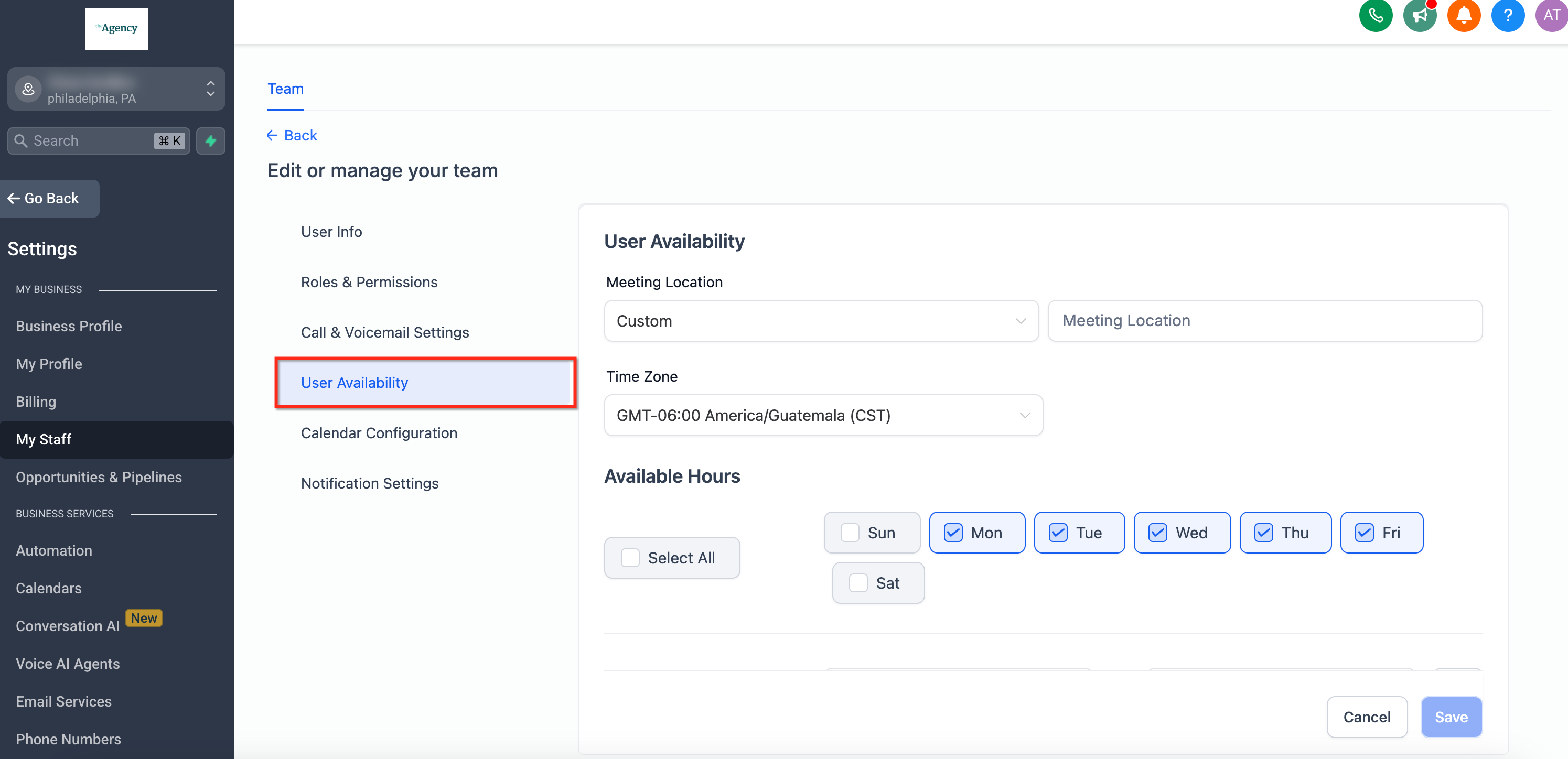
The settings live under the Customizations section of each calendar. Staff availability is managed in Subaccount Settings > My Staff, where working hours and time zones can be edited for each team member.
03How businesses use staff member selection
- Dental practice. The practice enables staff selection on its appointment calendar so patients can choose their preferred dentist. Each dentist’s working hours and timezone are updated in Subaccount Settings > My Staff, ensuring the system knows when they are available.
- Marketing agency. The agency turns on staff selection for strategy session bookings, allowing clients to pick a specific account manager. Managers’ schedules are edited under My Staff, so the Round Robin engine respects their availability.
- Fitness studio. The studio activates staff selection for personal training sessions, letting members select a trainer. Trainer availability is maintained in My Staff, and the studio confirms the selection option appears by opening the calendar’s shared link as a client.
04Before you start
- The calendar widget style must be set to Neo before staff selection can be enabled.
- Staff members must already exist in the system to appear in the selection list.
05How to set up and use staff member selection in HighLevel
Enable staff selection
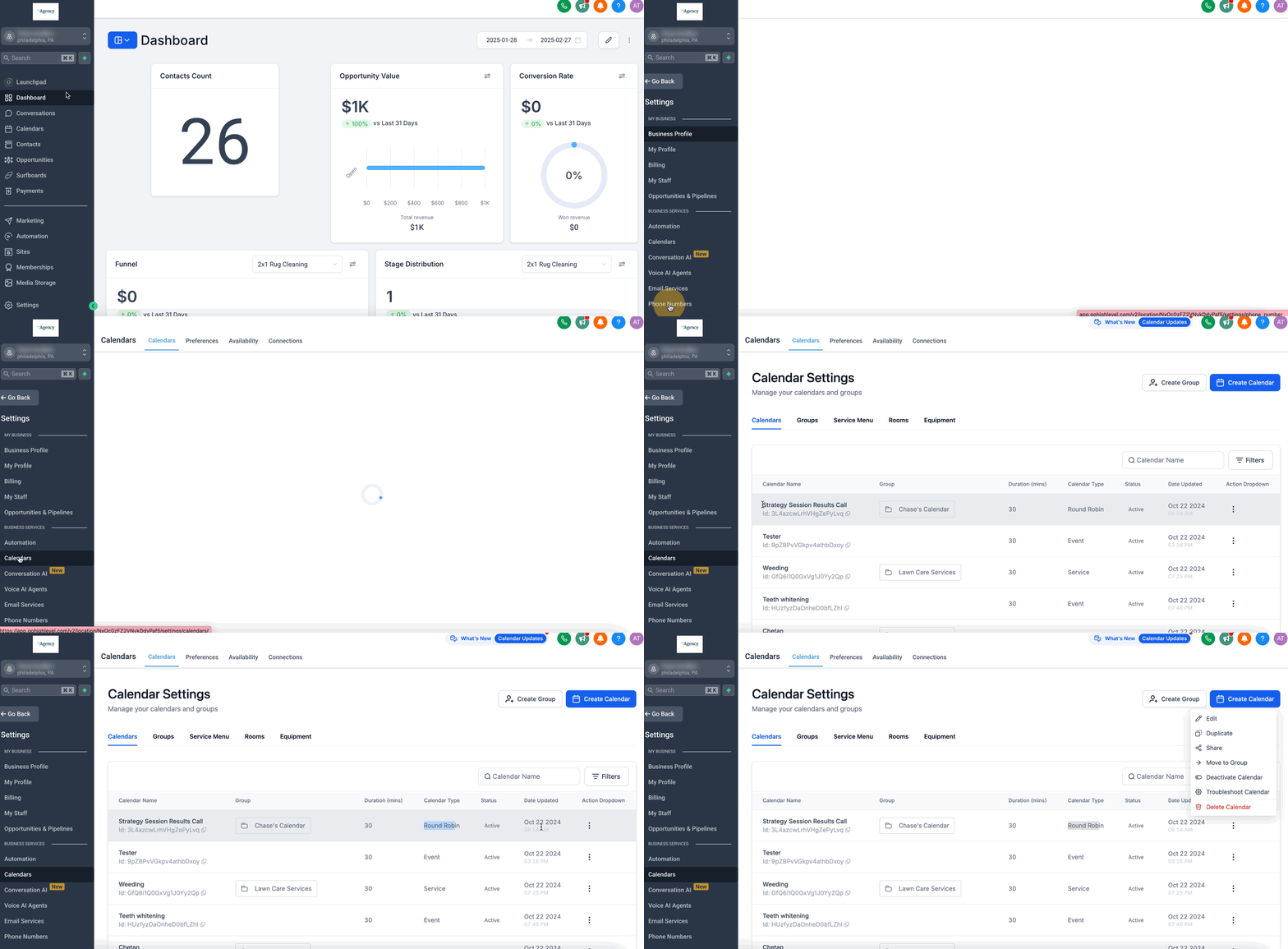
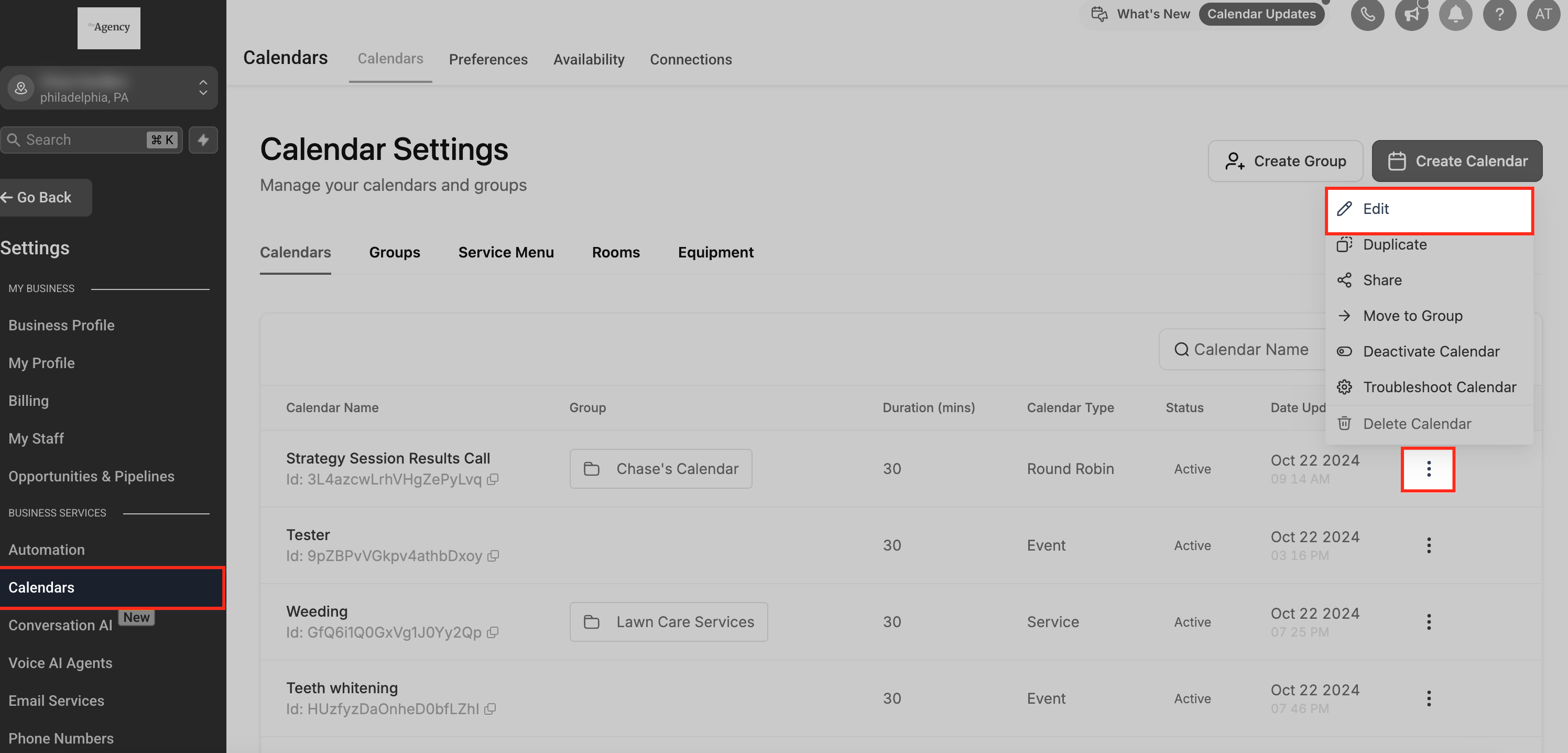
- Open Settings, choose Calendars, and locate the calendar you want to modify.
- Click the three dot menu next to that calendar.
- Select Edit from the dropdown menu.
- Toggle on Allow staff selection during booking under Customizations.
Manage staff availability for round robin selection
- Go to Subaccount Settings and then My Staff.
- Select the staff member whose availability you need to change.
- Click the pencil Edit icon on the Actions tab.
- Adjust the working hours and timezone, then save the changes.
Test booking flow as a customer
- Click the three dot menu next to the calendar and choose Share.
- Copy the Scheduling Link or Permanent Link that appears.
- Paste the link into a browser and load the page.
- Confirm that the booking page displays an option to choose a staff member.
06What it looks like in HighLevel
07Settings that matter
- Allow staff selection during booking. Controls whether the booking widget shows a dropdown for clients to pick a specific team member.
08Things to know before you rely on it
- The feature works only with the Neo widget; it is not available for the Classic calendar widget.
- When a client selects a staff member, it overrides the standard Round Robin assignment for that appointment.
09How it connects to the rest of HighLevel
- Configure Round Robin calendars and learn how distribution works. Round Robin setup
- Read about the appointment distribution logic behind Round Robin scheduling. Distribution logic
- Manage which team members are assigned to round robin calendars. Team assignments
Michael's take

Clients often want to see the person they know, but businesses still need to keep schedules fair. Allowing a customer to choose their preferred staff member while the system still balances the load solves that tension.
The first setting to get right is the Calendar widget style. It must be set to Neo before the staff selection toggle will work. Once that is in place, turn on Allow staff selection during booking and test the link as a client to confirm the dropdown appears.