
01Who this is for
- Service firms that schedule client meetings need fair workload distribution, so round robin ensures no single staff member is overloaded.
- Coaches or consultants with repeat clients benefit from keeping the same staff member for continuity while still allowing flexible rescheduling.
- Small agencies that assign leads to specific account managers can automate the initial assignment based on the contact's assigned user.
02Team member assignments, explained
The feature manages how appointments are allocated within a Round Robin Calendar. It decides which team member receives a new booking, how a rescheduled booking is handled, and whether contacts stay linked to a particular staff member.
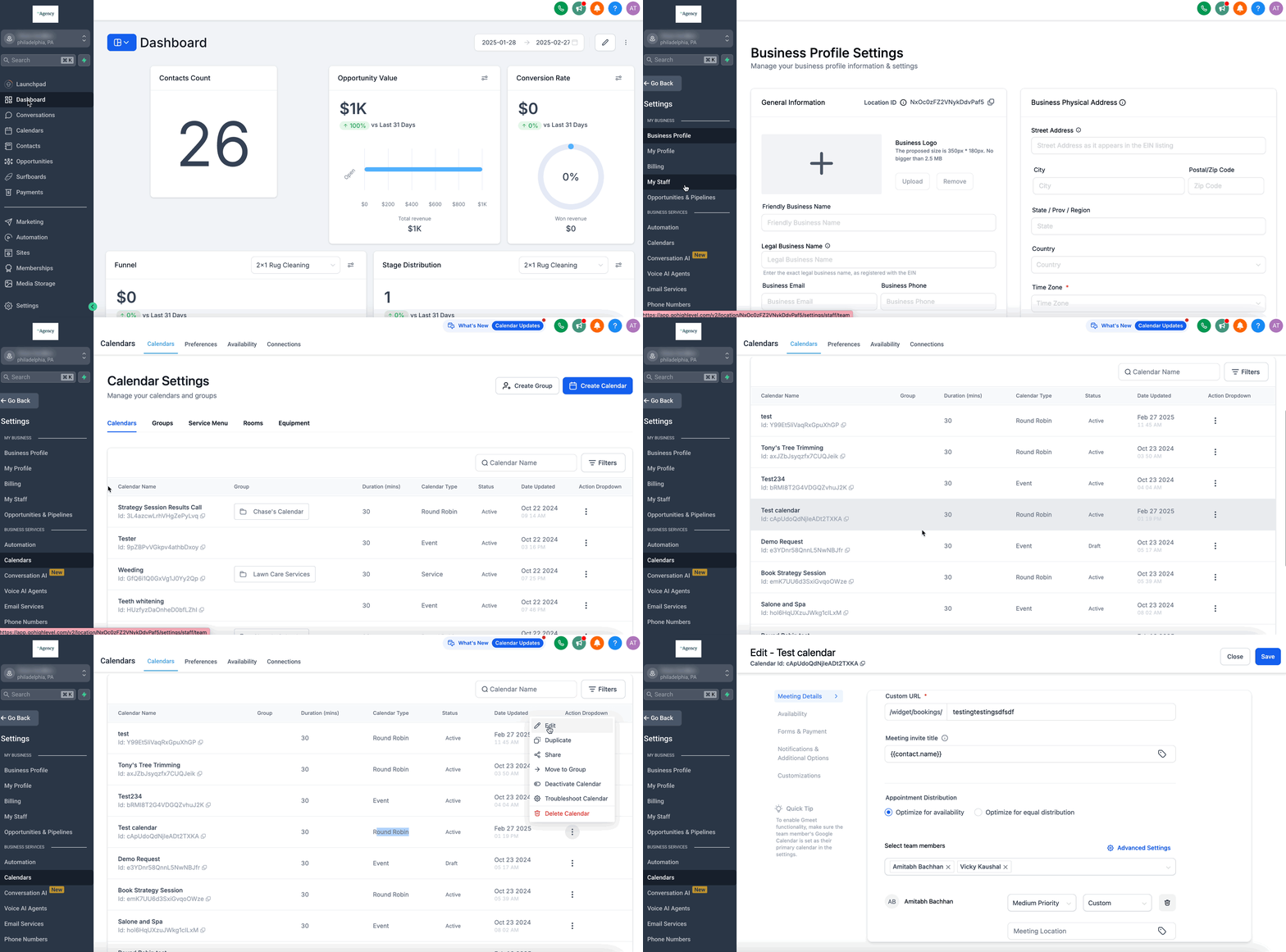
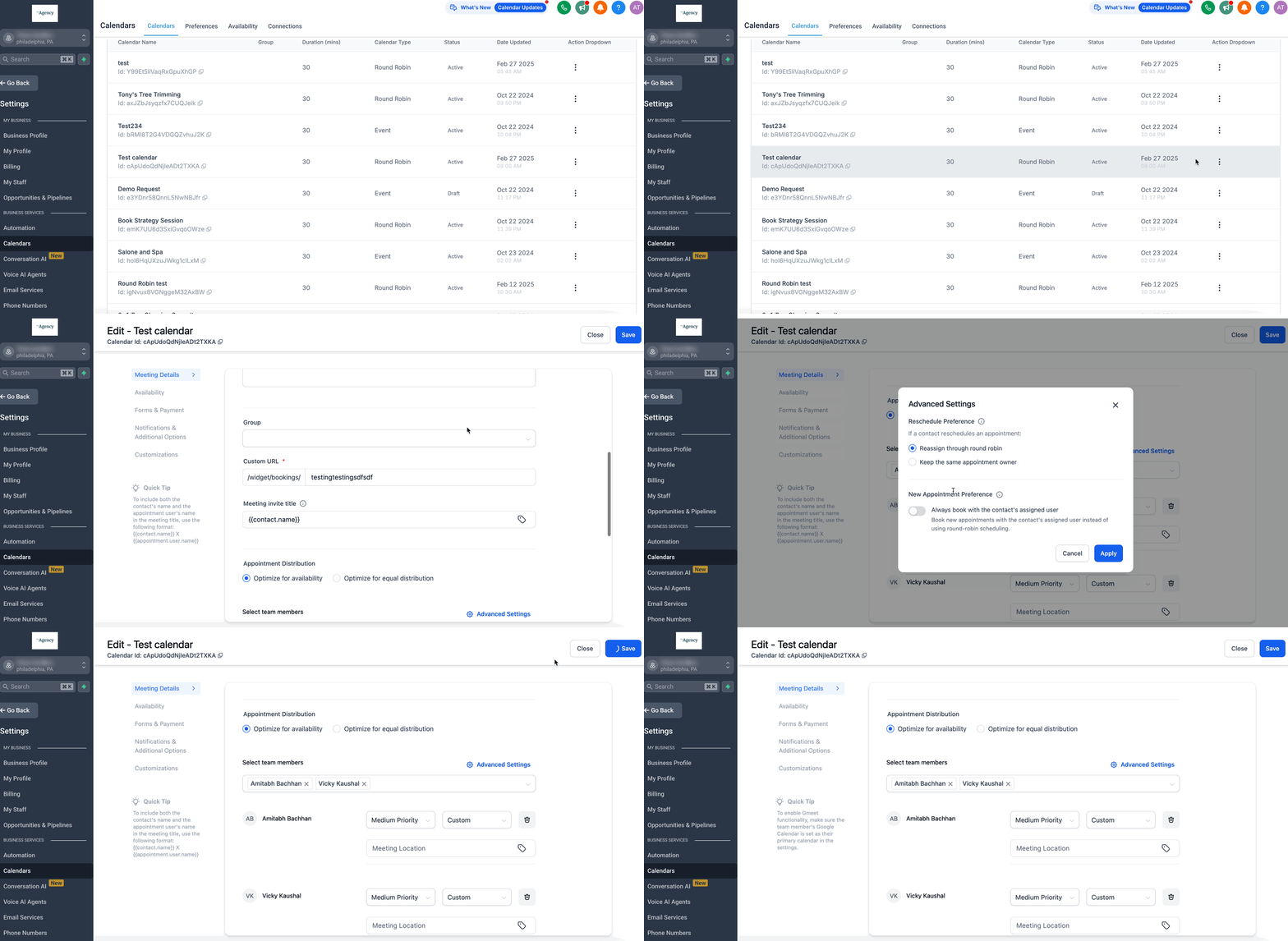
Settings are found in Settings > Calendars, then under the chosen Round Robin Calendar’s Meeting Details > Team Members. Advanced Settings hold the options for rescheduling behavior and new appointment routing, while additional toggles reside under the Notifications and Additional Options tab.
03How businesses use team member assignments
- Medical clinic. The clinic enables "Always Book with Assigned User" so patients are automatically scheduled with the doctor already linked to their record. When a patient reschedules, the clinic chooses to keep the same doctor’s slots by selecting "Keep Same Appointment Owner".
- Digital marketing agency. The agency turns on "Reassign Through Round Robin" for reschedules, letting the system pick any available account manager. New appointments follow round robin unless a lead already has an assigned manager, in which case "Always Book with Assigned User" routes the booking to that manager.
- Home services business. The business activates "Automatically Assign a Contact’s Future Appointments to the Same Team Member" so once a client books a service with a technician, all future jobs default to that technician, maintaining service consistency.
04Before you start
- The contact must already have an assigned user in the system.
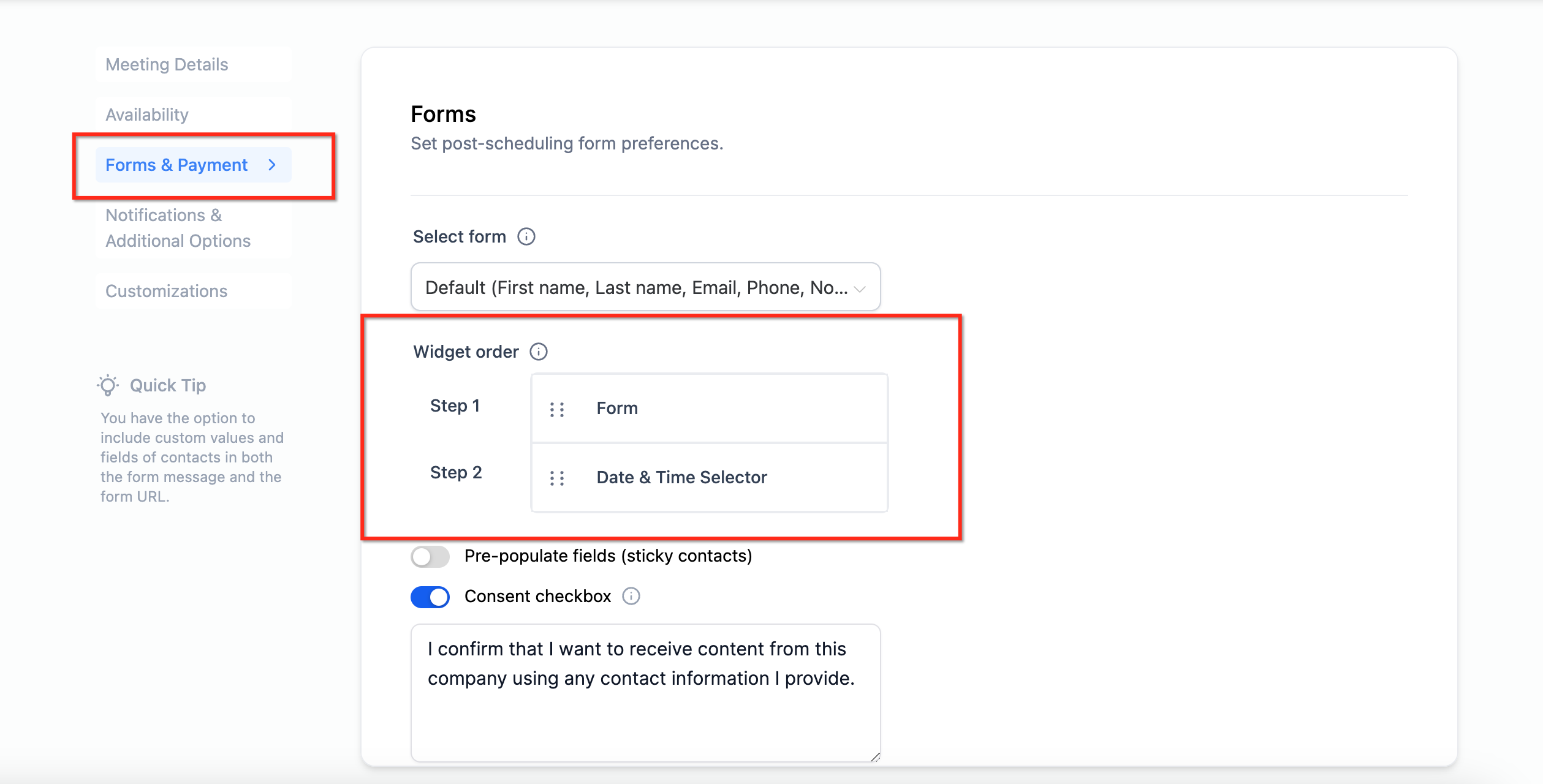
- The form used for booking must be placed first in the widget order under Forms & Payments.
05How to set up and use team member assignments in HighLevel
Configure reschedule options
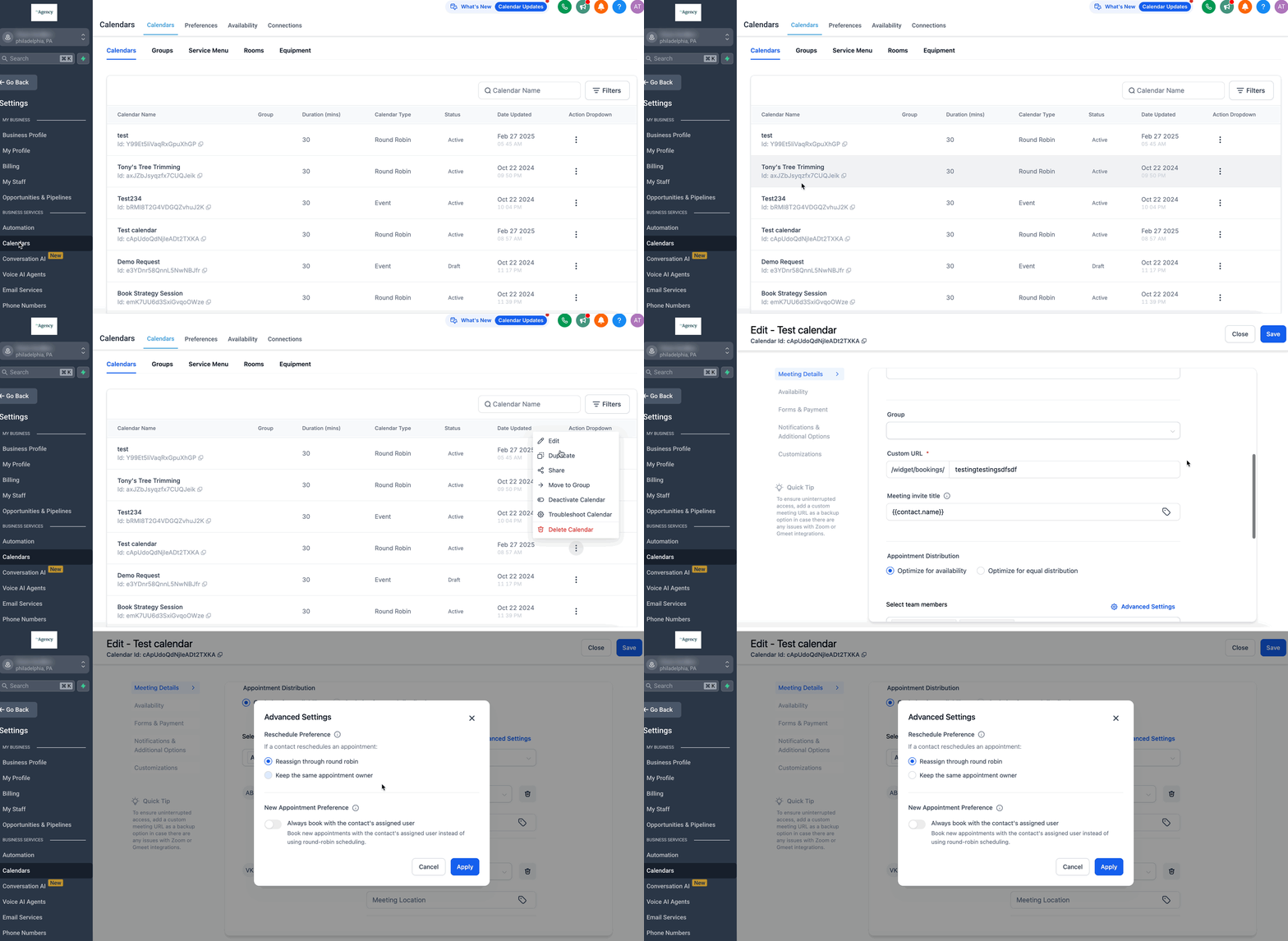
- Navigate to Settings > Calendars.
- Select the desired Round Robin Calendar.
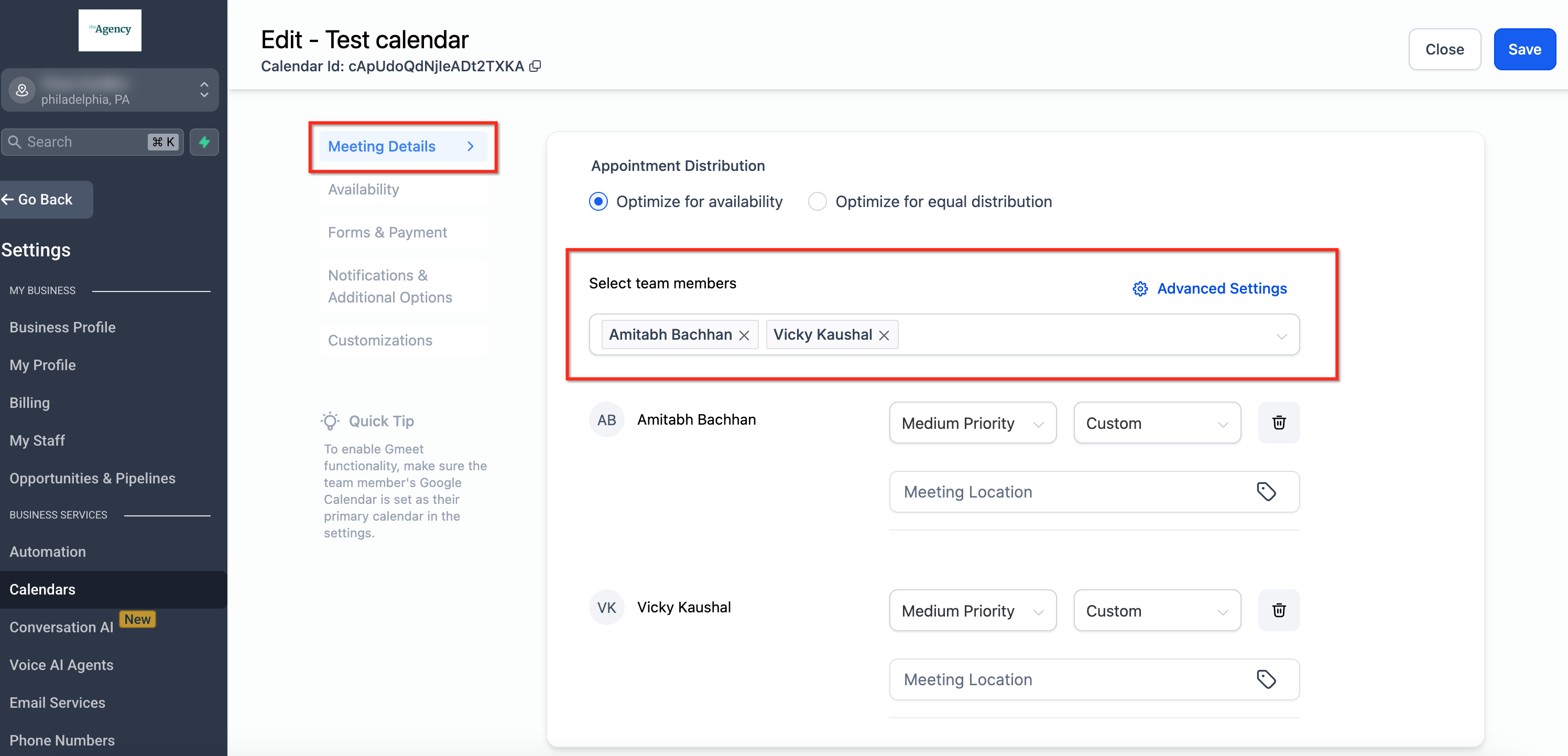
- Click Meeting Details and choose Team Members.
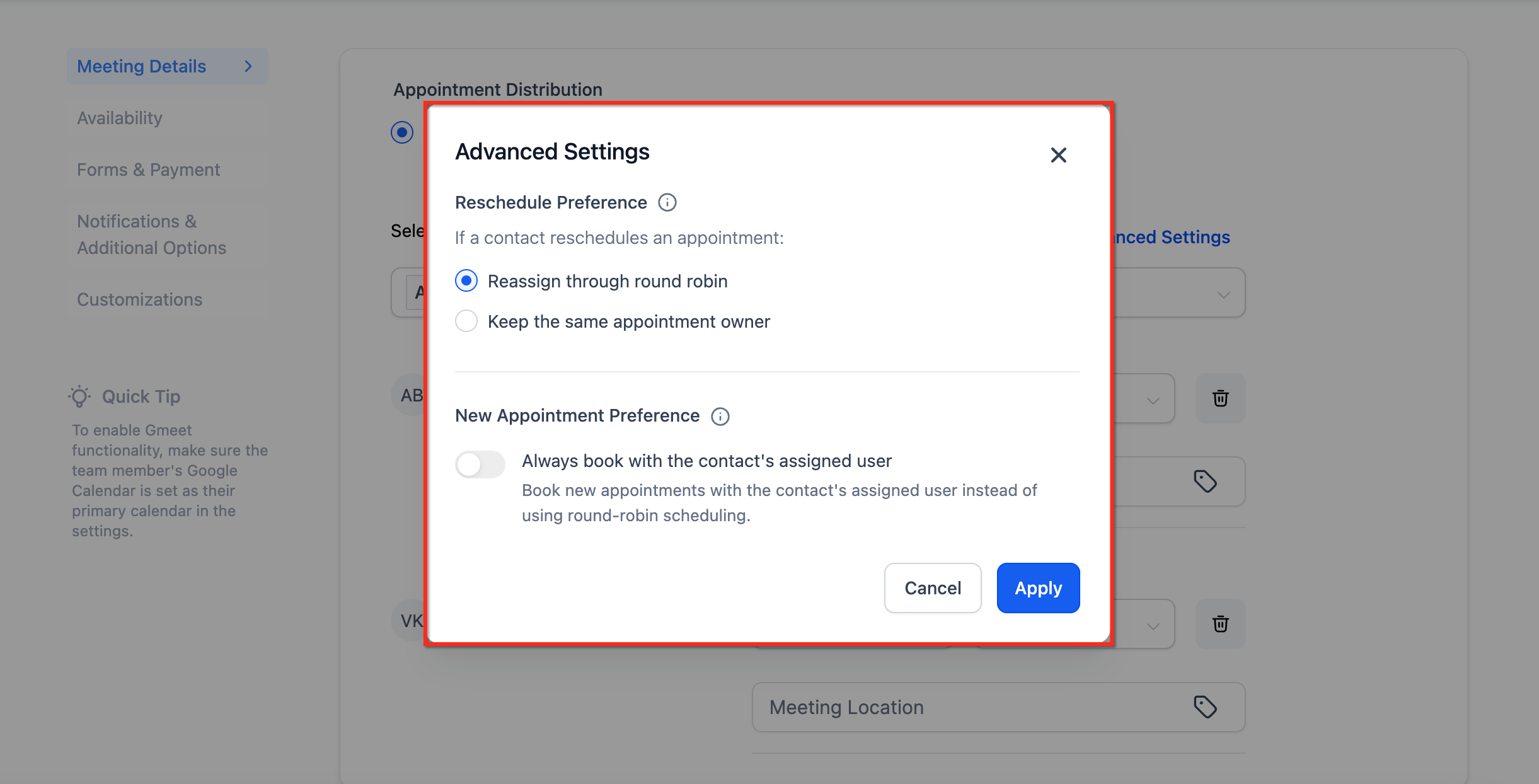
- Locate Advanced Settings within the Team Members view.
- Select Reassign Through Round Robin to have rescheduled appointments assigned by the round robin algorithm.
- Select Keep Same Appointment Owner to limit rescheduling slots to the original appointment owner.
- Warning: Turn off "Allow Staff Selection" if you do not want bookers to change the staff member on the booking widget.
Set new appointment preferences
- Verify that the contact has an assigned user and that the booking form is the first widget in the order.
- Open Meeting Details > Team Members > Advanced Settings for the chosen Round Robin Calendar.
- Toggle the Always Book with Assigned User option to enable it.
- Tip: Turn off "Allow Staff Selection" to prevent bookers from changing the staff member on the booking widget.
06What it looks like in HighLevel
07Settings that matter
- Reassign Through Round Robin. When enabled, a rescheduled appointment is allocated to any team member based on the round robin algorithm.
- Keep Same Appointment Owner. When enabled, only the original owner’s available slots appear for a client who uses the reschedule link.
- Allow Staff Selection. Turning this off prevents bookers from changing the staff member on the booking widget.
- Always Book with Assigned User. If a contact has an assigned user, that user receives priority for new bookings; otherwise the appointment follows round robin assignment.
- Assign Contacts to Their Respective Calendar Team Members. Automatically links a contact to the team member they booked with when the appointment is created.
- Automatically Assign a Contact’s Future Appointments to the Same Team Member. Ensures all subsequent appointments for a contact are booked with the same team member.
08Things to know before you rely on it
- If the assigned user is not part of the calendar, the appointment falls back to round robin scheduling.
- When "Always Book with Assigned User" is turned off, every new appointment uses round robin logic.
- Only users added to the calendar appear in the Team Member dropdown when manually booking from a contact record.
09How it connects to the rest of HighLevel
- How to configure Round Robin Calendars in HighLevel Round Robin setup guide
- Understanding HighLevel round robin appointment distribution Appointment distribution logic
- Round robin staff selection in HighLevel calendars Staff selection options
Michael's take

Team member assignments can quickly become a source of confusion if the rules don’t match how your business actually operates. Overassigning staff or leaving the reschedule options unchecked can lead to unexpected owner changes and frustrate both your team and clients.
When the settings line up with your workflow, the feature frees you from manually juggling appointments. It keeps the right staff member on the booking, preserves continuity for repeat clients, and still lets the round robin engine balance load when needed.