
01Who this is for
- Salon owners who need to limit bookings to the number of haircut chairs available.
- Fitness studios that must track the capacity of each training room for class scheduling.
02Resources in Services, explained
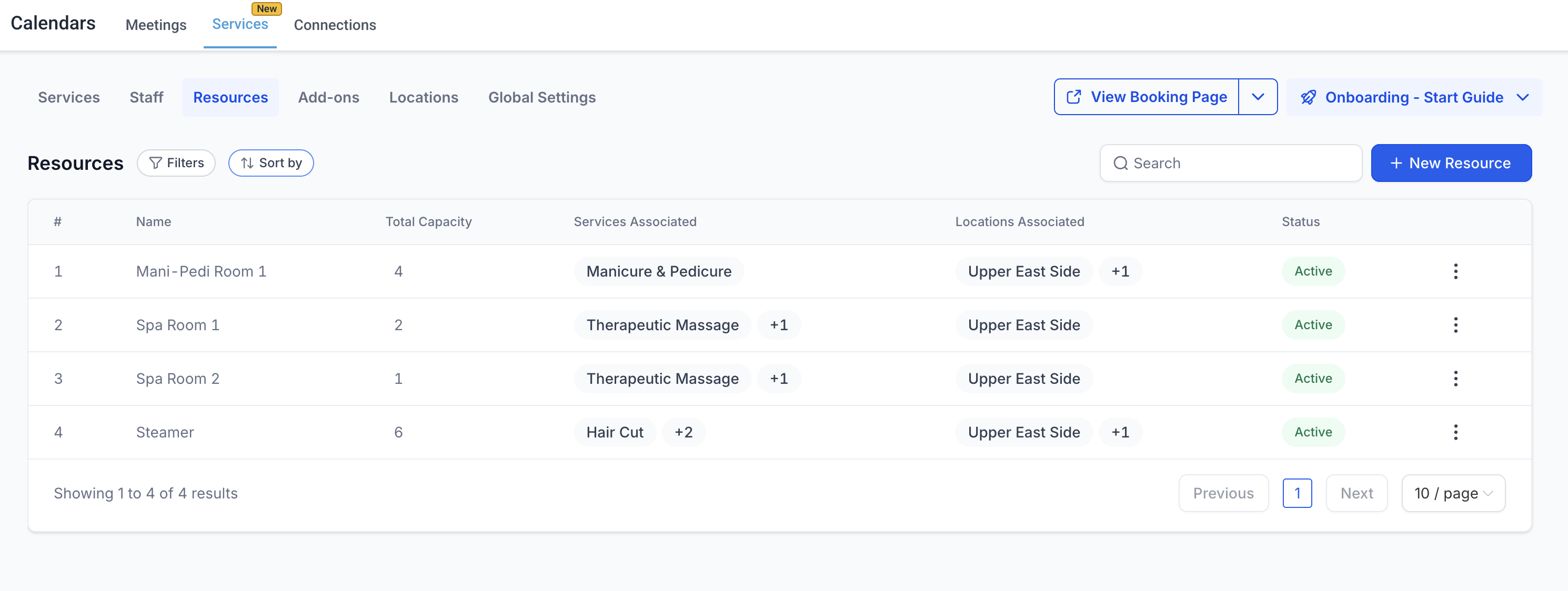
Resources represent physical items such as rooms, chairs, or stations that are needed to deliver a service. When a service that has a linked resource is booked, HighLevel automatically reserves that resource for the appointment time. This reservation prevents other bookings from using the same asset at the same moment.
Resources are managed inside the Services module. You create a resource, assign one or more services, choose the locations where it exists, and set a capacity for each location. The resource then becomes part of the service’s availability logic.
Only one resource can be booked per service at a time, but you may assign several interchangeable resources. The platform will select any available one during scheduling.
03How businesses use resources in services
- Hair salon. Create a resource for each haircut chair, assign the chair resources to the haircut service, and set the capacity to one. When a client books a haircut, the system locks the specific chair, ensuring no more appointments than chairs exist.
- Physical therapy clinic. Add a resource for each treatment room, specify the room’s capacity for simultaneous patients, and link the rooms to therapy services. The booking engine will only allow appointments that fit within each room’s capacity.
- Co working space. Define resources for conference rooms, assign them to meeting type services, and configure capacities based on seat count. Bookings will automatically reserve an available room that fits the requested time slot.
04Before you start
- Services must be enabled for the subaccount before the Resources tab appears.
05How to set up and use resources in services in HighLevel
Create a resource
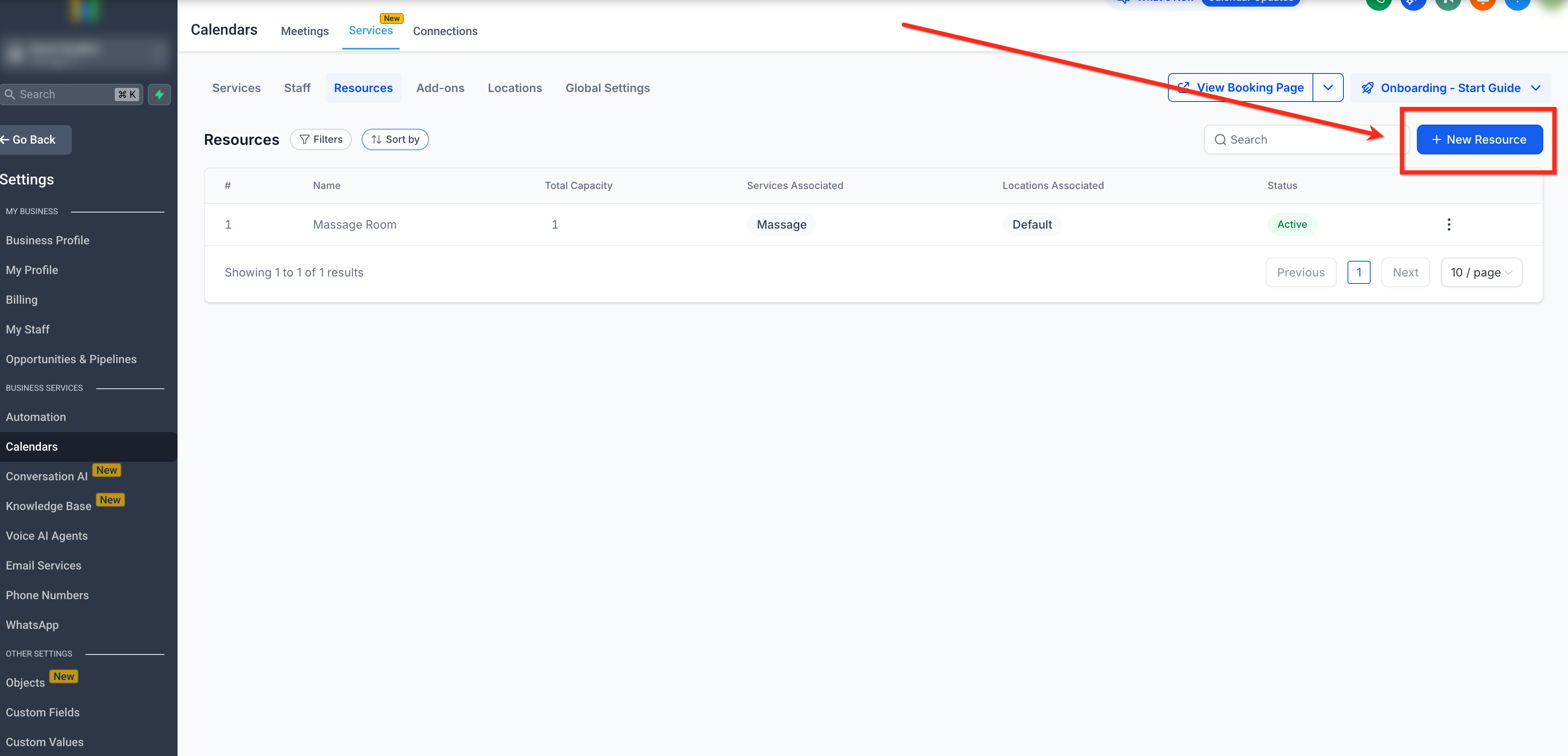
- Open the Resources page via Calendar > Calendar Settings > Services > Resources.
- Click the + New Resource button in the upper right corner.
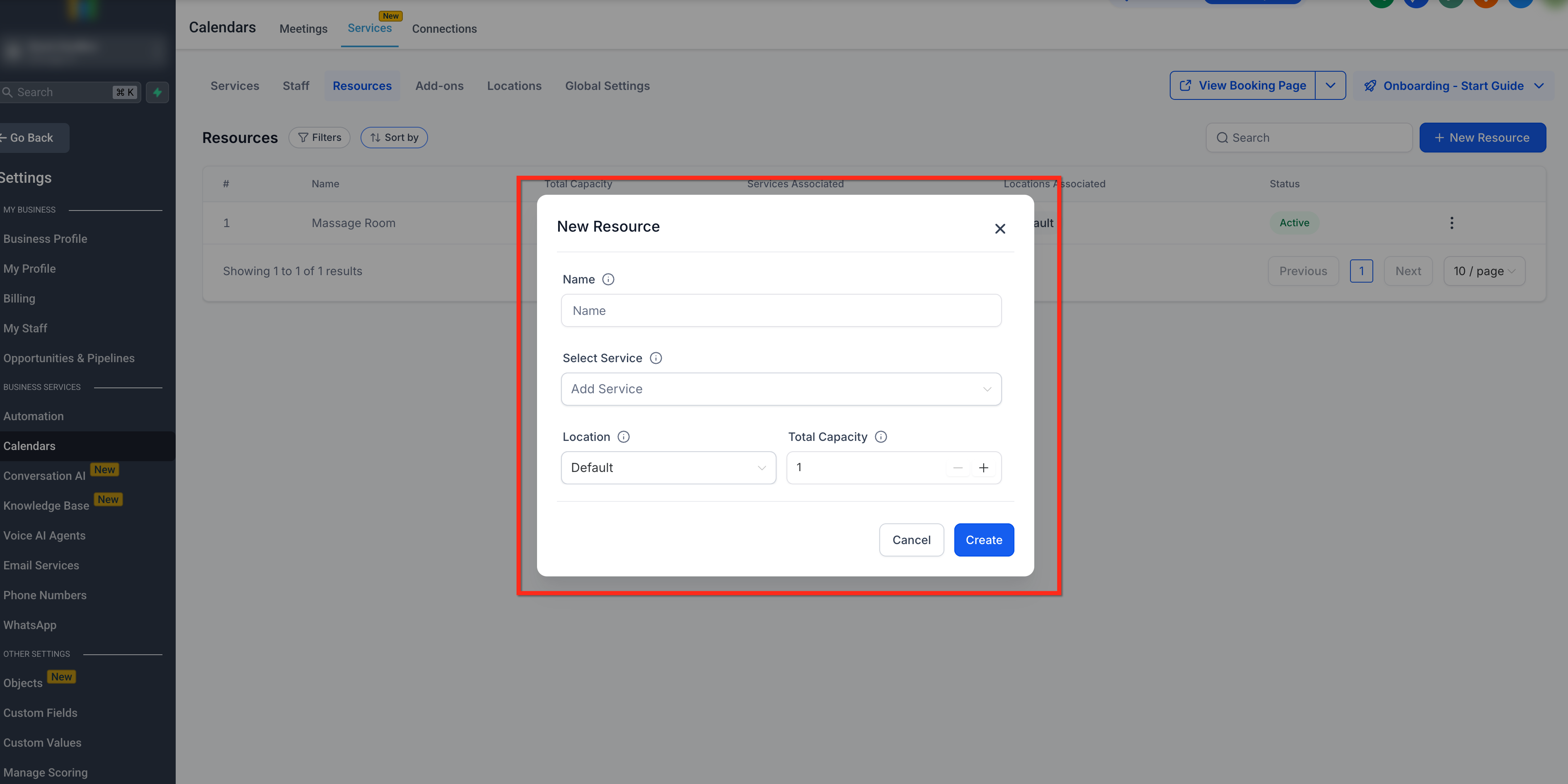
- Enter a Resource Name and, if desired, a description.
- Select the Service(s) that will require this resource.
- Choose the Location(s) where the resource is available.
- Define the capacity for each selected location.
- Press the blue Create button to save the new resource.
06What it looks like in HighLevel
07Settings that matter
- Resource Name. Identifies the physical asset in the system.
- Description. Provides optional details about the resource.
- Service(s). Specifies which services need this resource.
- Location(s). Indicates the site(s) where the resource can be used.
- Capacity. Sets how many appointments the resource can handle at once for each location.
08Things to know before you rely on it
- A service can book only one resource at a time.
- Multiple resources may be assigned to a service; the system will select any available one.
- Resources should only be created when the asset’s availability limits scheduling.
09If something goes wrong
- Resources tab does not appear. Ensure Services is enabled for the subaccount.
10How it connects to the rest of HighLevel
- Enable Services for a subaccount Enable Services
- Create and manage services that can use resources Create services
- Adjust global service settings that affect resource booking Global service settings
Michael's take

Wondering if you really need to track chairs and rooms in HighLevel? Linking those assets to your services helps prevent double booking. The system does the heavy lifting. Once you set up a resource, every booking automatically reserves the right room or chair.
If I were setting this up, I’d start by naming each limiting asset clearly and setting its capacity. That way the calendar respects the true limits of your space without you having to manually check each appointment.