
01Who this is for
- Coaches who want to secure session slots without requiring full payment upfront, reducing cancellations.
- Event organizers that need to collect a reservation fee while allowing attendees to pay the balance later.
- Service businesses such as salons that wish to display the full price but let customers pay a deposit at booking.
02Partial payments, explained
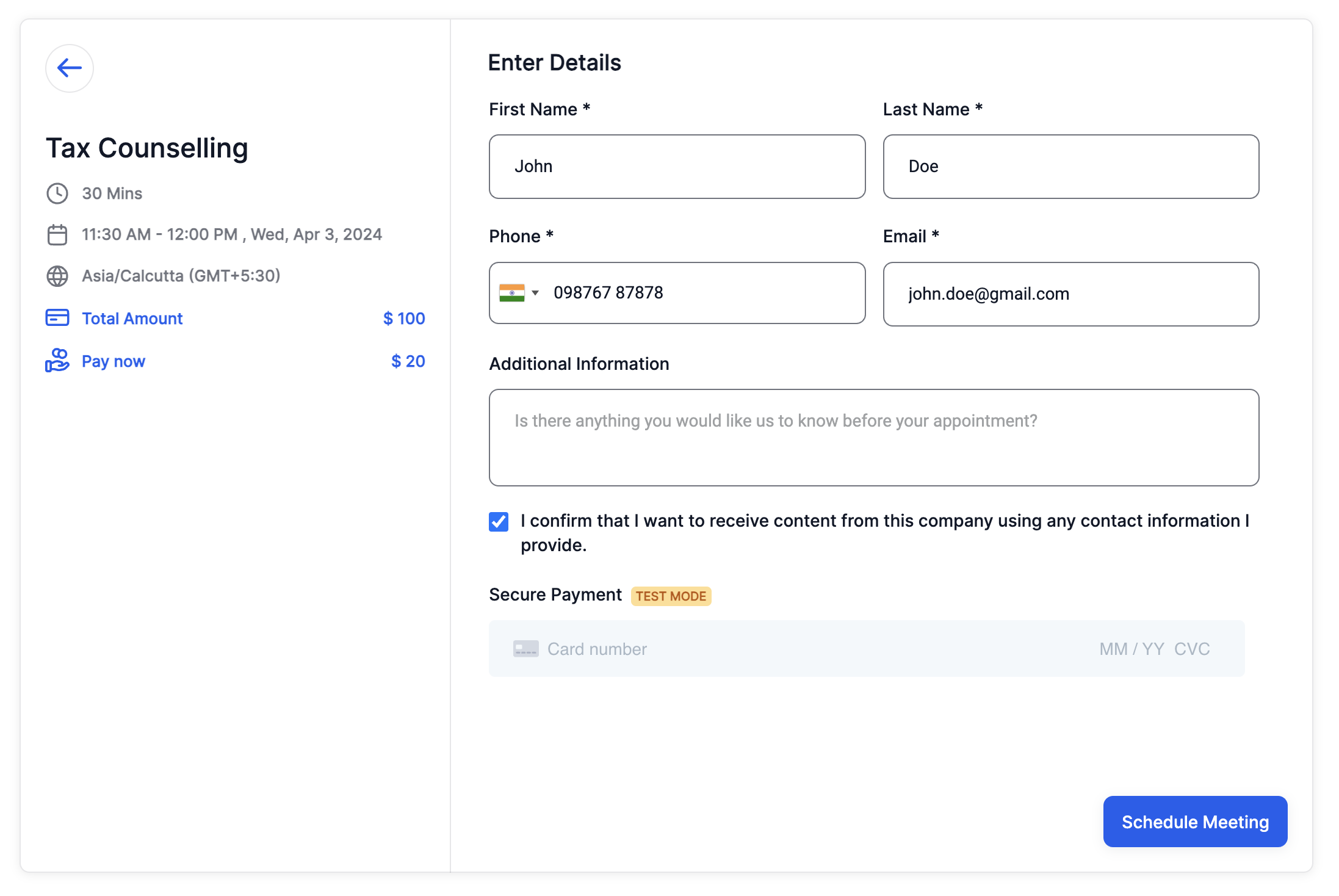
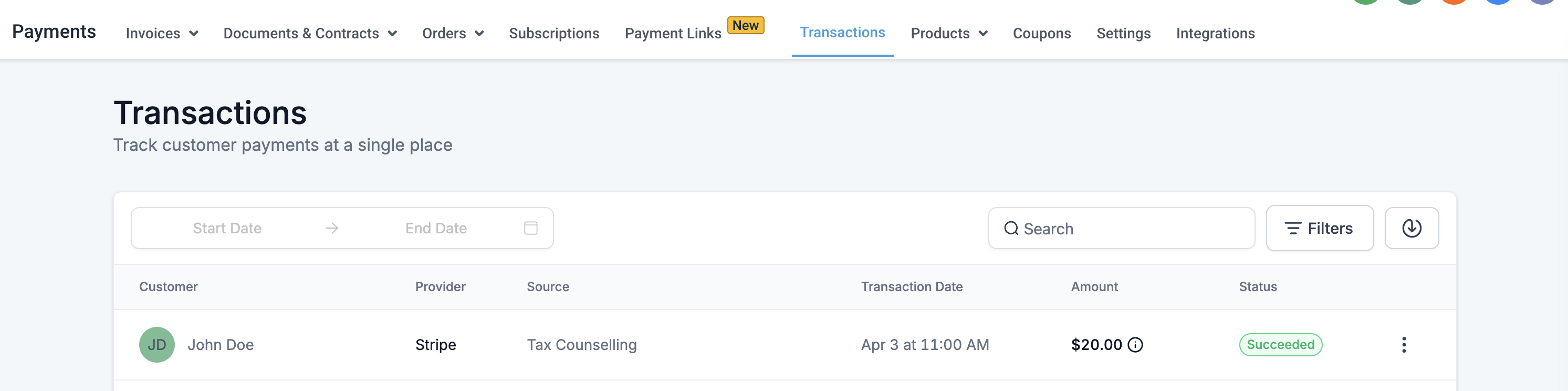
When partial payment is turned on, the booking page charges only the deposit amount. HighLevel records this as a transaction named Deposit Amount. The rest of the price appears as a pending order until the provider manually collects it.
The option exists in the calendar’s Forms & Payments settings. Users choose a flat deposit or a percentage of the total price, add an optional description, and save the changes.
03How businesses use partial payments
- Coaching business. Create a calendar for coaching sessions, enable partial payment, and set a flat deposit. Bookers pay the deposit to lock their slot, and the coach later opens the appointment, goes to Payments, and clicks Collect payment for the remaining balance.
- Workshop organizer. Set up a class calendar, select Accept Partial Payment, and choose a percentage based deposit. Attendees pay the calculated deposit when registering, and the organizer later collects the remaining amount from each appointment record.
- Salon service provider. In the service calendar, enable partial payment and enter a deposit percentage. Customers pay the deposit during online booking, and the salon staff manually collect the rest when the appointment occurs by using the Collect payment button.
04The numbers and rules that matter
- Supported payment gateways: Stripe, NMI, Authorize.net.
05Before you start
- A supported payment gateway (Stripe, NMI, or Authorize.net) must be integrated via Payments Module > Integrations.
06How to set up and use partial payments in HighLevel
Enable partial payment
- Integrate a supported gateway such as Stripe or Authorize.net through Payments Module > Integrations.
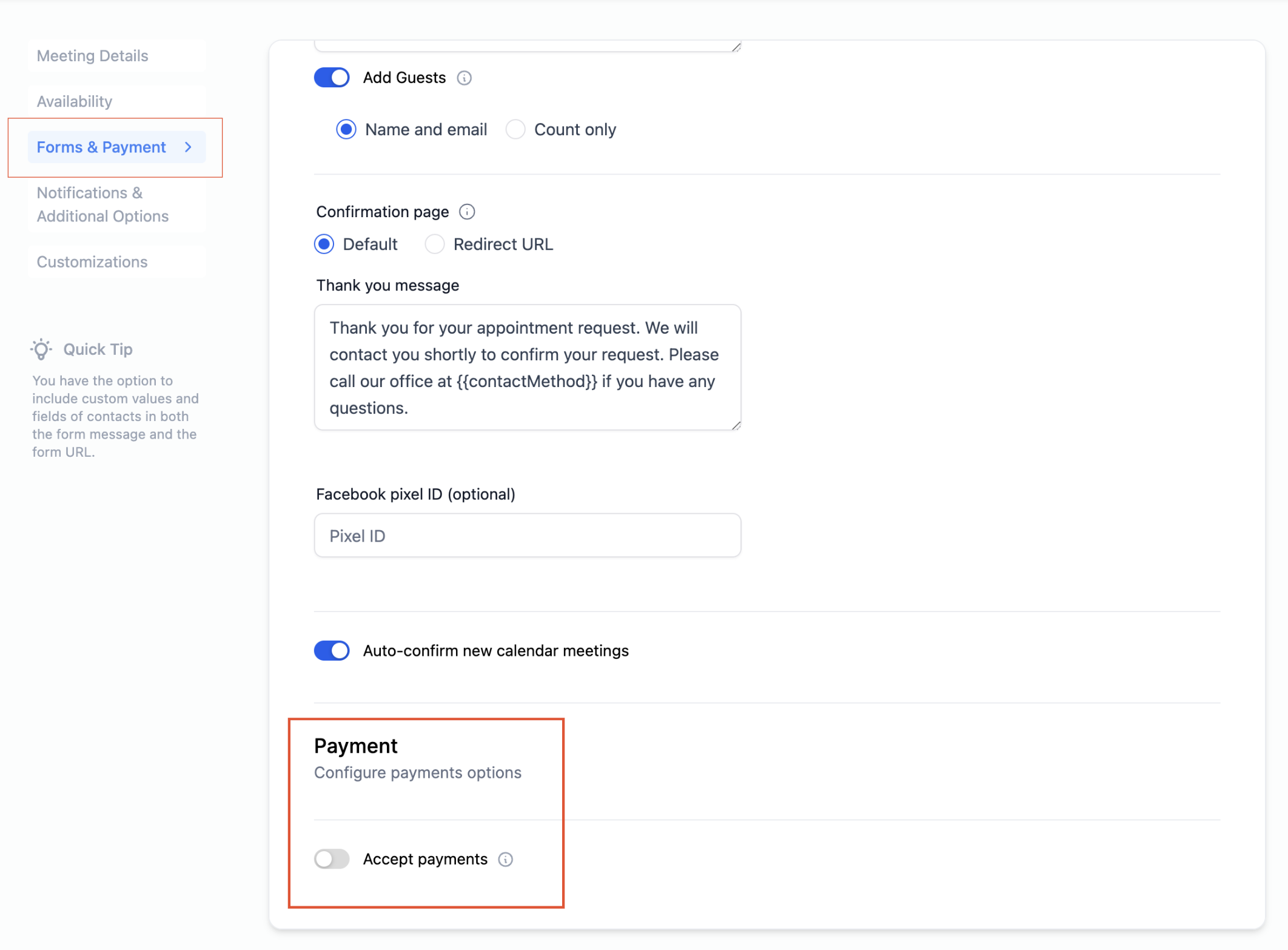
- Open Calendar Settings and turn on the Accept Payments toggle in the Forms & Payments section.
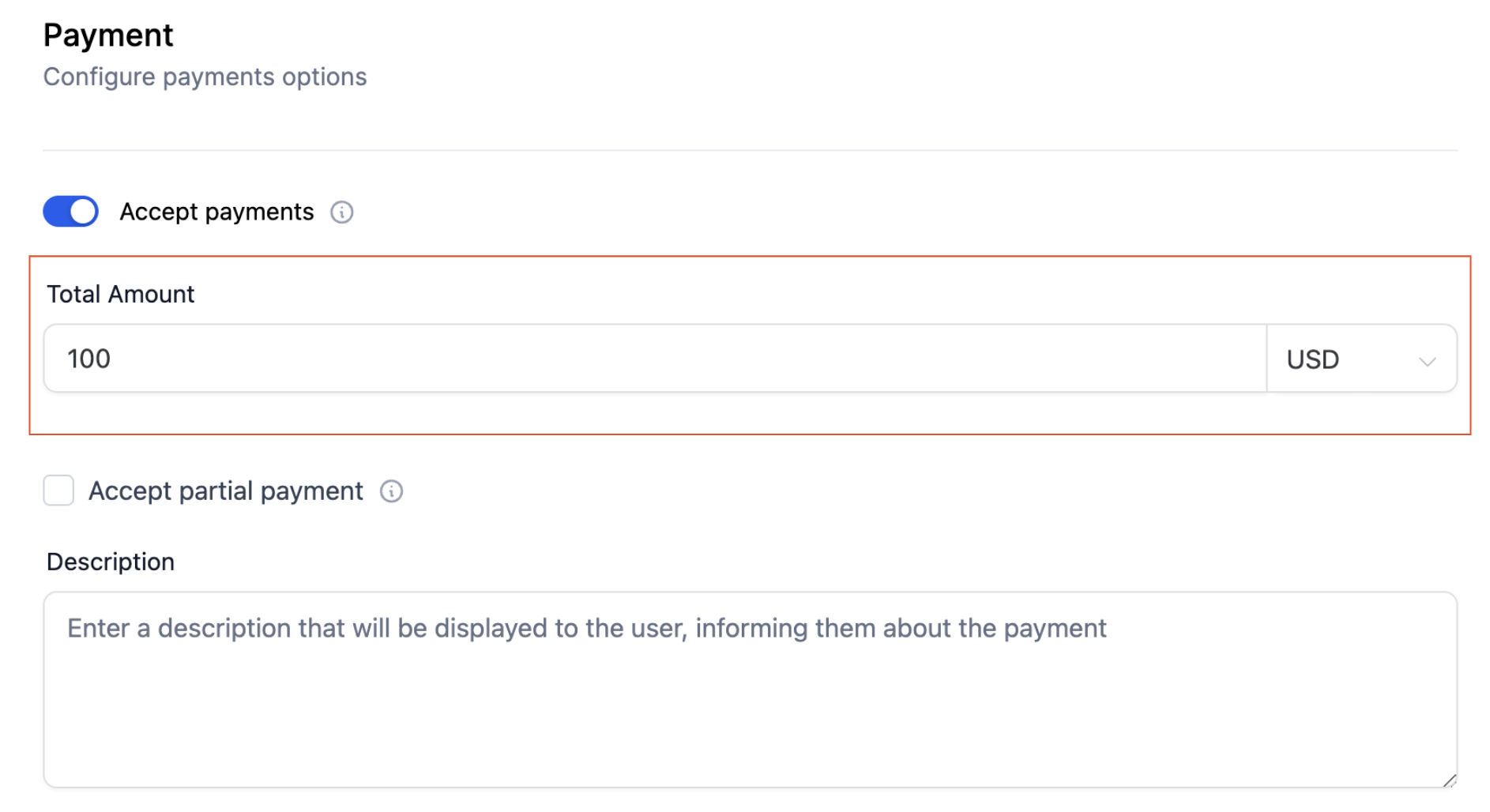
- Enter the total service price and pick the appropriate currency.
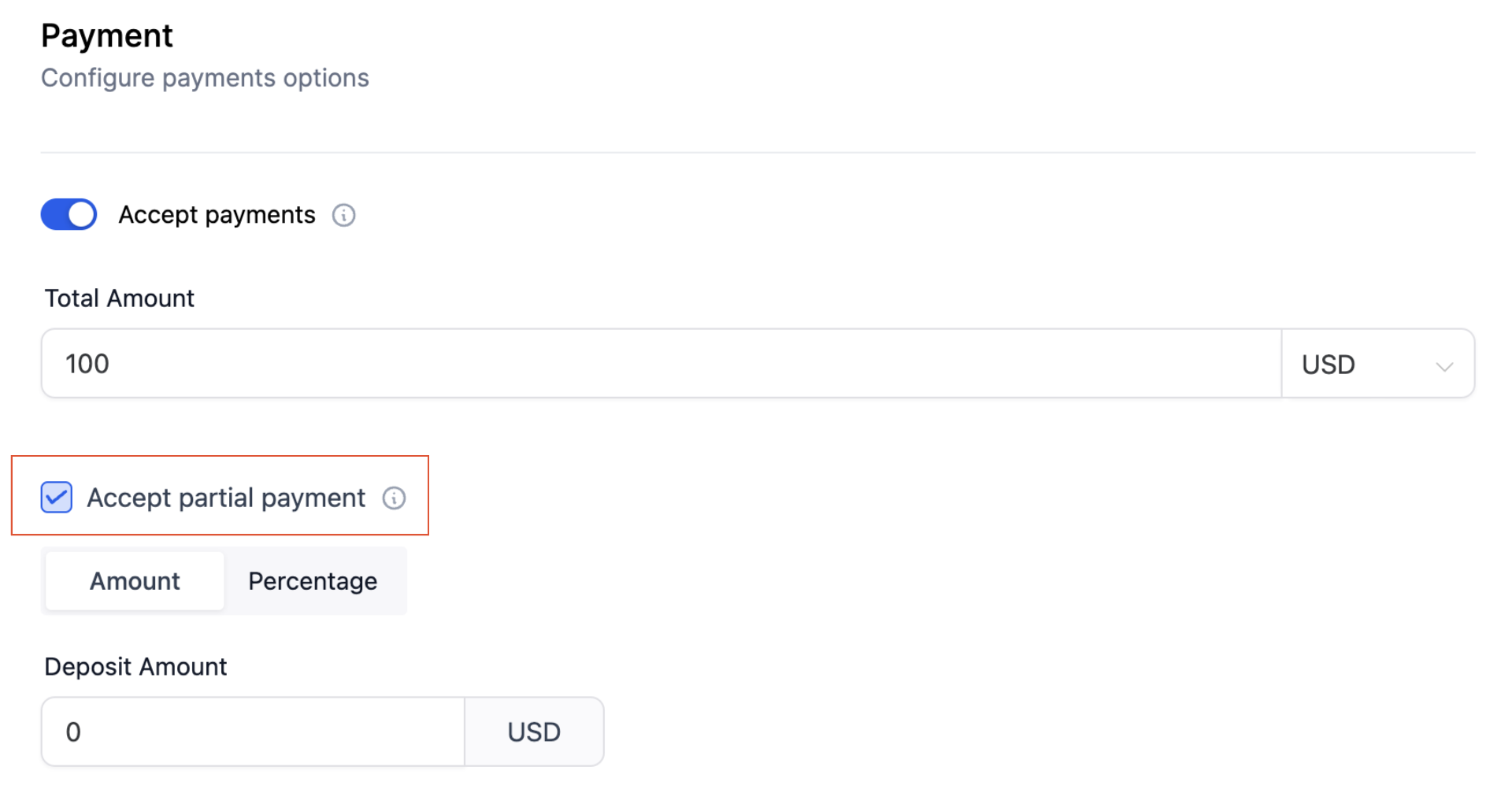
- Check the Accept Partial Payment box.
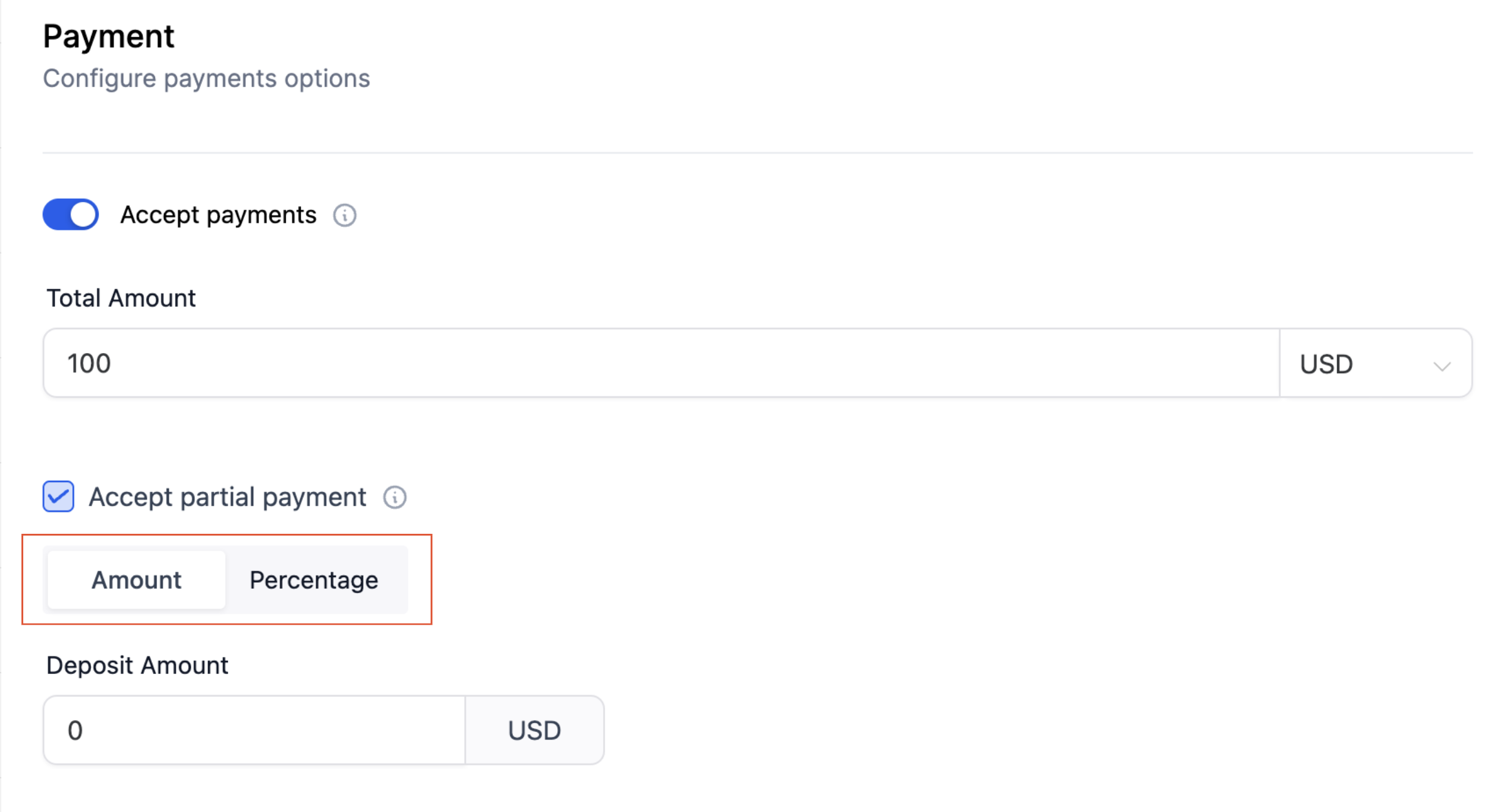
- Select the amount type: Flat Amount or Percentage.
- Provide the deposit amount or percentage value.
- Add an optional description for the deposit field.
- Click Save to apply the changes.
Collect remaining balance
- Open the view appointment modal for the booked slot.
- Navigate to the Payments tab.
- Click the Collect payment button to record the pending amount.
07What it looks like in HighLevel
08Settings that matter
- Accept Payments. Turns on payment processing for the calendar.
- Accept Partial Payment. Enables the option to charge only a deposit at booking.
- Amount Type. Determines whether the deposit is a flat dollar amount or a percentage of the total price.
- Deposit Amount / Percentage. Specifies the exact deposit value or the percent to calculate the deposit.
- Description. Provides optional text that appears next to the deposit field on the booking page.
09Things to know before you rely on it
- Partial payments can be enabled for every calendar type, including Event, Round Robin, Collective, Class, Service Calendar, and Service Menu.
- Only Stripe, NMI, and Authorize.net are supported as payment gateways for calendar transactions.
- The remaining balance is not collected automatically; it must be captured manually from the appointment’s Payments tab.
10How it connects to the rest of HighLevel
- Customize the look of your booking widget to match your brand. Calendar widget customization
- Set cancellation and reschedule policies that work with deposit bookings. Cancellation & reschedule policies
- Define weekly or date specific hours for your calendar availability. Calendar availability
Michael's take

Michael ReimerFounder of CRM Pros, HighLevel Commander and Certified Admin
Collecting a deposit with Partial Payments can help a small business reduce no shows while still giving customers flexibility.
Don’t forget to actually collect the balance later; the system won’t do it automatically.
Get More InformationOpens on HighLevelPublished November 2, 2026 · Updated November 16, 2026