
01Who this is for
- Consultants who need to let a client schedule a single session without exposing their full calendar.
- Freelancers who prefer to share a one off booking link rather than a permanent link.
- Small business owners who want to control availability for a specific prospect.
02One Time Links, explained
A One Time Link is a unique scheduling URL that works only until an appointment is booked. After the booking, the link stops working and the owner must create a fresh link for the next use. The link is generated from the calendar’s Share option, so you never leave the calendar settings.
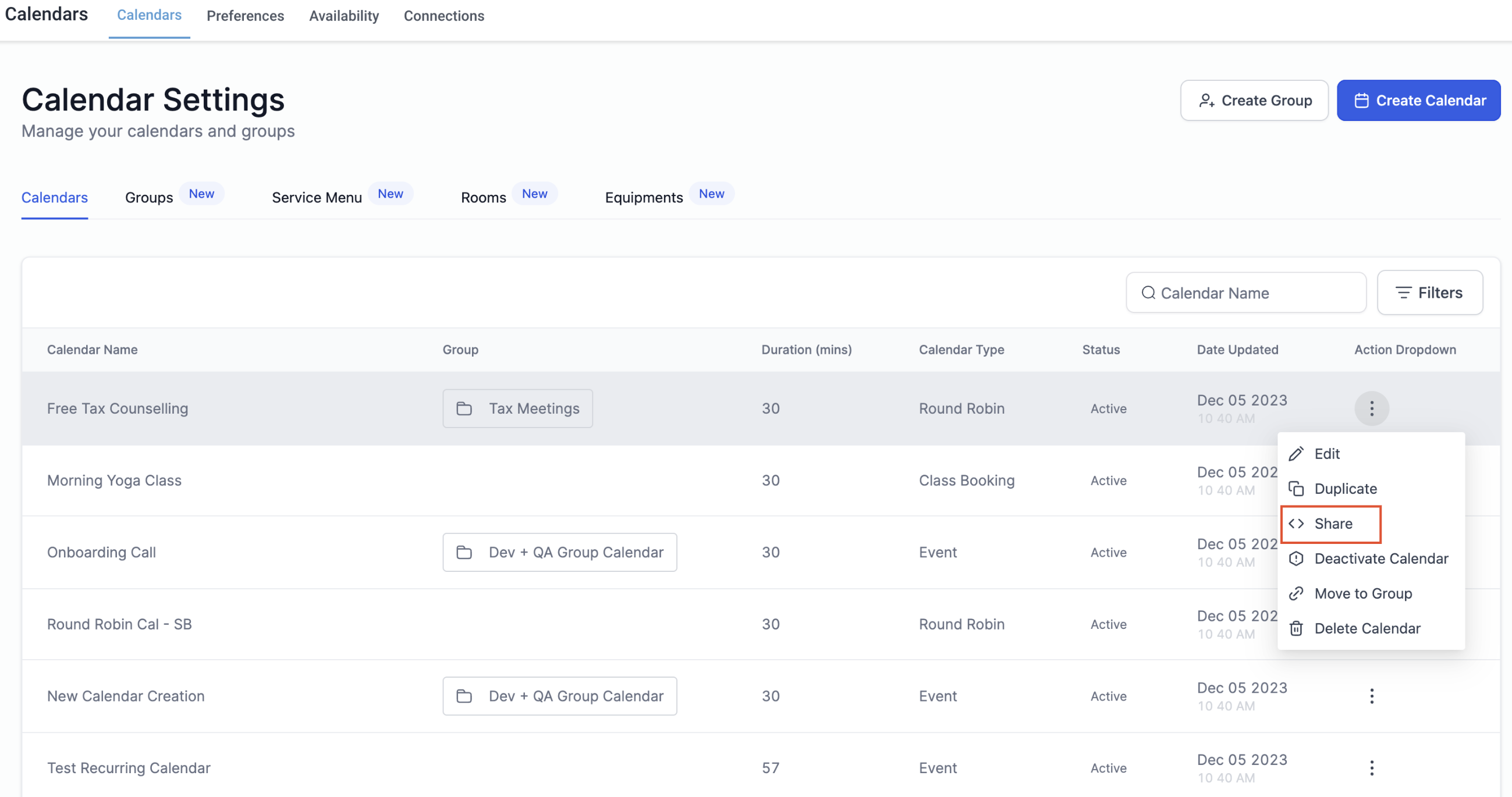
When you open a calendar, a Share button appears in the top right corner. Selecting One Time Link there generates the URL and displays a Copy button. The same menu also offers the permanent scheduling link, embed code, and other sharing options.
03How businesses use one time links
- Consulting firm. The firm opens the desired calendar, clicks Share, chooses One Time Link, copies the URL and emails it to a prospective client. The client uses the link to book a single discovery call. Once booked, the link expires, preventing the client from booking additional slots without a new URL.
- Medical clinic. A clinic staff member generates a One Time Link for a patient who needs a one off appointment. The patient receives the link, selects an available time, and the link becomes invalid after the appointment is scheduled, protecting the clinic’s schedule from repeat bookings.
- Event planner. The planner creates a One Time Link for a vendor to book a setup meeting. After the vendor books the slot, the link automatically expires, ensuring that only the intended vendor can claim that time.
04How to set up and use one time links in HighLevel
Share a One Time Link
- Open the subaccount you want to work in.
- Go to Settings.
- Click Calendars.
- Open the calendar you wish to share.
- In the top right corner, click Share.
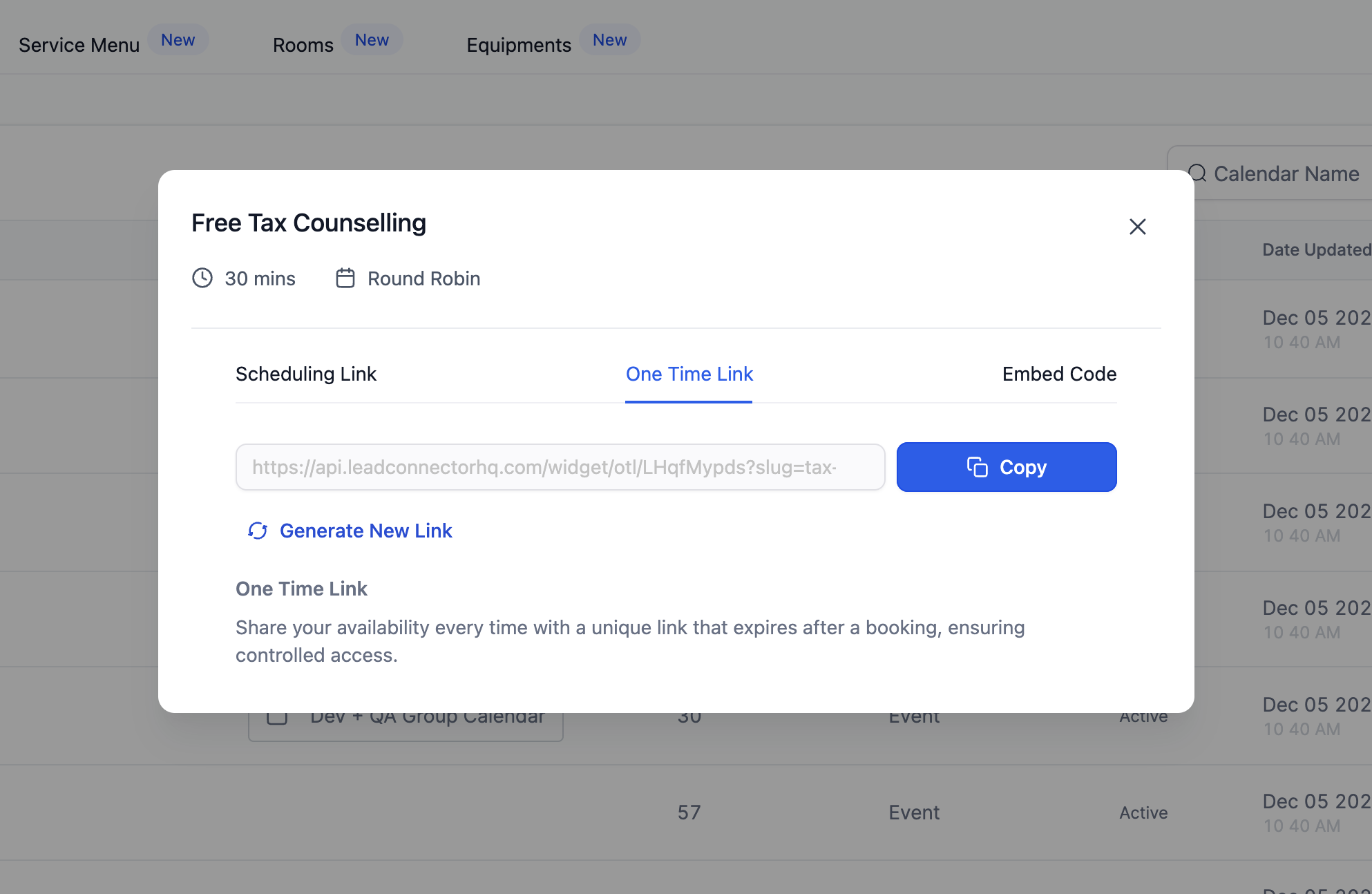
- Select One Time Link.
- Click Copy to copy the generated link and send it to the recipient.
Generate a new One Time Link after expiration
- Open the same calendar and click Share.
- Locate the One Time Link tab.
- Click Generate New Link to obtain a fresh URL.
- Copy the new link and share it as needed.
05What it looks like in HighLevel
06Settings that matter
- One, Time Link. Creates a unique URL that can be used once to schedule an appointment and then expires.
- Generate New Link. Creates a fresh one time URL after the previous link has been used or expired.
07Things to know before you rely on it
- A One Time Link works for a single booking only.
- The link expires automatically after a booking is completed.
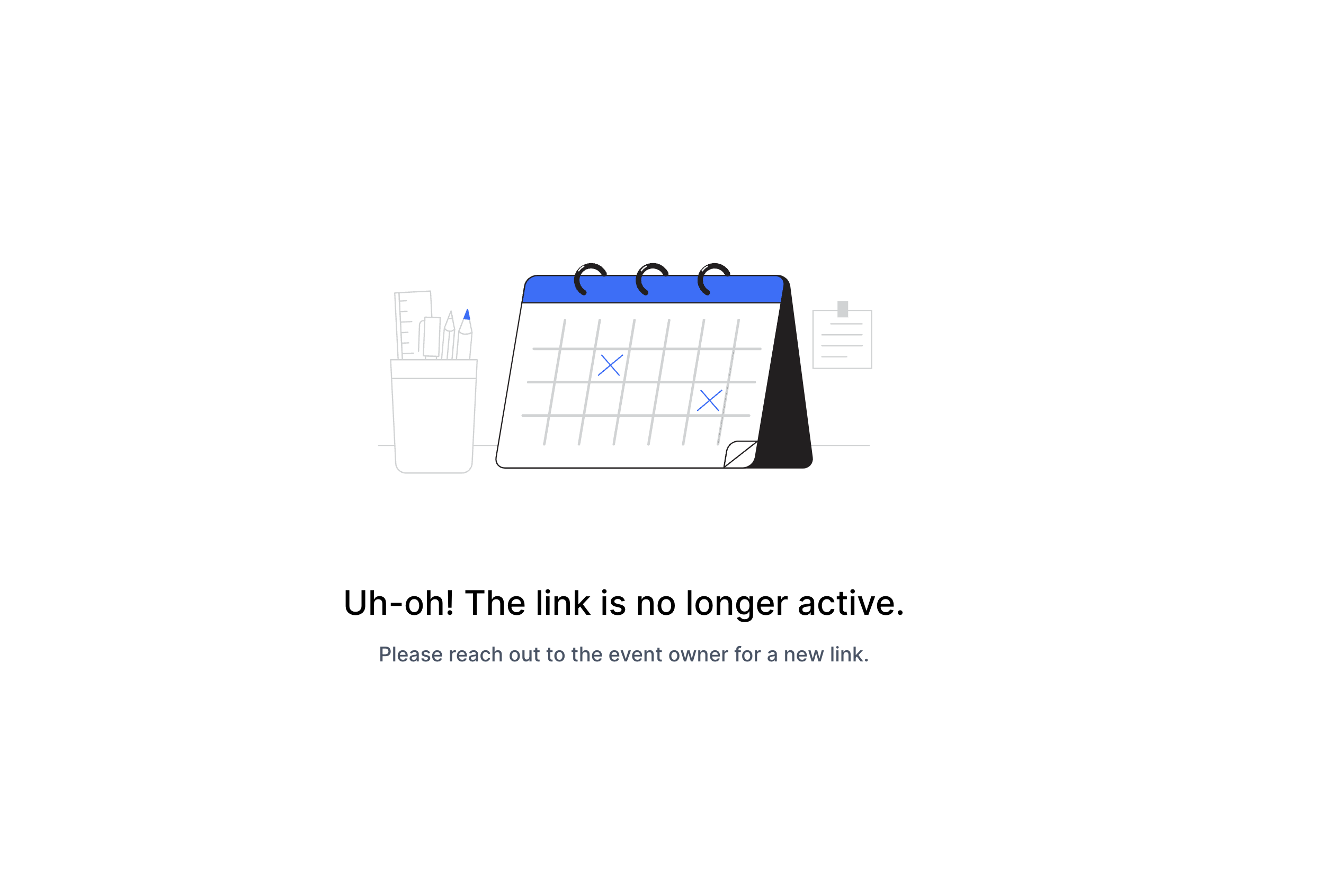
- If the link is used again, the user is prompted to contact the owner because the link has expired.
08How it connects to the rest of HighLevel
- Explore other calendar sharing options Calendar widget customization
- View all calendar and appointment features All Calendars & Appointments features
- Start a 30 day trial to test One Time Links 30 day trial
Michael's take

Michael ReimerFounder of CRM Pros, HighLevel Commander and Certified Admin
Don’t forget to generate a new link each time you need to share. An expired link will prompt the user to contact you.
Get More InformationOpens on HighLevelPublished November 2, 2026 · Updated November 16, 2026