
01Who this is for
- Coaches who need both short check ins and longer strategy sessions can offer both without extra calendars.
- Service providers with tiered consultations can let clients pick the session that matches their needs.
- Teams using round robin scheduling can streamline booking by offering several time options from a single calendar.
02Multiple meeting durations, explained
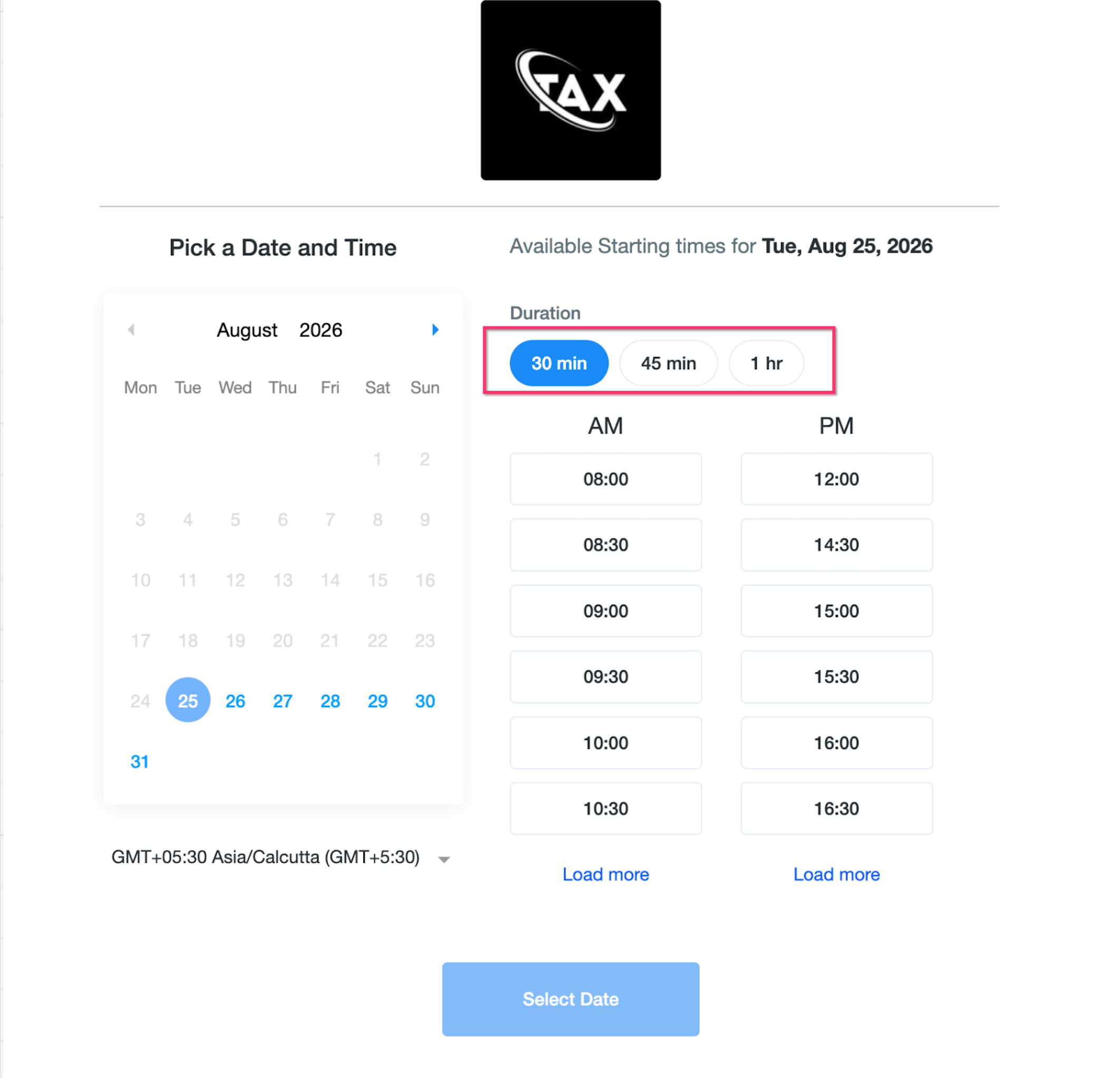
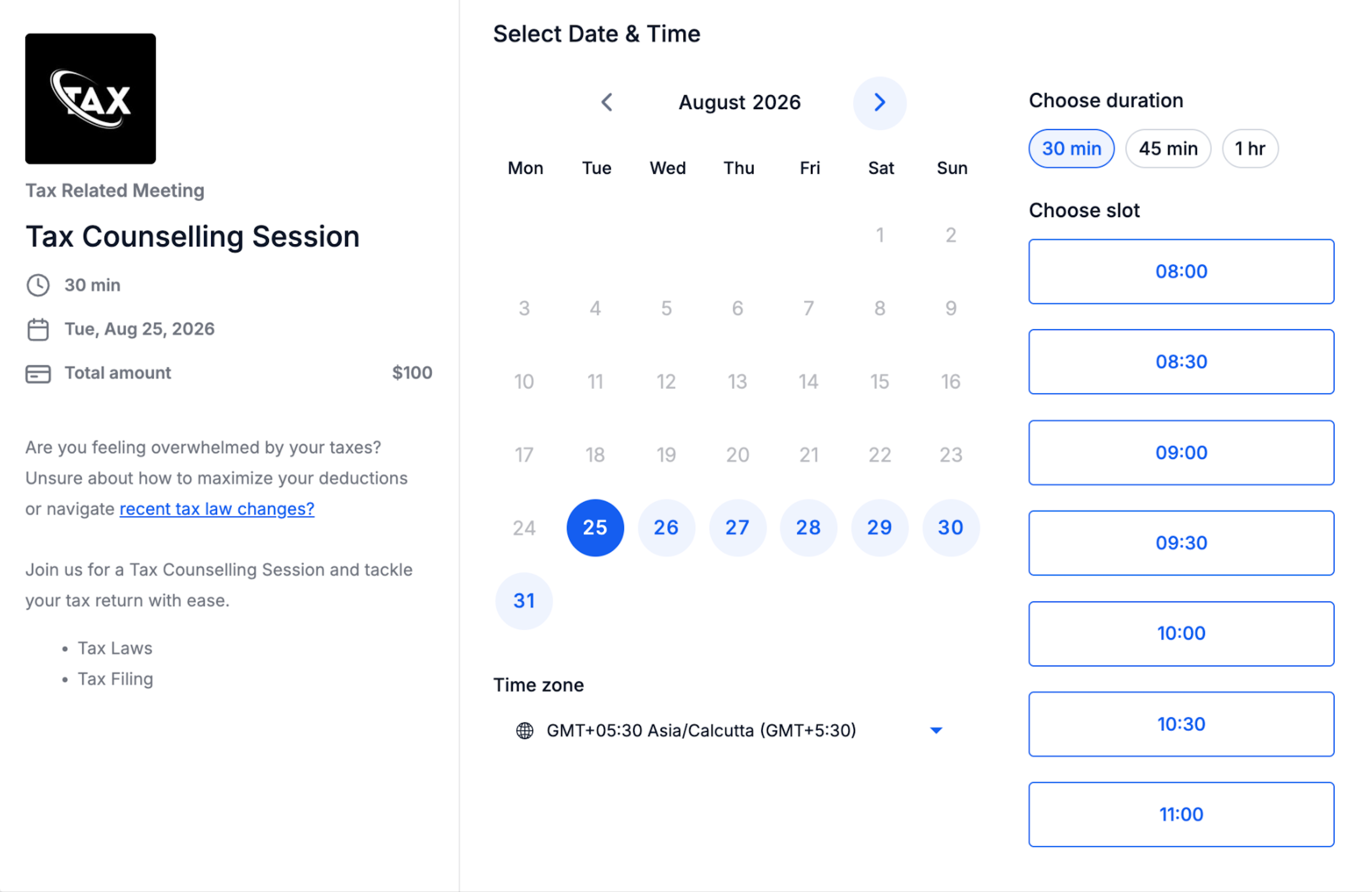
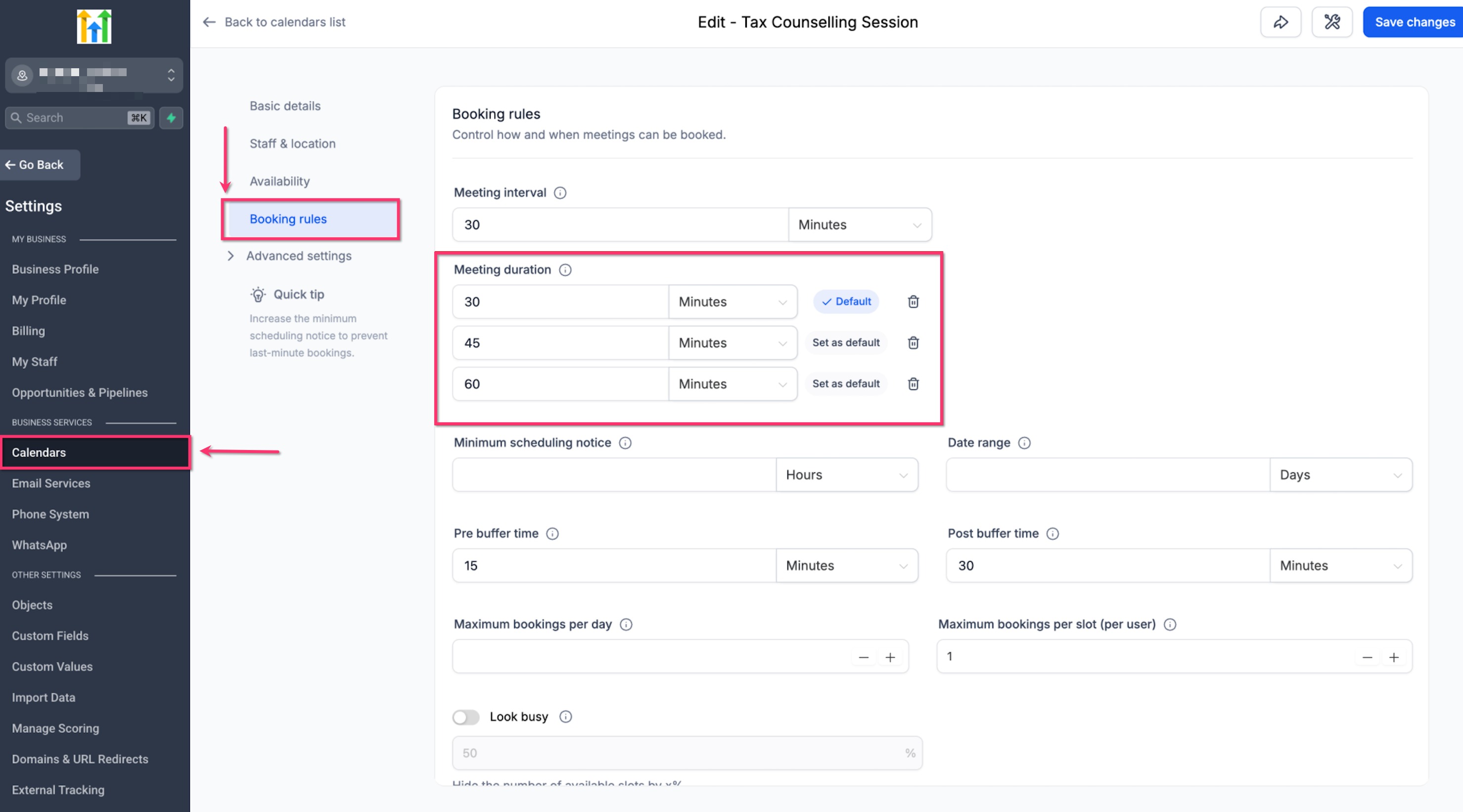
The feature adds extra length choices to a supported calendar. After you add the options, the booking page shows a selector so the client can choose a duration before picking a time slot. HighLevel then recalculates which slots can hold the selected length.
The setting lives in the calendar’s Booking rules. It works for Personal, Round Robin, Collective, and Event calendars and appears on web pages, mobile pages, Neo and Classic widgets, and in app booking screens.
03How businesses use multiple meeting durations
- Coaching business. Add 30 minute, 45 minute, and 60 minute options to the same calendar. Set the 30 minute slot as default so new clients see the quickest session first, but they can switch to a longer session before confirming a time.
- Legal firm. Configure 15 minute and 30 minute consultations in a personal calendar. Choose the 15 minute option as default, then let clients select a 30 minute slot if they need more discussion before booking.
- Health clinic. Create 20 minute follow up and 40 minute new patient slots in a collective calendar. When a patient reschedules, they can change the length to match the new appointment type, and the system updates available times right away.
04The numbers and rules that matter
- Add up to 3 duration options to one supported calendar.
- Supported calendar types: Personal, Round Robin, Collective, Event.
- Supported booking experiences: Web booking pages, Mobile booking pages, Neo booking widgets, Classic booking widgets, In app appointment booking on web, Mobile app.
05How to set up and use multiple meeting durations in HighLevel
Set up multiple meeting durations
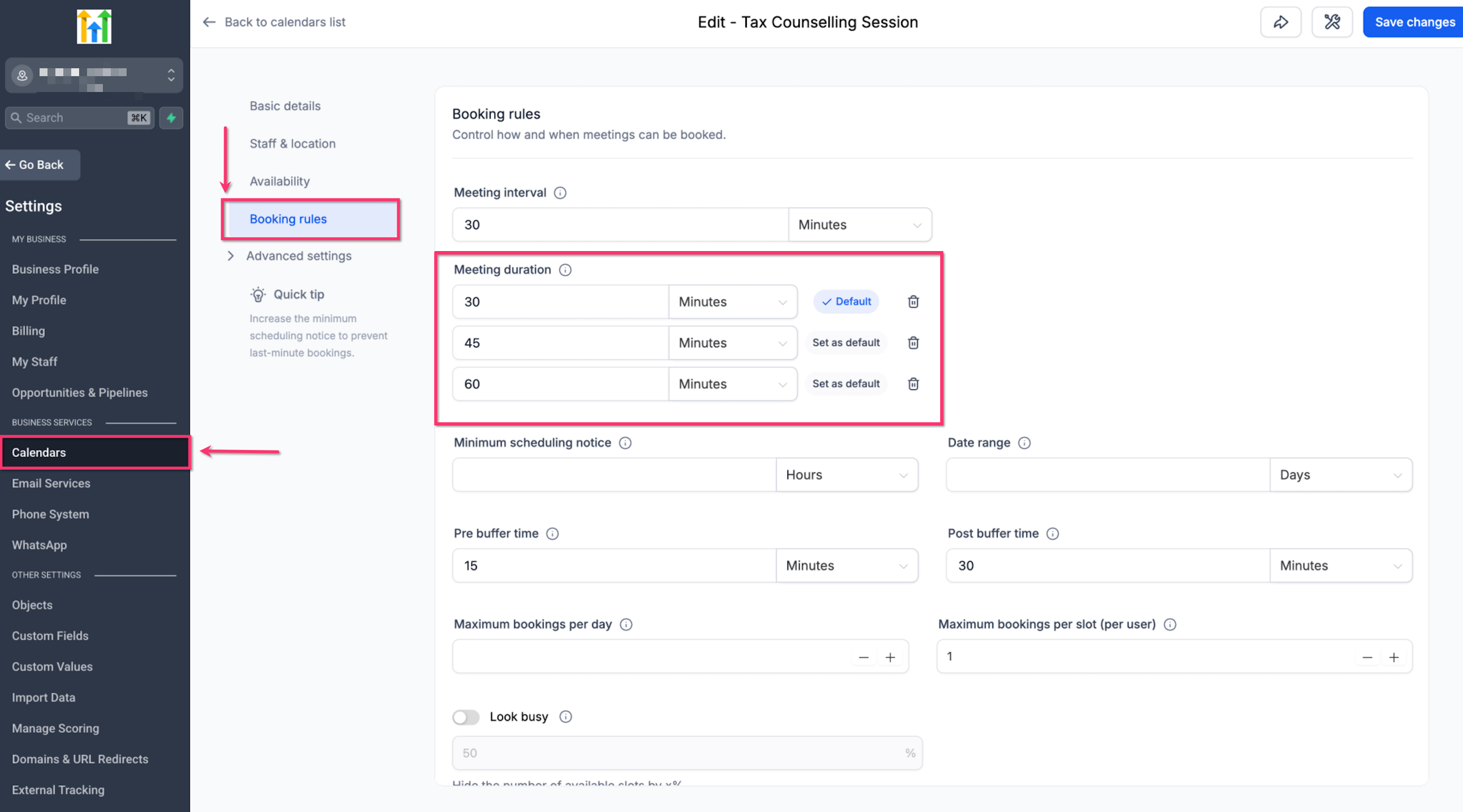
- Navigate to Calendars.
- Open Calendar Settings.
- Locate the desired calendar and click Edit.
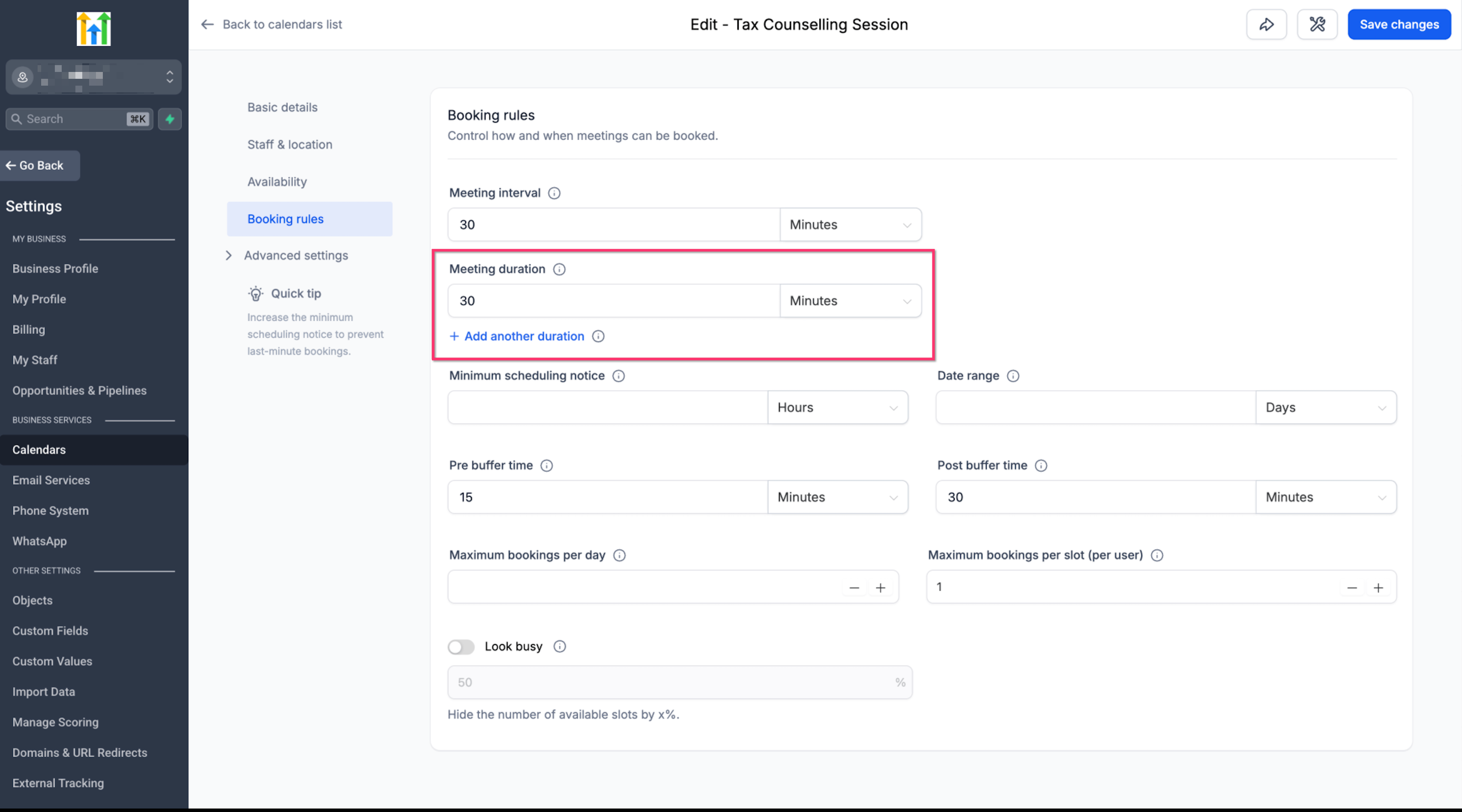
- Open the Booking rules section.
- In Meeting duration, click Add another duration.
- Enter the new length and select the appropriate time unit.
- Repeat the previous two steps to add additional durations, up to three total.
- Review all listed durations.
- Click Set as default next to the preferred duration.
- Remove any unwanted durations if needed.
- Click Save changes to apply the new options.
06What it looks like in HighLevel
07Settings that matter
- Meeting duration. Defines each appointment length that the calendar offers for booking.
- Default duration. Specifies which meeting length is pre selected when the booking page first loads.
08Things to know before you rely on it
- You can add a maximum of three duration options to a single supported calendar.
- The feature works on Personal, Round Robin, Collective, and Event calendar types.
- All main booking experiences support multiple durations, including web pages, mobile pages, Neo widgets, Classic widgets, and in app booking.
- Changing durations does not modify existing appointments; only new bookings use the updated options.
09How it connects to the rest of HighLevel
- Set weekly or date specific availability for the calendar. Calendar availability settings
- Navigate quickly to appointments within the app using the in app calendar view. In app calendar view
- Review plan options and pricing if you need to upgrade for additional calendar features. HighLevel pricing
Michael's take

Jumping into multiple meeting durations can feel risky if you’re used to a single length. Changing defaults or removing options might raise questions about existing appointments, and you could worry about confusing clients with extra choices.
When you get past that hesitation, the flexibility it adds to your booking flow is worth it. Clients appreciate being able to pick the length that fits their need, and you keep your calendar tidy without juggling multiple calendars.