
01Service appointments, explained
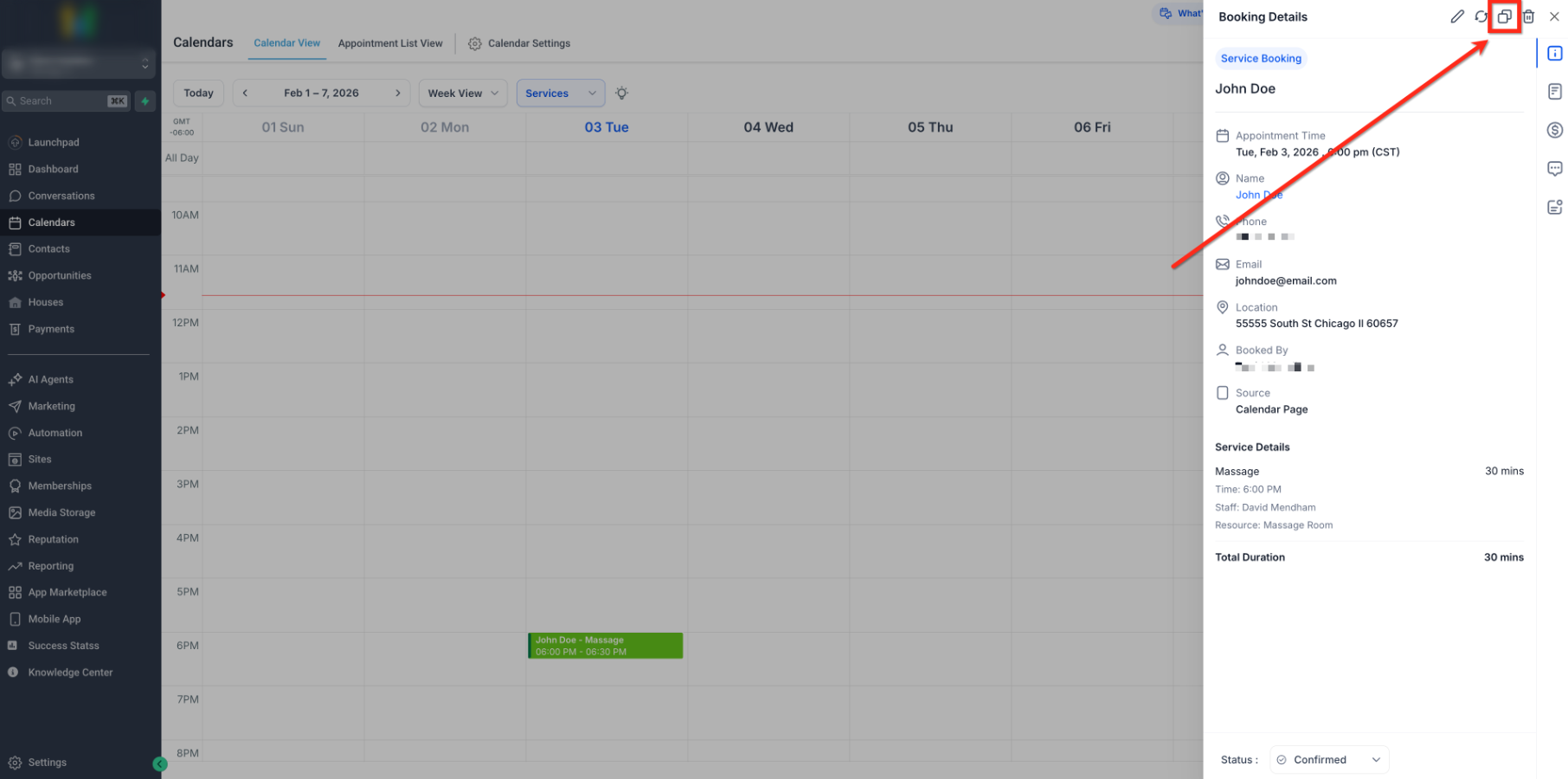
The Appointment modal is a side panel that appears when you click a service booking in a calendar. It gathers all the actions you need for that single appointment. Editing, rescheduling, duplicating, blocking time, and viewing any intake form that was attached at booking.
Having everything in one place reduces the number of screens staff must navigate. It speeds up changes, keeps the calendar accurate, and makes it easy to copy recurring bookings or share a reschedule link with a client.
02How businesses use service appointments
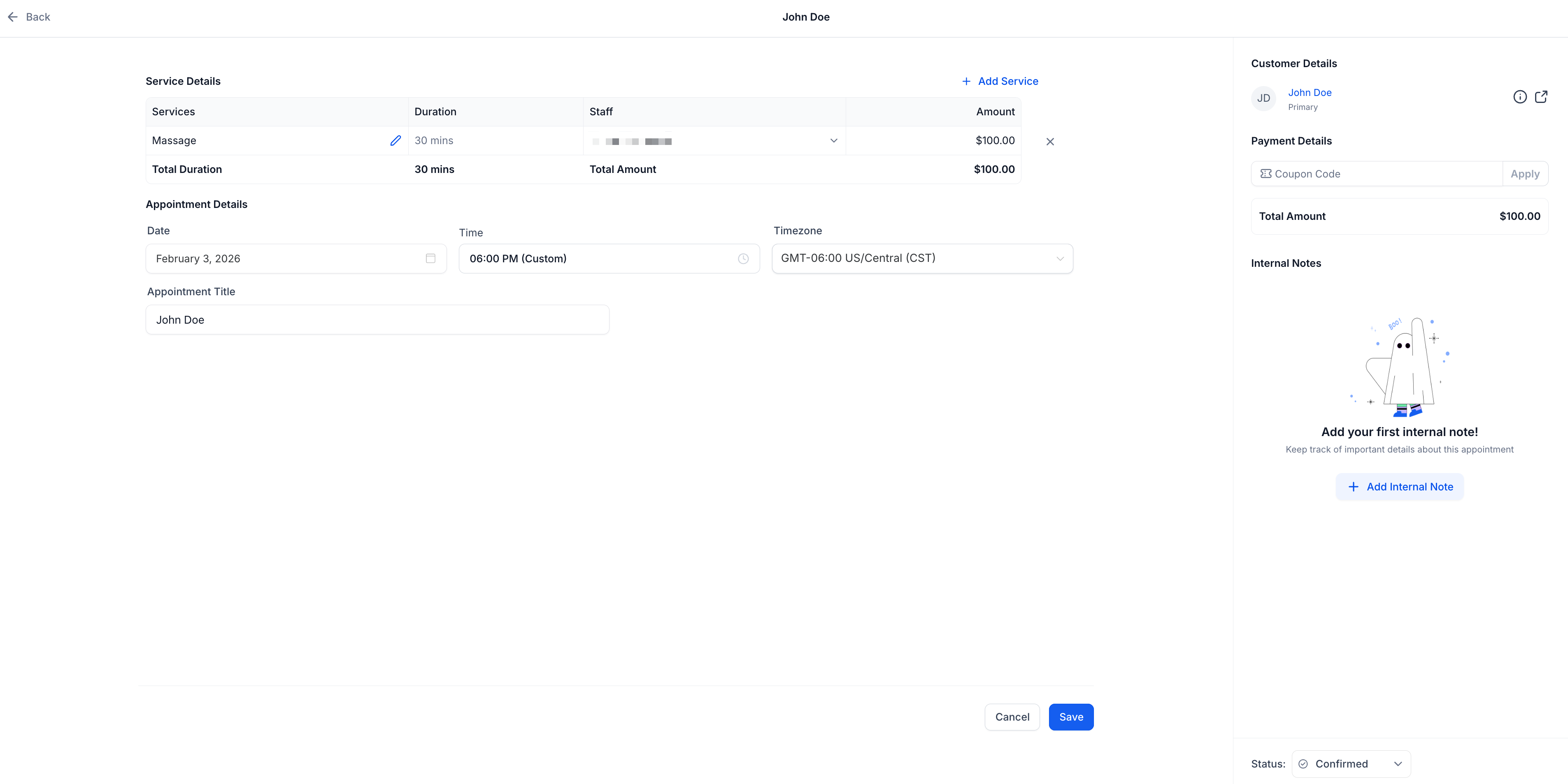
- Edit unpaid appointments. Staff can change services, add ons, staff/variant, location, title, date/time, timezone, or coupon codes directly from the edit screen. This helps handle last minute corrections without canceling the booking.
- Generate reschedule link. From the Appointment modal select Generate Reschedule Link, copy the link, and send it to the client. The client can then pick a new time using the normal rescheduling flow.
- Duplicate a booking. Click the Duplicate icon in the modal to copy all details of an existing appointment. Adjust any fields and save to create a new, similar booking quickly.
- Create blocked slots. Use New Booking, switch the event type to Blocked Slot, set date/time, title, and staff, then click Block Time to keep that period unavailable on the calendar.
03How to set up and use service appointments in HighLevel
View a submitted service booking form
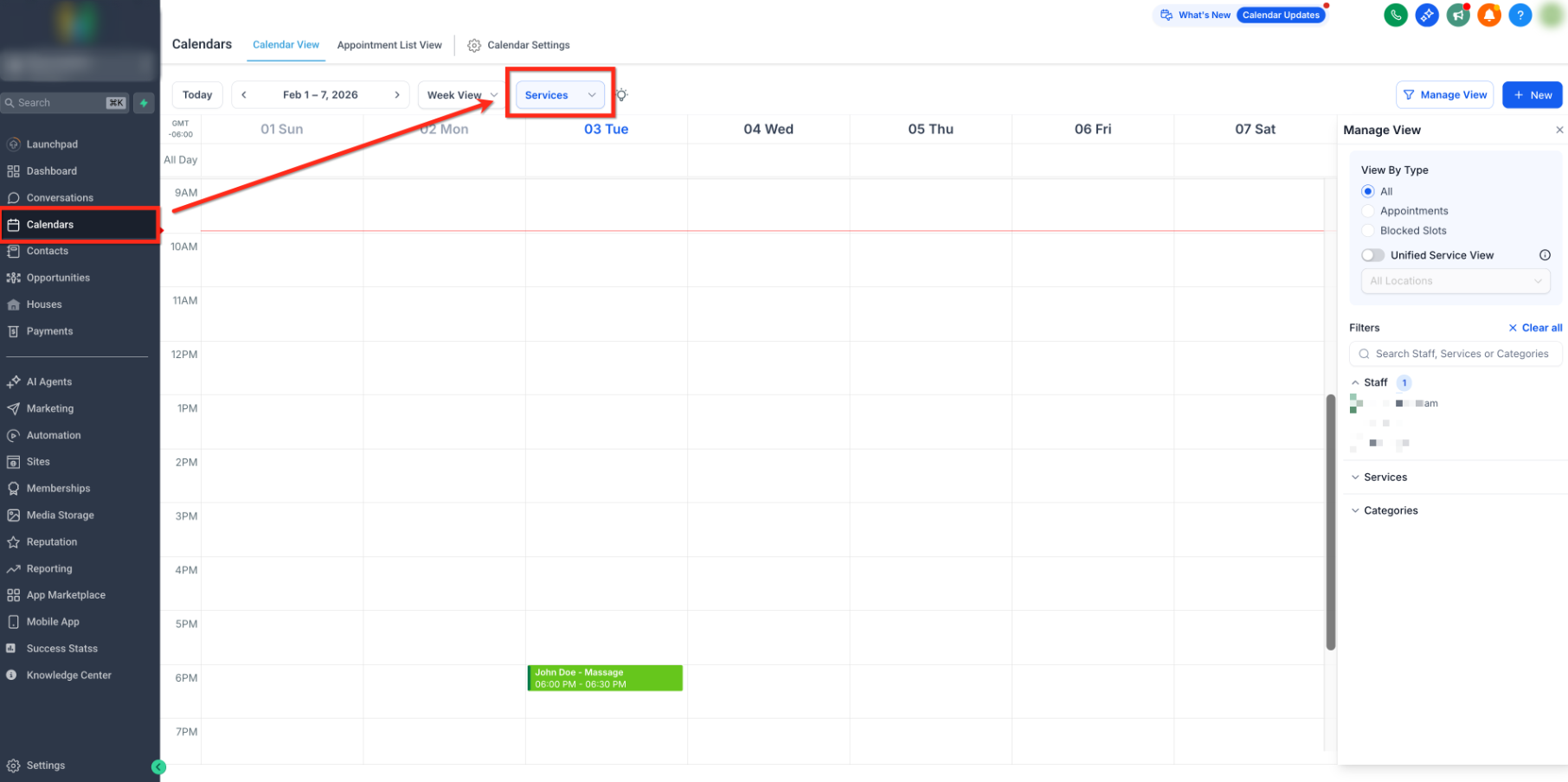
- Go to Calendars > Calendar View and select Services.
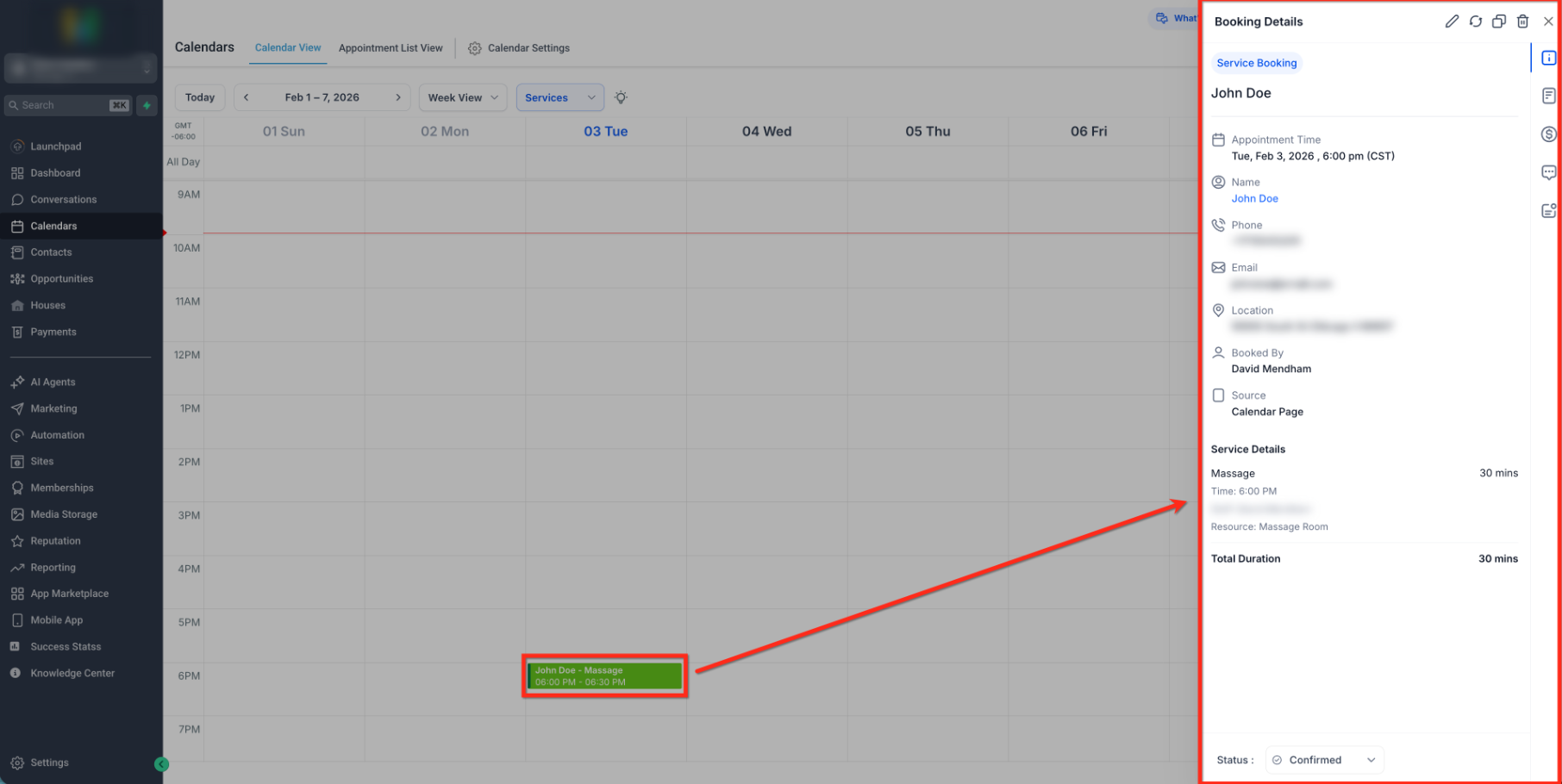
- Select the saved Service appointment to open Booking Details.
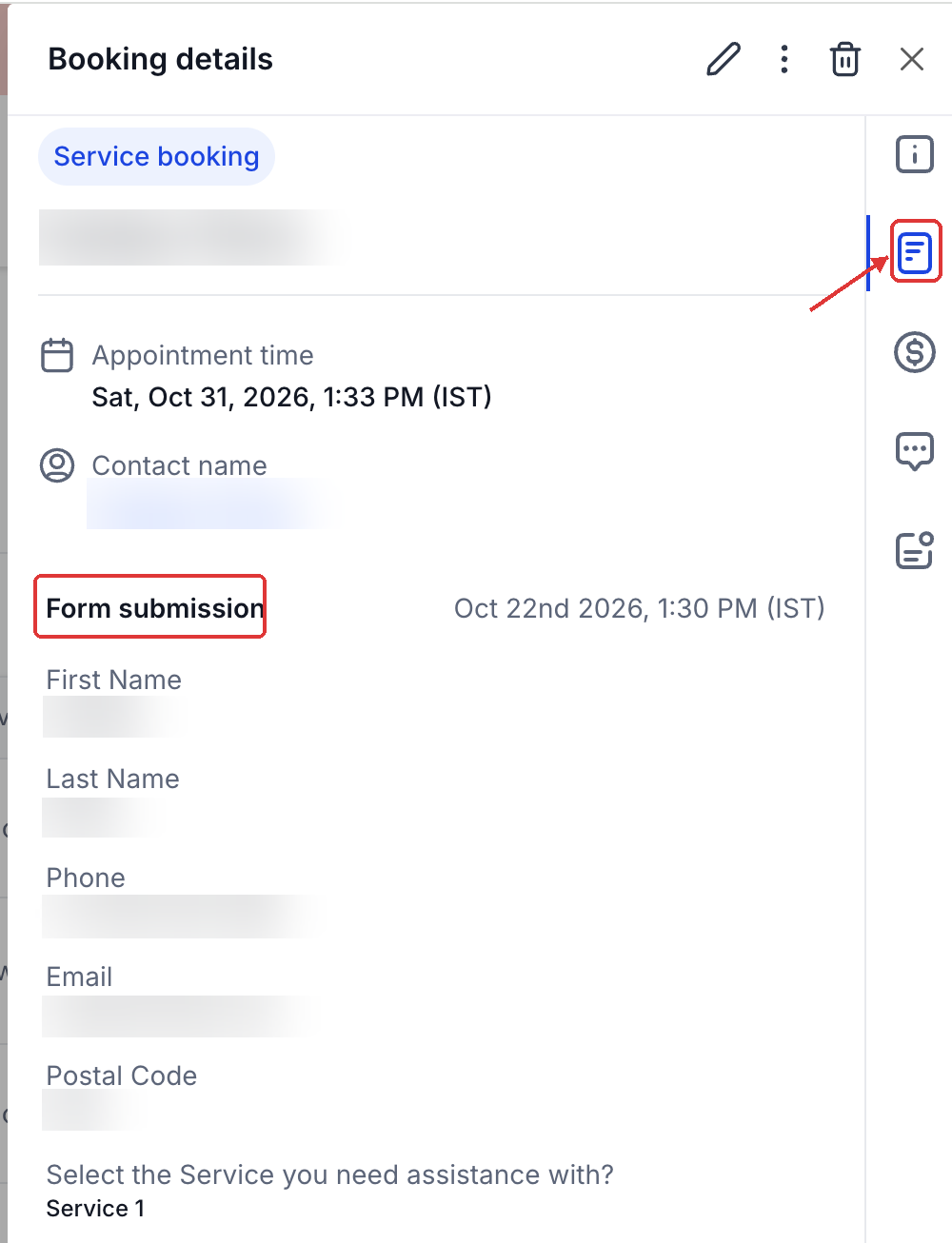
- Click the form icon in the booking details panel to open Form submission.
- Review the submitted answers.
Generate and copy a reschedule link
- Open the Service appointment.
- Click Appointment Actions.
- Select Generate Reschedule Link.
- After the link is generated, click Copy Link.
- Share the link with the customer.
Edit unpaid appointments
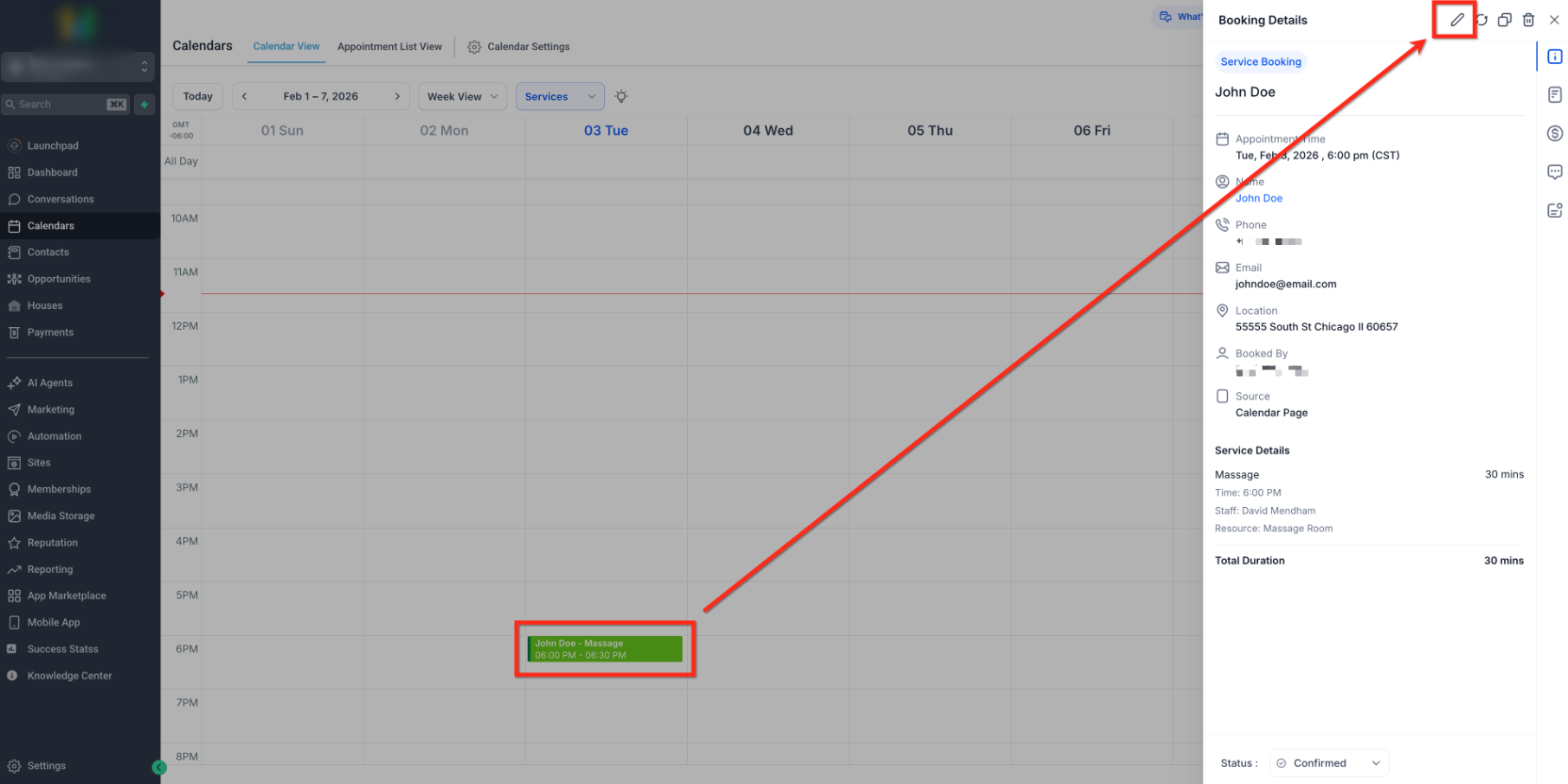
- Select the appointment you want to edit, then click the pencil icon to open the editor.
- Adjust services, add ons, staff/variant, location, title, date/time, timezone, or coupon codes as needed.
- Click Save.
Duplicate service appointments
- Open the appointment you want to duplicate in the Appointment modal.
- Select the Duplicate icon.
- Review the copied details and adjust any fields.
- Complete the new booking.
Create a blocked slot
- Click New Booking in your calendar.
- Switch Event Type to Blocked Slot.
- Select the date/time, title, and staff.
- Click Block Time.
Use Custom Values in service notifications
- Go to Calendars > Calendar Settings > Notifications.
- Open the notification template you want to edit.
- Insert Service Booking Price or Meeting Location Name from the merge field picker.
- Save and test the notification.
04What it looks like in HighLevel
05Settings that matter
- Custom Values for notifications. Allow you to insert Service Booking Price or Meeting Location Name into confirmation, reminder, or other notification templates.
06Things to know before you rely on it
- Structural edits such as changing the service or staff are locked on paid bookings.
- A form must be attached during booking creation; you cannot attach a form to an existing booking or edit its submitted responses.
Michael's take

The Appointment modal saves a small business countless clicks by letting staff edit, duplicate, block, and reschedule service bookings without leaving the calendar. It keeps customer data and booking details together, which speeds up day to day operations.
Avoid the mistake of trying to add a form after the booking is created; the form must be attached at the time of booking.