
01Who this is for
- Retail chain owners can list each store address so customers choose the nearest pickup point.
- Healthcare clinics with several offices can display the correct site for each appointment type.
- Consultants offering virtual meetings can add a location entry with a video call link for scheduling.
02Locations in services, explained
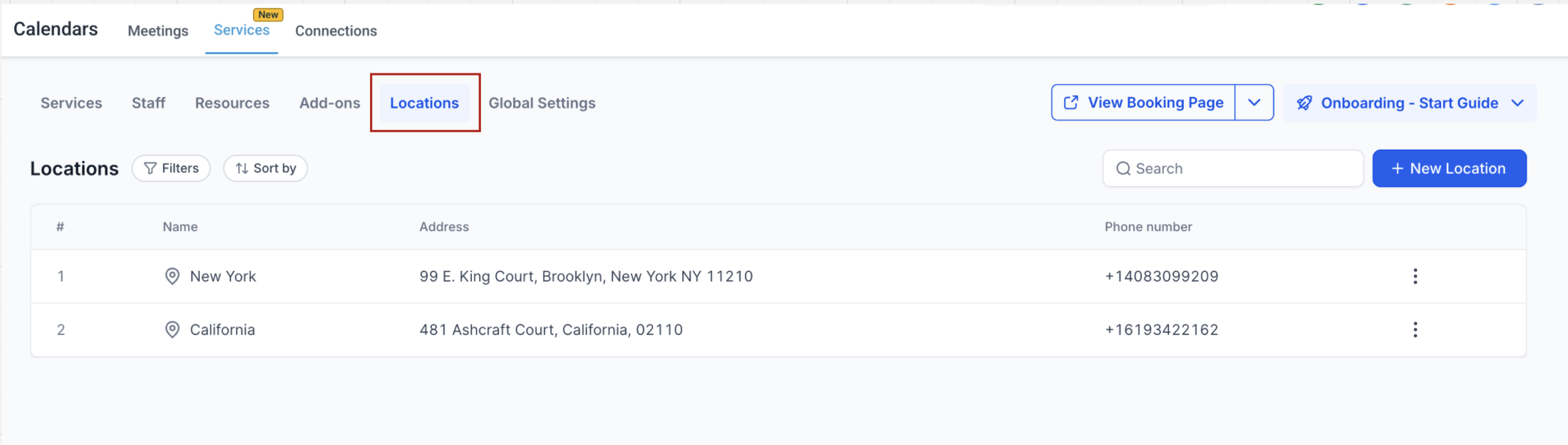
Locations are the physical or virtual places where services are delivered. When a location is defined, its name, image, phone number and address appear on the booking page and in appointment confirmations. The default location is created automatically from the address in Settings > Business Profile.
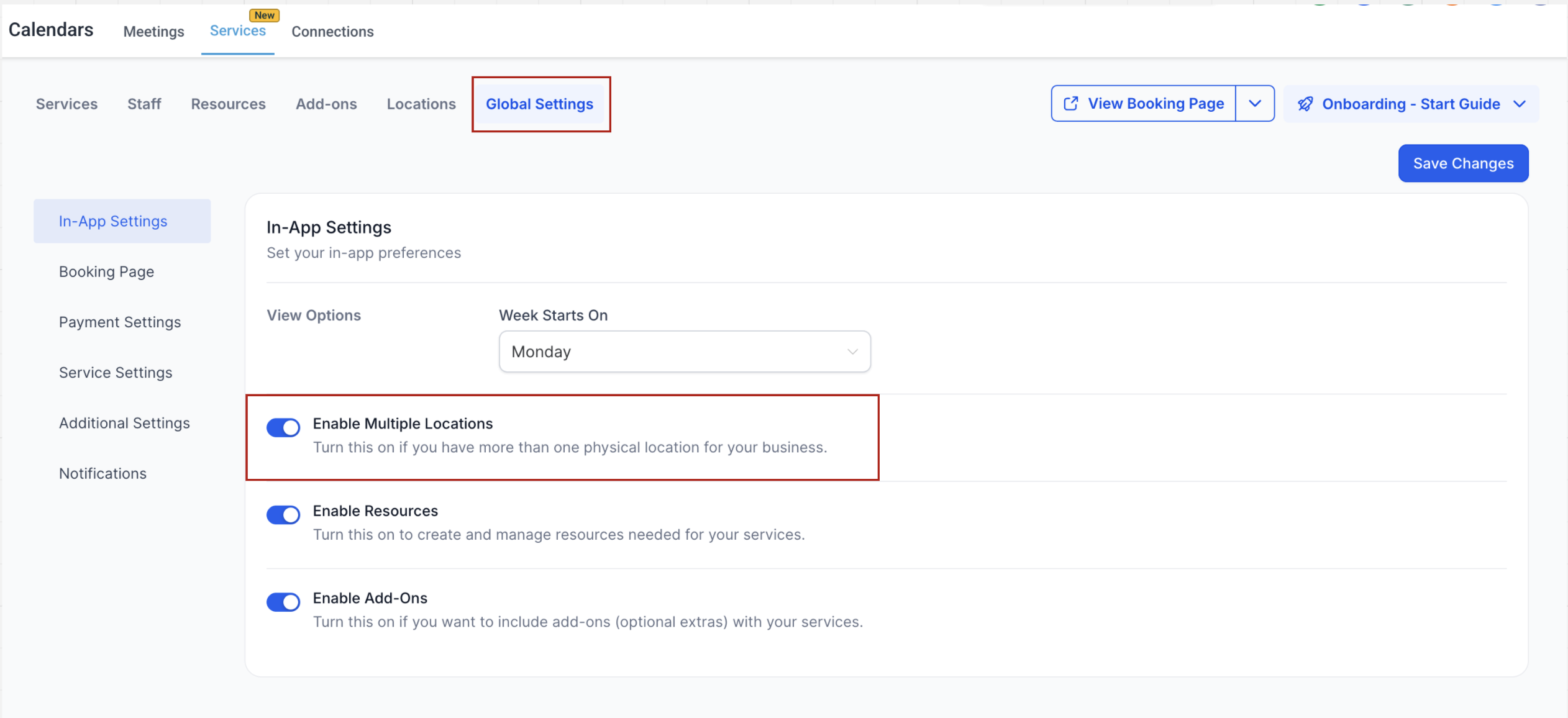
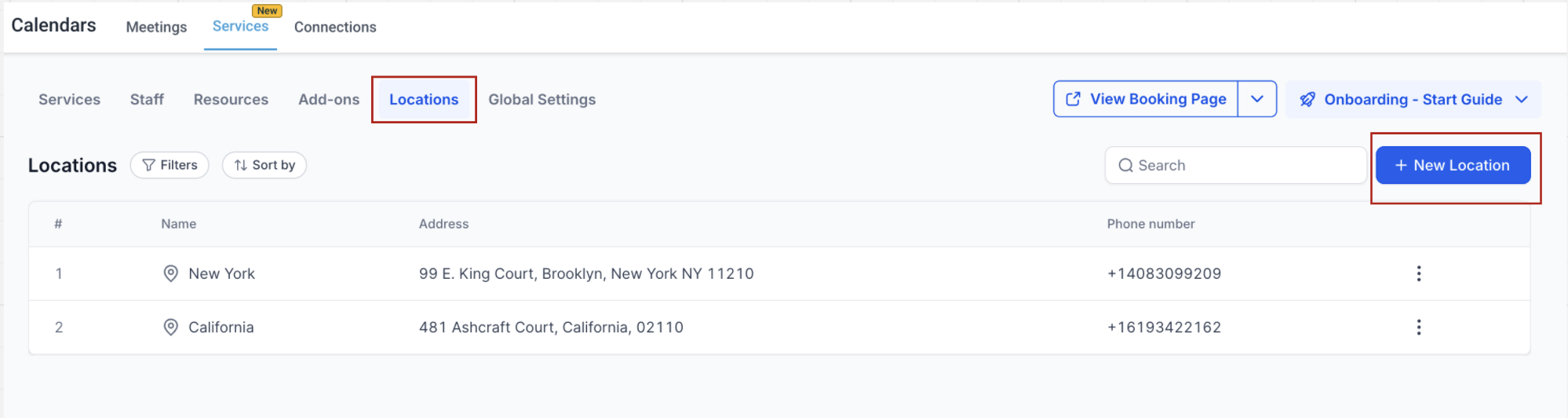
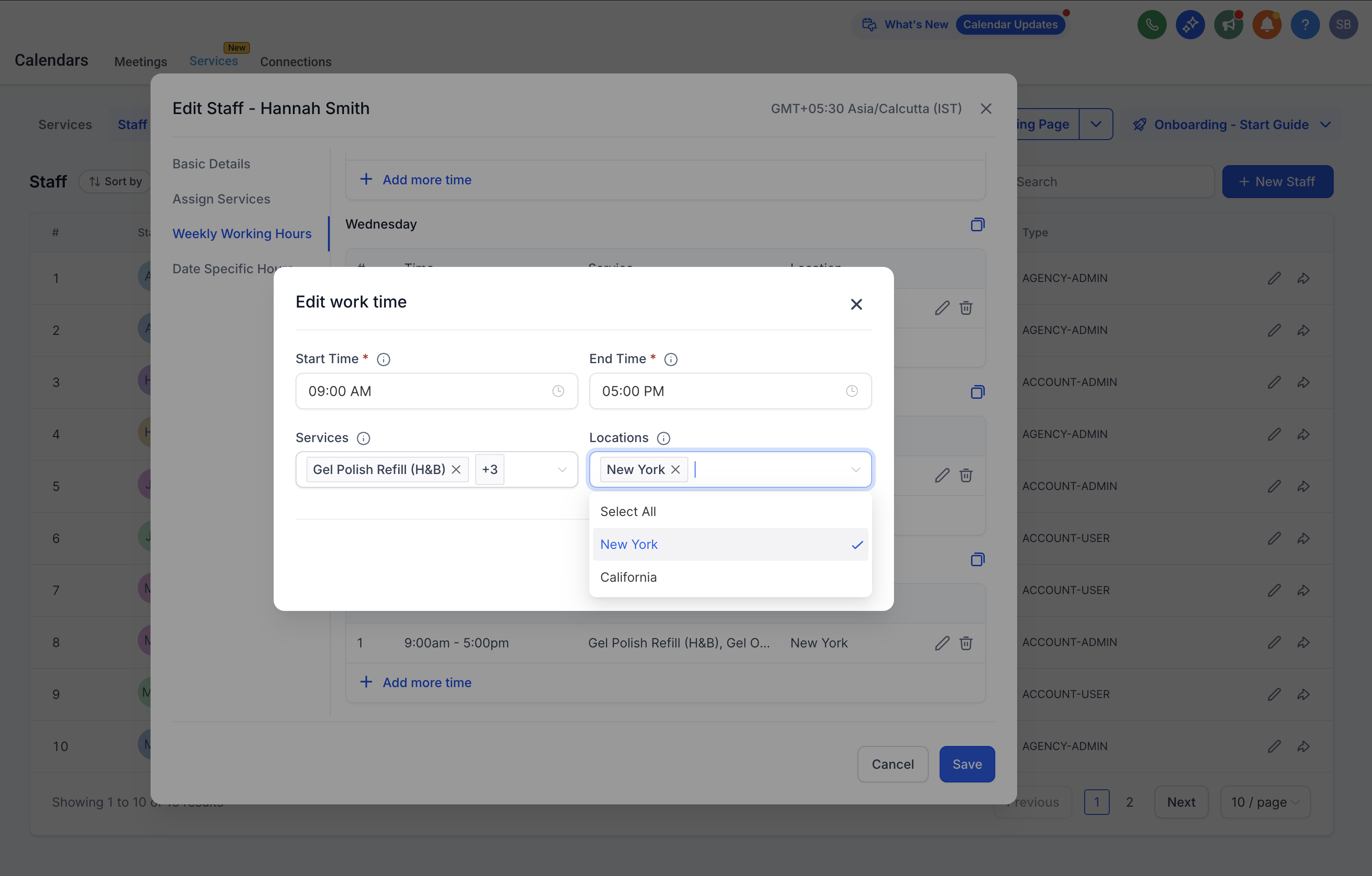
You can enable the Multiple Locations option in Calendar Settings > Services under Global Settings. After activation, additional locations can be added on the Locations tab. Each location can be linked to staff members, and staff can have different weekly working hours per location. This linkage is required for the location to be offered during booking.
03How businesses use locations in services
- Retail store chain. Create a location for each storefront on the Locations tab, upload a picture of the store, and assign the store’s sales staff to their respective locations. Customers will see the correct address when they schedule a pickup.
- Medical clinic network. Add a location for each clinic, set the phone number and address, then edit each clinician’s staff profile to assign them to the appropriate clinic and set their weekly hours. The system shows only locations where a clinician is available.
- Online tutoring service. Enter a static video conference URL in the Address field of a new location, name it after the platform, and assign tutors to that location. The booking page displays the virtual meeting link for each appointment.
04The numbers and rules that matter
- Online locations (e.g., Zoom, Google Meet) are not yet directly supported.
05Before you start
- Enable Multiple Locations in Calendar Settings > Services > Global Settings.
- Provide a business address in Settings > Business Profile for the default location.
06How to set up and use locations in services in HighLevel
Add a new location
- Open the Locations tab in Calendar Settings > Services.
- Select Add New.
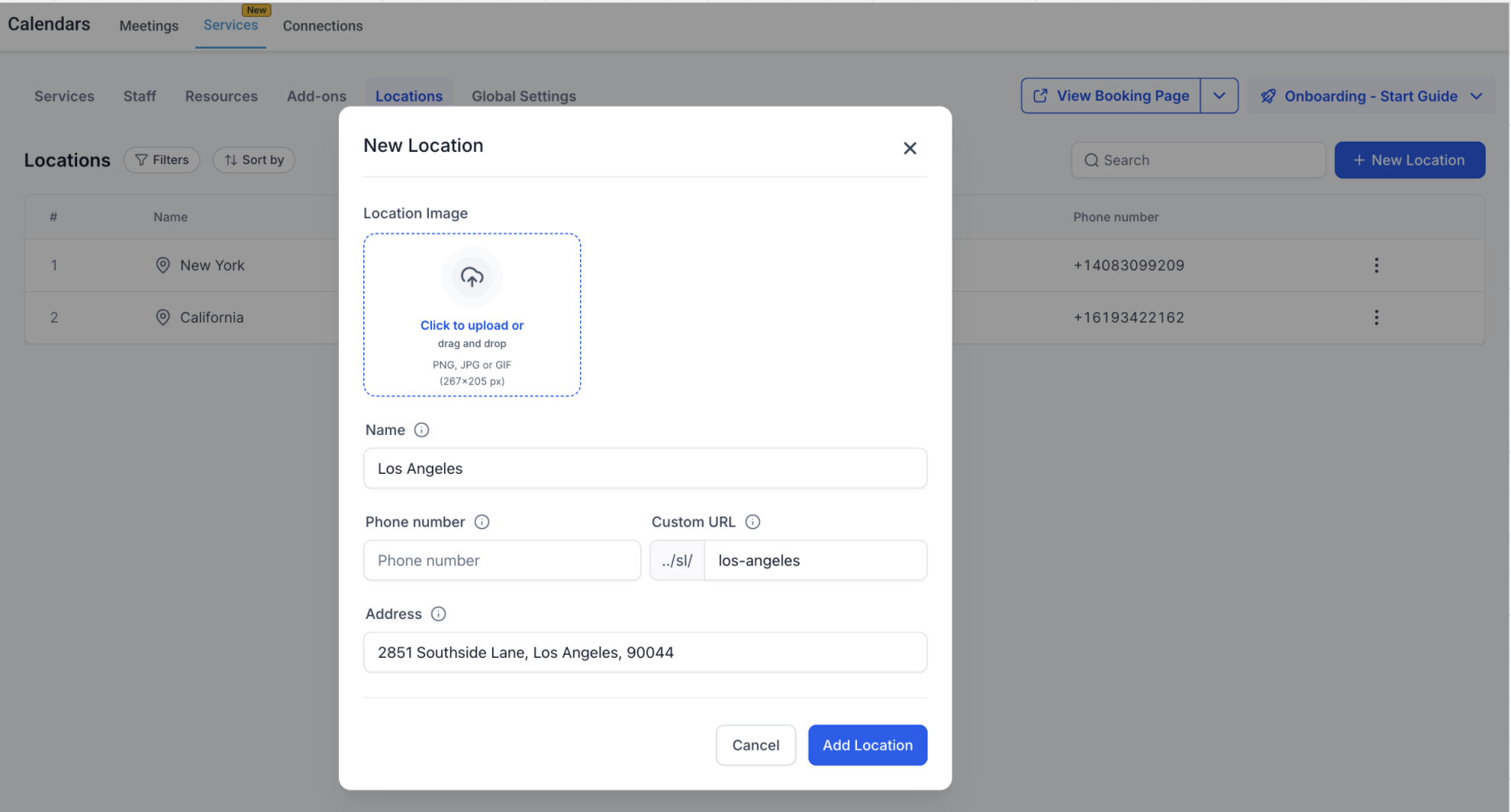
- Upload an image representing the location.
- Enter the location name, phone number and address.
- Click Save Location.
Set staff availability for a location
- Go to Calendar Settings > Services > Staff and edit a staff member.
- In the Assign Services tab, select the services the staff member will provide.
- Switch to the Weekly Working Hours tab.
- Enter the staff member’s working hours for the specific location.
07What it looks like in HighLevel
08Settings that matter
- Enable Multiple Locations. Turns on the ability to add and manage more than one physical or virtual address for service bookings.
09Things to know before you rely on it
- Online locations such as Zoom or Google Meet are not directly supported; use a static meeting link in the address field as a workaround.
- The default location created from the Business Profile cannot be deleted, only edited.
- A location will not appear in the booking flow unless it is linked to staff availability in Staff Settings.
10If something goes wrong
- Location does not appear during booking. Link the location to staff availability in Staff Settings by assigning the staff member to the location and defining working hours.
11How it connects to the rest of HighLevel
- Learn how to create and manage services that use locations Creating services
- Configure staff members and role badges that can be assigned to locations Staff configuration
- Review the global settings that control multiple location activation Global settings
Michael's take

Locations in Services is a small convenience that can become a real shift for businesses that split their work across several places. It lets you keep every address, image and staff schedule in one spot, so clients never guess where to show up.
A boutique fitness studio with two gyms would benefit. Each gym gets its own location entry, staff can be set to work at one or both sites, and members see the correct address when they book a class.